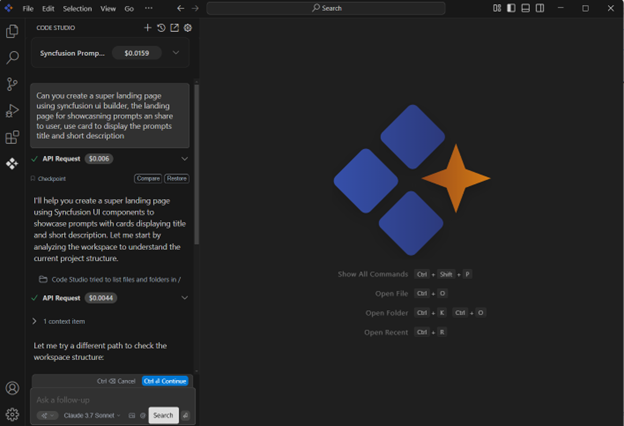
What’s New
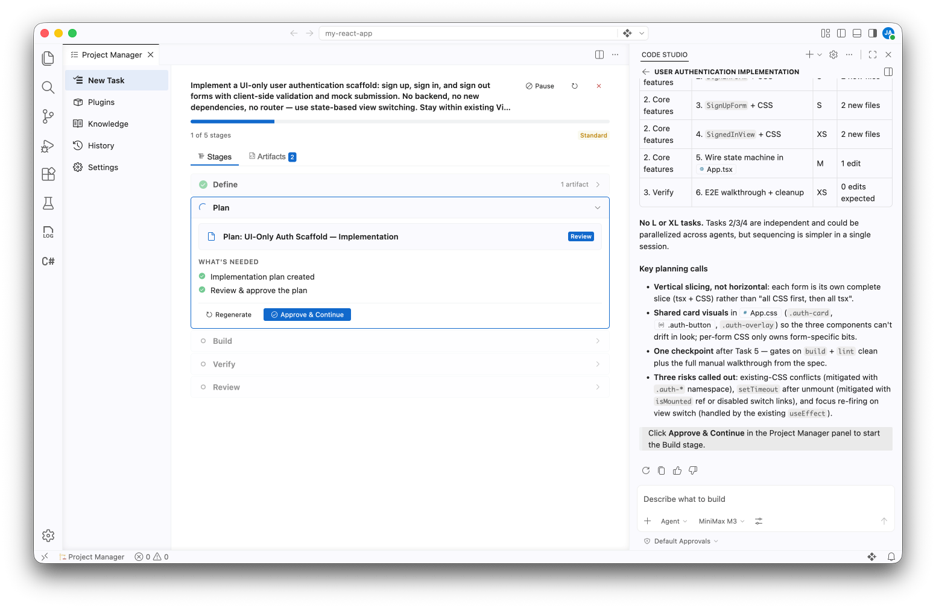
Code Studio now includes a comprehensive, AI-powered project manager extension. The project manager automates planning, code review, verification, and prelaunch preparation through intelligent workflow orchestration, bundled domain-specific skills, and configurable quality gates.
From early-stage planning through prelaunch readiness, teams can enforce consistent standards, accelerate reviews, and maintain visibility across the entire development pipeline through a dedicated panel in Code Studio.
Project manager
The project manager brings intelligent SDLC orchestration to Code Studio through stage-gated workflows powered by AI agents. Choose from preset process levels—quick, standard, thorough, maximum—to run your task through fixed stages: define, plan, build, verify, review, and ship. Each stage has configurable approval gates and domain-specific skills.
The extension bundles 12 production-ready skills covering the entire development lifecycle, from spec-driven planning and test-driven development to code review, security hardening, and prelaunch checklists. Artifacts (specs, plans, reports, reviews) are saved as Markdown files in the workspace, creating a complete audit trail of decisions.
AI agents handle complex tasks autonomously while human reviewers maintain quality control through required approvals at critical gates, ensuring consistency without sacrificing flexibility.
Code Studio has been enhanced with powerful new agent customization capabilities, including Agent Skills, Agent Hooks, and an integrated browser experience. From smarter chat tooling and expanded model support to deeper agent control, each feature is designed to help you build faster, enforce standards consistently, and deliver higher-quality outcomes. Whether you’re automating workflows, customizing agent behavior, or scaling complex tasks, Code Studio puts more control, flexibility, and intelligence at your fingertips.
Agent plugins
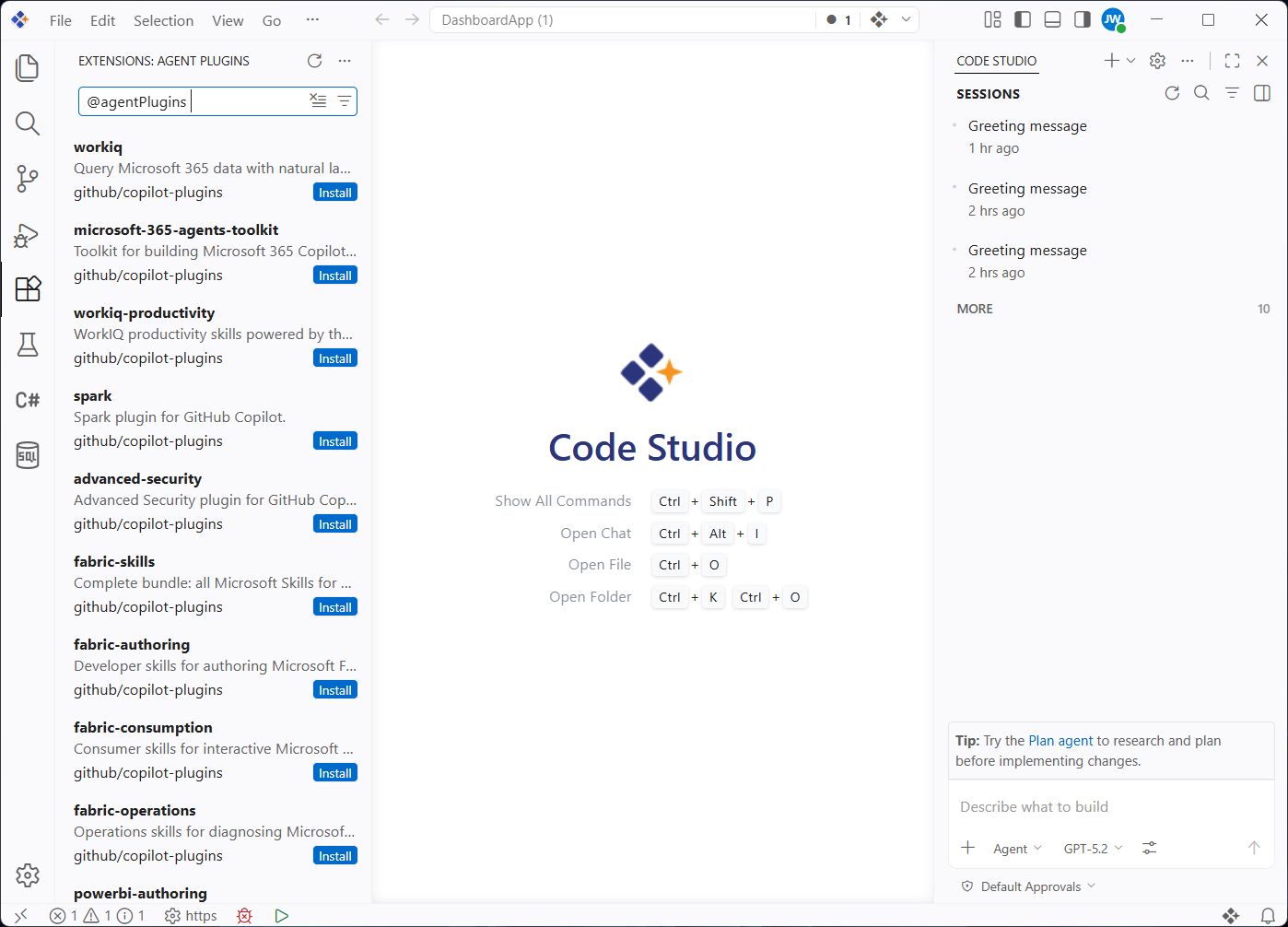
Code Studio now supports agent plugins, which are prepackaged bundles of chat customizations that enhance and extend AI-driven workflows. Plugins can include skills, commands, agents, MCP servers, and hooks. They can be searched for and installed directly from the extensions view in Code Studio by entering @agentPlugins in the search box or by running the Chat: Plugins command from the command palette. Code Studio auto-detects the plugin format by checking for format-specific manifest paths.
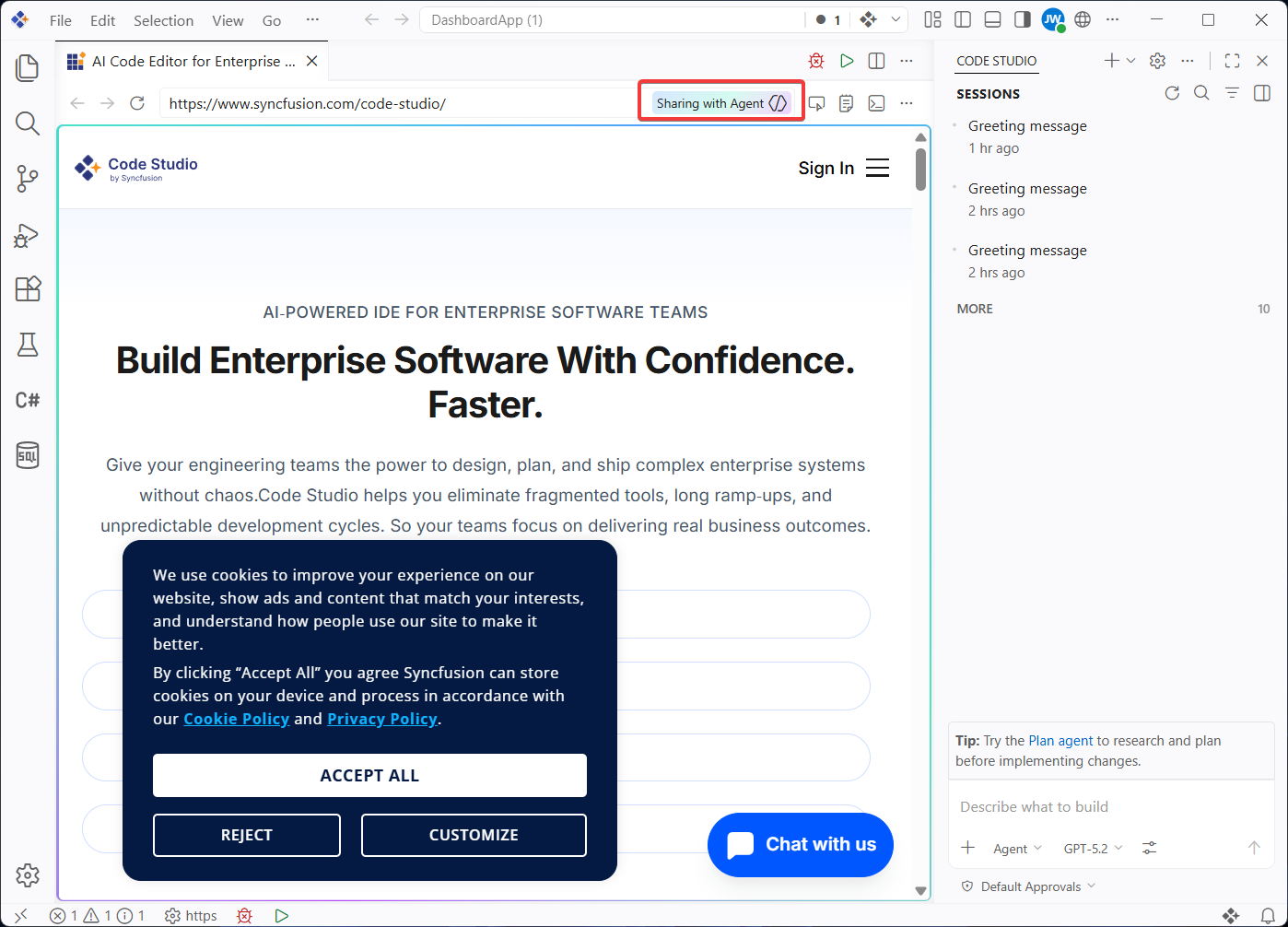
Agentic browser tools
Agentic browser tools enable agents to interact autonomously with the integrated browser in Code Studio for desktop. These tools allow agents to read and manipulate web pages, observe updates to page content, and capture errors or warnings from the console without requiring additional dependencies. Capabilities include page navigation, content and appearance inspection, user interaction, and custom automation through runPlaywrightCode. With these features, agents can perform simultaneous authoring and verification of web applications, closing the development loop. By default, pages opened by agents run in private, in-memory sessions, ensuring controlled access to browsing data.
Session memory
Plans created by the plan agent now persist in session memory, remaining available throughout the conversation for continuous refinement. Instead of starting from scratch, the agent builds on the existing plan when adjustments are requested for smoother iteration. Plans are also recalled after unrelated messages within the same session, allowing a return to ongoing work without repeating context. During longer implementation tasks, plans remain accessible in memory even when older conversation history is compacted to free up context space, providing consistency and continuity throughout the development process.
Context compaction
As conversations get longer, accumulated messages and context can exceed the model’s context window. To address this, Code Studio introduces context compaction, which summarizes conversation histories. This frees space while preserving essential details, allowing continued work within the same session. Compaction occurs automatically when the context window reaches its limit, and it can also be triggered manually in local, background, and Claude agent sessions. Manual compaction is initiated by typing /compact in the chat input field, with optional custom instructions to guide the summary generation, such as /compact focus on the database schema decisions.
Fork a chat session
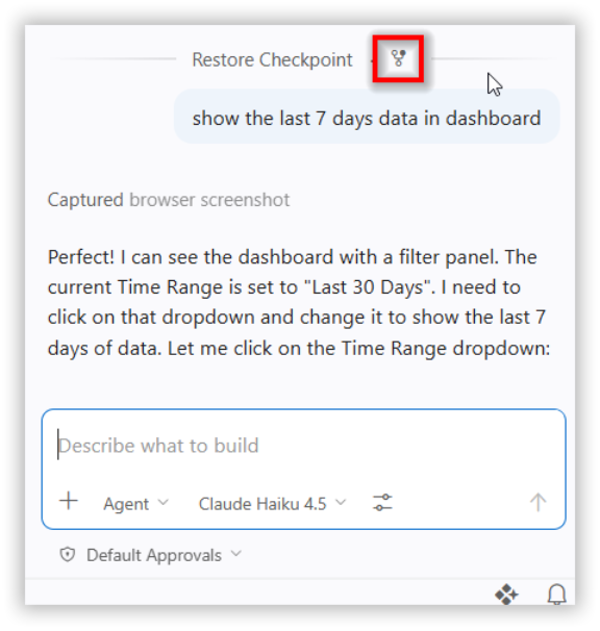
Code Studio now supports session forking, allowing the creation of new, independent chat sessions that inherit conversation history from the original. This capability is designed to facilitate: the exploration of alternative approaches, side questions, or branching lengthy discussions in different directions while preserving the original context.
A session can be forked in two ways: typing /fork in the chat input box creates a new session with the complete conversation history, while selecting the fork conversation icon in any chat request generates a new session that includes only the conversation up to that point.
Agent debug panel
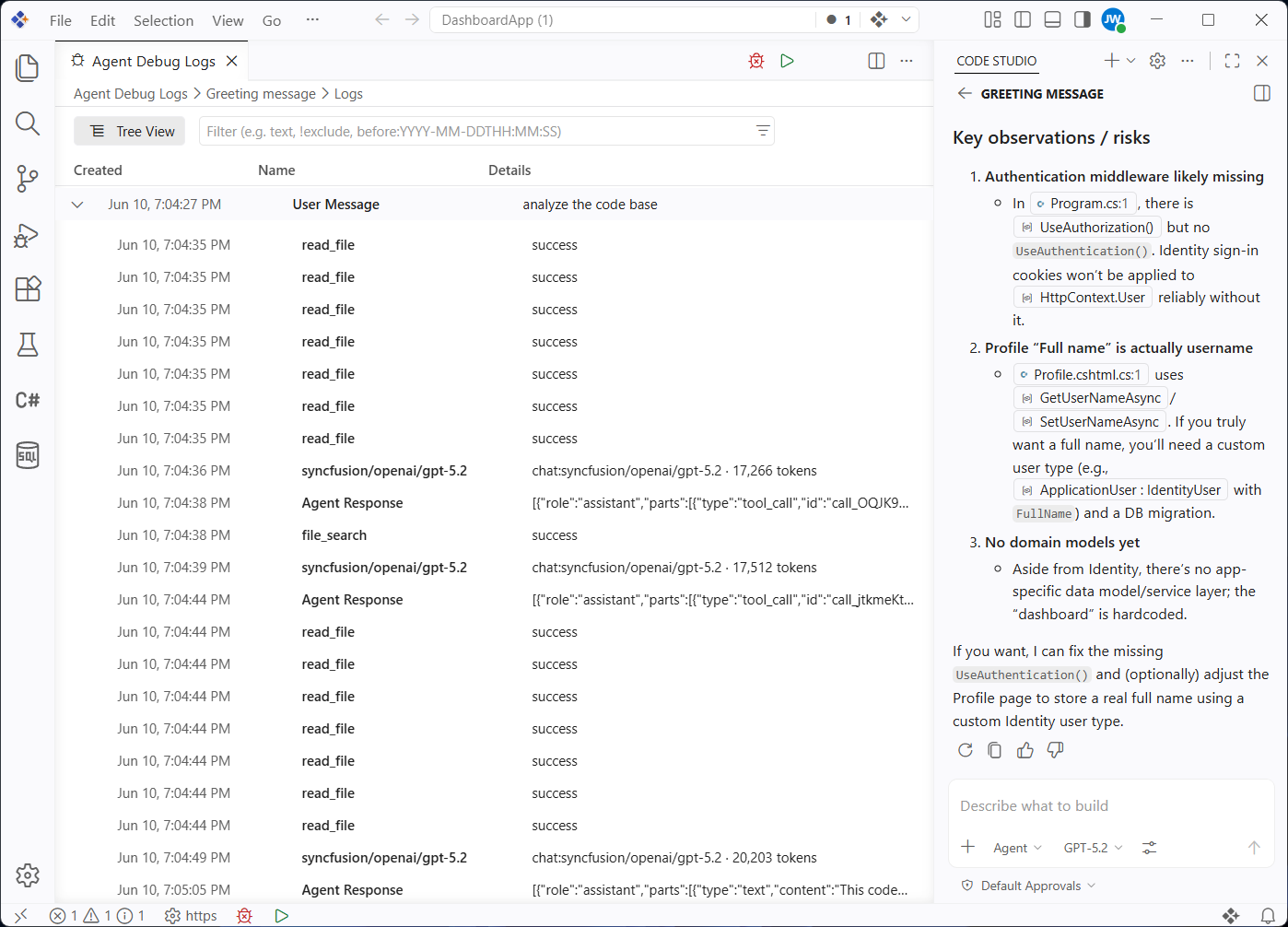
The agent debug panel provides deeper visibility into chat sessions and the way AI agent customizations are loaded. The panel displays chat events in real time, including customization events, system prompts, tool calls, and other interactions, making it easier to understand and troubleshoot agent configurations. It shows exactly which prompt files, skills, hooks, and custom agents are active in a session, replacing the previous diagnostics chat action with a richer and more detailed view.
The panel can be opened through the command palette using Developer: Open Agent Debug Panel or by selecting the gear icon in the chat view and choosing View Agent Logs. A chart view is also included, offering a visual hierarchy of events to convey the structure and sequence of actions quickly during a chat session.
Agent permissions
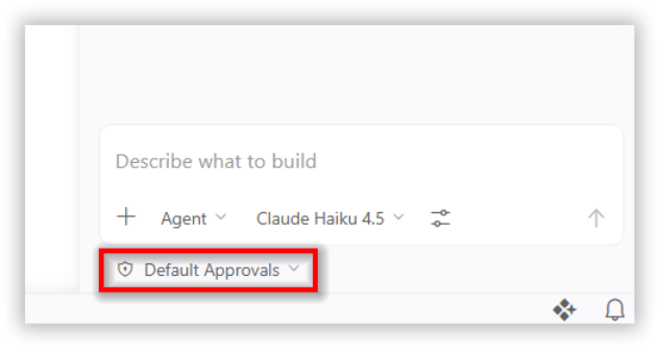
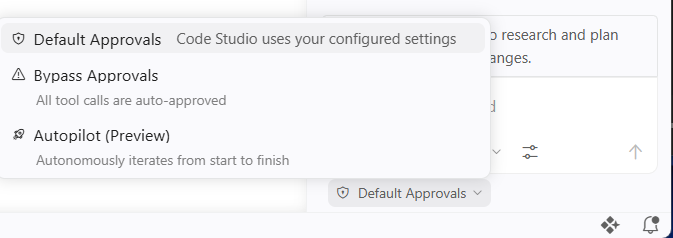
A new permissions picker in the chat view provides control over the level of autonomy granted to AI agents within a session. Permission levels apply only to the current session and can be adjusted at any time. Three options are available: default approvals, which follows configured approval settings and display confirmation dialogs before tools run; bypass approvals, which automatically approves all tool calls and retries on errors without confirmation; and autopilot (preview), which extends autonomy further by auto-approving tool calls, retrying on errors, responding to questions, and continuing work until tasks are completed.
Agent-scoped hooks
Agent-scoped hooks can be defined directly in a custom AI agent’s YAML front matter. These hooks run only when the specific agent is active, either selected directly or invoked as a subagent, and operate alongside any workspace- or user-level hooks configured for the same event. This enhancement enables pre- and post-processing logic to be attached to individual agents without affecting other chat interactions. This provides greater flexibility and precision in customizing agent behavior.
Chat experience in Code Studio
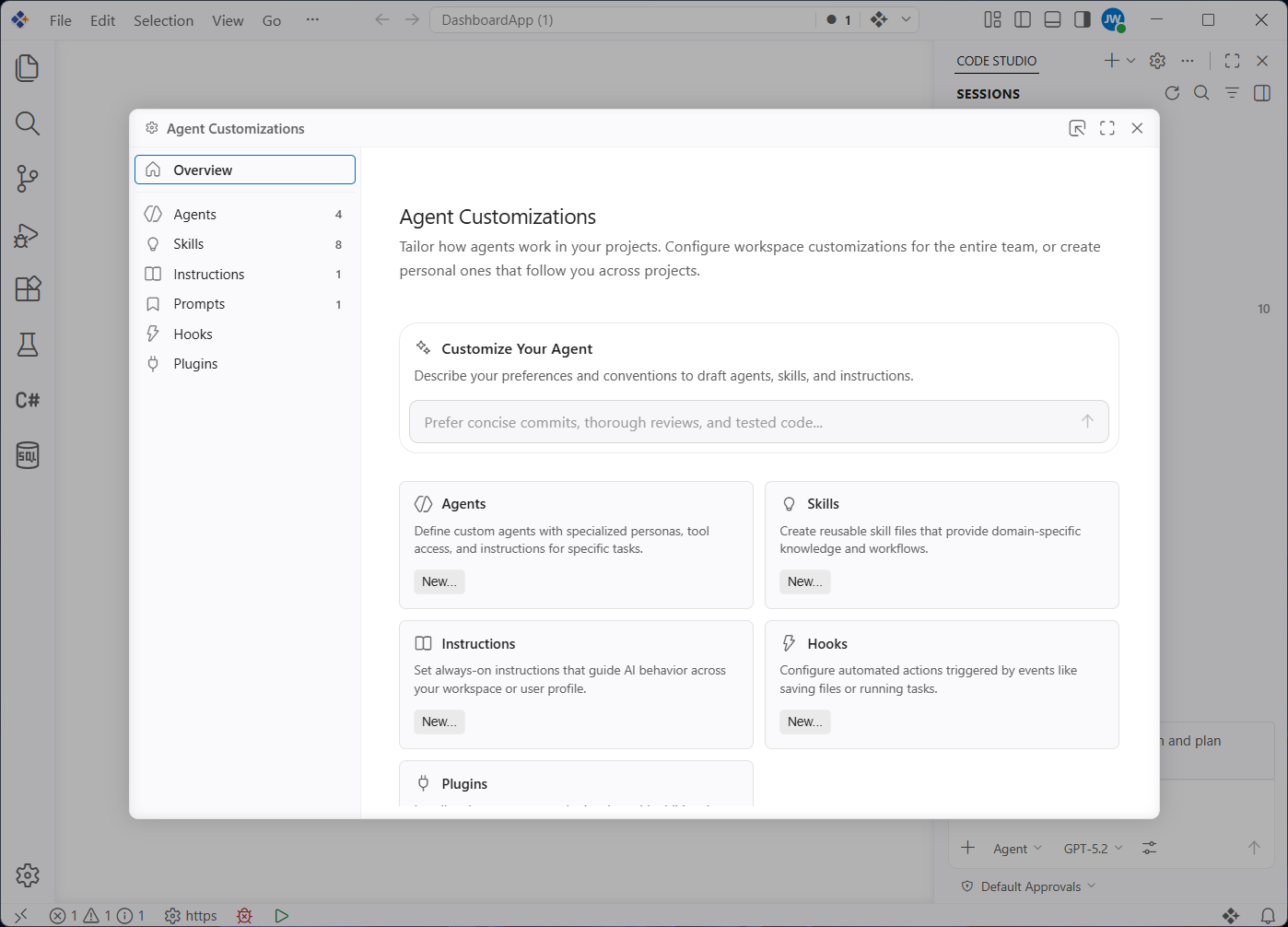
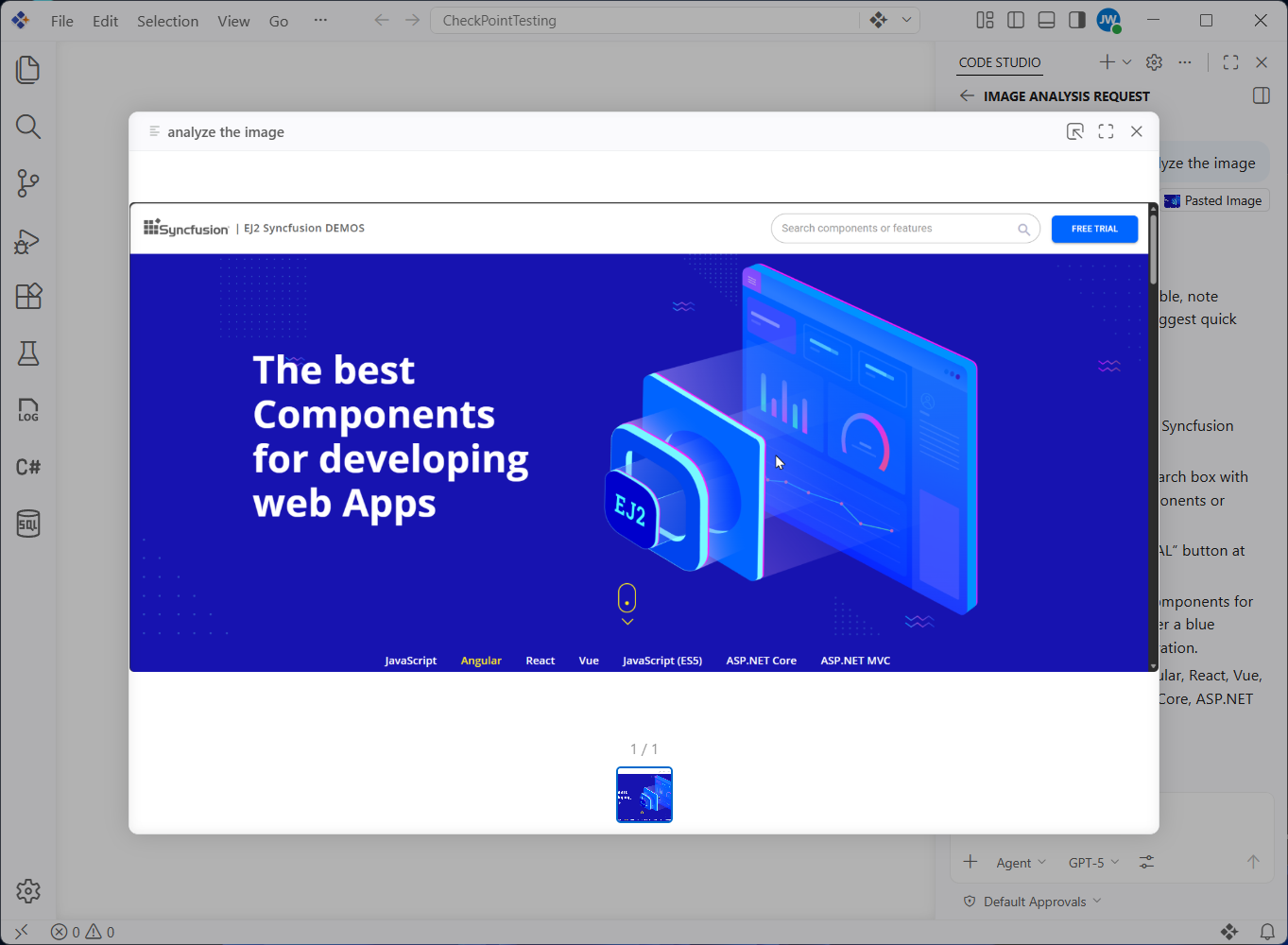
Code Studio introduces a unified chat experience interface that consolidates all customization options in a single tab (agent customizations), eliminating fragmented management across multiple settings and files. The experience now includes native support for image and binary files, with generated images viewable in a dedicated image carousel.
Terminal tools improvements
Code Studio improved how agents work with background terminal commands through the new send_to_terminal capability, allowing agents to send input to background terminals and, when notifications are enabled, receive alerts when background commands finish or need input. Previously, background terminals were effectively read-only after timing out, which prevented agents from providing follow-up input for long-running builds, SSH sessions, and interactive scripts. These improvements restore interactivity and enable agents to complete workflows that previously required manual intervention.
Copy final response in chat
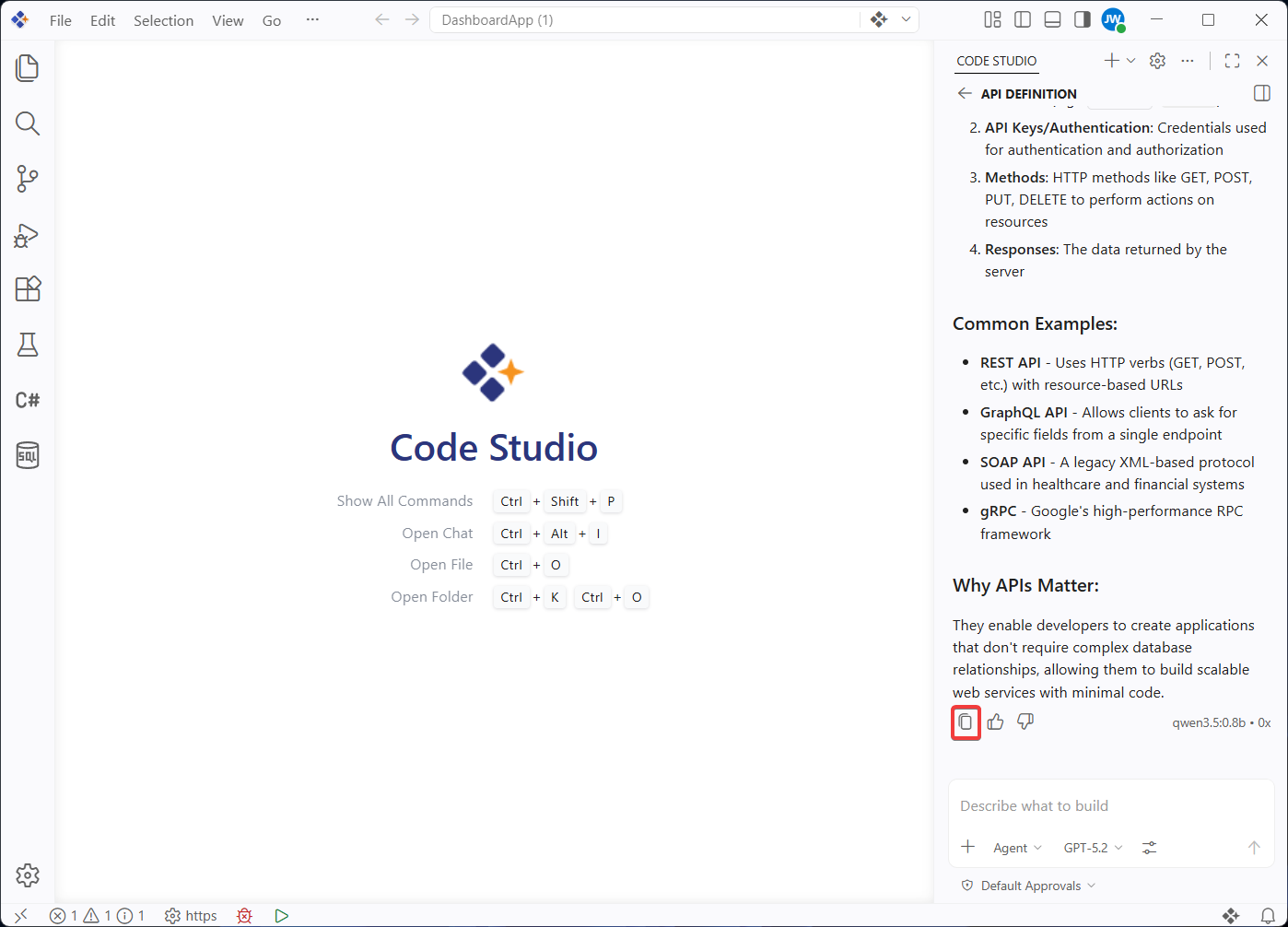
Code Studio now provides a feature to copy final responses. It allows developers to instantly capture the assistant’s complete final response with a single action. This eliminates inefficient, manual text selection in multiturn conversations and reduces errors when copying partial responses, enabling faster workflows for transferring AI-generated outputs into documentation, code comments, or external tools.
Troubleshoot previous chat sessions
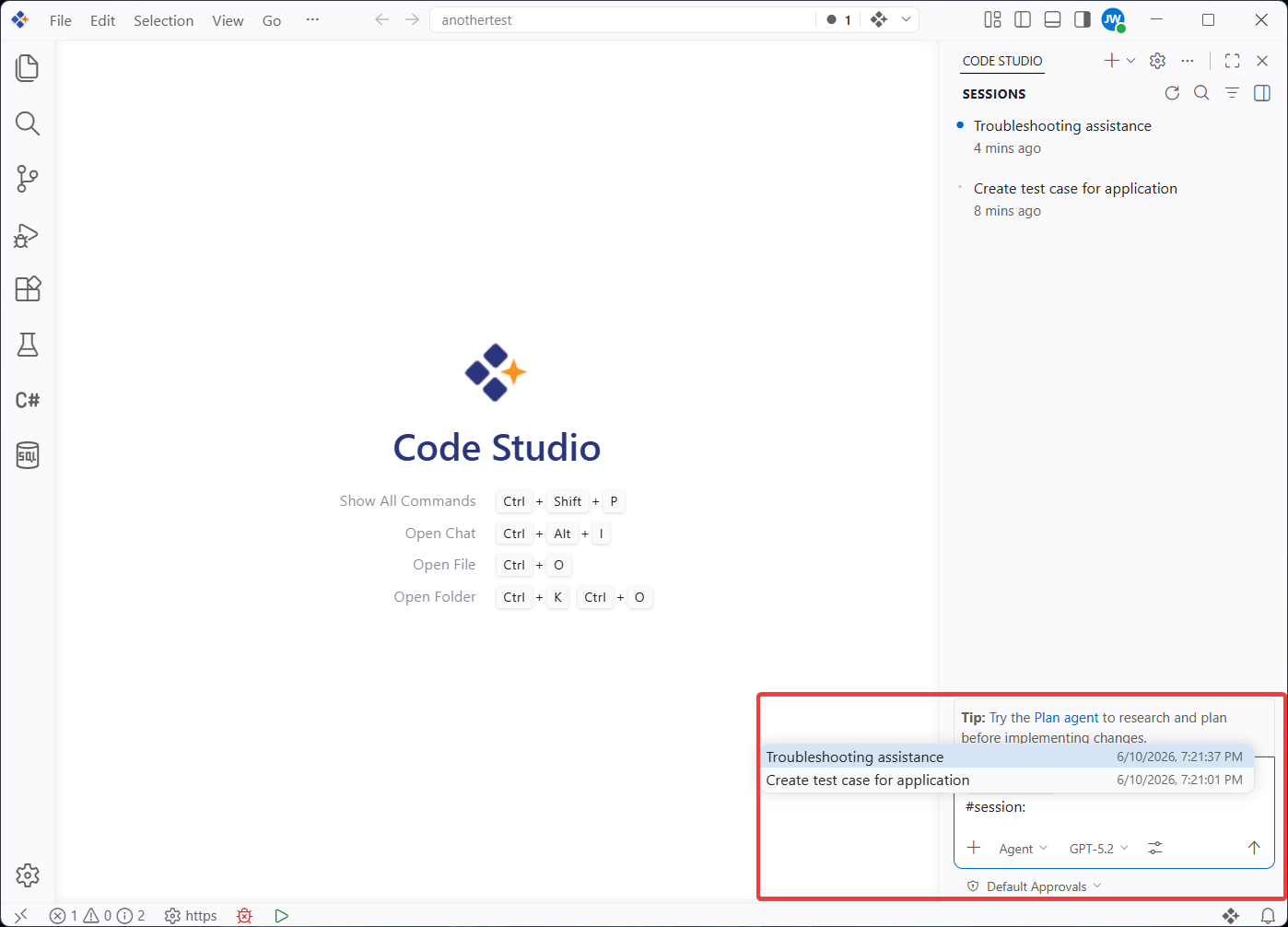
Code Studio now allows you to diagnose issues in previous chat sessions using the /troubleshoot command with #session to reference any past session directly. This triggers a session picker where you can select from your chat history, then the system analyzes debug logs to uncover why custom instructions were ignored, responses were slow, or unexpected behavior occurred without needing to reproduce the issue.
Chronicle
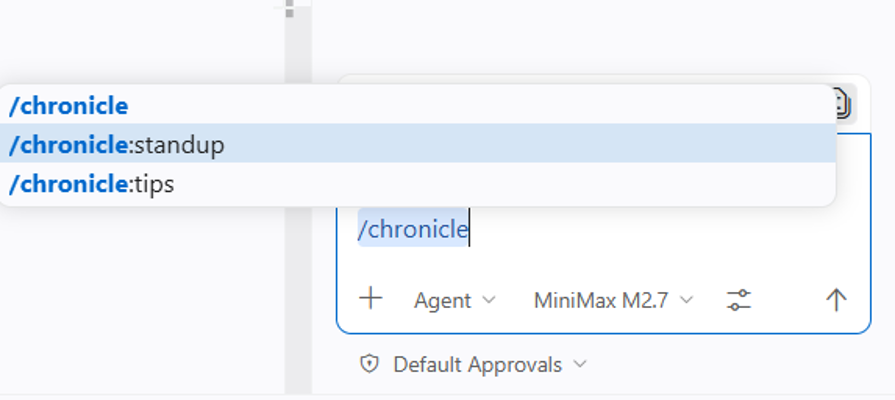
Chronicle turns your Code Studio history into a searchable record of your coding activity by tracking chat sessions, file changes, and external references in a local SQLite database. Run /chronicle:standup before team standups to auto-generate reports of the past 24 hours with summaries by branch, file list, and PR link. Run /chronicle:tips to get customized suggestions on improving your prompting and tool usage.
Code Studio has been enhanced with powerful new agent customization capabilities, including Agent Skills, Agent Hooks, and an integrated browser experience. From smarter chat tooling and expanded model support to deeper agent control, each feature is designed to help you build faster, enforce standards consistently, and deliver higher-quality outcomes. Whether you’re automating workflows, customizing agent behavior, or scaling complex tasks, Code Studio puts more control, flexibility, and intelligence at your fingertips.
Agent Skills
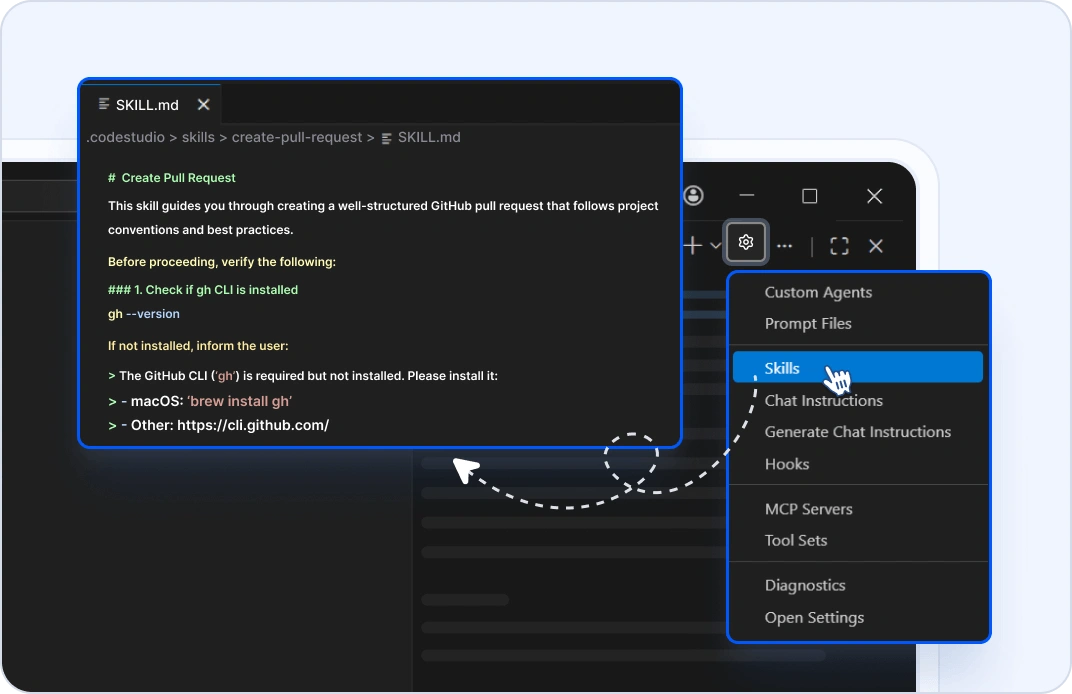
Teach the AI coding agent new capabilities and provide domain-specific knowledge through Agent Skills. Instead of relying on a single general-purpose agent, you can now package specialized expertise — such as testing strategies, API design, and performance optimization — into reusable skill files. The agent automatically loads the relevant skills based on your task, delivering more accurate and context-aware assistance without manual configuration.
Agent Hooks
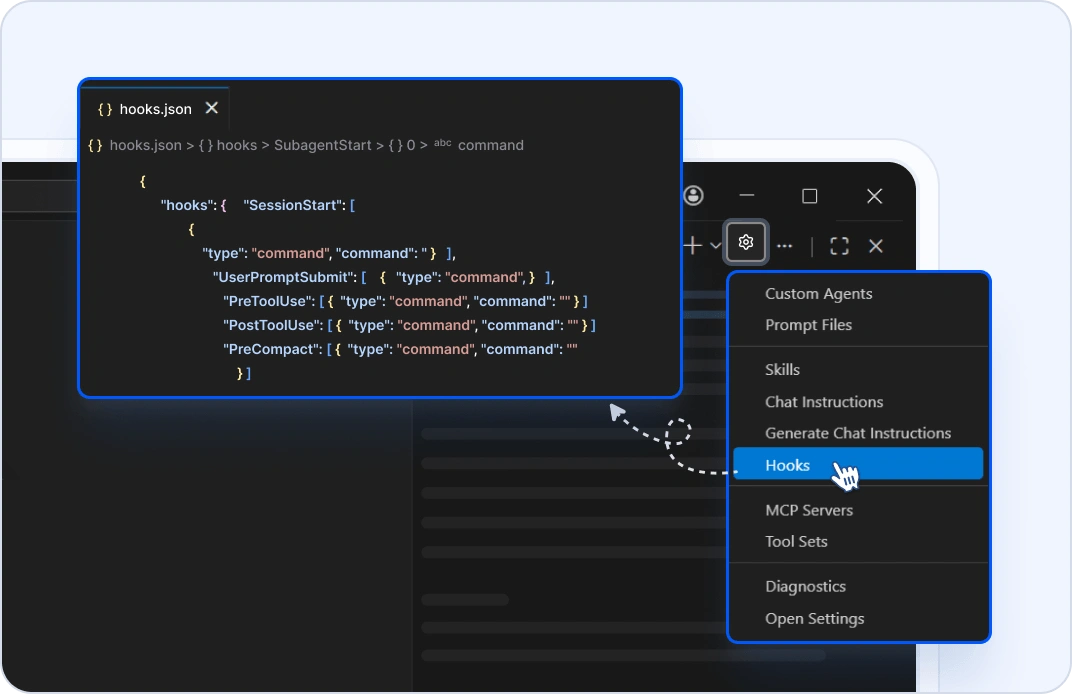
Execute custom shell commands at key lifecycle points during agent sessions with guaranteed, deterministic outcomes. Unlike agent instructions or prompts that guide behavior, hooks actually run your code with predetermined results, making them ideal for enforcing policies and automating quality checks. This gives teams a reliable way to integrate processes such as linting, testing, or compliance validation directly into the agent workflow.
Plan Agent Mode
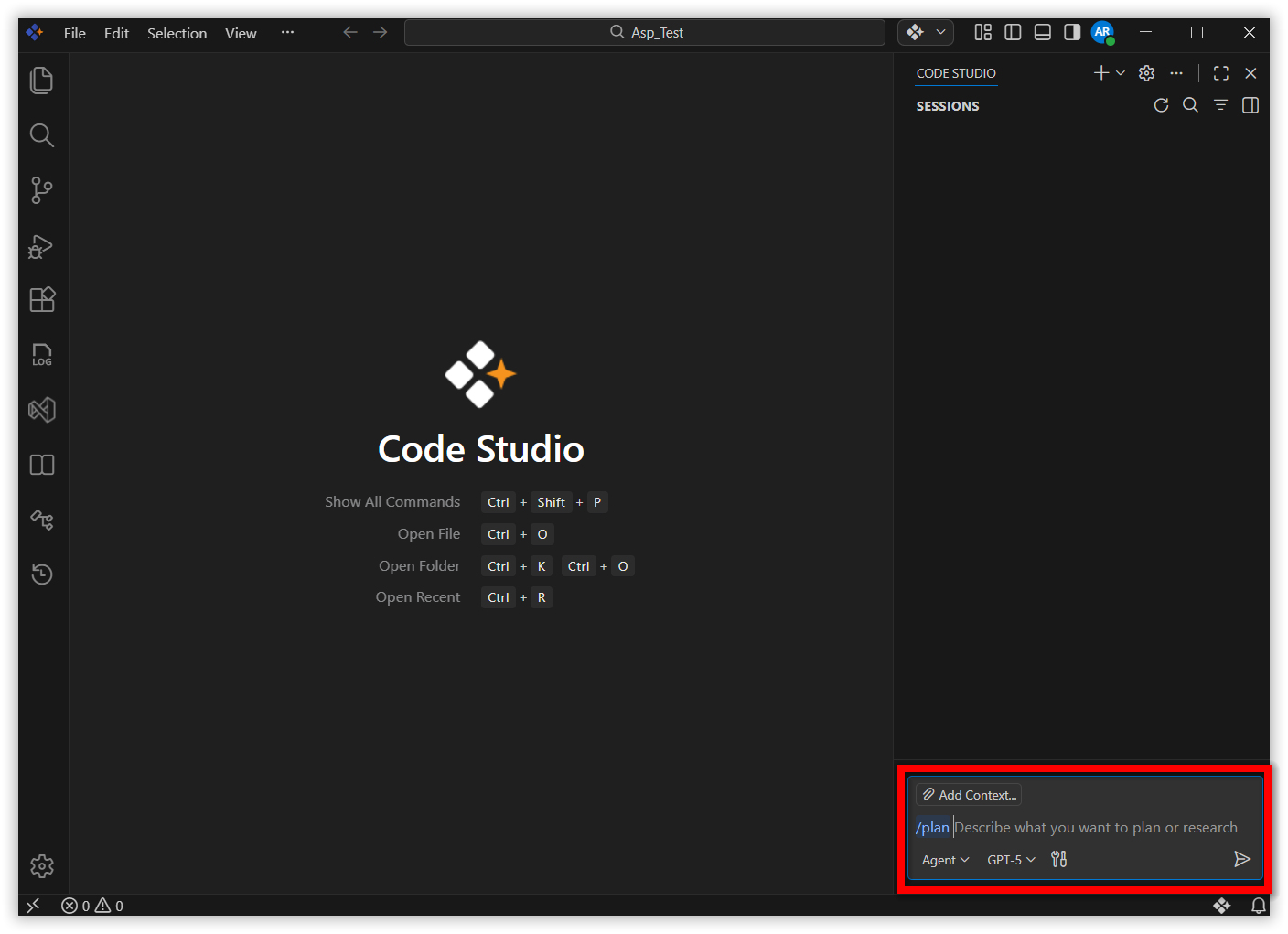
Invoke the enhanced Plan agent directly in chat by typing /plan followed by your task description. The agent delivers a structured, multi-phase implementation plan to ensure a precise understanding of complex requirements and to produce higher-quality outcomes before any code is written.
Agent Status Indicator
Stay informed about multiple active agent sessions with a new status indicator in the Code Studio command center. At a glance, see which sessions require your attention, have unread responses, or are actively processing.
- Session overview — See how many sessions in-progress are, waiting for input, or have unread messages.
- Attention alerts — Know immediately when a session requires your intervention.
- Quick session access — Click the indicator to open and filter the Agent Sessions list.
- Customizable behavior — Configure what the status indicator displays and how it behaves via settings.
- Reduced context switching — Manage multiple parallel sessions without losing track of important updates.
Agent Enhancements
- Agents can now read files and list directories outside your current workspace, with your explicit permission.
- Agents can now invoke custom agents as subagents, delegating complex subtasks while keeping your main context focused and efficient.
- Custom agents now support fine-grained control with attributes such as user-invokable, disable-model-invocation, and agents for precise control over agent visibility and subagent behavior.
- The /init slash command generates or updates AI workspace instructions based on your codebase, ensuring consistent code generation across sessions.
- Anthropic models now support extended thinking for compatible models, enabling more detailed reasoning and step-by-step processing in chat.
Integrated Browser
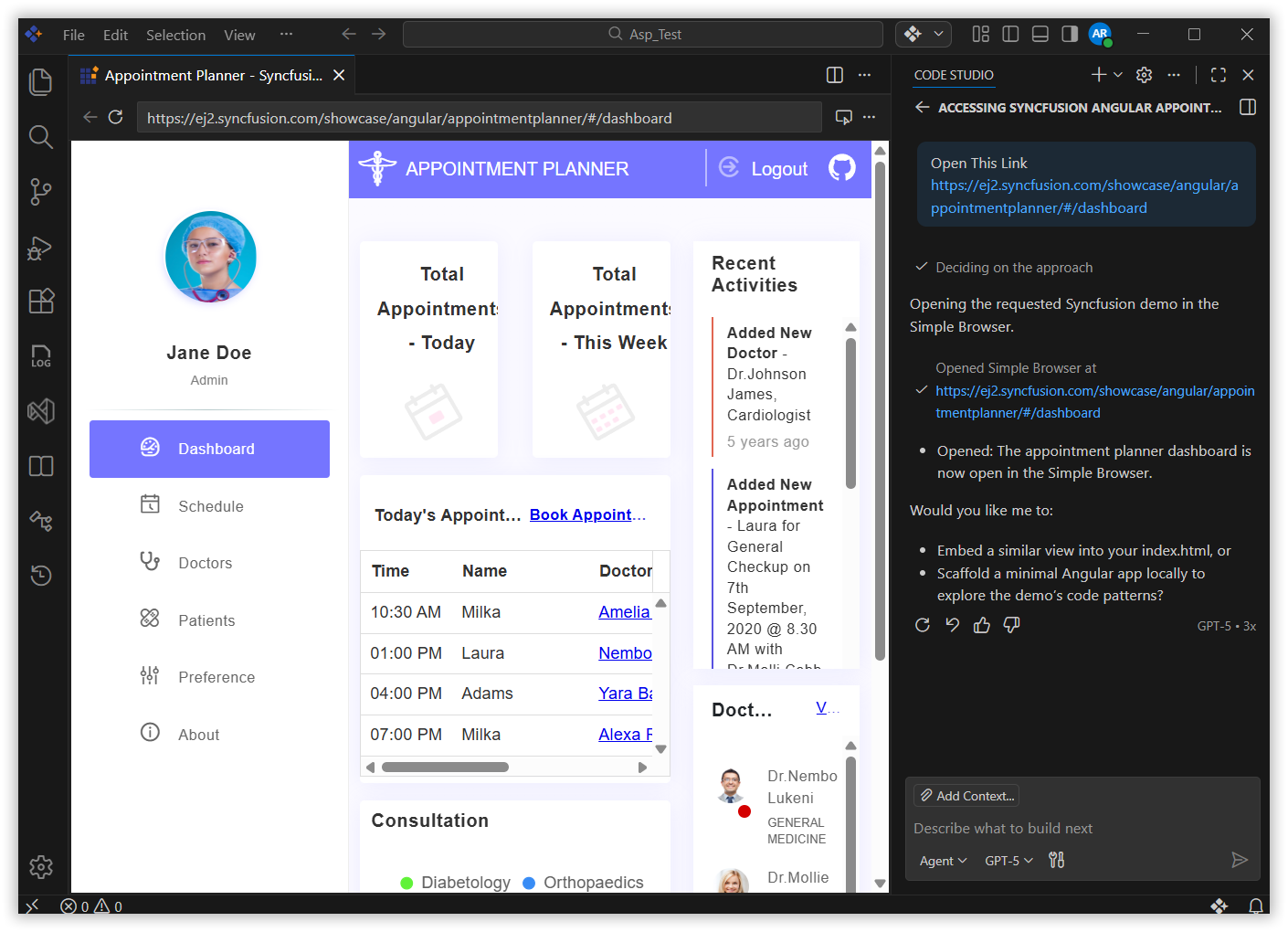
Preview and test web applications without leaving Code Studio. The new integrated browser overcomes the limitations of the Simple Browser by providing full authentication support, access to browser DevTools, and seamless AI integration — enabling a more complete and uninterrupted development experience.
New Agent Tools
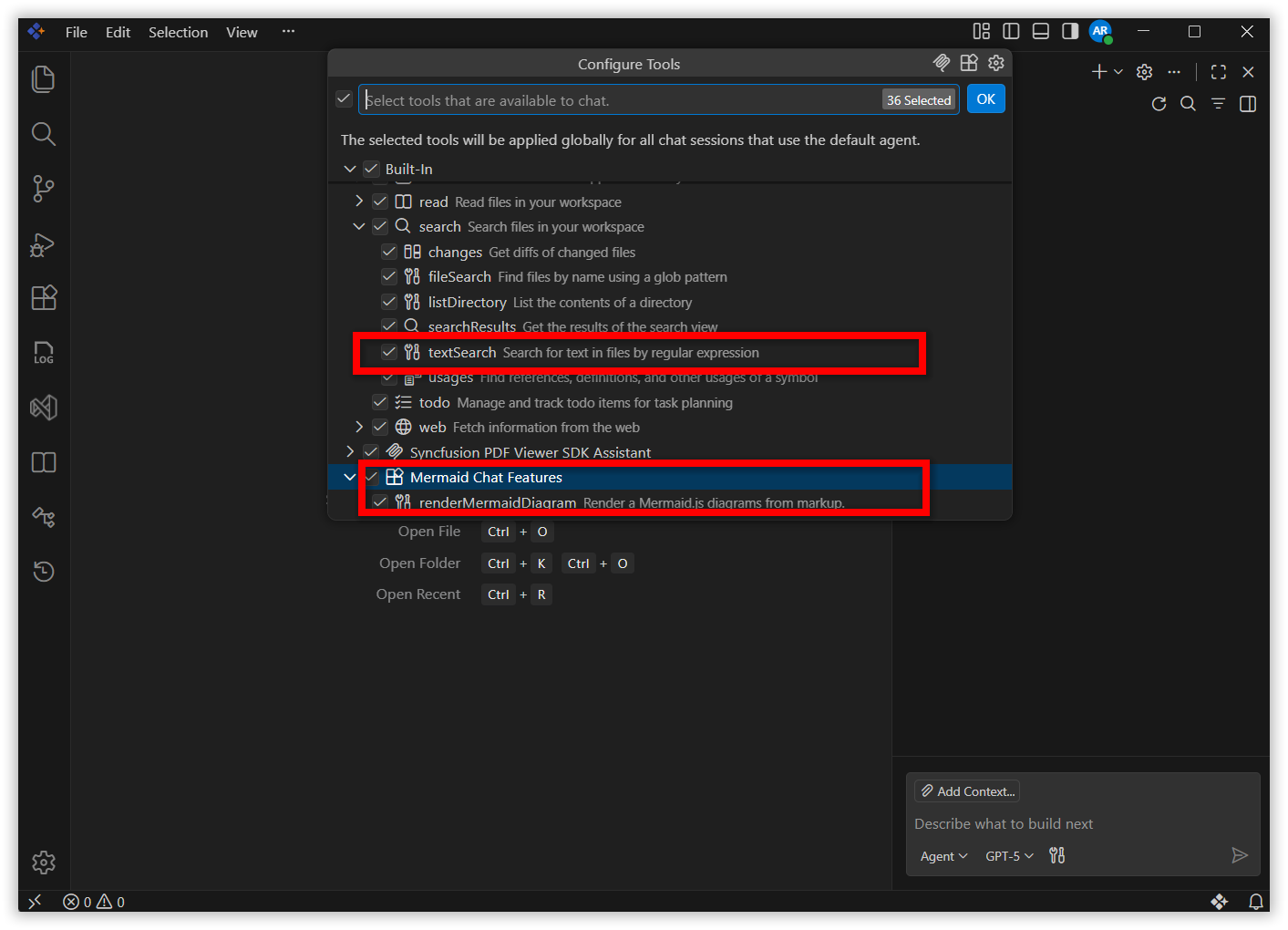
- #renderMermaidDiagram — Renders interactive, zoomable Mermaid diagrams directly in chat responses for clear visual breakdowns of architecture, flows, and relationships.
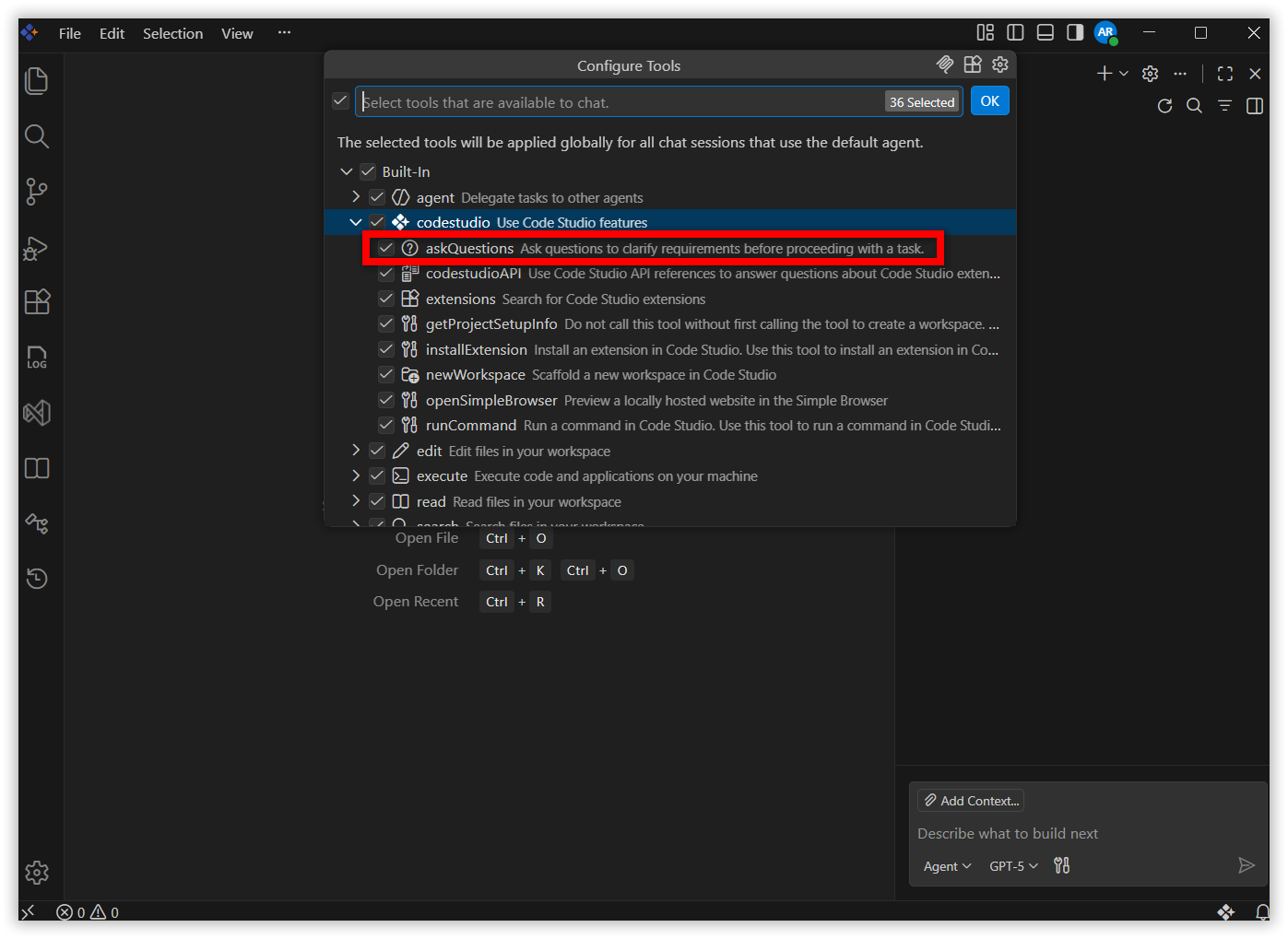
- #askQuestions — Allows agents to ask clarifying questions with selectable or free-text options, improving precision when requirements are ambiguous.
- #textSearch — Text search now respects ignored files and folders. Optionally include matches from files.exclude, search.exclude, or .gitignore-listed paths (such as node_modules) for fuller codebase visibility in agent responses.
Chat UX Improvements
- Inline Chat Revamp — A less intrusive design with easier text-selection triggering and lightweight contextual rendering for smoother integration within the editor.
- Model Picker Enhancements — Hover or focus on a model to instantly reveal its full description, making it easier to select the right model for each task.
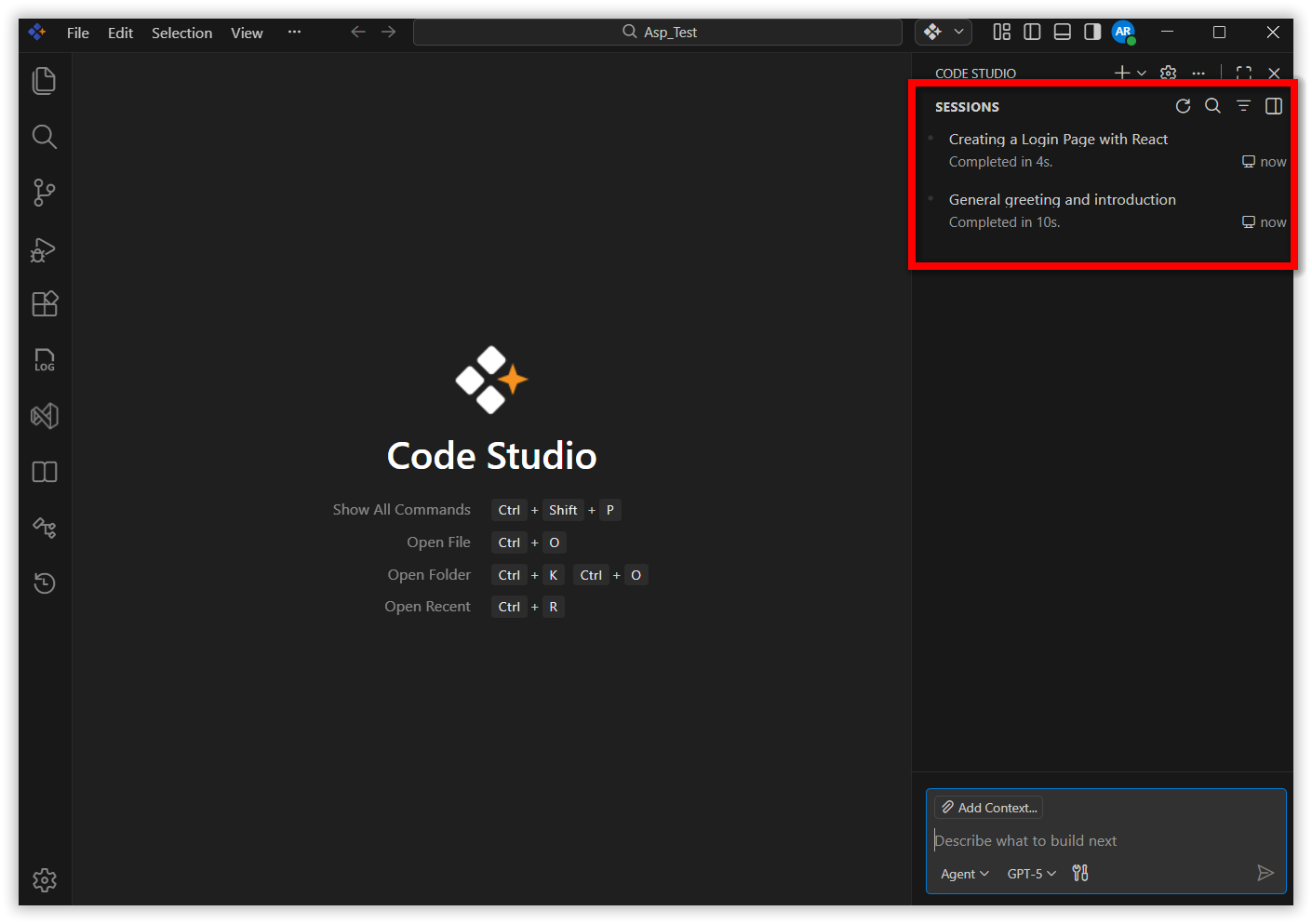
- Chat Session Access — Access all your chat sessions directly from the chat UI, now with full side-by-side viewing support.
- Background Agent Progress — Agents continue running in the background after you close a session. Track live progress from session history at any time.
Chat Customization Diagnostics
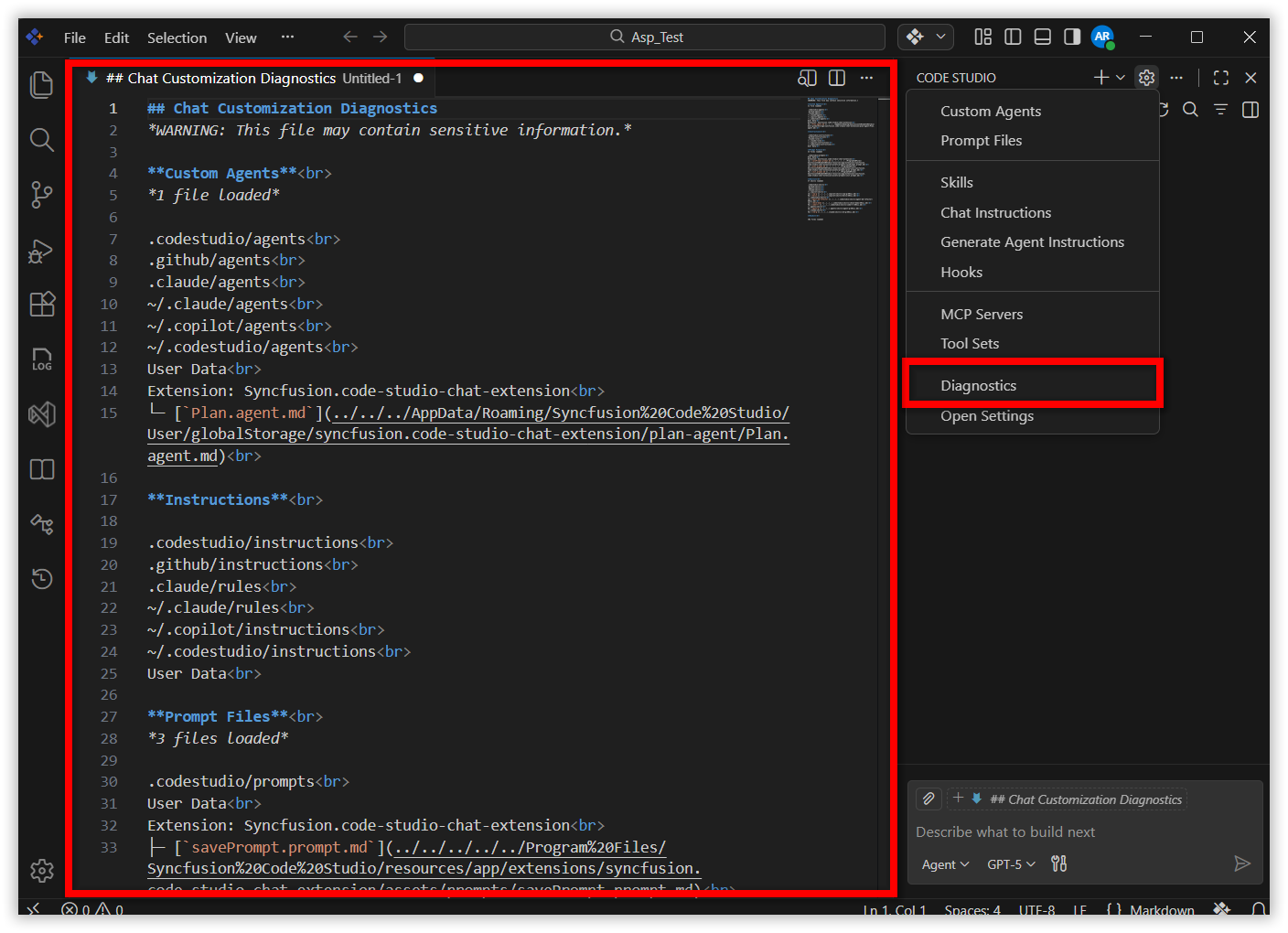
Right-click in the Chat view and select Diagnostics to view a Markdown report of all loaded custom agents, prompts, instructions, and skills — complete with their status and any loading errors. This makes it significantly faster to identify and resolve customization problems.
Interactive Input in Chat Terminal
You can now type directly in the embedded chat terminal, making it possible to respond to command prompts, confirmations, and interactive input without leaving the chat window. This keeps your workflow uninterrupted when agents execute commands that require user input.
Language Model Editor
A centralized interface for managing and configuring all language models used in Code Studio, with support for multiple configurations per provider. This gives you a single, consistent location to control model behavior across your entire workspace.
Work trees in Source Control View
Manage Git work trees directly from the Source Control Repositories view without switching between tools. This experimental feature brings work tree management into your familiar Code Studio interface, making it easier to work across multiple branches simultaneously.
New Themes
Fresh new themes designed with modern aesthetics and improved visual hierarchy enhance the overall coding experience. This release includes:
- VS Code Dark (Experimental) Enhanced contrast, greater clarity, and elevated visual design for a refined dark-mode experience.
- VS Code Light — Bright, contemporary aesthetics with improved focus through visual elevation.
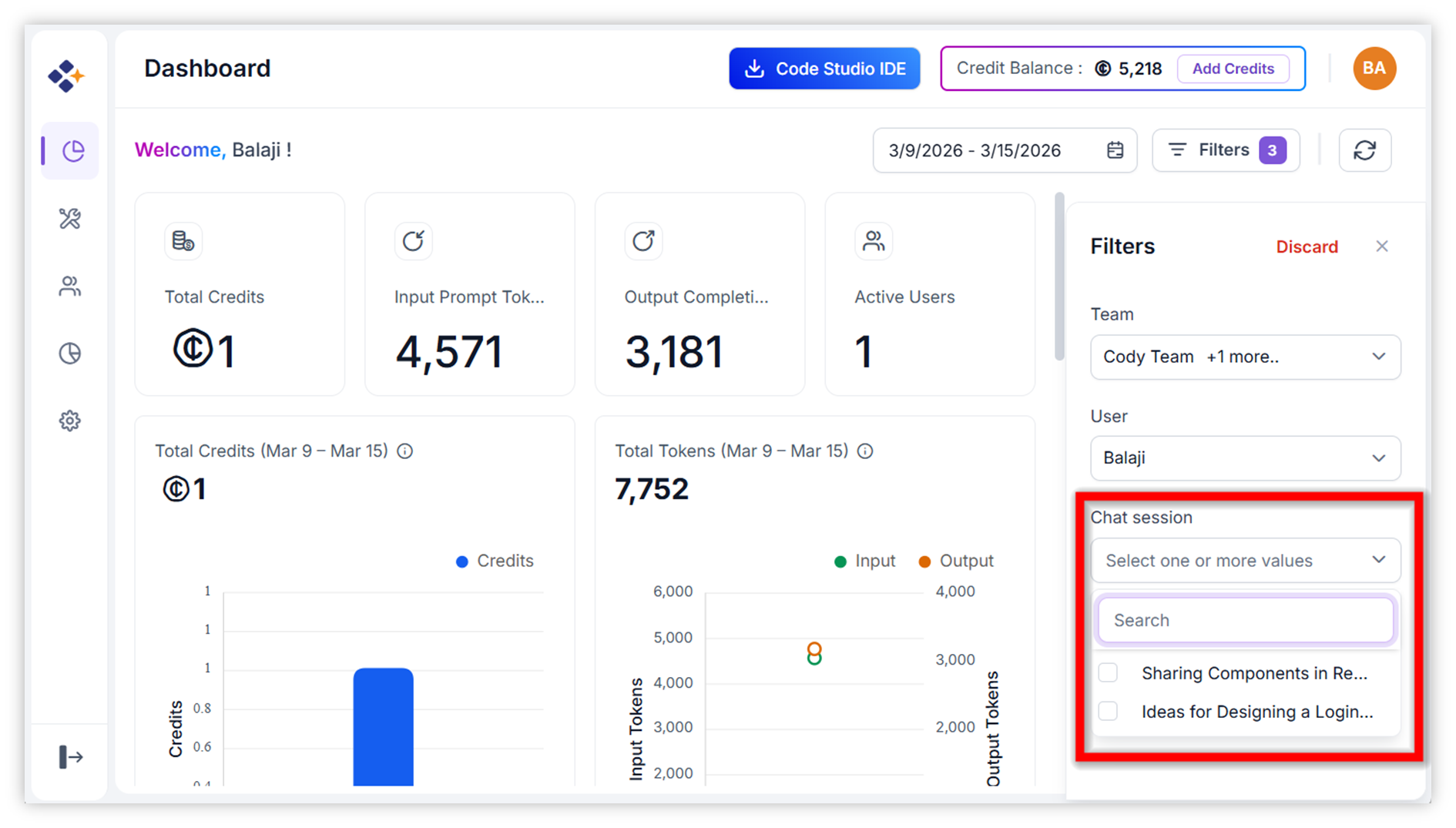
Dashboard - Filter Option:
The Dashboard Filter feature allows users to refine and analyze dashboard metrics with precision. It allows you to drill down into data by chat session to analyze session-level usage.
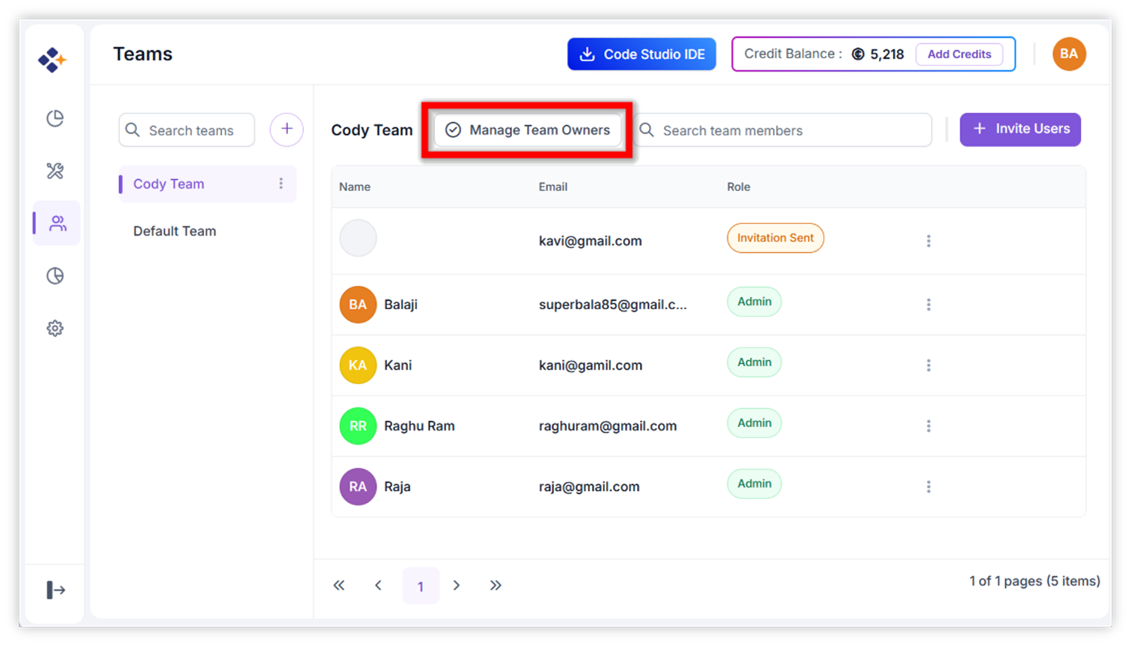
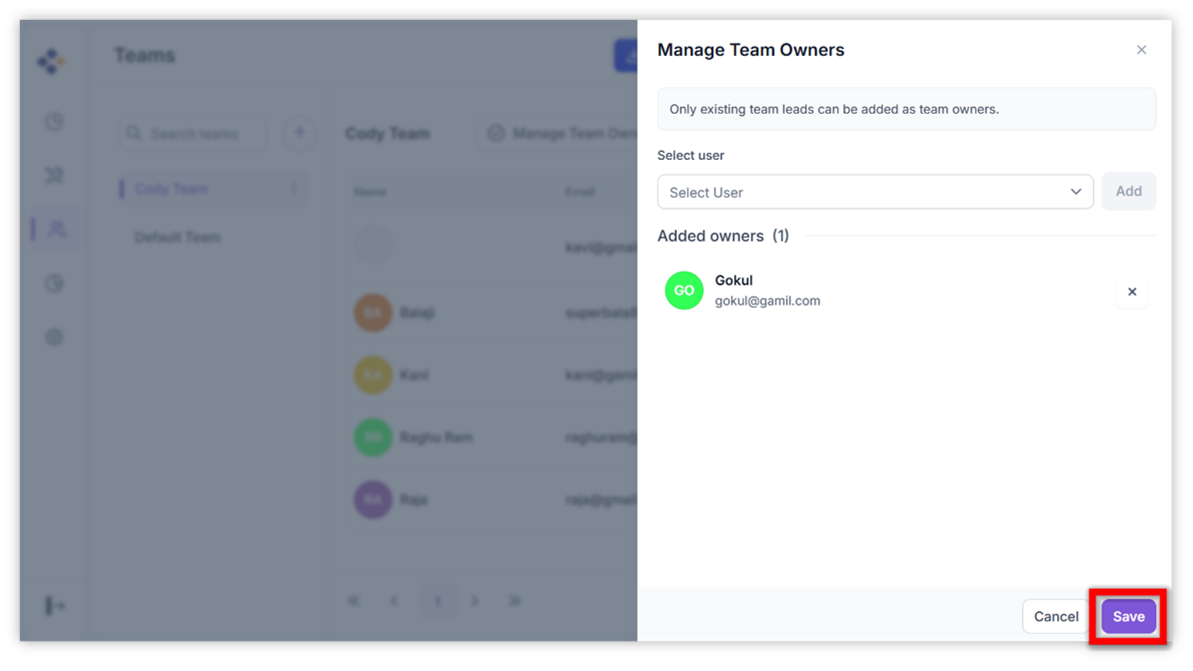
Manage Team Owners:
The Manage Team Owners feature enables administrators to assign oversight responsibilities to selected team leaders. This functionality ensures that teams have designated leaders who can monitor activities, maintain structure, and support administrative operations across multiple teams. Team Owners gain enhanced visibility and accountability, allowing them to oversee several teams simultaneously.
Dark Mode Support:
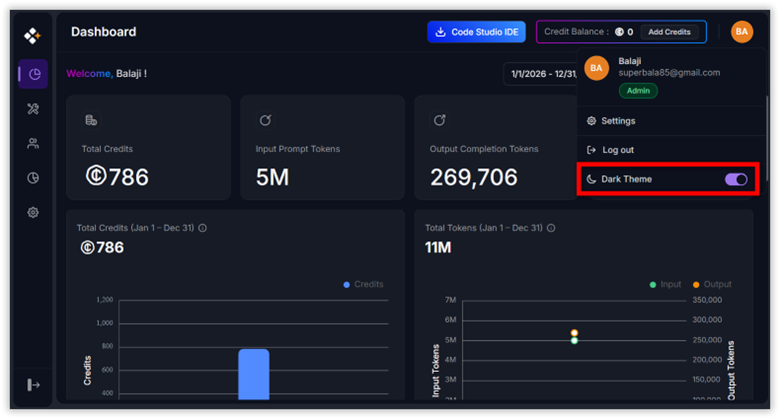
The Dark Mode Support feature in Code Studio Enterprise Server introduces a unified dark‑themed interface designed for developers and administrators who prefer working in low‑light or visually minimal environments. This theme applies consistently to Dashboard, User and Teams, Fallback Policy, Budget and Settings.
We’ve completely revamped Code Studio with a modern, intuitive UI and smarter workflows powered by AI. From streamlined chat interactions to powerful features like Plan Mode, Add Context, and Checkpoints, everything is designed to help you code faster, safer, and with more clarity. Whether you’re exploring ideas, managing tasks, or refining your workspace, the new Code Studio puts control, flexibility, and intelligence at your fingertips.
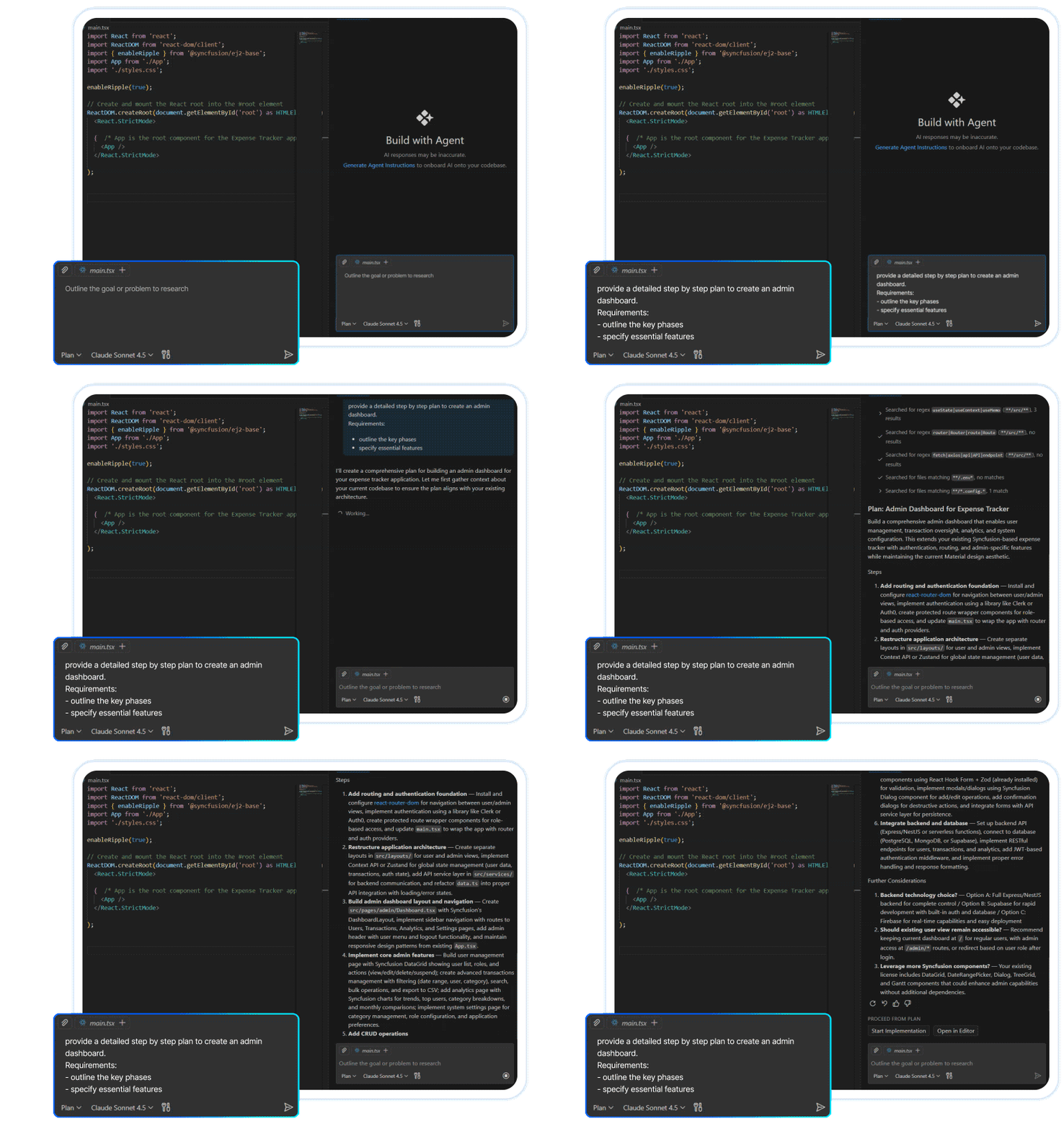
Plan Mode
The Code Studio IDE now introduces Plan Mode, a smarter way to start coding with confidence. Instead of jumping straight into implementation, Plan Mode helps you research tasks, outline requirements, and break work into clear steps. You’ll receive a draft plan to review, edit, or approve—ensuring nothing changes in your code until you’re ready. By beginning with a clear plan, you reduce mistakes, stay organized, and make complex projects easier to manage.
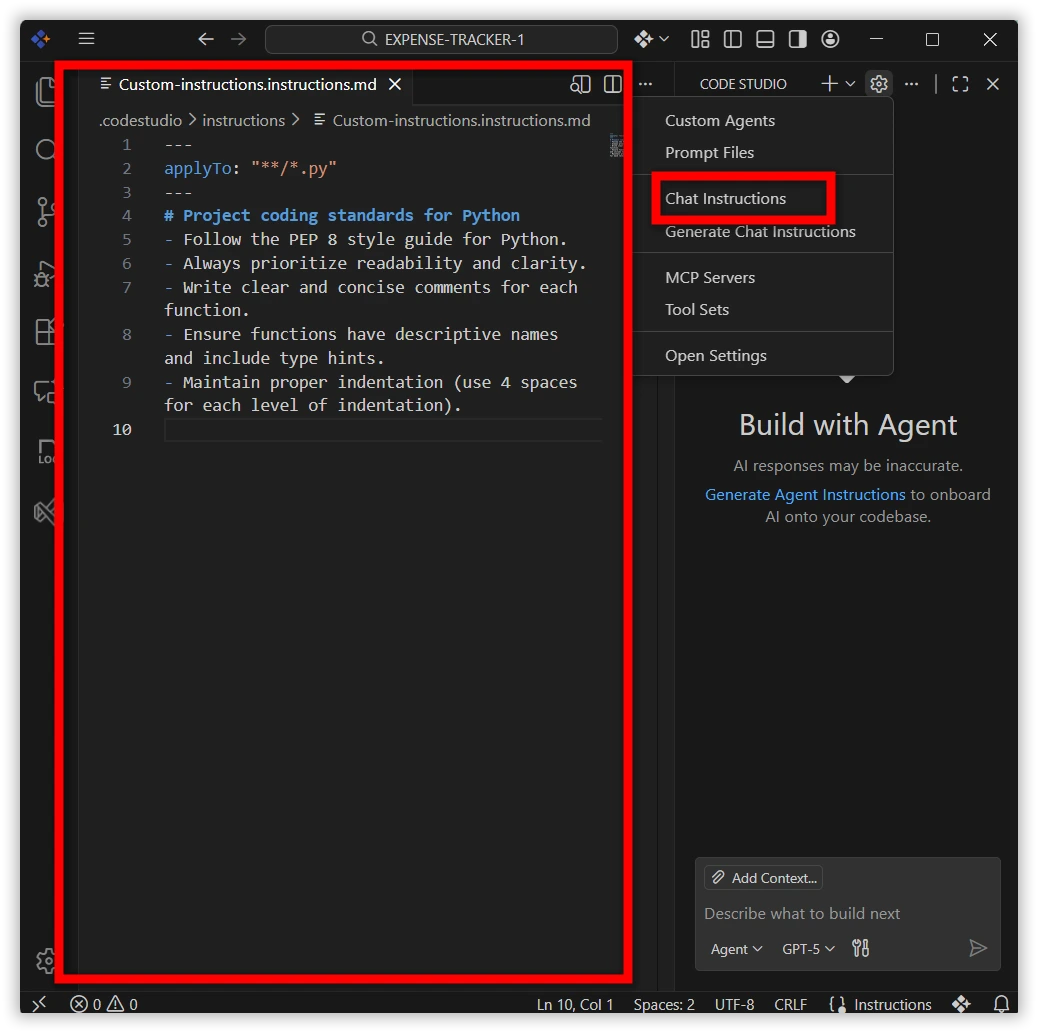
Custom Instructions
Easily tailor the AI assistant to your project needs with Custom Instructions. Define coding standards, architecture preferences, and project-specific guidelines, so the assistant delivers consistent, context-aware responses without assumptions. This ensures smoother collaboration.
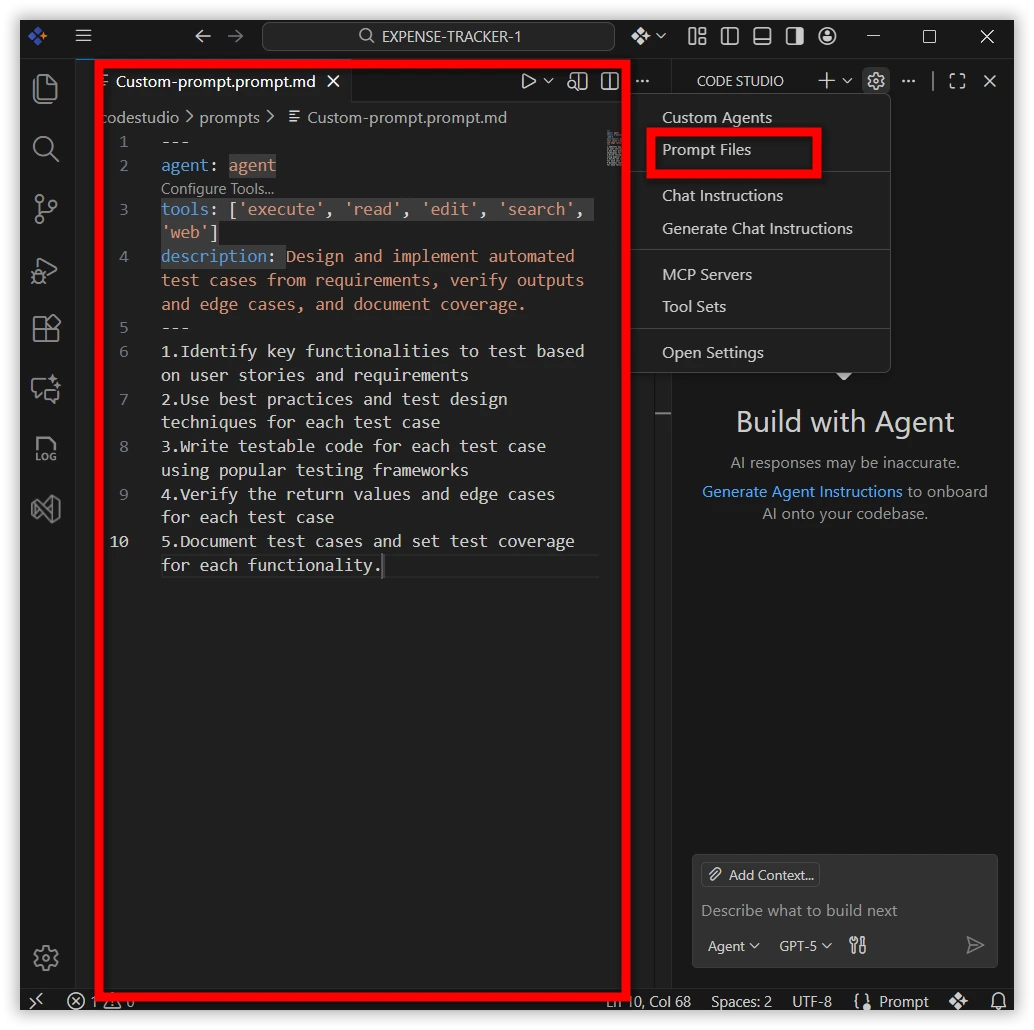
Custom Prompts
Boost productivity with reusable prompt files for common development tasks. From code generation to reviews and scaffolding, Custom Prompts let you build a library of standardized workflows that can be run directly in chat—ensuring consistency and faster execution across projects.
Custom Agents
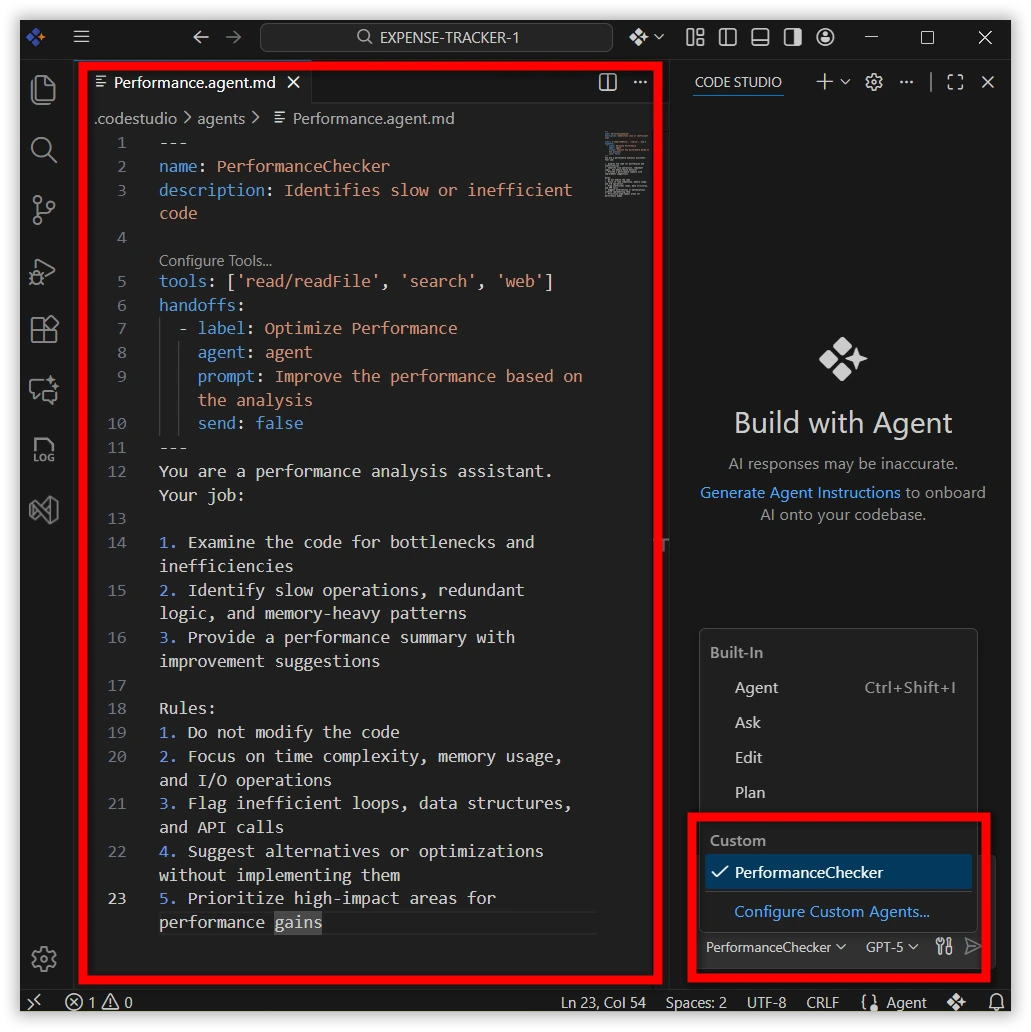
Custom Agents let you set up the AI to act like different roles for your project. You can make one agent a security reviewer, performance checker, or a solution architect. Each agent follows its own rules and tools, so the AI gives answers that fit the job. You can also switch between agents with one click—like moving from coding to performance checking or handing off to a code reviewer—while keeping all the context.
Inline Chat
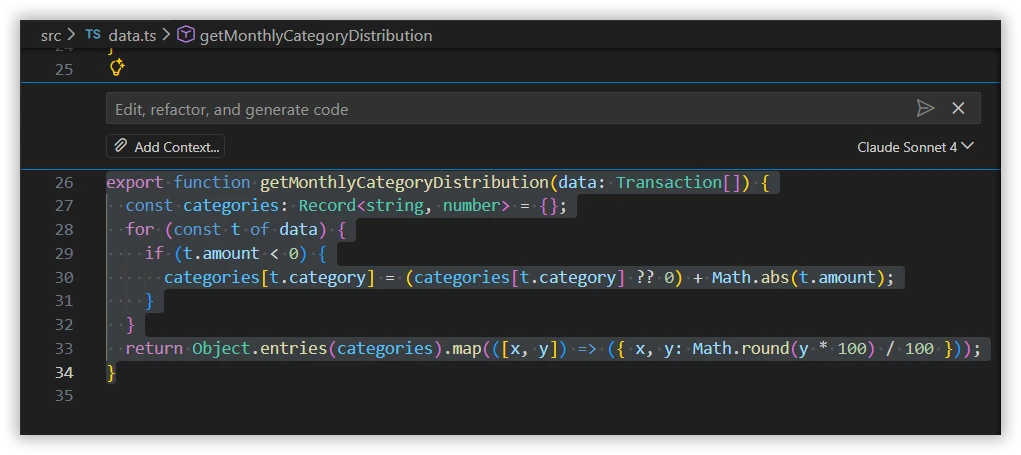
Inline Chat giving you AI assistance directly inside the editor. You can request code generation, make inline edits, or get help with commands without switching to the Chat panel. This in-context workflow speeds up coding, improves accuracy, and reduces interruptions—keeping you fully focused while working on your project.
Tools
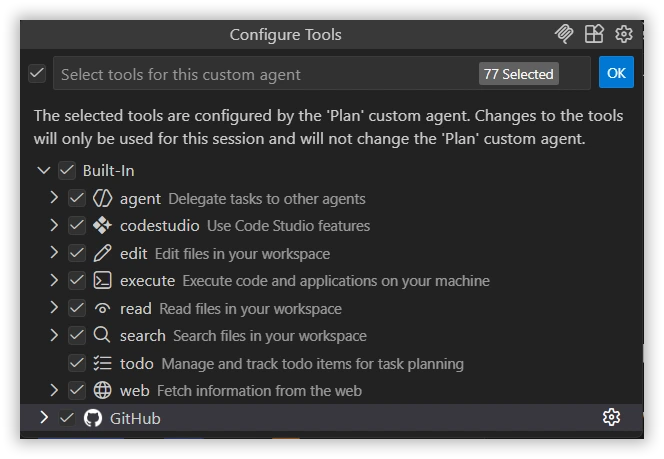
Code Studio now brings an upgraded Tools experience with a cleaner interface and expanded capabilities. In addition to familiar actions like reading files, running terminal commands, and searching your workspace, the new version introduces smarter tools for executing code, managing todos, and delegating tasks to agents.
With this update, you can:
- Execute code directly from chat
- Delegate tasks to other agents for parallel workflows
- Track todos for better planning and follow-through
- Use Code Studio features like UI builder,codestudioAPI and extensions
- Fetch web data to enrich your coding context.
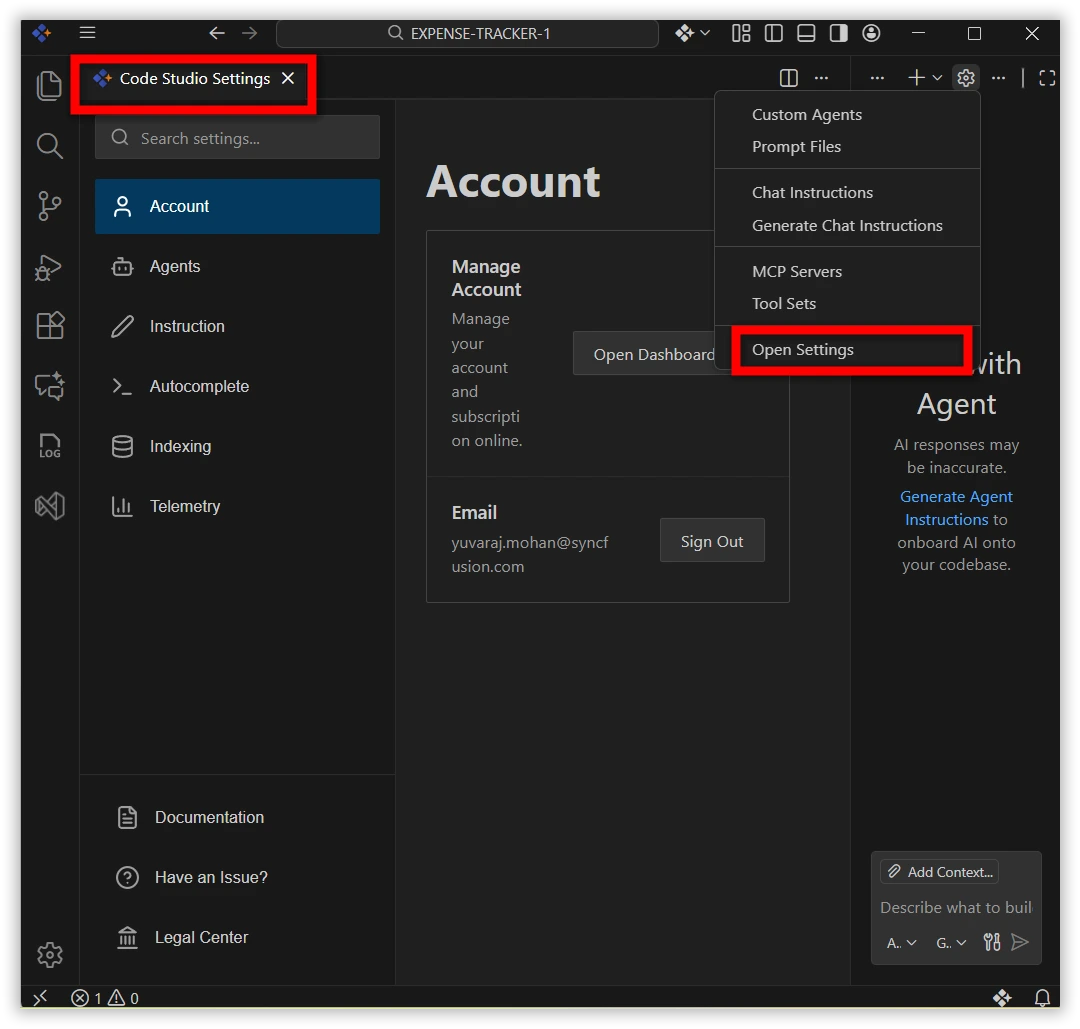
User Settings
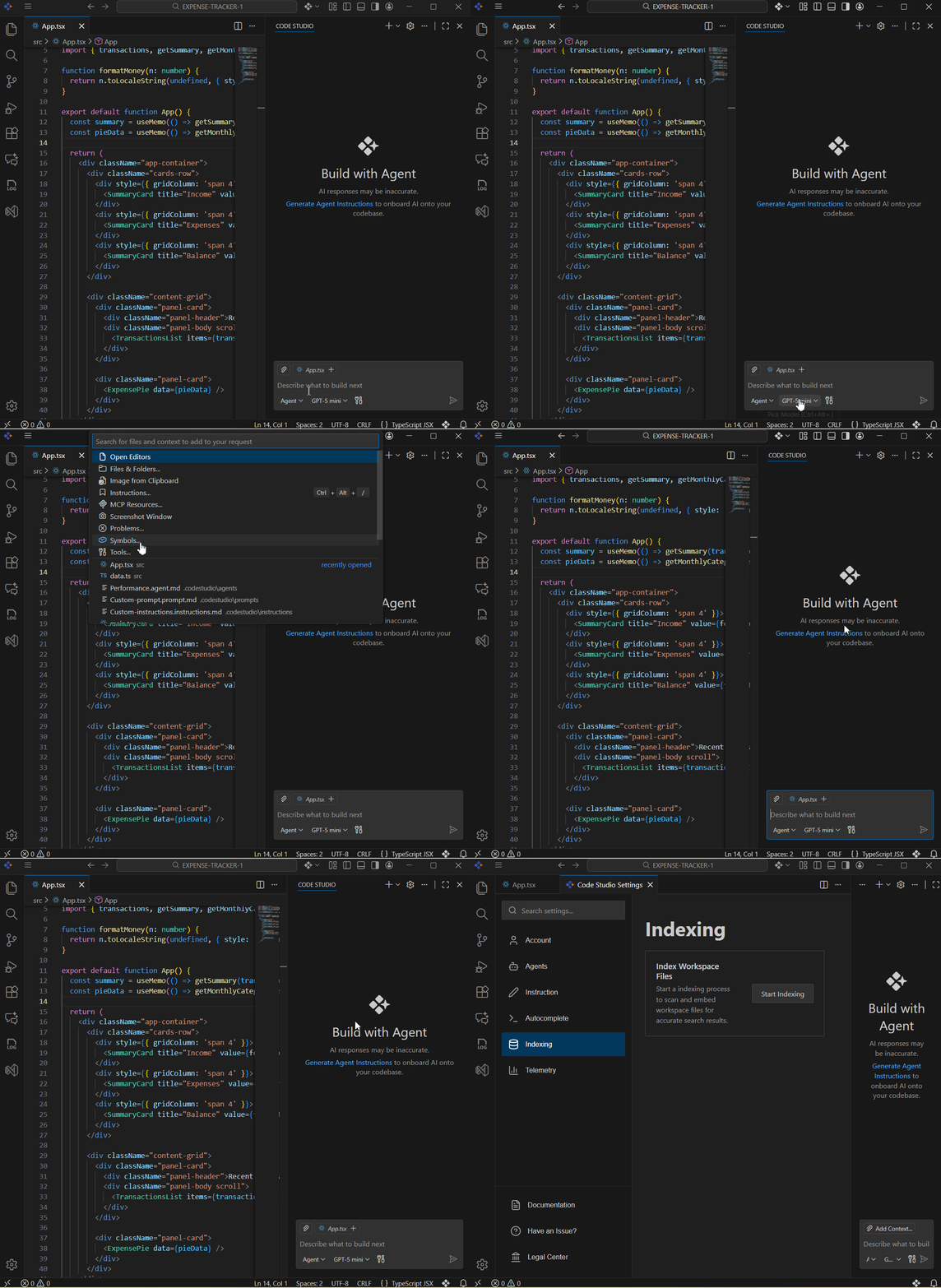
The User Settings page has been redesigned to provide a more modern, consolidated interface that makes managing Code Studio simpler and more intuitive. The new UI brings everything together in one place with clear categories and instant changes.
Categories
- Account – Manage your account, subscriptions.
- Email – Sign in or sign out seamlessly.
- Agents – Enable agent mode, set request limits, and attach instructions from AGENTS.MD.
- Instructions – Control whether .codestudio-instructions.md is applied, and specify custom instruction file locations.
- Autocomplete – Toggle inline code suggestions across supported languages.
- Indexing – Index workspace files for smarter search results.
- Telemetry – Manage anonymous telemetry collection to improve product quality.
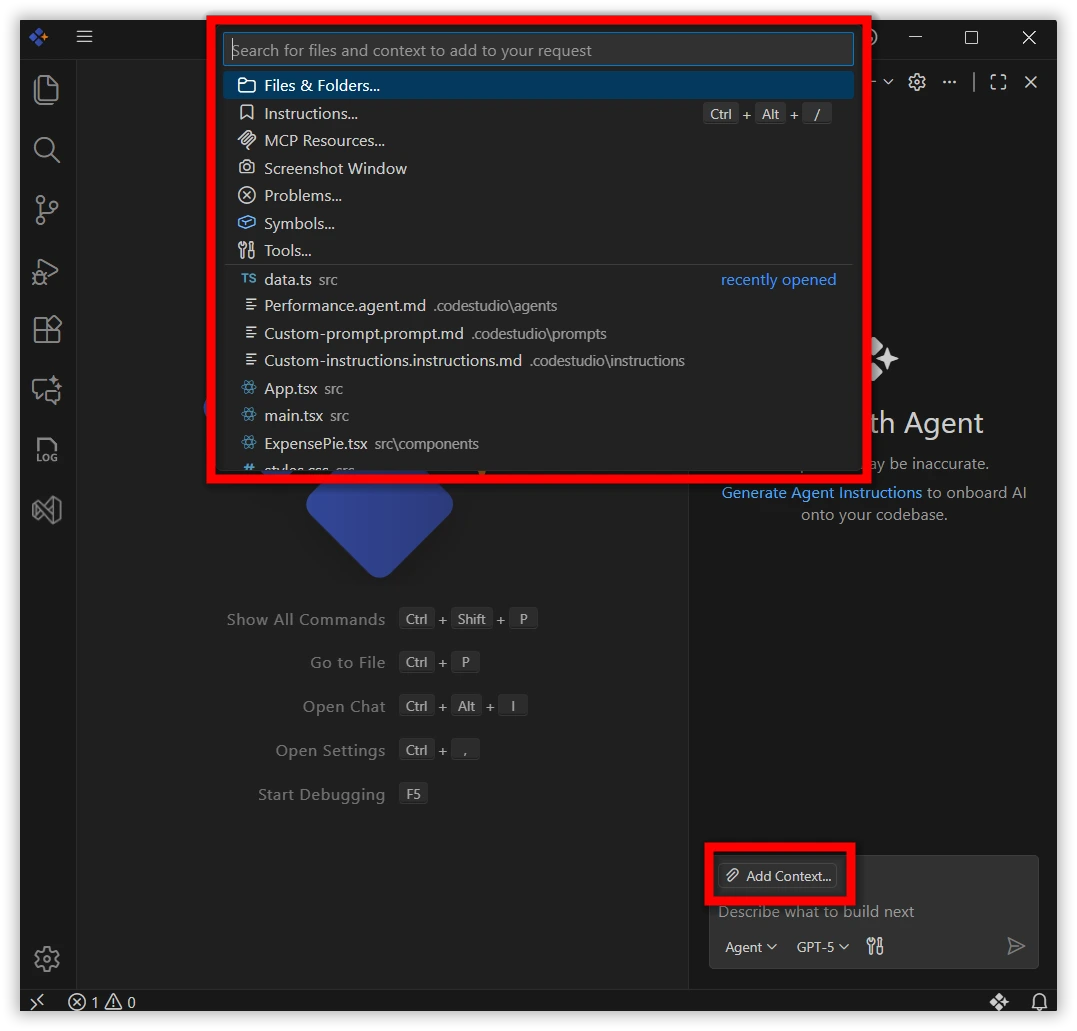
Add Contexts
Code Studio now introduces a redesigned Add Context experience that makes it simple to give the AI the right information. You can attach files, folders, problems, symbols, screenshots, or tools directly from the chat.
- One-click UI – Use the Add Context button to attach relevant files or project elements.
- Smarter responses – The more context you provide, the more accurate and helpful the guidance becomes.
- Flexible options – Choose from files, folders, instructions, problems, symbols, screenshots, or tools depending on your need.
- Inline access – Also typing @ in chat instantly shows all available chat participants.
Checkpoints
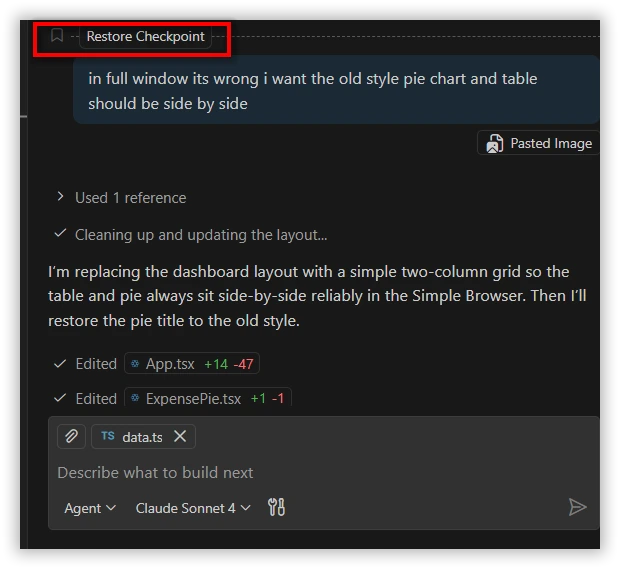
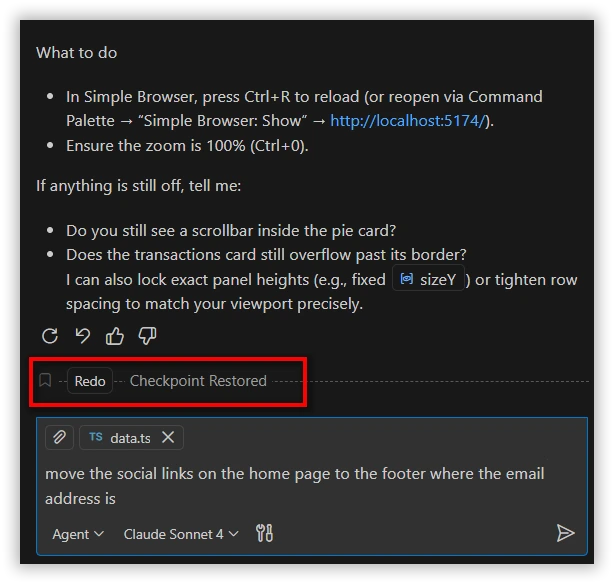
Code Studio now features a redesigned Checkpoints interface that makes tracking and managing workspace changes easier and more intuitive. Every time AI modifies your code through chat, a checkpoint is automatically created. You can view these checkpoints in a clean, timeline-style panel, restore any version with a single click, and even revise or undo specific chat instructions.
- One-click restore and redo – Instantly roll back or reapply changes.
Context Enhancement
- Only the required context is passed to the AI model based on each request. This streamlines processing and significantly reduces token usage for major tasks, improving efficiency and performance.
Improvements:
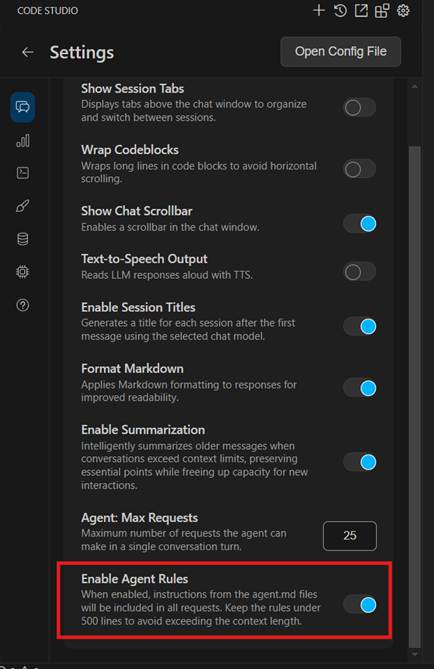
Global Agent Rules
The Syncfusion® Code Studio now supports Global Agent Rules, a simple way to guide AI code generation and tasks. Users can add these rules as a plain Markdown file in their project root or any subdirectory. The file provides clear, readable instructions that the AI will follow during code generation. It’s lightweight and user-friendly; no complex setup is required, unlike project rules. This makes it easy to maintain consistent guidelines across the project without having to repeat the same context in every chat. Once added, the Markdown file automatically applies these instructions to the chat.
Key Notes:
- The total lines across all AGENTS.md files (including nested and root files) should be fewer than 500 to avoid context length issues.
- Enable Agent Rules from the settings menu to apply them automatically to all chats.
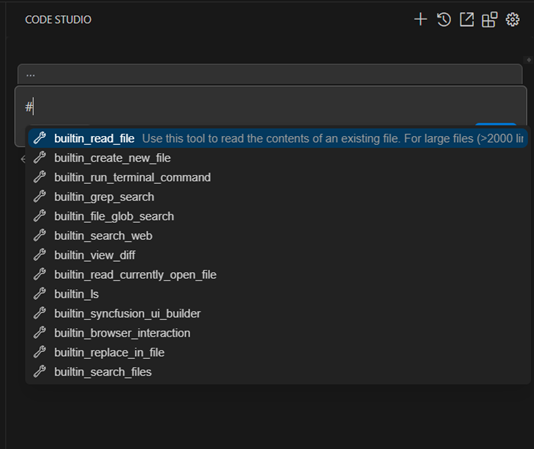
Quick Tool Access with # Suggestions in Chat:
This feature supports inline tool suggestions to make working with tools faster and easier. When you type # in the chat, a dropdown of available tools will appear. Users can select one or multiple tools, and they’ll be inserted automatically as #{ToolName} followed by the user’s prompt. This makes tool selection quick, clear, and consistent, while helping the AI deliver sharper and more accurate responses.
Breaking Changes
- Credit Token Usage API Update
We have refined the Credit Token Usage API to prevent excessive or looping API calls that previously caused unexpected server load.
Bug Fixes
- “Failed to Parse Assistant” Issue Resolved
This update fixed the issue where users encountered parsing errors while interacting with the AI Assistant. It ensures smooth message processing and reliable responses.
- GPT-5 ‘reasoning’ Parameter Error (Status Code 400)
Fixed the issue where the GPT-5 model requests returned 400 Unknown parameter: ‘reasoning’.
Model Selection Improvement
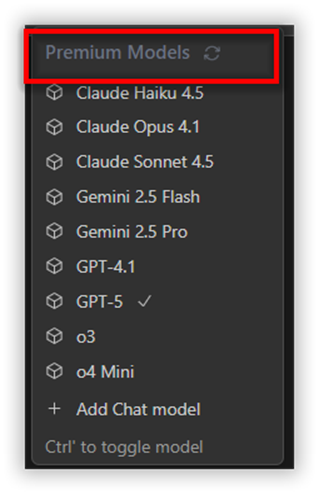
Use premium AI models instantly—no setup needed!
Experience the power of top-tier AI models right inside the Code Studio enterprise server.
No need to bring your own API keys, just recharge your credits and start using premium models like GPT-5, Claude, and Gemini instantly.
Fast, reliable, and fully managed by Code Studio so you can focus on building, not configuring.
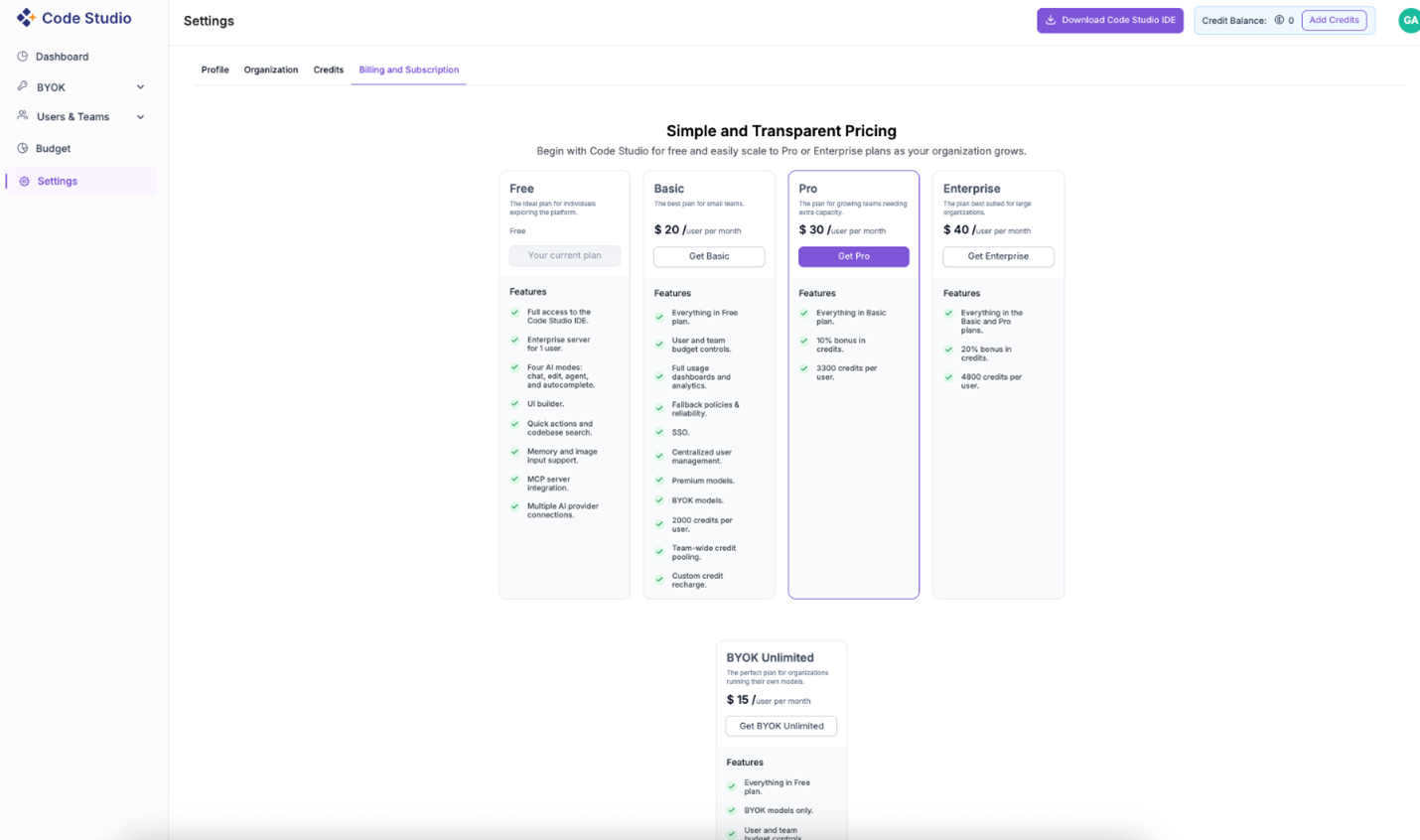
Updated Pricing Plans in Code Studio
We’ve introduced a new set of flexible pricing plans to better suit different types of developers and teams:
- Free plan ($0/user/month): Perfect for individuals exploring Code Studio and getting started with AI-powered development.
- Basic plan ($20/user/month): Designed for small teams beginning their AI development journey.
- Pro plan ($30/user/month): Ideal for growing teams that need additional credits, advanced features, and higher usage capacity.
- Enterprise plan ($40/user/month): Tailored for large organizations requiring enhanced governance, reliability, and team management controls.
- BYOK unlimited plan ($15/user/month): For teams using their own AI models and managing provider costs directly. Provides full flexibility with your own infrastructure.
These plans ensure that whether you’re an individual developer or a large enterprise, Code Studio meets your needs.
Code Studio Pricing: Free and Enterprise Plans | Syncfusion®
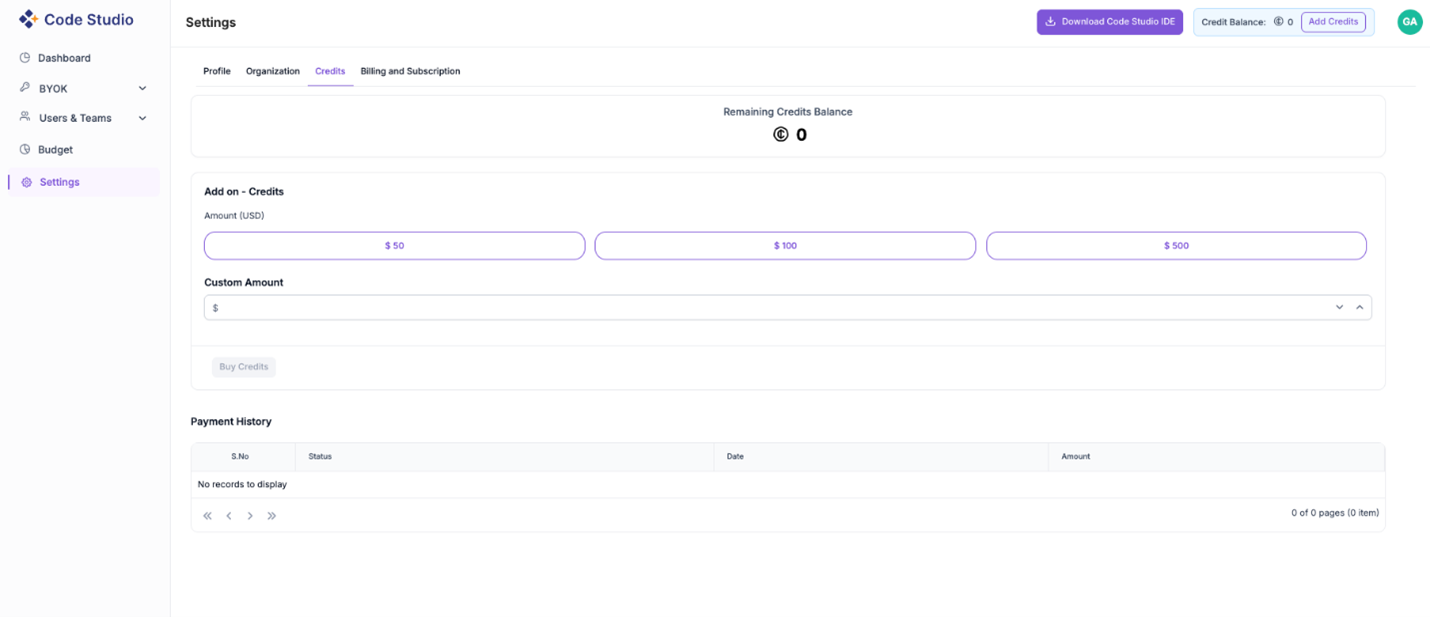
Credit Management Made Simple
Introducing the credit management feature in Code Studio!
You can now conveniently view, add, and track credits right from your dashboard.
- Instantly check your remaining credit balance.
- Choose from quick top-up options ($50, $100, $500) or specify your own amount.
- Review your payment history anytime for greater transparency.
Keep your workspace running smoothly. Top up credits as needed, whenever you need them.
Smarter Model Configuration in Code Studio
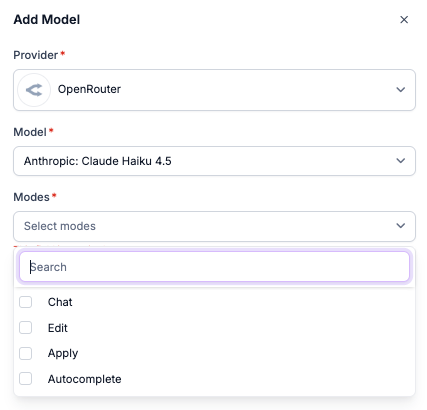
We’ve made it easier than ever to configure and manage AI models in Code Studio with two powerful new features:
Mode selection when adding models
You can now assign specific modes, such as Chat, Edit, Apply, or Autocomplete, while adding a model.
This flexibility allows you to define how each model is used within the IDE, ensuring that the right model is applied for the right task.
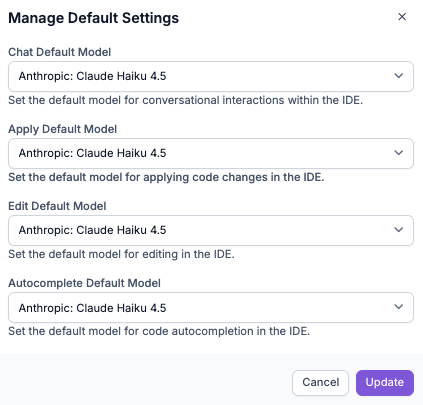
Manage default model settings
Set your preferred models as defaults for each mode:
- Chat default model for conversational interactions.
- Edit default model for intelligent code editing.
- Apply default model for code transformation and refactoring.
- Autocomplete default model for fast and accurate code completion.
With this update, Code Studio gives you full control over how your models are used across different development operations, enhancing both productivity and customization.
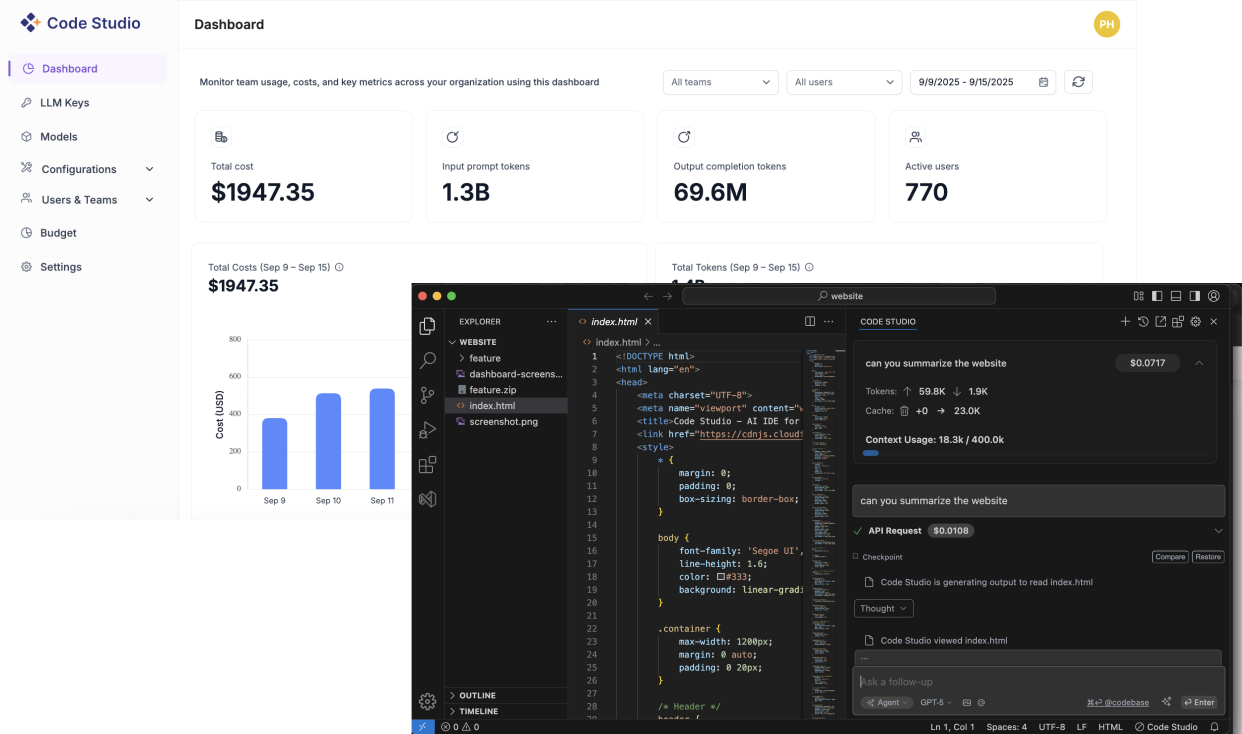
Code Studio Enterprise Server
Confidently scale AI development across your organization with centralized control, security, and visibility.
- LLM Connections & Model Management
Connect to any provider with your own keys (BYO-Key), manage models from one control plane, set access rules, and monitor usage with built-in analytics. - User & Team Management
Invite users via SSO, organize them into teams, assign roles, set budgets and quotas, and track detailed usage per user and team. - Resilient by Design
Define a fallback order—Code Studio automatically handles retries and failovers to keep development uninterrupted. - Team & User Budgets
Set budgets for users and teams, receive alerts on threshold breaches, and view trends to manage costs proactively. - Analytics & Observability Dashboard
Monitor token usage, costs, latency, and success rates in real-time with powerful filters and insights by team, user, or model.
MCP Marketplace
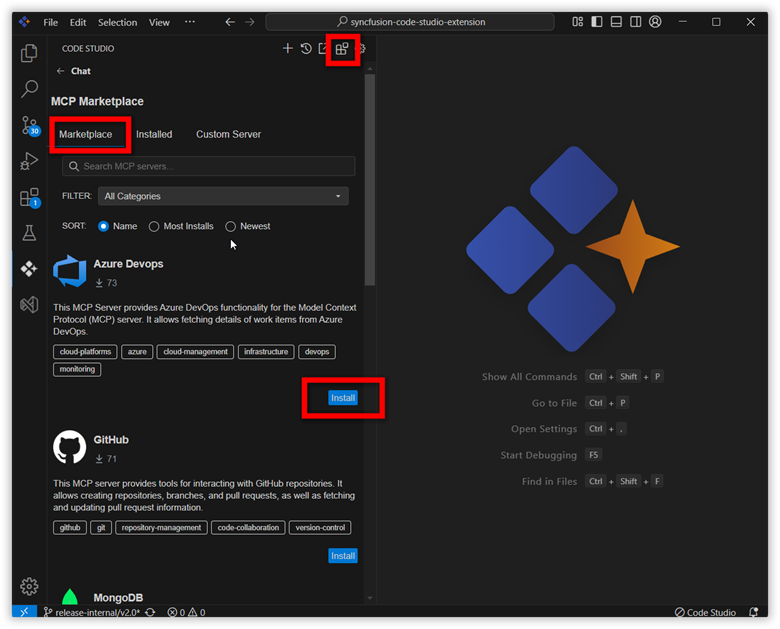
The MCP Marketplace is a centralized platform for server management, helping users find, install, and connect the right servers for their needs through an easy-to-use interface. It showcases the variety of available MCP servers. Users can explore server options and configure them for use by simply clicking the Install button. This initiates an automated setup process that integrates the server with the Code Studio extension.
Custom Servers
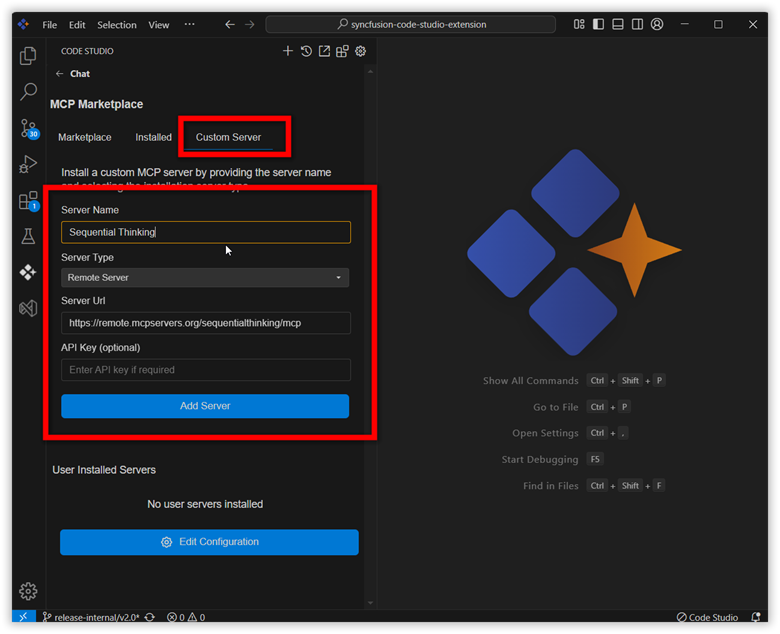
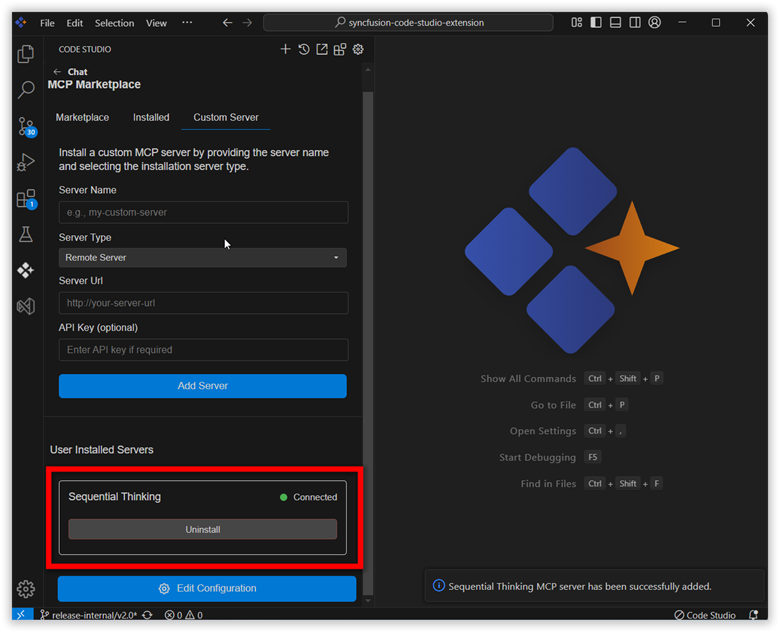
Users can connect to any custom MCP server. Link these servers to the Code Studio extension for enhanced accessibility and control.
Tools Enhancement
Tools have been updated for greater reliability and flexibility. The run-terminal tool now enables the move-to-background feature only for development commands (with clear tooltips for others), removes unnecessary visual clutter from the terminal output, and executes shell commands more reliably by running them as terminal code. Additional tool enhancements include better handling of multiple-file creation, improved accuracy in file and directory listings, more precise searching and file reading, smarter change detection in diffs, and enhanced support for processing specific file ranges and handling malformed input.
Enhanced UI Builder Mode Support
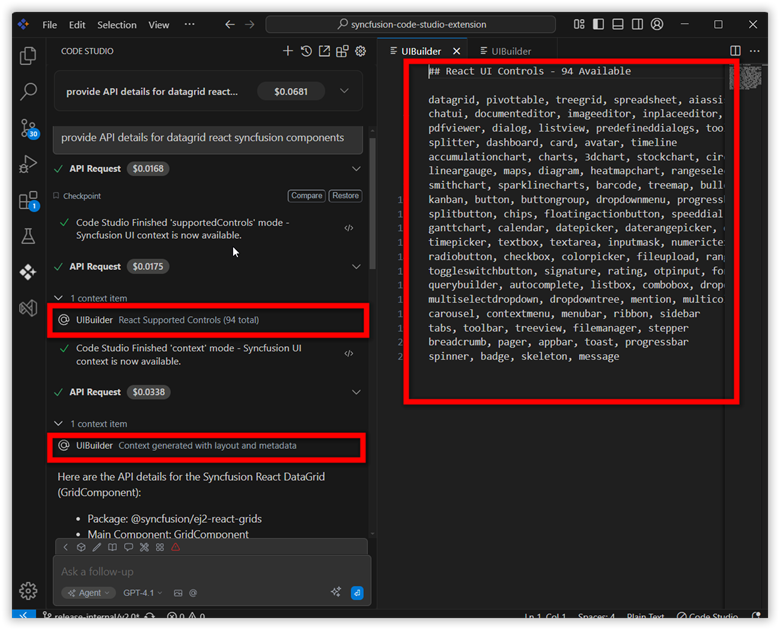
- Supported Controls Mode: Now returns all available controls for your target Syncfusion®
- Context Mode: Provides comprehensive metadata including platform prompts, layout plans (JSON), and controls’ JSON context.
- Expanded Platform Support: Added support for 10 new platforms: TypeScript, Pure React, Vue, .NET Core, MAUI, Flutter, WinForms, WPF, WinUI, Java.
- Platform Optimization: Enhanced prompts and metadata for existing platforms (JavaScript, React, Angular, Blazor).
- User Experience: Added a warning pop-up for when UI builder receives more than 15 components in context mode to prevent performance issues.
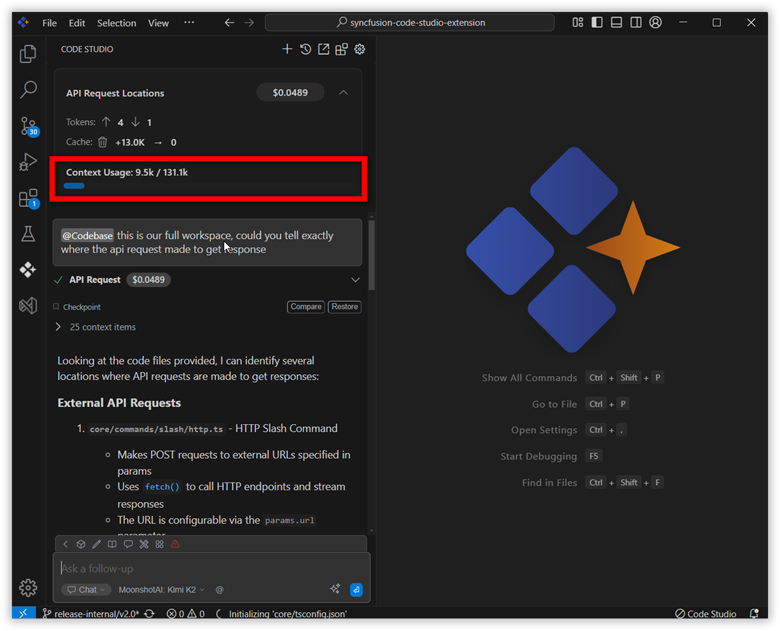
Progress Bar for Context Usage Update
A new progress bar in the chat interface tracks context length usage in real time, showing how much of the AI's limit is used during chat sessions. Users can manage conversation length more effectively with it and avoid exceeding model limits.
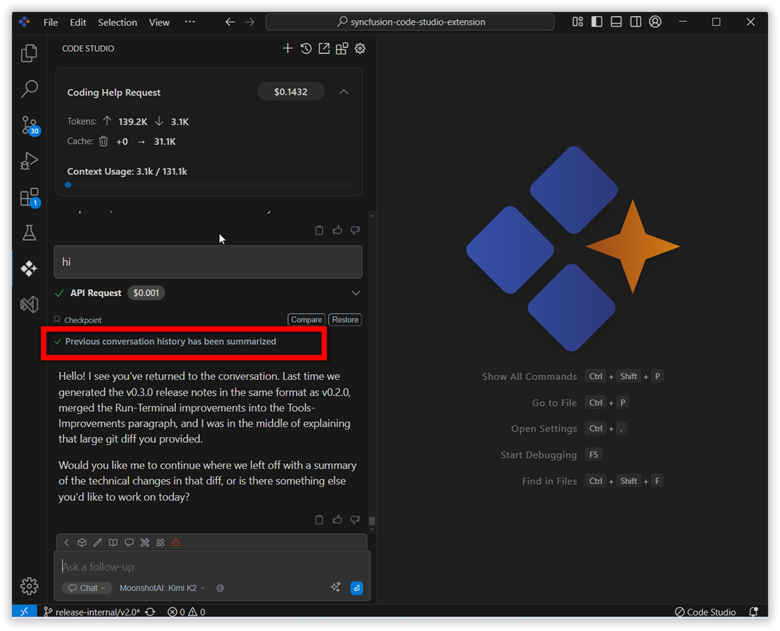
Session Chat Summarization
A new context summarization feature automatically maintains context usage within set limits throughout the session. When the context length approaches its limit, previous user and assistant conversations are summarized to manage resource consumption efficiently.
Version 0.2.0
Release date: July 3, 2025
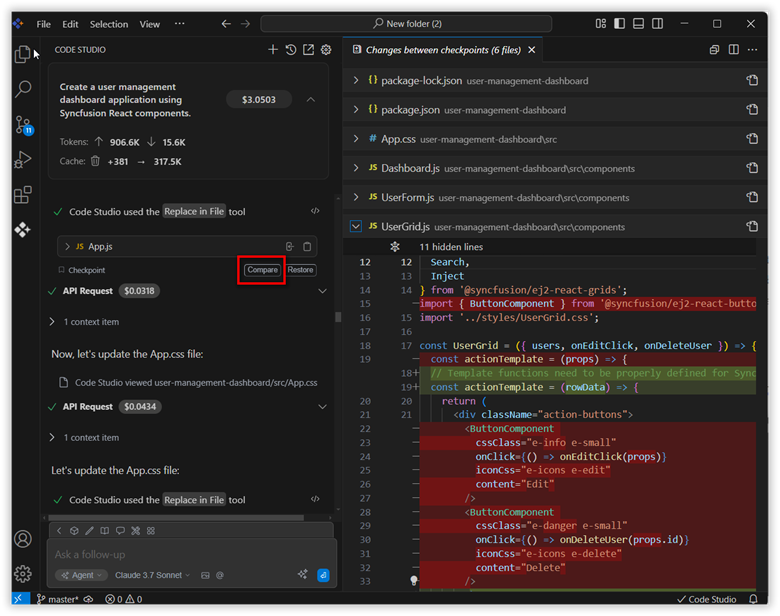
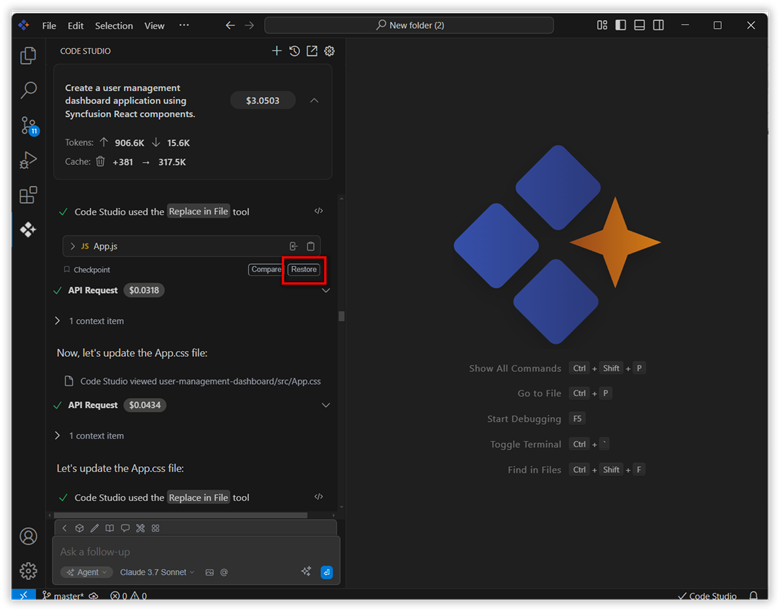
Checkpoints
The Syncfusion® Code Studio now automatically saves the state of your workspace in agent mode during key actions, such as creating new files, replacing content in files, or executing terminal commands. This feature enables you to track modifications, review differences between states, and revert to any previously saved checkpoint, giving users a reliable and controlled development environment.
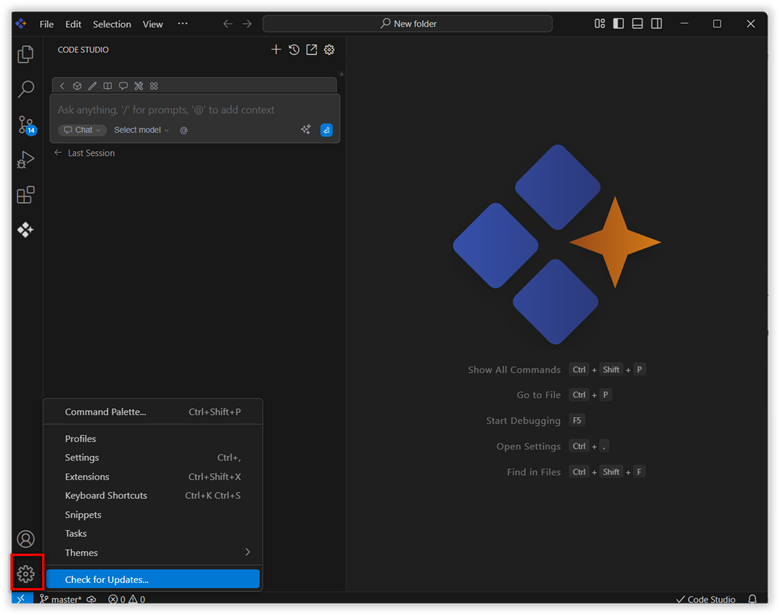
Check for Updates
The Check for Updates option is now available in the Settings menu, allowing users to easily update the IDE to the latest version.
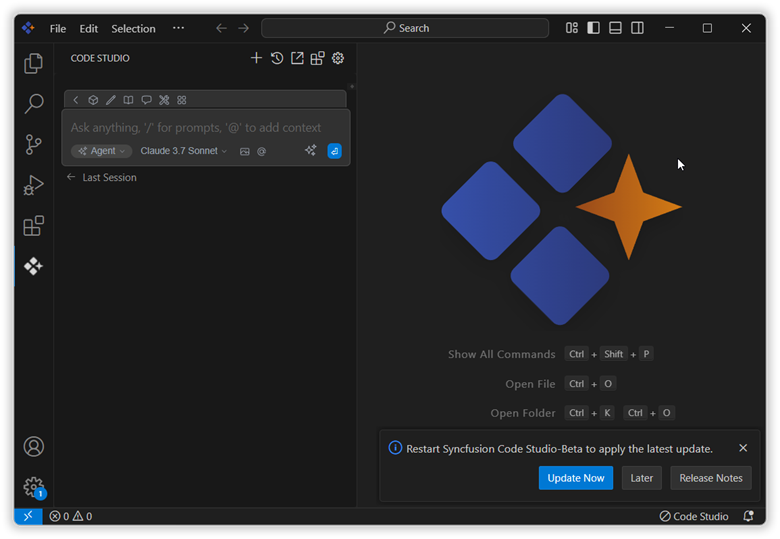
When a new release becomes available, a notification will appear prompting you to update. Simply click Update Now, and the latest version will be downloaded and installed automatically—no manual steps required.
Memory
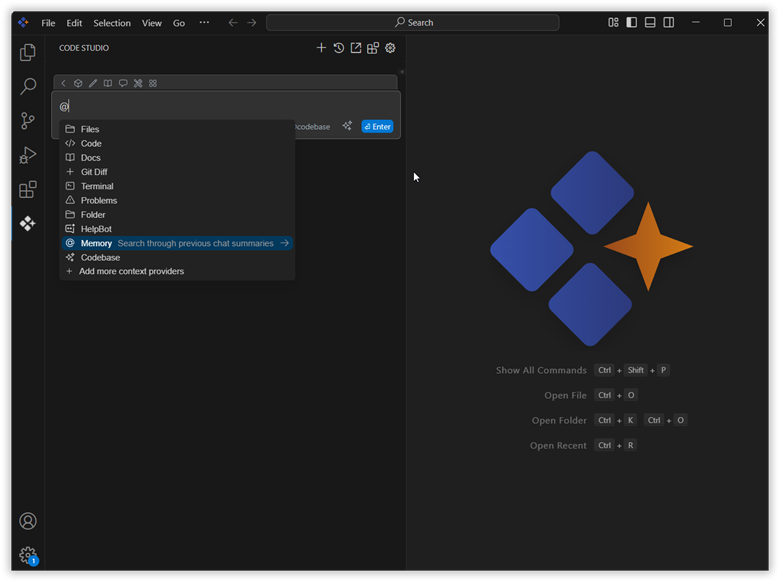
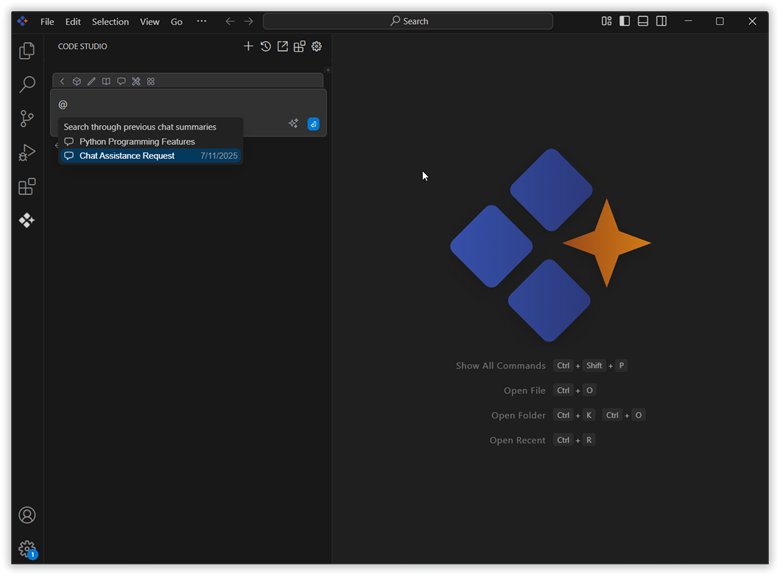
The memory feature helps maintain continuity across sessions by allowing summaries from previous chats to be imported into the current conversation. This enables the AI to retain context, improving accuracy and efficiency, particularly during complex or ongoing tasks. You can access the previous chats in the current conversion by using the memory context provider by typing @ in the chat box. Then, you can select the past chat conversion you want to add to your current conversation.
Browser Use Tool
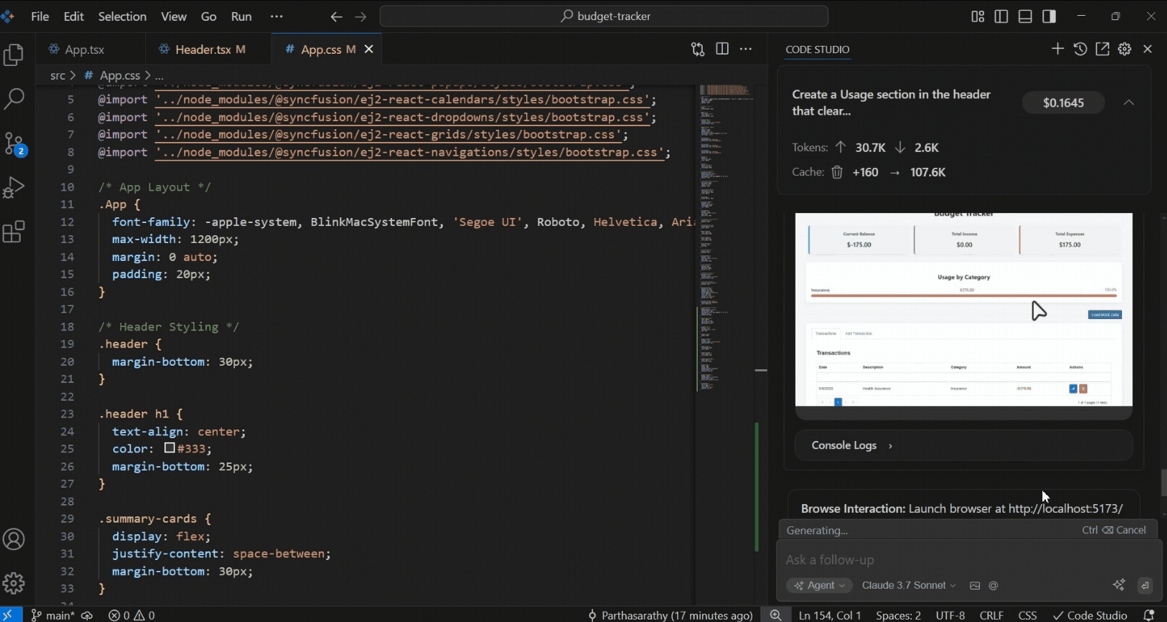
Browser interaction is an advanced automation feature designed to interact with web pages directly from the chat interface. It facilitates a range of web actions including opening websites, performing searches, clicking elements, scrolling, and capturing screenshots, all seamlessly integrated within your workflow. Each step of the interaction is visually documented with updated screenshots, allowing users to track automation progress in real time.
Prompt Files
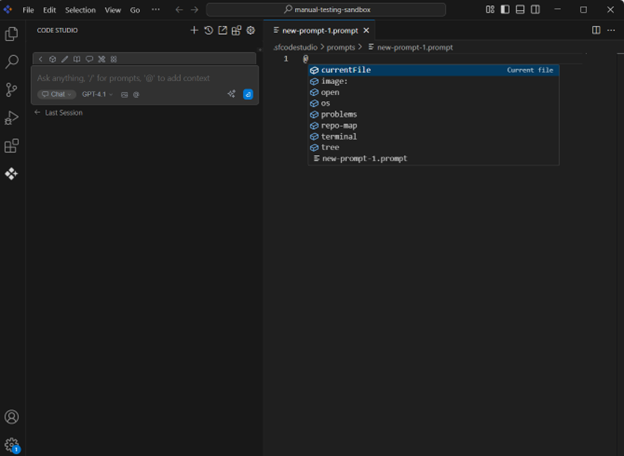
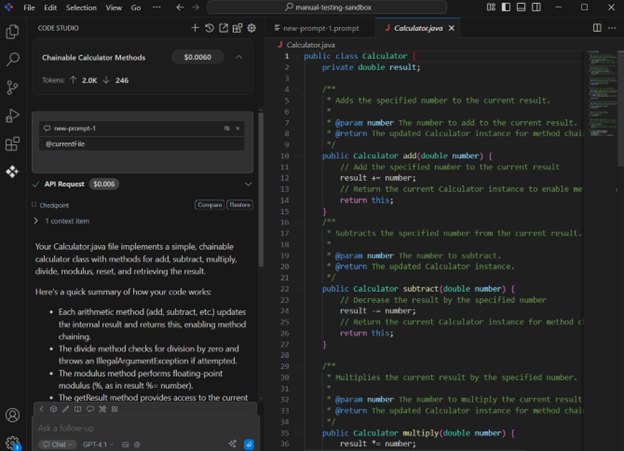
There’s now support for files, a repo-map, and URL contexts in prompt files. Tool usage and agent mode compatibility have been enabled for prompt files to improve result accuracy.
Session Usage UI
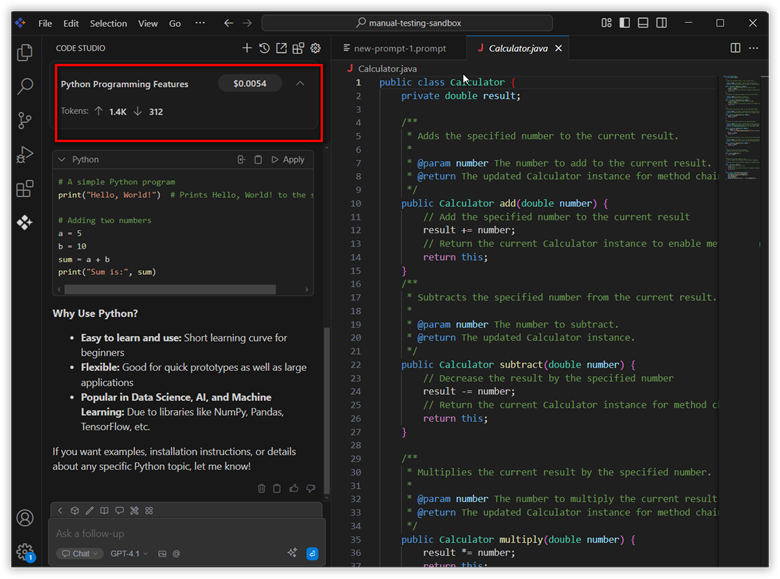
Now users can view the total input tokens, output tokens, and cost usage for all queries made within a session. This helps track overall cost usage and manage cost consumption more effectively during development.
Tool Improvements
The system prompt was optimized for improved agent workflow and clearer responses. We replaced the edit file tool with “replace in file” for efficient editing. We also enhanced workspace issue handling by sending problems as context after each file edit.
Version 0.1.0
Release date: May 27, 2025
Autocomplete
Get intelligent code completions as you type, speeding up development and reducing errors. As you begin typing, the feature predicts and displays context-aware completions. This feature enhances productivity by reducing repetitive typing and offering intelligent suggestions based on your current code and project context.
Chat Mode
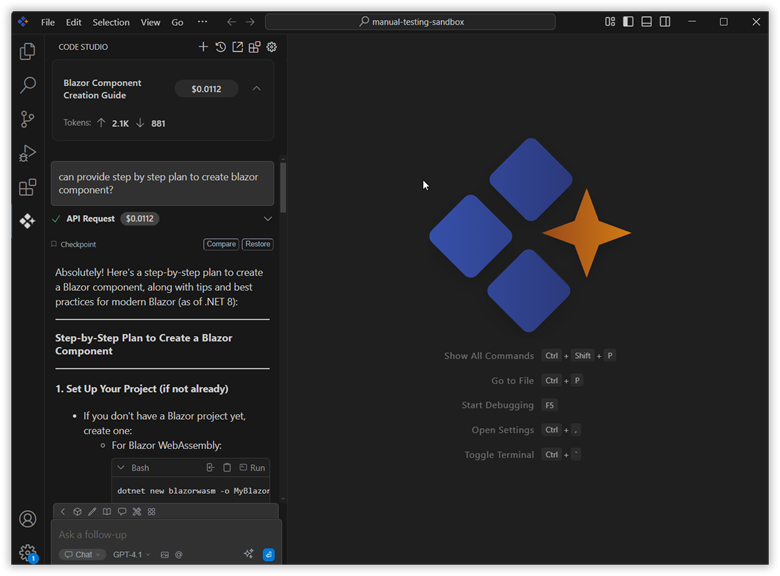
Interact with Syncfusion® Code Studio using natural language to get code suggestions, explanations, and assistance in real time. You can ask coding questions, request explanations of complex logic, generate new code snippets, or troubleshoot bugs.
Code Selection and AI Assistance
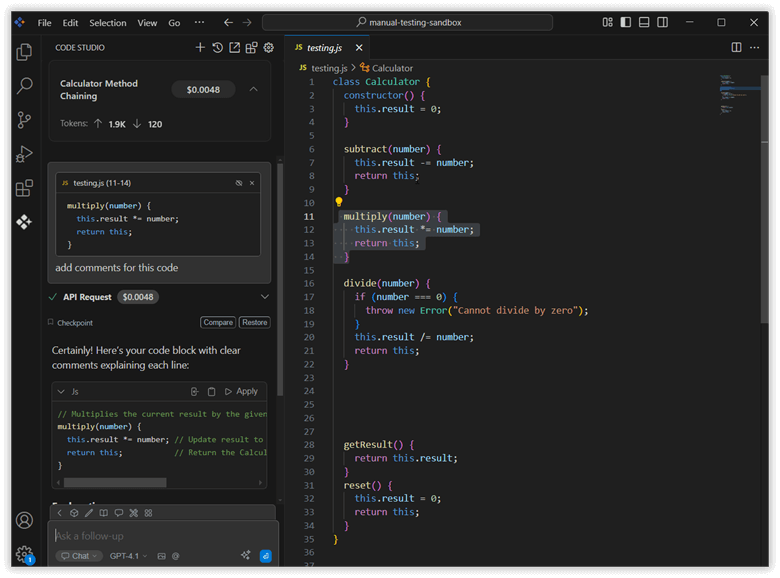
Pressing Command+L (on Mac) or Control+L (on Windows/Linux) will automatically send the selected code to the AI assistant via chat. You can then type questions or requests about the selected code, and the AI will respond with explanations, suggestions, or improvements.
Agent Mode and Tools
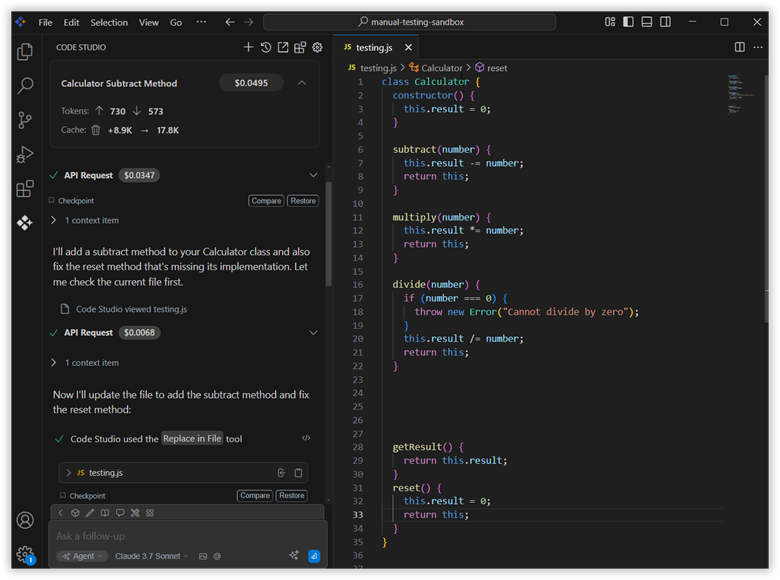
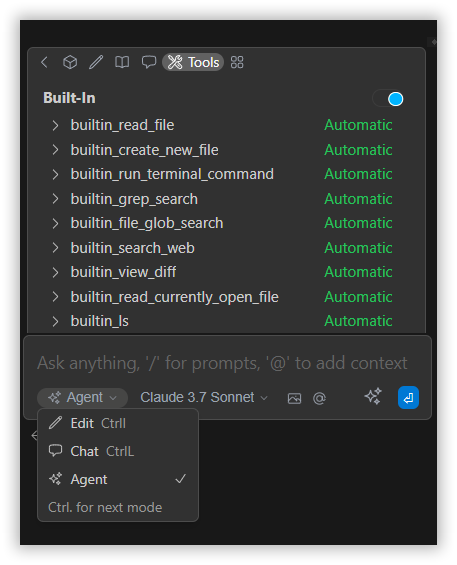
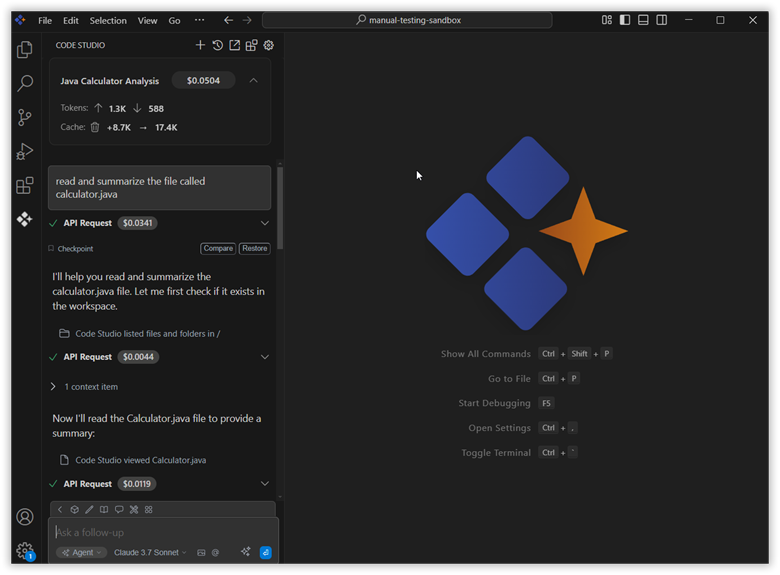
Agent mode in the Syncfusion® Code Studio lets you autonomously analyze your codebase, plan and execute changes, and use tools to automate complex development tasks with minimal input. It uses all available tools to search, edit, and create files, as well as run terminal commands.
Edit Mode
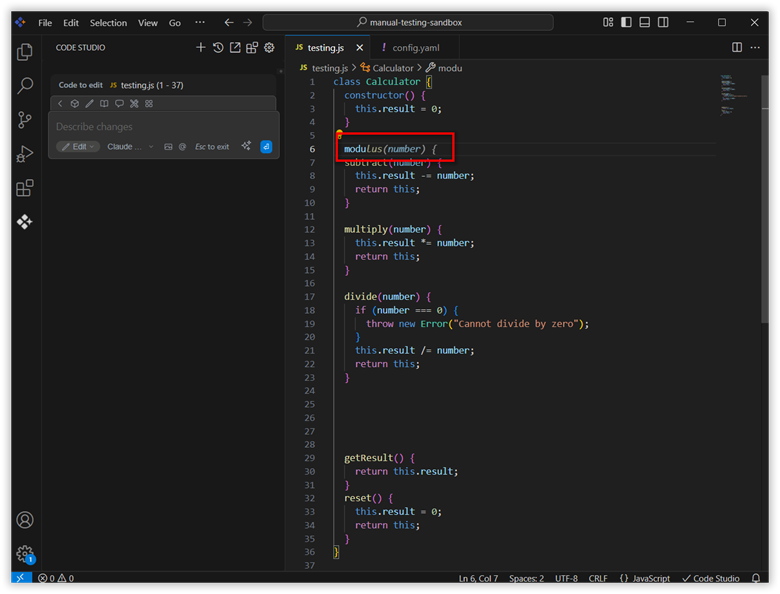
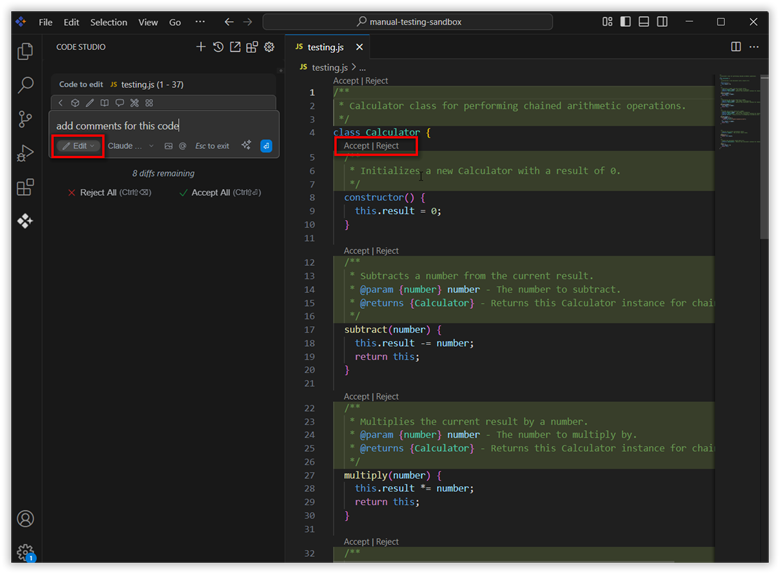
Edit mode makes it easy to update specific code or files. Just highlight the code you want to change, describe the update, and the changes will appear inline for you to accept or reject. It’s an efficient way to make precise edits in your file. Pressing Command+I (on Mac) or Control+I(on Windows) will automatically send the selected code to the AI assistant via chat.
Reusable Prompts
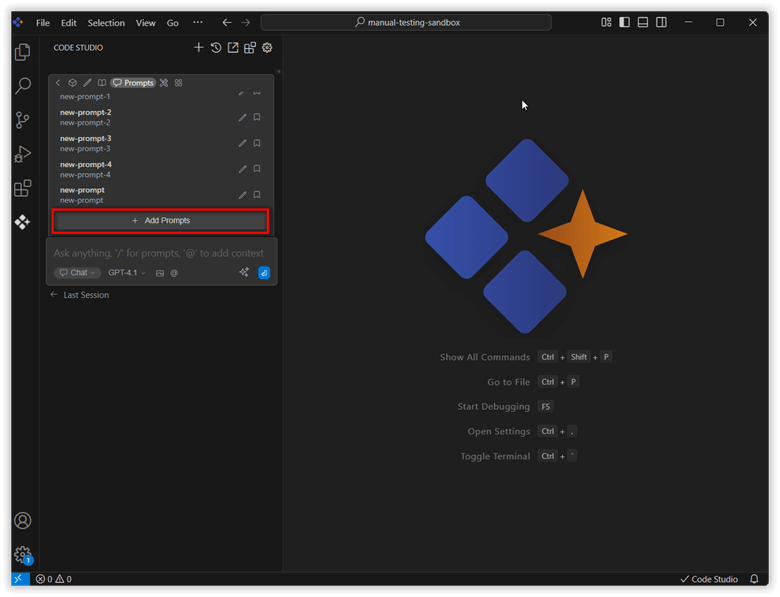
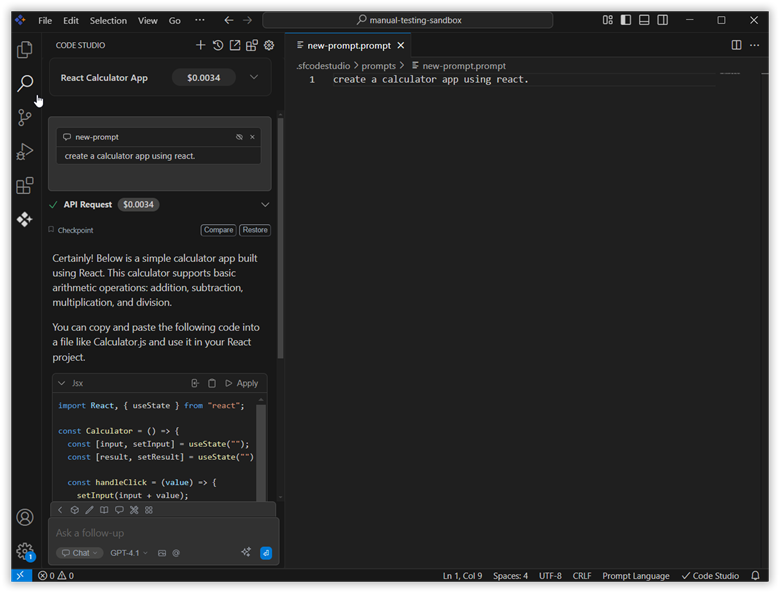
Prompts are reusable instructions that can be referenced at any time during a chat. Create and save custom prompt templates for common tasks, so that it’s easy to reuse instructions and streamline your workflow. You can create a custom prompt by clicking the Add prompt button.
Custom Rules
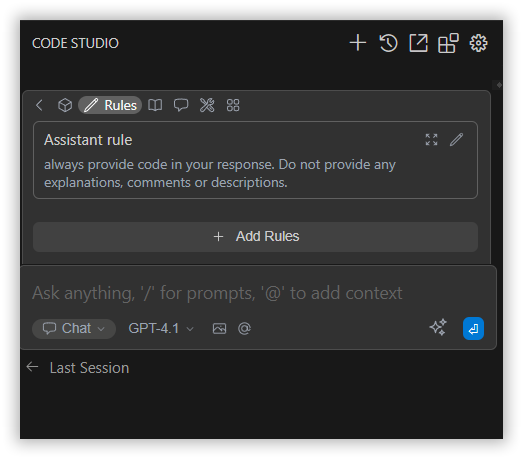
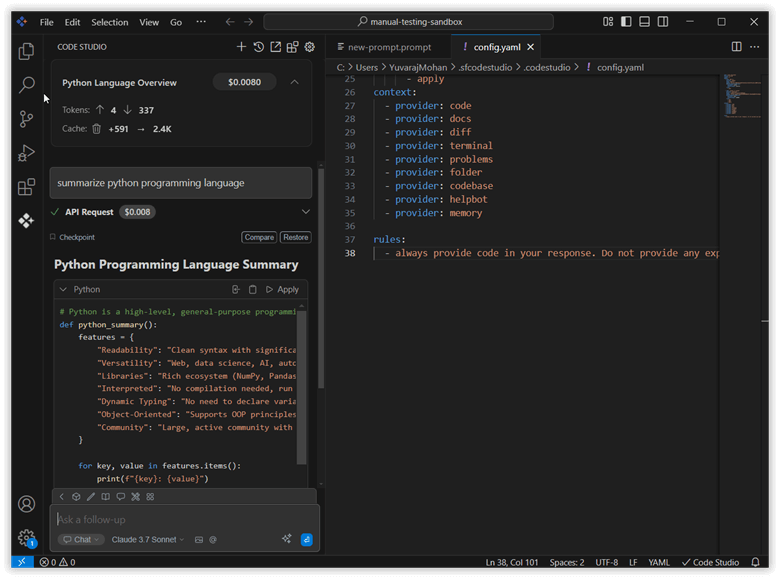
Rules are used to provide instructions to the model for chat, edit, and agent requests. Define custom rules and workflows to automate repetitive tasks and enforce coding standards across your projects.
Syncfusion® UI Builder
The Syncfusion® UI builder tool quickly generates and customizes user interfaces with AI suggestions, streamlining UI development within your projects.