Syncfusion Checkbox Filtering In .NET MAUI


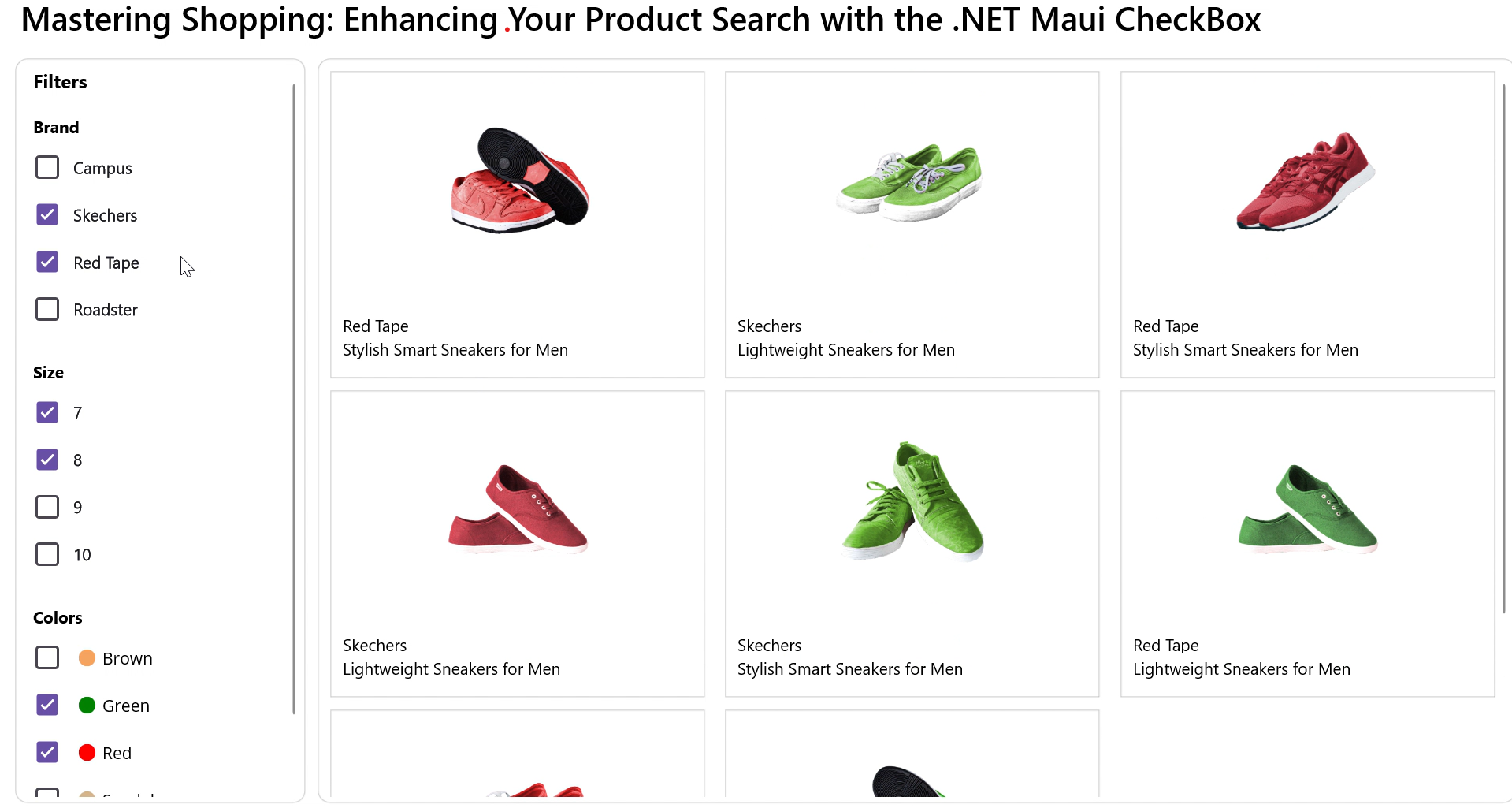
This example demonstrates how the .NET MAUI CheckBox revolutionizes the shopping experience by enabling users to refine their products. Follow the steps below to create a project and filter products from the available items using Maui CheckBox.
Create a simple Maui CheckBox
Start by referring to the Syncfusion .NET Maui CheckBox documentation to create a Maui application and include the Maui CheckBox. The IsChecked property is used to indicate whether the filtering is enabled or not in the predefined collection.
<buttons:SfCheckBox Text="Campus" IsChecked="True"/>
Create a Simple Maui ListView
You can refer to the Syncfusion .NET Maui ListView documentation to include the Maui ListView. It is used to render a set of data items using Maui views or custom templates. Data can be easily grouped, sorted, and filtered.
<listView:SfListView>
    <listView:SfListView.ItemTemplate>
        <DataTemplate>
             . . .
        </DataTemplate>
    </listView:SfListView.ItemTemplate>
</listView:SfListView>
Populating items using data binding
Step 1: Define a simple model class ProductInfo with fields like Brand, Description, Size, Color, and Image, as shown in the example code below:
 public class ProductInfo
 {
     public string Brand { get; set; }
     public string Description { get; set; }
     public string Size { get; set; }
     public Color Color { get; set; }
     public string Image { get; set; }

     public ProductInfo(string brand, string image, string size, Color color, string description)
     {
         Brand = brand;
         Description = description;
         Size = size;
         Color = color;
         Image = image;
     }
 }
Step 2: Create a ViewModel class with a ProductInfo collection property initialized with the required number of data objects. Save it in a new class file named ProductInfoViewModel.cs, as shown in the following code example:
public class ProductInfoViewModel
{
    public ObservableCollection<ProductInfo> Products1 { get; set; }
    public GettingStartedViewModel()
    {
        Products1 = new ObservableCollection<Product>();
        string description1 = "Lightweight Sneakers for Men";
        string description2 = "Stylish Smart Sneakers for Men";
        Products1.Add(new Product("Campus", "brownshoe-01.png", "6   7   8", Colors.Brown, description1));
        Products1.Add(new Product("Campus ", "greenshoe-02.png", "6   7   8   9   10", Colors.Green, description2));
        Products1.Add(new Product("Campus ", "redshoe-03.png", "7   8   9   10 ", Colors.Red, description2));
. . .
    }
}
Step 3: Add multiple CheckBoxes to filter products with the exact specifications. Then bind the data collection to the ListView's ItemsSource.
<Grid>
    <Border>
        <Label Text="Filters" HorizontalOptions="Start"/>

        <StackLayout>
                <Label Text="Brand" />
                <Syncfusion:SfCheckBox HorizontalOptions="Start" Text="Campus" BindingContext="{x:StaticResource ViewModel}" IsChecked="{Binding BrandFilterChecked1}"/>
                <Syncfusion:SfCheckBox HorizontalOptions="Start" Text="Skechers"  BindingContext="{x:StaticResource ViewModel}" IsChecked="{Binding BrandFilterChecked2}"/>
                <Syncfusion:SfCheckBox HorizontalOptions="Start" Text="Red Tape"   BindingContext="{x:StaticResource ViewModel}" IsChecked="{Binding BrandFilterChecked3}"/>
                <Syncfusion:SfCheckBox HorizontalOptions="Start" Text="Roadster"  BindingContext="{x:StaticResource ViewModel}" IsChecked="{Binding BrandFilterChecked4}"/>
        </StackLayout>

. . .
  </Border>

   <Border>
    <listView:SfListView BindingContext="{x:StaticResource ViewModel}" ItemsSource="{Binding Filtered}">
        <listView:SfListView.ItemTemplate>
            <DataTemplate>
                . . .
            </DataTemplate>
        </listView:SfListView.ItemTemplate>
    </listView:SfListView>
  </Border>
</Grid>
Filter products
Filter the products based on the state of the CheckBox, as demonstrated in the example code below:
private ObservableCollection<Product> GetFilteredProducts()
{
    var filteredList = new ObservableCollection<ProductInfo>();

    if (brandFilterChecked1)
    {
        foreach (var product in Products1)
        {
            if (IsColorChecked(product) || IsColorUnfiltered())
                filteredList.Add(product);
        }
    }

...

 List<ProductInfo> products = new List<ProductInfo>();
 products = filteredList.OrderBy(x => Random.Shared.Next()).ToList<ProductInfo>();
 filteredList = this.GetCollection(products);

    return filteredList;
}