
Multi Step Wizard With The MAUI Tab View


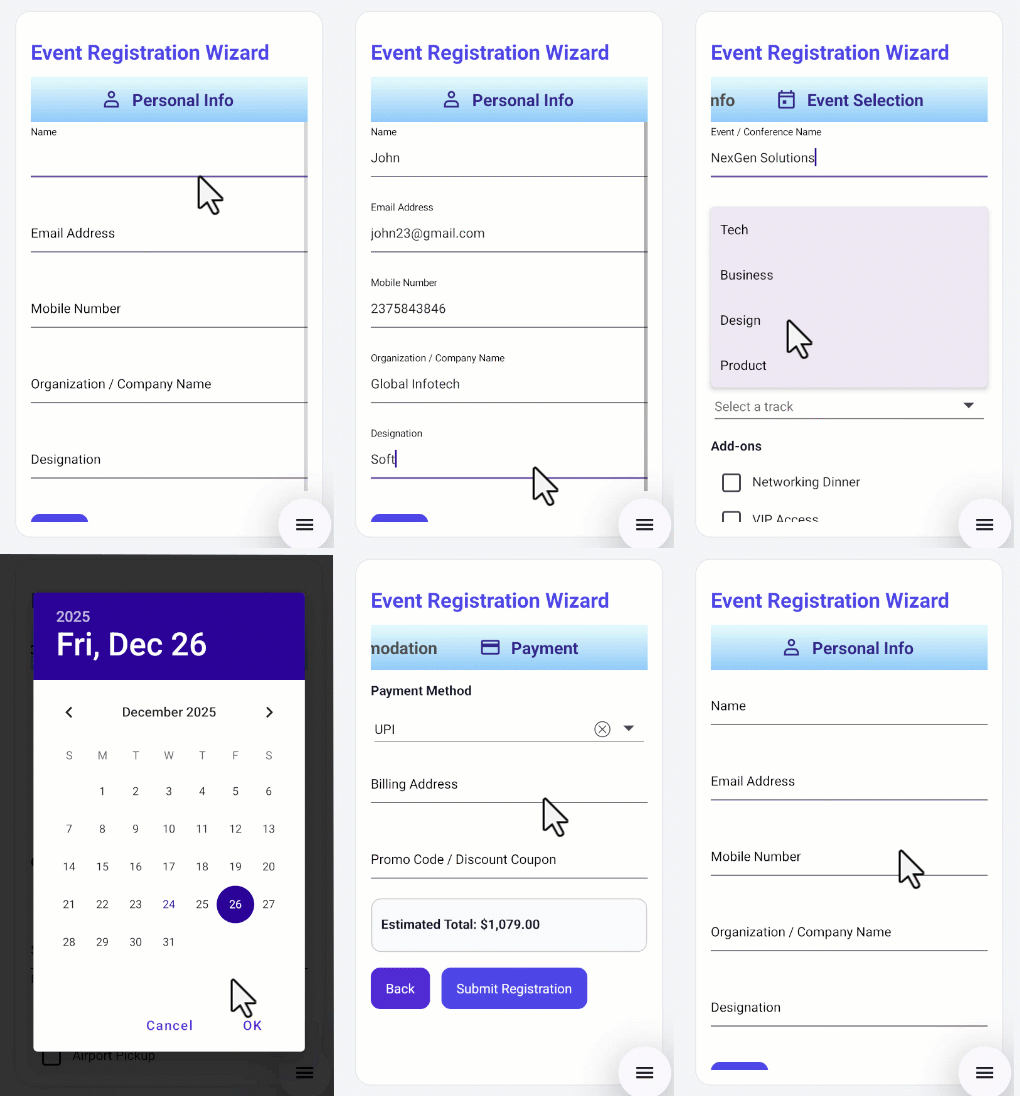
This sample demonstrates how to create a multi-step wizard using the .NET MAUI Tab View control in a .NET MAUI application.
Sample
<tabView:SfTabView x:Name="tabView" IndicatorStrokeThickness="0"
TabWidthMode="{OnPlatform Android=SizeToContent, iOS=SizeToContent}">
<!-- TAB 1: Personal Info -->
<tabView:SfTabItem x:Name="tabPersonal" Header="Personal Info" FontAttributes="Bold"
FontSize="18" ImagePosition="Left">
<tabView:SfTabItem.ImageSource>
<FontImageSource Glyph="" Color="{Binding Source={x:Reference tabPersonal},Path=TextColor}"
FontFamily="MauiSampleFontIcon"/>
</tabView:SfTabItem.ImageSource>
<tabView:SfTabItem.Content>
<local:PersonalInfoView x:Name="personalView" />
</tabView:SfTabItem.Content>
</tabView:SfTabItem>
<!-- TAB 2: Event Selection -->
<tabView:SfTabItem x:Name="tabEvent" Header="Event Selection" IsVisible="False"
FontAttributes="Bold" FontSize="18" ImagePosition="Left">
<tabView:SfTabItem.ImageSource>
<FontImageSource Glyph="" Color="{Binding Source={x:Reference tabEvent},Path=TextColor}"
FontFamily="MauiSampleFontIcon"/>
</tabView:SfTabItem.ImageSource>
<tabView:SfTabItem.Content>
<local:EventSelectionView x:Name="eventView" />
</tabView:SfTabItem.Content>
</tabView:SfTabItem>
<!-- TAB 3: Accommodation Preferences -->
<tabView:SfTabItem x:Name="tabAccommodation" Header="Accommodation" IsVisible="False"
FontAttributes="Bold" FontSize="18" ImagePosition="Left" ImageSize="30">
<tabView:SfTabItem.ImageSource>
<FontImageSource Glyph="" Color="{Binding Source={x:Reference tabAccommodation},Path=TextColor}"
FontFamily="MauiSampleFontIcon"/>
</tabView:SfTabItem.ImageSource>
<tabView:SfTabItem.Content>
<local:AccommodationView x:Name="accommodation" />
</tabView:SfTabItem.Content>
</tabView:SfTabItem>
<!-- TAB 4: Payment Details -->
<tabView:SfTabItem x:Name="tabPayment" Header="Payment" IsVisible="False"
FontAttributes="Bold" FontSize="18" ImagePosition="Left">
<tabView:SfTabItem.ImageSource>
<FontImageSource Glyph="" Color="{Binding Source={x:Reference tabPayment},Path=TextColor}"
FontFamily="MauiSampleFontIcon"/>
</tabView:SfTabItem.ImageSource>
<tabView:SfTabItem.Content>
<local:PaymentView x:Name="payment" />
</tabView:SfTabItem.Content>
</tabView:SfTabItem>
</tabView:SfTabView>
Output
Requirements to run the demo
To run the demo, refer to System Requirements for .NET MAUI
Troubleshooting:
Path too long exception
If you are facing path too long exception when building this example project, close Visual Studio and rename the repository to short and build the project.
License
Syncfusion has no liability for any damage or consequence that may arise from using or viewing the samples. The samples are for demonstrative purposes. If you choose to use or access the samples, you agree to not hold Syncfusion liable, in any form, for any damage related to use, for accessing, or viewing the samples. By accessing, viewing, or seeing the samples, you acknowledge and agree Syncfusion's samples will not allow you seek injunctive relief in any form for any claim related to the sample. If you do not agree to this, do not view, access, utilize, or otherwise do anything with Syncfusion's samples.
Refer to the blog for step-by-step guidance on Building a Gated Multi-Step Wizard in .NET MAUI with Tab View.

