How To Disable Items In Winforms Combobox Dropdown


combobox
combobox-component
dropdown
winforms
Overview
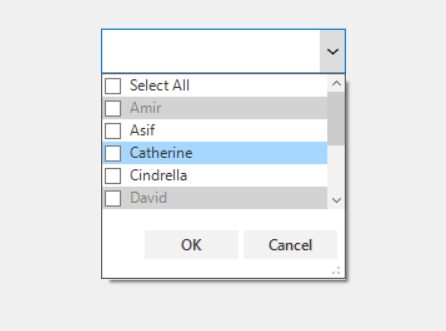
This example demonstrates how to disable specific items in a WinForms ComboBox dropdown using Syncfusion's SfComboBox control. This is useful when you want to prevent users from selecting certain items based on business logic or application state.
Changing ForeColor for Disabled Items
You can visually indicate disabled items by customizing their appearance using the DrawItem event of DropDownListView.
C# Example
sfComboBox.DropDownListView.DrawItem += DropDownListView_DrawItem;

private void DropDownListView_DrawItem(object sender, Syncfusion.WinForms.ListView.Events.DrawItemEventArgs e)
{
    bool isItemEnable = (sfComboBox.ComboBoxMode == ComboBoxMode.MultiSelection &&
                         sfComboBox.AllowSelectAll &&
                         e.ItemIndex == 0)
                         ? true
                         : (e.ItemData as Details).IsEnabled;

    if (!isItemEnable)
    {
        e.Style.BackColor = Color.LightGray;
        e.Style.ForeColor = Color.Gray;
    }
}
Handling Selection for Disabled Items
Selection logic differs based on whether the ComboBox is in multi-selection or single-selection mode.
Multi-Selection Mode:
private void DropDownListView_SelectionChanged(object sender, ItemSelectionChangedEventArgs e)
{
    if (e.AddedItems.Count == sfComboBox.DropDownListView.View.Items.Count)
    {
        for (int i = 0; i < sfComboBox.DropDownListView.CheckedItems.Count; i++)
        {
            if (!(sfComboBox.DropDownListView.CheckedItems[i] as Details).IsEnabled)
                sfComboBox.DropDownListView.CheckedItems.RemoveAt(i);
        }
    }
}

private void DropDownListView_ItemChecking(object sender, ItemCheckingEventArgs e)
{
    bool isItemEnable = (sfComboBox.ComboBoxMode == ComboBoxMode.MultiSelection &&
                         sfComboBox.AllowSelectAll &&
                         e.ItemIndex == 0)
                         ? true
                         : (e.ItemData as Details).IsEnabled;

    if (!isItemEnable)
        e.Cancel = true;
}
Single-Selection Mode
private void DropDownListView_SelectionChanging(object sender, ItemSelectionChangingEventArgs e)
{
    if (e.AddedItems.Count > 0 &&
        !(e.AddedItems[0] as Details).IsEnabled &&
        e.AddedItems.Count != sfComboBox.DropDownListView.View.Items.Count)
    {
        e.Cancel = true;
    }
}
Reference
For detailed guidance and step-by-step instructions, refer to the official Syncfusion Knowledge Base article: https://www.syncfusion.com/kb/11254/how-to-disable-some-items-winforms-combobox-dropdown
Screenshot