
How To Bind The Datatable To WPF Datagrid?


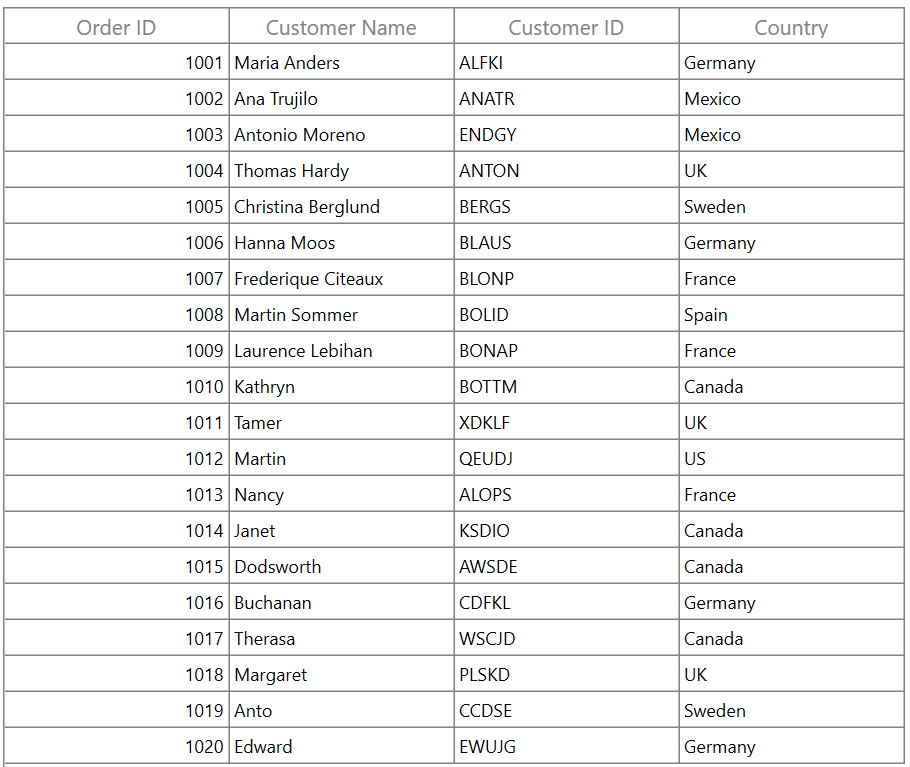
This sample show cases how to bind the data table to WPF DataGrid (SfDataGrid).
DataGrid supports to bind the DataTable as ItemsSource. You can also bind the datatable from the DataSet.
ViewModel creation
Create a view model class in the WPF project similar to the one in the following code example.
public class ViewModel
{
    public ViewModel()
    {
        DataTableCollection = GetDataTable();
    }

    public DataTable DataTableCollection { get; set; }

    private DataTable GetDataTable()
    {
        DataTable dataTable = new DataTable();
        dataTable.Columns.Add("Order ID", typeof(int));
        dataTable.Columns.Add("Customer Name", typeof(string));
        dataTable.Columns.Add("Customer ID", typeof(string));
        dataTable.Columns.Add("Country", typeof(string));
        dataTable.Rows.Add(1001, "Maria Anders", "ALFKI", "Germany");
        dataTable.Rows.Add(1002, "Ana Trujilo", "ANATR", "Mexico");
        dataTable.Rows.Add(1003, "Antonio Moreno", "ENDGY", "Mexico");
        dataTable.Rows.Add(1004, "Thomas Hardy", "ANTON", "UK");
        dataTable.Rows.Add(1005, "Christina Berglund", "BERGS", "Sweden");
        dataTable.Rows.Add(1006, "Hanna Moos", "BLAUS", "Germany");
        dataTable.Rows.Add(1007, "Frederique Citeaux", "BLONP", "France");
        dataTable.Rows.Add(1008, "Martin Sommer", "BOLID", "Spain");
        dataTable.Rows.Add(1009, "Laurence Lebihan", "BONAP", "France");
        dataTable.Rows.Add(1010, "Kathryn", "BOTTM", "Canada");
        dataTable.Rows.Add(1011, "Tamer", "XDKLF", "UK");
        dataTable.Rows.Add(1012, "Martin", "QEUDJ", "US");
        dataTable.Rows.Add(1013, "Nancy", "ALOPS", "France");
        dataTable.Rows.Add(1014, "Janet", "KSDIO", "Canada");
        dataTable.Rows.Add(1015, "Dodsworth", "AWSDE", "Canada");
        dataTable.Rows.Add(1016, "Buchanan", "CDFKL", "Germany");
        dataTable.Rows.Add(1017, "Therasa", "WSCJD", "Canada");
        dataTable.Rows.Add(1018, "Margaret", "PLSKD", "UK");
        dataTable.Rows.Add(1019, "Anto", "CCDSE", "Sweden");
        dataTable.Rows.Add(1020, "Edward", "EWUJG", "Germany");
        return dataTable;
    }
}
Binding ItemsSource in XAML
In the main page, add the necessary XML namespace to use DataGrid control, set the DataContext of the window to the ViewModel class, and bind the ItemsSource of DataGrid with the DataTableCollection.
<Window x:Class="SfDataGridDemo.MainWindow"
        xmlns="http://schemas.microsoft.com/winfx/2006/xaml/presentation"
        xmlns:x="http://schemas.microsoft.com/winfx/2006/xaml"
        xmlns:d="http://schemas.microsoft.com/expression/blend/2008"
        xmlns:mc="http://schemas.openxmlformats.org/markup-compatibility/2006"
        xmlns:local="clr-namespace:SfDataGridDemo"
         xmlns:syncfusion="http://schemas.syncfusion.com/wpf"
        mc:Ignorable="d"
        Title="MainWindow" Height="450" Width="800">
    <Window.DataContext>
        <local:ViewModel/>
    </Window.DataContext>
    <Grid>
        <syncfusion:SfDataGrid x:Name="dataGrid"  ItemsSource="{Binding DataTableCollection}" />
    </Grid>
</Window>
CRUD operations
DataGrid automatically refreshes the UI whenever we add, delete or modify the rows of the underlying DataTable collection.
Data operations
DataGrid supports various data operations to represent the data in it. The following are supported by default:
- Sorting (including multicolumn sorting)
- Grouping (including multicolumn grouping)
- Filtering
- Summaries
Sorting
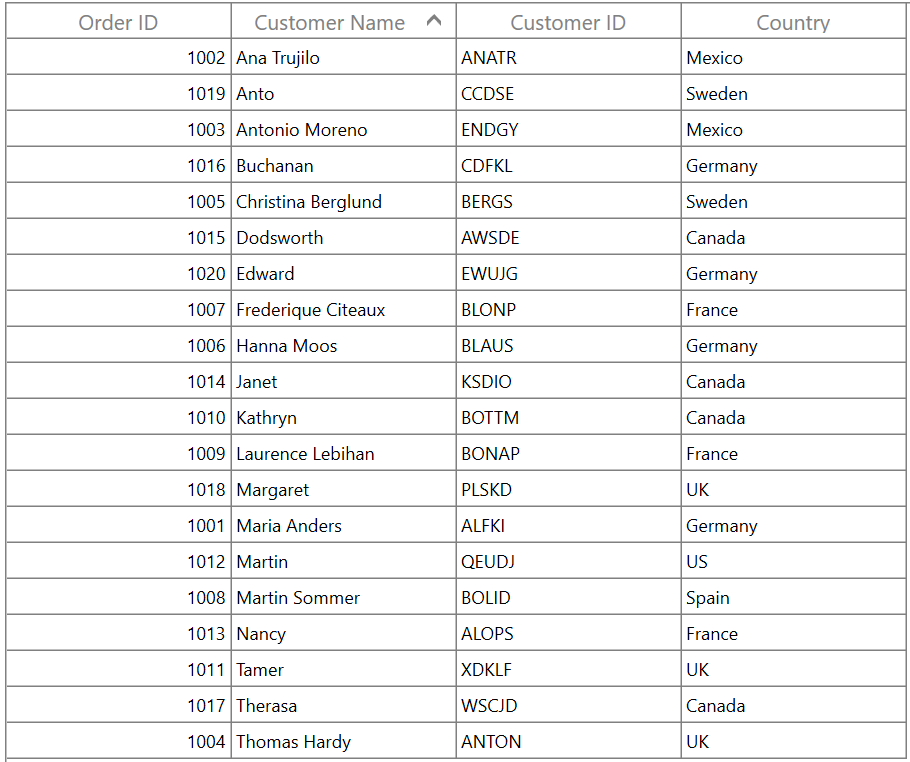
You can sort columns with the various built-in options such as multicolumn sorting and tri-state sorting. But custom sorting is not supported.
In the following screenshot, the datagrid is sorted in ascending order with respect to the Customer Name column.
Grouping
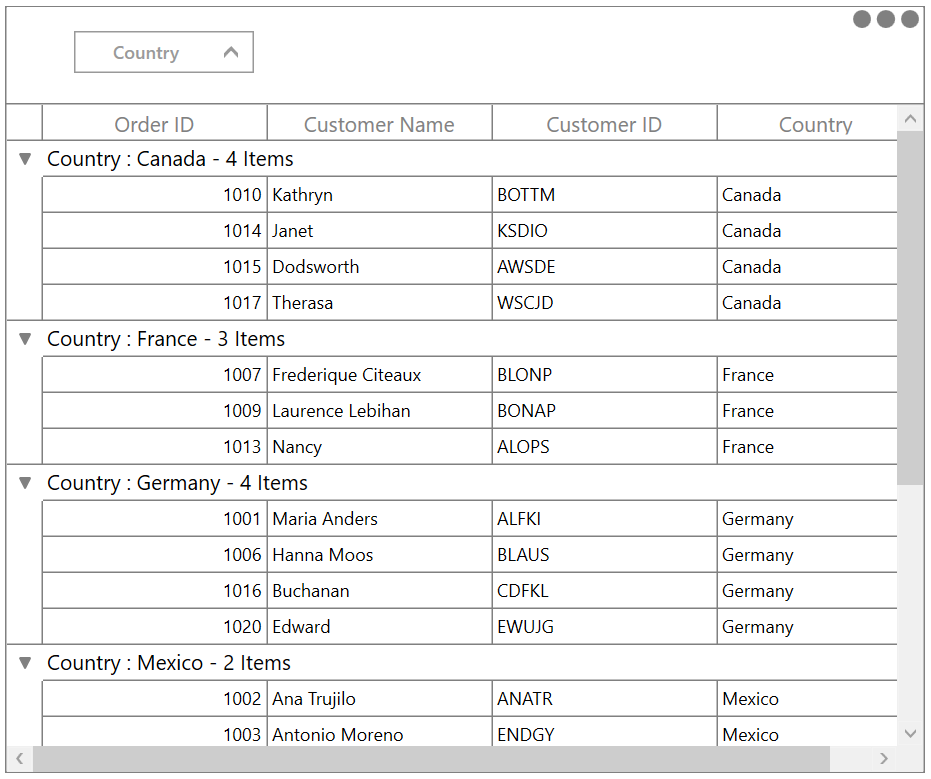
The data can be organized in a hierarchical structure based on matching field values. Custom grouping are also supported.
Filtering
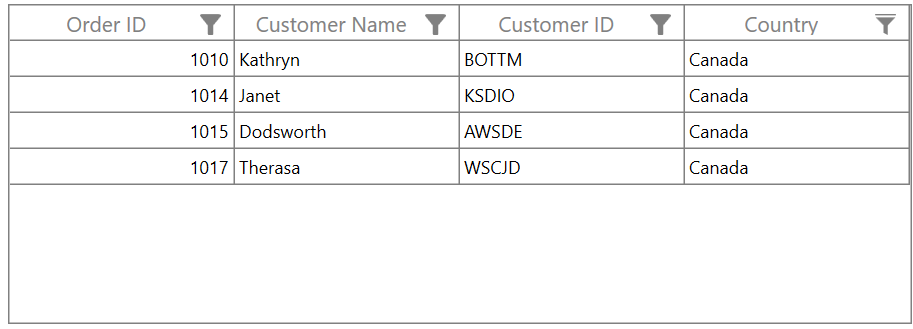
You can filter columns with the various built-in options such as Excel like UI filtering, Advanced UI filtering and Programmatic filtering by using FilterPredicates. But DataGrid’s built-in View.Filter is not supported for the DataTable class. But you can filter the records using DataTable's DataView.RowFilter property.
Summaries
All summary types supported by DataGrid are supported for DataTable, i.e. group summary, caption summary, and table summary.
Other features
The support for all other features, such as stacked headers, row drag and drop, unbound column, and unbound row, of DataGrid are available.
Take a moment to peruse the WPF DataGrid - Overview documentation, to learn more about the DataGrid's feature sets.

