
Getting Started With Syncfusion .NET MAUI Docklayout Control


dock-position
docklayout-example
dotnet-maui
getting-started
layout-customization
maui-controls
maui-docklayout
responsive-layout
sfdocklayout
ui-components
Creating an application with DockLayout
- Create a new .NET MAUI application in Visual Studio.
- Syncfusion .NET MAUI components are available in nuget.org.
- To add SfDockLayout to your project, open the NuGet package manager in Visual Studio, search for Syncfusion.Maui.Core and then install it.
- Initialize
SfDockLayout.
Xaml
<ContentPage
    . . .
    xmlns:dx="clr-namespace:Syncfusion.Maui.Core;
    assembly=Syncfusion.Maui.Core">

     <dx:SfDockLayout/>

</ContentPage>
C
using Syncfusion.Maui.Core;
namespace DockLayoutGettingStarted
{
    public partial class MainPage : ContentPage
    {
        public MainPage()
        {
            InitializeComponent();
            SfDockLayout dockLayout = new SfDockLayout();
            Content = dockLayout;
        }
    }
}
Register the handler
Syncfusion.Maui.Core nuget is a dependent package for all Syncfusion controls of .NET MAUI. In the MauiProgram.cs file, register the handler for Syncfusion core.
C
using Microsoft.Maui;
using Microsoft.Maui.Hosting;
using Microsoft.Maui.Controls.Compatibility;
using Microsoft.Maui.Controls.Hosting;
using Microsoft.Maui.Controls.Xaml;
using Syncfusion.Maui.Core.Hosting;

namespace DockLayoutSample
{
  public static class MauiProgram
  {
    public static MauiApp CreateMauiApp()
    {
        var builder = MauiApp.CreateBuilder();
        builder
        .UseMauiApp<App>()
        `.ConfigureSyncfusionCore()`
        .ConfigureFonts(fonts =>
        {
            fonts.AddFont("OpenSans-Regular.ttf", "OpenSansRegular");
        });

        return builder.Build();
     }
  }
}
Set Dock Position for Child Views
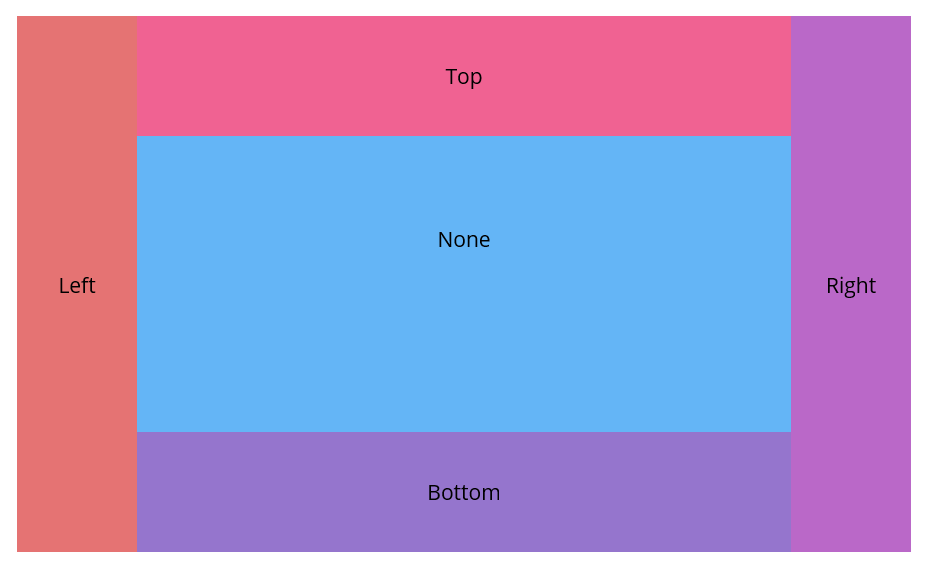
Inside the SfDockLayout control, child views can be arranged using the Dock attached property. This property allows to dock elements to specific edges— Top, Bottom, Left, Right, or set to None to remain undocked and fill the remaining space.
Xaml
<ContentPage xmlns="http://schemas.microsoft.com/dotnet/2021/maui"
             xmlns:x="http://schemas.microsoft.com/winfx/2009/xaml"
             xmlns:dx="clr-namespace:Syncfusion.Maui.Core;assembly=Syncfusion.Maui.Core"
             x:Class="DockLayoutGettingStarted.MainPage">

   <ContentPage.Content>
        <dx:SfDockLayout >
             <Label Text="Left"  WidthRequest="80" dx:SfDockLayout.Dock="Left" Background="#E57373" />
            <Label Text="Top" HeightRequest="80" dx:SfDockLayout.Dock="Top" Background="#F06292" />
            <Label Text="Right"  WidthRequest="80"  dx:SfDockLayout.Dock="Right" Background="#BA68C8" />
            <Label Text="Bottom" HeightRequest="80"  dx:SfDockLayout.Dock="Bottom"
            Background="#9575CD"/>
            <Label Text="None" dx:SfDockLayout.Dock="Top" MinimumHeightRequest="80" BackgroundColor="#64B5F6" />
        </dx:SfDockLayout>
    </ContentPage.Content>

</ContentPage>
C
using Syncfusion.Maui.Core;

namespace DockLayoutGettingStarted
{
    public partial class MainPage : ContentPage
    {
        public MainPage()
        {
            InitializeComponent();
            SfDockLayout dockLayout = new SfDockLayout();
            dockLayout.Children.Add(new Label() { Text = "Left", WidthRequest = 80, Background = Color.FromArgb("#E57373") }, Dock.Left);
            dockLayout.Children.Add(new Label() { Text = "Top", HeightRequest = 80, Background = Color.FromArgb("#F06292") }, Dock.Top);
            dockLayout.Children.Add(new Label() { Text = "Right", WidthRequest = 80, Background = Color.FromArgb("#BA68C8") }, Dock.Right);
            dockLayout.Children.Add(new Label() { Text = "Bottom", HeightRequest = 80, Background = Color.FromArgb("#9575CD") }, Dock.Bottom);
            dockLayout.Children.Add(new Label() { Text = "None", Background = Color.FromArgb("#64B5F6") });
            Content = dockLayout;
        }
    }
}
Output
Troubleshooting
Path Too Long Exception
If you are facing a "Path too long" exception when building this example project, close Visual Studio and rename the repository to a shorter name before building the project.

