
How To Configure A Custom Language In WPF Syntax Editor


custom
edit
editcontrol
editor
language
procedural
python
syntax
syntax-editor
syntax-highlighting
wpf
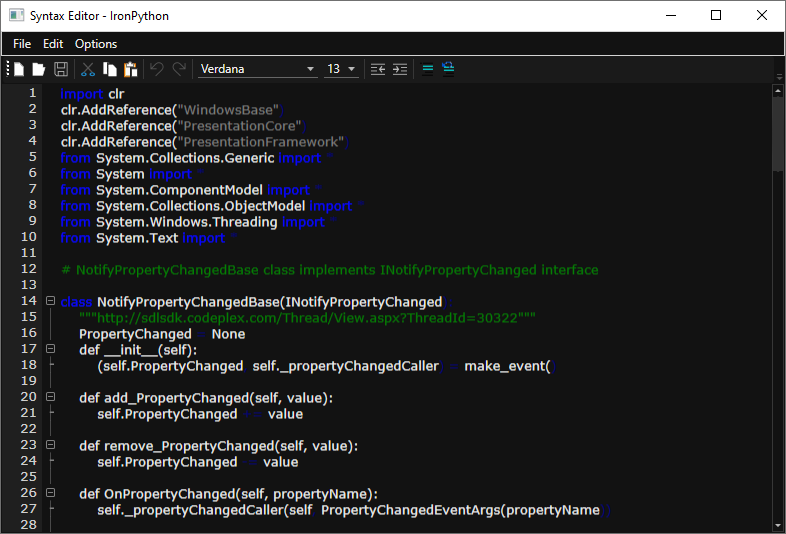
This example demonstrates how to configure and apply a custom language definition (Python) in the Syncfusion WPF Syntax Editor control. The Syntax Editor supports syntax highlighting, code editing, and parsing for various languages. You can define your own language grammar using LexemCollection and FormatsCollection for custom syntax rules.
Why This Is Useful
- Custom Language Support: Add domain-specific or scripting languages.
- Syntax Highlighting: Highlight keywords, comments, operators, and literals.
- MVVM Integration: Apply language configuration dynamically at runtime.
Key Steps
- Define FormatsCollection for syntax highlighting styles.
- Define LexemCollection for language tokens and rules.
- Apply the custom language to the EditControl using the CustomLanguage property.
Code Example
XAML
<Window.DataContext>
    <local:CustomLanguageViewModel />
</Window.DataContext>

<Window.Resources>
    <!-- Define syntax highlighting formats -->
    <syncfusion:FormatsCollection x:Key="pythonLanguageFormats">
        <syncfusion:EditFormats Foreground="Green" FormatName="CommentFormat" />
        <syncfusion:EditFormats Foreground="Black" FormatName="MultilineCommentFormat" />
        <syncfusion:EditFormats Foreground="Blue" FormatName="KeywordFormat" />
        <syncfusion:EditFormats Foreground="Navy" FormatName="OperatorFormat" />
        <syncfusion:EditFormats Foreground="Gray" FormatName="LiteralsFormat" />
    </syncfusion:FormatsCollection>

    <!-- Define language tokens -->
    <syncfusion:LexemCollection x:Key="pythonLanguageLexems">
        <syncfusion:Lexem ContainsEndText="True"
                          EndText="\r\n"
                          IntellisenseDisplayText="class"
                          IsMultiline="True"
                          IsRegex="True"
                          LexemType="CodeSnippet"
                          ScopeLevel="Class"
                          StartText="class \w+[\s:\w,()]+" />
        <syncfusion:Lexem ContainsEndText="False"
                          FormatName="OperatorFormat"
                          IsMultiline="False"
                          LexemType="Operator"
                          StartText="**;=" />
    </syncfusion:LexemCollection>
</Window.Resources>

<!-- Syntax Editor -->
<syncfusion:EditControl Name="editControl"
                        DocumentLanguage="{Binding Language}"
                        DocumentSource="{Binding DocumentSource}"
                        FontFamily="{Binding SelectedFont}"
                        FontSize="14">
    <interactivity:Interaction.Triggers>
        <interactivity:EventTrigger EventName="Loaded">
            <interactivity:InvokeCommandAction Command="{Binding EditLoadedCommand}"
                                               CommandParameter="{Binding ElementName=editControl}" />
        </interactivity:EventTrigger>
    </interactivity:Interaction.Triggers>
</syncfusion:EditControl>
ViewModel (C#)
public class CustomLanguageViewModel : NotificationObject
{
    public ICommand EditLoadedCommand { get; }
    public string DocumentSource { get; set; }
    public Languages Language { get; set; }
    public FontFamily SelectedFont { get; set; }

    public CustomLanguageViewModel()
    {
        DocumentSource = @"Data\syntaxeditor\PythonSource.py";
        SelectedFont = new FontFamily("Verdana");
        Language = Languages.Custom;
        EditLoadedCommand = new DelegateCommand<object>(ExecuteEditLoaded);
    }

    private void ExecuteEditLoaded(object obj)
    {
        var editControl = obj as EditControl;
        var customLanguage = new PythonLanguage(editControl)
        {
            Lexem = (LexemCollection)Application.Current.Resources["pythonLanguageLexems"],
            Formats = (FormatsCollection)Application.Current.Resources["pythonLanguageFormats"]
        };
        editControl.CustomLanguage = customLanguage;
    }
}
Notes
- Requires Syncfusion WPF Syntax Editor NuGet package.
- You can extend this approach for other languages or domain-specific syntax.
- Use LexemCollection for token definitions and FormatsCollection for styling.
Output
Reference
For more details refer the Syncfusion WPF Syntax Editor Documentation for custom language support.

