---
title: "Harmonizing Powerhouses: Syncfusion WPF Controls Are Now Compatible with Avalonia XPF"
published_at: "2024-03-08T12:34:00+00:00"
modified_at: "2026-01-19T10:03:09+00:00"
url: "https://www.syncfusion.com/blogs/post/wpf-ui-compatible-avalonia-xpf"
excerpt: "This blog explains Syncfusion WPF controls’ compatibility with Avalonia XPF, a cross-platform WPF framework."
taxonomy_category:
- "Desktop"
- "Syncfusion"
- "UI"
- "WPF"
taxonomy_post_tag:
- "Cross-Platform"
- "desktop"
- "Syncfusion"
- "UI controls"
- "WPF"
---
# Harmonizing Powerhouses: Syncfusion WPF Controls Are Now Compatible with Avalonia XPF
[Gayathri Ramalingam](https://www.syncfusion.com/blogs/author/gayathri-ramalingam)
**TLDR:** Syncfusion WPF Controls now support Avalonia XPF, enabling seamless cross-platform development. Learn to integrate controls, update SDK, add package sources, include the license key, and run apps on Windows, Linux, and macOS.
In the dynamic landscape of cross-platform development, choosing compatible tools and frameworks can be a game-changer for developers. We’re happy to announce that Syncfusion WPF controls are now compatible with Avalonia XPF!
[Avalonia XPF](https://avaloniaui.net/XPF)
is a cross-platform WPF framework. It is supported in major platforms, including Windows, macOS, and Linux (desktop and embedded). Support in WebAssembly, iOS, and Android will be available in 2024.
The [Syncfusion WPF control suite](https://www.syncfusion.com/wpf-controls/)
is a package of over 90 modern WPF UI controls, 50+ WPF charts, and a collection of document processing libraries that lets developers build beautiful, high-performance line-of-business WPF apps. Combining the power of Avalonia XPF with Syncfusion WPF apps opens up new dimensions for developers.
In this blog, we’ll explore the intricacies of achieving [compatibility between Syncfusion WPF controls and Avalonia XPF](https://avaloniaui.net/XPF/Packages/syncfusion)
, providing developers with the ability to leverage the strengths of both frameworks.
### Avalonia XPF – A cross-platform gem
Avalonia XPF’s robust architecture and XAML-based markup offer a development experience similar to WPF and Xamarin. The framework’s support for styling, theming, and native interop makes it an enticing choice for developers wanting to target multiple platforms without compromising the user experience.
## Integrating Syncfusion WPF controls with Avalonia XPF
Follow these steps to create an app with Syncfusion WPF controls and Avalonia XPF. We’re going to use the Syncfusion [WPF DataGrid](https://www.syncfusion.com/wpf-controls/datagrid)
control for demo purposes.
**Step 1:** [Create a WPF application](https://learn.microsoft.com/en-us/dotnet/desktop/wpf/get-started/create-app-visual-studio?view=netdesktop-7.0)
using [Visual Studio](https://visualstudio.microsoft.com/vs/)
with **.NET 7.0(Standard Term Support)**.
**Note:** Avalonia XPF supports .NET 6 and higher versions.
**Step 2:** Create or modify the existing ** NuGet.config** file to include the following necessary package sources.
```
```
**Note:** Kindly use the credentials given by Avalonia XPF.
**Step 3:** Update the SDK in your WPF project to use the ** XPF SDK** in the **.csproj** file. Refer to the following code.
```
to
```
**Note:** Kindly use the license key from Avalonia XPF.
**Step 5:** Then, clean the existing build artifacts using any one of the following methods:
- Run the command **dotnet clean** from the command prompt.
- Use the **Build -> Clean**** Solution** option in your project.
- Delete your **bin/obj** directories manually.
**Step 6:** Ensure the output type in the **.csproj** file is set to ** WinExe**.
(E.g., **WinExe**).
Let’s see how to run the created WPF app on various platforms.
## To run the app in Windows OS
Follow these steps to run the created WPF app in a Windows environment:
**Step 1:** Open the WPF app in [Visual Studio](https://visualstudio.microsoft.com/vs/)
.
**Step 2**: Click the ** Debug** menu.
**Step 3:** Select ** Start Debugging** to run the app.
Now**,** it will run the WPF app properly on Windows.
## Steps to run the WPF app in Linux OS or macOS
### Prerequisites to run the app on macOS
- Access to a Mac machine (either physical or via remote access).
- [.NET 7 SDK](https://learn.microsoft.com/en-us/dotnet/core/install/macos)
- [Visual Studio Code](https://code.visualstudio.com/download) or [JetBrains Rider](https://www.jetbrains.com/idea/download/?fromIDE=§ion=mac) (JetBrains works similarly to Visual Studio. If you don’t have the required license, you can use Visual Studio Code.)
For Visual Studio Code, ensure the following extensions are installed:
- [.NET runtime install tools](https://marketplace.visualstudio.com/items?itemName=ms-dotnettools.vscode-dotnet-runtime)
- [Avalonia for VSCode](https://marketplace.visualstudio.com/items?itemName=AvaloniaTeam.vscode-avalonia)
- [C#](https://marketplace.visualstudio.com/items?itemName=ms-dotnettools.csharp)
- [C# Dev Kit](https://marketplace.visualstudio.com/items?itemName=ms-dotnettools.csdevkit)
- [Dev Containers](https://marketplace.visualstudio.com/items?itemName=ms-vscode-remote.remote-containers)
Let’s follow these steps to run the app on Linux or macOS:
**Step 1:** Choose a Linux (preferably Ubuntu)/MacOS machine.
**Step 2:** Then, open Visual Studio Code or JetBrains Rider.
**Step 3:** Click ** File-> open Folder** to browse and select the WPF app created using Avalonia XPF, ** SfDataGridDemo**.
**Step 4:** Right-click the project file and choose ** Debug**from the context menu. Refer to the following image.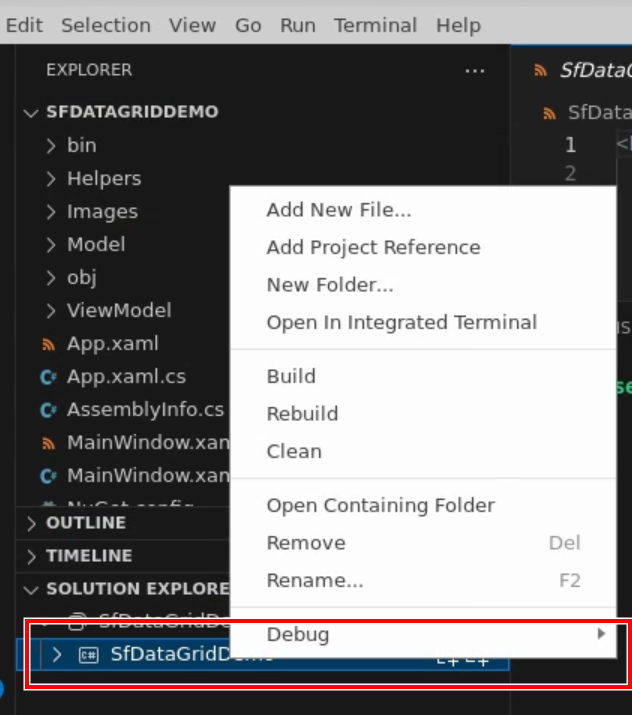
**Step 5:** Click ** Start New Instance** to run the app.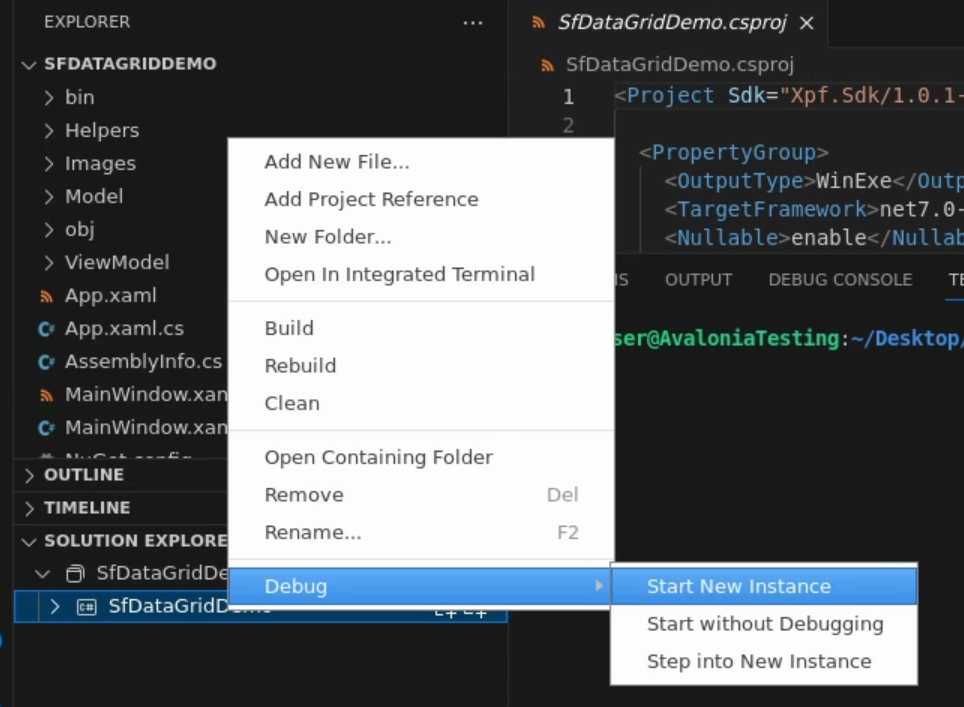
Now**,** the app will run properly on Linux OS or macOS.
Refer to the following output image.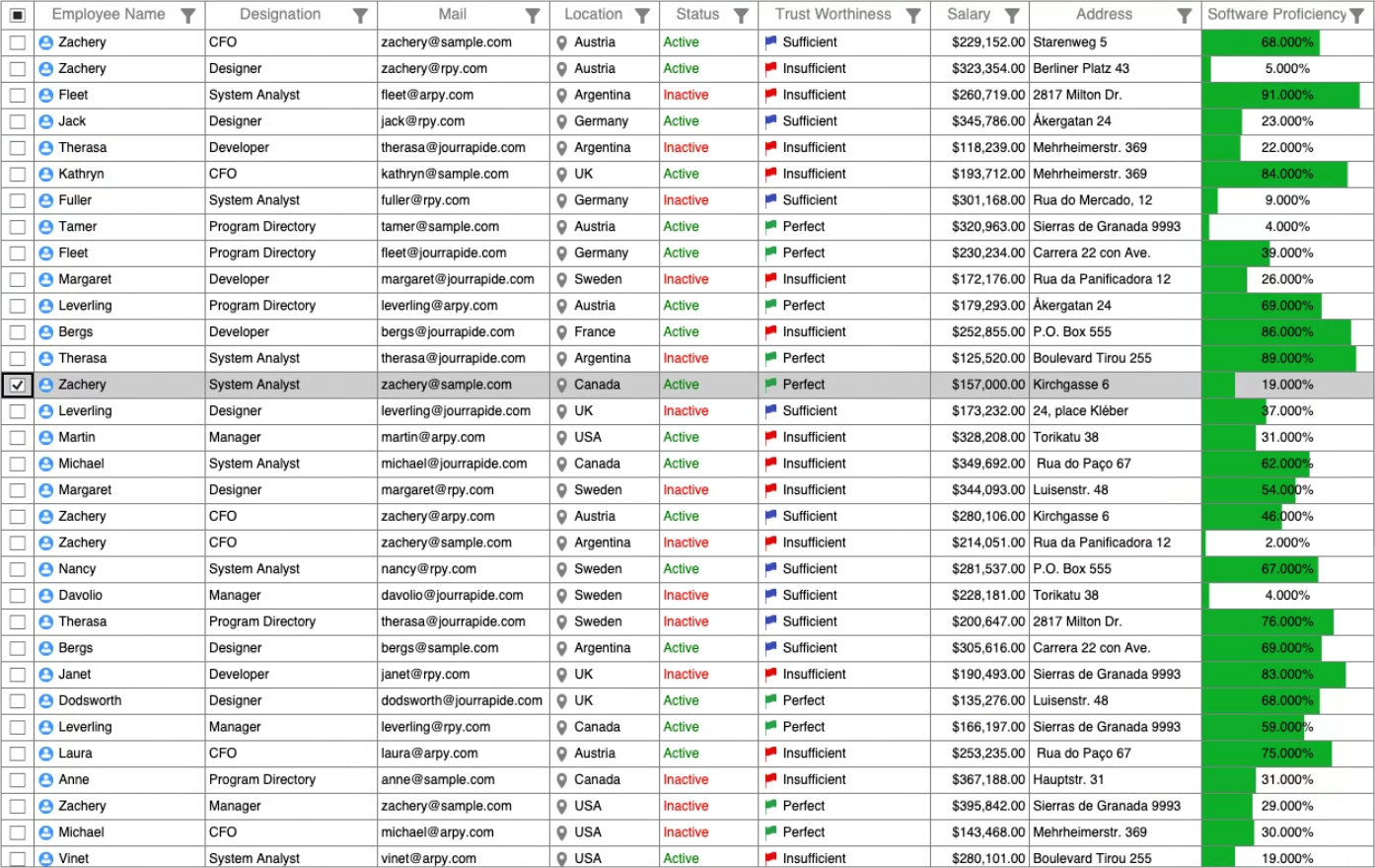
## GitHub reference
For more details, refer to the [Avalonia XPF Compatibility with Syncfusion WPF DataGrid GitHub demo](https://github.com/SyncfusionExamples/AvaloniaUI-Compatibility-with-WPF-DataGrid)
.
## Conclusion
Thanks for reading! This blog delved into the exciting new compatibility between [Syncfusion WPF controls](https://www.syncfusion.com/wpf-controls/)
and [Avalonia XPF](https://avaloniaui.net/XPF)
, opening up a world of possibilities for cross-platform development on Windows, Linux, and macOS. By integrating these powerful frameworks, developers can craft versatile, high-performance apps with minimal configuration.
We encourage you to follow the steps provided in this blog and share your feedback in the comments section below.
If you need assistance, please do not hesitate to contact us through our [support forum](https://www.syncfusion.com/forums)
, [support portal](https://support.syncfusion.com/)
, or [feedback portal](https://www.syncfusion.com/feedback)
. We are always ready and willing to help you!
## Relate blogs
- [Chart of the Week: Creating a WPF Bar Chart to Visualize the Homelands of America’s International Students](https://www.syncfusion.com/blogs/post/wpf-bar-chart-us-students.aspx)
- [Chart of the Week: Creating a WPF Stacked Bar Chart to Visualize the Social Media Use of US Teens in 2023](https://www.syncfusion.com/blogs/post/wpf-stacked-bar-chart-to-visualize-the-social-media-use-of-us-teens-in-2023.aspx)
- [Chart of the Week: Creating a WPF 3D Pie Chart to Display the Biggest Cash Crops in the U.S](https://www.syncfusion.com/blogs/post/wpf-3d-pie-chart-cash-crops.aspx)
- [Chart of the Week: Creating a WPF Fast Line Chart for Cryptocurrency Trade Analysis](https://www.syncfusion.com/blogs/post/wpf-fast-line-chart-crypto-trade.aspx)