---
title: "What’s New in React Gantt Chart: 2025 Volume 2"
published_at: "2025-07-14T18:23:52+00:00"
modified_at: "2025-08-20T12:22:34+00:00"
url: "https://www.syncfusion.com/blogs/post/whats-new-react-gantt-chart-2025-vol2"
excerpt: "Explore the Syncfusion React Gantt Chart’s 2025 Volume 2 updates: toggle weekends, WBS columns, task constraints, and 36% faster loading. Try the best React Gantt Chart now!"
taxonomy_category:
- "Gantt"
- "React"
- "React Charts"
- "React Development"
- "Syncfusion"
- "What's new"
taxonomy_post_tag:
- "2025 Volume 2"
- "Gantt Chart"
- "Progress Tracking"
- "project management"
- "Project Scheduling"
- "React"
- "React Components"
- "Release Updates"
- "Resource Allocation"
- "Task Dependencies"
- "Timeline Visualization"
- "What's New"
---
# What’s New in React Gantt Chart: 2025 Volume 2
[Jayakumar Duraisamy](https://www.syncfusion.com/blogs/author/jayakumar-duraisamy)
**TL;DR:** The 2025 Volume 2 release of Syncfusion® React Gantt Chart elevates project management with weekend toggling for flexible scheduling, WBS columns for structured task breakdowns, and task constraints for precise planning. It also delivers up to 36% faster loading, making it the most efficient and feature-rich React Gantt Chart for modern development teams.
We’re excited to introduce the latest enhancements in the [Syncfusion® React Gantt Chart component](https://www.syncfusion.com/react-components/react-gantt-chart)
as part of our [2025 Volume 2 release](https://www.syncfusion.com/forums/197054/essential-studio-2025-volume-2-main-release-v30-1-37-is-available-for-download)
! This update brings powerful new features and performance improvements to simplify complex project scheduling, enhance task visualization, and boost productivity.
Let’s dive into the highlights of this release!
## Toggle weekend visibility in the timeline
Managing project timelines often requires focusing on working days, especially in industries that follow standard weekday schedules. The **Syncfusion® React Gantt Chart** lets users toggle weekend columns (Saturday and Sunday) in the timeline view. When weekends are hidden, the chart compresses the timeline to show only working days, creating a cleaner, more focused project schedule.
### Key benefits
- **Improved readability:** Reduces visual clutter by eliminating non-working days from the timeline.
- **Focused planning:** Helps teams prioritize actual work periods, simplifying task duration and dependency tracking.
- **Customizable views:** Supports different workweek configurations, making it adaptable for global teams with varying weekend definitions.
- **Enhanced user experience:** Offers a more intuitive and streamlined interface for users managing dense project data.
```
import { createRoot } from 'react-dom/client';
import * as React from 'react';
import { useEffect} from 'react';
import {GanttComponent, Inject, Selection, DayMarkers, ColumnsDirective, ColumnDirective from '@syncfusion/ej2-react-gantt';
import { projectNewData } from './data';
const WorkWeek = () => {
let ganttInstance = useRef(null);
const taskFields = {
id: 'TaskID',
name: 'TaskName',
startDate: 'StartDate',
endDate: 'EndDate',
duration: 'Duration',
progress: 'Progress',
dependency: 'Predecessor',
child: 'subtasks'
};
const labelSettings = {
leftLabel: 'TaskName'
};
const workWeek = ["Monday", "Tuesday", "Wednesday", "Thursday", "Friday"];
const projectStartDate = new Date('03/24/2024');
const projectEndDate = new Date('07/06/2024'); const splitterSettings = {
columnIndex: 1
};
const timelineSettings = {
topTier: {
unit: 'Week',
format: 'MMM dd, y',
},
bottomTier: {
unit: 'Day',
},
showWeekend: true
};
return ();};
export default WorkWeek;
```
Refer to the following image.
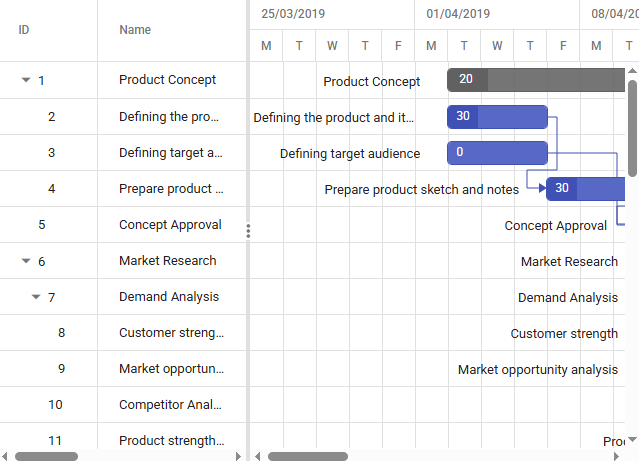
Project Timeline with Tasks and Dependencies
**Note:** For more details, refer to the [documentation](https://ej2.syncfusion.com/react/documentation/gantt/time-line/time-line#showhide-weekends)
and try our online [demo](https://ej2.syncfusion.com/react/demos/#/tailwind3/gantt/work-week)
.
## Display the work breakdown structure (WBS) column
The React Gantt Chart now supports a **Work Breakdown Structure (WBS) column**, enabling users to visualize the hierarchical organization of tasks. This enhancement brings greater structure, clarity, and traceability to complex project plans.
### Hierarchical task representation with WBS code
A work breakdown structure is a widely used project management method that decomposes a project into smaller, manageable components. Each task is assigned a unique WBS code (e.g., 1.0, 1.1, 1.1.1) that reflects its position in the hierarchy.
### Key features
- **Automatic WBS code generation** based on task hierarchy.
- **A dedicated WBS column** in the grid to display structured codes alongside task names.
- **Customizable display options** for column visibility, order, and formatting.
### Benefits
- **Clear task organization:** Easily identify parent-child relationships and task nesting.
- **Improved reporting:** Aligns with standard project documentation practices.
- **Consistent communication:** Provides a shared reference system for teams and stakeholders.
- **Scalability:** Ideal for managing large-scale projects with multiple levels of task breakdown.
```
import * as React from "react";
import { useRef } from 'react';
import { WBSData } from './data';
import { useEffect } from 'react';
import { GanttComponent, Inject, Selection, ColumnsDirective, ColumnDirective, Toolbar, DayMarkers, Edit, Filter, sort, ContextMenu, EventMarkersDirective, EventMarkerDirective } from "@syncfusion/ej2-react-gantt";
const EnableWbs = () => {
const taskFields = {
id: "TaskID",
name: "TaskName",
startDate: "StartDate",
endDate: "EndDate",
duration: "Duration",
progress: "Progress",
dependency: "Predecessor",
parentID: 'ParentId'
};
let ganttInstance = useRef(null);
const eventMarkerDay1 = new Date('04/02/2024');
const editSettings = {
allowAdding: true,
allowEditing: true,
allowDeleting: true,
allowTaskbarEditing: true,
showDeleteConfirmDialog: true,
};
const toolbar = ["Add", "Edit", "Update", "Delete", "Cancel", "ExpandAll", "CollapseAll"];
const timelineSettings = {
showTooltip: true,
topTier: {
unit: "Week",
format: "dd/MM/yyyy",
},
bottomTier: {
unit: "Day",
count: 1,
},
};
const labelSettings = {
taskLabel: '${Progress}%'
};
const projectStartDate = new Date("03/31/2024");
const projectEndDate = new Date("05/30/2024"); const splitterSettings = {
columnIndex: 4
};
const selectionSettings = {
mode: "Row",
type: "Single",
enableToggle: false,
};
const tooltipSettings = {
showTooltip: true,
};
const filterSettings = {
type: "Menu",
};
return ();
};
export default EnableWbs;
```
Refer to the following image.
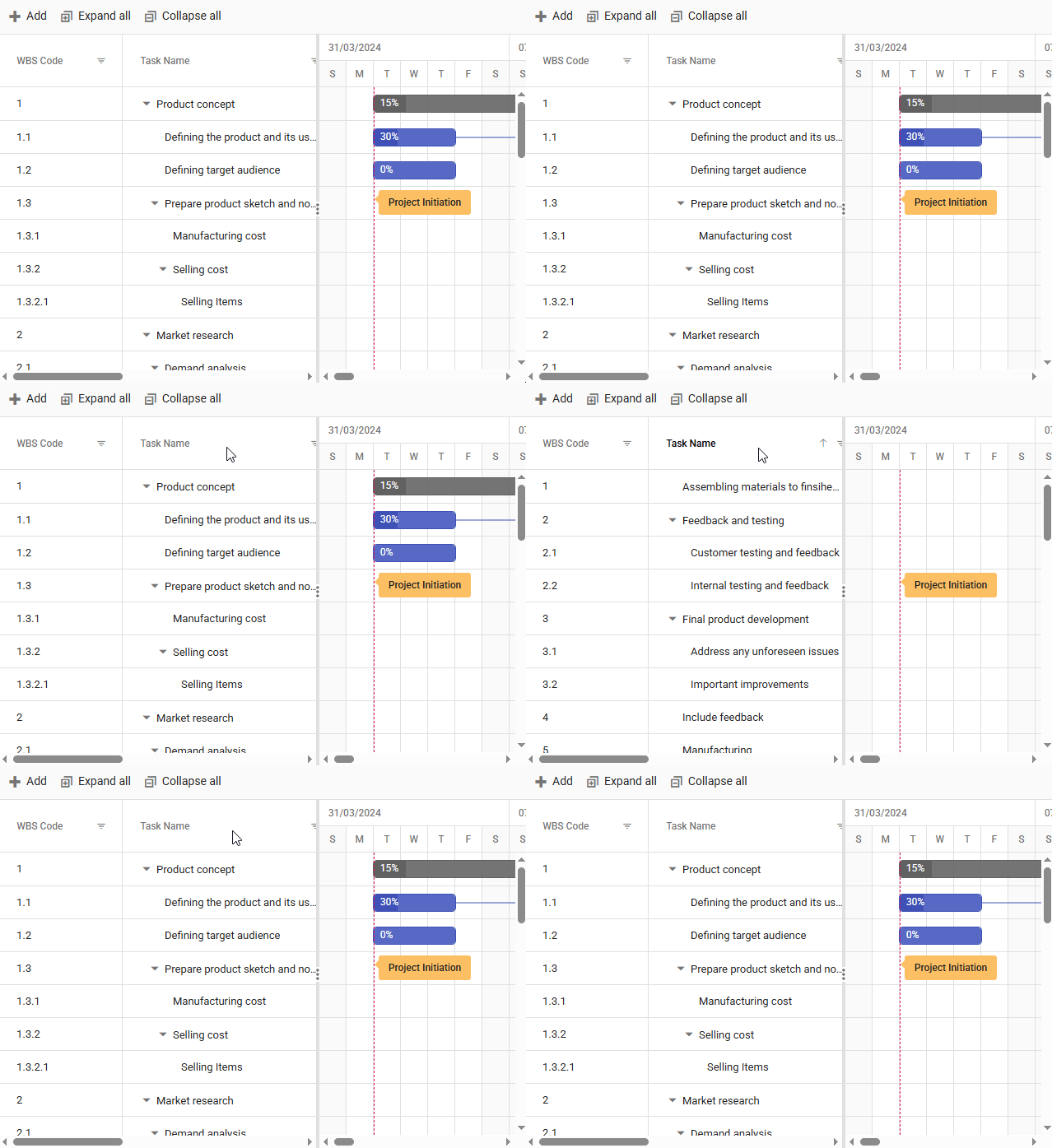
Organize tasks with the WBS column in React Gantt Chart
**Note:** For more details, refer to the [documentation](https://ej2.syncfusion.com/react/documentation/gantt/columns/wbs-column)
and try our online [demo](https://ej2.syncfusion.com/react/demos/#/tailwind3/gantt/wbs-column)
.
## Task constraints in the React Gantt Charts
Complex projects demand more than start and end dates; they need rules to enforce scheduling logic. The React Gantt Chart now supports a full set of **task constraints**, similar to ** Microsoft Project**, giving you complete control over scheduling tasks.
Task constraints are rules that limit when a task can start or finish. They help project managers reflect real-world conditions such as **deadlines**, ** resource availability**, or ** external dependencies**. Instead of relying only on task links such as predecessors, constraints let you define fixed dates or flexible boundaries for each task.
### Supported task constraint types
| Constraint Type | Description |
| --- | --- |
| As Soon As Possible (ASAP) | The task starts immediately once its dependencies are cleared. |
| As Late As Possible (ALAP) | Delays the task until the last possible moment without affecting successors. |
| Must Start On (MSO) | Requires the task to begin on a fixed, non-negotiable date. |
| Must Finish On (MFO) | The task must end on a fixed date, regardless of its dependencies. |
| Start No Earlier Than (SNET) | Prevents a task from starting before a certain date. |
| Start No Later Than (SNLT) | Requires a task to start on or before a given date. |
| Finish No Earlier Than (FNET) | Ensure the task is not finished before a certain date. |
| Finish No Later Than (FNLT) | Ensures task completion on or before a specific date. |
### Benefits
- **Reflect real-world limits:** Set deadlines, fixed start dates, or delivery commitments.
- **Avoid scheduling conflicts:** Prevent tasks from being moved into invalid timeframes.
- **Improve planning accuracy:** Aligns schedule with business rules and external dependencies.
- **Enhance team communication:** Make scheduling logic visible and understandable for all stakeholders.
```
import * as React from 'react';
import { GanttComponent, Inject, ColumnsDirective, ColumnDirective, Selection, Toolbar, DayMarkers, Edit } from '@syncfusion/ej2-react-gantt';
import { useEffect } from 'react';
import { constraintData } from './data';
const Constraints = () => {
const taskFields = {
id: "TaskID",
name: "TaskName",
startDate: "StartDate",
endDate: "EndDate",
duration: "Duration",
progress: "Progress",
constraintType: "ConstraintType",
constraintDate: "ConstraintDate",
dependency: "Predecessor",
parentID: "parentID",
notes: "info",
};
const editSettings = {
allowAdding: true,
allowEditing: true,
allowDeleting: true,
allowTaskbarEditing: true,
showDeleteConfirmDialog: true,
};
const toolbar = [
"Add",
"Edit",
"Update",
"Delete",
"Cancel",
"ExpandAll",
"CollapseAll",
"Indent",
"Outdent",
];
const labelSettings = {
leftLabel: "TaskName",
};
const splitterSettings = {
columnIndex: 4,
};
const projectStartDate = new Date("03/25/2025");
const projectEndDate = new Date("09/28/2025"); const eventMarkers = [
{ day: new Date("03/25/2025"), label: "Project StartDate" },
{ day: new Date("08/31/2025"), label: "Project EndDate" },
];
return (
);};
export default Constraints;
```
Refer to the following image.
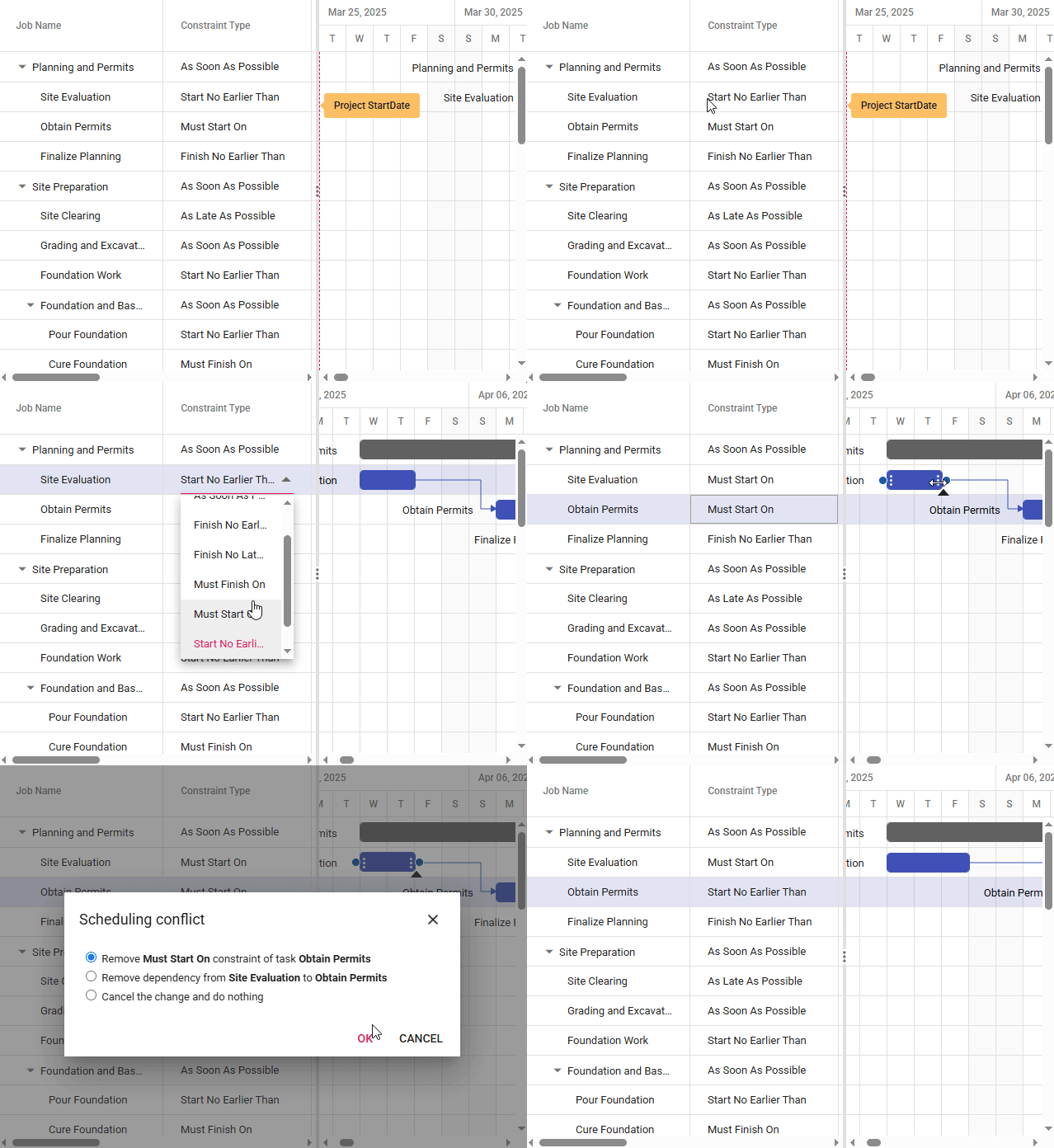
Enforced precise scheduling with task constraints in React Gantt Chart
**Note:** For more details, refer to the [documentation](https://ej2.syncfusion.com/react/documentation/gantt/task-constraints)
and try our online [demo.](https://ej2.syncfusion.com/react/demos/#/tailwind3/gantt/constraints)
## Performance improvements in initial loading and validation
Handling large datasets efficiently is critical for project management tools. The React Gantt Chart delivers major performance gains in this release, especially in **initial loading scenarios with validation enabled**. These improvements ensure ** faster rendering**, ** smoother interaction**, and a ** better user experience**, even with thousands of tasks.
| Scenario Description | Volume 1 (seconds) | Volume 2 (seconds) | Improvement |
| --- | --- | --- | --- |
| 25K Tasks – Auto Validation + Virtualization Enabled with Dependencies | 12.5 | 8.4 | 32% |
| 50K Tasks – Auto Validation + Virtualization Enabled with Dependencies | 55 | 35 | 36% |
**Note:** Metrics were recorded using the following machine and application configuration: >** Processor:** 12th Gen Intel(R) Core(TM) i5-1235U 1.30 GHz>** RAM:** 16.0 GB> ** Operating System:** Windows 11
## FAQs
**Q1: What’s new in the Syncfusion® React Gantt Chart for 2025 Volume 2?**
The React Gantt Chart introduces weekend toggling, WBS columns, task constraints, and up to 36% faster loading for efficient project management.
**Q2: How do I toggle weekends in the Syncfusion® React Gantt Chart?**
In the React Gantt Chart, set **showWeekend** to true or false in ** timelineSettings**. See the code example above for details.
**Q3: How do task constraints enhance the React Gantt Chart?**
Task constraints in the React Gantt Chart (e.g., ASAP, MSO) ensure precise scheduling, aligning tasks with real-world deadlines and dependencies.
**Q4: Why use the WBS column in the React Gantt Chart?**
The WBS column in the React Gantt Chart organizes tasks hierarchically, improving clarity and reporting for complex projects.
## Conclusion
Thanks for reading. In this blog, we explored the latest enhancements introduced in the [Syncfusion® React Gantt Chart](https://www.syncfusion.com/react-components/react-gantt-chart)
component as part of the [2025 Volume 2](https://www.syncfusion.com/forums/197054/essential-studio-2025-volume-2-main-release-v30-1-37-is-available-for-download)
release. These enhancements, including **weekend toggling**, ** WBS columns**, and ** task constraints,**empower developers to create more efficient, scalable, and user-friendly project management applications.
Ready to build with the best React Gantt Chart? Syncfusion® remains committed to delivering high-quality, feature-rich components that help developers stay ahead of the curve. To dive deeper into these features and integrate them into your projects, check out the official [documentation](https://ej2.syncfusion.com/react/documentation/introduction)
, [release notes](https://help.syncfusion.com/common/essential-studio/release-notes/v30.1.37)
, and [live demos](https://ej2.syncfusion.com/home/react.html)
.
If you’re an existing Syncfusion® user, you can download the latest version of Essential Studio® from the [license and downloads](https://www.syncfusion.com/account/downloads)
page. For those new to Syncfusion®, we offer a 30-day [free trial](https://www.syncfusion.com/downloads)
so you can experience these exciting features firsthand.
Need help? Feel free to reach out via our [support forum](https://www.syncfusion.com/forums)
, [support portal](https://support.syncfusion.com/)
, or [feedback portal](https://www.syncfusion.com/feedback/)
. We’re always here to assist you!
## Related Blogs
[What’s New in React Gantt Chart: 2024 Volume 2](https://www.syncfusion.com/blogs/post/whats-new-react-gantt-chart-2024-vol2)
[Syncfusion Essential Studio 2025 Volume 2 is Here!](https://www.syncfusion.com/blogs/post/essential-studio-2025-volume-2)
[What’s New in React 19?](https://www.syncfusion.com/blogs/post/whats-new-in-react-19)
[Introducing the New React Timeline Component](https://www.syncfusion.com/blogs/post/react-timeline-component)