---
title: "What’s New in Blazor Diagram: 2023 Volume 2"
published_at: "2023-07-14T11:05:23+00:00"
modified_at: "2025-04-11T07:17:34+00:00"
url: "https://www.syncfusion.com/blogs/post/whats-new-blazor-diagram-2023-volume-2"
excerpt: "This blog explains the new features added to the Syncfusion Blazor Diagram component for the 2023 Volume 2 release."
taxonomy_category:
- "Blazor"
- "Development"
- "Syncfusion"
- "Web"
- "What's new"
taxonomy_post_tag:
- "Blazor"
- "diagram"
- "Syncfusion"
- "wasm"
- "Web Development"
- "What's New"
---
# What’s New in Blazor Diagram: 2023 Volume 2
[Sarathkumar V](https://www.syncfusion.com/blogs/author/sarathkumarv)
Syncfusion’s [Blazor Diagram](https://www.syncfusion.com/blazor-components/blazor-diagram)
component continues to evolve, offering a powerful toolkit for visualizing, creating, and editing interactive diagrams. Whether designing flowcharts, organizational charts, mind maps, floor plans, or BPMN charts, this feature-rich library empowers you to bring your concepts to life programmatically and interactively.
In this blog, we’ll explore the exciting new features of the Blazor Diagram component, introduced in the [2023 Volume 2](https://www.syncfusion.com/forums/183035/essential-studio-2023-volume-2-main-release-v22-1-34-is-available-for-download)
release.
## Freehand drawing
The new freehand drawing feature lets users create freeform curves (splines) directly on the diagram page. With this functionality, users can effortlessly sketch anything from simple drawings to elaborate artistic creations.
To utilize this feature, users need to access the [DrawingObject](https://help.syncfusion.com/cr/blazor/Syncfusion.Blazor.Diagram.SfDiagramComponent.html#Syncfusion_Blazor_Diagram_SfDiagramComponent_DrawingObject)
property and select the [Freehand](https://help.syncfusion.com/cr/blazor/Syncfusion.Blazor.Diagram.ConnectorSegmentType.html#Syncfusion_Blazor_Diagram_ConnectorSegmentType_Freehand)
connector type.
The following code example illustrates how to initialize the freehand drawing tool in the Blazor Diagram component.
```
@using Syncfusion.Blazor.Diagram
@code
{
//Reference the diagram.
SfDiagramComponent diagram;
//Define the diagram's nodes collection.
public DiagramObjectCollection nodes;
protected override void OnInitialized()
{
nodes = new DiagramObjectCollection();
Node node = new Node()
{
ID = "group",
OffsetX = 200,
OffsetY = 200,
Width = 100,
Height = 100,
Annotations = new DiagramObjectCollection()
{
new ShapeAnnotation()
{
Content = "Node",
Style = new TextStyle()
{
Color = "white",
}
}
},
Style = new ShapeStyle() { Fill = "#6495ED", StrokeColor = "white" }
};
nodes.Add(node);
}
private void Freehand()
{
//Draw an object once and activate the draw once.
diagram.InteractionController = DiagramInteractions.DrawOnce;
//Initialize the drawing object to draw the freehand connector.
diagram.DrawingObject = new Connector()
{
ID = "connector1",
Type = ConnectorSegmentType.Freehand,
};
}
}
```

Freehand drawing feature in Blazor Diagram component
**Note:** Check out the drawing tools in the Blazor Diagram component [GitHub demos](https://github.com/SyncfusionExamples/Blazor-Diagram-Examples/tree/master/UG-Samples/DrawingTools)
for more details.
## Auto-scroll support
The new auto-scroll feature automatically scrolls the diagram whenever a node or connector is moved beyond the diagram’s boundary. This way, it is always visible during dragging, resizing, and multiple-selection operations.
The auto-scroll feature is automatically triggered when any one of the following actions is done at the edges of a diagram:
- Node dragging and resizing.
- Connector dragging and end-thumb dragging.
- Rubber band selection.
You can enable or disable the auto-scroll behavior in the diagram using the [EnableAutoScroll](https://help.syncfusion.com/cr/blazor/Syncfusion.Blazor.Diagram.ScrollSettings.html#Syncfusion_Blazor_Diagram_ScrollSettings_EnableAutoScroll)
property. The default value for this property is **false**.
The following code example illustrates enabling the auto-scroll support for nodes in a diagram.
```
@using Syncfusion.Blazor.Diagram
@* Sets the ScrollSettings for the diagram *@
@code
{
ScrollLimitMode scrollLimit { get; set; } = ScrollLimitMode.Infinity;
//Defines diagram's node collection.
DiagramObjectCollection nodes;
//Defines diagram's connector collection.
DiagramObjectCollection connectors = new DiagramObjectCollection();
protected override void OnInitialized()
{
nodes = new DiagramObjectCollection();
// A node is created and stored in the nodes collection.
Node node = new Node()
{
ID = "node1",
// Position of the node.
OffsetX = 250,
OffsetY = 250,
// Size of the node.
Width = 100,
Height = 100,
Style = new ShapeStyle()
{
Fill = "#6495ED",
StrokeColor = "white"
}
};
// Add node.
nodes.Add(node);
Connector Connector = new Connector()
{
ID = "connector1",
// Set the source and target point of the connector.
SourcePoint = new DiagramPoint() { X = 100, Y = 100 },
TargetPoint = new DiagramPoint() { X = 100, Y = 200 },
// Type of the connector segments.
Type = ConnectorSegmentType.Straight,
Style = new ShapeStyle()
{
StrokeColor = "#6495ED",
StrokeWidth = 1
},
};
connectors. Add(Connector);
}
}
```
You can set limits for the auto-scrolling region using the [ScrollLimit](https://help.syncfusion.com/cr/blazor/Syncfusion.Blazor.Diagram.ScrollSettings.html#Syncfusion_Blazor_Diagram_ScrollSettings_ScrollLimit)
property of the [ScrollSettings](https://help.syncfusion.com/cr/blazor/Syncfusion.Blazor.Diagram.ScrollSettings.html)
class. Please refer to the [ScrollLimit](https://blazor.syncfusion.com/documentation/diagram/scroll-settings#scroll-limit)
page for more details.
The [OnAutoScrollChange](https://help.syncfusion.com/cr/blazor/Syncfusion.Blazor.Diagram.SfDiagramComponent.html#Syncfusion_Blazor_Diagram_SfDiagramComponent_OnAutoScrollChange)
event is triggered when changes are detected to the scroll position, extent, or viewport size as a result of auto-scrolling for diagram elements. Please refer to the [OnAutoScrollChange](https://blazor.syncfusion.com/documentation/diagram/events#onautoscrollchange-event)
page for more details.
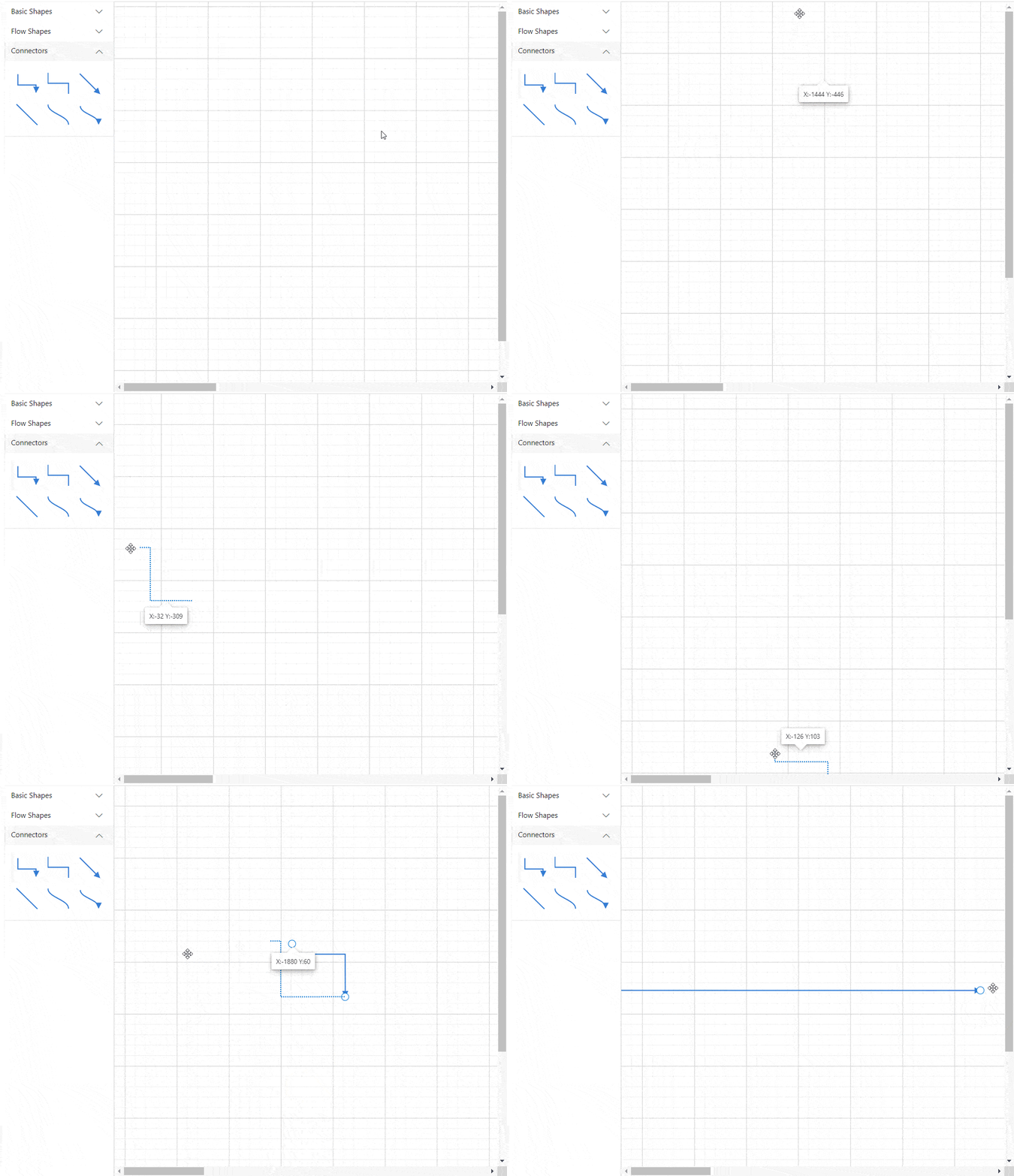
Auto-scroll support in the Blazor Diagram component
**Note:** For more details, refer to the Diagram auto-scrolling [GitHub demos](https://github.com/SyncfusionExamples/Blazor-Diagram-Examples/tree/master/UG-Samples/ScrollSettings/AutoScroll)
.
## Tooltip support for symbols in the symbol palette
The symbol palette can show tooltips when the mouse hovers over any node or connector. We can customize the tooltip for each symbol in the symbol palette.
### Default tooltip for symbols
By default, the symbol’s ID will be displayed as the tooltip for each symbol in the palette. The following image illustrates how the tooltip will be displayed when the mouse hovers over the symbols.
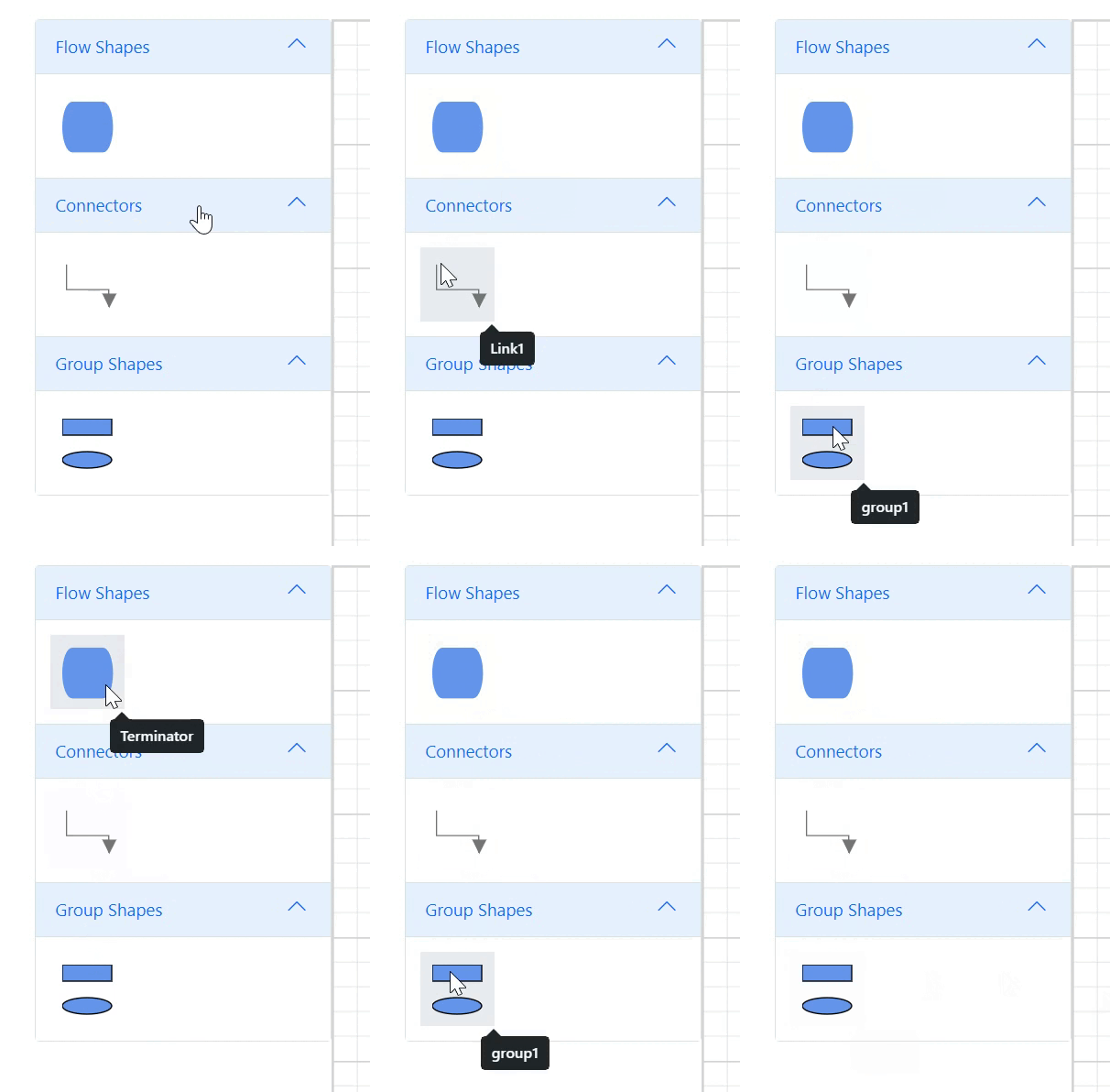
Default tooltips for symbols in the symbol palette
### Custom tooltips for symbols
You can also provide custom tooltips for the symbols in the symbol palette. Refer to the following image.
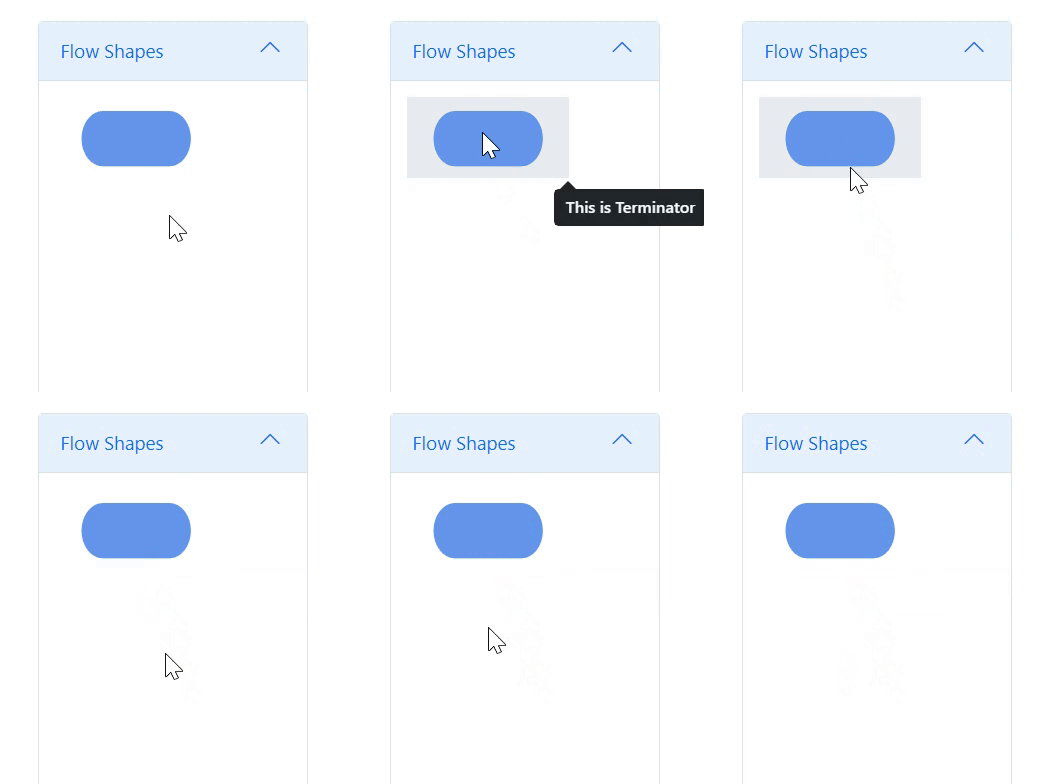
Custom tooltips for symbols in the symbol palette
**Note:** For more details, refer to the symbol palette tooltip [GitHub demos](https://github.com/SyncfusionExamples/Blazor-Diagram-Examples/tree/master/UG-Samples/SymbolPalette/SymbolPaletteTooltip)
and [documentation](https://blazor.syncfusion.com/documentation/diagram/symbol-palette#how-to-provide-tooltip-for-symbols-in-symbol-palette)
.
## Padding support for node group
Now, you can define the spacing between a group node’s edges and its children using the [Padding](https://help.syncfusion.com/cr/blazor/Syncfusion.Blazor.Diagram.NodeGroup.html#Syncfusion_Blazor_Diagram_NodeGroup_Padding)
property.
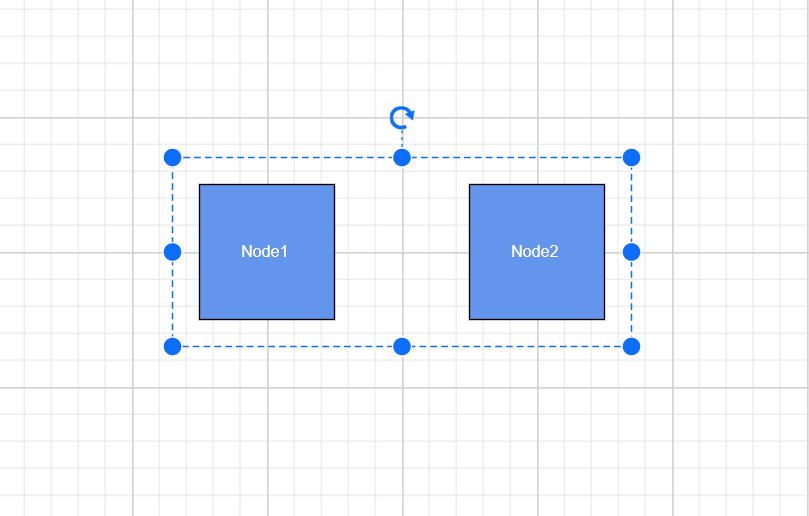
Padding support for node groups in the Blazor Diagram component
**Note:** For more details, refer to the padding support for group nodes [GitHub demos](https://github.com/SyncfusionExamples/Blazor-Diagram-Examples/tree/master/UG-Samples/Group/CreateGroup)
and [documentation](https://blazor.syncfusion.com/documentation/diagram/group#how-to-add-padding-for-nodegroup)
.
## Template support for fixed user handle
You can define a fixed user handle style at the tag level using a template in the **FixedUserHandleTemplate** property. You can define separate templates for each node and connector by differentiating them based on their **ID** property. A defined template will be rendered when the ** PathData** properties of the ** fixeduserhandle** are not defined. However, if both path data and template are defined, the path data will take precedence, and the template will not be rendered.
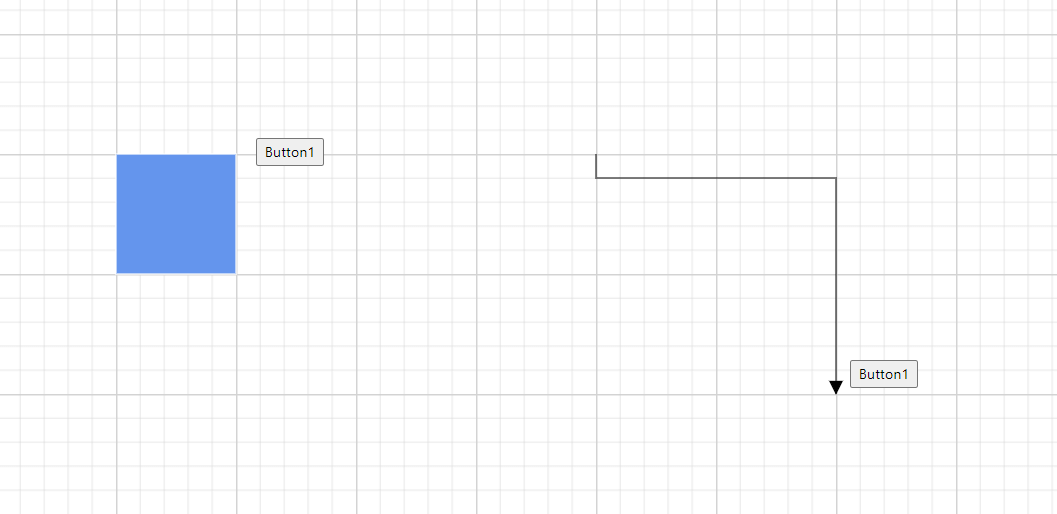
Template support for fixed user handles in the Blazor Diagram component
**Note:** For more details, refer to the fixed user handles [GitHub demos](https://github.com/SyncfusionExamples/Blazor-Diagram-Examples/tree/master/UG-Samples/UserHandle/CustomizeFixedUserHandle)
and [documentation](https://blazor.syncfusion.com/documentation/diagram-classic/user-handle#fixed-user-handles)
.
## Support to enlarge smaller diagrams while calling the FitToPage command
The [FitToPage](https://help.syncfusion.com/cr/blazor/Syncfusion.Blazor.Diagrams.SfDiagram.html#Syncfusion_Blazor_Diagrams_SfDiagram_FitToPage_Syncfusion_Blazor_Diagrams_IFitOptions_)
command is used to bring an entire diagram (large diagram) into the viewport. You can customize the behavior of the **FitToPage** command by passing the [FitOptions](https://help.syncfusion.com/cr/blazor/Syncfusion.Blazor.Diagram.FitOptions.html)
class as a parameter. The [CanZoomIn](https://help.syncfusion.com/cr/blazor/Syncfusion.Blazor.Diagram.FitOptions.html#Syncfusion_Blazor_Diagram_FitOptions_CanZoomIn)
property of the **FitOptions** class is used to enable or disable zooming to fit smaller content into a larger viewport.
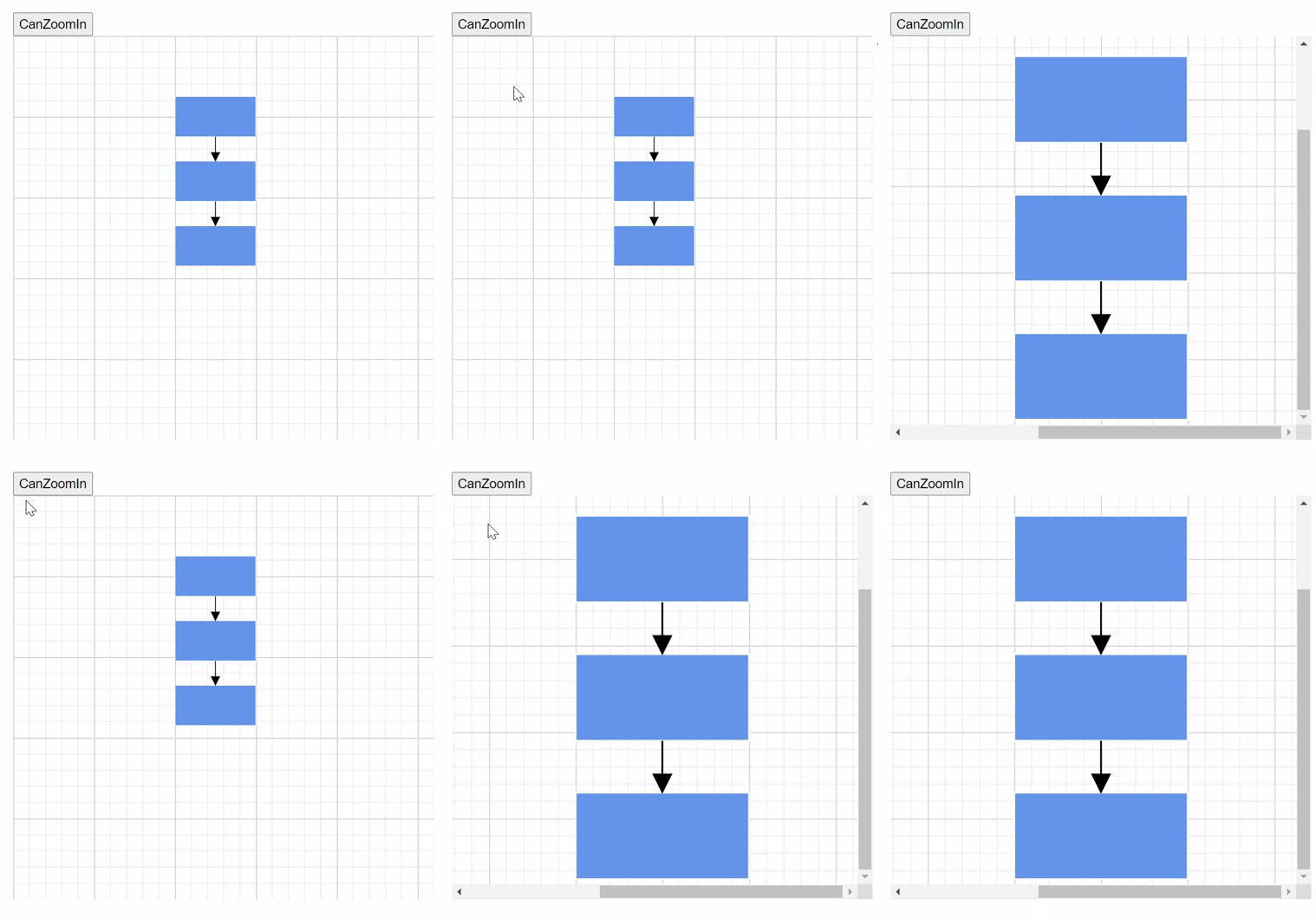
Zooming a smaller image to fit the entire viewport in the Blazor Diagram component
**Note:** For more details, refer to the FitToPage command [GitHub demos](https://github.com/SyncfusionExamples/Blazor-Diagram-Examples/tree/master/UG-Samples/Commands/CanZoomIn)
and [documentation](https://blazor.syncfusion.com/documentation/diagram-classic/commands#fittopage-command)
.
## Conclusion
Thanks for reading! In this blog, we’ve seen the exciting new features added to the Syncfusion [Blazor Diagram](https://www.syncfusion.com/blazor-components/blazor-diagram)
component for the [2023 Volume 2](https://www.syncfusion.com/forums/183035/essential-studio-2023-volume-2-main-release-v22-1-34-is-available-for-download)
release. Use them to create and visualize interactive diagrams and leave your feedback in the comments section below!
Check out our [Release Notes](https://blazor.syncfusion.com/documentation/release-notes/22.1.34?type=all)
and [What’s New](https://www.syncfusion.com/products/whatsnew)
pages for other 2023 Volume 2 release updates.
The new version of Essential Studio® is available for existing customers in the [License and Downloads](https://www.syncfusion.com/account/downloads)
page. If you are not a Syncfusion customer, try our 30-day [free trial](https://www.syncfusion.com/downloads)
to check out our available features.
You can also contact us through our [support forum](https://www.syncfusion.com/forums)
, [support portal](https://support.syncfusion.com/)
, or [feedback portal](https://www.syncfusion.com/feedback/)
. We are always happy to assist you!
## Related blogs
- [What’s New in Blazor: 2023 Volume 2](https://www.syncfusion.com/blogs/post/whats-new-blazor-2023-volume-2.aspx)
- [Introducing the Next-Gen Blazor PDF Viewer Component](https://www.syncfusion.com/blogs/post/next-gen-blazor-pdf-viewer.aspx)
- [Simple Steps to Create Thumbnail Images Using the Blazor File Upload Component](https://www.syncfusion.com/blogs/post/create-thumbnail-images-blazor.aspx)
- [Role-Based Authorization in Blazor File Manager: An Overview](https://www.syncfusion.com/blogs/post/role-based-authorization-blazor-file-manager.aspx)