---
title: "Boost Blazor Dropdown List Performance with Virtualization"
published_at: "2023-11-14T11:25:45+00:00"
modified_at: "2026-02-10T06:00:07+00:00"
url: "https://www.syncfusion.com/blogs/post/virtualization-blazor-dropdown-list"
excerpt: "This blog explains how to enable the virtual scrolling feature in Syncfusion’s Blazor Dropdown List component and its benefits."
taxonomy_category:
- "Blazor"
- "Development"
- "Syncfusion"
- "Web"
taxonomy_post_tag:
- "Blazor"
- "development"
- "productivity"
- "Virtualization"
- "Web"
---
# Boost Blazor Dropdown List Performance with Virtualization
[Saravanan G](https://www.syncfusion.com/blogs/author/saravanang)
In the fast-paced world of modern web apps, ensuring optimal performance is key to delivering a user experience that is seamless and responsive. This becomes particularly challenging when dealing with large data sets, where efficient data handling is paramount.
Consider, for instance, the common scenario of dropdown lists populated with many items. Traditional methods of managing these lists can often lead to performance bottlenecks, negatively impacting the overall user experience.
Syncfusion’s [Blazor Dropdown List](https://www.syncfusion.com/blazor-components/blazor-dropdown-list)
component offers a powerful solution to this challenge!
Its **virtual scrolling** feature efficiently handles large data sets. Instead of loading all the data at once, it dynamically loads data as the user scrolls, significantly enhancing your app’s performance.
In this blog, we’ll see how to enable the virtual scrolling feature in the Blazor Dropdown List component and its benefits.
## What is virtual scrolling?
Virtual scrolling only deals with the subset of data currently visible within the viewport. As a user scrolls through the data, items move in and out of the viewport. The component dynamically loads items into view and unloads them when they are no longer visible.
### Benefits of virtual scrolling
- **Improved performance:** Virtual scrolling enables the smooth rendering of dropdown lists containing many items by rendering only the visible items. This eliminates the need to load and render all items simultaneously, significantly improving the component’s overall performance.
- **Reduced DOM rendering time**: By reducing the number of DOM elements that need rendering at any given time, virtual scrolling significantly reduces the DOM rendering time. This results in a user interface responding more swiftly, with fewer elements to render.
- **Faster load times**: Loading a large data set into a dropdown list can result in longer load times. Virtual scrolling addresses this issue by initially loading only the necessary items, resulting in faster load times and a more responsive user interface.
## Implementing virtual scrolling in the Syncfusion Blazor Dropdown List
Let’s see the steps to implement the virtual scrolling feature in our Blazor Dropdown List component.
### Prerequisites
- [Visual Studio 2022](https://visualstudio.microsoft.com/vs/)
- [.NET Core 6.0 or above](https://dotnet.microsoft.com/en-us/download/dotnet/6.0)
### Step 1: Create a Blazor server app
First, create a new Blazor WASM app using Visual Studio. Install the Syncfusion Blazor packages and configure the style and script references using the [getting started](https://blazor.syncfusion.com/documentation/getting-started/blazor-webassembly-visual-studio/)
documentation.
### Step 2: Add the Dropdown List component to the app
Add the Blazor Dropdown List component with field settings configurations to the **Index.razor** file.
```
```
### Step 3: Binding the data source
Next, get the data from the model class and bind it to the Dropdown List’s **DataSource** property in the ** OnInitializedAsync**method.
```
@code {
public class DropdownModel
{
public int? ValueField { get; set; }
public string TextField { get; set; }
}
IEnumerable myDdlData;
int? selectedValue { get; set; }
protected override void OnInitialized()
{
myDdlData = Enumerable.Range(1, 200).Select(x => new DropdownModel { TextField = "item " + x, ValueField = x });
}
}
```
### Step 4: Enable virtual scrolling
Set the [EnableVirtualization](https://help.syncfusion.com/cr/blazor/Syncfusion.Blazor.DropDowns.SfDropDownList-2.html#Syncfusion_Blazor_DropDowns_SfDropDownList_2_EnableVirtualization)
property to **true** to enable virtual scrolling in the Dropdown List.
By default, skeleton loading is a technique that provides visual feedback to users during data loading. When implementing virtual scrolling in the Dropdown List, you can incorporate skeleton loading to display placeholders that mimic the appearance of the loaded data. This gives users a clear indication that data is being loaded, thus enhancing the overall user experience.
Refer to the following code example.
```
@code {
public class DropdownModel
{
public int? ValueField { get; set; }
public string TextField { get; set; }
}
IEnumerable myDdlData;
int? selectedValue { get; set; }
protected override void OnInitialized()
{
myDdlData = Enumerable.Range(1, 200).Select(x => new DropdownModel { TextField = "item " + x, ValueField = x });
}
}
```
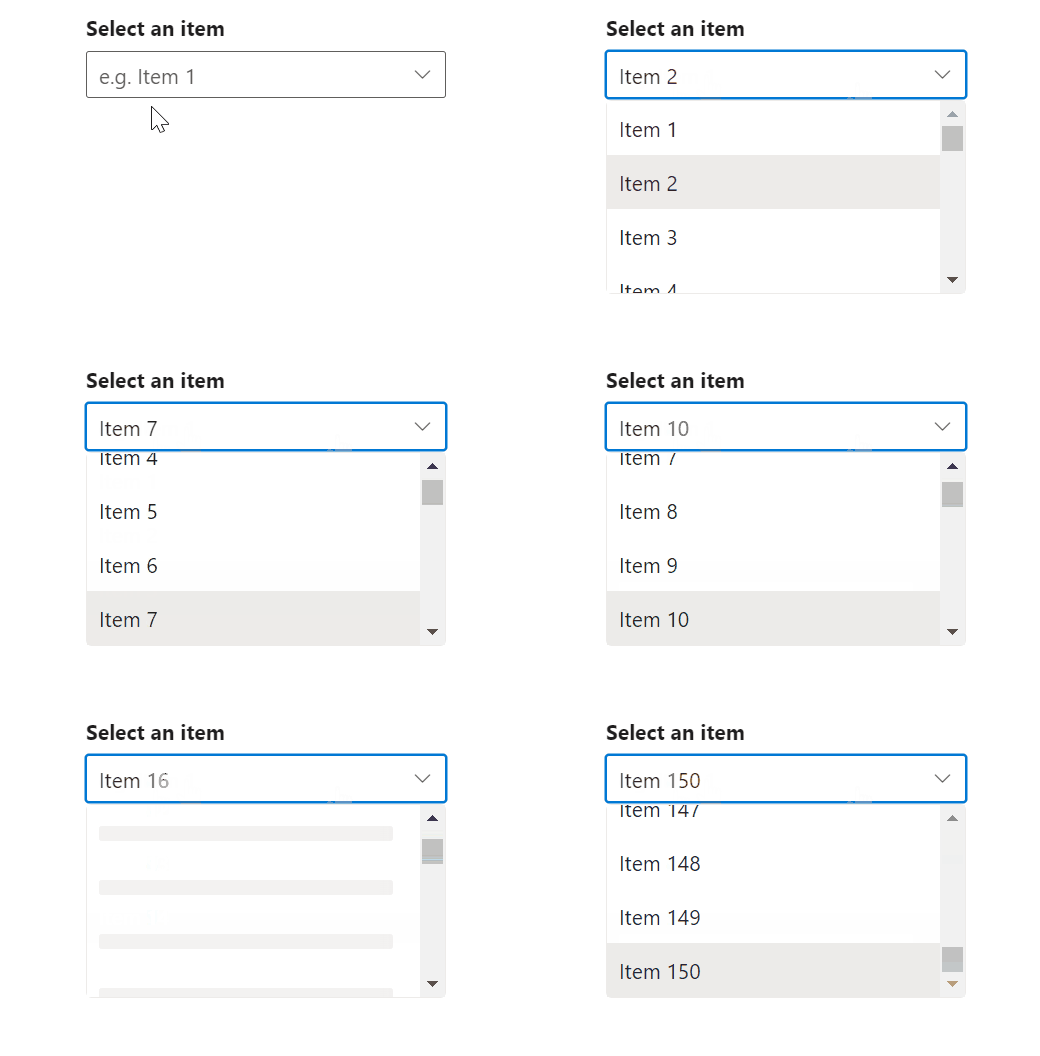
Virtual scrolling feature in Blazor Dropdown List component
### Keyboard interaction
Users can also navigate through the scrollable content using keyboard keys. This feature loads the next item or set of items based on the key inputs in the pop-up:
- **Arrow-down key**: Loads the next virtual list item if the last item of the current page is selected.
- **Arrow-up key**: Loads the previous virtual list item if the first item of the current page is selected.
- **PageDown key**: Loads the next page and selects the last item.
- **PageUp key**: Loads the previous page and selects its first item.
- **Home key**: Loads the initial set of items and selects the first item.
- **End key**: Loads the last set of items and selects the last item.
## Reference
Check out the [documentation](https://blazor.syncfusion.com/documentation/dropdown-list/virtualization)
for virtual scrolling in the Blazor Dropdown List component and demos on [our website](https://blazor.syncfusion.com/demos/dropdown-list/virtualization?theme=fluent)
and [GitHub](https://github.com/SyncfusionExamples/blazor-dropdown-list-virtualization)
.
## Conclusion
Thank you for reading this blog! We’ve explored the numerous benefits of virtual scrolling in Syncfusion’s [Blazor Dropdown List](https://www.syncfusion.com/blazor-components/blazor-dropdown-list)
component. With this, you can effortlessly manage large data sets, overcome performance challenges, and ultimately deliver a smoother, more responsive user experience.
Syncfusion’s Blazor dropdown components include the [Dropdown List](https://www.syncfusion.com/blazor-components/blazor-dropdown-list)
, [ComboBox](https://www.syncfusion.com/blazor-components/blazor-combobox)
, [AutoComplete](https://www.syncfusion.com/blazor-components/blazor-autocomplete)
, [ListBox](https://www.syncfusion.com/blazor-components/blazor-listbox)
, [MultiSelect Dropdown](https://www.syncfusion.com/blazor-components/blazor-multiselect-dropdown)
, and [Mention](https://www.syncfusion.com/blazor-components/blazor-mention)
. They have been meticulously designed for Blazor to tackle common challenges in modern web apps. Try out them, and please let us know what you think in the comments section below.
Try our Blazor components by downloading a [free 30-day trial](https://www.syncfusion.com/account/manage-trials/downloads)
. Feel free to look at our [online examples](https://blazor.syncfusion.com/)
and [documentation](https://blazor.syncfusion.com/documentation/introduction/)
to explore other available features.
For questions, you can contact us through our [support forum](https://www.syncfusion.com/forums/blazor-components)
, [support portal](https://support.syncfusion.com/)
, and [feedback portal](https://www.syncfusion.com/feedback)
. We are always happy to assist you!
## Related blogs
- [Unveiling New Date-Only and Time-Only Features in Blazor Pickers](https://www.syncfusion.com/blogs/post/date-time-only-blazor-pickers.aspx)
- [How to Add a Blazor WebAssembly Project to an ASP.NET Core App](https://www.syncfusion.com/blogs/post/blazor-wasm-to-asp-dotnet-core.aspx)
- [What’s New in Blazor Image Editor: 2023 Volume 3](https://www.syncfusion.com/blogs/post/whats-new-blazor-image-editor.aspx)
- [What’s New in Syncfusion Blazor: 2023 Volume 3](https://www.syncfusion.com/blogs/post/syncfusion-blazor-2023-volume-3.aspx)