---
title: "Simple Steps to View a PowerPoint Presentation in an ASP.NET Core Application"
published_at: "2023-05-16T11:00:00+00:00"
modified_at: "2025-11-07T11:15:46+00:00"
url: "https://www.syncfusion.com/blogs/post/view-powerpoint-asp-dotnet-core"
excerpt: "This blog will guide you through implementing a basic PowerPoint viewer functionality in an ASP.NET Core app using Syncfusion components."
taxonomy_category:
- "ASP.NET Core"
- "Development"
- "File Formats"
- "PowerPoint"
- "Web"
taxonomy_post_tag:
- "ASP.NET Core"
- "File Formats"
- "PowerPoint"
- "Web Development"
---
# Simple Steps to View a PowerPoint Presentation in an ASP.NET Core Application
[Mohanaselvam Jothi](https://www.syncfusion.com/blogs/author/mohanaselvam-jothi)

In this blog, we will walk through how to create simple PowerPoint viewer functionality in an [ASP.NET Core](https://www.syncfusion.com/aspnet-core-ui-controls)
application using Syncfusion components. The interface will have the following basic options:
- Browse and open PowerPoint presentation (PPTX) files.
- Thumbnail view.
- Print the entire presentation or a specific slide from the browser.
- Download the PowerPoint presentation as a PDF.
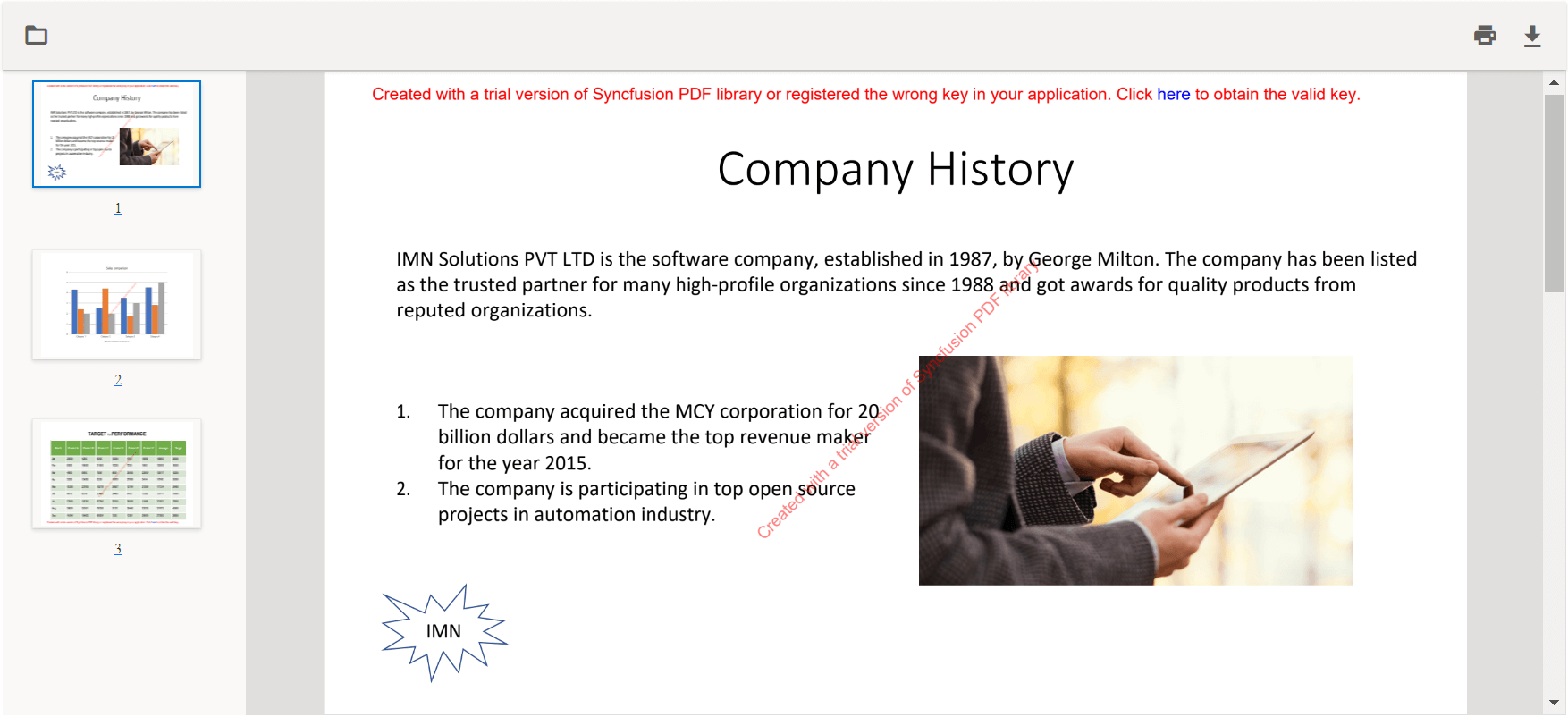
PowerPoint Viewer in ASP.NET Core
By integrating PowerPoint viewing capability into your [ASP.NET Core](https://www.syncfusion.com/aspnet-core-ui-controls)
application, users can view PowerPoint presentation files without leaving the application or needing any external application. It results in improved security for your PowerPoint files.
We will use Syncfusion’s [.NET PowerPoint Library](https://www.syncfusion.com/document-processing/powerpoint-framework/net)
and [PDF Viewer control](https://www.syncfusion.com/aspnet-core-ui-controls/pdf-viewer)
to achieve this functionality. We need to convert a PowerPoint file into a PDF with the former, and then view the resultant PDF using the PDF Viewer:
- [.NET PowerPoint Library](https://www.syncfusion.com/document-processing/powerpoint-framework/net) : Used to create, read, edit, and convert PPTX files without using Microsoft Office or PowerPoint.
- [PDF Viewer](https://www.syncfusion.com/aspnet-core-ui-controls/pdf-viewer) : Used to view, print, and annotate PDF files.
## Design PowerPoint viewer in ASP.NET Core application
**Step 1:** First, clone the getting started with the PDF Viewer application from the [GitHub](https://github.com/SyncfusionExamples/create-powerpoint-viewer-in-aspnet-core/tree/master/Getting-Started-PDF-Viewer)
repository.
**Step 2:** As we are designing a PowerPoint viewer using the [Syncfusion .NET PowerPoint Library](https://www.syncfusion.com/document-processing/powerpoint-framework/net)
and ASP.NET Core PDF Viewer, we must install these NuGet packages in the application:
- [Syncfusion.PresentationRenderer.Net.Core](https://www.nuget.org/packages/Syncfusion.PresentationRenderer.Net.Core)
- [Syncfusion.EJ2.AspNet.Core](https://www.nuget.org/packages/Syncfusion.EJ2.AspNet.Core/)
- [Syncfusion.EJ2.PdfViewer.AspNet.Core.Windows](https://www.nuget.org/packages/Syncfusion.EJ2.PdfViewer.AspNet.Core.Windows/)
**Note:** If you plan to deploy your application to Linux or macOS, install [Syncfusion.EJ2.PdfViewer.AspNet.Core.Linux](https://www.nuget.org/packages/Syncfusion.EJ2.PdfViewer.AspNet.Core.Linux/)
or [Syncfusion.EJ2.PdfViewer.AspNet.Core.OSX](https://www.nuget.org/packages/Syncfusion.EJ2.PdfViewer.AspNet.Core.OSX/)
, respectively, instead of [Syncfusion.EJ2.PdfViewer.AspNet.Core.Windows](https://www.nuget.org/packages/Syncfusion.EJ2.PdfViewer.AspNet.Core.Windows/)
.
**Step 3:** Open ** Index.cshtml** and set the accept value of the input type as **.pptx** to accept uploading the PowerPoint presentation files.
```
```
**Step 4:** Modify the onload function script in ** Index.cshtml** like in the following code to load the PowerPoint presentation template as the default instead of the PDF template.
```
window.onload = function () {
disableSpinner();
var pdfViewer = document.getElementById('pdfviewer').ej2_instances[0];
pdfViewer.serviceUrl = 'api/PowerPointViewer';
document.getElementById('fileUpload').addEventListener('change', readFile, false);
}
```
**Step 5:** In the ** Controller** class, include the following namespaces.
```
using Syncfusion.Pdf;
using Syncfusion.Presentation;
using Syncfusion.PresentationRenderer;
```
**Step 6:** Then, replace the existing code with the following ** Load()** method in the ** Controller** class to convert the PowerPoint presentation to PDF using the .NET PowerPoint Library and send the converted PDF to the PDF Viewer.
```
public IActionResult Load([FromBody] Dictionary jsonObject)
{
PdfRenderer pdfviewer = new PdfRenderer(_cache);
MemoryStream stream = new MemoryStream();
object jsonResult = new object();
if (jsonObject != null && jsonObject.ContainsKey("document"))
{
if (bool.Parse(jsonObject["isFileName"]))
{
string documentPath = GetDocumentPath(jsonObject["document"]);
if (!string.IsNullOrEmpty(documentPath))
{
byte[] bytes = System.IO.File.ReadAllBytes(documentPath);
stream = new MemoryStream(bytes);
}
else
{
return this.Content(jsonObject["document"] + " is not found");
}
}
else
{
byte[] bytes = Convert.FromBase64String(jsonObject["document"]);
stream = new MemoryStream(bytes);
}
}
try
{
//Open the PowerPoint Presentation using the Syncfusion Presentation library
using (IPresentation presentation = Presentation.Open(stream))
{
stream.Dispose();
//Convert a PowerPoint Presentation as PDF to view the generated PDF file in our Syncfusion PdfViewer
using (PdfDocument pdfDocument = PresentationToPdfConverter.Convert(presentation))
{
//Save the converted Pdf document to get a physical DOM of PDF document.
stream = new MemoryStream();
pdfDocument.Save(stream);
//Reset the pdf stream position.
stream.Position = 0;
}
}
}
catch
{
}
jsonResult = pdfviewer.Load(stream, jsonObject);
return Content(JsonConvert.SerializeObject(jsonResult));
}
```
**Step 7:** Now, the application is ready. Launch it and upload the PowerPoint presentation file to display the slides in the PowerPoint viewer.
## GitHub reference
You can find the example of [this code](https://github.com/SyncfusionExamples/create-powerpoint-viewer-in-aspnet-core)
in the GitHub repository.
## Convert PowerPoint presentations into images
To make the PowerPoint presentation accessible on virtually any platform (Windows, Linux, macOS, mobile, Docker, cloud), you might occasionally want to share or show each slide as an image. Furthermore, it is a handy format to guard against content alteration. Our Syncfusion [.NET Core PowerPoint Library](https://www.syncfusion.com/document-processing/powerpoint-framework/net-core)
provides the APIs to convert an entire [PowerPoint presentation or just specific slides to image](https://help.syncfusion.com/file-formats/presentation/presentation-to-image?cs-save-lang=1&cs-lang=csharp)
s with just a few lines of code in C# without Microsoft PowerPoint.
## Conclusion
Thank you for reading this blog. I hope this information helps you create a PowerPoint viewer using the Syncfusion .NET PowerPoint Library. Take a moment to peruse its [documentation](https://help.syncfusion.com/file-formats/presentation)
, where you’ll find other options and features, all with accompanying code examples.
Our Syncfusion .NET PowerPoint Library has the following significant functionalities:
- Create, read, and edit PowerPoint presentations programmatically.
- [Clone](https://help.syncfusion.com/file-formats/presentation/working-with-slide#cloning-slide) and [merge](https://help.syncfusion.com/file-formats/presentation/working-with-slide#merging-slide) slides in PowerPoint presentations.
- Create and edit [animations](https://help.syncfusion.com/file-formats/presentation/working-with-animation) and [transition effects](https://help.syncfusion.com/file-formats/presentation/create-edit-slide-transitions-in-powerpoint-presentation-slides-cs-vb-net) .
- [Find and replace](https://help.syncfusion.com/file-formats/presentation/working-with-find-and-replace) the text in all PowerPoint slides or specific slides.
- Convert PowerPoint files to [PDF](https://help.syncfusion.com/file-formats/presentation/presentation-to-pdf) and [images](https://help.syncfusion.com/file-formats/presentation/presentation-to-image) .
- [Encrypt](https://help.syncfusion.com/file-formats/presentation/security?#encrypting-with-password) and [decrypt](https://help.syncfusion.com/file-formats/presentation/security?#decrypting-the-powerpoint-presentation) PowerPoint presentations.
To learn about all the features supported, please check our [product page](https://www.syncfusion.com/document-processing/powerpoint-framework/net)
. If you are new to our PowerPoint Library, it is highly recommended that you follow our [Getting Started guide](https://help.syncfusion.com/file-formats/presentation/getting-started)
.
Are you already a Syncfusion user? You can download the product setup [here](https://www.syncfusion.com/account/downloads/studio/)
. If you’re not a Syncfusion user, you can download a free 30-day trial [here](https://www.syncfusion.com/downloads)
.
If you have questions, contact us through our [support forum](https://www.syncfusion.com/forums)
, [support portal](https://support.syncfusion.com/)
, or [feedback portal](https://www.syncfusion.com/feedback/powerpoint)
. We are happy to assist you!
## Related blogs
- [Adding Animation to PowerPoint Slide Elements in C#](https://www.syncfusion.com/blogs/post/adding-animations-to-the-powerpoint-slide-elements-in-c.aspx)
- [Seamlessly Import and Export CSV Data in Excel Using C#](https://www.syncfusion.com/blogs/post/import-export-csv-data-in-excel-csharp.aspx)
- [View Word, Excel, and PowerPoint Files in Angular Application](https://www.syncfusion.com/blogs/post/view-word-excel-powerpoint-in-angular.aspx)
- [Create a PDF Digital Signature Web Service Using Azure Key Vault and the Syncfusion C# PDF Library](https://www.syncfusion.com/blogs/post/pdf-digital-signature-web-service-using-azure-key-vault-and-csharp-pdf-library.aspx)