---
title: "Implement User Tagging in Blazor Rich Text Editor with Mention Component"
published_at: "2023-01-10T12:05:55+00:00"
modified_at: "2026-06-25T03:44:05+00:00"
url: "https://www.syncfusion.com/blogs/post/user-tagging-in-blazor-rich-text-editor"
excerpt: "This blog explains how to integrate the Blazor Mention component with the RTE for applications to support mentioning users while editing content."
taxonomy_category:
- "Blazor"
- "Development"
- "Rich Text Editor"
- "Web"
- "What's new"
taxonomy_post_tag:
- "Blazor"
- "rich text editor"
- "Web Development"
- "What's New"
---
# Implement User Tagging in Blazor Rich Text Editor with Mention Component
[Saravanan G](https://www.syncfusion.com/blogs/author/saravanang)
With the [2022 Volume 4](https://www.syncfusion.com/forums/179561/essential-studio-2022-volume-4-main-release-v20-4-0-38-is-available-for-download)
release, the Syncfusion [Blazor Rich Text Editor](https://www.syncfusion.com/blazor-components/blazor-wysiwyg-rich-text-editor)
allows users to integrate the new [Mention component](https://www.syncfusion.com/blazor-components/blazor-mention)
easily. When the user types the **@** character in the editor, a suggestion list will appear, and the user can choose or tag a value from it. This can be a useful feature for apps that need to support tagging or mentioning users or items while editing content. This blog will show you how to integrate Mention with the Rich Text Editor.
Let’s see how to do so with code examples!
**Note:** Before getting started, please refer to the Syncfusion [Blazor Rich Text Editor](https://blazor.syncfusion.com/documentation/rich-text-editor/getting-started)
and [Mention](https://blazor.syncfusion.com/documentation/mention/getting-started)
component documentation. This will help ensure that you are familiar with the components and how to use them effectively in your app.
## Prerequisites
- [Visual Studio 2022](https://visualstudio.microsoft.com/vs/)
- [.NET Core 6.0 or above](https://dotnet.microsoft.com/en-us/download/dotnet/6.0)
- [Blazor templates](https://learn.microsoft.com/en-us/aspnet/core/blazor/tooling?view=aspnetcore-7.0&pivots=windows#blazor-template-options)
## Implement user tagging with Mention in Blazor Rich Text Editor
### Step 1: Create a Blazor server app.
First, create a new [Blazor server app](https://dotnet.microsoft.com/en-us/learn/aspnet/blazor-tutorial/intro)
using [Visual Studio](https://visualstudio.microsoft.com/vs/)
. Then, install the [Syncfusion Blazor NuGet packages](https://www.nuget.org/packages/Syncfusion.Blazor)
and configure the style and script references by referring to the [getting started documentation](https://blazor.syncfusion.com/documentation/getting-started/blazor-server-side-visual-studio)
.
### Step 2: Add the Blazor Rich Text Editor.
Next, add the following code in the **Index.razor** page to add the [Syncfusion Blazor Rich Text Editor](https://www.syncfusion.com/blazor-components/blazor-wysiwyg-rich-text-editor)
component.
```
```
### Step 3: Add the Mention component.
Add the following code to the **Index.razor** page to add the Syncfusion Blazor Mention component.
```
```
### Step 4: Integrate the Mention component with Rich Text Editor.
Configure the [Target](https://help.syncfusion.com/cr/blazor/Syncfusion.Blazor.DropDowns.SfMention-1.html#Syncfusion_Blazor_DropDowns_SfMention_1_Target)
property of the Blazor Mention component with Rich Text Editor’s editable area **div** element ID. Or else, configure the CSS class selectors in the Rich Text Editor with the ** Target** property of the Mention component.
```
```
Simplify Blazor Rich Text Editor Development
Spend less time building content editing features from scratch. Syncfusion Blazor Rich Text Editor includes ready-to-use support for formatting, media insertion, hyperlinks, tables, lists, and rich HTML content editing.
[Start Building Today](https://www.syncfusion.com/blazor-components/blazor-rich-text-editor)
### Step 5: Bind the data source in the Mention component.
Next, we will bind an employee data source to the Mention component using the **DataSource** property and configure the ** MentionFieldSettings.Text** and ** MentionFieldSettings.Value** properties.
Specify the column name in the data source whose data needs to be displayed in the suggestion list.
Refer to the following code example.
```
@code {
public class PersonData
{
public string Name { get; set; }
public string EmailId { get; set; }
public string EmployeeImage { get; set; }
public string Status { get; set; }
}
List EmployeeData = new List {
new PersonData() { Name="Selma Rose", Status = "active", EmployeeImage="2", EmailId="[email protected]" },
new PersonData() { Name="Russo Kay", Status = "away", EmployeeImage="8", EmailId="[email protected]" },
new PersonData() { Name="Camden Kate", Status = "busy", EmployeeImage="9", EmailId="[email protected]" }
};
}
```
### Step 6: Customize the suggestion list and the appearance of the selected value.
Use the [ItemTemplate](https://help.syncfusion.com/cr/blazor/Syncfusion.Blazor.DropDowns.SfDropDownBase-1.html#Syncfusion_Blazor_DropDowns_SfDropDownBase_1_ItemTemplate)
property to customize the suggestion list items. Use the [DisplayTemplate](https://help.syncfusion.com/cr/blazor/Syncfusion.Blazor.DropDowns.SfMention-1.html#Syncfusion_Blazor_DropDowns_SfMention_1_DisplayTemplate)
property to customize the selected value in the suggestion list of the Mention component.
Refer to the following code example.
```
@((context as PersonData).Name)@((context as PersonData).EmailId)
@@@((context as PersonData).Name)
```
Then, add the following styles to the **Index.razor** file to customize the Mention suggestion list items and select a value from the suggestion list.
```
```
After executing these code examples, we will get output like in the following GIF image.
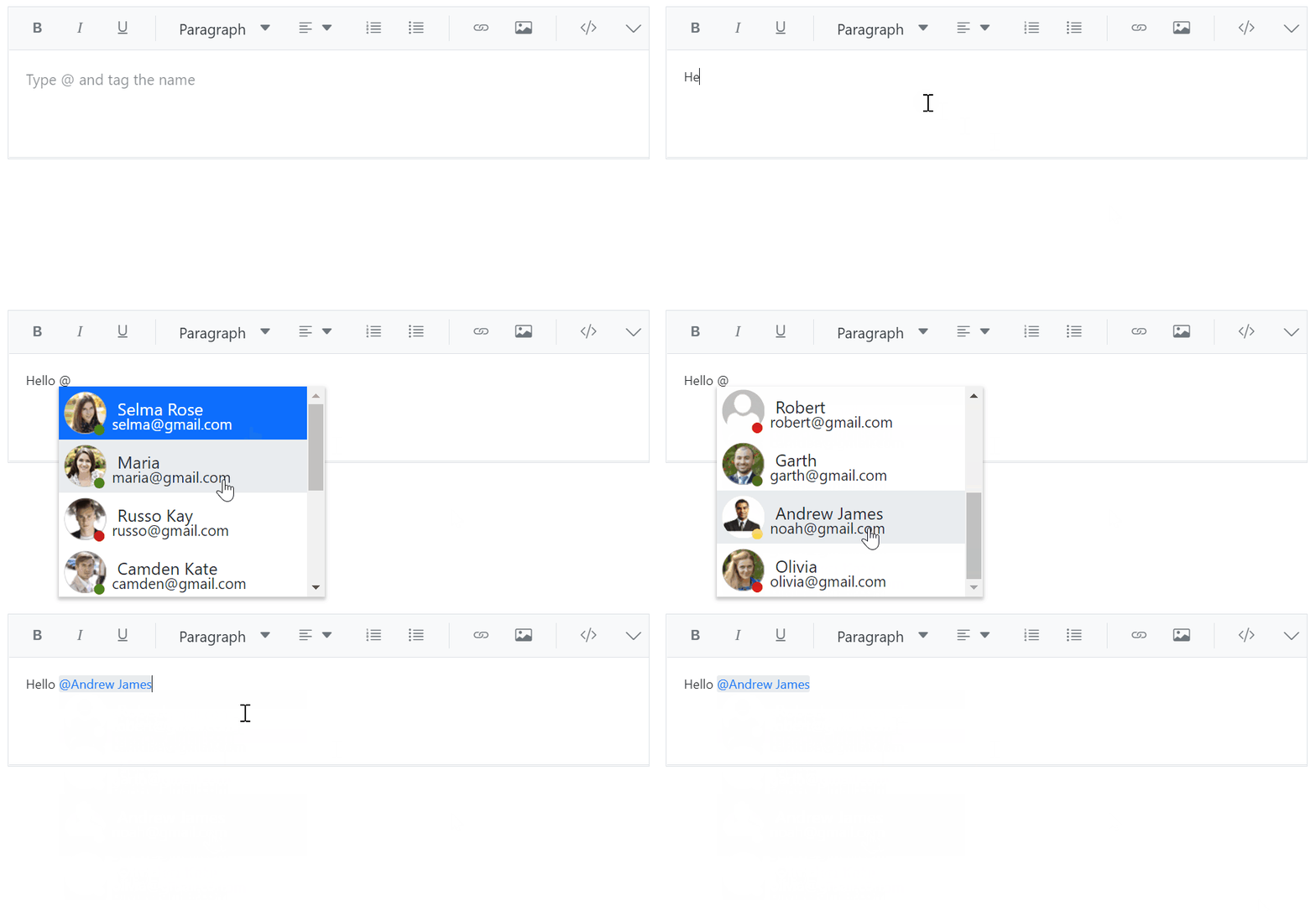
Integrating Blazor Mention Component with the Rich Text Editor
## GitHub reference
For more details, refer to [Integrating Blazor Mention Component with Rich Text Editor demo on the GitHub](https://github.com/SyncfusionExamples/blazor-mention-integration-with-rich-text-editor)
repository.
## Conclusion
Thanks for reading! In this blog, we have seen how to integrate the [Blazor Mention component](https://www.syncfusion.com/blazor-components/blazor-mention)
with the [Rich Text Editor](https://www.syncfusion.com/blazor-components/blazor-wysiwyg-rich-text-editor)
to tag a username or select a value from a suggestion list. Try out the steps in this blog and provide your feedback!
Try our Blazor components by downloading a [free 30-day trial](https://www.syncfusion.com/account/manage-trials/downloads)
or our [NuGet packages](https://www.nuget.org/packages/Syncfusion.Blazor)
. Feel free to look at our [online examples](https://blazor.syncfusion.com/)
and [documentation](https://blazor.syncfusion.com/documentation/introduction/)
to explore other available features.
You can also contact us through our [support forum](https://www.syncfusion.com/forums/blazor-components)
, [support portal](https://support.syncfusion.com/support/tickets)
, or [feedback portal](https://www.syncfusion.com/feedback/)
. We are always happy to assist you!
## Related blogs
- [A Simple To-Do App Using JS Interop with HTML5 Drag and Drop in Blazor WebAssembly](https://www.syncfusion.com/blogs/post/to-do-app-using-js-interop-with-html5-drag-and-drop-in-blazor-webassembly.aspx)
- [Interview with Azure Maps Using Blazor Succinctly Author Michael Washington](https://www.syncfusion.com/blogs/post/interview-with-azure-maps-using-blazor-succinctly-author-michael-washington.aspx)
- [A Full-Stack Web App Using Blazor WebAssembly and GraphQL—Part 7](https://www.syncfusion.com/blogs/post/a-full-stack-web-app-using-blazor-webassembly-and-graphql-part-7.aspx)
- [Boosting Performance of Blazor Gantt Chart Using Virtualization](https://www.syncfusion.com/blogs/post/boosting-performance-of-blazor-gantt-chart-using-virtualization.aspx)
.EmployeeImage).png)