---
title: "Explore the Possibilities of the Blazor Playground App"
published_at: "2024-02-06T05:14:06+00:00"
modified_at: "2026-01-15T15:06:38+00:00"
url: "https://www.syncfusion.com/blogs/post/syncfusion-blazor-playground-app"
excerpt: "This blog explains the features of the Syncfusion Blazor Playground app, a free online code editor for Blazor components."
taxonomy_category:
- "Blazor"
- "Development"
- "Syncfusion"
- "UI"
- "Web"
taxonomy_post_tag:
- "Blazor"
- "development"
- "productivity"
- "Syncfusion"
- "Web"
---
# Explore the Possibilities of the Blazor Playground App
[Rajendran R](https://www.syncfusion.com/blogs/author/rajendranr)

Unsure about how to integrate specific styles, scripts, and services for your desired UI? The Syncfusion Blazor Playground offers a solution for exploring and building with Blazor components.
The Syncfusion [Blazor Playground app](https://www.syncfusion.com/pages/blazor-playground/)
is a free online code editor that offers a powerful and feature-rich environment for Blazor development and exploring Syncfusion’ [Blazor UI components](https://www.syncfusion.com/blazor-components)
. It lets users write, edit, and preview Blazor components in real time with all necessary resources preloaded and ready to use. The Playground handles everything, from NuGet installation to script and style resource referencing and service registration.
Let’s explore the marvelous features of the Blazor Playground app in detail.
## Effortlessly render Blazor components
[Getting started with Syncfusion Blazor components](https://blazor.syncfusion.com/documentation/introduction)
is a guide compatible with the Playground app. To render a component, we need to follow these configuration steps:
1. First, find the Syncfusion Blazor **user guide or demo page** with the component you want. For example: [Blazor Calendar](https://blazor.syncfusion.com/documentation/calendar/data-binding) .
2. Then**, copy** the corresponding full code snippet.
3. **Paste** it into the Playground editor.
4. Execute the code by pressing the **Run** button or using **Ctrl+R**. Then, view the output in the result view. Refer to the following image.
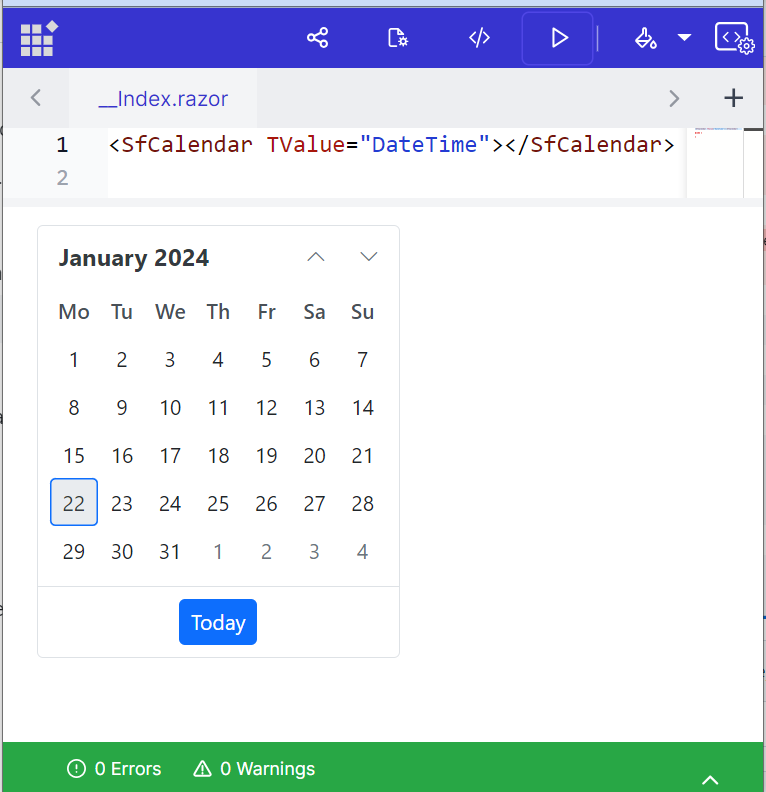
Rendering a Syncfusion Blazor component using user guide code in Playground app
## Built-in code snippets
Built-in code snippets are available in the Syncfusion Blazor Playground app for over 80 UI components. You can utilize these snippets to render Syncfusion Blazor components without the need to search for the code from user guides or demo pages. To use these snippets:
1. Click the [Snippets menu](https://blazorplayground.syncfusion.com/) in the Playground app and select your desired component from the pop-up.
2. Execute the code by pressing the **Run** button or using **Ctrl+R**. Then, view the output in the result view. Refer to the following image.
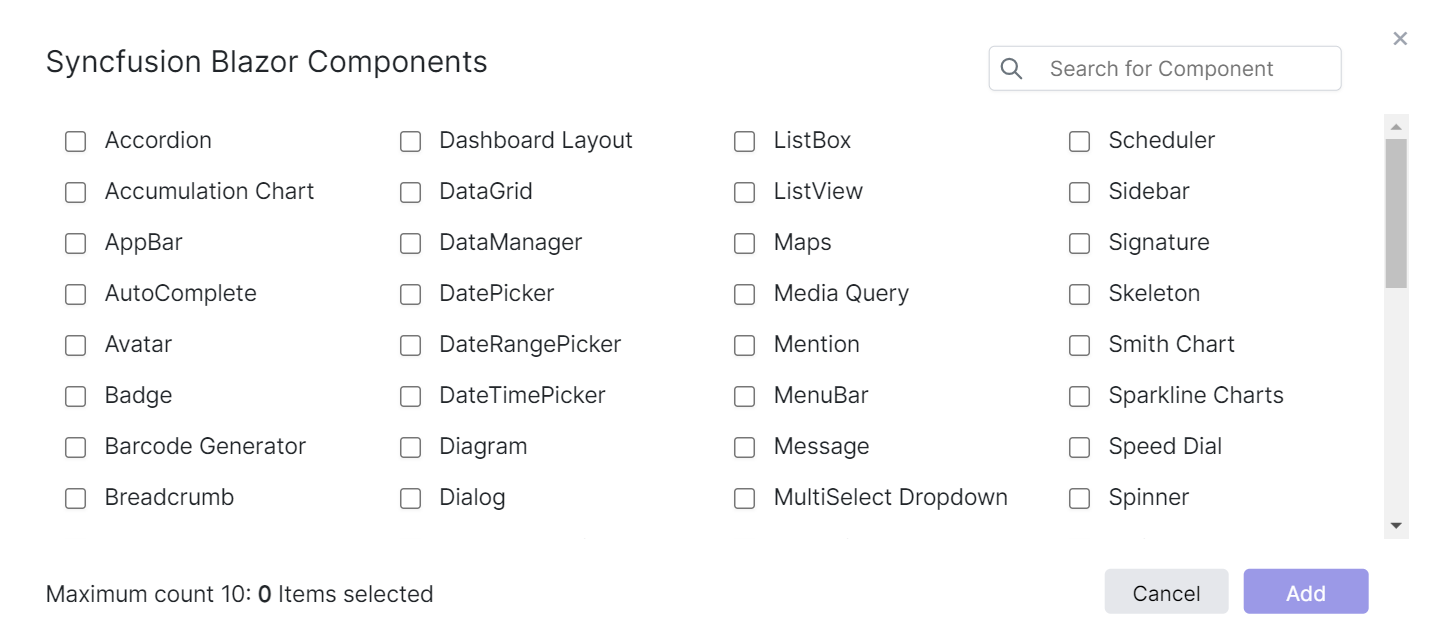
Syncfusion Blazor Playground with ready-made snippets
## Code editor for all Blazor components
Beyond Syncfusion Blazor components, you can write, compile, and run general Blazor components in the Playground app, too.
For example, you can render a basic layout as follows.
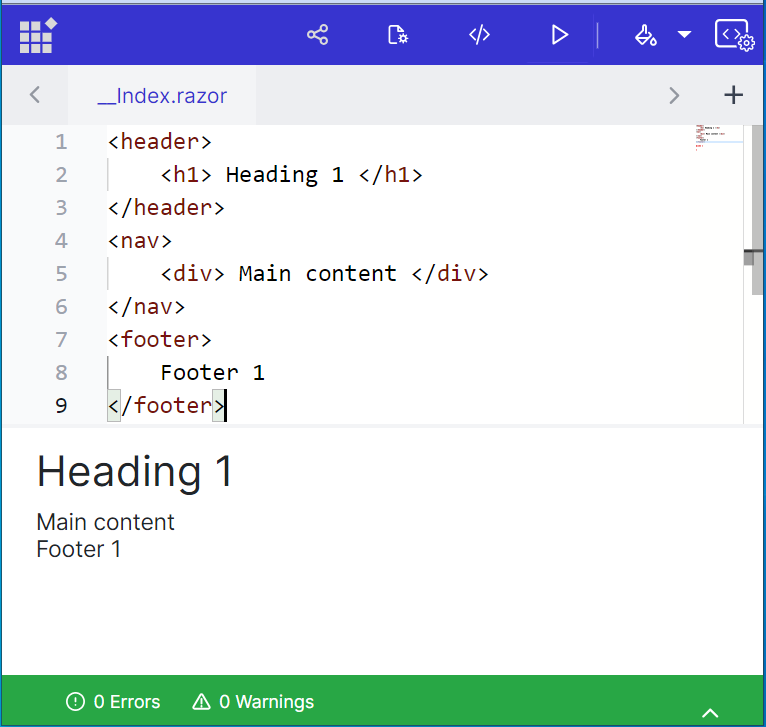
Rendering a basic layout for components using the Blazor Playground app
## Real-time preview
The Playground editor seamlessly integrates with a real-time preview window. Every line of code you write will be reflected in the rendered UI, allowing you to customize the code snippet and experiment with it.
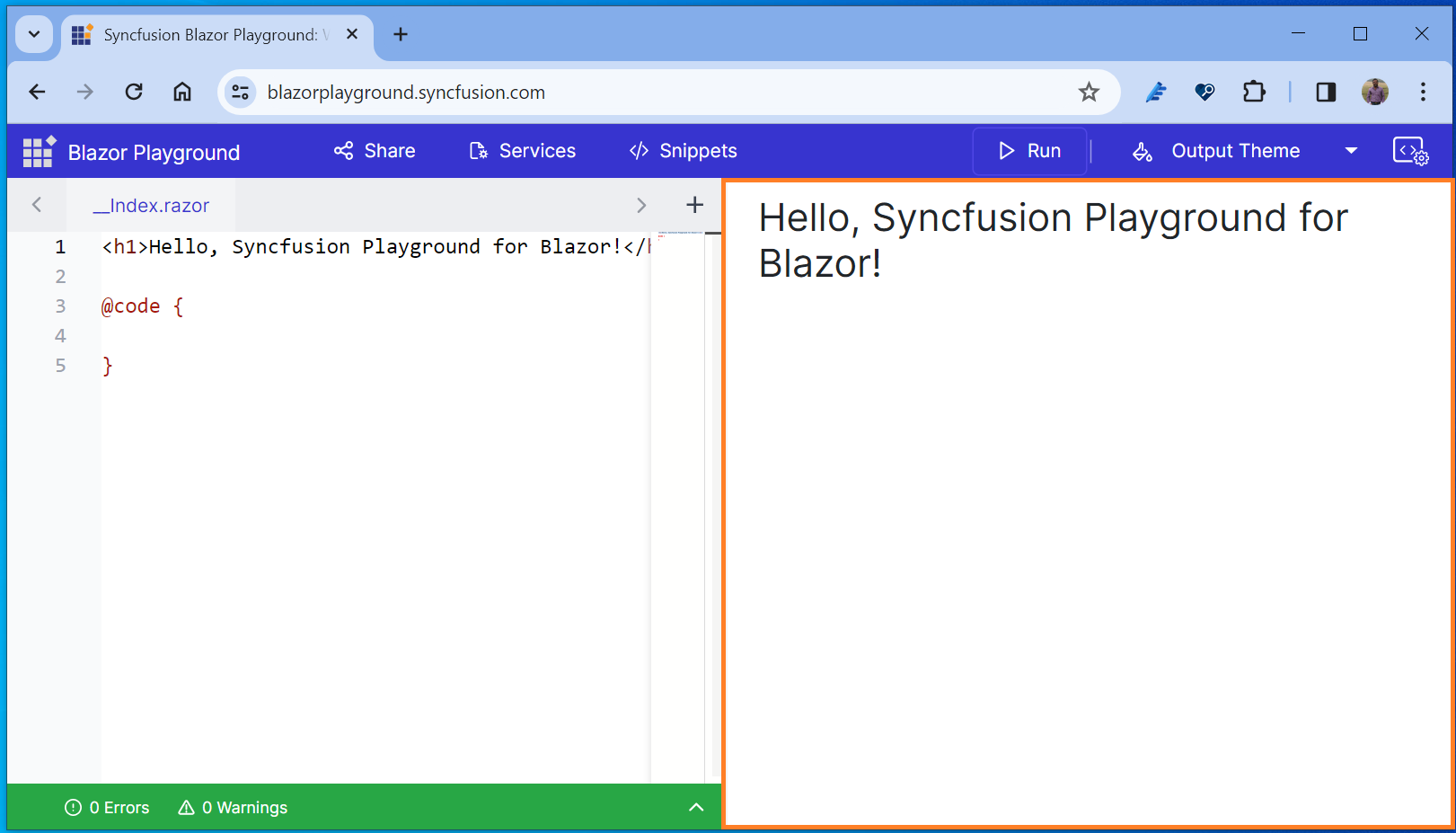
Real-time preview window in the Blazor Playground app
## Error handling
The code editor can also identify and display code issues in a separate window, which helps us resolve the issues easily.
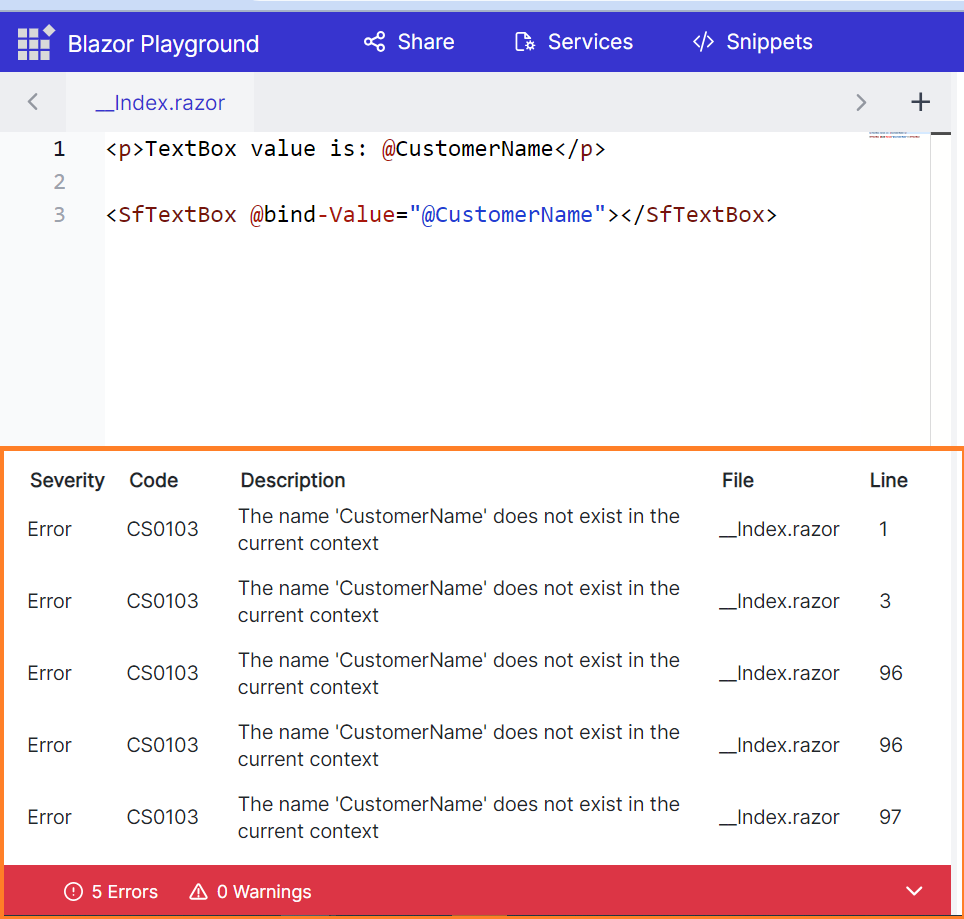
Error handling in the Blazor Playground app
## Managing NuGet packages
The Syncfusion Blazor Playground simplifies the addition or removal of NuGet packages with just a single click. By default, it includes the **Syncfusion.Blazor** NuGet package, but users can install additional packages from the Syncfusion Blazor library according to their component requirements.
For example, if you are going to explore the [Blazor DataGrid](https://www.syncfusion.com/blazor-components/blazor-datagrid)
component, you need to:
1. Click **NuGet Asset Manager** in the top-right corner.
2. Remove or uninstall the [Syncfusion.Blazor](https://www.nuget.org/packages/Syncfusion.Blazor/) NuGet package from the pop-up.
3. Search for and install the [Syncfusion.Blazor.Grid](https://www.nuget.org/packages/Syncfusion.Blazor.Grid) package.
4. Include the namespace **@using Syncfusion.Blazor.Grids** at the top of the editor.
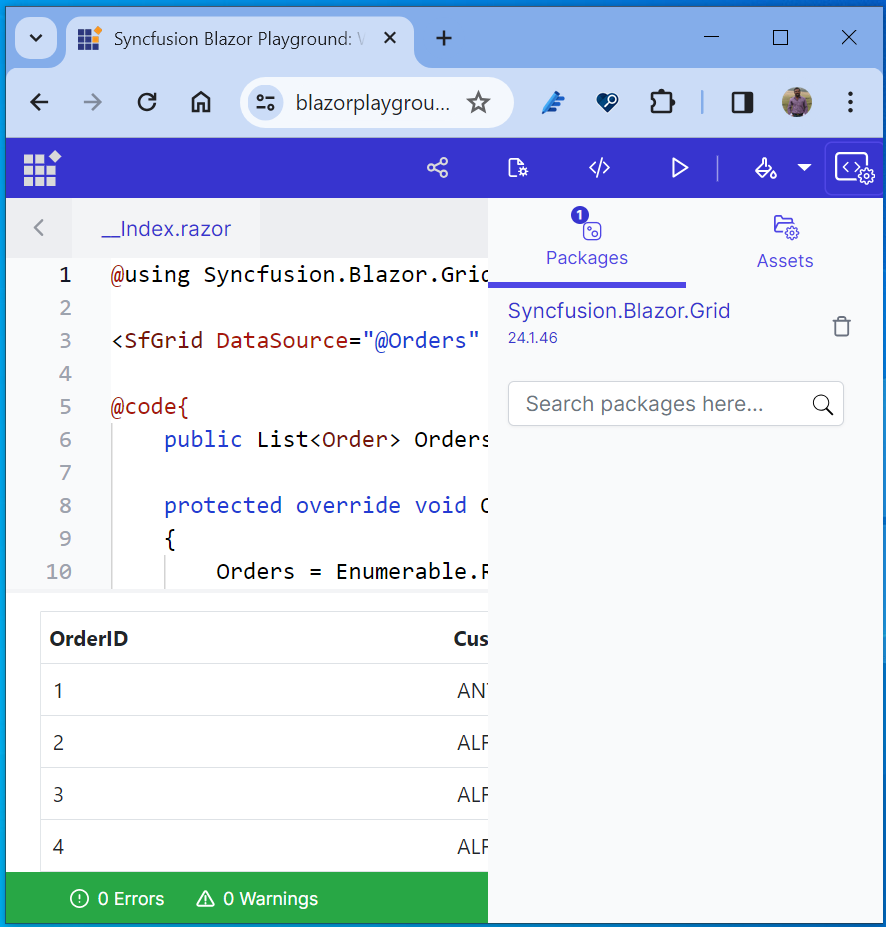
Managing NuGet packages with the Blazor Playground app
## Working with components
The Playground editor enables the seamless addition and removal of Razor components, integrating them into the main **_index.razor** page. Additionally, users can remove child components with a single click using the close button if they are no longer needed.
Refer to the following image to see how the Blazor DataGrid is added as a child component inside a Dialog and integrated.
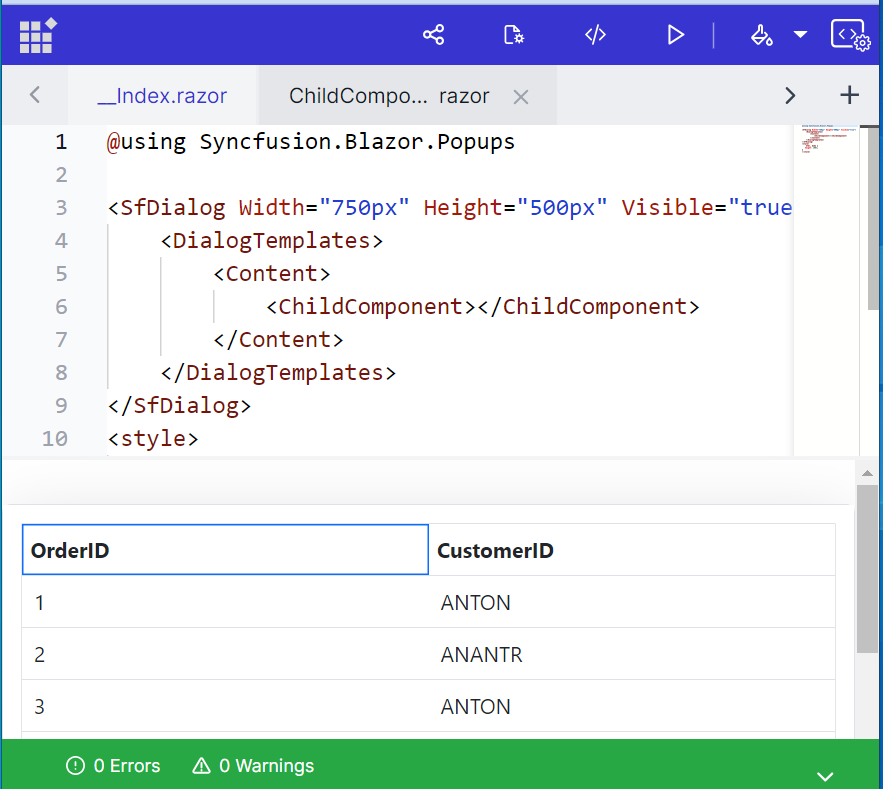
Adding child Razor components using the Blazor Playground app
## Switching the themes
The Blazor Playground lets you customize themes for Syncfusion Blazor components. Clicking the **Output Theme** button will display a dropdown containing all the available themes. You can choose any desired theme to customize the appearance of the components.
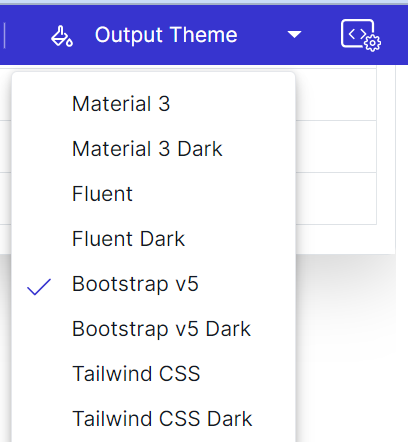
Custom themes in the Blazor Playground app
## Save code snippets
Users can write Blazor code and save the snippet to obtain a URL. They can then copy the URL and share it via customer tickets, social media, email, or other channels.
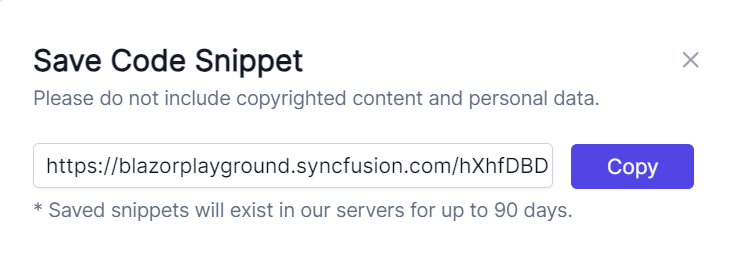
Saving a code snippet in the Blazor Playground app
## Embed and share
You can embed your Playground code snippet and customize the displayed elements using parameters in the embed code. This allows you to control the visibility of the code editor, results view, error console, and app bar.
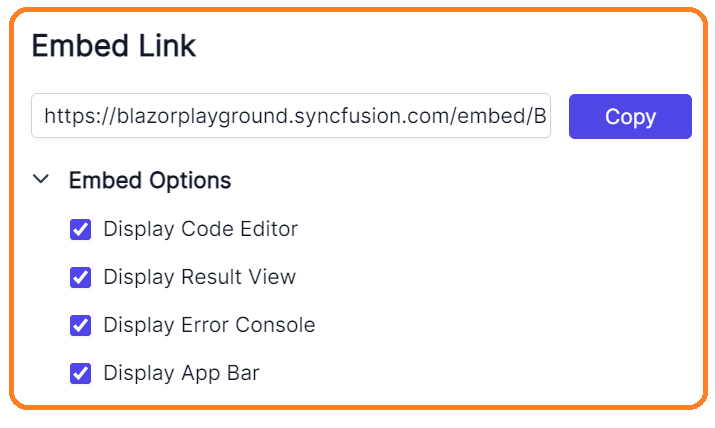
Embedding options in the Blazor Playground app
## Additional Playground features
Users can also perform the following actions in this Playground app:
- Customize services by adding or removing them through the Configure Services option in the toolbar of the **Program.cs** file.
- Add static assets like scripts and CSS files as CDN links through the Assets section or remove them.
## Resources
For more details, refer to the Syncfusion [Blazor Playground App](https://www.syncfusion.com/pages/blazor-playground/)
and [video tutorial](https://youtu.be/tMu19E-xkyk?si=GJjyncuAbJMRDru9)
.
## Conclusion
Thanks for reading! In this blog, we explored the user-friendly features of the [Syncfusion Blazor Playground](https://blazorplayground.syncfusion.com/)
app. With these, developers can efficiently build and explore Blazor components. Furthermore, the flexibility to customize services and manage static assets enhances the development experience.
For existing customers, the new version of Essential Studio is available for download from the [License and Downloads](https://www.syncfusion.com/account/downloads)
page. If you are not yet a Syncfusion customer, you can try our 30-day [free trial](https://www.syncfusion.com/downloads)
to check out our available features.
For questions, you can contact us through our [support forums](https://www.syncfusion.com/forums)
, [support portal](https://support.syncfusion.com/)
, or [feedback portal](https://www.syncfusion.com/feedback/)
. We are happy to assist you!
## Related blogs
- [Enhance the User Experience in E-Commerce Checkouts Using the Stepper Control [Webinar Show Notes]](https://www.syncfusion.com/blogs/post/ux-ecommerce-checkouts-stepper.aspx)
- [Introducing the New Blazor Dropdown Tree Component](https://www.syncfusion.com/blogs/post/new-blazor-dropdown-tree.aspx)
- [Effortlessly Generate Radial Tree Diagrams in Blazor](https://www.syncfusion.com/blogs/post/radial-tree-diagrams-in-blazor.aspx)
- [Blazor Synchronized Charts: The Perfect Tool for Trade Analysis](https://www.syncfusion.com/blogs/post/blazor-synchronized-charts.aspx)
- [Introducing the New Blazor Data Form Component](https://www.syncfusion.com/blogs/post/new-blazor-data-form.aspx)