---
title: "Effortless Google Calendar Events Synchronization in .NET MAUI Scheduler"
published_at: "2023-10-23T12:09:21+00:00"
modified_at: "2026-01-15T14:47:29+00:00"
url: "https://www.syncfusion.com/blogs/post/sync-google-calendar-dotnet-maui"
excerpt: "This blog explains how to synchronize Google Calendar events with the Syncfusion .NET MAUI Scheduler control."
taxonomy_category:
- ".NET MAUI"
- "Desktop"
- "Development"
- "Mobile"
- "Scheduler"
taxonomy_post_tag:
- ".NET MAUI"
- "desktop"
- "Google"
- "MAUI"
- "Mobile"
---
# Effortless Google Calendar Events Synchronization in .NET MAUI Scheduler
[Jeyasri Murugan](https://www.syncfusion.com/blogs/author/jeyasrim)
Syncfusion [.NET MAUI Scheduler](https://www.syncfusion.com/maui-controls/maui-scheduler)
encompasses all scheduling functionalities for managing professional and personal appointments.
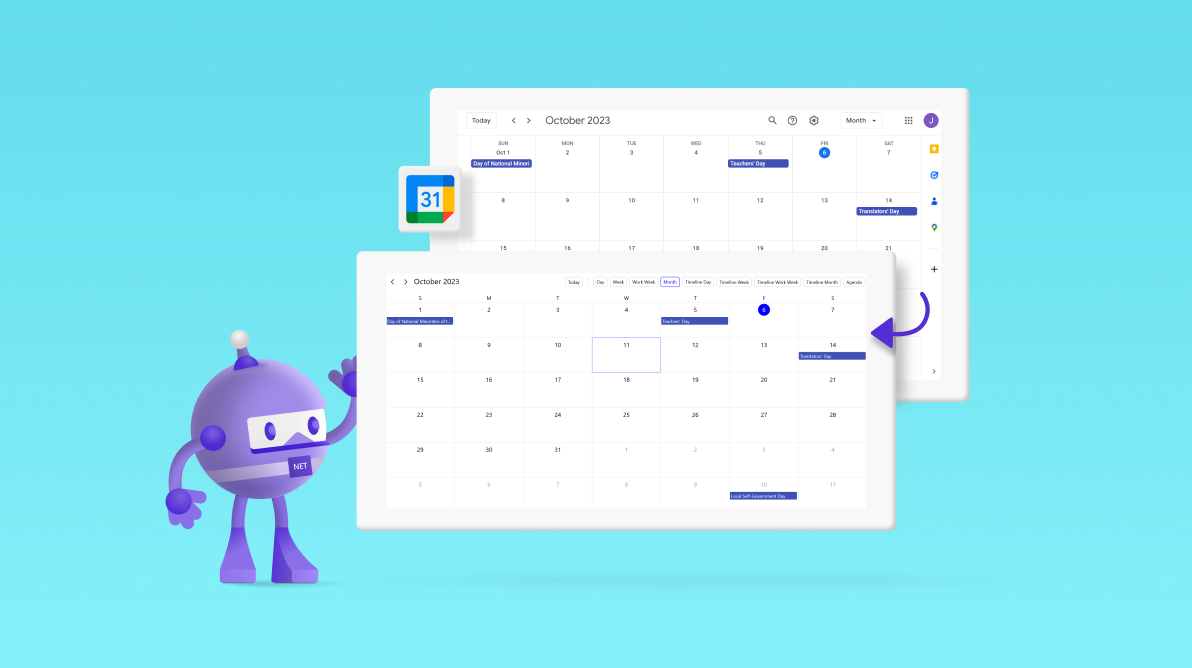
In this blog, we’ll see how to easily synchronize **Google Calendar events** with the ** Syncfusion .NET MAUI Scheduler** control.
**Note:** Before proceeding, please read the [Getting Started with .NET MAUI Scheduler documentation](https://help.syncfusion.com/maui/scheduler/getting-started)
.
Let’s get started!
## Connect Google Cloud service
You can use the **Google Calendar API** to connect with Google Calendar programmatically in your .NET MAUI app.
Follow these steps to create a project in Google Cloud and enable **Google Calendar API**.
### Step 1: Log in to the Google Cloud console
First, log in to the [Google Cloud console](https://console.cloud.google.com/)
.
### Step 2: Create a new project
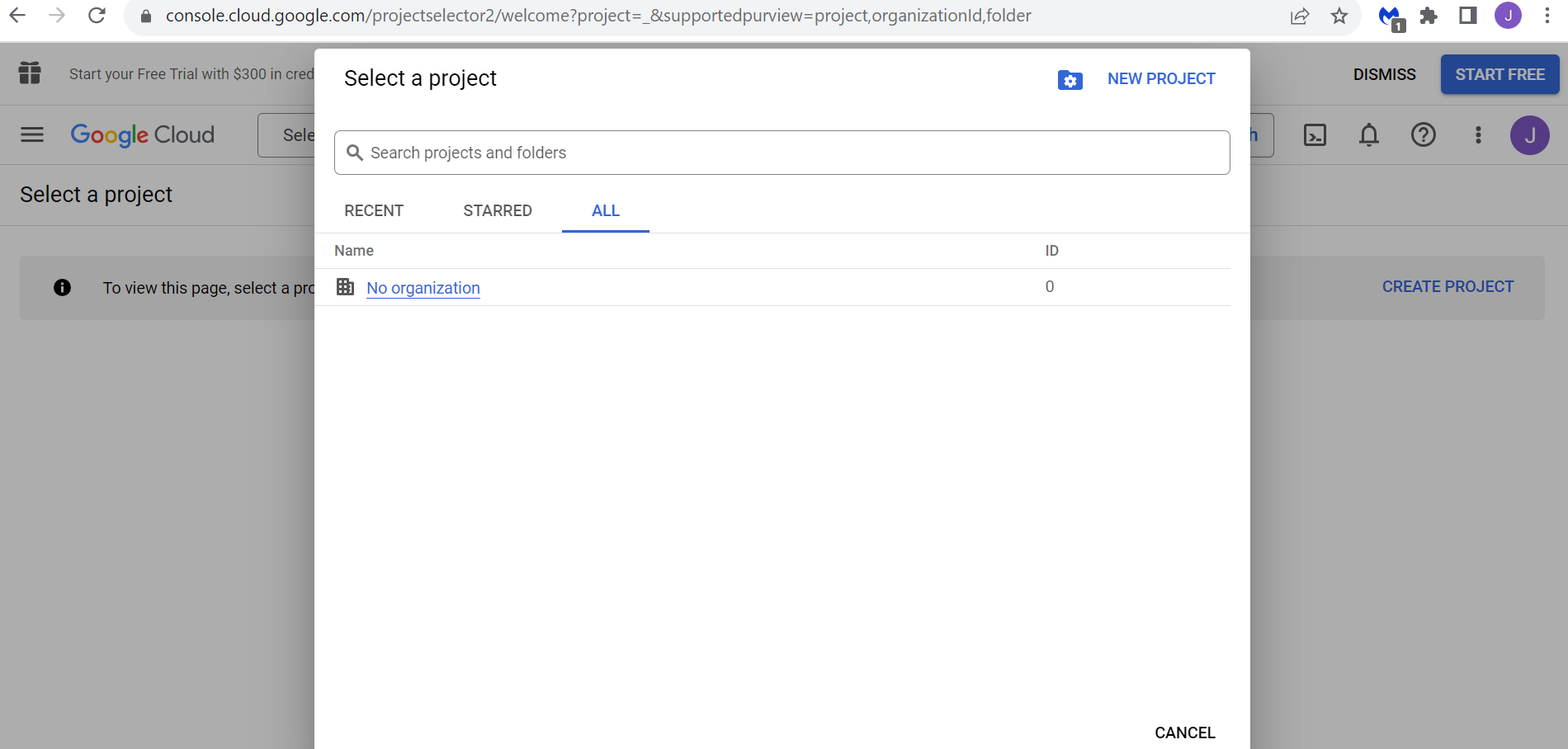
Create a new project by clicking **Select a Project –**> ** New Project**.
Now, give the project a name and then click **Create**.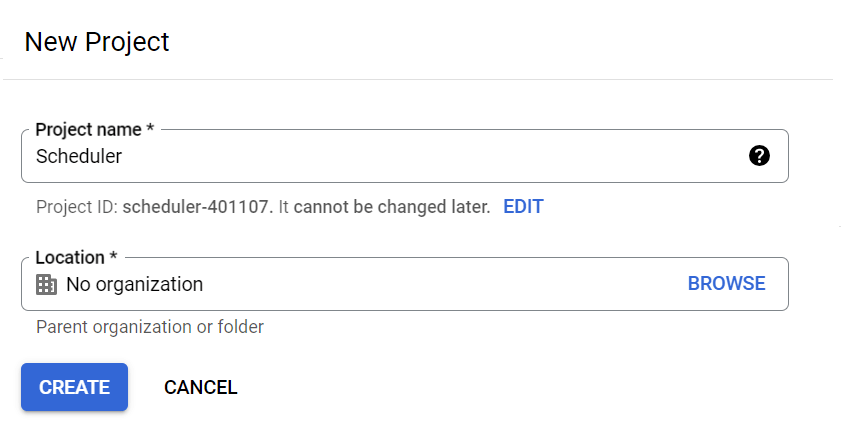
### Step 3: Enable the Google Calendar API
In the navigation menu, choose **APIs & Services** –**>** ** Library**.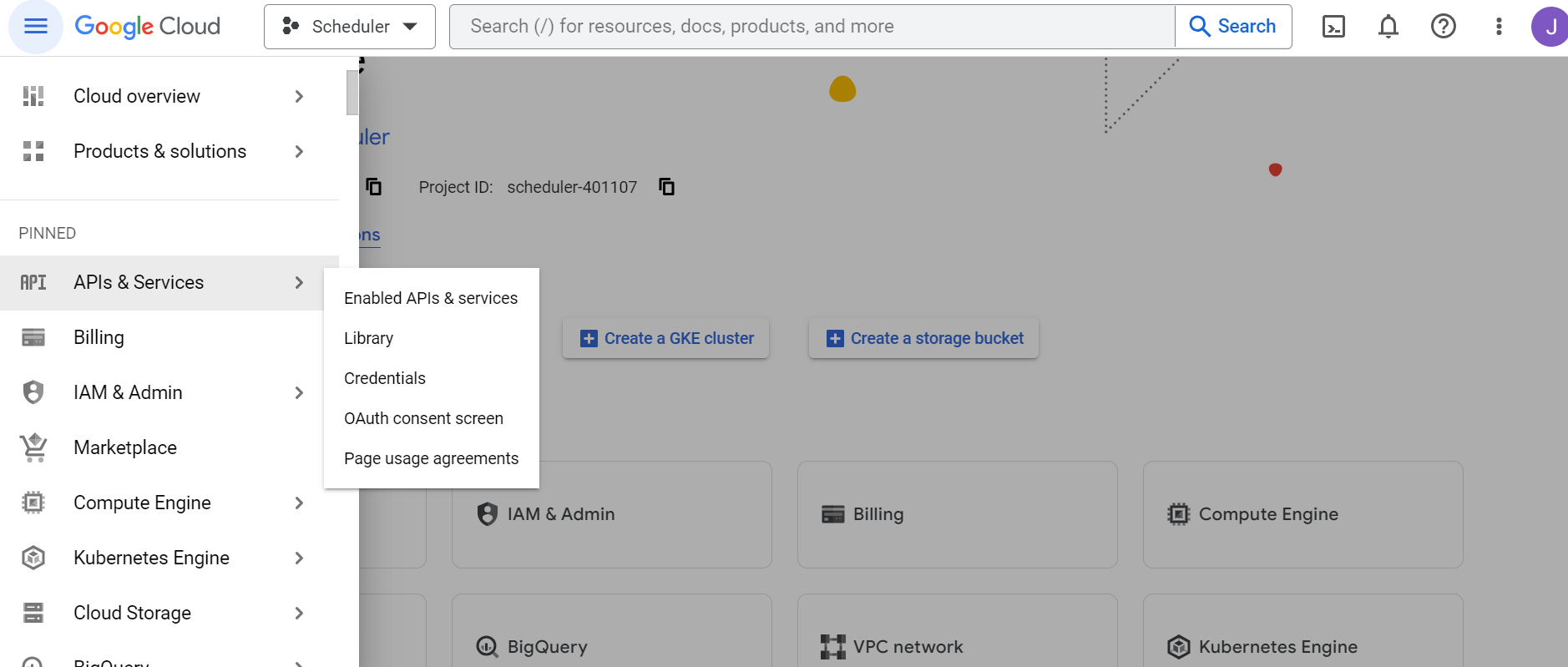
Now, search for the **Google Calendar API** in the library menu. Click on it, then click the **Enable** button to enable the Calendar API for your project.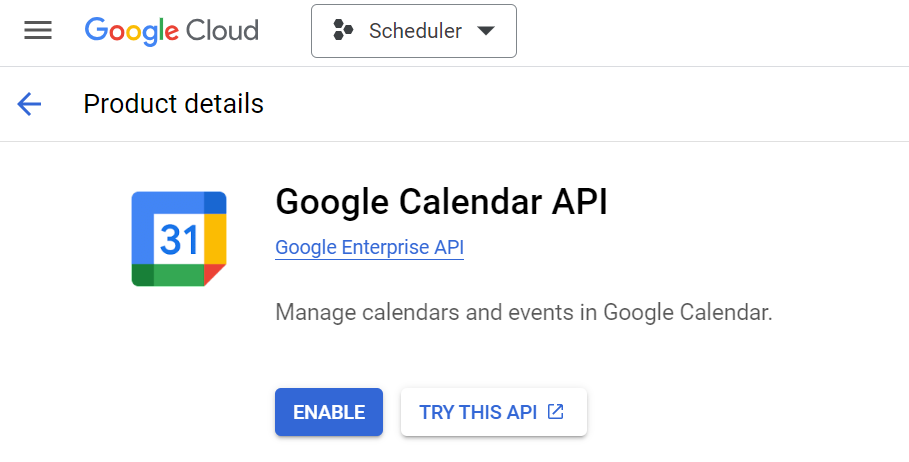
### Step 4: Create API key credentials
After enabling the **Google Calendar API**, click the** APIs & Services** tab and navigate to the ** Credentials** option from the menu.
Now, click the **Create credentials** button. Select the created project, select the ** API Key** option, and copy the API key**.**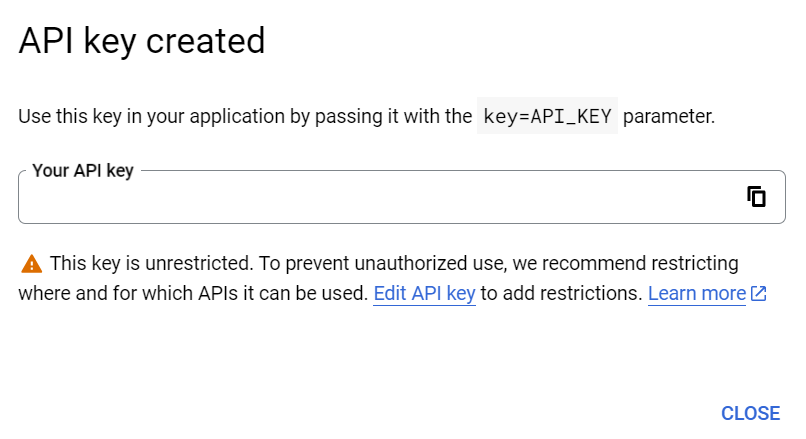
You have now created your **Google Calendar API key**, which you can use in your .NET MAUI app to authenticate with the Google Calendar API service.
### Step 5: Install the required NuGet package to use the Google Calendar service
In your .NET MAUI project, use the **NuGet Package** ** Manager** to install the [Google.Apis.Calendar.v3](https://www.nuget.org/packages/Google.Apis.Calendar.v3)
package.
Refer to the following code example to utilize the **Google Calendar API key** from the Google Cloud service.
```
// Initialize the Google Calendar service with the API key
CalendarService service = new Calendar-Service(new BaseClientService.Initializer()
{
ApiKey = "Use the API key of your created project",
ApplicationName = "Use the name of your created project"
});
```
## Fetch Google Calendar events
Once the Google Calendar API is enabled, you can use the **CalendarService** to access events by using the ** Calendar ID** of your Google Calendar. To do so, follow these steps:
1. Navigate to the **Google Calendar**. Click the ** Settings**icon and select ** Settings** from the dropdown. Google Calendar
2. In the settings, locate the **ID** of your Calendar, as shown in the following image.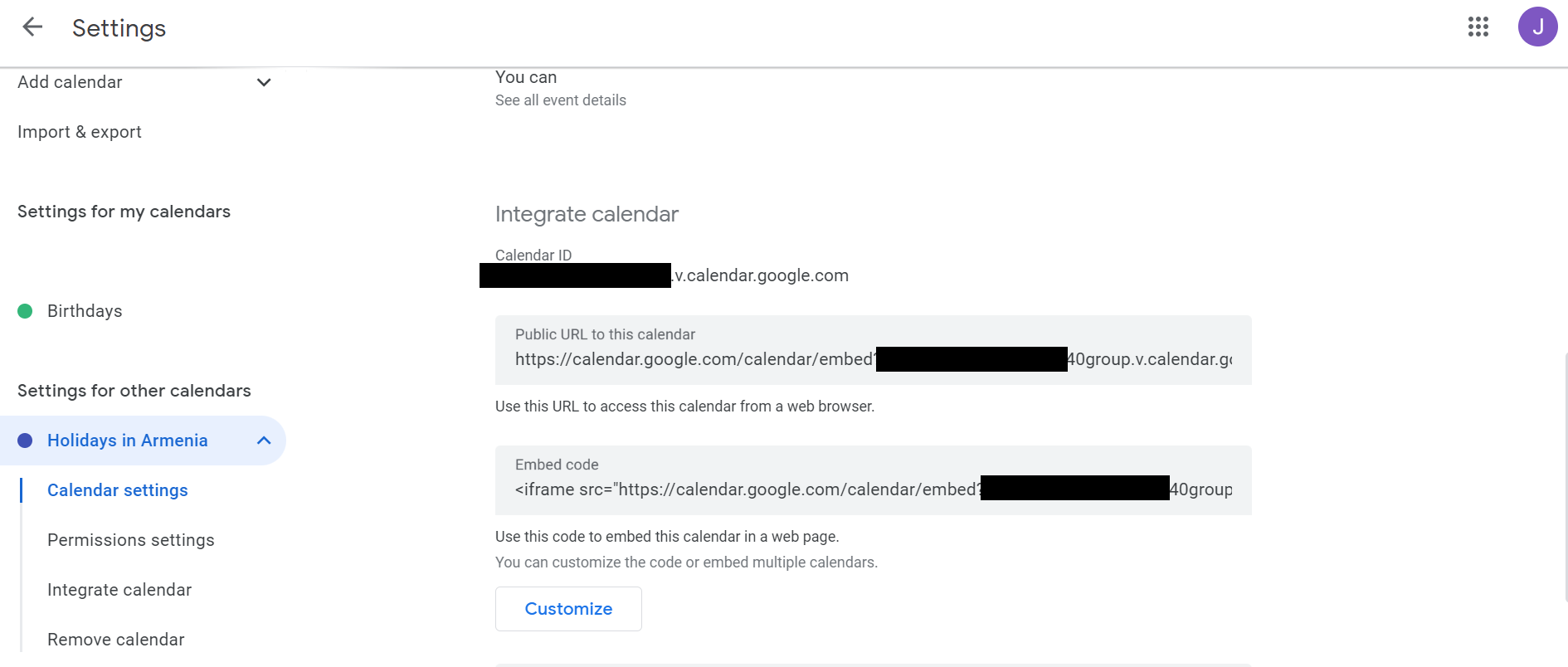 Google Calendar setting
3. Refer to the following code example to see how to use the **Calendar ID** and fetch events from Google Calendar.``` string calendarId = "Use Google Calendar Id"; // Define a DateTime range to retrieve events DateTime startDate = DateTime.Now; DateTime endDate = DateTime.Now.AddDays(90); // Define the request to retrieve events EventsResource.ListRequest request = service.Events.List(calendarId); request.TimeMin = startDate; request.TimeMax = endDate; request.ShowDeleted = false; // Execute the calendar service request and retrieve events Events events = request.Execute(); ```
## Synchronizing Google Calendar events with .NET MAUI Scheduler
Next, we’ll look at how to load the **Google Calendar events** in the ** Syncfusion .NET MAUI Scheduler**control.
### Step 1: Register the handler for Syncfusion Core
Register the handler for Syncfusion Core in the **MauiProgram.cs** file.
```
public static MauiApp CreateMauiApp()
{
var builder = MauiApp.CreateBuilder();
builder.ConfigureSyncfusionCore();
}
```
### Step 2: Create an appointment model class
Create an **Appointment** data model class that encapsulates the crucial appointment details. This class will be used to create appointments in the **.NET MAUI Scheduler**.
Refer to the following code example.
**Appointment.cs**
```
public class Appointment
{
///
/// Gets or sets the value to display the start date.
///
public DateTime From { get; set; }
///
/// Gets or sets the value to display the end date.
///
public DateTime To { get; set; }
///
/// Gets or sets the value to display the subject.
///
public string EventName { get; set; }
///
/// Gets or sets the appointment background color.
///
public Brush Background { get; set; }
}
```
### Step 3: Create the Scheduler appointments from Google Calendar
Let’s create the Scheduler appointments from the Google Calendar events.
Refer to the following code example to retrieve Google Calendar events.
**SchedulerViewModel.cs**
```
public ObservableCollection Appointments { get; set; } = new ObservableCollection();
// Execute the calendar service request and retrieve events
Events events = request.Execute();
foreach (Event appointment in events.Items)
{
Appointments.Add(new Appointment()
{
EventName = appointment.Summary,
From = Convert.ToDateTime(appointment.Start.Date),
To = Convert.ToDateTime(appointment.End.Date),
});
}
```
### Step 4: Bind appointments to the Scheduler
Initialize the .NET MAUI Scheduler control.
**MainPage.xaml**
```
xmlns:scheduler="clr-namespace:Syncfusion.Maui.Scheduler;assembly=Syncfusion.Maui.Scheduler"
```
Finally, bind the custom **Appointments** to the Scheduler’s [AppointmentsSource](https://help.syncfusion.com/cr/maui/Syncfusion.Maui.Scheduler.SfScheduler.html#Syncfusion_Maui_Scheduler_SfScheduler_AppointmentsSource)
using the [appointment mapping](https://help.syncfusion.com/maui/scheduler/appointments#scheduler-appointment-source-mapping)
feature.
Refer to the following code example to bind the **AppointmentsSource** property from the ** SchedulerViewModel** class.
**MainPage.xaml**
```
```
Refer to the following images.
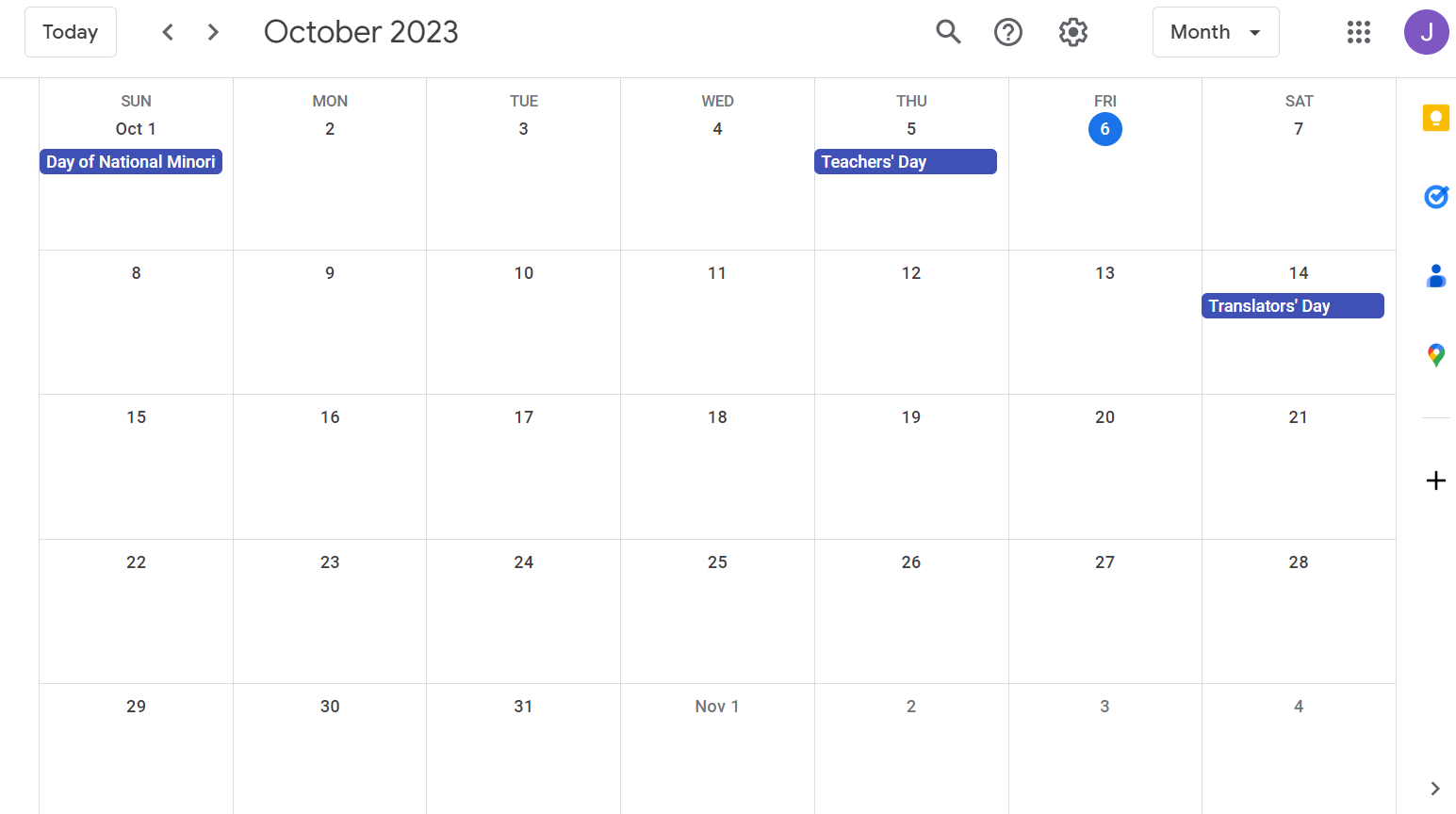
Events in Google Calendar
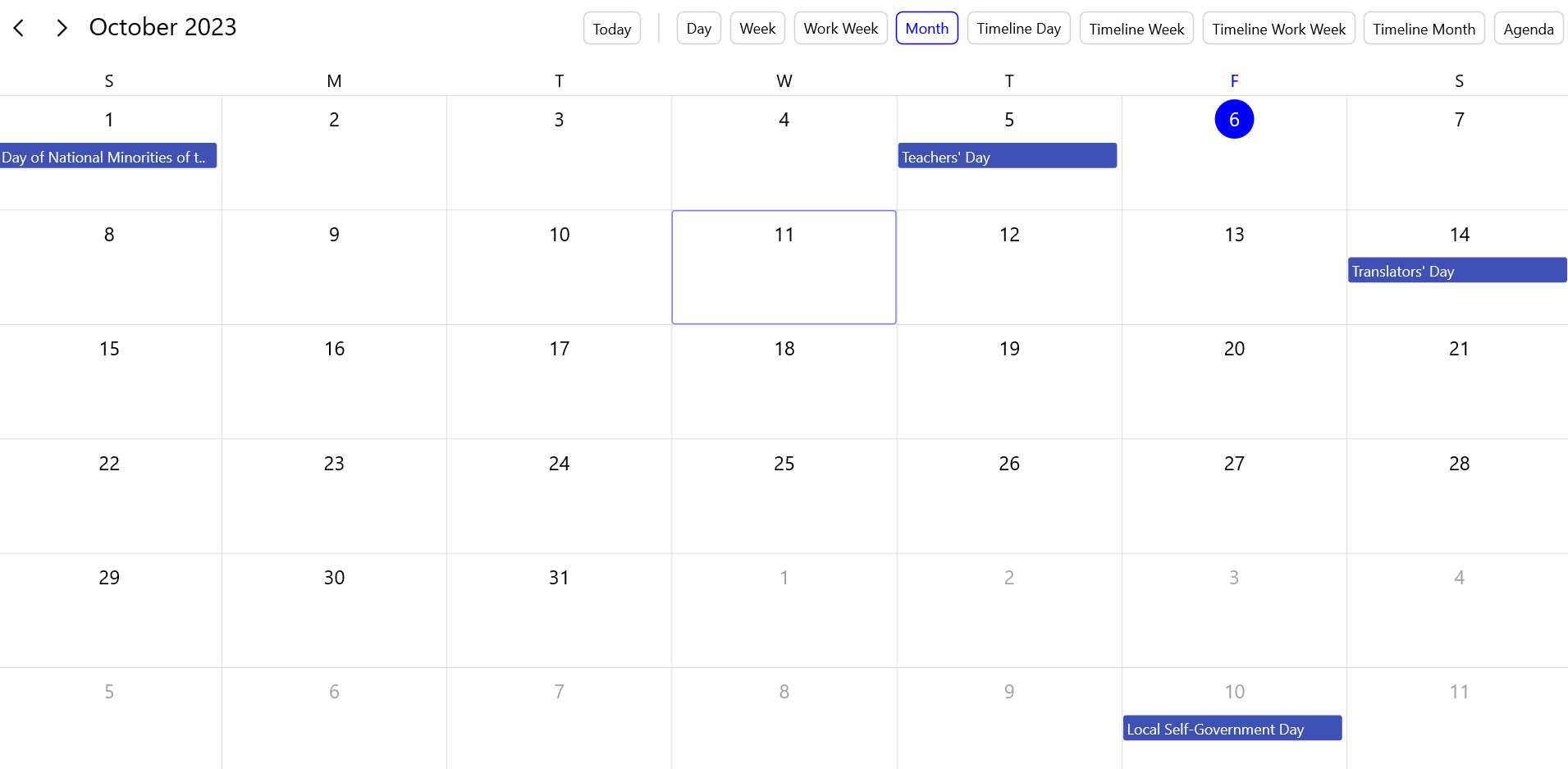
Synchronizing Google Calendar Events in the Syncfusion .NET MAUI Scheduler
## GitHub reference
For more details, refer to [Synchronizing Google Calendar events in .NET MAUI Scheduler](https://github.com/SyncfusionExamples/Load-Google-Calendar-events-in-.NET-MAUI-Scheduler)
on GitHub.
## Conclusion
Thanks for reading! This blog taught us how to synchronize Google Calendar events in the Syncfusion [.NET MAUI Scheduler](https://www.syncfusion.com/maui-controls/maui-scheduler)
control. Try this yourself and leave your feedback in the comments section below.
For current Syncfusion customers, the newest version of Essential Studio®***®*** is available from the [license and downloads page](https://www.syncfusion.com/account/downloads)
. If you are not a customer, try our 30-day [free trial](https://www.syncfusion.com/downloads)
to check out these new features.
You can also contact us through our [support forum](https://www.syncfusion.com/forums)
, [support portal](https://support.syncfusion.com/)
, or [feedback portal](https://www.syncfusion.com/feedback/maui)
. We are always happy to assist you!
## Related blogs
- [Chart of the Week: Creating a .NET MAUI Radial Bar Chart for the Most and Least Powerful Passports in 2023](https://www.syncfusion.com/blogs/post/dotnet-maui-radial-bar-chart-passport-data.aspx)
- [Load Appointments on Demand via Web Services in .NET MAUI Scheduler Using JSON Data](https://www.syncfusion.com/blogs/post/on-demand-loading-web-service-dotnet-maui.aspx)
- [Introducing .NET MAUI Pickers for Efficient User Interactions](https://www.syncfusion.com/blogs/post/new-dotnet-maui-pickers.aspx)
- [Introducing the New .NET MAUI TreeView Control](https://www.syncfusion.com/blogs/post/new-dotnet-maui-treeview.aspx)