---
title: "AI-Driven Smart PDF Form Filling in .NET MAUI PDF Viewer"
published_at: "2024-09-24T12:08:32+00:00"
modified_at: "2026-07-01T10:29:20+00:00"
url: "https://www.syncfusion.com/blogs/post/smart-form-filling-in-maui-pdf-viewer"
excerpt: "This blog explains how to automate PDF form filling with AI and .NET MAUI PDF Viewer, cutting down on manual data entry, and saving time."
taxonomy_category:
- ".NET MAUI"
- ".NET MAUI PDF Viewer"
- "AI"
- "AI Integration"
- "Desktop"
- "Mobile"
- "PDF viewer"
- "Smart AI components"
- "UI"
- "What's new"
taxonomy_post_tag:
- ".NET MAUI"
- ".NET MAUI PDF Viewer"
- "AI"
- "Azure OpenAI"
- "desktop"
- "MAUI"
- "Mobile"
- "PDF Viewer"
- "What's New"
---
# AI-Driven Smart PDF Form Filling in .NET MAUI PDF Viewer
[Deepak G](https://www.syncfusion.com/blogs/author/deepakgunasekaran)

**TL;DR:** Let’s see how to auto-fill PDF forms using AI and .NET MAUI PDF Viewer. The blog covers setting up .NET MAUI and using AI to intelligently fill out forms with relevant data. You’ll learn how to export form data, map it with AI, and automatically populate the fields in your app. This approach saves time and effort, especially for complex forms!
Filling out PDF forms can be tedious and time-consuming, especially when dealing with multiple documents. However, with the integration of AI and Syncfusion [.NET MAUI PDF Viewer](https://www.syncfusion.com/maui-controls/maui-pdf-viewer)
, you can now auto-fill PDF forms quickly and efficiently. This blog will guide you through setting up and using this feature to save time and effort.
Add Seamless PDF Viewing to .NET MAUI Apps
Embed a fast, secure PDF viewer into your .NET MAUI apps with Syncfusion .NET MAUI PDF Viewer SDK. Display documents accurately, navigate pages, search text, annotate PDFs, fill forms, and handle large files with smooth performance.
[Add .NET MAUI PDF Viewer](https://www.syncfusion.com/pdf-viewer-sdk/net-maui-pdf-viewer)
## How does smart PDF Form filling work?
Smart PDF form filling uses advanced AI models to interpret and extract relevant information from a given text content or paragraphs copied from a clipboard. The extracted data is intelligently mapped to the appropriate fields in a PDF form, including text boxes, checkboxes, list boxes, combo boxes, and radio buttons. This significantly reduces the need for manual data entry, and it is particularly beneficial in scenarios where large volumes of forms need to be filled out or where the forms are complex and detailed.
Users can review and verify the filled forms to ensure accuracy. Minimal corrections might be required depending on the complexity of the forms, the supplied data, and the AI response.
## Prerequisites
Before you begin, ensure you have the following:
1. **Azure OpenAI Resource:** You need an Azure OpenAI account with a deployed model (e.g., GPT-4, GPT-35-turbo).
2. **.NET MAUI setup:** Follow the [installation requirements](https://docs.microsoft.com/en-us/dotnet/maui/get-started/installation) and [build your first .NET MAUI app](https://learn.microsoft.com/en-us/dotnet/maui/get-started/first-app?pivots=devices-windows&view=net-maui-8.0&tabs=vswin) .
## App configuration
Let’s configure the .NET MAUI app by following these steps:
### Step 1: Create a new .NET MAUI app
Begin by setting up a new .NET MAUI project. This will serve as the foundation for your app.
### Step 2: Install the necessary packages
Next, we need to install the following two key packages:
- [Microsoft.Extensions.AI.OpenAI:](https://www.nuget.org/packages/Microsoft.Extensions.AI.OpenAI/) This package helps you connect AI services like Azure OpenAI to your .NET apps in a structured and easy-to-manage way.
- [Syncfusion.Maui.PdfViewer](https://www.nuget.org/packages/Syncfusion.Maui.PdfViewer) : This package contains the [.NET MAUI PDF Viewer](https://www.syncfusion.com/maui-controls/maui-pdf-viewer) component, which allows you to display and interact with PDF documents.
### Step 3: Configure your app
Once the packages are installed, configure your app by following these steps:
1. Create an instance of client to interact with **Microsoft AI** services.``` IChatClient client = new AzureOpenAIClient( new Uri("https://yourendpoint.com/"), new AzureKeyCredential("API_KEY") ).AsChatClient(modelId: "DEPLOYMENT_NAME"); ```
2. Next, create an instance of **SfPdfViewer** to display PDF files in your app.``` ```
## Smart PDF form filling in .NET MAUI PDF Viewer with AI-generated form data
To automatically fill PDF forms using the .NET MAUI PDF Viewer, you can use AI to generate **XFDF** (XML Forms Data Format) files containing the required form data. This process involves several steps, from exporting form data to AI for intelligent data mapping and finally importing the data back into the PDF form using the .NET MAUI PDF Viewer.
### Step 1: Export form data from the PDF
First, [export the form data](https://help.syncfusion.com/maui/pdf-viewer/form-filling#export-form-data)
from the PDF using the .NET MAUI PDF Viewer. If the form is unfilled, it exports as empty; otherwise, it exports with previously filled data. Use the exported form data to help the AI model recognize the form fields and understand the structure of the **XFDF** format. This step ensures the AI maps the data to the appropriate form fields.
Refer to the following code example.
```
using Syncfusion.Maui.PdfViewer;
public async Task ExportFormData(SfPdfViewer pdfViewer, Stream xfdfStream)
{
// Export the form data.
pdfViewer.ExportFormData(xfdfStream, DataFormat.XFdf);
}
```
### Step 2: Copy text to populate the form fields
Copy the required text information from any source to your clipboard. This text content should contain all the relevant information needed to populate the form fields.
### Step 3: Generate XFDF content with AI
Now, provide the exported form data and the copied text content to the AI model. Provide a prompt to the AI model to produce XFDF text content that merges the exported form data with suitable form values extracted from the text content. This step involves using AI to intelligently map the extracted data to the form fields in the XFDF format.
Refer to the following code example.
````
using Microsoft.Extentions.AI;
public async Task GenerateXFDFContent(string exportedFormData, string copiedTextContent, IChatClient client)
{
// Create a prompt for the AI model.
string prompt = $"Merge the copied text content into the XFDF file content. Hint text: {CustomValues}. " +
$"Ensure the copied text content matches the appropriate field names. " +
$"Here are the details: " +
$"Copied text content: {copiedTextContent}, " +
$"XFDF information: {exportedFormData}. " +
$"Provide the resultant XFDF directly. " +
$"Please follow these conditions: " +
$"1. The input data is not directly provided as the field name; you need to think and merge appropriately. " +
$"2. When comparing input data and field names, ignore case sensitivity. " +
$"3. First, determine the best match for the field name. If there isn’t an exact match, use the input data to find a close match. " +
$"4. Remove ```xml and ``` if they are present in the code.";
// Get the AI response.
string xfdfContent = await client.GetChatCompletionsAsync(prompt);
return xfdfContent;
}
````
### Step 4: Convert XFDF content to file stream and import in the .NET MAUI PDF Viewer
Convert the generated XFDF content to an XFDF file stream. This file stream can then be used to fill the PDF form automatically by importing it using the PDF Viewer.
Refer to the following code example.
```
using System.IO;
using Syncfusion.Maui.PdfViewer;
public async void FillPdfForm(SfPdfViewer pdfViewer, string xfdfContent)
{
using (Stream xfdfStream = new MemoryStream())
{
// Create a StreamWriter to write to the XFDF stream.
var writer = new StreamWriter(xfdfStream, leaveOpen: true);
// Write the XFDF content to the stream.
await writer.WriteAsync(xfdfContent);
// Import the XFDF stream to the PDF Viewer.
xfdfStream.Position = 0;
pdfViewer.ImportFormData(xfdfStream, DataFormat.XFdf, true);
}
}
```
By following these steps, you can create XFDF form contents with AI and automatically fill PDF forms using the .NET MAUI PDF Viewer.
Refer to the following output image.
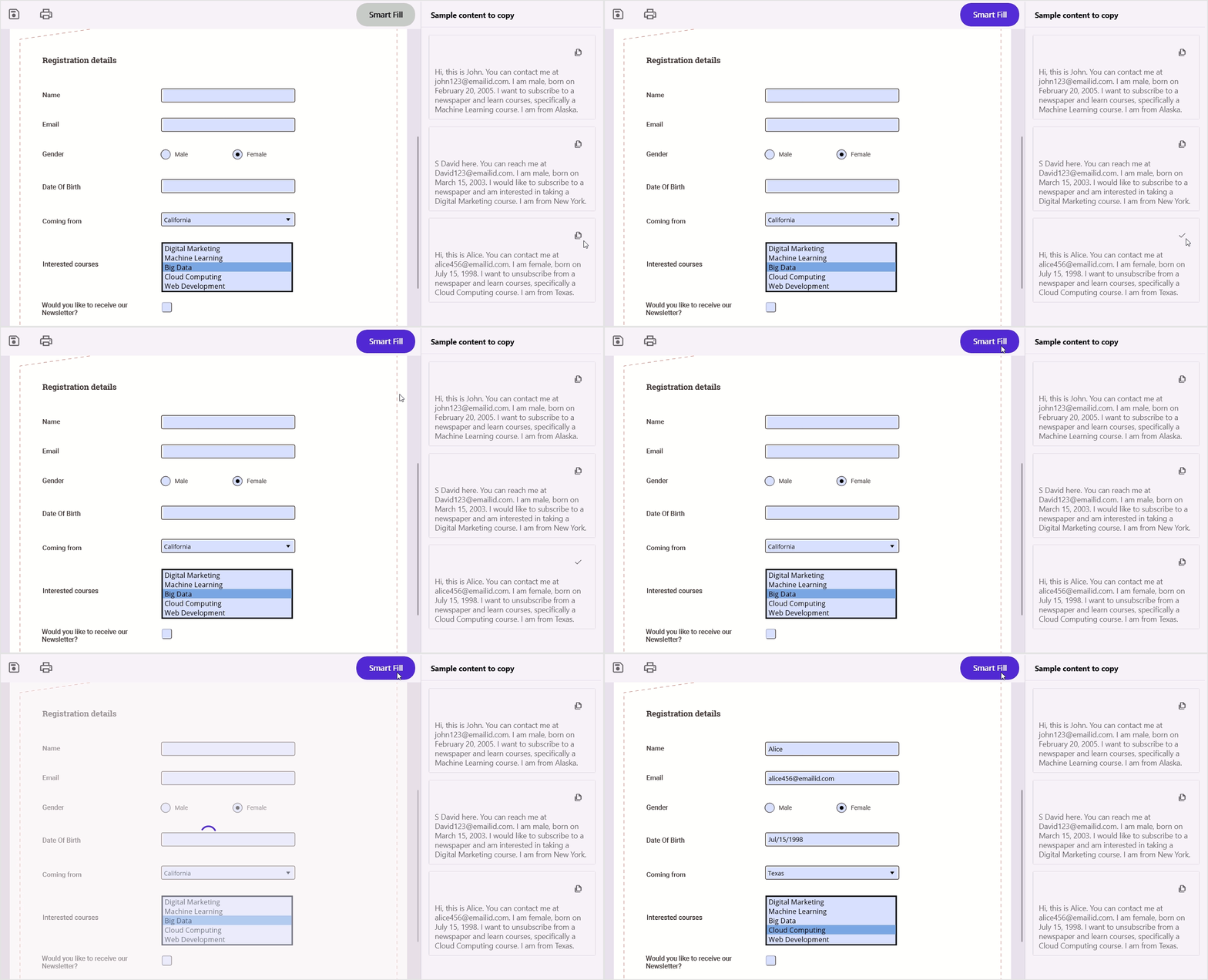
Integrating AI-driven smart PDF form filling in .NET MAUI PDF Viewer
## GitHub reference
For more details, refer to the [AI-driven smart PDF form filling in the .NET MAUI PDF Viewer GitHub demo](https://github.com/SyncfusionExamples/maui-pdf-viewer-examples/tree/master/AI%20Demos/AISmartPDFFormFill)
.
**Note:** In the project directory, locate the **AIHelper.cs** file. Replace the default values in the following code snippet with your specific AI endpoint, deployment name, and API key to ensure proper functionality.
```
private string aiEndpoint = "https://yourendpoint.com/";
private string deploymentName = "DEPLOYMENT_NAME";
private string apiKey = "API_KEY";
```
## Conclusion
Thanks for reading! By leveraging AI and the Syncfusion [.NET MAUI PDF Viewer](https://www.syncfusion.com/maui-controls/maui-pdf-viewer)
, you can significantly streamline the process of filling out PDF forms. This not only saves time but also reduces the likelihood of errors. With minimal setup and configuration, you can automate form filling and focus on more critical tasks.
This feature is available in the latest [2024 Volume 3](https://www.syncfusion.com/forums/194459/essential-studio-2024-volume-3-main-release-v27-1-48-is-available-for-download)
release. You can check out all the features in our [Release Notes](https://help.syncfusion.com/common/essential-studio/release-notes/v27.1.48)
and [What’s New](https://www.syncfusion.com/products/whatsnew)
pages.
You can download and check out our MAUI demo app from [Google Play](https://play.google.com/store/apps/details?id=com.syncfusion.sampleBrowser.maui&hl=en_IN&gl=US)
and the [Microsoft Stores](https://apps.microsoft.com/store/detail/syncfusion-maui-controls-gallery/9P2P4D2BK270?hl=en-in&gl=in)
.
The existing customers can download the new version of Essential Studio® on the [License and Downloads](https://www.syncfusion.com/account)
page. If you are not a Syncfusion customer, try our 30-day [free trial](https://www.syncfusion.com/downloads)
to check out our incredible features.
You can also contact us through our [support forum](https://www.syncfusion.com/forums)
, [support portal](https://support.syncfusion.com/)
, or [feedback portal](https://www.syncfusion.com/feedback)
. We are always happy to assist you!
## Related blogs
- [Syncfusion Essential Studio® 2024 Volume 3 Is Here!](https://www.syncfusion.com/blogs/post/syncfusion-essential-studio-2024-vol3)
- [AI-Driven Smart Location Search in .NET MAUI Maps](https://www.syncfusion.com/blogs/post/smart-location-search-in-maui-maps)
- [AI-Powered Smart Searching in .NET MAUI Autocomplete](https://www.syncfusion.com/blogs/post/smart-ai-search-in-maui-autocomplete)
- [Integrating AI-Powered Smart Paste in .NET MAUI DataForm for Easy Data Entry](https://www.syncfusion.com/blogs/post/ai-powered-smart-paste-maui-dataform)