---
title: "AI-Driven Smart Searching using .NET MAUI ComboBox"
published_at: "2024-10-18T11:13:50+00:00"
modified_at: "2025-11-06T07:30:30+00:00"
url: "https://www.syncfusion.com/blogs/post/smart-ai-searching-net-maui-combobox"
excerpt: "Learn to implement smart AI-based search in .NET MAUI ComboBox using custom filtering and Semantic Kernel integration for search accuracy."
taxonomy_category:
- ".NET"
- ".NET MAUI"
- "Desktop"
- "Mobile"
- "Smart AI components"
- "UI"
- "What's new"
taxonomy_post_tag:
- ".NET MAUI"
- "ComboBox"
- "desktop"
- "MAUI"
- "Mobile"
- "Syncfusion"
- "What's New"
---
# AI-Driven Smart Searching using .NET MAUI ComboBox
[Chozarajan Pandiyarajan](https://www.syncfusion.com/blogs/author/chozarajan-pandiyarajan)
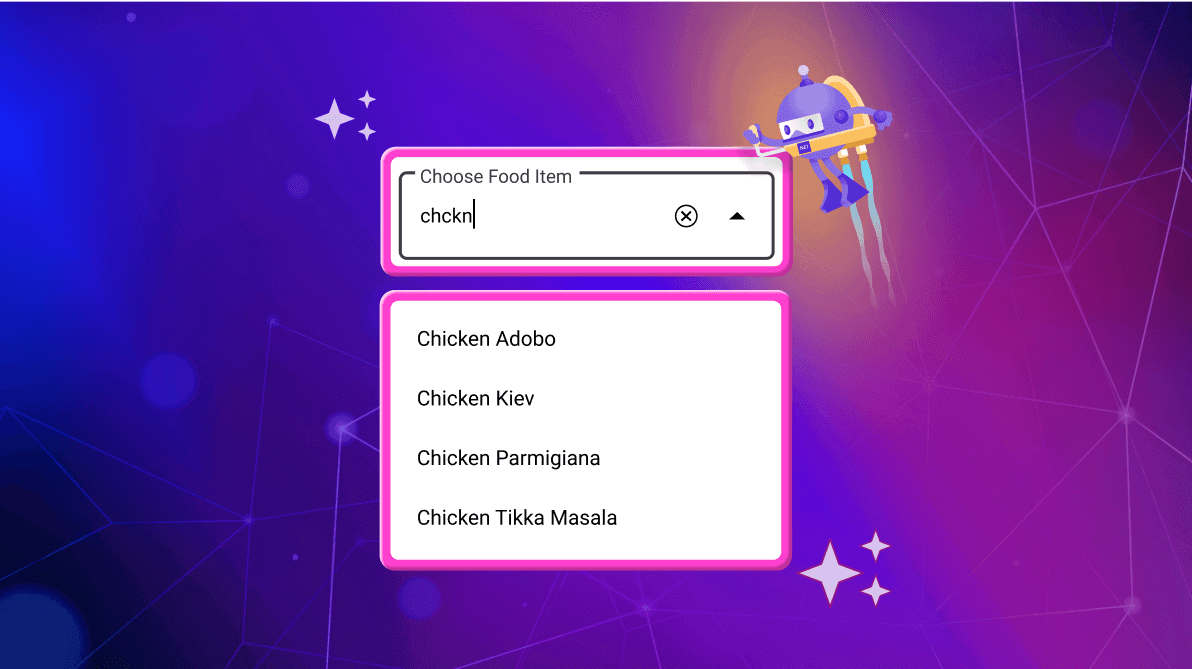
**TL;DR:** Learn how to integrate smart AI-based searching into the .NET MAUI ComboBox using custom filters and Semantic Kernel. The tutorial walks you through creating a custom filtering logic to handle spelling mistakes or incomplete inputs, ensuring more accurate search results. Additionally, it covers integrating Semantic Kernel for advanced AI-powered filtering, enhancing the user experience in data-driven applications.
## Introduction
The [.NET MAUI ComboBox](https://www.syncfusion.com/maui-controls/maui-combobox)
control is a versatile selection component that lets users type a value or pick an option from a predefined list. It’s designed to display suggestions from large datasets based on user input efficiently.
In this blog, we’ll demonstrate how to implement smart AI-powered searching, allowing the ComboBox to return accurate results, even when there are no exact matches, by integrating the .NET MAUI ComboBox with Semantic Kernel.
## Implementing the Smart AI Searching
To implement smart AI searching, we will use the [custom filtering](https://help.syncfusion.com/maui/combobox/filtering#custom-filtering)
feature of the .NET MAUI ComboBox control. We will first walk you through implementing custom filtering and then integrate AI-driven search. For this demonstration, we use [Semantic Kernel](https://learn.microsoft.com/en-us/semantic-kernel/get-started/quick-start-guide?pivots=programming-language-csharp)
, an excellent tool for incorporating AI into .NET applications.
## Custom filtering
The .NET MAUI ComboBox control allows you to apply custom filter logic to suggest items that meet specific criteria, leveraging the [FilterBehavior](https://help.syncfusion.com/cr/maui/Syncfusion.Maui.Inputs.SfComboBox.html#Syncfusion_Maui_Inputs_SfComboBox_FilterBehavior)
property.
#### Step 1: Creating the Business Model for Food Search
First, create a simple business model for food search. Below is an example of how to define it:
```
// Model.cs
public class FoodModel
{
public string? Name { get; set; }
}
```
Next, create the ViewModel, which contains a collection of food items.
```
// ViewModel.cs
public class FoodViewModel : INotifyPropertyChanged
{
private ObservableCollection foods;
public ObservableCollection Foods
{
get { return foods; }
set { foods = value; OnPropertyChanged(nameof(Foods)); }
}
public FoodViewModel()
{
foods = new ObservableCollection
{
new FoodModel { Name = "Acai Bowl" },
new FoodModel { Name = "Aloo Gobi" },
new FoodModel { Name = "Arepas" },
new FoodModel { Name = "Baba Ganoush" },
// More food items...
};
}
public event PropertyChangedEventHandler? PropertyChanged;
protected virtual void OnPropertyChanged(string propertyName)
{
PropertyChanged?.Invoke(this, new PropertyChangedEventArgs(propertyName));
}
}
```
#### Step 2: Creating a Custom Filter Class
Now, create a class that implements the [IComboBoxFilterBehavior](https://help.syncfusion.com/cr/maui/Syncfusion.Maui.Inputs.IComboBoxFilterBehavior.html)
interface. This class will define custom filtering logic.
```
public class ComboBoxCustomFilter: IComboBoxFilterBehavior
{
}
```
#### Step 3: Implementing the GetMatchingIndexes Method
Next, implement the [GetMatchingIndexes](https://help.syncfusion.com/cr/maui/Syncfusion.Maui.Inputs.IComboBoxFilterBehavior.html#Syncfusion_Maui_Inputs_IComboBoxFilterBehavior_GetMatchingIndexes_Syncfusion_Maui_Inputs_SfComboBox_Syncfusion_Maui_Inputs_ComboBoxFilterInfo_)
method from the **IComboBoxFilterBehavior** interface to create a suggestion list. This list will include the filtered items based on your custom logic and will be displayed in the drop-down of the .NET MAUI ComboBox control. This method takes the following arguments:
- **source**: This argument refers to the ComboBox that owns the filter behavior. It gives access to properties like ItemsSource and other relevant data.
- **filterInfo**: This argument contains the text entered by the user in the ComboBox. You can use this input to generate a filtered suggestion list that will appear in the drop-down.
Below is an example of filtering and displaying a list of foods in the ComboBox. The list shows only the food items that start with the text entered by the user:
```
public class ComboBoxCustomFilter : IComboBoxFilterBehavior
{
public async Task GetMatchingIndexes(SfComboBox source, ComboBoxFilterInfo filterInfo)
{
IEnumerable? itemssource = source.ItemsSource as IEnumerable;
var filteredItems = from FoodModel item in itemssource
where item.Name.StartsWith(filterInfo.Text, StringComparison.CurrentCultureIgnoreCase)
select item;
return await Task.FromResult(filteredItems);
}
}
```
#### Step 4: Applying Custom Filtering to ComboBox
Finally, bind the custom filter to the ComboBox control using the **FilterBehavior** property.
```
```
The following image demonstrates the output of the above custom filtering sample.[https://www.syncfusion.com/blogs/wp-content/uploads/2024/10/NET-MAUI-ComboBox-with-custom-filtering.png](https://www.syncfusion.com/blogs/wp-content/uploads/2024/10/NET-MAUI-ComboBox-with-custom-filtering.png)
### Integrating Semantic Kernel with your .NET MAUI app
[Semantic Kernel](https://learn.microsoft.com/en-us/semantic-kernel/overview/)
is an open-source software development kit (SDK) created by Microsoft, designed to help developers build intelligent applications powered by large language models (LLMs). This SDK simplifies the integration of LLMs like **OpenAI, Azure OpenAI**, Google, and Hugging Face Transformers into traditional programming environments.
In this example, we’ll focus on using [Azure OpenAI](https://learn.microsoft.com/en-us/azure/ai-services/openai/overview)
, but you can choose any chat completion service. If you’re opting for Azure OpenAI, ensure you have access and set up a deployment via the **Azure portal**. For instructions, refer to the [Create and Deploy Azure OpenAI Service Guide](https://learn.microsoft.com/en-us/azure/ai-services/openai/how-to/create-resource?pivots=web-portal)
.
In this blog, we’re using the [Semantic Kernel](https://www.nuget.org/packages/Microsoft.SemanticKernel)
NuGet package, available in the [NuGet Gallery](https://www.nuget.org/)
. Before starting, install this package in your .NET MAUI application to proceed with the integration.
## Setting up Semantic Kernel
Now, let’s begin creating the Semantic Kernel and [Chat completion](https://learn.microsoft.com/en-us/dotnet/api/microsoft.semantickernel.chatcompletion?view=semantic-kernel-dotnet)
.
### Step 1: Installing Semantic Kernel
Begin by installing the **Semantic Kernel** NuGet package in your .NET MAUI application.
### Step 2: Install the Necessary NuGet Packages
Then, install the necessary **NuGet packages** and include the appropriate namespaces outlined in this getting started [documentation](https://learn.microsoft.com/en-us/semantic-kernel/concepts/ai-services/chat-completion/?tabs=csharp-AzureOpenAI%2Cpython-AzureOpenAI%2Cjava-AzureOpenAI&pivots=programming-language-csharp)
.
```
Install-Package Microsoft.SemanticKernel
```
### Step 3: Setting Up Semantic Kernel
In this setup, we will utilize Azure OpenAI with the **GPT-35 model**, specifically deployed under the name ** GPT35Turbo**. To establish a successful connection to the service, replace the endpoint, deployment name, and key with your specific details.
### Step 4: Chat Completion and Filtering
Now, you can utilize the [Chat completion](https://learn.microsoft.com/en-us/dotnet/api/microsoft.semantickernel.chatcompletion?view=semantic-kernel-dotnet)
feature to define the chat history. The [ChatHistory](https://learn.microsoft.com/en-us/semantic-kernel/concepts/ai-services/chat-completion/chat-history)
includes messages from the system, user, and assistant. In our application, we have used the following messages as input:
- [System Message](https://learn.microsoft.com/en-us/dotnet/api/microsoft.semantickernel.chatcompletion.chathistory.addsystemmessage?view=semantic-kernel-dotnet#microsoft-semantickernel-chatcompletion-chathistory-addsystemmessage(system-string)) : Act as a filtering assistant.
- [User Message](https://learn.microsoft.com/en-us/dotnet/api/microsoft.semantickernel.chatcompletion.chathistory.addusermessage?view=semantic-kernel-dotnet#microsoft-semantickernel-chatcompletion-chathistory-addusermessage(system-string)) : Filter the list items based on the user input using characters starting with phonetic algorithms like Soundex or Damerau-Levenshtein Distance. \” +\r$\” The filter should ignore spelling mistakes and be case insensitive.
- [Assistant Message](https://learn.microsoft.com/en-us/dotnet/api/microsoft.semantickernel.chatcompletion.chathistory.addassistantmessage?view=semantic-kernel-dotnet#microsoft-semantickernel-chatcompletion-chathistory-addassistantmessage(system-string)) – This structured approach will help you set up and utilize Semantic Kernel effectively for your chat application.``` Acai Bowl\nAloo Gobi\nArepas\nBaba Ganoush\nBagels\nBahn Xeo\nBaklava\nBanana Bread ```
### Step 5: Utilizing Chat Completion
Next, utilize the chat completion feature to obtain completion results using the [GetChatMessageContentAsync](https://learn.microsoft.com/en-us/dotnet/api/microsoft.semantickernel.chatcompletion.chatcompletionserviceextensions.getchatmessagecontentasync?view=semantic-kernel-dotnet)
method. We have previously defined the [ChatHistory](https://learn.microsoft.com/en-us/semantic-kernel/concepts/ai-services/chat-completion/chat-history)
format for the AI response, allowing us to receive the properly formatted response message.
Below is the complete code for the **ComboBoxAzureAIService** class. Note that I have commented out the Google Gemini codes. If you wish to use them, simply uncomment the ** GetGoogleGeminiAIKernel** method.
```
public class ComboBoxAzureAIService
{
private const string endpoint = "https://YOUR_ACCOUNT.openai.azure.com/";
private const string deploymentName = "GPT35Turbo";
private const string key = "";
private IChatCompletionService? _chatCompletion;
private Kernel? _kernel;
private ChatHistory? _chatHistory;
internal bool IsCredentialValid = false;
private Uri? _uriResult;
public ComboBoxAzureAIService()
{
ValidateCredential();
}
private async void ValidateCredential()
{
#region Azure OpenAI
// Use below method for Azure Open AI
this.GetAzureOpenAIKernel();
#endregion
#region Google Gemini
// Use below method for Google Gemini
// this.GetGoogleGeminiAIKernel();
#endregion
bool isValidUri = Uri.TryCreate(endpoint, UriKind.Absolute, out _uriResult)
&& (_uriResult.Scheme == Uri.UriSchemeHttp || _uriResult.Scheme == Uri.UriSchemeHttps);
if (!isValidUri || !endpoint.Contains("http") || string.IsNullOrEmpty(key)
|| key.Contains("API key") || string.IsNullOrEmpty(deploymentName)
|| deploymentName.Contains("deployment name"))
{
ShowAlertAsync();
return;
}
try
{
if (_chatHistory != null && _chatCompletion != null)
{
// Test the semantic kernel with message
_chatHistory.AddSystemMessage("Hello, Test Check");
await _chatCompletion.GetChatMessageContentAsync(chatHistory: _chatHistory, kernel: _kernel);
}
}
catch (Exception)
{
// Handle any exceptions that indicate the credentials or endpoint are invalid.
ShowAlertAsync();
return;
}
IsCredentialValid = true;
}
#region Azure OpenAI
private void GetAzureOpenAIKernel()
{
// Create the chat history
_chatHistory = new ChatHistory();
try
{
var builder = Kernel.CreateBuilder()
.AddAzureOpenAIChatCompletion(deploymentName, endpoint, key);
// Get the kernel from build
_kernel = builder.Build();
// Get the chat completion from kernel
_chatCompletion = _kernel.GetRequiredService();
}
catch (Exception)
{
return;
}
}
#endregion
#region Google Gemini
private void GetGoogleGeminiAIKernel()
{
// Add package Microsoft.SemanticKernel.Connectors.Google
// _chatHistory = new ChatHistory();
// IKernelBuilder _kernelBuilder = Kernel.CreateBuilder();
// _kernelBuilder.AddGoogleAIGeminiChatCompletion(modelId: "NAME_OF_MODEL", apiKey: key);
// Kernel _kernel = _kernelBuilder.Build();
// _chatCompletion = _kernel.GetRequiredService();
}
#endregion
private async void ShowAlertAsync()
{
if (Application.Current?.MainPage != null && !IsCredentialValid)
{
await Application.Current.MainPage.DisplayAlert("Alert",
"The Azure API key or endpoint is missing or incorrect. Please verify your credentials. " +
"You can also continue with the offline data.", "OK");
}
}
public async Task GetCompletion(string prompt, CancellationToken cancellationToken)
{
if (_chatHistory != null && _chatCompletion != null)
{
if (_chatHistory.Count > 5)
{
_chatHistory.RemoveRange(0, 2); // Remove the message history to avoid exceeding the token limit
}
_chatHistory.AddUserMessage(prompt);
try
{
cancellationToken.ThrowIfCancellationRequested();
var chatResponse = await _chatCompletion.GetChatMessageContentAsync(chatHistory: _chatHistory, kernel: _kernel);
cancellationToken.ThrowIfCancellationRequested();
_chatHistory.AddAssistantMessage(chatResponse.ToString());
return chatResponse.ToString();
}
catch (RequestFailedException ex)
{
Debug.WriteLine($"Request failed: {ex.Message}");
throw;
}
catch (Exception ex)
{
Debug.WriteLine($"An error occurred: {ex.Message}");
throw;
}
}
return "";
}
}
```
## Connecting to Semantic Kernel
Our .NET MAUI application can connect to the Semantic Kernel chat completion service through a custom filtering class. This custom filtering class utilizes the [GetMatchingIndexes](https://help.syncfusion.com/cr/maui/Syncfusion.Maui.Inputs.IComboBoxFilterBehavior.html#Syncfusion_Maui_Inputs_IComboBoxFilterBehavior_GetMatchingIndexes_Syncfusion_Maui_Inputs_SfComboBox_Syncfusion_Maui_Inputs_ComboBoxFilterInfo_)
method, which is triggered each time input text is entered into the .NET MAUI ComboBox control. By connecting to the Semantic Kernel chat completion service, we generate a prompt based on the input text and retrieve the response message, which is then converted into an output collection.
To establish this connection, we will modify the existing **ComboBoxFilterBehavior** to integrate with the Semantic Kernel chat completion service. Below is the implementation of the ** ComboBoxCustomFilter** class.
```
public class ComboBoxCustomFilter : IComboBoxFilterBehavior
{
private readonly ComboBoxAzureAIService _azureAIService;
public ObservableCollection Items { get; set; }
public ObservableCollection FilteredItems { get; set; } = new ObservableCollection();
private CancellationTokenSource? _cancellationTokenSource;
public ComboBoxCustomFilter()
{
_azureAIService = new ComboBoxAzureAIService();
Items = new ObservableCollection();
_cancellationTokenSource = new CancellationTokenSource();
}
public async Task GetMatchingIndexes(SfComboBox source, ComboBoxFilterInfo filterInfo)
{
Items = (ObservableCollection)source.ItemsSource;
// If credential is not valid, the filtering data shows as empty
if (!_azureAIService.IsCredentialValid || string.IsNullOrEmpty(filterInfo.Text))
{
_cancellationTokenSource?.Cancel();
FilteredItems.Clear();
return await Task.FromResult(FilteredItems);
}
string listItems = string.Join(", ", Items!.Select(c => c.Name));
// Join the first five items with newline characters for demo output template for AI
string outputTemplate = string.Join("\n", Items.Take(5).Select(c => c.Name));
// Cancel the previous token if the user types continuously
_cancellationTokenSource?.Cancel();
_cancellationTokenSource = new CancellationTokenSource();
var cancellationToken = _cancellationTokenSource.Token;
// Passing the User Input, ItemsSource, Reference output, and CancellationToken
var filteredItems = await FilterItemsUsingAzureAI(filterInfo.Text, listItems, outputTemplate, cancellationToken);
return await Task.FromResult(filteredItems);
}
public async Task FilterItemsUsingAzureAI(string userInput, string itemsList, string outputTemplate, CancellationToken cancellationToken)
{
if (!string.IsNullOrEmpty(userInput))
{
var prompt = $"Filter the list items based on the user input using character starting with and phonetic algorithms like Soundex or Damerau-Levenshtein Distance. " +
$"The filter should ignore spelling mistakes and be case insensitive. " +
$"Return only the filtered items with each item on a new line without any additional content like explanations, hyphens, numberings, and minus signs. Ignore phrases like 'Here are the filtered items.' " +
$"Only return items that are present in the List Items. " +
$"Ensure that each filtered item is returned in its entirety without missing any part of its content. " +
$"Arrange the filtered items so that those starting with the user input's first letter appear at the top, followed by other matches. " +
$"The example data is for reference; do not provide it as output. Filter the items from the list properly. " +
$"Here is the User input: {userInput}, " +
$"List of Items: {itemsList}. " +
$"If no items are found, return 'Empty'. " +
$"Do not include 'Here are the filtered items:' in the output. Check this demo output template, and return output like this: {outputTemplate}.";
var completion = await _azureAIService.GetCompletion(prompt, cancellationToken);
var filteredItems = completion.Split('\n')
.Select(x => x.Trim())
.Where(x => !string.IsNullOrEmpty(x))
.ToList();
if (FilteredItems.Count > 0)
FilteredItems.Clear();
FilteredItems.AddRange(
Items.Where(i => filteredItems.Any(item => i.Name!.StartsWith(item)))
);
cancellationToken.ThrowIfCancellationRequested();
}
return FilteredItems;
}
}
```
The image below illustrates the results of an AI-based search using custom filters.
## Reference
For more information, please refer to the [Smart AI Search](https://github.com/SyncfusionExamples/Smart-AI-Searching-using-.NET-MAUI-ComboBox)
on GitHub or watch the demonstration on [YouTube](https://www.youtube.com/watch?v=4jwJh-hTXBU)
.
## Conclusion
Thanks for reading! In this blog, we explored how to implement a smart AI search that delivers seamless results, even when there are no exact matches, using the .[NET MAUI ComboBox](https://www.syncfusion.com/maui-controls/maui-combobox)
control. Try the steps shared here and leave feedback in the comments section below!
This feature is available in the latest [2024 Volume 3](https://www.syncfusion.com/forums/194459/essential-studio-2024-volume-3-main-release-v27-1-48-is-available-for-download)
release. You can check out all the features in our [Release Notes](https://help.syncfusion.com/common/essential-studio/release-notes/v27.1.48)
and [What’s New](https://www.syncfusion.com/products/whatsnew)
pages.
You can download and check out our MAUI demo app from [Google Play](https://play.google.com/store/apps/details?id=com.syncfusion.sampleBrowser.maui&hl=en_IN&gl=US)
and the [Microsoft Stores](https://apps.microsoft.com/store/detail/syncfusion-maui-controls-gallery/9P2P4D2BK270?hl=en-in&gl=in)
.
The existing customers can download the new version of Essential Studio® on the [License and Downloads](https://www.syncfusion.com/account)
page. If you are not a Syncfusion customer, try our 30-day [free trial](https://www.syncfusion.com/downloads)
to check out our incredible features.
You can also contact us through our [support forum](https://www.syncfusion.com/forums)
, [support portal](https://support.syncfusion.com/)
, or [feedback portal](https://www.syncfusion.com/feedback)
. We are always happy to assist you!
## Related blogs
- [AI-Driven Smart PDF Form Filling in .NET MAUI PDF Viewer](https://www.syncfusion.com/blogs/post/smart-form-filling-in-maui-pdf-viewer)
- [Create Stunning Gym Subscription UI in .NET MAUI](https://www.syncfusion.com/blogs/post/gym-subscription-ui-in-dotnet-maui)
- [AI-Driven Smart Location Search in .NET MAUI Maps](https://www.syncfusion.com/blogs/post/smart-location-search-in-maui-maps)
- [View 100+ Years of Economic Superpowers’ Exports with .NET MAUI Stacked Area Chart](https://www.syncfusion.com/blogs/post/view-exports-with-maui-stacked-area-chart)