---
title: "Print Excel Documents in Just 4 Steps Using C#"
published_at: "2024-01-23T16:58:38+00:00"
modified_at: "2025-11-06T14:43:30+00:00"
url: "https://www.syncfusion.com/blogs/post/print-excel-in-csharp"
excerpt: "Let’s see how to print an Excel document using the Syncfusion Excel Library in C# in just 4 simple steps."
taxonomy_category:
- "C#"
- "Excel"
- "File Formats"
- "Syncfusion"
- "XlsIO"
taxonomy_post_tag:
- "C#"
- "Essential XlsIO"
- "Excel"
- "File Formats"
- "printing"
---
# Print Excel Documents in Just 4 Steps Using C#
[Mohan Chandran](https://www.syncfusion.com/blogs/author/mohan-chandran)
Microsoft Excel is a trusted tool for organizing, calculating, and visualizing data. However, the process of converting spreadsheets into tangible documents can sometimes be less straightforward. This is where the Syncfusion [Excel Library](https://www.syncfusion.com/document-sdk/net-excel-library)
becomes invaluable, allowing you to print Excel documents without relying on any Microsoft Excel dependencies.
The [Syncfusion Excel Library](https://help.syncfusion.com/file-formats/xlsio/overview)
(Essential XlsIO) is a robust tool that facilitates the smooth creation, reading, and editing of Excel documents using C#. It supports Excel printing options by converting Excel files to PDF and printing that PDF document. The Excel document can be printed with a specified page setup and printer settings in XlsIO.
Let’s see how to print your Excel documents with the help of the Syncfusion Excel Library using C#!
## Excel to PDF
Our XlsIO library supports converting an [entire workbook or a single worksheet into a PDF document](https://www.syncfusion.com/document-processing/excel-framework/net/excel-to-pdf-conversion)
, using the Syncfusion Excel-to-PDF converter. You can also employ various customization options such as embedding fonts, ignoring empty pages or worksheets, and showing or hiding headers and footers. This process is fast, reliable, and supported in hosting environments such as AWS, Google Cloud App, and Microsoft Azure web services.
This comprehensive library supports the following key features**:**
- Excel [workbook-to-PDF](https://help.syncfusion.com/file-formats/xlsio/excel-to-pdf-conversion) conversion.
- Excel workbooks with [charts conversion to PDF](https://help.syncfusion.com/file-formats/xlsio/excel-to-pdf-conversion#excel-with-chart-to-pdf) .
- [Font substitution](https://help.syncfusion.com/file-formats/xlsio/excel-to-pdf-conversion#substitute-font-in-excel-to-pdf-conversion) during Excel-to-PDF conversion.
- Multiple Excel-to-PDF [conversion options](https://help.syncfusion.com/file-formats/xlsio/excel-to-pdf-converter-settings) .
## Steps to print Excel documents using C#
1. Create a new WPF application.
2. Install and configure the Excel-to-PDF converter library.
3. Design the UI for selecting Excel documents.
4. Convert Excel file to PDF and print the document.
### Step 1: Create a new WPF app
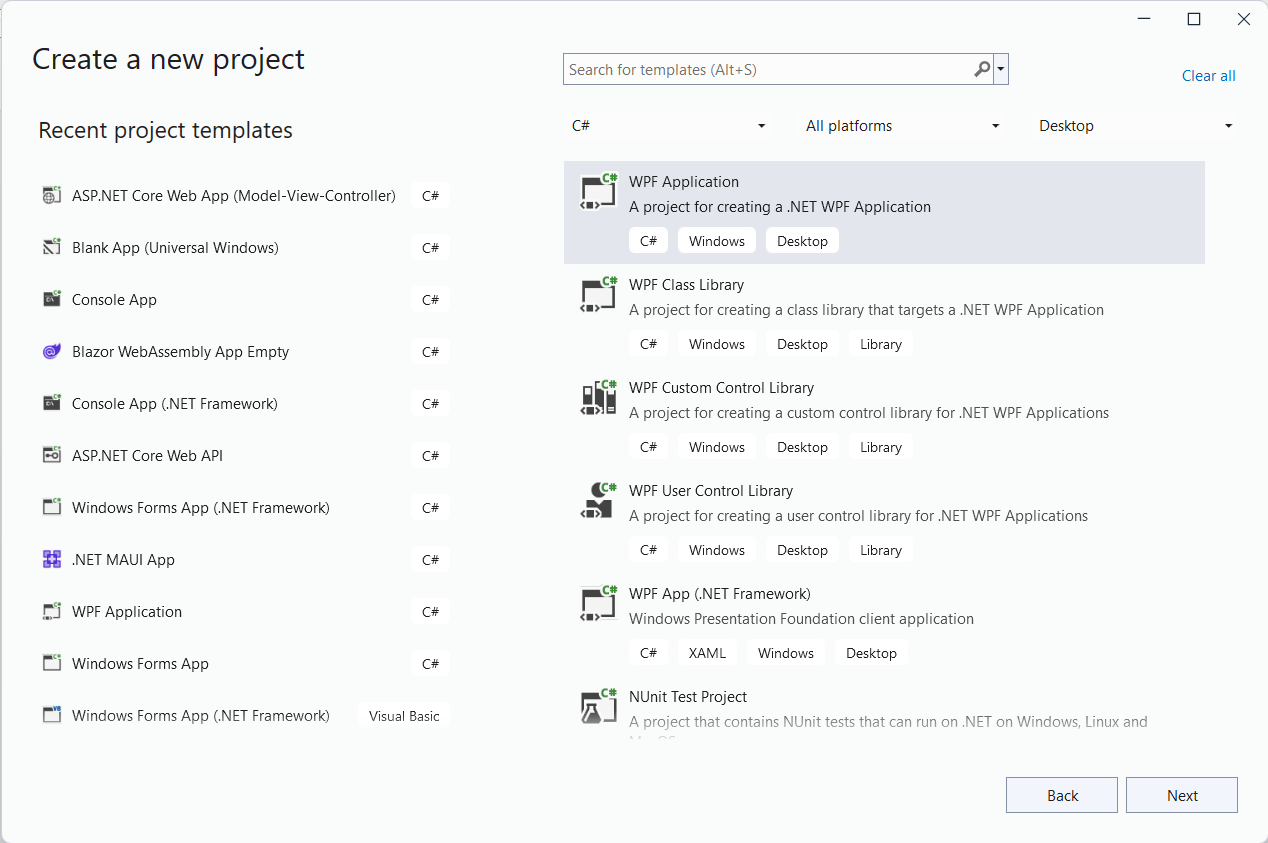
First, we are going to [create a new WPF application in Visual Studio](https://learn.microsoft.com/en-us/visualstudio/get-started/csharp/tutorial-wpf?view=vs-2022)
.
Refer to the following image.
### Step 2: Install and configure the Excel-to-PDF converter library
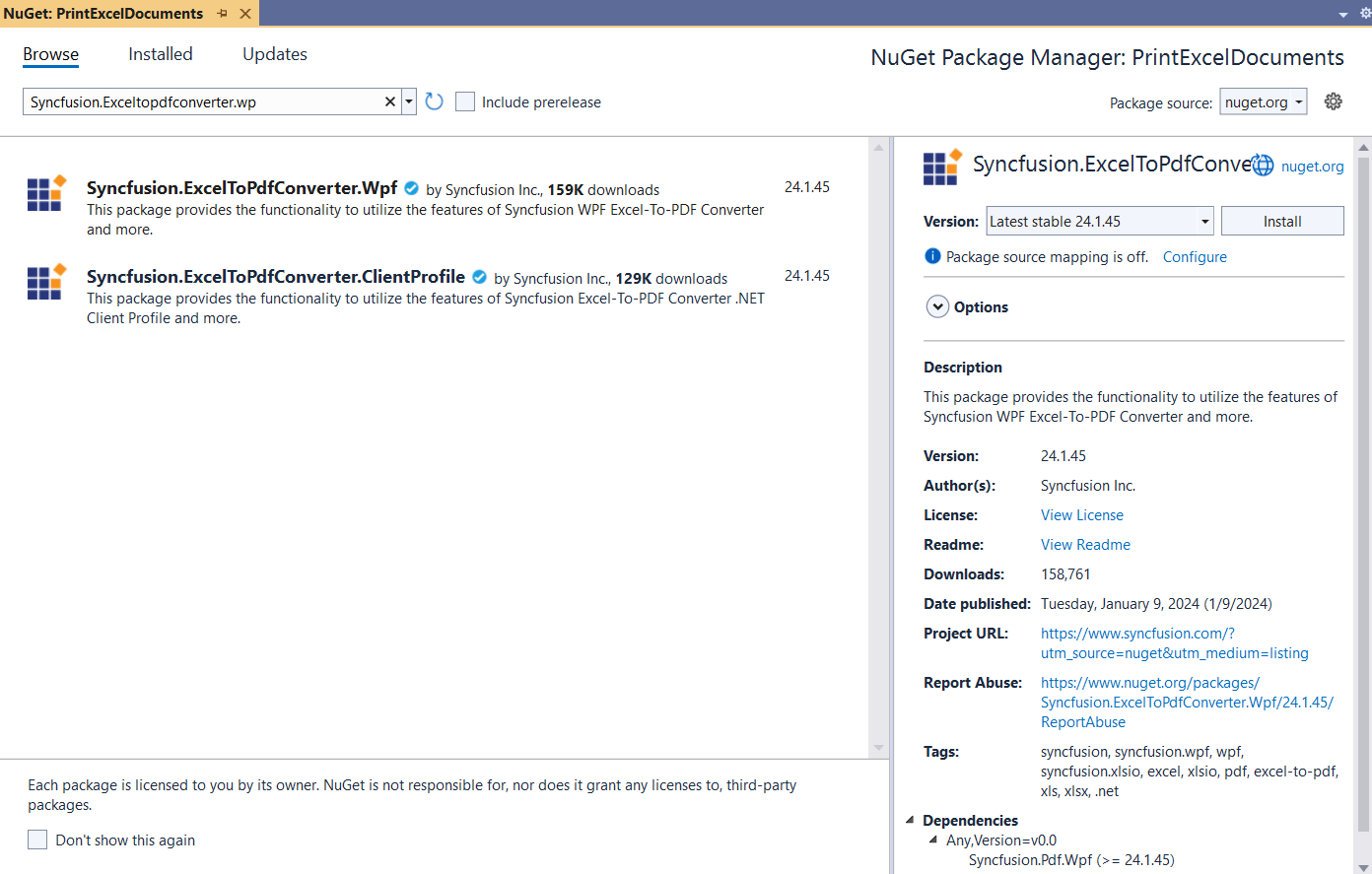
Then, add the following NuGet packages to your WPF app:
- [Syncfusion.ExcelToPDFConverter.Wpf](https://www.nuget.org/packages/Syncfusion.ExcelToPDFConverter.Wpf)
- [System.Drawing.Common](https://www.nuget.org/packages/System.Drawing.Common)
### Step 3: Design the UI for selecting Excel documents
Add the required UI buttons for selecting Excel documents and performing the print operation in the **MainWindow.xaml** file.
Refer to the following code example.
```
```
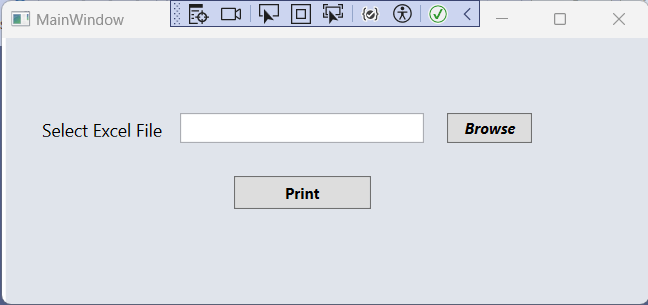
After executing the previous code example, the UI will look like the following image.
Print window
You can choose the Excel document by clicking **Browse** and then click ** Print** to start the printing process.
### Step 4: Convert Excel file to PDF and print the document
Finally, add the following code in the **MainWindow.xaml.cs** file to convert the Excel document to PDF using the [Syncfusion Excel-to-PDF converter](https://help.syncfusion.com/file-formats/xlsio/excel-to-pdf-conversion)
and print the document.
```
using System.Drawing.Printing;
using System.Windows;
using Syncfusion.ExcelToPdfConverter;
using Syncfusion.XlsIO;
namespace PrintExcelDocuments
{
///
/// Interaction logic for MainWindow.xaml
///
public partial class MainWindow : Window
{
public MainWindow()
{
InitializeComponent();
}
private void SelectFile(object sender, RoutedEventArgs e)
{
//Initializes FileSavePicker.
Microsoft.Win32.OpenFileDialog openFileDialog = new Microsoft.Win32.OpenFileDialog();
openFileDialog.Filter = "Excel Files|*.xls;*.xlsx;*.xlsm,*.xltm,*.csv,*.tsv";
openFileDialog.Title = "Select a Excel File";
openFileDialog.ShowDialog();
//Gets the path of specified file.
filePath.Text = openFileDialog.FileName;
}
private void PrintExcel(object sender, RoutedEventArgs e)
{
using (ExcelEngine excelEngine = new ExcelEngine())
{
IApplication application = excelEngine.Excel;
application.DefaultVersion = ExcelVersion.Xlsx;
//Loads or opens an existing workbook through Open method of IWorkbooks.
IWorkbook workbook = application.Workbooks.Open(filePath.Text);
//Initialize the printer settings.
PrinterSettings printerSettings = new PrinterSettings();
//Customizing the printer settings.
printerSettings.PrinterName = "HP LaserJet Pro MFP M127-M128 PCLmS";
printerSettings.Copies = 2;
printerSettings.FromPage = 1;
printerSettings.ToPage = 3;
printerSettings.DefaultPageSettings.Color = true;
printerSettings.Duplex = Duplex.Vertical;
printerSettings.Collate = true;
ExcelToPdfConverter converter = new ExcelToPdfConverter(workbook);
converter.Print();
}
}
}
}
```
The following image shows the input Excel document.
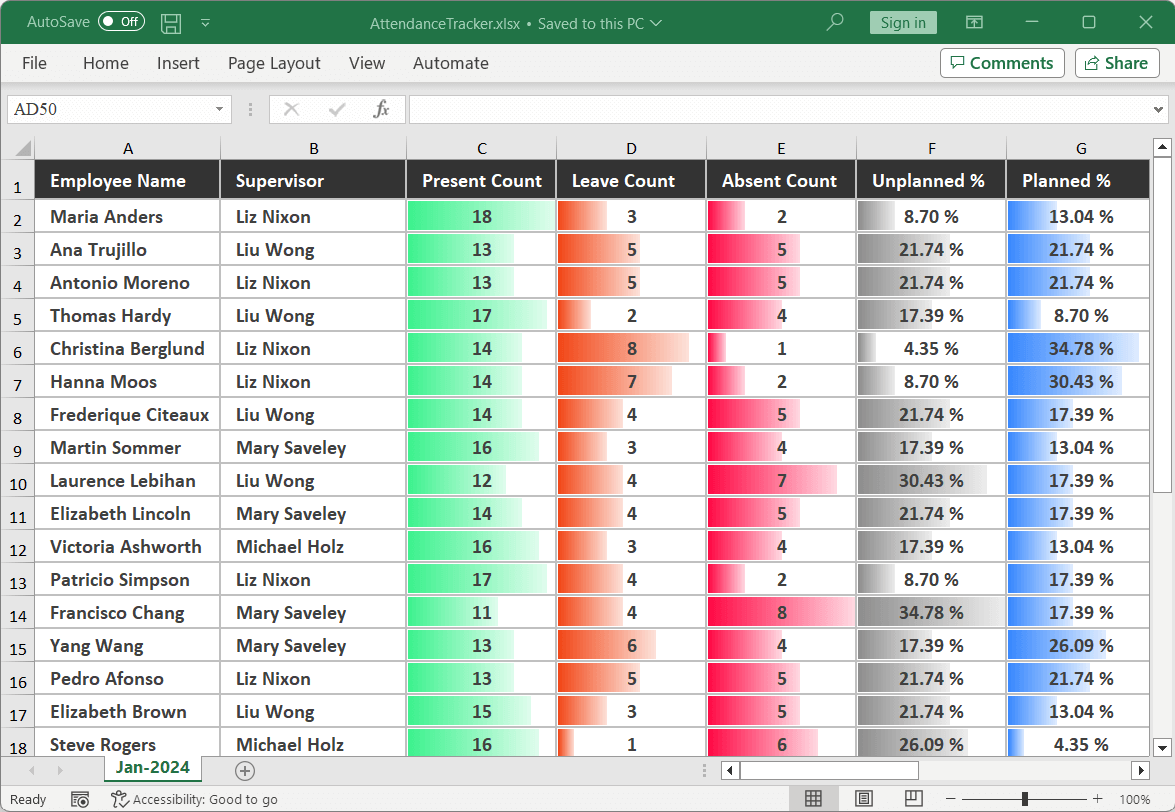
Input Excel document
By executing this code example, you will get a printed Excel document as shown in the following image.
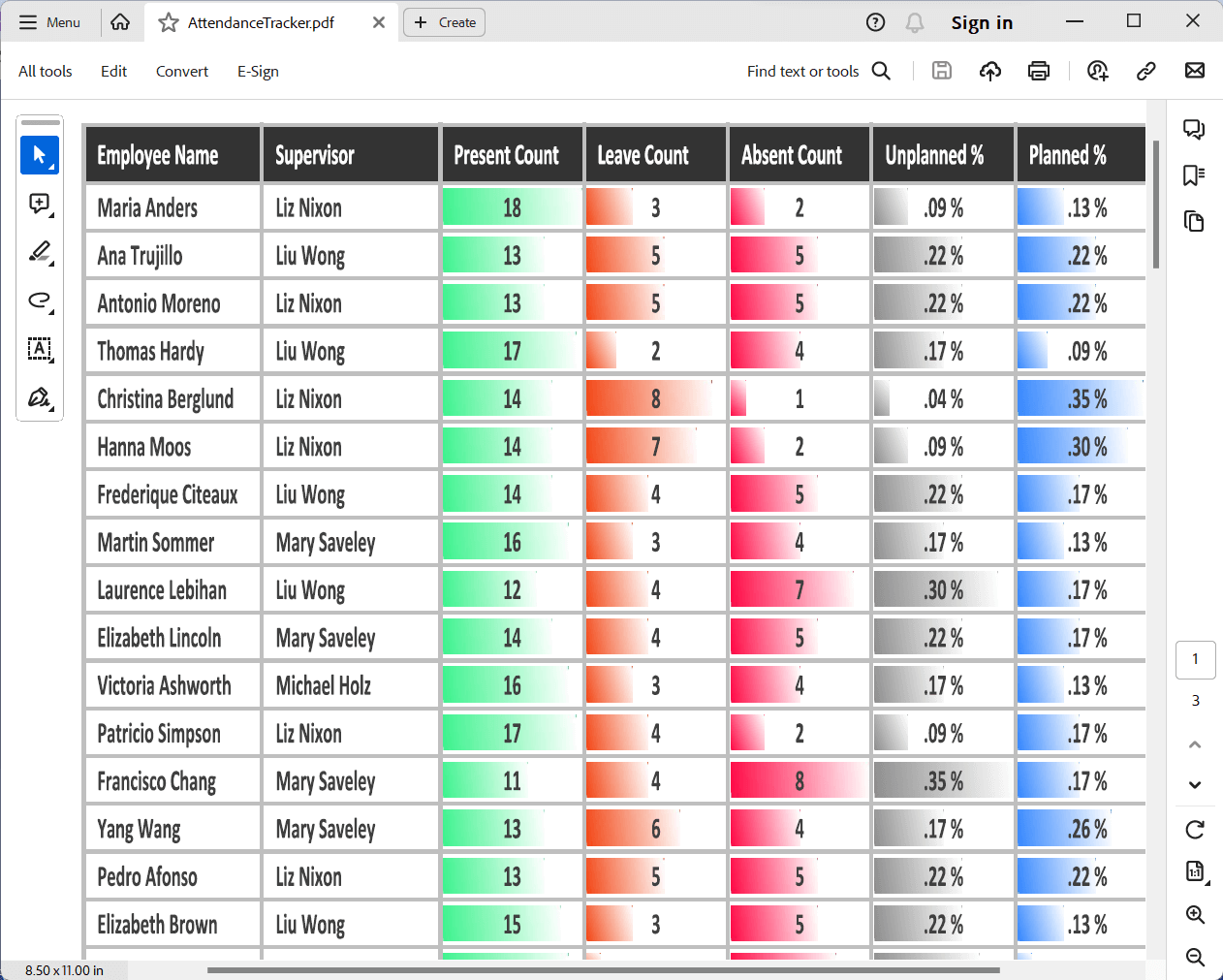
Printed Excel document
## References
For more details, refer to the [print Excel documents using C# documentation](https://help.syncfusion.com/file-formats/xlsio/excel-to-pdf-conversion#print-excel-document)
and [GitHub demos](https://github.com/SyncfusionExamples/XlsIO-Examples/tree/master/Real%20Time%20Examples%20in%20Excel/PrintExcelDocuments)
.
## Conclusion
Thanks for reading! In this blog, we explored the steps involved in printing Excel documents using C# with the [Excel Library](https://www.syncfusion.com/document-sdk/net-excel-library)
. Additionally, we learned how to convert an Excel document to a PDF document in C# using our Syncfusion [Excel-to-PDF converter library](https://www.syncfusion.com/document-processing/excel-framework/net/excel-to-pdf-conversion)
. With Essential XlsIO, you also have the ability to export Excel data to [images](https://help.syncfusion.com/file-formats/xlsio/worksheet-to-image-conversion)
, [data tables](https://help.syncfusion.com/file-formats/xlsio/working-with-data#exporting-from-worksheet-to-data-table)
, [CSV](https://www.syncfusion.com/kb/9092/convert-excel-file-to-csv-in-c-vb-net)
, [TSV](https://www.syncfusion.com/kb/8556/does-xlsio-support-tsv-files)
, [HTML](https://help.syncfusion.com/file-formats/xlsio/working-with-excel-worksheet?_ga=2.19528508.561950334.1598519523-255771547.1598519523#save-worksheet-as-html)
, [collections of objects](https://help.syncfusion.com/file-formats/xlsio/working-with-data#exporting-from-worksheet-to-clr-objects)
, [ODS](https://help.syncfusion.com/file-formats/xlsio/excel-to-ods-conversion)
, [JSON](https://help.syncfusion.com/file-formats/xlsio/excel-to-json-conversion)
, and other file formats.
Feel free to try out these methods and share your feedback in the comments section of this blog post!
For existing customers, the new version of Essential Studio® is available for download from the [License and Downloads](https://www.syncfusion.com/account/downloads)
page. If you are not yet a Syncfusion customer, you can try our 30-day [free trial](https://www.syncfusion.com/downloads)
to check out our available features.
For questions, you can contact us through our [support forum](https://www.syncfusion.com/forums)
, [support portal](https://support.syncfusion.com/)
, or [feedback portal](https://www.syncfusion.com/feedback/excel)
. We are happy to assist you!
## Related blogs
- [Merge Multiple Excel Files into One in Just 3 Steps Using C#](https://www.syncfusion.com/blogs/post/merge-multiple-excel-csharp.aspx)
- [6 Easy Ways to Export Data to Excel in C#](https://www.syncfusion.com/blogs/post/6-easy-ways-to-export-data-to-excel-in-c-sharp.aspx)
- [Seamlessly Import and Export CSV Data in Excel Using C#](https://www.syncfusion.com/blogs/post/import-export-csv-data-in-excel-csharp.aspx)
- [How to Export Data from SQL Server to Excel Table in C#](https://www.syncfusion.com/blogs/post/export-data-from-sql-server-to-excel-in-c-sharp.aspx)
- [Export Data from Collection to Excel and Group It in C#](https://www.syncfusion.com/blogs/post/export-data-from-collection-to-excel-and-group-csharp.aspx)
- [Export Data to a Predefined Excel Template in C#](https://www.syncfusion.com/blogs/post/export-data-to-a-predefined-excel-template-in-c.aspx)
- [Easy Steps to Export HTML Tables to an Excel in C#](https://www.syncfusion.com/blogs/post/easy-steps-to-export-html-tables-to-an-excel-worksheet-in-c.aspx)