---
title: "Page Navigation in .NET MAUI: An Overview"
published_at: "2022-05-27T10:52:55+00:00"
modified_at: "2026-02-02T08:09:13+00:00"
url: "https://www.syncfusion.com/blogs/post/page-navigation-in-net-maui-an-overview"
excerpt: "Get an overview of page navigation in .NET MAUI. Learn how to use navigation patterns, Shell, and NavigationPage to build seamless, user-friendly cross-platform apps"
taxonomy_category:
- ".NET MAUI"
- "Desktop"
- "Development"
- "Mobile"
- "Tips and Tricks"
taxonomy_post_tag:
- ".NET MAUI"
- "development"
- "Mobile"
- "productivity"
- "Xamarin.Forms"
---
# Page Navigation in .NET MAUI: An Overview
[Selva Ganapathy Kathiresan](https://www.syncfusion.com/blogs/author/selva-ganapathy-k)
**TL;DR:** Want to create a seamless navigation experience in your .NET MAUI app? This guide explores two powerful methods: Shell for an intuitive mobile menu or base navigation pages for tabbed and stacked layouts. Dive in and discover code examples to simplify your app development.
A typical application needs a hierarchical navigation experience where the user can navigate through pages forward and backward as required.
The [.NET MAUI](https://docs.microsoft.com/en-us/dotnet/maui/what-is-maui)
platform provides two primary forms of page navigation to an app:
- Shell.
- Base navigation pages, such as FlyoutPage, TabbedPage, and NavigationPage.
In this blog, let’s see how we can integrate page navigation in your .NET MAUI application with code examples.
## **Page** navigation through** Shell**
Shell page navigation is recommended to provide a page navigation experience in a .NET MAUI mobile app.
Shell is a UI control that hosts your pages and provides **flyout** and ** tab** menus for navigation. Shell page navigation can also be done based on URLs. You can use content templates with it to make the code efficient.
A Shell template is available in any new .NET MAUI project as an **AppShell.Xaml** file with a single page that is added as the primary page. To use this template:
1. [Create a simple .NET MAUI app](https://docs.microsoft.com/en-us/dotnet/maui/get-started/first-app?pivots=devices-android) . By default, it will be generated with a shell template.
2. Then, create the required pages. Here, I will create two additional pages, namely **Add.Xaml** and ** Edit.Xaml**.
3. Open the **AppShell.**** Xaml** file where the ** MainPage** has already been added as Shell content. Add the required pages as content to it. Refer to the following code example.``` ```
4. By default, the **FlyoutBehavior** is disabled. You can enable it with the value **Flyout**. Refer to the following code.``` ```
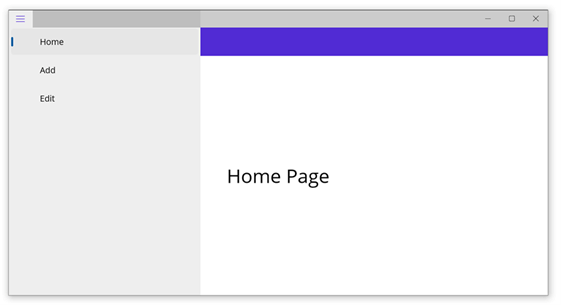
Page Navigation in a .NET MAUI App Using Shell
**Note**: Check out the [.NET MAUI Shell flyout](https://docs.microsoft.com/en-us/dotnet/maui/fundamentals/shell/flyout)
and [Shell tabs](https://docs.microsoft.com/en-us/dotnet/maui/fundamentals/shell/tabs)
documentation for more details.
## Page navigation through base navigation pages
Base navigation pages are another way to achieve page navigation in your .NET MAUI app. They support pages such as **FlyoutPage**, ** TabbedPage**, and ** NavigationPage**. We can perform navigation through ** Push** and ** Pop** actions.
Let’s take a quick look at these pages!
### TabbedPage
The .NET MAUI TabbedPage contains tabs, and each tab will load content in the detail area.
Refer to the following code example.
```
```
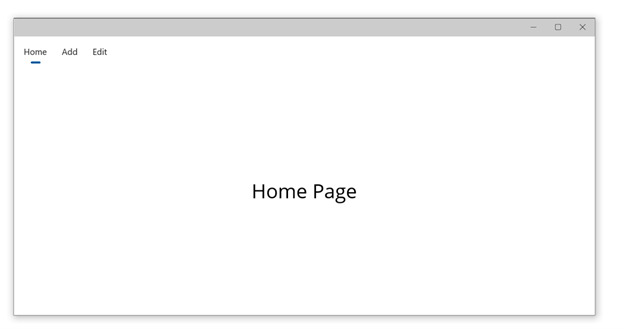
Page Navigation in .NET MAUI App Using TabbedPage
### FlyoutPage
The .NET MAUI FlyoutPage contains a detail page with an overlay page called a flyout to present items. The detail page will load the content of the page selected on the flyout.
Refer to the following code example.
```
```
### NavigationPage
The .NET MAUI NavigationPage is used to stack pages, and we can easily navigate to the required page with the push and pop actions.
#### Push pages
The **PushAsync** method of the NavigationPage will push a page in the navigation stack.
Refer to the following code.
```
await Navigation.PushAsync(new DetailsPage());
```
#### Pop pages
The **PopAsync** method of the NavigationPage will pop a page in the navigation stack. Also, we can pop the current page by pressing the ** Back** button on our device.
To programmatically pop a page, refer to the following code.
```
await Navigation.PopAsync();
```
## GitHub reference
Check out a complete example of [page navigation in the .NET MAUI application on GitHub](https://github.com/SyncfusionExamples/maui-general-samples/tree/main/ShellPageNavigation)
.
## Conclusion
Thanks for reading. I hope you have a basic idea about page navigation in the .NET MAUI application. Syncfusion [.NET MAUI](https://www.syncfusion.com/maui-controls)
controls are also compatible with these navigation pages. Please give them a try and leave your feedback in the comments section below!
Also, you can contact us through our [support forum](https://www.syncfusion.com/forums)
, [support portal](https://support.syncfusion.com/)
, or [feedback portal](https://www.syncfusion.com/feedback/xamarin-forms)
. We are always happy to assist you!
## **Related** blogs
- [Design Different Styles of Radial Sliders Using the .NET MAUI Radial Gauge](https://www.syncfusion.com/blogs/post/design-different-styles-of-radial-sliders-using-the-net-maui-radial-gauge.aspx)
- [Syncfusion .NET MAUI 2022 Roadmap](https://www.syncfusion.com/blogs/post/syncfusion-net-maui-2022-roadmap.aspx)
- [Everything You Need to Know About .NET MAUI Radial Gauge Control](https://www.syncfusion.com/blogs/post/dotnet-maui-radial-gauge-control.aspx)
- [Customize .NET MAUI Controls with Handler Architecture](https://www.syncfusion.com/blogs/post/how-to-customize-net-maui-controls-with-handler-architecture.aspx)