---
title: "Introducing the New Blazor Chat UI Component"
published_at: "2025-01-07T12:02:32+00:00"
modified_at: "2026-01-12T12:19:45+00:00"
url: "https://www.syncfusion.com/blogs/post/new-blazor-chat-ui-component"
excerpt: "Enhance real-time communication with the Blazor Chat UI. Discover its features and use cases for creating engaging chat interfaces in your app."
taxonomy_category:
- "Blazor"
- "Development"
- "UI"
- "Web"
- "What's new"
taxonomy_post_tag:
- "Blazor"
- "Chat"
- "development"
- "UI Components"
- "Web"
- "What's New"
---
# Introducing the New Blazor Chat UI Component
[Silambarasan Ilango](https://www.syncfusion.com/blogs/author/silambarasani)
**TL;DR:** The Blazor Chat UI component offers a lightweight and customizable solution for building modern chat interfaces. It’s packed with features like real-time typing indicators, dynamic suggestions, and customizable templates
We’re happy to share the [Blazor Chat UI](https://www.syncfusion.com/blazor-components/blazor-chat-ui)
component as part of our [2024 Volume 4](https://www.syncfusion.com/forums/195512/essential-studio-2024-volume-4-main-release-v28-1-33-is-available-for-download)
release. This lightweight and customizable tool makes it easy to create modern chat interfaces in your app. It’s packed with features to support real-time communication and provides a smooth user experience.
Whether you’re creating a chat app for personal, business, or enterprise use, the Blazor Chat UI component can handle it. It supports multiple users with features like real-time typing indicators, message suggestions, and straightforward message loading. You can also customize it to fit your app’s needs perfectly.
Refer to the following image.
Blazor Chat UI
## Use cases
The Blazor Chat UI component is perfect for a wide range of apps:
- **Customer support apps**: Build chat interfaces to handle customer inquiries, complaints, and support requests in real-time, ensuring efficient and effective communication.
- **Team collaboration tools**: Enable teams to exchange messages, share updates, and collaborate on tasks through a seamless and organized chat experience.
- **Social networking platforms**: Create engaging chat interfaces for users to connect, share, and communicate within social networking apps.
- **E-commerce chatbots**: Integrate the Chat UI component into your e-commerce platform to provide instant assistance to shoppers, offering product recommendations and support.
## Key features
The key features of the Blazor Chat UI component are as follows:
- [Organizing message display](#Organizing)
- [Message tracking](#Message)
- [Dynamic suggestions](#Dynamic)
- [Organizing conversation](#Conversation)
- [Interactive typing indicators](#Interactive)
- [Customizable header toolbar](#Customizable)
- [Advanced customization templates](#Advanced)
### Organizing message display
The Blazor Chat UI component effectively [organizes messages](https://blazor.syncfusion.com/documentation/chat-ui/messages)
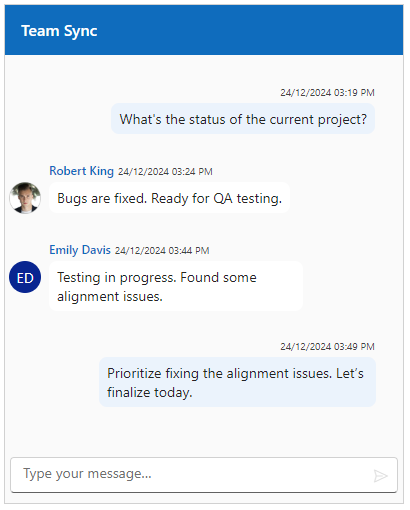
by displaying user avatars and timestamps. To distinguish between users, messages from the current user are aligned to the right, while messages from others appear on the left. If a user’s avatar is unavailable, their initials are displayed instead.
In the following code example, the [Messages](https://help.syncfusion.com/cr/blazor/Syncfusion.Blazor.InteractiveChat.SfChatUI.html#Syncfusion_Blazor_InteractiveChat_SfChatUI_Messages)
parameter loads conversation data, and the [User](https://help.syncfusion.com/cr/blazor/Syncfusion.Blazor.InteractiveChat.SfChatUI.html#Syncfusion_Blazor_InteractiveChat_SfChatUI_User)
parameter identifies the current user.
```
@using Syncfusion.Blazor.InteractiveChat
@code {
UserModel Manager;
UserModel Developer;
UserModel Tester;
List ChatMessages;
protected override void OnInitialized()
{
Manager = new UserModel { ID = "manager-101", User = "Andrew Fuller" };
Developer = new UserModel { ID = "developer-101", User = "Robert King", AvatarUrl = "./images/robert.png" };
Tester = new UserModel { ID = "tester-101", User = "Emily Davis", CssClass = "custom-avatar"};
ChatMessages = new List
{
new ChatMessage()
{
Author = Manager,
Text = "What's the status of the current project?",
Timestamp = DateTime.Now.AddMinutes(-45)
},
new ChatMessage()
{
Author = Developer,
Text = "Bugs are fixed. Ready for QA testing.",
Timestamp = DateTime.Now.AddMinutes(-40)
},
new ChatMessage()
{
Author = Tester,
Text = "Testing in progress. Found some alignment issues.",
Timestamp = DateTime.Now.AddMinutes(-20)
},
new ChatMessage()
{
Author = Manager,
Text = "Prioritize fixing the alignment issues. Let’s finalize today.",
Timestamp = DateTime.Now.AddMinutes(-15)
}
};
}
}
```
Refer to the following image.
Organizing messages in Blazor Chat UI
### Message tracking
Enhance the user experience in your chat interface by defining custom [message statuses](https://blazor.syncfusion.com/documentation/chat-ui/messages#define-message-status)
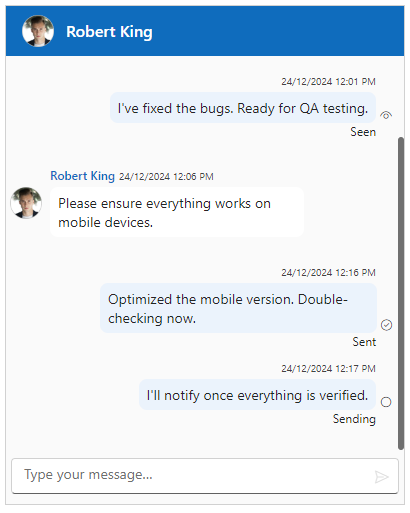
. Each message can have a dynamic status, such as **Sent**, ** Delivered**, ** Read**, and more, with the option to include customizable icons and tooltips. This creates a personalized, real-time tracking experience, giving users clear insights into the state of their messages.
You can set the status of each message using the [Status](https://help.syncfusion.com/cr/blazor/Syncfusion.Blazor.InteractiveChat.ChatMessage.html#Syncfusion_Blazor_InteractiveChat_ChatMessage_Status)
property of the [ChatMessage](https://help.syncfusion.com/cr/blazor/Syncfusion.Blazor.InteractiveChat.ChatMessage.html)
type. Refer to the following code example.
```
@using Syncfusion.Blazor.InteractiveChat
@code {
UserModel Manager;
UserModel Developer;
List ChatMessages;
protected override void OnInitialized()
{
Manager = new UserModel() { ID = "developer-101", User = "Robert King", AvatarUrl = "./images/robert.png" };
Developer = new UserModel() { ID = "manager-101", User = "Andrew Fuller" };
ChatMessages = new List()
{
new ChatMessage()
{
Author = Manager,
Text = "What's the status on the current project?",
Timestamp = DateTime.Now.AddMinutes(-30)
},
new ChatMessage()
{
Author = Developer,
Text = "I've fixed the bugs. Ready for QA testing.",
Timestamp = DateTime.Now.AddMinutes(-25),
Status = new MessageStatusModel() { Text = "Seen", IconCss = "e-icons e-seen", Tooltip = "11:36 AM" }
},
new ChatMessage()
{
Author = Manager,
Text = "Please ensure everything works on mobile devices.",
Timestamp = DateTime.Now.AddMinutes(-20)
},
new ChatMessage()
{
Author = Developer,
Text = "Optimized the mobile version. Double-checking now.",
Timestamp = DateTime.Now.AddMinutes(-10),
Status = new MessageStatusModel() { Text = "Sent", IconCss = "e-icons e-sent" }
},
new ChatMessage()
{
Author = Developer,
Text = "I'll notify once everything is verified.",
Timestamp = DateTime.Now.AddMinutes(-9),
Status = new MessageStatusModel() { Text = "Sending", IconCss = "e-icons e-sending" }
}
};
}
}
```
Refer to the following image.
Defining custom message statuses in Blazor Chat UI
### Dynamic suggestions
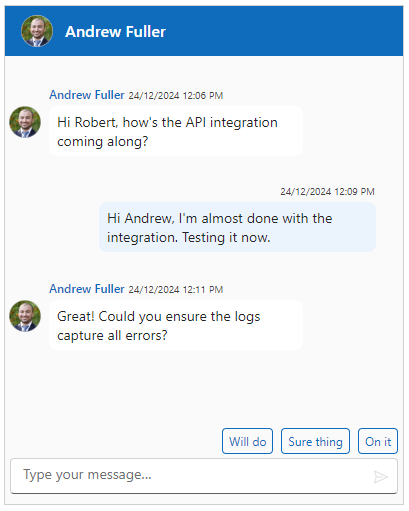
You can simplify conversations with the Blazor Chat UI component by offering quick reply options. These dynamic [suggestions](https://blazor.syncfusion.com/documentation/chat-ui/messages#setting-suggestions)
enable users to respond faster, keeping the conversation seamless and engaging.
You can add dynamic suggestions based on the user’s last response using the [Suggestions](https://help.syncfusion.com/cr/blazor/Syncfusion.Blazor.InteractiveChat.SfChatUI.html#Syncfusion_Blazor_InteractiveChat_SfChatUI_Suggestions)
parameter. Refer to the following code example.
```
@using Syncfusion.Blazor.InteractiveChat
@code {
UserModel Manager;
UserModel Developer;
List ChatMessages;
List ChatSuggestions;
protected override void OnInitialized()
{
Manager = new UserModel() { ID = "manager-101", User = "Andrew Fuller", AvatarUrl = "./images/andrew.png" };
Developer = new UserModel() { ID = "developer-101", User = "Robert King" };
ChatMessages = new List()
{
new ChatMessage()
{
Author = Manager,
Text = "Hi Robert, how's the API integration coming along?",
Timestamp = DateTime.Now.AddMinutes(-10)
},
new ChatMessage()
{
Author = Developer,
Text = "Hi Andrew, I'm almost done with the integration. Testing it now.",
Timestamp = DateTime.Now.AddMinutes(-7)
},
new ChatMessage()
{
Author = Manager,
Text = "Great! Could you ensure the logs capture all errors?",
Timestamp = DateTime.Now.AddMinutes(-5)
}
};
ChatSuggestions = new List
{
"Will do",
"Sure thing",
"On it"
};
}
}
```
Refer to the following image.
Dynamic suggestions in Blazor Chat UI
### Organizing conversation
We can organize conversations by grouping messages with automatic [time breaks](https://blazor.syncfusion.com/documentation/chat-ui/timebreak)
. These visual separators are added based on timestamps, making it easier to follow the flow of conversations.
You can enable automatic time breaks using the [ShowTimeBreak](https://help.syncfusion.com/cr/blazor/Syncfusion.Blazor.InteractiveChat.SfChatUI.html#Syncfusion_Blazor_InteractiveChat_SfChatUI_ShowTimeBreak)
parameter. Refer to the following code example.
```
@using Syncfusion.Blazor.InteractiveChat
@code {
UserModel Developer;
UserModel Manager;
List ChatMessages;
protected override void OnInitialized()
{
Developer = new UserModel { ID = "developer-101", User = "Robert King" };
Manager = new UserModel { ID = "manager-101", User = "Alice Johnson", AvatarUrl = "./images/alice.png" };
ChatMessages = new List
{
new ChatMessage()
{
Author = Manager,
Text = "Robert, did you check the API response issue?",
Timestamp = DateTime.Now.AddDays(-1).AddHours(-2)
},
new ChatMessage()
{
Author = Developer,
Text = "Yes, Alice. It’s resolved and deployed.",
Timestamp = DateTime.Now.AddDays(-1).AddHours(-1)
},
new ChatMessage()
{
Author = Manager,
Text = "Good morning! Could you look into the new UI feedback?",
Timestamp = DateTime.Now.AddHours(-3)
},
new ChatMessage()
{
Author = Developer,
Text = "Sure, I’ll start working on it now.",
Timestamp = DateTime.Now.AddHours(-2)
}
};
}
}
```
Refer to the following image.
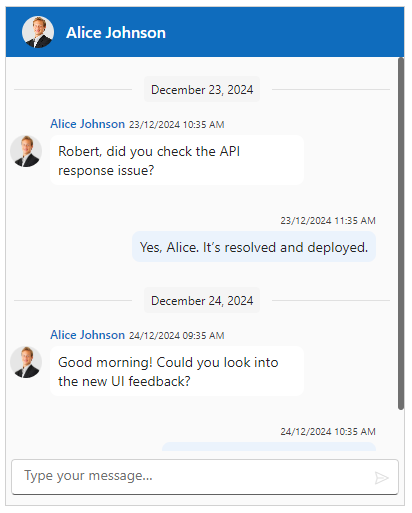
Time break feature in Blazor Chat UI
### Interactive typing indicators
Enhance your chat interface with real-time [typing indicators](https://blazor.syncfusion.com/documentation/chat-ui/typing-indicator)
, making conversations feel more interactive and responsive. This feature lets users see when someone is typing, improving the overall user experience.
You can display typing indicators by binding the [TypingUsers](https://help.syncfusion.com/cr/blazor/Syncfusion.Blazor.InteractiveChat.SfChatUI.html#Syncfusion_Blazor_InteractiveChat_SfChatUI_TypingUsers)
parameter to a list of users currently typing. Refer to the following code example.
```
@using Syncfusion.Blazor.InteractiveChat
@code {
UserModel Manager;
UserModel Developer;
UserModel Tester;
List ChatMessages;
List UsersTyping;
protected override void OnInitialized()
{
Manager = new UserModel { ID = "manager-101", User = "Alice Johnson" };
Developer = new UserModel { ID = "developer-101", User = "Robert King", AvatarUrl = "./images/robert.png" };
Tester = new UserModel { ID = "tester-101", User = "Emily Davis", AvatarUrl = "./images/emily.png" };
ChatMessages = new List
{
new()
{
Author = Manager,
Text = "Robert, have you fixed the login issue?",
Timestamp = DateTime.Now.AddDays(-1).AddHours(-5)
},
new()
{
Author = Developer,
Text = "Yes, it's resolved. Emily, can you test it?",
Timestamp = DateTime.Now.AddDays(-1).AddHours(-4)
},
new()
{
Author = Tester,
Text = "Good morning! The login issue works fine now.",
Timestamp = DateTime.Now.AddHours(-3)
},
new()
{
Author = Manager,
Text = "Great! Let’s focus on the payment gateway next.",
Timestamp = DateTime.Now.AddHours(-2)
}
};
UsersTyping = new List()
{
Developer,
Tester
};
}
}
```
Refer to the following image.
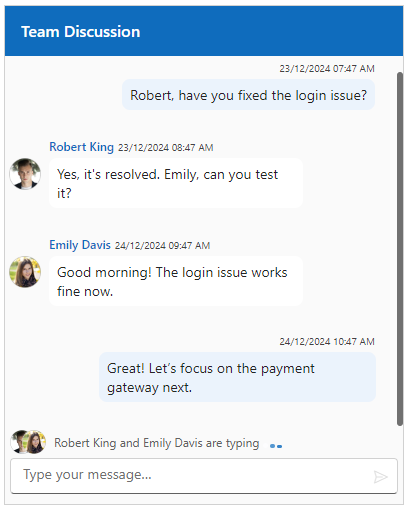
Typing indicator in Blazor Chat UI
### Customizable header toolbar
Customize your chat’s [header](https://blazor.syncfusion.com/documentation/chat-ui/header)
with a fully adaptable toolbar. You can add buttons for actions like starting a new chat, making a call, or accessing settings. The flexible toolbar allows you to tailor it to your app’s design.
The toolbar can be configured using the [](https://help.syncfusion.com/cr/blazor/Syncfusion.Blazor.InteractiveChat.HeaderToolbar.html)
and [](https://help.syncfusion.com/cr/blazor/Syncfusion.Blazor.InteractiveChat.HeaderToolbarItem.html)
.
```
@using Syncfusion.Blazor.InteractiveChat
@using Syncfusion.Blazor.Navigations
@code {
UserModel Manager;
UserModel Developer;
UserModel Tester;
List ChatMessages;
protected override void OnInitialized()
{
Manager = new UserModel { ID = "manager-101", User = "Alice Johnson" };
Developer = new UserModel { ID = "developer-101", User = "Robert King", AvatarUrl = "./images/robert.png" };
Tester = new UserModel { ID = "tester-101", User = "Emily Davis", AvatarUrl = "./images/emily.png" };
ChatMessages = new List
{
new ChatMessage()
{
Author = Manager,
Text = "Robert, can you check the database migration issue?",
Timestamp = DateTime.Now.AddDays(-1).AddHours(-6)
},
new ChatMessage()
{
Author = Developer,
Text = "I’m on it! It looks like a schema conflict.",
Timestamp = DateTime.Now.AddDays(-1).AddHours(-5)
},
new ChatMessage()
{
Author = Tester,
Text = "Hi team, I’ve tested the payment feature; everything works.",
Timestamp = DateTime.Now.AddHours(-4)
}
};
}
}
```
Refer to the following image.
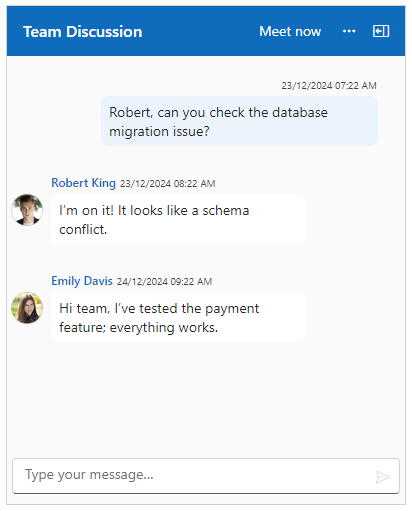
Adaptable header toolbar in Blazor Chat UI
### Advanced customization templates
With advanced customization [templates](https://blazor.syncfusion.com/documentation/chat-ui/templates)
, you can modify different areas of the Chat UI to align with your app’s design and functionality. The following templates are available:
- **Empty chat template**: Add content to display when there are no messages in the chat, such as a welcome message or an engaging image.
- **Message template**: Customize how messages should be displayed to match the style of your app.
- **Time break template**: Control the appearance of time breaks to display ** Today, Yesterday,** or specific dates.
- **Footer template**: Redesign the footer for message input and additional actions, offering a unique experience.
The following code example demonstrates how to use these templates in a Chat UI component using the [](https://help.syncfusion.com/cr/blazor/Syncfusion.Blazor.InteractiveChat.SfChatUI.html#Syncfusion_Blazor_InteractiveChat_SfChatUI_EmptyChatTemplate)
, [](https://help.syncfusion.com/cr/blazor/Syncfusion.Blazor.InteractiveChat.SfChatUI.html#Syncfusion_Blazor_InteractiveChat_SfChatUI_MessageTemplate)
, [](https://help.syncfusion.com/cr/blazor/Syncfusion.Blazor.InteractiveChat.SfChatUI.html#Syncfusion_Blazor_InteractiveChat_SfChatUI_TimeBreakTemplate)
, and [](https://help.syncfusion.com/cr/blazor/Syncfusion.Blazor.InteractiveChat.SfChatUI.html#Syncfusion_Blazor_InteractiveChat_SfChatUI_FooterTemplate)
components.
```
@using Syncfusion.Blazor.InteractiveChat
@{
var now = DateTime.Now;
var timeBreak = context.MessageDate.Value.Date;
var timeBreakCtn = now.Date == timeBreak ? "Today" : (now.AddDays(-1).Date == timeBreak ? "Yesterday" : timeBreak.ToString("dddd"));
}
@timeBreakCtn
@code {
UserModel Developer;
UserModel Tester;
List ChatMessages = new List();
string messageText = "Hi Robert, I’ve found a bug in the login form. Can you look into it?";
protected override void OnInitialized()
{
Developer = new UserModel { ID = "developer-101", User = "Robert King", AvatarUrl = "./images/robert.png" };
Tester = new UserModel { ID = "tester-101", User = "Emily Davis", AvatarUrl = "./images/emily.png" };
}
private async Task SendBtnClick()
{
if (!string.IsNullOrEmpty(messageText))
{
ChatMessages.Add(new ChatMessage()
{
Text = messageText,
Author = Tester,
Timestamp = DateTime.Now
});
messageText = string.Empty;
await Task.Delay(1000);
ChatMessages.Add(new ChatMessage()
{
Text = "Hi Emily, I’ll check it right away. Could you send me the error details?",
Author = Developer,
Timestamp = DateTime.Now
});
}
}
}
```
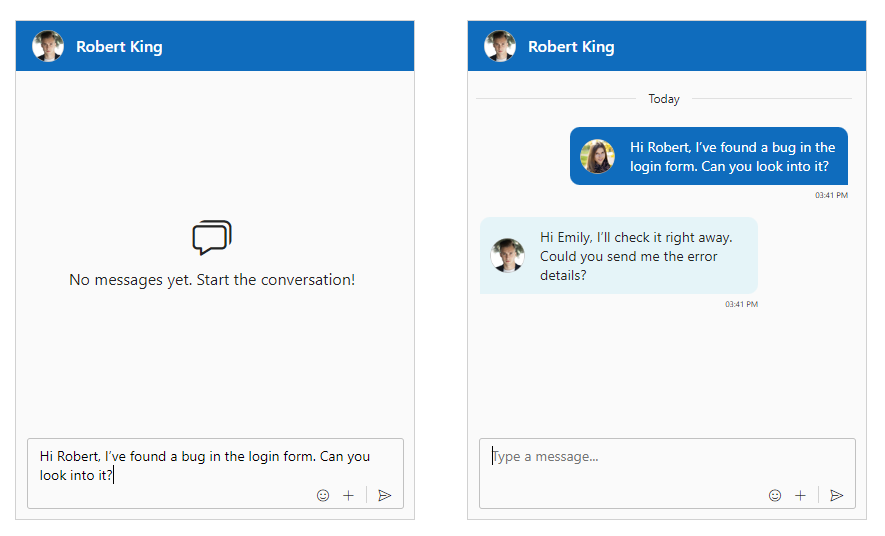
Advanced customization templates in Blazor Chat UI
## References
For more details, refer to the [Blazor Chat UI component demos](https://blazor.syncfusion.com/demos/chat-ui/default-functionalities?theme=fluent2)
and [documentation](https://blazor.syncfusion.com/documentation/chat-ui/getting-started-webapp)
.
## Supported platforms
The Chat UI component is also available on the following platforms.
| Platform | Demo | Documentation |
| --- | --- | --- |
| JavaScript | JavaScript Chat UI demos | Getting started with JavaScript Chat UI |
| Angular | Angular Chat UI demos | Getting started with Angular Chat UI |
| React | React Chat UI demos | Getting started with React Chat UI |
| ASP.NET Core | ASP.NET Core Chat UI demos | Getting started with ASP.NET Core Chat UI |
| ASP.NET MVC | ASP.NET MVC Chat UI demos | Getting started with ASP.NET MVC Chat UI |
| Blazor | Blazor Chat UI demos | Getting started with Blazor Chat UI |
## Conclusion
Thank you for reading! In this blog, we’ve covered the key features of the Syncfusion [Blazor Chat UI](https://www.syncfusion.com/blazor-components/blazor-chat-ui)
component, designed to enhance your chat-based apps.
For more details, check out the[Release Notes](https://help.syncfusion.com/common/essential-studio/release-notes/v28.1.33)
and [What’s New](https://www.syncfusion.com/products/whatsnew)
pages for our [2024 Volume 4](https://www.syncfusion.com/forums/195512/essential-studio-2024-volume-4-main-release-v28-1-33-is-available-for-download)
release. We encourage you to try the Blazor Chat UI component and share your feedback in the comments.
If you need assistance, feel free to reach out via our [support forums](https://www.syncfusion.com/forums)
, [support portal](https://support.syncfusion.com/)
, or [feedback portal](https://www.syncfusion.com/feedback)
. Our team is always happy to help!
## Related Blogs
[What’s New in Blazor: 2024 Volume 4](https://www.syncfusion.com/blogs/post/whats-new-in-blazor-2024-volume-4)
[AI-Powered Blazor Kanban: Integration with Microsoft Extension Packages](https://www.syncfusion.com/blogs/post/microsoft-ai-powered-blazor-kanban)
[Building Oqtane Modules with Syncfusion Components for Blazor [Webinar Show Notes]](https://www.syncfusion.com/blogs/post/oqtane-modules-blazor-webinar-show)
[Introducing the Syncfusion Blazor Smart Paste Button – A Smarter Way to Fill Forms](https://www.syncfusion.com/blogs/post/blazor-smart-paste-button-component)