---
title: "Easily Lock and Unlock Annotations Using Xamarin.Forms PDF Viewer"
published_at: "2022-11-23T11:00:27+00:00"
modified_at: "2025-11-06T12:37:25+00:00"
url: "https://www.syncfusion.com/blogs/post/lock-and-unlock-annotations-using-xamarin-forms-pdf-viewer"
excerpt: "According to Wikipedia, “An annotation is extra information associated with a particular point in a document.” Annotations can be locked to keep users from editing them. Syncfusion’s Xamarin.Forms PDF Viewer can differentiate between locked and unlocked annotations, and you can..."
taxonomy_category:
- "Desktop"
- "Mobile"
- "PDF viewer"
- "Syncfusion"
- "Xamarin"
taxonomy_post_tag:
- "Annotation"
- "Mobile"
- "PDF Viewer"
- "Xamarin.Forms"
---
# Easily Lock and Unlock Annotations Using Xamarin.Forms PDF Viewer
[Ramkumar Ravy](https://www.syncfusion.com/blogs/author/ramkumarr)

According to Wikipedia, “An [annotation](https://en.wikipedia.org/wiki/Annotation)
is extra information associated with a particular point in a document.” Annotations can be locked to keep users from editing them. Syncfusion’s [Xamarin.Forms PDF Viewer](https://www.syncfusion.com/xamarin-ui-controls/xamarin-pdf-viewer)
can differentiate between locked and unlocked annotations, and you can use it to lock or unlock them dynamically.
In a previous blog, we learned how to [view PDF annotations as a list and navigate through them using our Xamarin PDF Viewer](https://www.syncfusion.com/blogs/post/view-pdf-annotations-as-a-list-and-navigate-using-xamarin-forms-pdf-viewer.aspx)
. This article is an extension of that blog. We will now learn how to identify whether an annotation is locked and the procedure to lock or unlock an annotation dynamically.
We will use the [same project example](https://github.com/SyncfusionExamples/create-annotation-list-view-in-xamarin)
we used for showcasing annotations in a list view.
## Selection border color to specify locked annotations
We can use the selection border color feature in our Xamarin PDF Viewer to tell the difference between locked and unlocked annotations.
Refer to the following images.
| Normal Annotation | Locked Annotation |
| --- | --- |
| | |
The default color for locked annotations’ selection border is **gray**. You can customize this by setting your required color to the ** LockedStrokeColor** property.
```
pdfViewerControl.SelectorSettings.LockedStrokeColor = Color.Red;
```
## Specify the locked annotations in a list view
Let’s see how to display the locked annotations in a list view using the Xamarin PDF Viewer.
The **IsLocked** property in each annotation settings class tells us whether an annotation is in a locked state or not.
Here, we are going to add an image component in the **ListViewItem.xaml** to specify an annotation’s locked status.
```
```
Then, in the **ListViewItem_BindingContextChanged** event handler, we implement the logic to identify whether the annotations are locked or not and set the appropriate status image for the image component.
```
private void ListViewItem_BindingContextChanged(object sender, EventArgs e)
{
if (BindingContext == null)
return;
bool isLocked = false;
annotationFontIcon.FontFamily = FontMappingHelper.FontFamily;
if (BindingContext is ShapeAnnotation shape)
{
isLocked = shape.Settings.IsLocked;
annotationLabel.Text = shape.ShapeAnnotationType.ToString();
if (shape.ShapeAnnotationType == ShapeAnnotationType.Line)
{
annotationFontIcon.Text = FontMappingHelper.Line;
}
else if (shape.ShapeAnnotationType == ShapeAnnotationType.Rectangle)
{
annotationFontIcon.Text = FontMappingHelper.Rectangle;
}
else if (shape.ShapeAnnotationType == ShapeAnnotationType.Circle)
{
annotationFontIcon.Text = FontMappingHelper.Circle;
}
else if (shape.ShapeAnnotationType == ShapeAnnotationType.Arrow)
{
annotationFontIcon.Text = FontMappingHelper.Arrow;
}
else if (shape.ShapeAnnotationType == ShapeAnnotationType.Polygon)
{
annotationFontIcon.Text = FontMappingHelper.Polygon;
}
}
else if (BindingContext is TextMarkupAnnotation textMarkup)
{
isLocked = textMarkup.Settings.IsLocked;
annotationLabel.Text = textMarkup.TextMarkupAnnotationType.ToString();
if (textMarkup.TextMarkupAnnotationType == TextMarkupAnnotationType.Highlight)
{
annotationFontIcon.Text = FontMappingHelper.Highlight;
}
else if (textMarkup.TextMarkupAnnotationType == TextMarkupAnnotationType.Strikethrough)
{
annotationFontIcon.Text = FontMappingHelper.StrikeThrough;
}
else if (textMarkup.TextMarkupAnnotationType == TextMarkupAnnotationType.Underline)
{
annotationFontIcon.Text = FontMappingHelper.Underline;
}
}
else if (BindingContext is FreeTextAnnotation freeText)
{
isLocked = freeText.Settings.IsLocked;
annotationLabel.Text = "Free Text";
annotationFontIcon.Text = FontMappingHelper.EditText;
}
else if (BindingContext is InkAnnotation ink)
{
isLocked = ink.Settings.IsLocked;
annotationLabel.Text = "Ink";
annotationFontIcon.Text = FontMappingHelper.Ink;
}
annotationLockedStatus.Source = isLocked ? ImageSource.FromResource("AnnotationsListView.Assets.Locked_Status.png")
: null;
}
```
These changes will result in displaying the lock image for the locked annotations next to the annotation names. Refer to the following image.
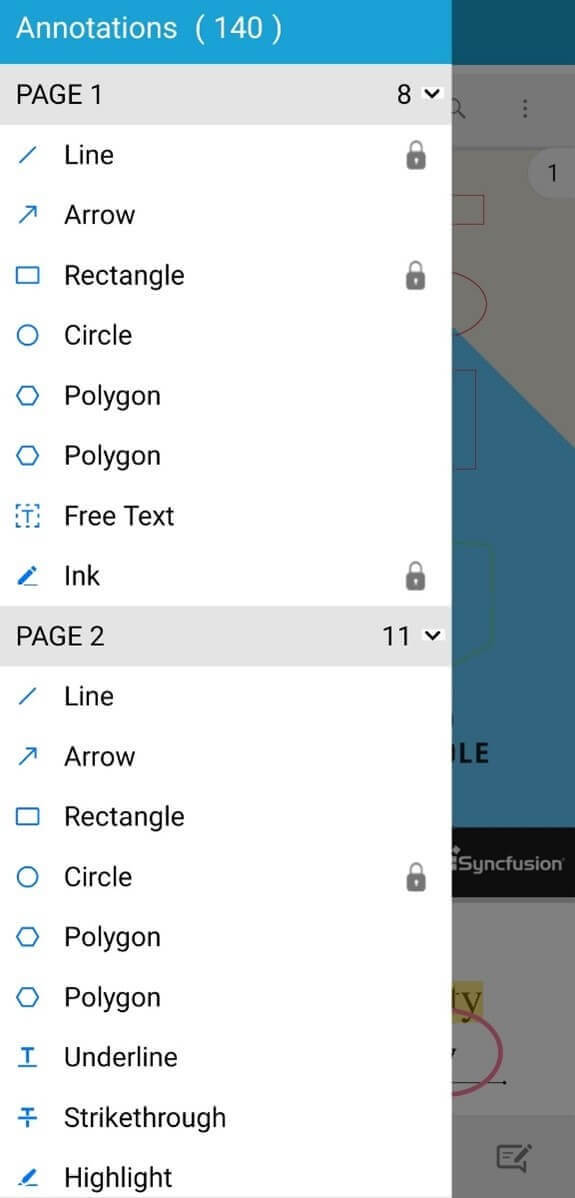
Displaying Locked Annotations in a List Using the Xamarin.Forms PDF Viewer
## Lock or unlock annotations dynamically
Use the **IsLocked** property in each annotation settings class to lock or unlock annotations dynamically.
In the following code example, we are going to add a button to the **mainContentView** grid in the ** MainPage.xaml** file. Then, we implement the logic to lock or unlock the annotations in the button clicked event handler (** lockOrUnlockButton_Clicked**) in the ** MainPage.xaml.cs** file.
To update the locked or unlocked status in the list view dynamically, clear and set the updated Annotations collection to the list view’s **ItemsSource** property in the ** hamburgerButton_Clicked** event handler.
Refer to the following code examples.
**MainPage.xaml**
```
< Height="auto"/>
```
**MainPage.xaml.cs**
```
private void hamburgerButton_Clicked(object sender, EventArgs e)
{
if (listView.ItemsSource != null)
listView.ItemsSource = null;
listView.DataSource.GroupDescriptors.Add(new GroupDescriptor()
{
PropertyName = "PageNumber",
KeySelector = (object obj) =>
{
var item = (obj as IAnnotation);
return "PAGE " + item.PageNumber;
},
});
listView.ItemsSource = pdfViewer.Annotations;
navigationDrawer.ToggleDrawer();
}
```
**#region Lock Or Unlock Annotations**
```
private void lockOrUnlockButton_Clicked(object sender, EventArgs e)
{
DetermineLockStatus(pdfViewer.SelectedAnnotation, true);
}
///
/// Determines the annotation's locked status and changes its status from locked to unlocked and vice versa.
///
/// Selected annotation
/// Indicates whether the annotation's locked status has to be changed or not
private void DetermineLockStatus(IAnnotation annotation, bool changeLockStatus)
{
bool isLocked = false;
if (annotation is ShapeAnnotation shape)
{
isLocked = shape.Settings.IsLocked;
if (changeLockStatus)
{
isLocked = shape.Settings.IsLocked = shape.Settings.IsLocked ? false : true;
}
}
else if (annotation is TextMarkupAnnotation textMarkup)
{
isLocked = textMarkup.Settings.IsLocked;
if (changeLockStatus)
{
isLocked = textMarkup.Settings.IsLocked = textMarkup.Settings.IsLocked ? false : true;
}
}
else if (annotation is FreeTextAnnotation freeText)
{
isLocked = freeText.Settings.IsLocked;
if (changeLockStatus)
{
isLocked = freeText.Settings.IsLocked = freeText.Settings.IsLocked ? false : true;
}
}
else if (annotation is InkAnnotation ink)
{
isLocked = ink.Settings.IsLocked;
if (changeLockStatus)
{
isLocked = ink.Settings.IsLocked = ink.Settings.IsLocked ? false : true;
}
}
lockOrUnlockImage.Source = isLocked ? ImageSource.FromResource("AnnotationsListView.Assets.Locked.png")
: ImageSource.FromResource("AnnotationsListView.Assets.Unlocked.png");
lockOrUnlockButton.Text = isLocked ? "UNLOCK" : "LOCK";
}
#endregion
```
These changes will result in displaying the lock status toolbar with the lock or unlock button at the bottom of the page, which can be used to lock or unlock annotations. Refer to the following GIF image.
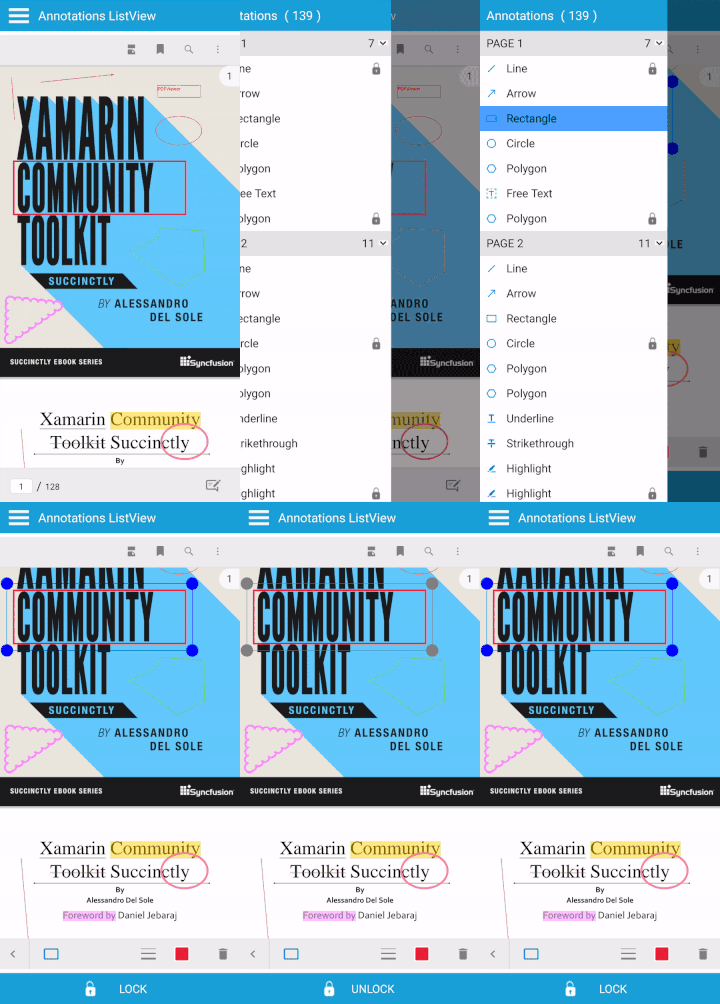
Dynamically Locking and Unlocking Annotations Using Xamarin.Forms PDF Viewer
**Note:** To learn more about the functionalities supported in the Xamarin.Forms PDF Viewer, refer to the [getting started documentation](https://help.syncfusion.com/xamarin/pdf-viewer/getting-started)
.
## GitHub reference
For more details, check out the complete code example on [locking and unlocking annotations using Syncfusion’s Xamarin.Forms PDF Viewer on GitHub](https://github.com/SyncfusionExamples/lock-or-unlock-annotations-in-xamarin)
.
## Conclusion
Thanks for reading! We have seen in this blog how to lock and unlock annotations using Syncfusion’s [Xamarin.Forms PDF Viewer](https://www.syncfusion.com/xamarin-ui-controls/xamarin-pdf-viewer)
control. Try this in your application and share your feedback in the comment section below!
If you aren’t a customer, you can try our 30-day [free trial](https://www.syncfusion.com/downloads)
to check out these features. Also, try our other Xamarin examples from this [GitHub](https://github.com/syncfusion/xamarin-demos)
location.
If you have any questions, you can contact us through our [support forum](https://www.syncfusion.com/forums)
, [support portal](https://support.syncfusion.com/)
, or [feedback portal](https://www.syncfusion.com/feedback/)
. We are always happy to assist you!
## Related blogs
- [View PDF Annotations as a List and Navigate Using Xamarin.Forms PDF Viewer](https://www.syncfusion.com/blogs/post/view-pdf-annotations-as-a-list-and-navigate-using-xamarin-forms-pdf-viewer.aspx)
- [Lazy Load JSON Data in Xamarin.Forms ListView: An Overview](https://www.syncfusion.com/blogs/post/lazy-load-json-data-in-xamarin-forms-listview-an-overview.aspx)
- [Replicating a CV Mobile App in Xamarin.Forms](https://www.syncfusion.com/blogs/post/replicating-a-cv-mobile-app-in-xamarin-forms.aspx)
- [View PDF Pages as Thumbnails Using Xamarin.Forms PDF Viewer](https://www.syncfusion.com/blogs/post/view-pdf-pages-as-thumbnails-using-xamarin-forms-pdf-viewer.aspx)