---
title: "How to Add and Customize Signature Blocks in PDFs Using JavaScript PDF Viewer"
published_at: "2025-12-08T15:42:08+00:00"
modified_at: "2026-01-09T12:46:16+00:00"
url: "https://www.syncfusion.com/blogs/post/javascript-pdf-signature"
excerpt: "Learn how to add and customize a JavaScript PDF signature block. A step-by-step guide for developers to implement secure and interactive signatures PDFs."
taxonomy_category:
- "Document Processing"
- "JavaScript"
- "PDF"
- "PDF viewer"
- "Signature Block"
- "Web Development"
taxonomy_post_tag:
- "JavaScript"
- "PDF Annotations"
- "PDF Signature"
- "Signature Block"
- "Web App Integration"
---
# How to Add and Customize Signature Blocks in PDFs Using JavaScript PDF Viewer
[Eshwari Balraj](https://www.syncfusion.com/blogs/author/eshwari-balraj)
**TL;DR:** Easily add and customize PDF signature blocks with JavaScript for secure, interactive signing. Learn how to create, style, and flatten signatures without plugins, making it ideal for modern web apps.
Still printing PDFs to sign them? That’s history. Today’s web apps demand fast, intuitive, and paper-free signing. Whether it’s a contract, approval form, or client agreement, a JavaScript PDF signature block is key for trust and authenticity.
With a Syncfusion® [JavaScript PDF Viewer](https://www.syncfusion.com/javascript-ui-controls/js-pdf-viewer)
, you can enable signature functionality without complex setups or third-party tools. Users can draw, type, or upload signatures directly in the browser, making the process seamless and secure.
In this blog, you’ll learn how to:
- Add handwritten signature blocks to PDFs.
- Customize signature appearance (color, opacity, thickness).
- Customize typed signatures with custom fonts.
- Configure signature dialog options for a tailored user experience.
**No plugins. No downloads.** Just a smooth, developer-friendly solution for modern web apps.
## What is a signature block?
A signature block is essentially the digital equivalent of signing your name with a pen—only faster and directly within your browser. It allows users to sign PDFs without the need for printing or scanning, making workflows completely paperless and more efficient.
In Syncfusion [JavaScript PDF Viewer](https://www.syncfusion.com/javascript-ui-controls/js-pdf-viewer)
, a handwritten signature block refers to a signature created by the user, which can be drawn, typed, or uploaded and then placed directly on the PDF. Unlike digital certificates or cryptographic signatures, this method closely mimics the natural act of signing, making it ideal for scenarios such as:
- Quick approvals
- Informal agreements
- Internal workflows where simplicity matters more than encryption
By incorporating signature blocks, digital documents gain a human touch, adding identity and trust while maintaining a seamless, browser-based experience.
## JavaScript PDF signature block made simple
Adding handwritten signatures to PDFs should be quick and intuitive, without complex setups or steep learning curves. With Syncfusion JavaScript PDF Viewer, you can easily implement signature blocks, giving users a seamless signing experience directly in the browser.
### Built-in signature tools
Everything you need is included: draw, type, or upload signatures and position them precisely on the document. There’s no need for third-party libraries or custom UI components. These built-in tools deliver a smooth, intuitive signing experience across all devices.
### Lightweight and developer-friendly
Syncfusion keeps it simple. With a minimal footprint and easy-to-use APIs, you can add e-signatures to PDFs without bloating your codebase or sacrificing performance.
### Framework-friendly
Integration is hassle-free. Whether you’re working with Angular, React, Vue, or plain JavaScript, Syncfusion fits right in—so you can focus on building features instead of fixing compatibility issues.
### No server-side setup required
Forget backend configurations or certificate management. Handwritten signatures are handled entirely on the client side, ensuring lightweight, secure, and fast implementations.
### Browser compatibility
Your users get a consistent experience across all major browsers, including **Chrome**, ** Firefox**, ** Safari**, and ** Edge**. No plugins, no extensions—just pure browser functionality for adding signature blocks to PDFs using JavaScript**.**
## Syncfusion PDF Viewer setup made easy
Before adding signatures, set up the **Syncfusion JavaScript PDF Viewer** in your project. You can do this via ** NPM** or ** CDN**.
### Step 1: Install the package via NPM
Start by installing the JavaScript PDF Viewer by running the following command:
```
npm install @syncfusion/ej2-pdfviewer
```
Then, import the necessary modules in your JavaScript or framework-based project:
```
import {
PdfViewer,
Toolbar,
Magnification,
Navigation,
Annotation
} from '@syncfusion/ej2-pdfviewer';
PdfViewer.Inject(
Toolbar,
Magnification,
Navigation,
Annotation
);
```
### Step 2: Quick Setup with CDN
For rapid prototyping or lightweight projects, you can use the CDN links to include Syncfusion’s JavaScript PDF Viewer directly in your HTML file, no installation required:
- [https://cdn.syncfusion.com/ej2/31.2.2/dist/ej2.min.js](https://cdn.syncfusion.com/ej2/31.2.2/dist/ej2.min.js)
- [https://cdn.syncfusion.com/ej2/31.2.2/material3.css](https://cdn.syncfusion.com/ej2/31.2.2/material3.css)
### Step 3: Initialize the JavaScript PDF Viewer
Next, create a container element in your HTML file to render the JavaScript PDF Viewer. Then, initialize the PDF Viewer inside that container:
```
```
Then, launch the source in a web browser to render the Essential JS 2 PDF Viewer component.
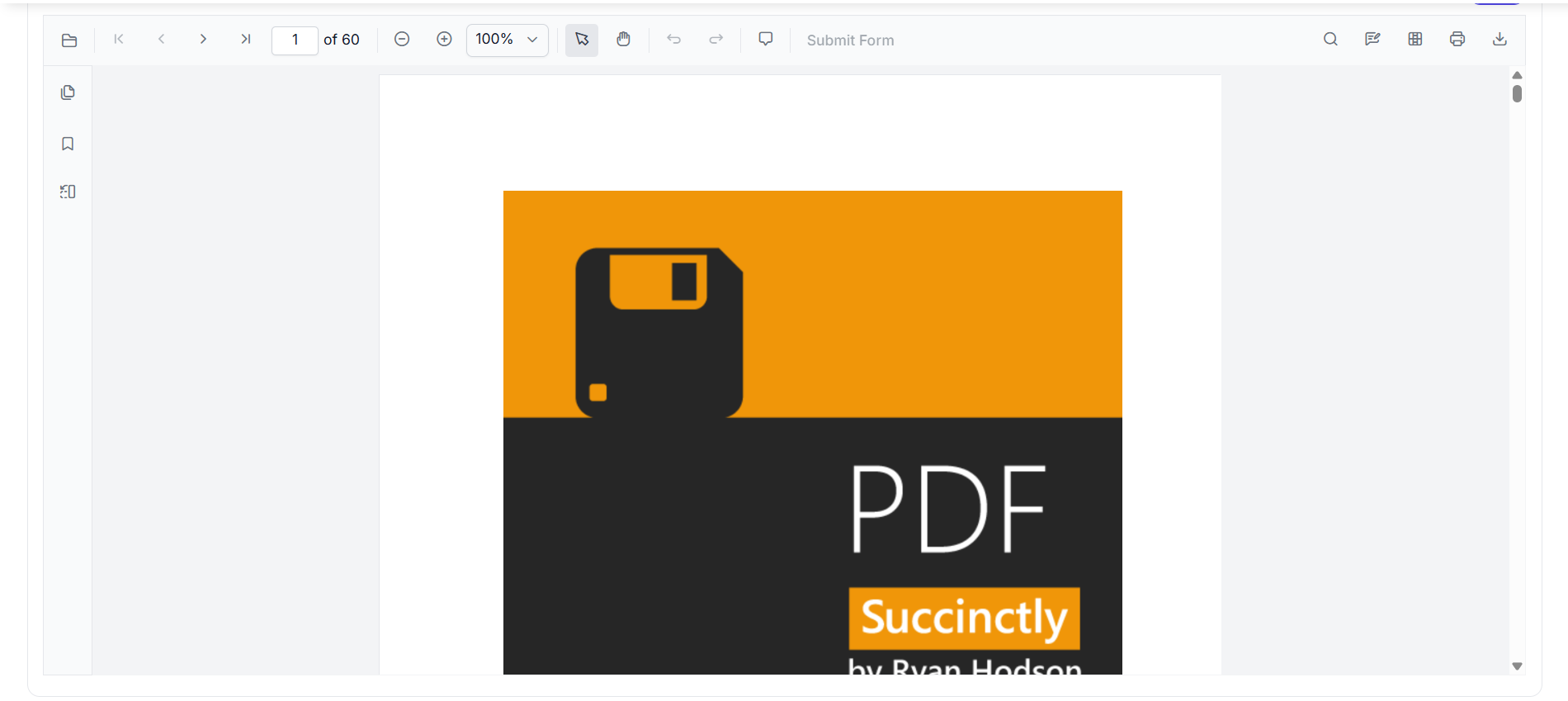
JavaScript PDF Viewer
**Note:** For more details about the Syncfusion JavaScript PDF Viewer, check out our official [documentation](https://help.syncfusion.com/document-processing/pdf/pdf-viewer/javascript-es5/getting-started)
.
## How to insert a signature block?
Adding a handwritten signature to a PDF with Syncfusion JavaScript PDF Viewer is simple and efficient, just like signing with a pen, but faster and more flexible. With the built-in UI, users can create and apply signatures directly without relying on extra tools or complex configurations.
### Step 1: Access the annotation toolbar
Adding a handwritten signature to your PDF is quick and intuitive using the Annotation Toolbar.
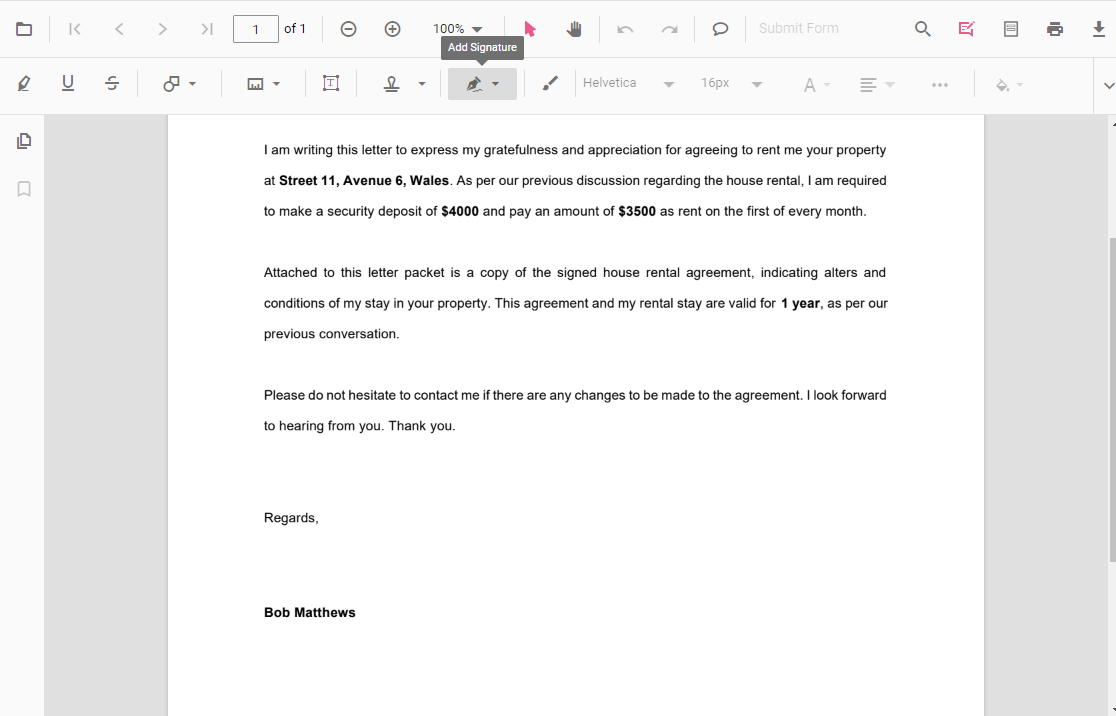
First, click the **Edit Annotation button** in the PDF Viewer’s primary toolbar. This will display the Annotation Toolbar below. Next, select ** Handwritten Signature** from the ** Annotation Toolbar** to open the signature panel.
### Step 2: Choose your signature style
The**Add Signature** panel offers three flexible options for creating a signature:
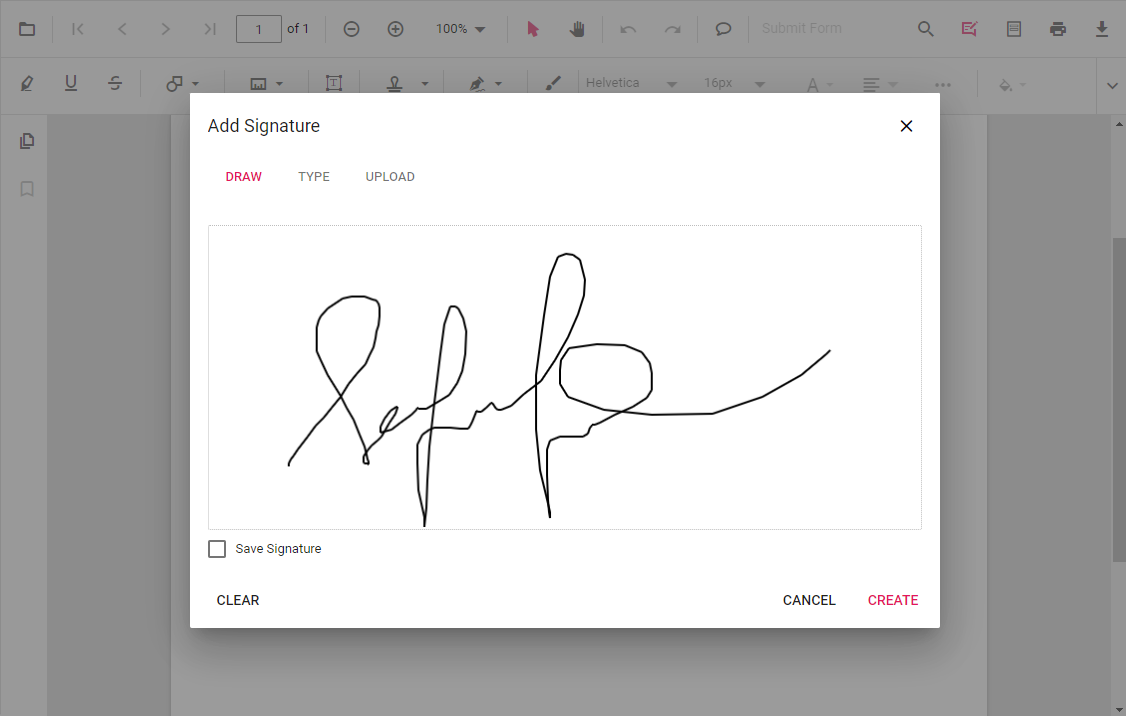
**1. Draw your signature**
- Create a natural, handwritten signature using your mouse, stylus, or touchscreen.
- Ideal for mimicking real-world signing.
- Includes **Clear** to reset and ** Save Signature** to reuse later.
- Click **Create** to place the signature on the PDF.
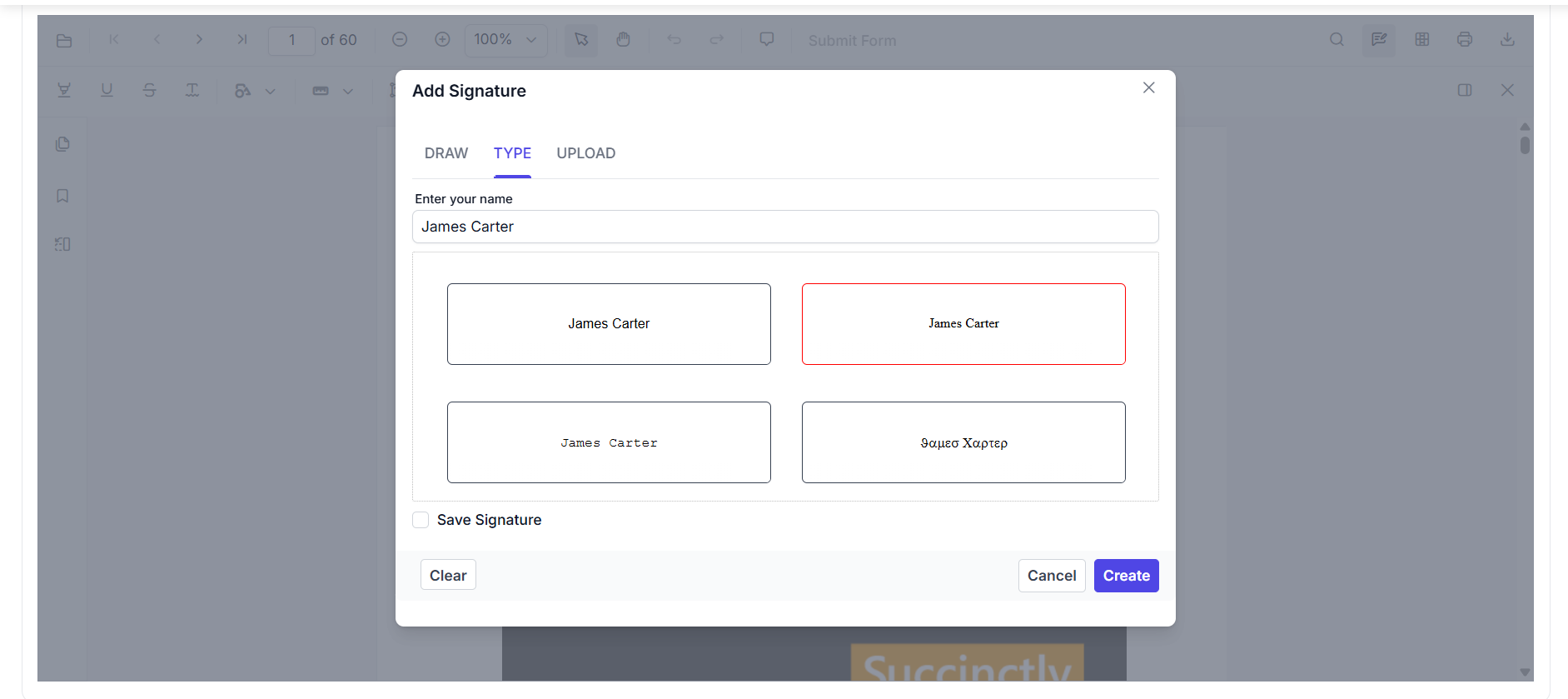
**2. Type your signature**
- Prefer a clean and professional look? Simply **type your name** and choose from multiple ** font styles**. Perfect for documents.
- No drawing required, just type and apply.
**3. Upload your signature**
- Already have a handwritten signature image? **Upload it directly** from your device.
- Perfect for scanned signatures or pre-designed graphics.
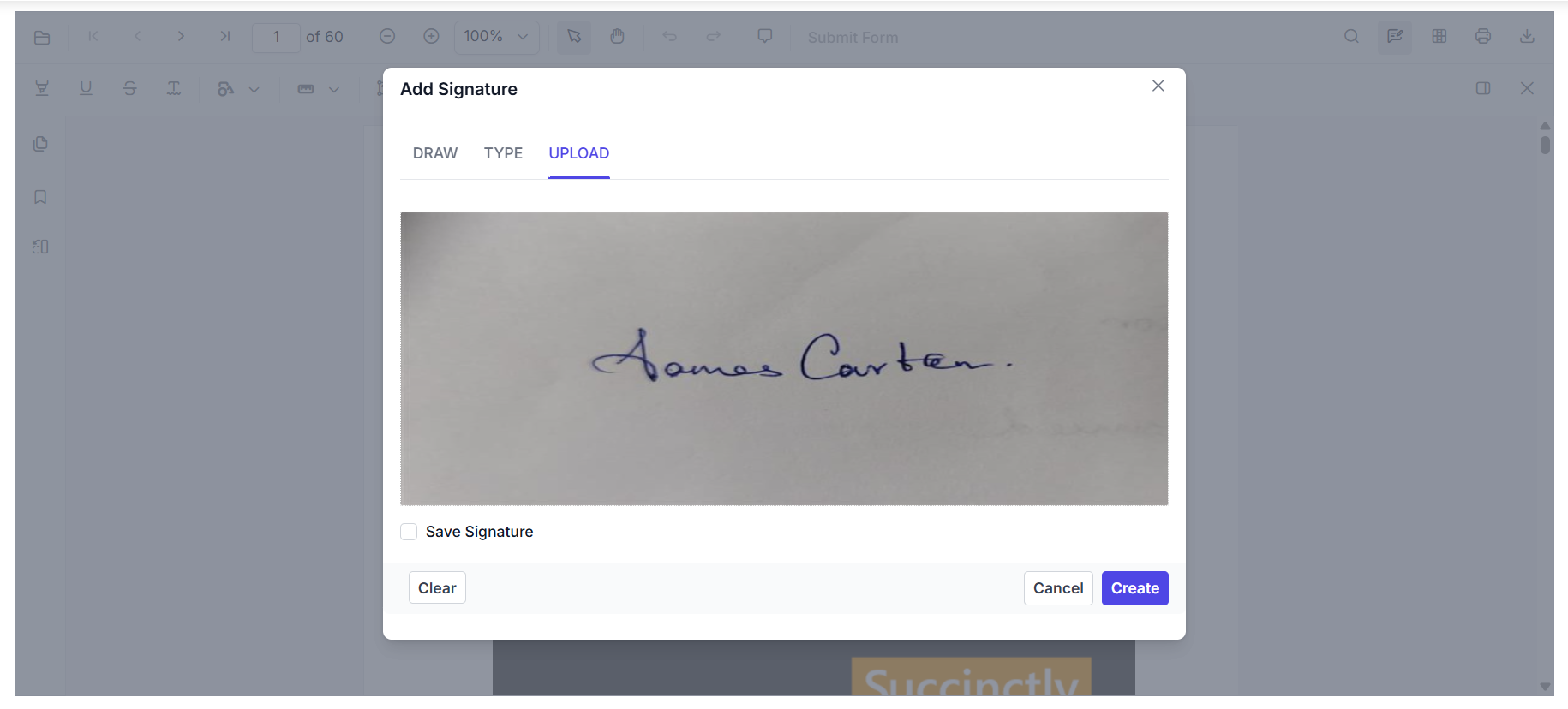
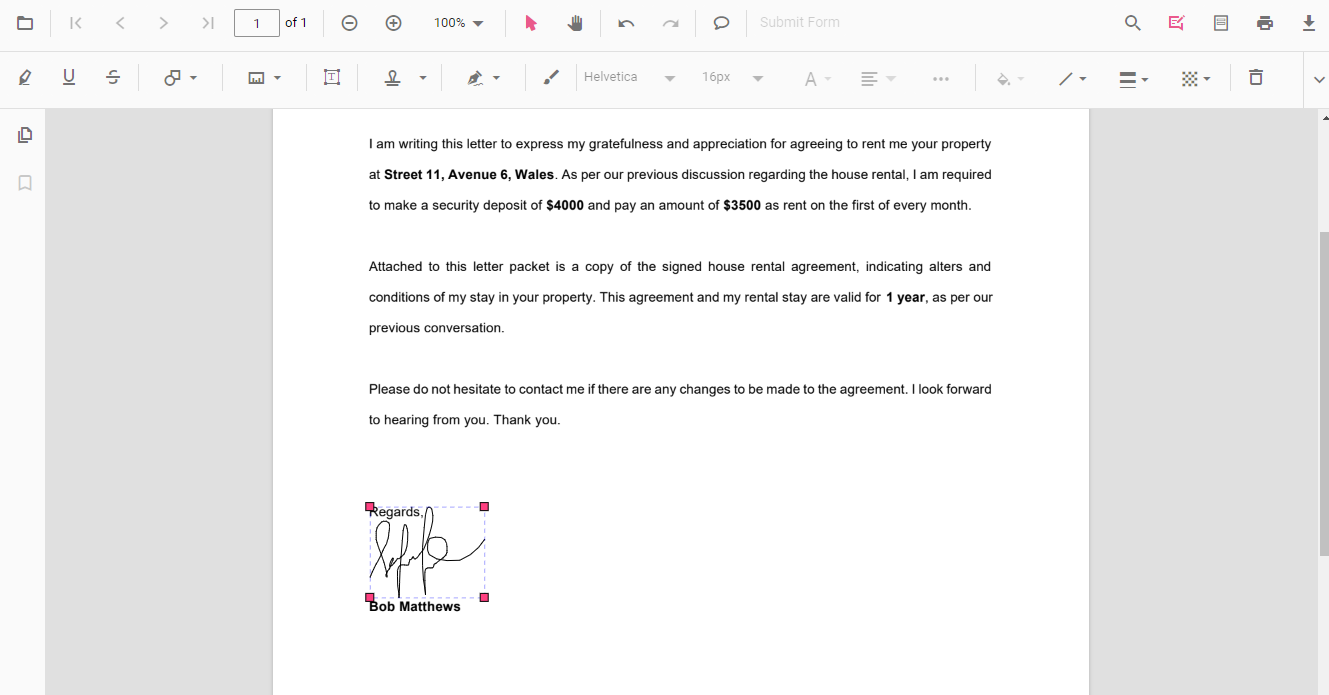
- Click **Create**, then move and position the signature where you want it.
**Note:** Want full control? Refer to our official [documentation](https://help.syncfusion.com/document-processing/pdf/pdf-viewer/javascript-es5/annotations/signature-annotation#add-a-handwritten-signature-programmatically-to-the-pdf-document)
to learn how to add a handwritten signature to PDFs programmatically with just a few lines of JavaScript, no clicks, just pure code magic!
## Enhance your PDF signing experience with custom signature blocks
Why settle for a plain signature when you can make it stand out? Syncfusion gives you full control over how your handwritten signature looks and behaves. When you **add a handwritten signature to PDF** documents, customization becomes part of the experience.
### Change signature color, opacity, and thickness
Make your signature pop or keep it subtle. With Syncfusion, you can easily customize:
- **Color**: Choose any shade to match your brand or preference.
- **Opacity**: Add transparency for a subtle effect.
- **Thickness**: Adjust the stroke for bold or fine signatures.
```
pdfViewer.handWrittenSignatureSettings= {
color: '#0078D7', // Brand blue
opacity: 0.8, // Slight transparency
thickness: 2 // Medium stroke
};
```
### Customize typed signature fonts
Typed signatures can look professional and personalized. Enable custom font styles beyond the default options, perfect for business documents.
Use the `typeSignatureFonts` property to define available fonts, as shown below:
```
pdfViewer.handWrittenSignatureSettings = {
typeSignatureFonts: ['Allura', 'Tangerine', 'Sacramento', 'Inspiration'],
};
```
### Customize signature dialog tabs
Control which signature creation options appear in the dialog using `signatureDialogSettings`. For example, you can show only **Draw** and ** Upload**, hiding ** Text** if not needed.
```
pdfViewer.handWrittenSignatureSettings = {
signatureDialogSettings: {
displayMode: ej.pdfviewer.DisplayMode.Draw | ej.pdfviewer.DisplayMode.Upload,
hideSaveSignature: false,
}
};
```
## Conclusion
Thank you for reading! Signing documents has changed, no more printing or scanning. With Syncfusion [JavaScript PDF Viewer](https://www.syncfusion.com/javascript-ui-controls/js-pdf-viewer)
, adding signatures to PDFs is simple, secure, and built for modern web apps.
From quick approvals to enterprise workflows, Syncfusion offers seamless integration with [Angular](https://www.syncfusion.com/angular-components)
, [React](https://www.syncfusion.com/react-components)
, [Vue](https://www.syncfusion.com/vue-components)
, or plain JavaScript. Developers can customize the signature color, opacity, fonts, and dialog options, and control which signature modes appear to create a personalized experience.
Deliver a natural, pen-on-screen signing process that feels professional and fully customizable. Try the JavaScript PDF Viewer [demo](https://ej2.syncfusion.com/javascript/demos/#/bootstrap5/pdfviewer/default.html)
or explore the [user guide](https://ej2.syncfusion.com/javascript/documentation/pdfviewer/getting-started)
to get started.
Syncfusion PDF Viewer isn’t just for Blazor, it’s also available for [WinForms](https://www.syncfusion.com/pdf-viewer-sdk/winforms-pdf-viewer)
, [WPF](https://www.syncfusion.com/pdf-viewer-sdk/wpf-pdf-viewer)
, [Angular](https://www.syncfusion.com/pdf-viewer-sdk/angular-pdf-viewer/annotate-pdf)
, [React](https://www.syncfusion.com/pdf-viewer-sdk/react-pdf-viewer)
, [Vue](https://www.syncfusion.com/pdf-viewer-sdk/vue-pdf-viewer)
, [ASP.NET MVC](https://www.syncfusion.com/pdf-viewer-sdk/asp-net-mvc-pdf-viewer)
, [ASP.NET Core](https://www.syncfusion.com/pdf-viewer-sdk/asp-net-core-pdf-viewer)
, [Blazor](https://www.syncfusion.com/pdf-viewer-sdk/blazor-pdf-viewer)
, [.NET MAUI](https://www.syncfusion.com/pdf-viewer-sdk/net-maui-pdf-viewer)
, and [Flutter](https://www.syncfusion.com/pdf-viewer-sdk/flutter-pdf-viewer)
.
Ready to try it out? Download it from the [License and Downloads](https://www.syncfusion.com/account/downloads)
page or start your free [30-day trial](https://www.syncfusion.com/downloads/)
today.
Need help? We’ve got you covered! Visit our [support forum](https://www.syncfusion.com/forums)
, [support portal](https://support.syncfusion.com/)
, or [feedback portal](https://www.syncfusion.com/feedback)
. We’re always happy to assist.
## Related Blogs
[How to Create Interactive Fillable PDF Forms Using JavaScript PDF Viewer](https://www.syncfusion.com/blogs/post/create-fillable-pdf-forms-javascript)
[How to Fix Memory Leaks in JavaScript PDF Viewers: Best Practices and Debugging Tips](https://www.syncfusion.com/blogs/post/memory-leaks-in-javascript-pdf-viewer)
[Top Security Risks in JavaScript PDF Viewers (and How to Fix Them)](https://www.syncfusion.com/blogs/post/security-vulnerabilities-javascript-pdf-viewer)
[How to Embed PDFs in HTML PDF Viewer: Native HTML Tags vs. Syncfusion JavaScript PDF Viewer](https://www.syncfusion.com/blogs/post/embed-pdfs-in-html-pdf-viewer)