---
title: "Introducing Multiselection Support in WPF Multi Column Dropdown"
published_at: "2020-01-07T12:00:38+00:00"
modified_at: "2025-04-23T09:35:26+00:00"
url: "https://www.syncfusion.com/blogs/post/introducing-multiselection-support-wpf-multi-column-dropdown"
excerpt: "We are happy to announce that we have added multiple selection support for the Multi Column Dropdown (multi column combobox) control in our 2019 Volume 4 release. This feature allows users to select more than one item at a time..."
taxonomy_category:
- "WPF"
taxonomy_post_tag:
- "multi selection combo box"
- "multiselect"
- "WPF"
---
# Introducing Multiselection Support in WPF Multi Column Dropdown
[Amal Raj Umapathy Selvam](https://www.syncfusion.com/blogs/author/amalraj-umapathy)

We are happy to announce that we have added multiple selection support for the [Multi Column Dropdown](https://www.syncfusion.com/wpf-ui-controls/multi-column-dropdown)
(multi column combobox) control in our [2019 Volume 4 release](https://www.syncfusion.com/forums/150001/essential-studio-2019-volume-4-release-v17-4-0-39-is-available-for-download)
. This feature allows users to select more than one item at a time from the drop-down.
This blog provides a walk-through of how to use the multiselection support in the Multi Column Dropdown control and its associated features.
## Getting started
The Multi Column Dropdown provides built-in check boxes that allow users to select more than one item in the drop-down with complete keyboard support. You can confirm the selection using OK and Cancel buttons, similar to Excel.
Multiselection for the Multi Column Dropdown can be enabled by setting the **[SelectionMode](https://help.syncfusion.com/cr/wpf/Syncfusion.UI.Xaml.Grid.SfMultiColumnDropDownControl.html#Syncfusion_UI_Xaml_Grid_SfMultiColumnDropDownControl_SelectionMode)** property as ** Multiple** like in the following code example. Also, you can easily get the selected items through the **[SelectedItems](https://help.syncfusion.com/cr/wpf/Syncfusion.UI.Xaml.Grid.SfMultiColumnDropDownControl.html#Syncfusion_UI_Xaml_Grid_SfMultiColumnDropDownControl_SelectedItems)** property.
```
```
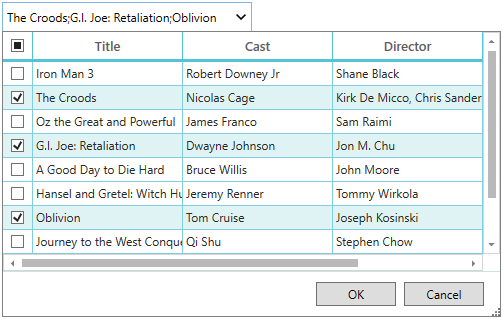
*Multiselection Support*
## Select all option
You can easily select all items in the drop-down with one click on the check box in the header.
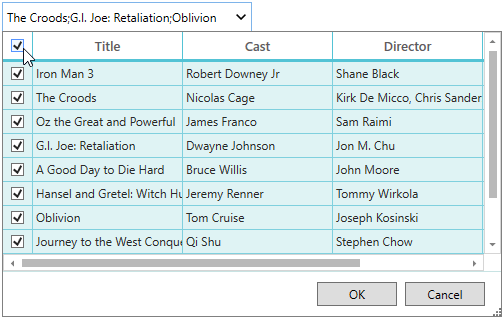
*Selecting All Items*
## Custom separator string
You can change the string used to separate the selected values in the editor by setting the **[SeparatorString](https://help.syncfusion.com/cr/wpf/Syncfusion.UI.Xaml.Grid.SfMultiColumnDropDownControl.html#Syncfusion_UI_Xaml_Grid_SfMultiColumnDropDownControl_SeparatorString)** property.
```
```

*Hyphen Used as Separator String*
## Header
The Multi Column Dropdown control provides support to load a custom view as a header using the **[HeaderTemplate](https://help.syncfusion.com/cr/wpf/Syncfusion.UI.Xaml.Grid.SfMultiColumnDropDownControl.html#Syncfusion_UI_Xaml_Grid_SfMultiColumnDropDownControl_HeaderTemplate)** property. This provides options to freeze the header at the top of the drop-down and helps users perform custom operations like search and filter in the drop-down itself.
```
```
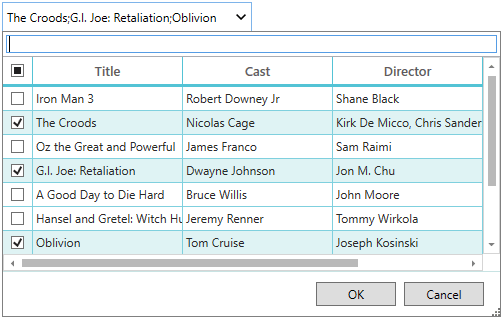
*Custom Header in Multi Column Dropdown*
## Conclusion
We hope you now have a clear idea about these features and how to get started with multiple row selection in the Multi Column Dropdown. To learn more about the Syncfusion [Multi Column Dropdown](https://www.syncfusion.com/wpf-ui-controls/multi-column-dropdown)
control, please refer to our [documentation](https://help.syncfusion.com/wpf/multi-column-dropdown/getting-started)
. You can also download our [2019 Volume 4 release](https://www.syncfusion.com/forums/150001/essential-studio-2019-volume-4-release-v17-4-0-39-is-available-for-download)
setup to check out these controls.
If you have any questions or require clarifications about these features, please let us know in the comments below. You can also contact us through our [support forum](https://www.syncfusion.com/forums)
, [Direct-Trac](https://www.syncfusion.com/support/directtrac/)
, or [Feedback Portal](https://www.syncfusion.com/feedback/wpf)
. We are happy to assist you!