---
title: "How to Use Icon Fonts in Xamarin.Forms App"
published_at: "2019-09-02T11:00:27+00:00"
modified_at: "2025-11-03T12:06:42+00:00"
url: "https://www.syncfusion.com/blogs/post/how-to-use-icon-fonts-in-xamarin-forms-app"
excerpt: "In a mobile app, the visual representation of elements and actions is generally delivered through images. Images convey the meaning or action of an element without language. Images are the most common and friendly way of representation in mobile apps...."
taxonomy_category:
- ".NET"
- "Desktop"
- "Metro Studio"
- "Xamarin"
taxonomy_post_tag:
- "FontIcon"
- "Metro Studio"
- "Xamarin"
---
# How to Use Icon Fonts in Xamarin.Forms App
[Selva Ganapathy Kathiresan](https://www.syncfusion.com/blogs/author/selva-ganapathy-k)

In a mobile app, the visual representation of elements and actions is generally delivered through images. Images convey the meaning or action of an element without language. Images are the most common and friendly way of representation in mobile apps.
Nowadays, images play a vital role in Xamarin.Forms apps. An image can represent navigation, illustration, and usability of an element present in an app. Images should fit within the screen area and be clearly visible. We encounter some complications when rendering an image across a variety of mobile screens based on their size and screen density. For these scenarios, icon fonts are the best solution to overcome image complications in Xamarin.Forms apps iconography.
## What is an Icon Font?
Icon Fonts are normal fonts that contain symbols and glyphs. These icons are vector icons, so they are very scalable and fit into any mobile device screen. You can add these icons like they’re normal text.
## **Why is it the best approach to use icon fonts instead of images?**
**Vector design:** Vector icons are scalable, meaning you don’t need different images with different sizes and different resolutions based on the device. Icon font scaling can be handled through the ** FontSize** property.
**Lightweight:** Generate hundreds of icons in a single font file that’s only a few KBs in size.
**Color customization:** Set icon color with the ** TextColor** property. Dynamic colors are not possible with static images
## Where can I get free Icon Fonts?
There are many icon font vendors on the market, but [Syncfusion Metro Studio](https://www.syncfusion.com/downloads/metrostudio)
is a favorite for users because it packs thousands of beautiful, royalty-free icons that can be used in commercial applications. Its icons can also be used in open-source projects and hosted on sites like GitHub, BitBucket, and more.
### Syncfusion Metro Studio
[Syncfusion Metro Studio](https://www.syncfusion.com/downloads/metrostudio)
is a collection of over 7,000 flat and wireframe icon templates. You can create custom icon font packages from selected sets of icons, and also [export the font package as a TTF file](https://help.syncfusion.com/metro-studio/export-icon-font)
. This TTF file can be integrated into your Xamarin.Forms app.
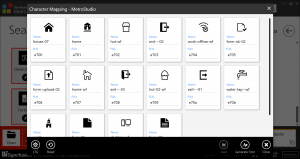
Create Icon Fonts using Metro Studio
## **How to integrate a font icon into a Xamarin.Forms application**
**Using Label**: Traditionally, ** Label** is used to display icon fonts in Xamarin.Forms apps. It respects all properties in a font just like normal text but loads symbols based on glyphs.
```
```

Icon Loaded by Xamarin.Forms Label
**Using Image**: From Xamarin.Forms 3 onward, ** Image** supports font icons by specifying the font icon data in a ** FontImageSource** object.
```
```

Icon Loaded by Xamarin.Forms Image
The following properties customize the appearance of an icon font inserted with **Label** or ** Image**:
- **Glyph**/** Text**: Unicode character value of the font icon, specified as a string.
- **Size**/** FontSize**: A double value that indicates the size, in device-independent units, of the rendered font icon.
- **FontFamily**: A string representing the font family to which the font icon belongs.
## **How to apply an icon font to a custom component**
If you create your own custom component, you need to implement a label or image within it to use icon fonts. If you use [Syncfusion Xamarin.Forms controls](https://www.syncfusion.com/xamarin-ui-controls)
however, you can immediately plug in icon fonts and use them anywhere. Let’s look at using icon fonts with some of Syncfusion’s Xamarin.Forms controls.
### Xamarin.Forms Tabbed View with font icons
The Tabbed View is a simple, intuitive interface for tab navigation in mobile applications. The Syncfusion Xamarin.Forms [Tabbed View](https://www.syncfusion.com/xamarin-ui-controls/xamarin-tabbed-view)
features [font icon support](https://help.syncfusion.com/xamarin/tabbed-view/display-type#how-to-set-and-customize-the-font-icons-appearance-in-the-header)
, which can be used as shown in the following code:
```
```
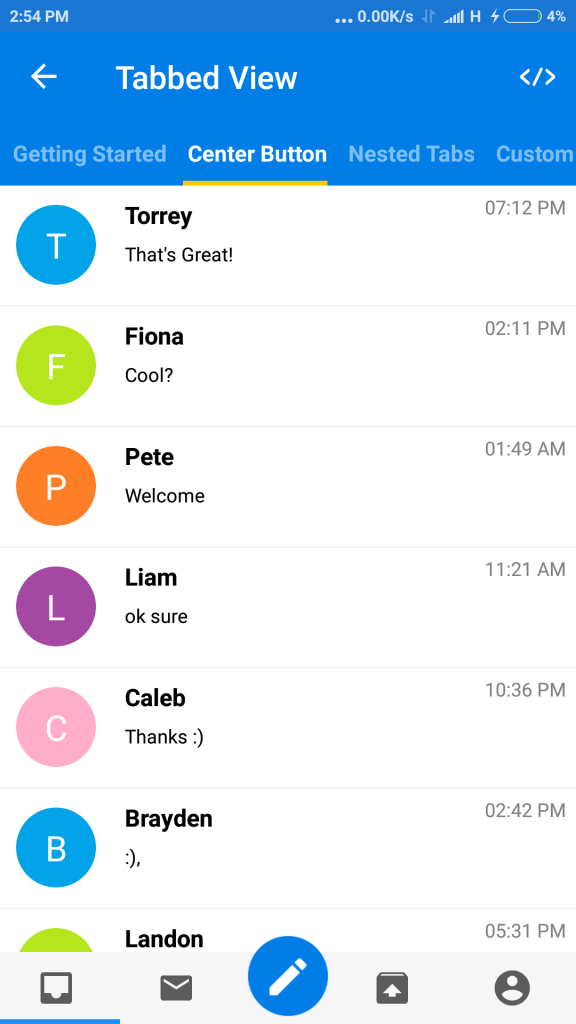
Xamarin.Forms Tabbed View with font icons
### Xamarin.Forms Button with font icons
The Xamarin.Forms [Button](https://www.syncfusion.com/xamarin-ui-controls/xamarin-button)
is a custom button control. You can add font icons to its content as follows:
```
```

Xamarin.Forms Button with font icons
### Xamarin.Forms Radial Menu with font icons
The Xamarin.Forms [Radial Menu](https://www.syncfusion.com/xamarin-ui-controls/xamarin-radial-menu)
control provides a hierarchy of menu items in a circular layout. You can [add a font icon to each radial menu item](https://help.syncfusion.com/xamarin/radial-menu/populating-items)
as follows:
```
```

Xamarin.Forms Radial Menu with font icons
### Xamarin Forms Segmented control with font icons
The Xamarin [Segmented control](https://www.syncfusion.com/xamarin-ui-controls/xamarin-segmented-control)
is a linear segment made up of multiple segments. You can [add font icons to each segment item](https://help.syncfusion.com/xamarin/sfsegmentedcontrol/display-mode#how-to-set-the-font-icons-using-ttf-file)
as follows:
```
```

Xamarin.Forms Segmented Control with font icons
### Xamarin Forms Navigation Drawer with font icons
The Xamarin.Forms [Navigation Drawer](https://www.syncfusion.com/xamarin-ui-controls/xamarin-navigation-drawer)
control is a sliding panel that can be used to hide content like menus from the visible area of the screen. Font icons can be added to each menu item as shown in the following figure:

Xamarin.Forms Navigation Drawer with font icons
### Xamarin.Forms Switch Control with font icons
From Xamarin.Forms 3 onwards, **Image** supports font icons by specifying the font icon data in a ** FontImageSource** object. Here, our Xamarin.Forms [Switch](https://www.syncfusion.com/xamarin-ui-controls/xamarin-switch)
control, which has ImageSource API, supports font icons.

Xamarin.Forms Switch with the font icon
```
```
**Note:** Similarly, all Syncfusion controls that expose ImageSource type API will support icon font.
## Conclusion
In this blog post, we have walked through the benefits of icon fonts and how easy it is to import an icon font in Syncfusion [Xamarin.Forms controls](https://www.syncfusion.com/xamarin-ui-controls/)
. We invite you to see all our [Xamarin.Forms controls](https://www.syncfusion.com/xamarin-ui-controls/)
in action by [downloading our free evaluation](https://www.syncfusion.com/downloads)
. You can also explore our samples available on [Google Play](https://play.google.com/store/apps/details?id=com.syncfusion.samplebrowser)
and the [Microsoft Store](https://www.microsoft.com/en-us/p/syncfusion-essential-studio-for-xamarin/9nn069tldzf4)
. Learn about the controls’ advanced features in [our documentation](https://help.syncfusion.com/xamarin/)
.
If you have any questions or require clarifications about these controls, please let us know in the comments below. You can also contact us through our [support forum](https://www.syncfusion.com/forums)
, [support portal](https://support.syncfusion.com)
, or [feedback portal](https://www.syncfusion.com/feedback/xamarin-forms)
. We are happy to assist you!
## Recommended resources
- [Xamarin.Forms Succinctly](https://www.syncfusion.com/succinctly-free-ebooks/xamarin-forms-succinctly)
- [How to Use Icon Fonts in WinForms Applications](https://www.syncfusion.com/blogs/post/how-to-use-icon-fonts-in-winforms-windows-forms-applications.aspx)