---
title: "How to Display Alerts for Appointments in WPF Scheduler"
published_at: "2021-02-03T10:33:52+00:00"
modified_at: "2025-04-22T12:40:36+00:00"
url: "https://www.syncfusion.com/blogs/post/how-to-display-alerts-for-appointments-in-wpf-scheduler"
excerpt: "In our busy lives, it is difficult to remember all our upcoming events and appointments. We need an assistant to remind us about the appointments in advance, so we can make sure we’re ready; to confirm the attendance of other..."
taxonomy_category:
- "Desktop"
- "Scheduler"
- "Syncfusion"
- "Tips and Tricks"
- "User interface"
- "What's new"
- "WPF"
taxonomy_post_tag:
- "appointment"
- "notifications"
- "Scheduler"
- "UI controls"
- "WPF"
---
# How to Display Alerts for Appointments in WPF Scheduler
[Jeyasri Murugan](https://www.syncfusion.com/blogs/author/jeyasrim)
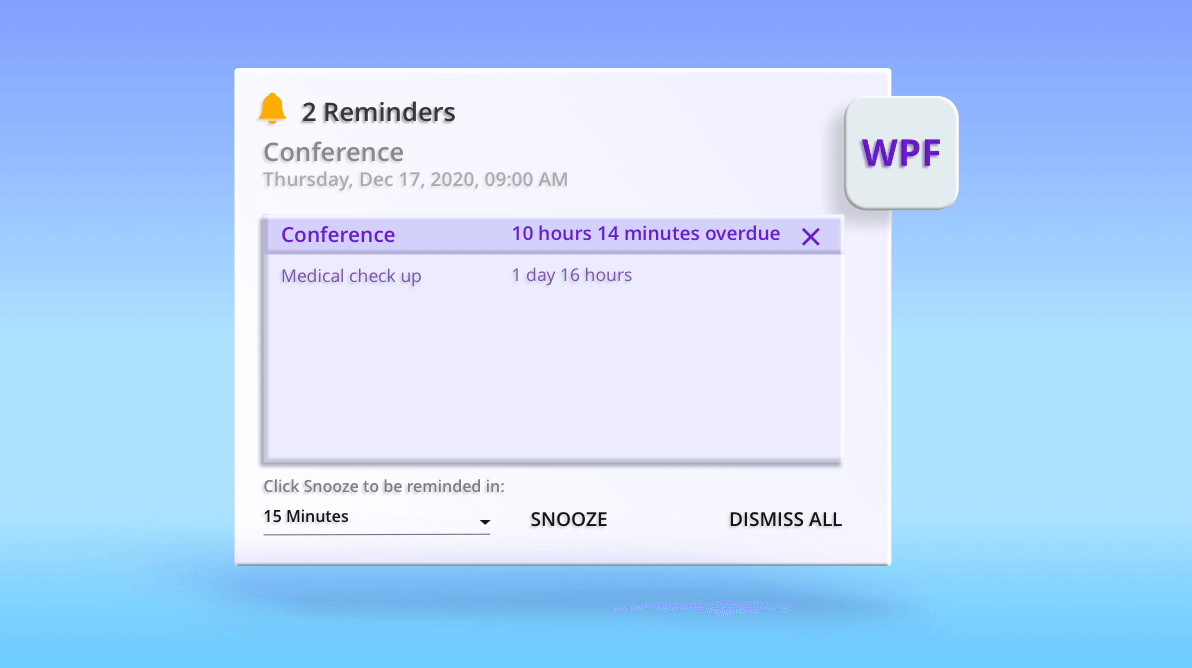
In our busy lives, it is difficult to remember all our upcoming events and appointments. We need an assistant to remind us about the appointments in advance, so we can make sure we’re ready; to confirm the attendance of other participants; and to avoid last-minute cancellations.
Here is one such versatile assistant for you!
The [Syncfusion WPF Scheduler control](https://www.syncfusion.com/wpf-ui-controls/scheduler)
comes with appointment reminder support in the [2020 Volume 4 release](https://www.syncfusion.com/forums/160733/essential-studio-2020-volume-4-release-v18-4-0-30-is-available-for-download)
. This will alert you to appointments via reminders with complete data-binding support. You can also send reminder messages through SMS or email with the help of external packages to keep track of appointments.
In this blog, we will see how to add and bind appointment reminders and send message alerts to Microsoft Outlook email.
**Note:** If you are new to our WPF Scheduler control, please read the getting started article in the Scheduler [documentation](https://help.syncfusion.com/wpf/scheduler/getting-started)
before proceeding.
Let’s get started!
## Adding and binding appointment reminders
Enable appointment reminder notifications in the Syncfusion WPF Scheduler control and send them as emails through Outlook:
### Step 1: Enable reminders
First, we need to enable the reminder window alert by setting the [EnableReminder](https://help.syncfusion.com/cr/wpf/Syncfusion.UI.Xaml.Scheduler.SfScheduler.html#Syncfusion_UI_Xaml_Scheduler_SfScheduler_EnableReminder)
property of the Scheduler. By default, its value is true, but it will be set to false when you have enabled **do not disturb**.
Refer to the following code.
```
```
### Step 2: Add a reminder alert for an appointment
It’s very simple to add a reminder to appointments in the WPF Scheduler control. For that, you need to create an instance of the [SchedulerReminder](https://help.syncfusion.com/cr/wpf/Syncfusion.UI.Xaml.Scheduler.SchedulerReminder.html)
class with the [ReminderTimeInterval](https://help.syncfusion.com/cr/wpf/Syncfusion.UI.Xaml.Scheduler.SchedulerReminder.html#Syncfusion_UI_Xaml_Scheduler_SchedulerReminder_ReminderTimeInterval)
property to specify when to display the reminder alert. Then, it should be bound to the [Reminders](https://help.syncfusion.com/cr/wpf/Syncfusion.UI.Xaml.Scheduler.ScheduleAppointment.html#Syncfusion_UI_Xaml_Scheduler_ScheduleAppointment_Reminders)
property in the [ScheduleAppointment](https://help.syncfusion.com/cr/wpf/Syncfusion.UI.Xaml.Scheduler.ScheduleAppointment.html)
class to display alert notifications.
The following code example illustrates how to create reminders in a WPF Scheduler appointment.
```
var appointment = new ScheduleAppointment()
{
StartTime = DateTime.Now.Date.AddDays(1).AddHours(10),
EndTime = DateTime.Now.Date.AddDays(1).AddHours(11),
AppointmentBackground = new SolidColorBrush(Color.FromArgb(0XFF, 0XA2, 0XC1, 0X39)),
Subject = "Business Meeting",
Reminders = new ObservableCollection
{
new SchedulerReminder { ReminderTimeInterval = new TimeSpan(15, 0, 0)},
}
};
```
Refer to the following screenshot, which shows a reminder for a business meeting.
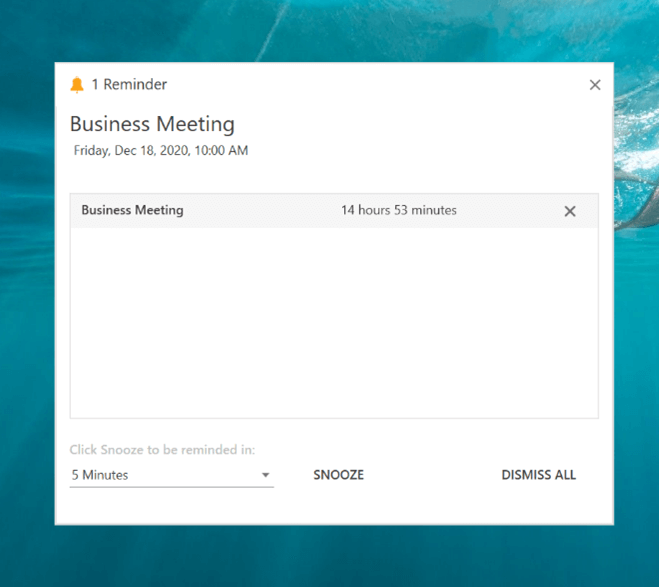
Reminder notification
### Step 3: Create business objects for reminders
The Scheduler provides complete data-binding support. It also allows you to create custom data objects for the reminders and bind them to the appointments in the Scheduler control using the mapping technique.
Now, let’s create custom data objects for the Reminders class with the required field **TimeInterval** and ** Dismissed**properties. Then, they should be mapped to the equivalent properties in the [ReminderMapping](https://help.syncfusion.com/cr/wpf/Syncfusion.UI.Xaml.Scheduler.AppointmentMapping.html#Syncfusion_UI_Xaml_Scheduler_AppointmentMapping_ReminderMapping)
API in the [AppointmentMapping](https://help.syncfusion.com/cr/wpf/Syncfusion.UI.Xaml.Scheduler.AppointmentMapping.html)
class.
You can also create the Reminders property in the custom data objects for appointments. It can be mapped to the relevant property type in the **AppointmentMapping** property of the Scheduler class.
**Note:** Refer to the following link to learn more about the custom data objects for appointments.
[https://help.syncfusion.com/wpf/scheduler/appointments#scheduler-item-source-and-mapping](https://help.syncfusion.com/wpf/scheduler/appointments#scheduler-item-source-and-mapping)
The following code examples illustrate how to create custom reminders and appointments.
```
///
/// Represents custom data properties for reminder.
///
public class Reminder
{
public bool Dismissed { get; set; }
public TimeSpan TimeInterval { get; set; }
}
```
```
///
/// Represents custom data properties for appointment.
///
public class Event
{
public DateTime From { get; set; }
public DateTime To { get; set; }
public bool IsAllDay { get; set; }
public string EventName { get; set; }
public string Notes { get; set; }
public Brush Color { get; set; }
public object RecurrenceId { get; set; }
public object Id { get; set; }
public string RecurrenceRule { get; set; }
public ObservableCollection RecurrenceExceptions { get; set; }
public ObservableCollection Reminders { get; set; }
}
```
This is how you map a custom reminder and appointment to the WPF Scheduler control.
```
```
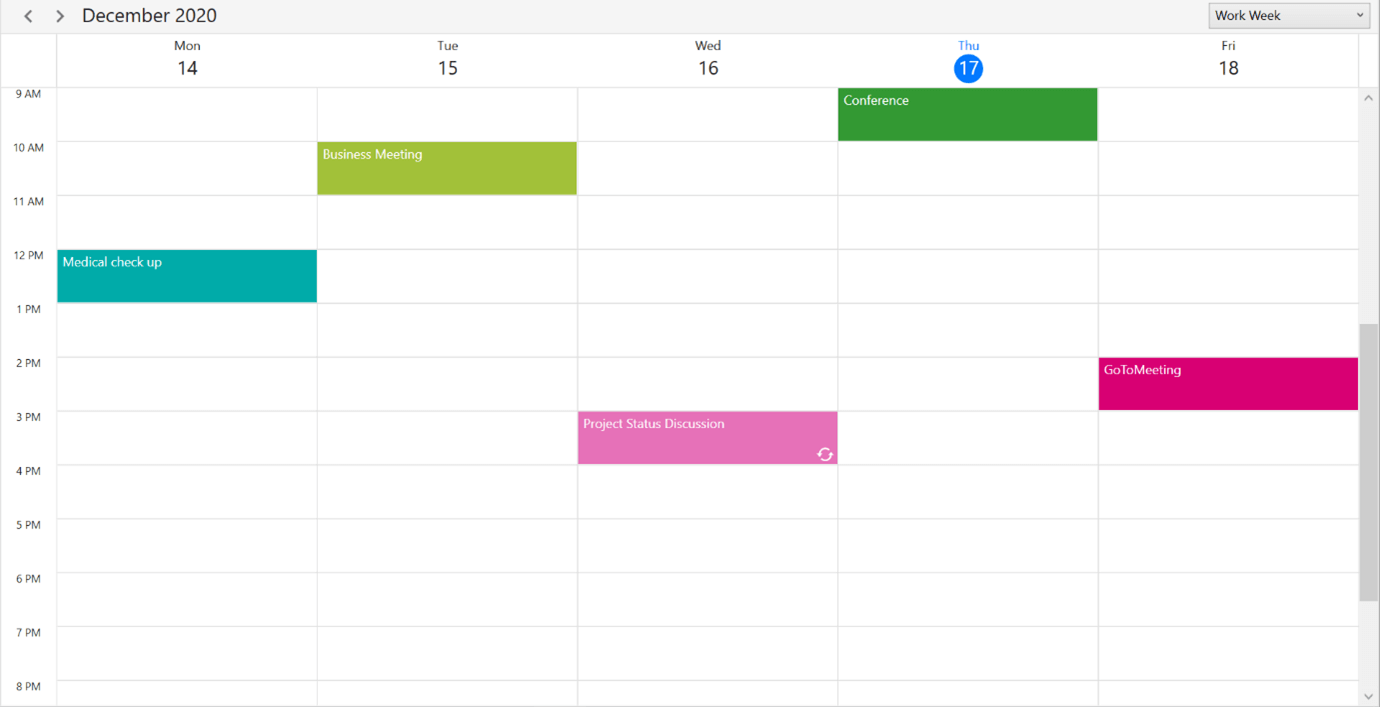
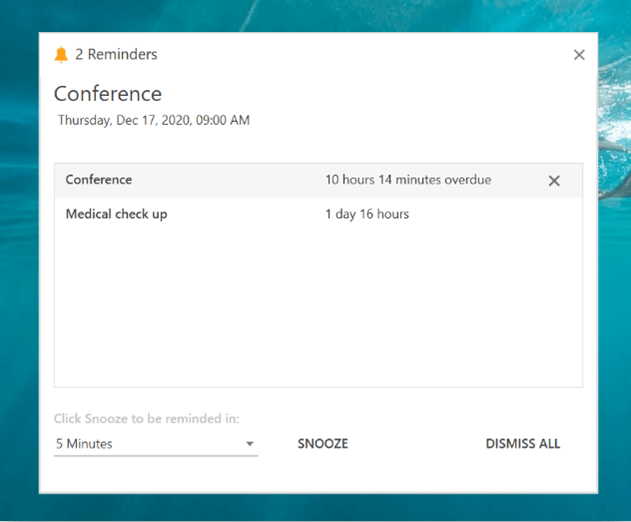
Refer to the following screenshots.
### Step 4: Sending a reminder alert as an email to Outlook
You can also send reminder messages through email to Microsoft Outlook with the help of the [Microsoft.Office.Interop.Outlook](https://docs.microsoft.com/en-us/dotnet/api/microsoft.office.interop.outlook?view=outlook-pia)
package and [ReminderAlertOpening](https://help.syncfusion.com/cr/wpf/Syncfusion.UI.Xaml.Scheduler.SfScheduler.html#Syncfusion_UI_Xaml_Scheduler_SfScheduler_ReminderAlertOpening)
event in the Scheduler to keep track of appointments. Then, the Scheduler notifies you of appointments with the **ReminderAlertOpening** event appearing in the reminder window.
To set this up, create a [MailItem](https://docs.microsoft.com/en-us/office/vba/api/outlook.mailitem)
object using **Microsoft.Office.Interop.Outlook** and send a reminder alert email to the corresponding email ID with the appointment subject and description.
**Note:** You can refer to the following link to learn more about the ** MailItem**.
[https://docs.microsoft.com/en-us/visualstudio/vsto/working-with-mail-items?view=vs-2019](https://docs.microsoft.com/en-us/visualstudio/vsto/working-with-mail-items?view=vs-2019)
The following code example illustrates how to create a **MailItem** and send an email to Outlook.
```
this.AssociatedObject.ReminderAlertOpening += OnReminderAlertOpening;
…
private async void OnReminderAlertOpening(object sender, ReminderAlertOpeningEventArgs e)
{
await Task.Run(() =>
{
foreach (var reminder in e.Reminders)
{
Outlook.Application application = new Outlook.Application();
Outlook.MailItem eMail = (Outlook.MailItem)application.CreateItem(Outlook.OlItemType.olMailItem);
eMail.Subject = reminder.Appointment.Subject + " reminder alert";
//Update email ID to get reminder alert.
eMail.To = "[email protected]";
eMail.Body = reminder.Appointment.Subject + " - " + reminder.Appointment.ActualStartTime.ToString();
eMail.Importance = Outlook.OlImportance.olImportanceNormal;
eMail.Send();
}
});
}
```
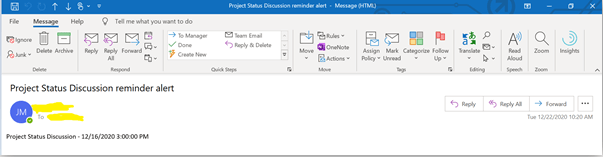
Reminder notification email sent to Outlook
## Conclusion
In this blog post, we have learned how to add and bind appointment reminders and send message alerts through email to Microsoft Outlook using the appointment reminder feature in the [Syncfusion WPF Scheduler control](https://www.syncfusion.com/wpf-ui-controls/scheduler)
. This feature is available in the [Essential Studio® 2020 Volume 4 release](https://www.syncfusion.com/forums/160733/essential-studio-2020-volume-4-release-v18-4-0-30-is-available-for-download)
.
So, use this wonderful feature in your application to track your appointments!
If you are an existing Syncfusion user, please download the latest version from the [License and Downloads](https://www.syncfusion.com/account/downloads)
page and try the new features for yourself. Also, our NuGet packages are available on [NuGet.org](https://www.nuget.org/)
. Our demos are now available in [Microsoft Store](https://www.microsoft.com/en-us/p/syncfusion-wpf-controls-examples/9n99kdhrff6g)
, and .NET Core demos are available in the [App Center](https://install.appcenter.ms/orgs/syncfusion-demos/apps/wpf-demos/distribution_groups/release)
.
If you aren’t a customer yet, you can try our 30-day [free trial](https://www.syncfusion.com/downloads)
to check out these features. Also, try our other samples from this [GitHub](https://github.com/SyncfusionExamples/appointment-reminders-blog-wpf-scheduler)
location.
Feel free to share your feedback or questions in the comments section below. You can also contact us through our [support forums](https://www.syncfusion.com/forums)
, [Direct-Trac](https://www.syncfusion.com/support/directtrac/incidents)
, or [feedback portal](https://www.syncfusion.com/feedback/)
. We are always happy to assist you!