---
title: "Easily Export WinUI DataGrid to Excel"
published_at: "2024-04-29T15:38:14+00:00"
modified_at: "2026-06-23T08:45:08+00:00"
url: "https://www.syncfusion.com/blogs/post/export-winui-datagrid-to-excel"
excerpt: "This blog explains the various custom export to Excel options available in the Syncfusion WinUI DataGrid control with code examples."
taxonomy_category:
- "DataGrid"
- "Desktop"
- "Excel"
- "Export"
- "Syncfusion"
- "WinUI"
taxonomy_post_tag:
- "DataGrid"
- "desktop"
- "Excel"
- "Export data to Excel in C#"
- "WinUI"
---
# Easily Export WinUI DataGrid to Excel
[Amal Raj Umapathy Selvam](https://www.syncfusion.com/blogs/author/amalraj-umapathy)

**TL;DR:** Explore how to export data from the Syncfusion WinUI DataGrid to an Excel document. We covered topics, such as custom export options, styling exported rows, and exporting only selected rows.
The Syncfusion [WinUI DataGrid](https://www.syncfusion.com/winui-controls/datagrid)
is designed to display and manipulate tabular data efficiently. Its comprehensive feature set includes data binding, editing, sorting, filtering, and grouping. It is also optimized for handling millions of records and can easily manage high-frequency, real-time updates.
In this blog, we’ll explore how to export WinUI DataGrid data to an Excel file with code examples.
**Note:** Before proceeding, refer to the getting started with [WinUI DataGrid documentation](https://help.syncfusion.com/winui/datagrid/getting-started)
.
## Exporting WinUI DataGrid to Excel
To export the WinUI DataGrid’s data to an Excel document, we should add the following NuGet packages in our app:
1. [Syncfusion.Grid.WinUI](https://www.nuget.org/packages/Syncfusion.Grid.WinUI) : To add the WinUI DataGrid control.
2. [Syncfusion.GridExport.WinUI](https://www.nuget.org/packages/Syncfusion.GridExport.WinUI) : To export the DataGrid to Excel files.
Now, initialize the WinUI DataGrid control on your XAML page.
```
```
All the methods for Excel exporting are available in the [DataGridToExcelConverter](https://help.syncfusion.com/cr/winui/Syncfusion.UI.Xaml.DataGrid.Export.DataGridToExcelConverter.html)
class. By using the [ExportToExcel](https://help.syncfusion.com/cr/winui/Syncfusion.UI.Xaml.DataGrid.Export.DataGridToExcelConverter.html#Syncfusion_UI_Xaml_DataGrid_Export_DataGridToExcelConverter_ExportToExcel_Syncfusion_UI_Xaml_DataGrid_SfDataGrid_Syncfusion_UI_Xaml_Data_ICollectionViewAdv_Syncfusion_UI_Xaml_DataGrid_Export_DataGridExcelExportOptions_)
method, you can export the DataGrid content to an Excel workbook and save it as an Excel file. The [DataGridExcelExportExtensions](https://help.syncfusion.com/cr/winui/Syncfusion.UI.Xaml.DataGrid.Export.DataGridExcelExportExtensions.html)
class provides the [extension methods](https://help.syncfusion.com/cr/winui/Syncfusion.UI.Xaml.DataGrid.Export.DataGridExcelExportExtensions.html#methods)
for exporting the data from the DataGrid.
Refer to the following code example to export the data to an Excel file.
```
private void OnExportToExcelClick(object sender, RoutedEventArgs e)
{
var options = new DataGridExcelExportOptions();
options.ExcelVersion = ExcelVersion.Excel2013;
var excelEngine = sfDataGrid.ExportToExcel(sfDataGrid.View, options);
var workBook = excelEngine.Excel.Workbooks[0];
MemoryStream outputStream = new MemoryStream();
workBook.SaveAs(outputStream);
SaveExcelWorkbook(outputStream, "OrderDetails");
}
async void SaveExcelWorkbook(MemoryStream stream, string filename)
{
StorageFile stFile;
if (!(Windows.Foundation.Metadata.ApiInformation.IsTypePresent("Windows.Phone.UI.Input.HardwareButtons")))
{
FileSavePicker savePicker = new FileSavePicker();
savePicker.DefaultFileExtension = ".xlsx";
savePicker.SuggestedFileName = filename;
savePicker.FileTypeChoices.Add("Excel Documents", new List() { ".xlsx" });
var hwnd = System.Diagnostics.Process.GetCurrentProcess().MainWindowHandle;
WinRT.Interop.InitializeWithWindow.Initialize(savePicker, hwnd);
stFile = await savePicker.PickSaveFileAsync();
}
else
{
StorageFolder local = Windows.Storage.ApplicationData.Current.LocalFolder;
stFile = await local.CreateFileAsync(filename, CreationCollisionOption.ReplaceExisting);
}
if (stFile != null)
{
using (IRandomAccessStream zipStream = await stFile.OpenAsync(FileAccessMode.ReadWrite))
{
//Write compressed data from memory to file.
using (Stream outstream = zipStream.AsStreamForWrite())
{
byte[] buffer = stream.ToArray();
outstream.Write(buffer, 0, buffer.Length);
outstream.Flush();
}
}
//Launch the saved Excel file.
await Windows.System.Launcher.LaunchFileAsync(stFile);
}
}
```
Refer to the following image.
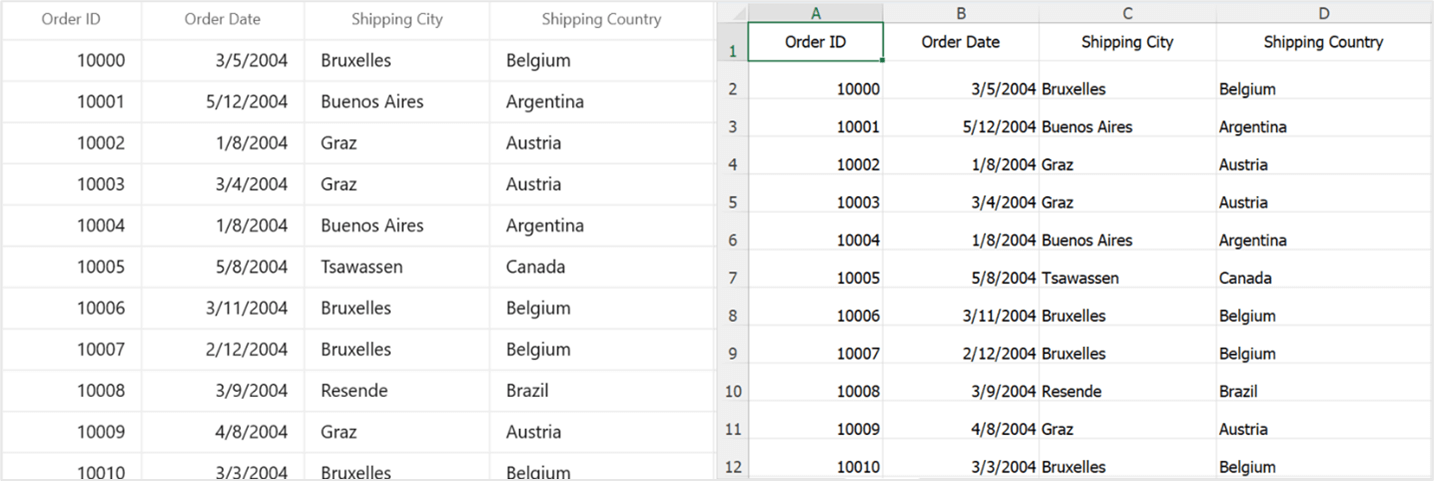
Exporting WinUI DataGrid’s data to Excel
Simplify WinUI DataGrid Development
Spend less time building grid features from scratch. Syncfusion WinUI DataGrid includes ready-to-use support for data binding, paging, sorting, filtering, editing, and exporting.
[Start Building Today](https://www.syncfusion.com/winui-controls/datagrid)
## Customizing the Excel exporting
We can also customize the export operation using the [DataGridExcelExportOptions](https://help.syncfusion.com/cr/winui/Syncfusion.UI.Xaml.DataGrid.Export.DataGridExcelExportOptions.html)
. Let’s see how to do so!
### Export the DataGrid’s stacked headers to Excel
By default, only the column headers of the WinUI DataGrid will be exported. However, if you want to include the stacked headers in the exported Excel file, you can enable the [CanExportStackedHeaders](https://help.syncfusion.com/cr/winui/Syncfusion.UI.Xaml.DataGrid.Export.DataGridExcelExportOptions.html#Syncfusion_UI_Xaml_DataGrid_Export_DataGridExcelExportOptions_CanExportStackedHeaders)
property while exporting.
```
private void OnExportDataGridClick(object sender, RoutedEventArgs e)
{
var options = new DataGridExcelExportOptions();
options.ExcelVersion = ExcelVersion.Excel2013;
options.CanExportStackedHeaders = true;
var excelEngine = sfDataGrid.ExportToExcel(sfDataGrid.View, options);
var workBook = excelEngine.Excel.Workbooks[0];
MemoryStream outputStream = new MemoryStream();
workBook.SaveAs(outputStream);
SaveExcelWorkbook(outputStream, "OrderDetails");
}
```
Refer to the following image.
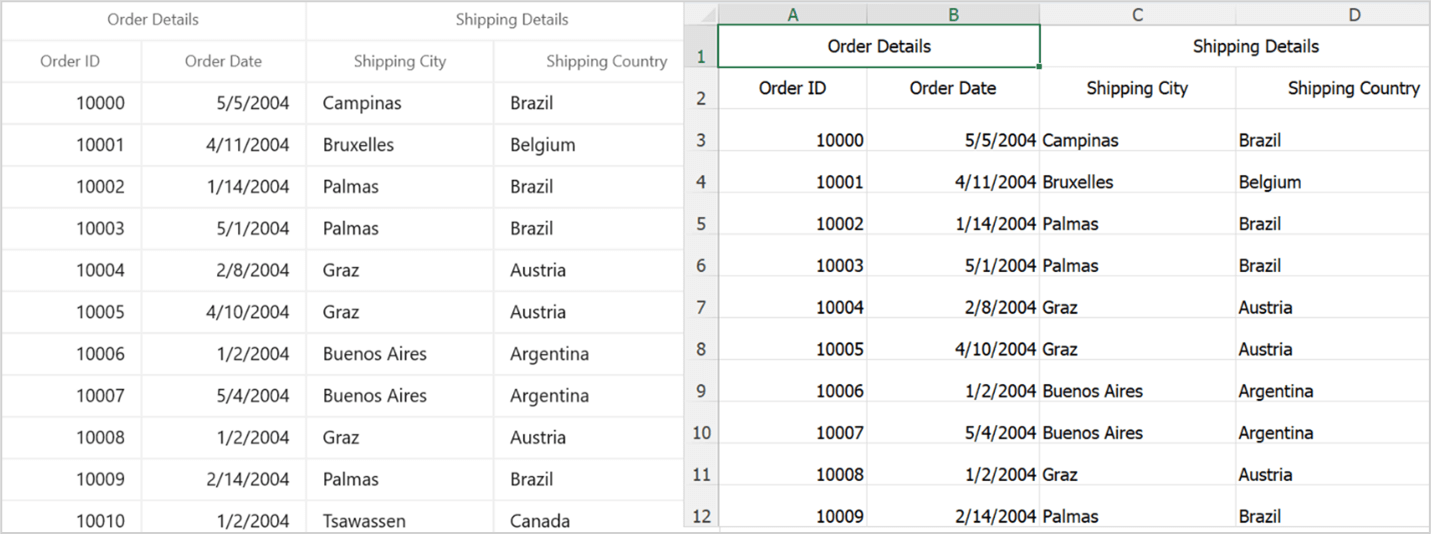
Exporting stacked headers in WinUI DataGrid to Excel
### Excluding specific DataGrid columns during export
By default, all columns are exported, including those that are hidden. You can [exclude specific data columns](https://help.syncfusion.com/winui/datagrid/export-to-excel#exclude-columns-while-exporting)
in a grid from being exported to an Excel sheet.
Refer to the following code example. Here, the **OrderDate** and**ShipAddress** columns are excluded while exporting to Excel.
```
private void OnExportToExcelClick(object sender, RoutedEventArgs e)
{
var options = new DataGridExcelExportOptions();
options.ExcelVersion = ExcelVersion.Excel2013;
options.ExcludedColumns.Add("OrderDate");
options.ExcludedColumns.Add("ShipAddress");
var excelEngine = sfDataGrid.ExportToExcel(sfDataGrid.View, options);
var workBook = excelEngine.Excel.Workbooks[0];
MemoryStream outputStream = new MemoryStream();
workBook.SaveAs(outputStream);
SaveExcelWorkbook(outputStream, "OrderDetails");
}
```
Refer to the following image.
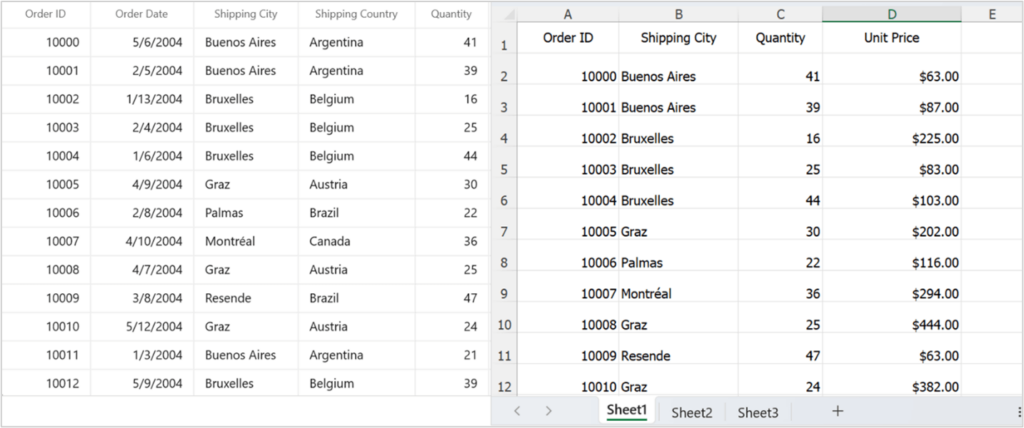
Excluding specific columns in WinUI DataGrid while exporting to an Excel file
### Exporting the selected rows
Let’s see how to export only the selected rows in a DataGrid using the [ExportToExcel](https://help.syncfusion.com/cr/winui/Syncfusion.UI.Xaml.DataGrid.Export.DataGridExcelExportExtensions.html#Syncfusion_UI_Xaml_DataGrid_Export_DataGridExcelExportExtensions_ExportToExcel_Syncfusion_UI_Xaml_DataGrid_SfDataGrid_System_Collections_ObjectModel_ObservableCollection_System_Object__Syncfusion_UI_Xaml_DataGrid_Export_DataGridExcelExportOptions_)
method and passing instances of the [SelectedItems](https://help.syncfusion.com/cr/winui/Syncfusion.UI.Xaml.Grids.SfGridBase.html#Syncfusion_UI_Xaml_Grids_SfGridBase_SelectedItems)
collection.
Refer to the following code example.
```
private void OnExportSelectedRowsClick(object sender, RoutedEventArgs e)
{
var options = new DataGridExcelExportOptions();
options.ExcelVersion = ExcelVersion.Excel2013;
var excelEngine = sfDataGrid.ExportToExcel(sfDataGrid.SelectedItems, options);
var workBook = excelEngine.Excel.Workbooks[0];
MemoryStream outputStream = new MemoryStream();
workBook.SaveAs(outputStream);
SaveExcelWorkbook(outputStream, "SelectedOrders");
}
```
Refer to the following image.
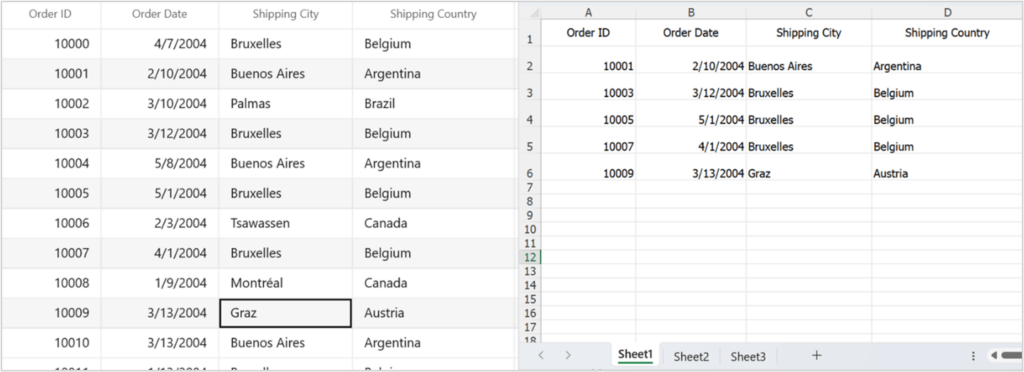
Exporting only selected rows in WinUI DataGrid to Excel
### Customizing the starting row and column position in Excel
You can also customize the starting position of the row and column in the exported Excel sheet using the [StartRowIndex](https://help.syncfusion.com/cr/winui/Syncfusion.UI.Xaml.DataGrid.Export.DataGridExcelExportOptions.html#Syncfusion_UI_Xaml_DataGrid_Export_DataGridExcelExportOptions_StartRowIndex)
and [StartColumnIndex](https://help.syncfusion.com/cr/winui/Syncfusion.UI.Xaml.DataGrid.Export.DataGridExcelExportOptions.html#Syncfusion_UI_Xaml_DataGrid_Export_DataGridExcelExportOptions_StartColumnIndex)
properties, respectively.
Refer to the code example.
```
private void OnExportToExcelClick(object sender, RoutedEventArgs e)
{
var options = new DataGridExcelExportOptions();
options.ExcelVersion = ExcelVersion.Excel2013;
options.StartRowIndex = 4;
options.StartColumnIndex = 2;
var excelEngine = sfDataGrid.ExportToExcel(sfDataGrid.View, options);
var workBook = excelEngine.Excel.Workbooks[0];
MemoryStream outputStream = new MemoryStream();
workBook.SaveAs(outputStream);
SaveExcelWorkbook(outputStream, "OrderDetails");
}
```
Refer to the following image.
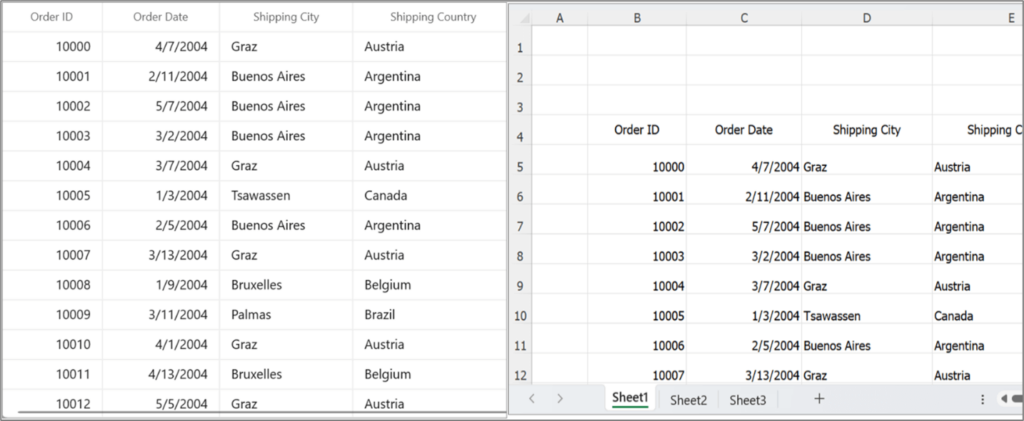
Customizing the starting row and column position in the exported Excel file
### Applying row style while exporting
Let’s apply styles for cells or rows in the WinUI DataGrid while exporting using the [CellsExportHandler](https://help.syncfusion.com/cr/winui/Syncfusion.UI.Xaml.DataGrid.Export.DataGridExcelExportOptions.html#Syncfusion_UI_Xaml_DataGrid_Export_DataGridExcelExportOptions_CellsExportHandler)
. Here, the exported rows can be styled based on the Grid data.
Refer to the following code example.
```
private void OnExportToExcelClick(object sender, RoutedEventArgs e)
{
var options = new DataGridExcelExportOptions();
options.ExcelVersion = ExcelVersion.Excel2013;
options.CellsExportHandler = CellsExportHandler;
var excelEngine = sfDataGrid.ExportToExcel(sfDataGrid.View, options);
var workBook = excelEngine.Excel.Workbooks[0];
MemoryStream outputStream = new MemoryStream();
workBook.SaveAs(outputStream);
SaveExcelWorkbook(outputStream, "OrderDetails");
}
private void CellsExportHandler(object sender, DataGridCellExcelExportOptions e)
{
var record = e.NodeEntry;
if (record != null && (record as OrderInfo).ShipAddress == "Brazil")
{
e.Range.CellStyle.ColorIndex = ExcelKnownColors.Blue_grey;
e.Range.CellStyle.Font.Color = ExcelKnownColors.Light_yellow;
}
}
```
Refer to the following image.
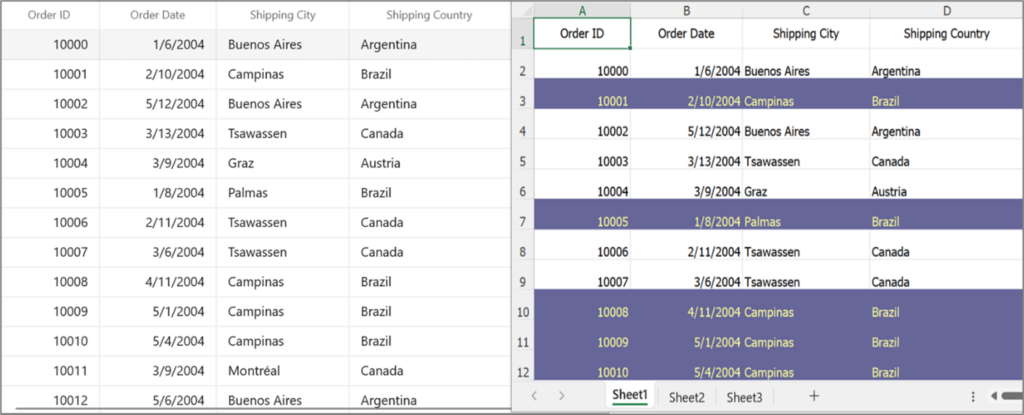
Applying row style while exporting to Excel
## References
For more details, refer to [Export WinUI DataGrid to Excel documentation](https://help.syncfusion.com/winui/datagrid/export-to-excel)
and [GitHub demo](https://github.com/SyncfusionExamples/export-winui-datagrid-to-excel)
.
## Conclusion
Thanks for reading! In this blog, we’ve explored how to export the Syncfusion [WinUI DataGrid](https://www.syncfusion.com/winui-controls/datagrid)
data to an Excel document. We encourage you to try these steps and share your feedback in the comments below.
Our WinUI demo app is available for download on the [Microsoft Store](https://apps.microsoft.com/detail/9n0fp16ddc06?ocid=pdpshare&hl=en-us&gl=us)
. We would love to hear your feedback after you’ve tried it, so please leave your thoughts in the comment section below.
For our existing customers, the latest version of Essential Studio® for WinUI is accessible from the [License and Downloads](https://www.syncfusion.com/account/downloads)
page. If you are not a Syncfusion customer, feel free to download our [free evaluation](https://www.syncfusion.com/downloads)
to discover all our controls.
You can also contact us through our [support forum](https://www.syncfusion.com/forums)
, [support portal](https://support.syncfusion.com/)
, or [feedback portal](https://www.syncfusion.com/feedback)
. We are always happy to assist you!
## Related blogs
- [Easily Load Appointments in WinUI Scheduler with SQLite and Perform CRUD Actions](https://www.syncfusion.com/blogs/post/winui-scheduler-sqlite-crud)
- [From Stars to Hearts: Explore Creative Rating Designs in WinUI](https://www.syncfusion.com/blogs/post/creative-rating-designs-winui)
- [Chart of the Week: Creating a WinUI Stacked Area Chart to Visualize US Primary Energy Consumption](https://www.syncfusion.com/blogs/post/winui-stacked-area-chart-energy-consumption)
- [Introducing the New WinUI Shimmer Control](https://www.syncfusion.com/blogs/post/new-winui-shimmer-control)