---
title: "Exporting DataGrid to Excel Made Easy in .NET MAUI"
published_at: "2024-03-28T14:34:02+00:00"
modified_at: "2026-06-23T11:30:41+00:00"
url: "https://www.syncfusion.com/blogs/post/export-dotnet-maui-datagrid-to-excel"
excerpt: "This blog explains how to export grid data to an Excel file using the Syncfusion .NET MAUI DataGrid control with code examples."
taxonomy_category:
  - ".NET MAUI"
  - "DataGrid"
  - "Desktop"
  - "Excel"
  - "File Formats"
  - "Mobile"
  - "Syncfusion"
taxonomy_post_tag:
  - ".NET MAUI"
  - "DataGrid"
  - "desktop"
  - "Excel"
  - "MAUI"
  - "Mobile"
---

# Exporting DataGrid to Excel Made Easy in .NET MAUI

[Farjana Parveen](https://www.syncfusion.com/blogs/author/farjanaparveena)

![Exporting DataGrid to Excel Made Easy in .NET MAUI](https://www.syncfusion.com/blogs/wp-content/uploads/2024/03/Exporting-DataGrid-to-Excel-Made-Easy-in-.NET-MAUI-1.png)


**TLDR:** Learn to export your grid data to an Excel document using the Syncfusion .NET MAUI DataGrid control with custom export options like excluding columns, exporting selected rows, and applying styles.

Syncfusion .[NET MAUI DataGrid](https://www.syncfusion.com/maui-controls/maui-datagrid)
 control is used to display and manipulate data in a tabular view. Its rich feature set includes different column types, sorting, autofit columns and rows, and styling all elements.

In this blog, we’ll guide you through the steps to export the .NET MAUI DataGrid to an Excel file with custom options!

**Note:** Please refer to the [.NET MAUI DataGrid getting started documentation](https://help.syncfusion.com/maui/datagrid/getting-started)
 before proceeding.

## Export DataGrid to Excel

The [Syncfusion.Maui.DataGridExport](https://www.nuget.org/packages/Syncfusion.Maui.DataGridExport)
 NuGet package provides the required Excel exporting functionalities. Here, we will use our [Syncfusion.XlsIO.NET](https://www.nuget.org/packages/Syncfusion.XlsIO.NET/)
 packages to export the DataGrid to Excel.

To do so, include the **Syncfusion.Maui.DataGridExport** package in your application.

Then, add the **.NET MAUI DataGrid** control and an export button to your XAML page. Refer to the following code example.

```
<StackLayout>
 <HorizontalStackLayout Spacing="10">
  <Button Text="Export To Excel" Margin="10,10,10,5"
          Clicked="ExportToExcel_Clicked" />
 </HorizontalStackLayout>
 <syncfusion:SfDataGrid x:Name="dataGrid"
                        Margin="20"
                        VerticalOptions="FillAndExpand"
                        ItemsSource="{Binding OrderInfoCollection}"
                        GridLinesVisibility="Both"
                        HeaderGridLinesVisibility="Both"
                        AutoGenerateColumnsMode="None"
                        ColumnWidthMode="Auto">
  <syncfusion:SfDataGrid.Columns>
   <syncfusion:DataGridNumericColumn Format="D"
                                     HeaderText="Order ID"
                                     MappingName="OrderID">
   </syncfusion:DataGridNumericColumn>
   <syncfusion:DataGridTextColumn HeaderText="Customer ID"
                                  MappingName="CustomerID">
   </syncfusion:DataGridTextColumn>
   <syncfusion:DataGridTextColumn MappingName="Customer"
                                  HeaderText="Customer">
   </syncfusion:DataGridTextColumn>
   <syncfusion:DataGridTextColumn HeaderText="Ship City"
                                  MappingName="ShipCity">
   </syncfusion:DataGridTextColumn>
   <syncfusion:DataGridTextColumn HeaderText="Ship Country"
                                  MappingName="ShipCountry">
   </syncfusion:DataGridTextColumn>
  </syncfusion:SfDataGrid.Columns>
 </syncfusion:SfDataGrid>
</StackLayout>
```

All the Excel exporting methods are available in the [DataGridExcelExportingController](https://help.syncfusion.com/cr/maui/Syncfusion.Maui.DataGrid.Exporting.DataGridExcelExportingController.html)
. Using the [ExportToExcel](https://help.syncfusion.com/cr/maui/Syncfusion.Maui.DataGrid.Exporting.DataGridExcelExportingController.html#Syncfusion_Maui_DataGrid_Exporting_DataGridExcelExportingController_ExportToExcel_Syncfusion_Maui_DataGrid_SfDataGrid_)
 method, you can export the DataGrid content to an Excel file and save it as a workbook.

Refer to the following code example.

```
private void ExportToExcel_Clicked(object sender, EventArgs e)
{
    DataGridExcelExportingController excelExport = new DataGridExcelExportingController();
    var excelEngine = excelExport.ExportToExcel(this.dataGrid);
    var workbook = excelEngine.Excel.Workbooks[0];
    MemoryStream stream = new MemoryStream();
    workbook.SaveAs(stream);
    workbook.Close();
    excelEngine.Dispose();

    string OutputFilename = "DefaultDataGrid.xlsx";
    SaveService saveService = new();
    saveService.SaveAndView(OutputFilename, "application/vnd.openxmlformats-officedocument.spreadsheetml.sheet", stream);
}
```

To save the worksheet and view it at a specific location on your machine, you can use the [SaveService](https://help.syncfusion.com/maui/datagrid/export-to-excel#save-service-class-in-portable-project)
 class.
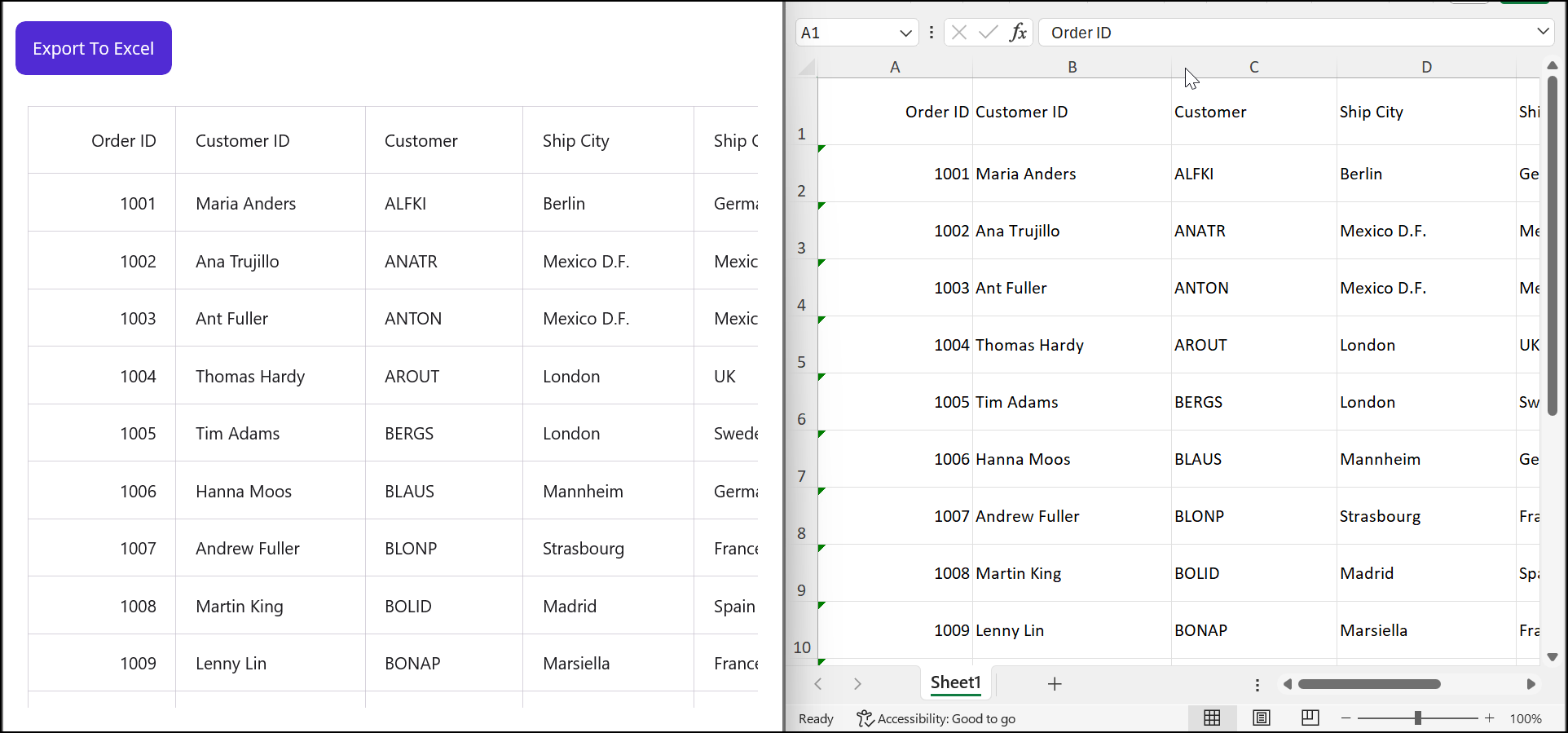
![Exporting .NET MAUI DataGrid data to an Excel worksheet](https://www.syncfusion.com/blogs/wp-content/uploads/2024/03/Exporting-.NET-MAUI-DataGrid-data-to-an-Excel-worksheet.png)

Exporting .NET MAUI DataGrid data to an Excel worksheet

Simplify .NET MAUI DataGrid Development

Spend less time building grid features from scratch. Syncfusion .NET MAUI DataGrid includes ready-to-use support for data binding, paging, sorting, filtering, editing, and exporting.

[Start Building Today](https://www.syncfusion.com/maui-controls/maui-datagrid)

## Excel exporting with customization

You can also customize the exported Excel sheet using the [DataGridExcelExportingOption](https://help.syncfusion.com/cr/maui/Syncfusion.Maui.DataGrid.Exporting.DataGridExcelExportingOption.html)
.

### Export without header

The .NET MAUI DataGrid provides options to export grid data to Excel with or without a header. By default, the header will be included in the exported sheet.

Refer to the following code example.

```
private void ExportToExcel_Clicked(object sender, EventArgs e)
{
    DataGridExcelExportingController excelExport = new DataGridExcelExportingController();
    DataGridExcelExportingOption options = new DataGridExcelExportingOption();           
    options.CanExportHeader = false;
    var excelEngine = excelExport.ExportToExcel(this.dataGrid, options);
    var workbook = excelEngine.Excel.Workbooks[0];
    MemoryStream stream = new MemoryStream();
    workbook.SaveAs(stream);
    workbook.Close();
    excelEngine.Dispose();
    string OutputFilename = "DefaultDataGrid.xlsx";
    SaveService saveService = new();
    saveService.SaveAndView(OutputFilename, "application/vnd.openxmlformats-officedocument.spreadsheetml.sheet", stream);
}
```
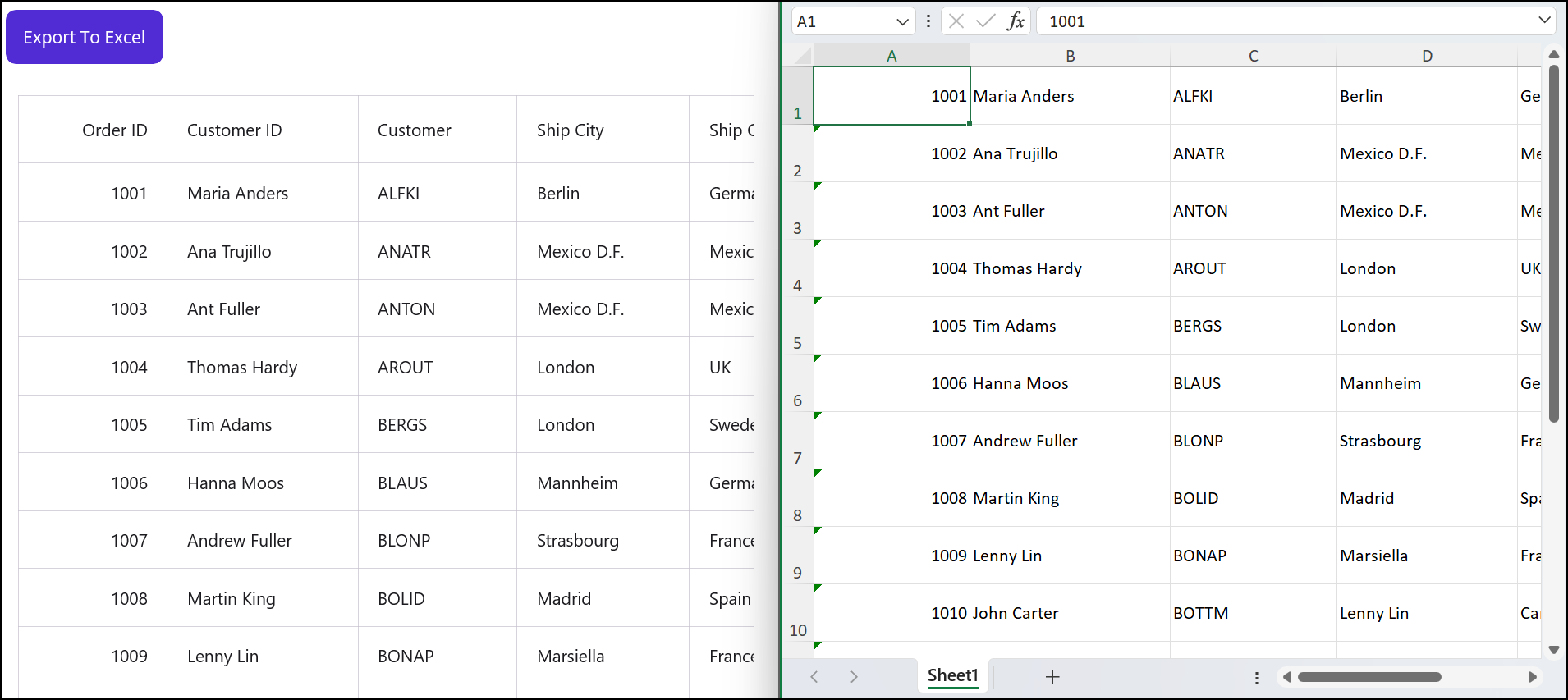
![Exporting grid data without headers to an Excel document](https://www.syncfusion.com/blogs/wp-content/uploads/2024/03/Exporting-grid-data-without-headers-to-an-Excel-document-1.png)

Exporting grid data without headers to an Excel document

### Exclude the columns in the exported Excel

You can exclude specific data columns in a grid from being exported to an Excel sheet. By default, all columns, including hidden ones, are exported.

Refer to the following code example.

```
private void ExportToExcel_Clicked(object sender, EventArgs e)
{
    DataGridExcelExportingController excelExport = new DataGridExcelExportingController();
    DataGridExcelExportingOption options = new DataGridExcelExportingOption();
    var list = new List<string>();
    list.Add("OrderID");
    list.Add("CustomerID");
    options.ExcludedColumns = list;    
    var excelEngine = excelExport.ExportToExcel(this.dataGrid, options);
    var workbook = excelEngine.Excel.Workbooks[0];
    MemoryStream stream = new MemoryStream();
    workbook.SaveAs(stream);
    workbook.Close();
    excelEngine.Dispose();
    string OutputFilename = "DefaultDataGrid.xlsx";
    SaveService saveService = new();
    saveService.SaveAndView(OutputFilename, "application/vnd.openxmlformats-officedocument.spreadsheetml.sheet", stream);
}
```
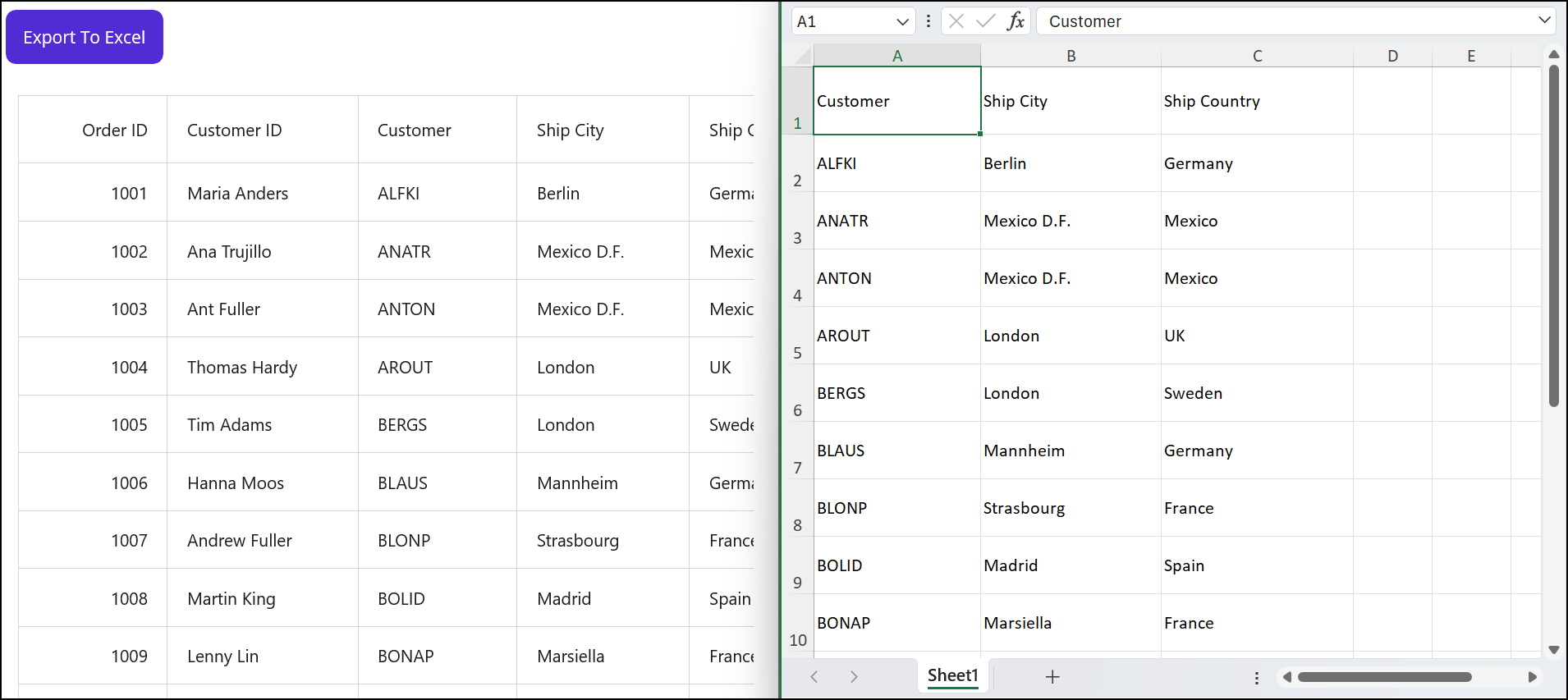
![Exporting grid data excluding specific columns to an Excel file](https://www.syncfusion.com/blogs/wp-content/uploads/2024/03/Exporting-grid-data-excluding-specific-columns-to-an-Excel-file.png)

Exporting grid data excluding specific columns to an Excel file

### Export the selected rows

Let’s see how to export only the selected rows in a DataGrid by utilizing the **ExportToExcel** method and passing instances of the ** SelectedRows** collection.

Refer to the following code example.

```
private void ExportToExcel_Clicked(object sender, EventArgs e)
{
    DataGridExcelExportingController excelExport = new DataGridExcelExportingController();
    ObservableCollection<object> selectedItems = dataGrid.SelectedRows;
    var excelEngine = excelExport.ExportToExcel(this.dataGrid, selectedItems);
    var workbook = excelEngine.Excel.Workbooks[0];
    MemoryStream stream = new MemoryStream();
    workbook.SaveAs(stream);
    workbook.Close();
    excelEngine.Dispose();
    string OutputFilename = "DefaultDataGrid.xlsx";
    SaveService saveService = new();
    saveService.SaveAndView(OutputFilename, "application/vnd.openxmlformats-officedocument.spreadsheetml.sheet", stream);
}
```

![Exporting selected rows in a grid to an Excel sheet](https://www.syncfusion.com/blogs/wp-content/uploads/2024/03/Exporting-selected-rows-in-a-grid-to-an-Excel-sheet.png)

Exporting selected rows in a grid to an Excel sheet

### Customize the starting row and column in an Excel sheet

In the exporting option, you can specify the start column using the [DataGridExcelExportingOption.StartColumnIndex](https://help.syncfusion.com/cr/maui/Syncfusion.Maui.DataGrid.Exporting.DataGridExcelExportingOption.html#Syncfusion_Maui_DataGrid_Exporting_DataGridExcelExportingOption_StartColumnIndex)
 and designate the start row using the [DataGridExcelExportingOption.StartRowIndex](https://help.syncfusion.com/cr/maui/Syncfusion.Maui.DataGrid.Exporting.DataGridExcelExportingOption.html#Syncfusion_Maui_DataGrid_Exporting_DataGridExcelExportingOption_StartRowIndex)
.

Refer to the following code example.

```
private void ExportToExcel_Clicked(object sender, EventArgs e)
{
    DataGridExcelExportingController excelExport = new DataGridExcelExportingController();
    DataGridExcelExportingOption options = new DataGridExcelExportingOption();
    options.StartRowIndex = 4;
    options.StartColumnIndex = 2;
    var excelEngine = excelExport.ExportToExcel(this.dataGrid, options);
    var workbook = excelEngine.Excel.Workbooks[0];
    MemoryStream stream = new MemoryStream();
    workbook.SaveAs(stream);
    workbook.Close();
    excelEngine.Dispose();
    string OutputFilename = "DefaultDataGrid.xlsx";
    SaveService saveService = new();
    saveService.SaveAndView(OutputFilename, "application/vnd.openxmlformats-officedocument.spreadsheetml.sheet", stream);
}
```

![Customizing the starting row and column in the exported data in an Excel sheet](https://www.syncfusion.com/blogs/wp-content/uploads/2024/03/Customizing-the-starting-row-and-column-in-the-exported-data-in-an-Excel-sheet.png)

Customizing the starting row and column in the exported data in an Excel sheet

### Apply styles for the exported sheet

You can also apply styles for the Excel sheet by utilizing the [RowExporting](https://help.syncfusion.com/cr/maui/Syncfusion.Maui.DataGrid.Exporting.DataGridExcelExportingController.html#Syncfusion_Maui_DataGrid_Exporting_DataGridExcelExportingController_RowExporting)
 and [CellExporting](https://help.syncfusion.com/cr/maui/Syncfusion.Maui.DataGrid.Exporting.DataGridExcelExportingController.html#Syncfusion_Maui_DataGrid_Exporting_DataGridExcelExportingController_CellExporting)
 events within the **DataGridExcelExportingController**.

Refer to the following code example.

```
private void ExportToExcel_Clicked(object sender, EventArgs e)
{
    DataGridExcelExportingController excelExport = new DataGridExcelExportingController();
    DataGridExcelExportingOption options = new DataGridExcelExportingOption();
    excelExport.RowExporting += ExcelExport_RowExporting; 
    var excelEngine = excelExport.ExportToExcel(this.dataGrid, options);
    var workbook = excelEngine.Excel.Workbooks[0];
    MemoryStream stream = new MemoryStream();
    workbook.SaveAs(stream);
    workbook.Close();
    excelEngine.Dispose();
    string OutputFilename = "DefaultDataGrid.xlsx";
    SaveService saveService = new();
    saveService.SaveAndView(OutputFilename, "application/vnd.openxmlformats-officedocument.spreadsheetml.sheet", stream);
}

private void ExcelExport_RowExporting(object? sender, DataGridRowExcelExportingEventArgs e)
{
    if (!(e.Record.Data is OrderInfo))
        return;
    if (e.RowType == ExportRowType.RecordRow)
        e.Range.CellStyle.ColorIndex = Syncfusion.XlsIO.ExcelKnownColors.Aqua;
}
```

![Applying styles to the exported grid data in an Excel sheet](https://www.syncfusion.com/blogs/wp-content/uploads/2024/03/Applying-styles-to-the-exported-grid-data-in-an-Excel-sheet.png)

Applying styles to the exported grid data in an Excel sheet

## Reference

For more details, refer to [Export .NET MAUI DataGrid to Excel documentation](https://help.syncfusion.com/maui/datagrid/export-to-excel#customize-header-groups-and-table-summary-when-exporting)
 and [GitHub demo](https://github.com/SyncfusionExamples/Exporting-DataGrid-to-Excel-Made-Easy-in-.NET-MAUI)
.


## Conclusion

Thanks for reading! This blog offers an extensive guide on efficiently exporting [DataGrid](https://www.syncfusion.com/maui-controls/maui-datagrid)
 to Excel in .NET MAUI, equipping developers with essential tools for a smooth process. We believe that the steps outlined here have been valuable and enlightening.

If you’re interested in delving deeper into .NET MAUI, you can easily access and evaluate it by downloading [Essential Studio® for .NET MAUI](https://www.syncfusion.com/downloads/maui)
 for free. Our esteemed customers can acquire the latest version of Essential Studio® from the [License and Downloads](https://www.syncfusion.com/account/downloads)
 page.

Should you need any assistance or have further inquiries, contact us via our [support forum](https://www.syncfusion.com/forums)
, [support portal](https://support.syncfusion.com/)
, or [feedback portal](https://www.syncfusion.com/feedback/)
. We are committed to providing help and support in every possible way.

## Related blogs

- [Revolutionize Your User Experience with the New .NET MAUI Parallax View](https://www.syncfusion.com/blogs/post/dotnet-maui-parallax-view)
- [Introducing the New .NET MAUI Polar Charts Control](https://www.syncfusion.com/blogs/post/dotnet-maui-polar-charts-control)
- [Chart of the Week: Creating a .NET MAUI Column Chart to Visualize the Corporate Investment in AI](https://www.syncfusion.com/blogs/post/maui-column-chart-investment-in-ai)
- [Introducing the New .NET MAUI TreeMap Control](https://www.syncfusion.com/blogs/post/dotnet-maui-treemap-control)
