---
title: "Everything You Need to Know About WPF Gantt Control"
published_at: "2024-08-13T12:37:25+00:00"
modified_at: "2026-06-26T08:12:41+00:00"
url: "https://www.syncfusion.com/blogs/post/everything-about-wpf-gantt-control"
excerpt: "Explore the user-friendly features of the Syncfusion WPF Gantt control and getting started steps for improved project management and productivity."
taxonomy_category:
- "Desktop"
- "Gantt"
- "Syncfusion"
- "UI"
- "WPF"
taxonomy_post_tag:
- "desktop"
- "Gantt Chart"
- "productivity"
- "project management"
- "UI"
- "WPF"
---
# Everything You Need to Know About WPF Gantt Control
[Karthick Mani](https://www.syncfusion.com/blogs/author/karthick-mani)
**TL;DR:** Explore the Syncfusion WPF Gantt control to enhance your project management skills. This blog highlights its key features, including data binding, task relationships, and resource management, and provides a step-by-step guide to integrating it into your app. Learn to visualize complex timelines and streamline task and resource management for improved productivity. Dive in to unlock the full potential of this intuitive tool!
Syncfusion [WPF Gantt](https://www.syncfusion.com/wpf-controls/gantt)
is a project management control that offers a Microsoft Project-like interface for displaying and managing hierarchical tasks and timelines. This control allows you to manage tasks, resources, and their relationships intuitively.
In this blog, we will delve into the key features of the WPF Gantt control and outline the steps to get started!
Plan Projects Faster with WPF Gantt
Create interactive project timelines with Syncfusion WPF Gantt Chart. Manage tasks, dependencies, resources, milestones, and progress in a clear timeline-based project planning view.
[Plan with WPF Gantt](https://www.syncfusion.com/wpf-controls/gantt)
## Key features
The WPF Gantt control provides support for the following key features:
- [Data binding](#data-binding)
- [Task relationships](#task-relationship)
- [Resources](#resources)
- [Baseline](#baseline)
- [Editing](#editing)
- [Filtering and sorting](#filtering-sorting)
- [Selection](#selection)
- [Drag and drop](#drag-drop)
- [Zooming](#zooming)
- [Tooltip](#tooltip)
- [Strip lines](#strip-line)
- [DateTime indicator](#datetime-indicator)
- [Export and import](#export-import)
- [Theming](#theme)
- [Appearance customization](#appearance-customization)
- [Localization and globalization](#localization-globalization)
Let’s take a closer look at these features!
## Data binding
The WPF Gantt control provides MVVM (Model-View-ViewModel) friendly features with comprehensive [data binding](https://help.syncfusion.com/wpf/gantt/data-binding)
support. This allows you to synchronize task data from external services and databases into the Gantt control using mapping techniques.
You can create a custom task model with required fields such as ID, Name, StartDate, EndDate, and Duration, as well as other optional fields like Predecessor and Resource. These fields can be mapped to the equivalent properties in the [TaskAttributeMapping](https://help.syncfusion.com/cr/wpf/Syncfusion.Windows.Controls.Gantt.TaskAttributeMapping.html)
API within the Gantt control class.
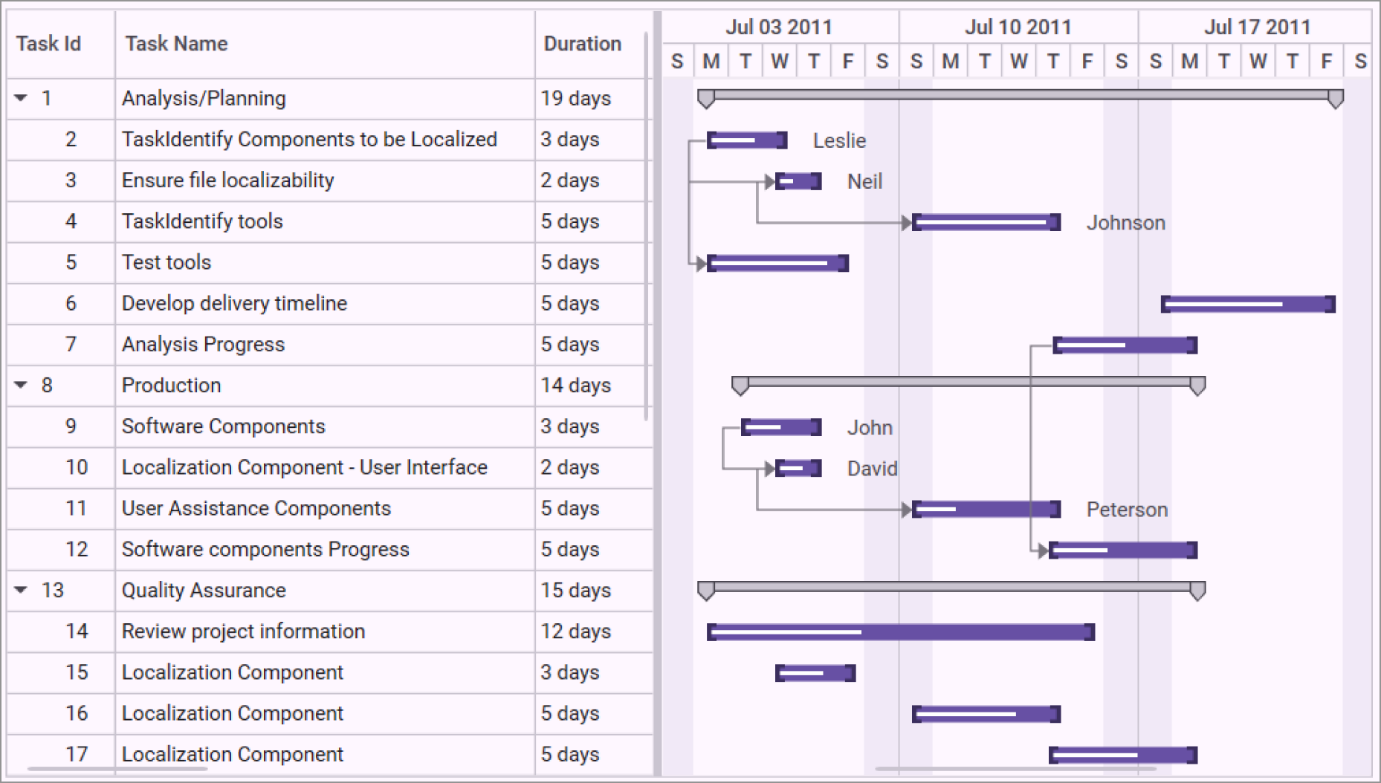
Data binding feature in the WPF Gantt control
## Task relationships
The WPF Gantt allows us to create [relationships](https://help.syncfusion.com/wpf/gantt/dependency-relationship)
among different tasks to determine the execution order using finish-to-start, start-to-finish, start-to-start, and finish-to-finish link types.
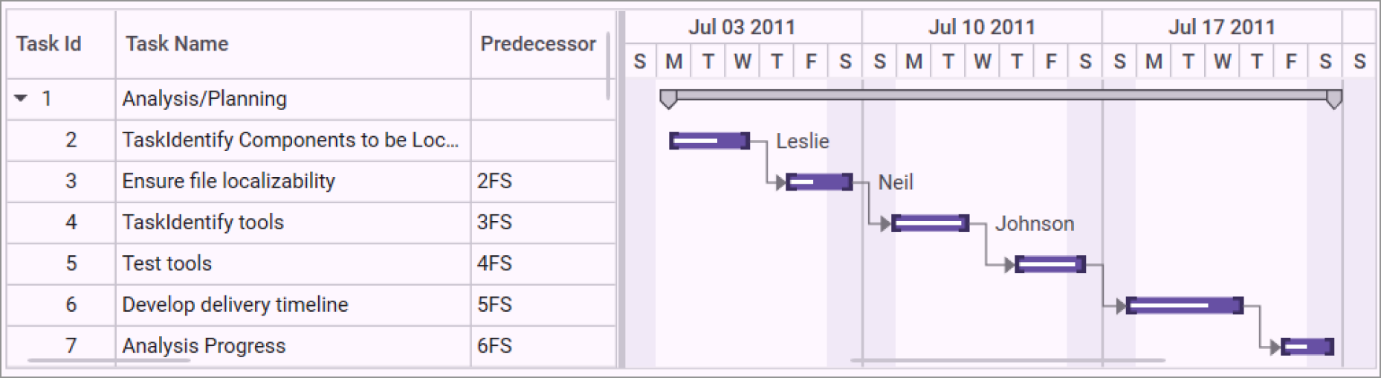
Adding dependency between tasks in the WPF Gantt control
## Resources
You can allocate multiple [resources](https://help.syncfusion.com/wpf/gantt/resource-view-gantt-inline-items)
to each task in the resource view of the Gantt. The tasks are hierarchically assigned to each resource, visualizing resources as parents and tasks as children. This structure provides a clear overview of resource allocation and task assignments within the project.
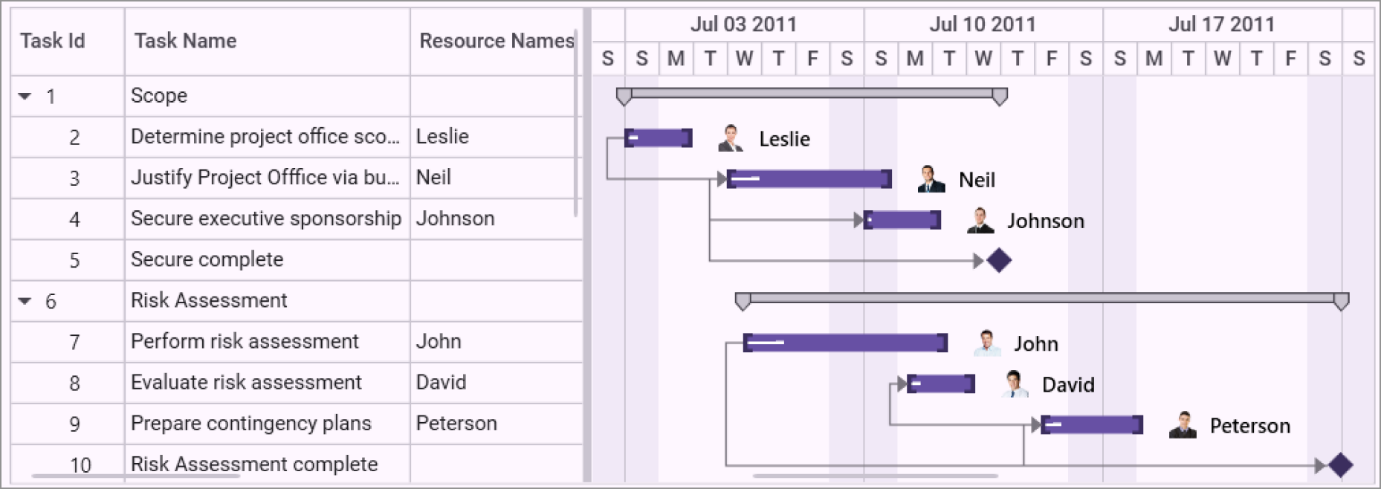
Resource view in WPF Gantt Control
## Baseline
You can compare the current task’s progress with the planned timeline using [baselines](https://help.syncfusion.com/wpf/gantt/baseline-support)
. This feature lets you view the deviation between the planned and actual completion dates of the tasks in a project. Baseline dates or planned dates of a task may or may not be the same as the actual task dates, providing a clear comparison to help identify any deviations.
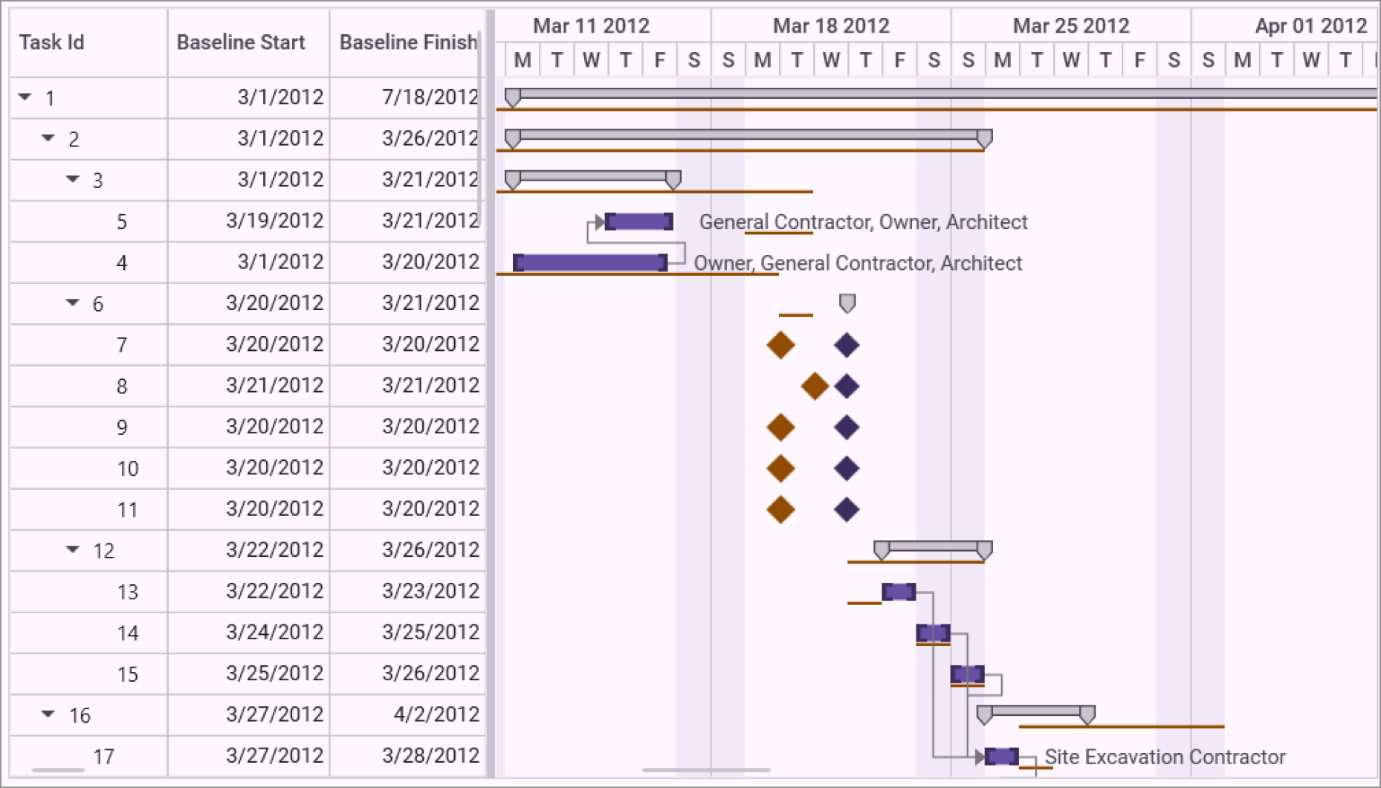
Baseline feature in the WPF Gantt control
## Editing
You can edit the task fields, such as duration, start date, end date, and predecessors, directly within their respective cells in the Gantt Grid. You can enable or disable editing operations by utilizing the read-only option, allowing for flexible control over project updates.
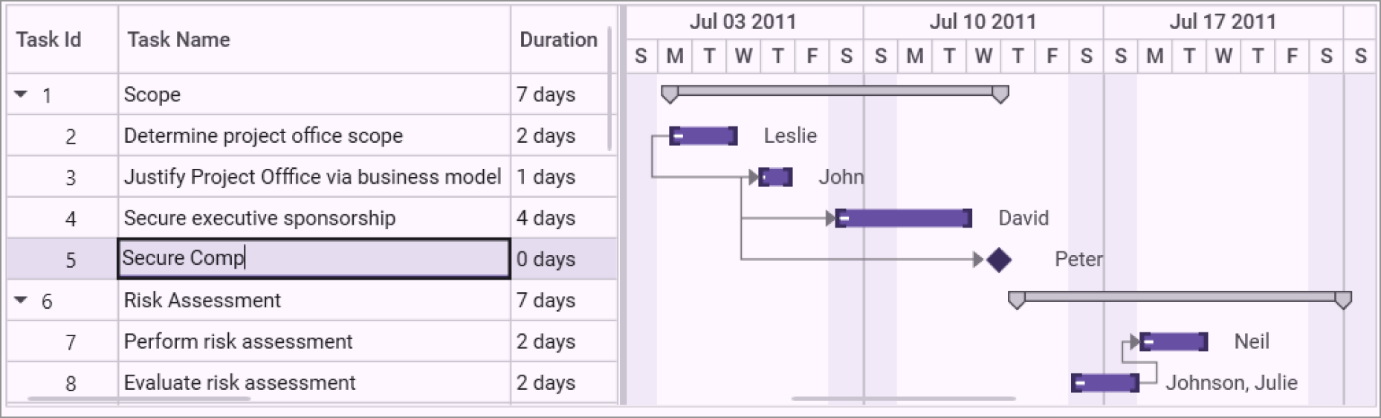
Task editing in the WPF Gantt control
## Filtering and sorting
You can filter data across all columns by using the menu [filtering](https://help.syncfusion.com/wpf/gantt/filtering-sorting#filtering)
option. You can also [sort](https://help.syncfusion.com/wpf/gantt/filtering-sorting#sorting)
any column in ascending or descending order by simply clicking on the column header, making it easy to organize and analyze task data.
Refer to the following GIF images.
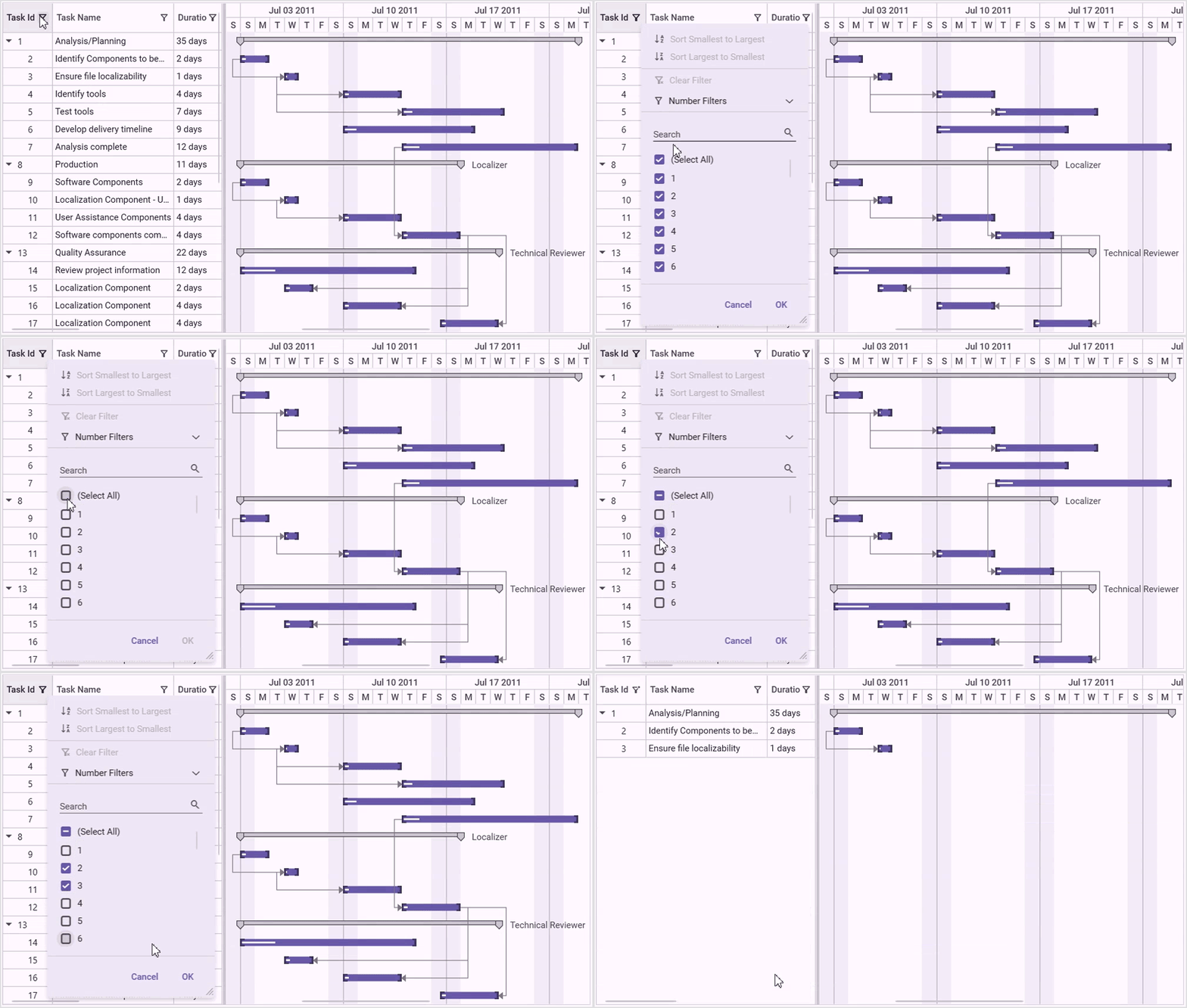
Filtering support in the WPF Gantt control
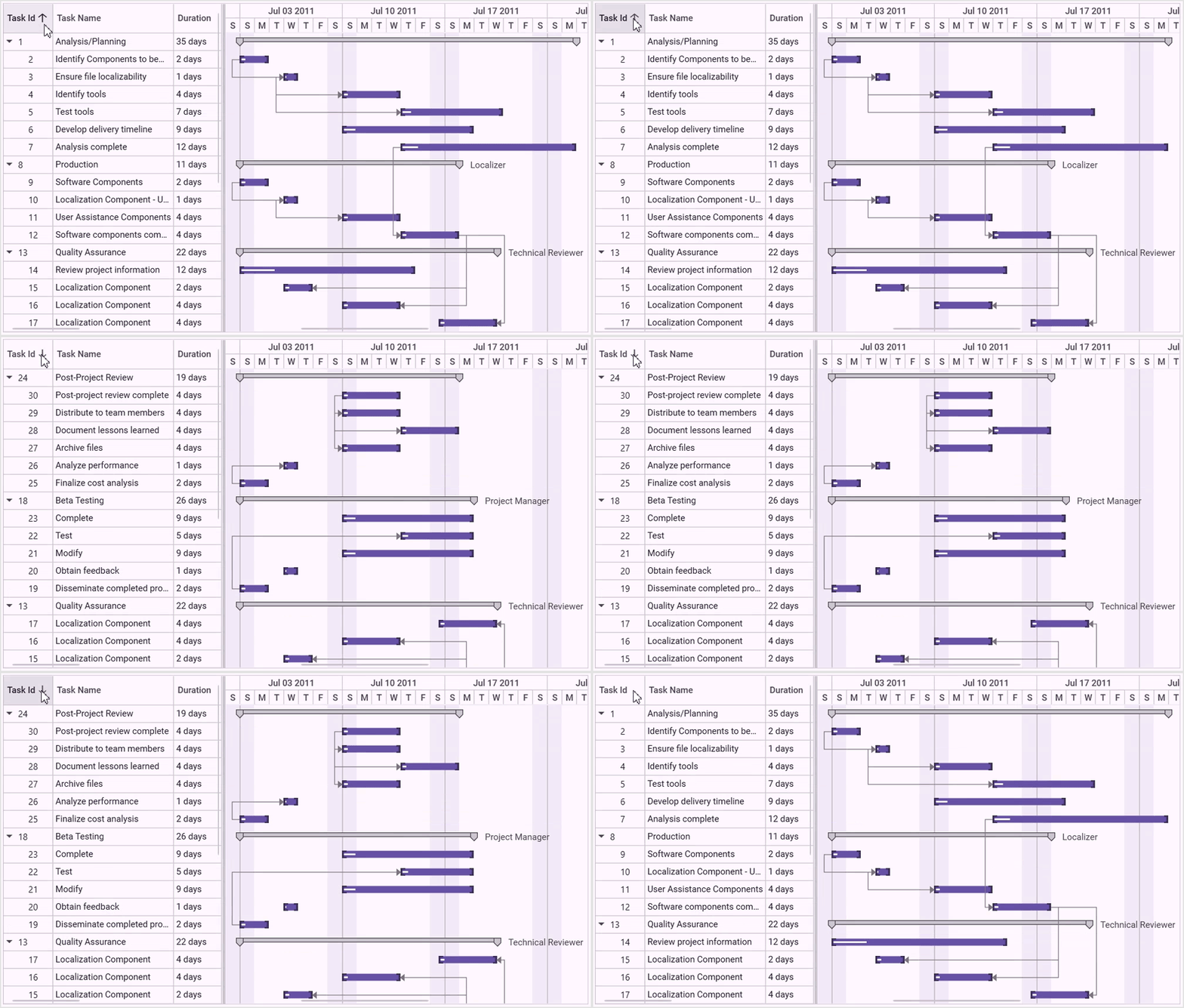
Sorting support in the WPF Gantt control
## Selection
With the selection feature, you can efficiently select single or multiple tasks within the WPF Gantt control. Additionally, you can [restrict selection](https://help.syncfusion.com/wpf/gantt/how-to/restrict-item-selection-in-wpf-gantt)
by setting the [SelectionMode](https://help.syncfusion.com/cr/wpf/Syncfusion.Windows.Controls.Gantt.GanttControl.html#Syncfusion_Windows_Controls_Gantt_GanttControl_SelectionMode)
property value to **None**, offering enhanced control over task management.
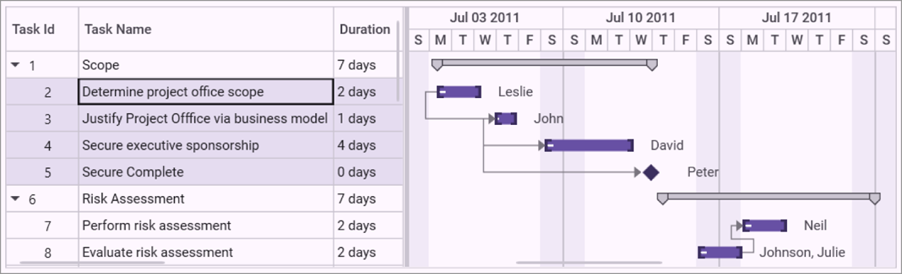
Selecting items in the WPF Gantt control
## Drag and drop
You can easily reorder [rows by dragging and dropping](https://help.syncfusion.com/wpf/gantt/drag-drop)
them within the Gantt Grid. Additionally, we can drag-and-drop tasks within the same row to adjust timings in Gantt control, offering flexibility in task scheduling.
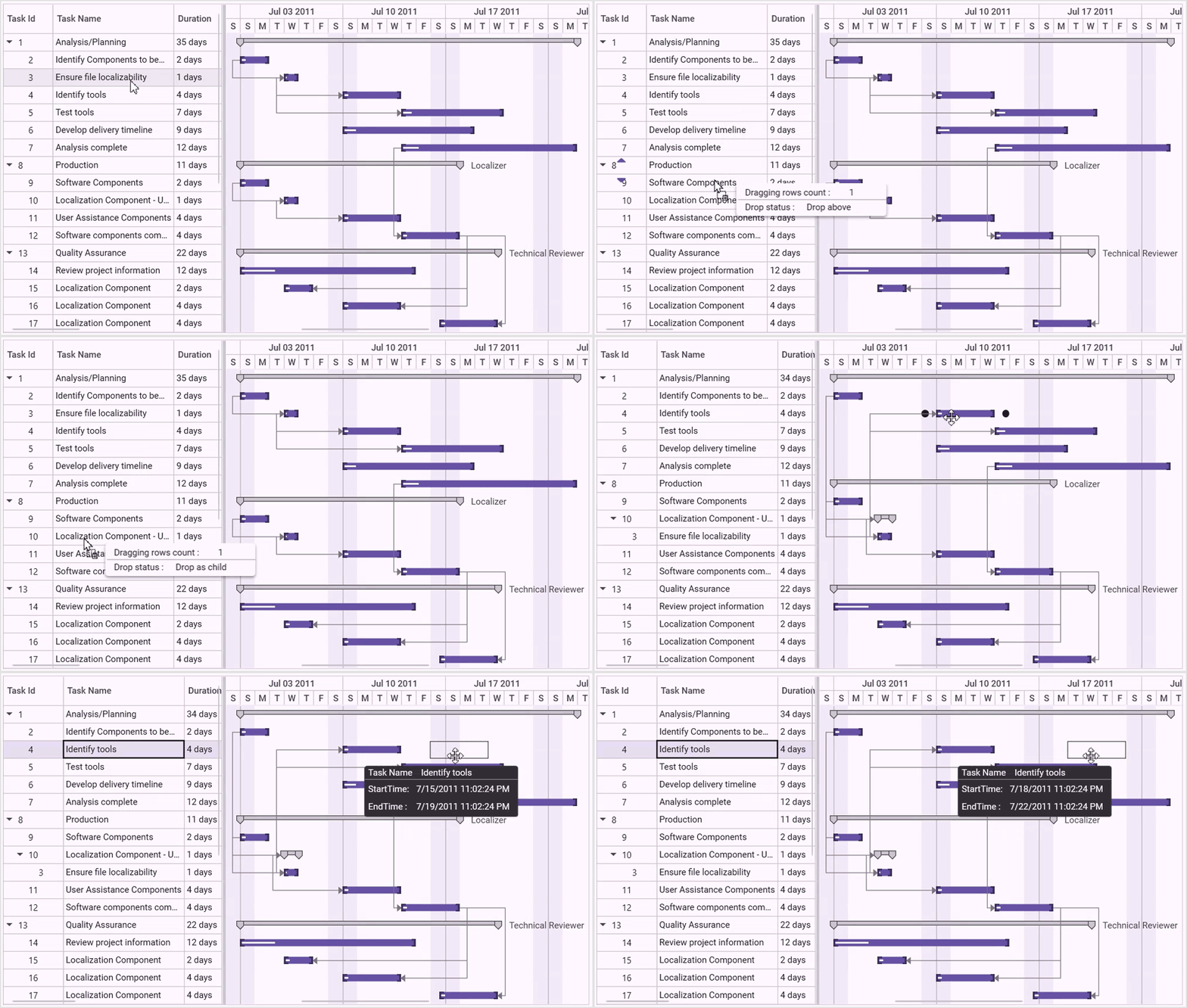
Drag and drop feature in the WPF Gantt control
## Zooming
Increase or decrease the width of timeline cells and change the timeline units dynamically with [zooming](https://help.syncfusion.com/wpf/gantt/zooming)
. This allows you to view tasks in a project, from years to minutes, enhancing your ability to manage and analyze project timelines effectively.
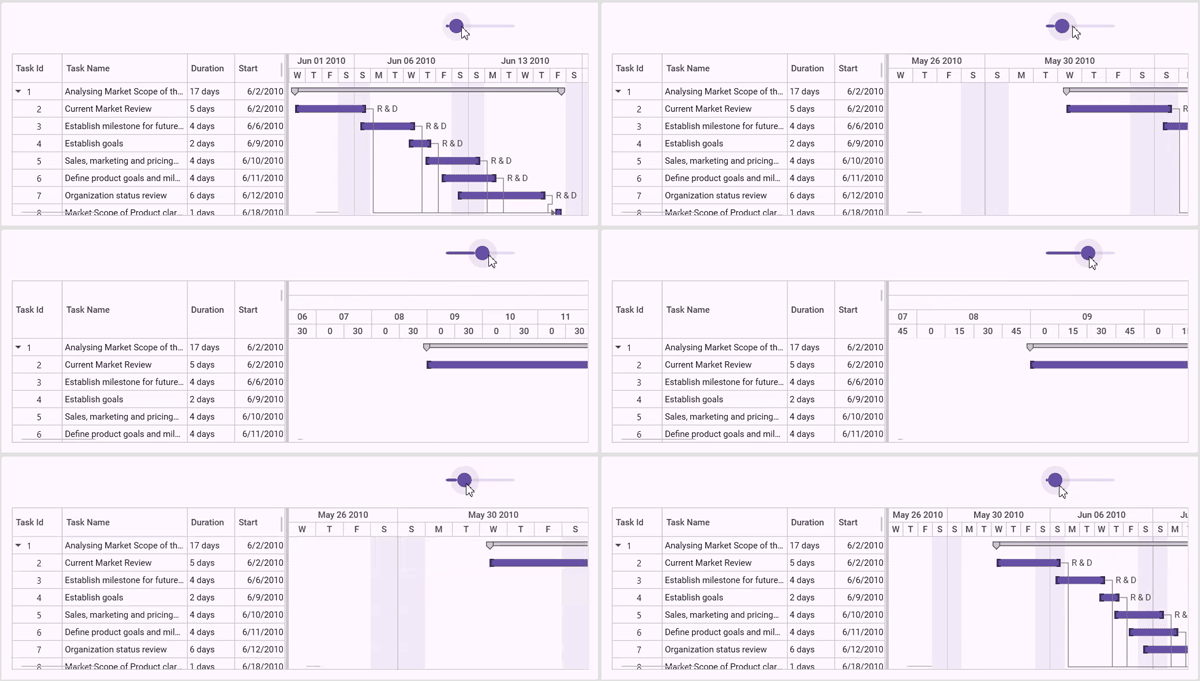
Zooming feature in the WPF Gantt control
## Tooltip
When the mouse hovers over a task, the interactive Gantt displays the details about the task values in [tooltips](https://help.syncfusion.com/wpf/gantt/custom-tooltip)
. This feature provides quick ideas about the relevant tasks, enhancing user experience and better understanding.
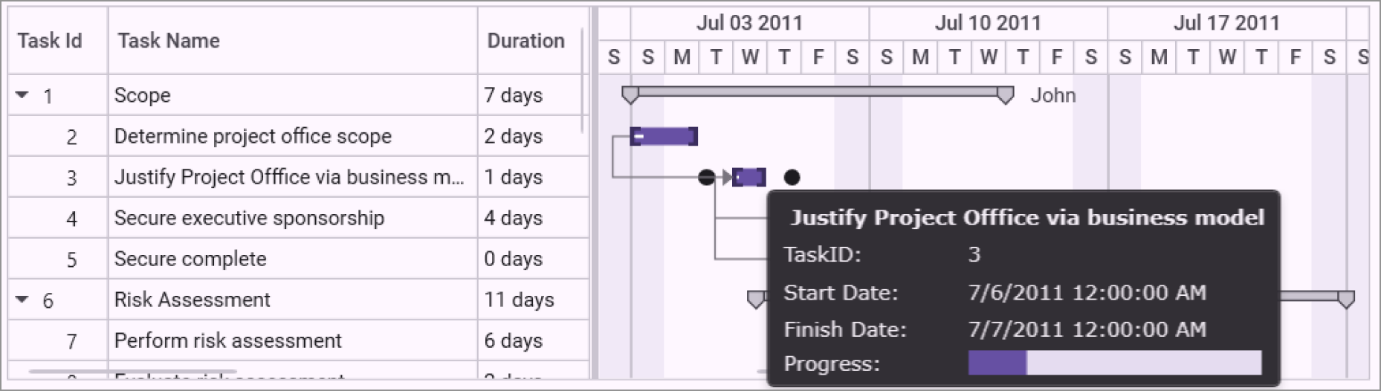
Tooltips in the WPF Gantt control
## Strip lines
Quickly identify important days and events in your project timeline by highlighting them with [strip lines](https://help.syncfusion.com/wpf/gantt/strip-lines)
on the Gantt. You can also create strip lines for recurring dates.
Refer to the following image.
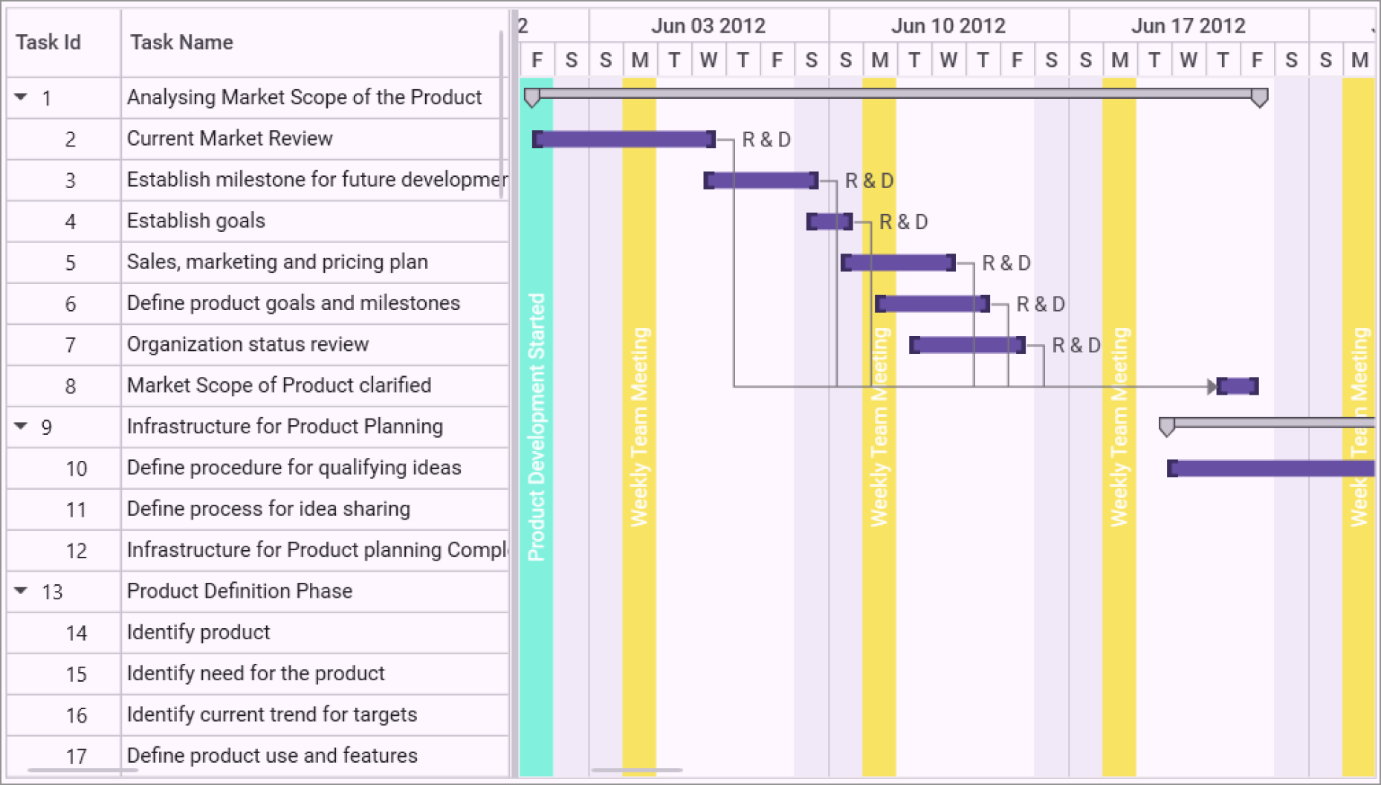
Strip lines feature in the WPF Gantt control
## DateTime indicator
The [DateTime indicator](https://help.syncfusion.com/wpf/gantt/datetime-indicator-customization)
visually marks the current date, loaded time, dynamic time, and absolute dates on the Gantt chart, providing a clear reference point within the project timeline. This feature helps users quickly assess task status and deadlines in relation to the specific date, enhancing project monitoring and management.
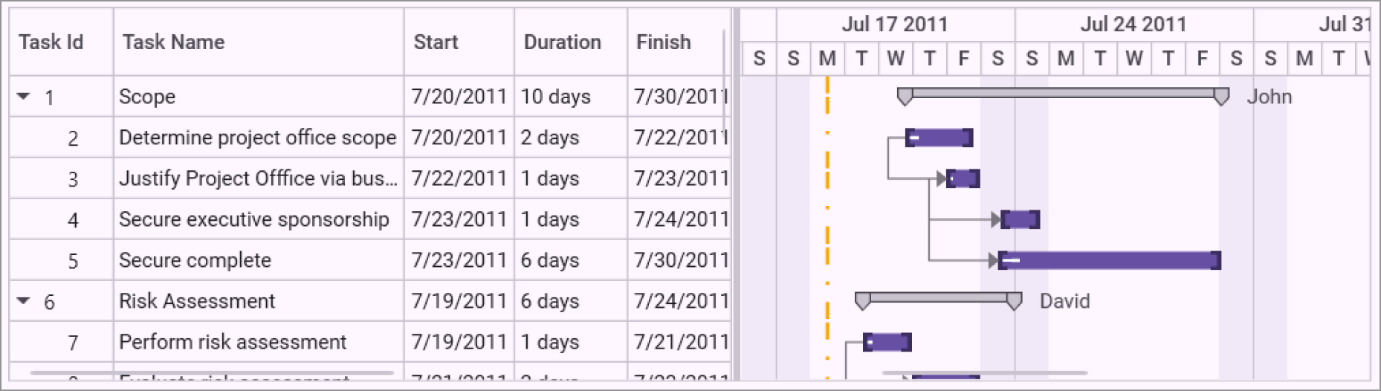
DateTime indicator feature in the WPF Gantt control
## Export and import
You can easily [export](https://help.syncfusion.com/wpf/gantt/import-and-export-support)
data from the Gantt control in XML format and import it into MS project apps and vice versa, enabling seamless data exchange for efficient project management. Additionally, you can export the visible region or the entire Gantt chart as images in formats such as JPEG, PNG, or BMP.
## Theming
Unlock the power of visual appearance customization with the Gantt control’s [theming](https://help.syncfusion.com/wpf/gantt/getting-started#theme)
support. You can effortlessly transform the appearance of Gantt’s grid, schedule, and chart using a variety of built-in themes.
## Appearance customization
You can provide a unique and consistent look to your Gantt by customizing its appearance using styles, data templates, and themes.
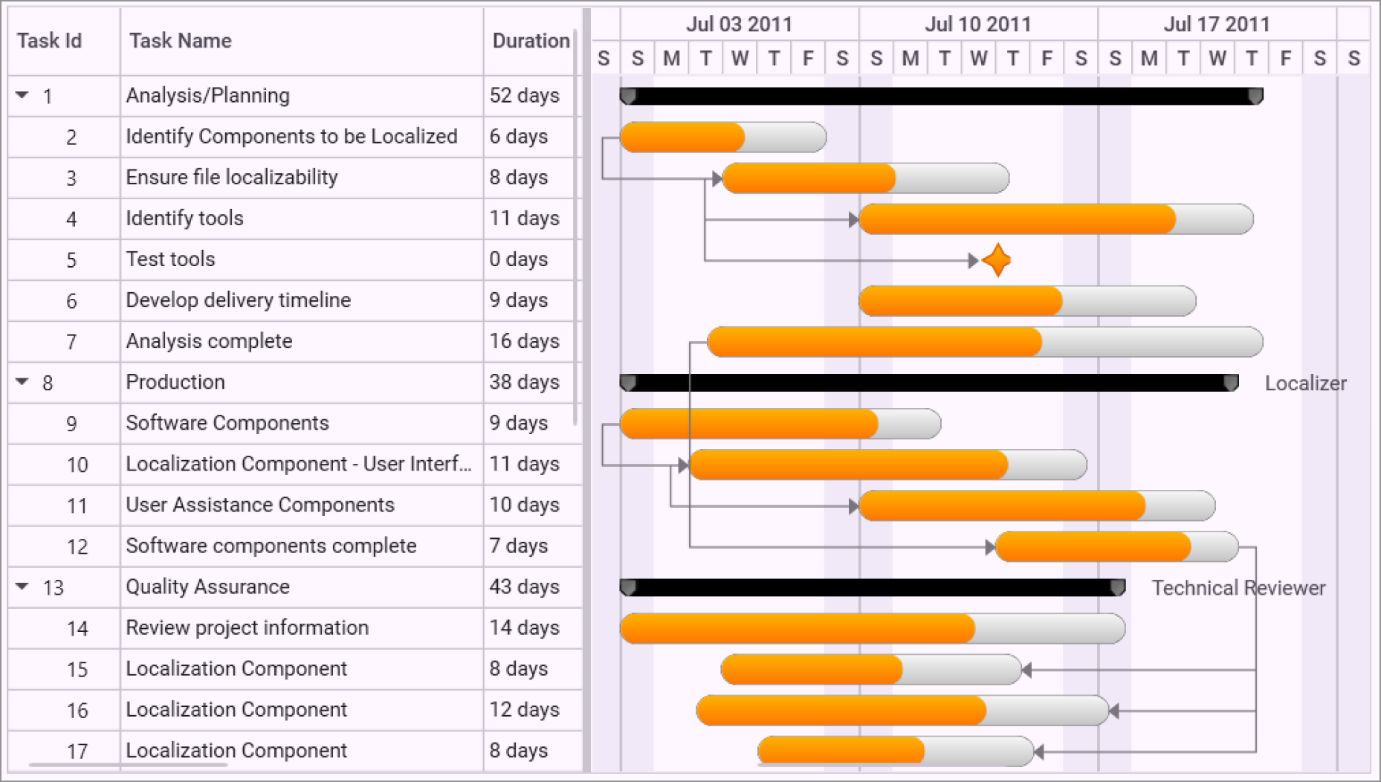
Customizing the appearance of the WPF Gantt control
## Localization and globalization
The current date and time are displayed in globalized formats. Additionally, all static text within the Gantt can be [localized](https://help.syncfusion.com/wpf/gantt/localization)
.
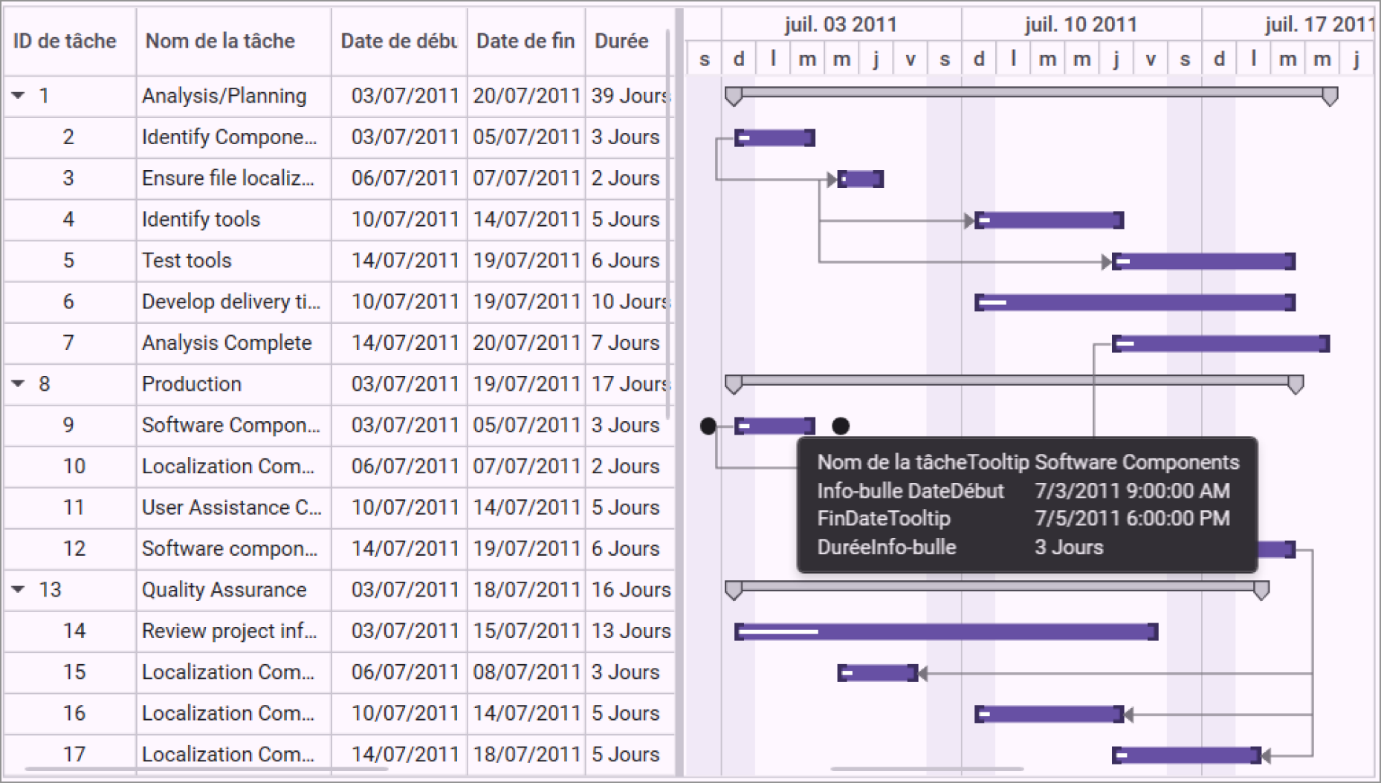
Localization feature in the WPF Gantt control
**Note:** For more details, refer to the [WPF Gantt control documentation](https://help.syncfusion.com/wpf/gantt/overview)
.
## Getting started with WPF Gantt control
We have explored the key features of the WPF Gantt control. Let’s see how to integrate the control in your WPF app.
1. First, [Create a new WPF app](https://learn.microsoft.com/en-us/dotnet/desktop/wpf/get-started/create-app-visual-studio?view=netdesktop-8.0) in [Visual Studio](https://visualstudio.microsoft.com/) .
2. Syncfusion WPF components are available in the [NuGet Gallery](https://www.nuget.org/) . To add the **Gantt control** to your project, open the NuGet package manager in Visual Studio, search for [Syncfusion.Gantt.WPF](https://www.nuget.org/packages/Syncfusion.Gantt.WPF) , and install it.
3. Import the Syncfusion WPF schema. Refer to the following code example where we’ve used syncfusion as a prefix to the namespace and initialize the **Gantt** control.``` xmlns:syncfusion="http://schemas.syncfusion.com/wpf" ```
4. Then, populate the Gantt **ItemSource** to visualize the tasks in the view.** Creating a view model data with the actual data:** ``` public class GanttViewModel { private ObservableCollection taskDetails; public GanttViewModel() { this.taskDetails = this.GetTaskDetails(); } public ObservableCollection TaskDetails { get { return this.taskDetails; } set { this.taskDetails = value; } } private ObservableCollection GetTaskDetails() { ObservableCollection taskDetails = new ObservableCollection(); taskDetails.Add(new TaskDetails { TaskId = 1, TaskName = "Scope", StartDate = new DateTime(2011, 7, 3), FinishDate = new DateTime(2011, 7, 14), Progress = 40d }); taskDetails[0].Child.Add(new TaskDetails { TaskId = 2, TaskName = "Determine project office scope", StartDate = new DateTime(2011, 7, 3), FinishDate = new DateTime(2011, 7, 5), Progress = 20d }); taskDetails[0].Child.Add(new TaskDetails { TaskId = 3, TaskName = "Justify Project Offfice via business model", StartDate = new DateTime(2011, 7, 3), FinishDate = new DateTime(2011, 7, 7), Progress = 20d }); taskDetails[0].Child.Add(new TaskDetails { TaskId = 4, TaskName = "Secure executive sponsorship", StartDate = new DateTime(2011, 7, 3), FinishDate = new DateTime(2011, 7, 14), Progress = 20d }); taskDetails[0].Child.Add(new TaskDetails { TaskId = 5, TaskName = "Secure complete", StartDate = new DateTime(2011, 7, 14), FinishDate = new DateTime(2011, 7, 14), Progress = 20d }); ……. ……. taskDetails[0].Resources = new ObservableCollection() { new Resource { ID = 1, Name = "John" }, new Resource { ID = 2, Name = "Neil" } }; taskDetails[0].Child[3].Resources = new ObservableCollection() { new Resource() { ID = 3, Name = "Peter" } }; taskDetails[1].Resources = new ObservableCollection() { new Resource() { ID = 4, Name = "David" } }; return taskDetails; } } ``` ** Binding the ItemsSource of Gantt control with task details:** ``` ``` You can now run the app and visualize the specified data in the WPF Gantt control. 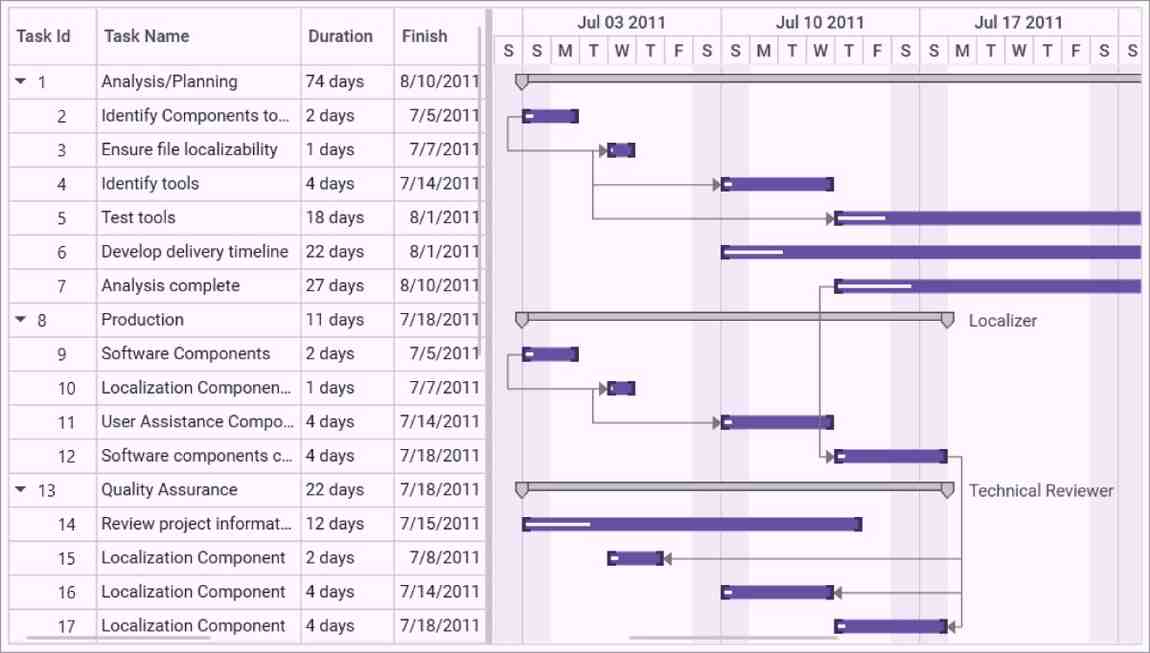 Integrating Gantt control in a WPF app
## Conclusion
Thanks for reading! In this blog, we’ve explored the outstanding features of the [WPF Gantt](https://www.syncfusion.com/wpf-controls/gantt)
control. Use this versatile tool to become a pro in project management and enhance your productivity. Also, share your feedback in the comments below.
If you’re an existing Syncfusion user, the newest version of Essential Studio® is available from the [License and Downloads](https://www.syncfusion.com/account/downloads)
page. If you’re new to Syncfusion, you can take advantage of our [30-day free trial](https://www.syncfusion.com/downloads)
to explore the features and capabilities of our components.
If you have questions, contact us through our [support forums](https://www.syncfusion.com/forums)
, [feedback portal](https://www.syncfusion.com/feedback)
, or [support portal](https://support.syncfusion.com/)
. We are always happy to assist you!
## Related blogs
- [Chart of the Week: Creating a WPF Chart Dashboard to Analyze 2024 T20 World Cup Statistics](https://www.syncfusion.com/blogs/post/wpf-charts-2024-t20-world-cup-data)
- [Navigate PDF Annotations in a TreeView Using WPF PDF Viewer](https://www.syncfusion.com/blogs/post/navigate-pdf-annotations-treeview-wpf-pdf-viewer)
- [Visualize JSON Data Quickly Using WPF Charts](https://www.syncfusion.com/blogs/post/visualize-json-data-wpf-charts)
- [Seamlessly Load Data from Different Data Sources into WPF Charts](https://www.syncfusion.com/blogs/post/different-data-source-wpf-charts)