---
title: "Introducing Emoji Icons Support in the React Rich Text Editor"
published_at: "2023-08-30T10:19:24+00:00"
modified_at: "2026-06-24T14:17:49+00:00"
url: "https://www.syncfusion.com/blogs/post/emojis-in-react-rich-text-editor"
excerpt: "This blog explains the new emoji picker support provided in the Syncfusion React Rich Text Editor component for the 2023 Volume 2 release. "
taxonomy_category:
- "React"
- "Rich Text Editor"
- "Web"
- "What's new"
taxonomy_post_tag:
- "React"
- "rich text editor"
- "Syncfusion"
- "Web"
- "What's New"
---
# Introducing Emoji Icons Support in the React Rich Text Editor
[Thangavel E](https://www.syncfusion.com/blogs/author/thangavele)
**TL;DR:** This blog shows how to add emoji support in the Syncfusion React Rich Text Editor. It covers setup, toolbar integration, emoji picker customization, and shortcuts, helping developers create more expressive and user‑friendly editing experiences.
The Syncfusion [React Rich Text Editor](https://www.syncfusion.com/react-components/react-wysiwyg-rich-text-editor)
is a feature-rich WYSIWYG HTML and Markdown editor
editor designed for creating rich content such as blogs, forum posts, and messaging apps. It offers an intuitive interface, mobile-friendly design, and a wide range of formatting tools to produce clean HTML or Markdown output. Users can easily insert images, links, tables, and lists thanks to its modular architecture.
One of its most engaging features is the **emoji picker**, which enables you to add expressive emoji icons to your content effortlessly. The emoji panel displays a wide variety of emojis organized into categories like smileys, animals, and food. You can select emojis by clicking on them or searching by name. This feature enhances communication by adding visual emotion and personality to your text.
In this article, you’ll learn:
- How to enable and use the emoji picker in the React Rich Text Editor.
- How to customize emoji icons to match your application’s style.
Build Powerful React Rich Text Editors Faster
Create intuitive content editing experiences with Syncfusion React Rich Text Editor. Easily add WYSIWYG editing, formatting, images, links, tables, and lists to blogs, emails, messages, and more.
[Explore React Rich Text Editor](https://www.syncfusion.com/react-components/react-rich-text-editor)
## Creating a React application
The recommended way to create a React app is by using **Vite**, which offers a fast and optimized development experience.
**Steps to create a new project using Vite:**
1. Run the following command in your terminal:
```
npm create vite@latest my-app
```
2. When prompted, select **React or React + TypeScript** as your framework.
## Adding the React Rich Text Editor to the app
Follow these steps to integrate the **Syncfusion React Rich Text Editor** component into your application.
### Step 1: Install the Syncfusion React Rich Text Editor package
Run the following command to install the package:
```
npm install @syncfusion/ej2-react-richtexteditor --save
```
### Step 2: Add CSS references
Add the required CSS files in your **src/App.css file**. These files are located in the `../node_modules/@syncfusion` package folder:
**CSS:**
```
@import '../node_modules/@syncfusion/ej2-base/styles/bootstrap5.css';
@import '../node_modules/@syncfusion/ej2-icons/styles/bootstrap5.css';
@import '../node_modules/@syncfusion/ej2-buttons/styles/bootstrap5.css';
@import '../node_modules/@syncfusion/ej2-splitbuttons/styles/bootstrap5.css';
@import '../node_modules/@syncfusion/ej2-inputs/styles/bootstrap5.css';
@import '../node_modules/@syncfusion/ej2-lists/styles/bootstrap5.css';
@import '../node_modules/@syncfusion/ej2-navigations/styles/bootstrap5.css';
@import '../node_modules/@syncfusion/ej2 -popups/styles/bootstrap5.css';
@import '../node_modules/@syncfusion/ej2-react-richtexteditor/styles/bootstrap5.css';
```
**Note:** For more details, refer to the [React Rich Text Editor](https://ej2.syncfusion.com/react/documentation/rich-text-editor/getting-started)
documentation.
### Step 3: Add the Rich Text Editor component
In a Vite + React project, your main component file will typically be **src/App.jsx** (or ** App.tsx** if using TypeScript). Update it with the following code:
```
import { HtmlEditor, Image, Inject, Link, QuickToolbar, RichTextEditorComponent, Toolbar } from '@syncfusion/ej2-react-richtexteditor';
import './App.css';
function App() {
return (
An emoji picker in a Rich Text Editor is a tool that allows users to add emoji or emoticons to their text easily. Typically, it is a small window or panel that displays a variety of emoji arranged in different categories, such as smileys, animals, food, and so on. Users can select the desired emoji by clicking on it or by typing its name in a search bar.
);
}
export default App;
```
## Configuring the emoji picker in the toolbar
To add emoji icons in your app, follow these steps:
1. Inject the**EmojiPicker service** into the ** RichTextEditorComponent**.
2. Add the**EmojiPicker tool** to the toolbar of the Rich Text Editor using the [toolbarSettings.items](https://helpej2.syncfusion.com/react/documentation/api/rich-text-editor/toolbarsettings#items) property.
Here’s an example:
```
import { HtmlEditor, Image, Inject, Link, QuickToolbar, RichTextEditorComponent, Toolbar, EmojiPicker } from '@syncfusion/ej2-react-richtexteditor';
import './App.css';
function App() {
//Rich Text Editor ToolbarSettings
const toolbarSettings = {
items: ['Bold', 'Italic', 'Underline', '|', 'Formats', 'Alignments', 'OrderedList',
'UnorderedList', '|', 'CreateLink', 'Image', '|', 'SourceCode', 'EmojiPicker', '|', 'Undo', 'Redo'
]
};
return (
An emoji picker in a Rich Text Editor is a tool that allows users to add emoji or emoticons to their text easily. Typically, it is a small window or panel that displays a variety of emoji, arranged in different categories, such as smileys, animals, food, and so on. Users can select the desired emoji by clicking on it or by typing its name in a search bar.
);
}
export default App;
```
## Customizing the pre-defined emoji picker
The emoji picker in the Rich Text Editor displays a default set of emoji icons. However, you can customize it using the [emojiPickerSettings](https://helpej2.syncfusion.com/react/documentation/api/rich-text-editor/richTextEditorModel/#emojipickersettings)
property.
### Customization options
- **Custom Emoji Sets**: Define your own emoji categories and icons using [iconsSet](https://helpej2.syncfusion.com/react/documentation/api/rich-text-editor/emojisettingsmodel#iconsset) .
- **Toolbar Icons**: Customize category icons with the code property.
- **Font Icons**: Apply custom CSS classes using iconCss.
- **Search Box**: Enable or disable the search box using [showSearchBox](https://helpej2.syncfusion.com/react/documentation/api/rich-text-editor/emojisettingsmodel#showsearchbox) .
### Keyboard shortcuts
- **Arrow keys**: Navigate between emojis.
- **Enter**: Select the focused emoji.
- **Escape**: Close the emoji picker without selection.
Example code:
```
import { HtmlEditor, Image, Inject, Link, QuickToolbar, RichTextEditorComponent, Toolbar, EmojiPicker } from '@syncfusion/ej2-react-richtexteditor';
import './App.css';
function App() {
//Rich Text Editor ToolbarSettings
const toolbarSettings = {
items: ['Bold', 'Italic', 'Underline', '|', 'Formats', 'Alignments', 'OrderedList',
'UnorderedList', '|', 'CreateLink', 'Image', '|', 'SourceCode', 'EmojiPicker', '|', 'Undo', 'Redo'
]
};
const emojiPickerSettings = {
iconsSet: [{name: 'Smilies & People', code: '1F600', iconCss: 'e-emoji',
icons: [{ code: '1F600', desc: 'Grinning face' },
{ code: '1F603', desc: 'Grinning face with big eyes' },
{ code: '1F604', desc: 'Grinning face with smiling eyes' },
{ code: '1F606', desc: 'Grinning squinting face' },
{ code: '1F605', desc: 'Grinning face with sweat' },
{ code: '1F602', desc: 'Face with tears of joy' },
{ code: '1F923', desc: 'Rolling on the floor laughing' },
{ code: '1F60A', desc: 'Smiling face with smiling eyes' }]
}, {
name: 'Animals & Nature', code: '1F435', iconCss: 'e-animals',
icons: [{ code: '1F436', desc: 'Dog face' },
{ code: '1F431', desc: 'Cat face' },
{ code: '1F42D', desc: 'Mouse face' },
{ code: '1F439', desc: 'Hamster face' },
{ code: '1F430', desc: 'Rabbit face' },
{ code: '1F98A', desc: 'Fox face' }]
}, {
name: 'Food & Drink', code: '1F347', iconCss: 'e-food-and-drinks',
icons: [{ code: '1F34E', desc: 'Red apple' },
{ code: '1F34C', desc: 'Banana' },
{ code: '1F347', desc: 'Grapes' },
{ code: '1F353', desc: 'Strawberry' },
{ code: '1F35E', desc: 'Bread' },
{ code: '1F950', desc: 'Croissant' },
{ code: '1F955', desc: 'Carrot' },
{ code: '1F354', desc: 'Hamburger' }]
}, {
name: 'Activities', code: '1F383', iconCss: 'e-activities',
icons: [{ code: '26BD', desc: 'Soccer ball' },
{ code: '1F3C0', desc: 'Basketball' },
{ code: '1F3C8', desc: 'American football' },
{ code: '26BE', desc: 'Baseball' },
{ code: '1F3BE', desc: 'Tennis' },
{ code: '1F3D0', desc: 'Volleyball' },
{ code: '1F3C9', desc: 'Rugby football' }]
}, {
name: 'Travel & Places', code: '1F30D', iconCss: 'e-travel-and-places',
icons: [{ code: '2708', desc: 'Airplane' },
{ code: '1F697', desc: 'Automobile' },
{ code: '1F695', desc: 'Taxi' },
{ code: '1F6B2', desc: 'Bicycle' },
{ code: '1F68C', desc: 'Bus' }]
}, {
name: 'Objects', code: '1F507', iconCss: 'e-objects', icons: [{ code: '1F4A1', desc: 'Light bulb' },
{ code: '1F526', desc: 'Flashlight' },
{ code: '1F4BB', desc: 'Laptop computer' },
{ code: '1F5A5', desc: 'Desktop computer' },
{ code: '1F5A8', desc: 'Printer' },
{ code: '1F4F7', desc: 'Camera' },
{ code: '1F4F8', desc: 'Camera with flash' },
{ code: '1F4FD', desc: 'Film projector' }]
}, {
name: 'Symbols', code: '1F3E7', iconCss: 'e-symbols', icons: [{ code: '274C', desc: 'Cross mark' },
{ code: '2714', desc: 'Check mark' },
{ code: '26A0', desc: 'Warning sign' },
{ code: '1F6AB', desc: 'Prohibited' },
{ code: '2139', desc: 'Information' },
{ code: '267B', desc: 'Recycling symbol' },
{ code: '1F6AD', desc: 'No smoking' }]
}]
}
return (
An emoji picker in a Rich Text Editor is a tool that allows users to easily add emoji or emoticons to their text. Typically, it is a small window or panel that displays a variety of emoji, arranged in different categories, such as smileys, animals, food, and so on. Users can select the desired emoji by clicking on it or by typing its name in a search bar.
);
}
export default App;
```
Refer to the following image.
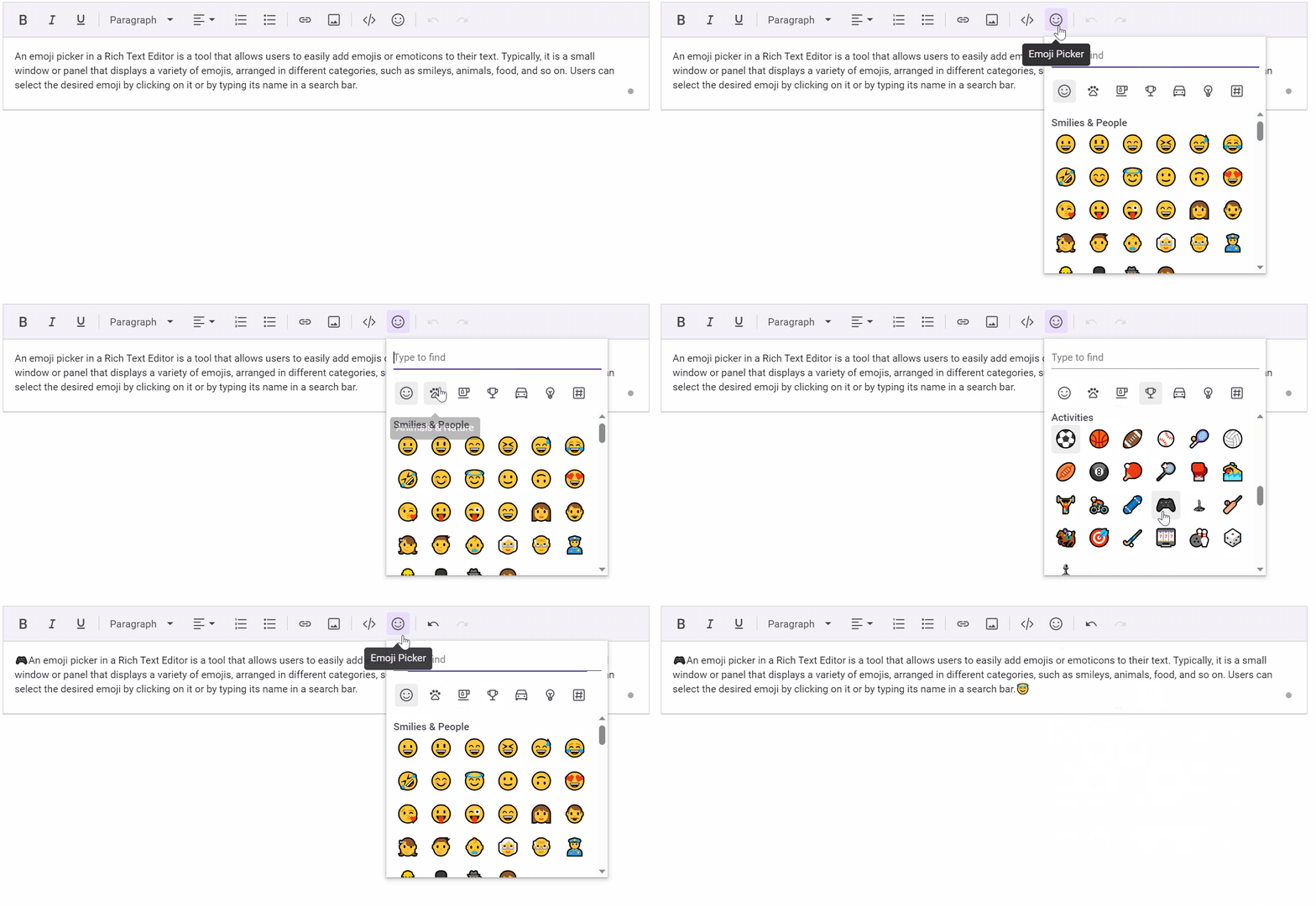
Using custom emoji icons in React Rich Text Editor
## Shortcut key for instantly opening the emoji picker
To quickly access the emoji picker in the Rich Text Editor:
- **Press the colon (:) key** while typing a word prefix in the editor.
- This instantly opens the emoji picker for quick selection.
- Continue typing after the colon to **filter and refine your search** for the desired emoji.
This feature saves time and improves efficiency when adding emojis during text editing.
## Custom placement of the emoji picker in an editor
By default, the emoji picker opens at the **current cursor position**.
If you need more control over its placement, use the **showEmojiPicker(x, y)** public method.
- x → Left position of the emoji picker.
- y → Top position of the emoji picker.
This allows you to display the emoji picker at any desired location within the editor.
## Common errors and fixes
| Error | Cause | Fix |
| --- | --- | --- |
| findDOMNode is deprecated | React 18 StrictMode | Normal in dev; disappears in production |
| Emoji picker not opening on : | Version < 30.4.41 | npm install @syncfusion/ej2-react-richtexteditor@latest |
| Styles not applied | Wrong CSS import path | Use @syncfusion/…/material3.css |
| Component not unmounting cleanly | Missing destroy() | Add useEffect(() => () => rteRef.current?.destroy(), []) |
## FAQs
**Q1: Can I use emoji-mart or custom datasets?**
**A:** Yes! Just pass your own dataSource to emojiPickerSettings.
**Q2: Does it work on mobile?**
**A:** Fully responsive and touch-optimized.
**Q3: Is the Emoji Picker accessible (keyboard, screen readers)?**
**A:** Yes – 100% accessible:
- Full keyboard navigation (Arrow keys, Enter, Esc, Tab)
- ARIA attributes (aria-label, aria-haspopup, aria-expanded)
- Screen-reader friendly (NVDA, VoiceOver, JAWS announce “Emoji picker popup”, category names, and emoji descriptions)
- Focus is properly trapped inside the popup and returned on close
- High-contrast theme support (Material 3 Dark, Fluent Dark, etc.)
Tested and compliant with WCAG 2.1 AA
**Q4:Does the Emoji Picker support right-to-left (RTL) languages?**
**A:** Fully supported. Just enable RTL on the editor:
```
```
The popup automatically flips, search box aligns right, and scrollbars appear on the left.
## Conclusion
Thanks for reading! In this blog, we explored how to add both **predefined** and ** custom emoji icons** within the [React Rich Text Editor](https://www.syncfusion.com/react-components/react-wysiwyg-rich-text-editor)
component. We encourage you to try this integration and share your feedback in the comments section below.
If you are new to Syncfusion, try our control features by downloading a [free trial](https://www.syncfusion.com/downloads)
. You can also explore our [online demo](https://ej2.syncfusion.com/react/demos/#/material/rich-text-editor/tools)
and our [documentation](https://ej2.syncfusion.com/react/documentation/rich-text-editor/)
for more details.
If you have any questions, you can contact us through our [support forums](https://www.syncfusion.com/forums)
, [support portal](https://support.syncfusion.com/)
, or [feedback portal](https://www.syncfusion.com/feedback/)
. We are always happy to assist you!
## Related Blogs
[How to Use Merge Fields in React Rich Text Editor for Dynamic Content](https://www.syncfusion.com/blogs/post/merge-fields-in-react-rich-text-editor)
[Easily Integrate the React Image Editor into the Rich Text Editor](https://www.syncfusion.com/blogs/post/integrate-react-image-editor-into-rich-text-editor)
[How to Integrate Syncfusion React Mention Component with Rich Text Editor](https://www.syncfusion.com/blogs/post/integrate-react-mention-component-with-rich-text-editor)
[How to Use Syncfusion’s React Rich Text Editor with React Redux Form](https://www.syncfusion.com/blogs/post/how-to-use-syncfusions-react-rich-text-editor-with-react-redux-form)