---
title: "Easily Use a JavaScript Control in a Blazor Server App"
published_at: "2022-01-05T11:00:28+00:00"
modified_at: "2026-05-18T13:19:32+00:00"
url: "https://www.syncfusion.com/blogs/post/easily-use-a-javascript-control-in-a-blazor-server-app"
excerpt: "Learn how to add Syncfusion’s JavaScript Spreadsheet to a Blazor Server app using simple interop steps."
taxonomy_category:
- "Blazor"
- "Development"
- "Excel"
- "JavaScript"
- "Spreadsheet"
- "Web"
taxonomy_post_tag:
- "Blazor"
- "JavaScript"
- "Spreadsheet"
- "Web Development"
---
# Easily Use a JavaScript Control in a Blazor Server App
[Prabu Sarvesan](https://www.syncfusion.com/blogs/author/prabu-s)
**TL;DR:** The blog explains how to add a Syncfusion JavaScript Spreadsheet to a Blazor Server app. Set up the project, include Syncfusion’s CSS/JS via CDN, and use IJSRuntime to call a RenderSpreadsheet function that initializes the control with sample data. The result is a working spreadsheet rendered inside Blazor through simple JavaScript interop.
[Blazor](https://dotnet.microsoft.com/apps/aspnet/web-apps/blazor)
is an open-source web development framework. It is used to build interactive single-page web apps using C# instead of JavaScript. It supports components, lifecycle, routing, bindings, validations, templates, dependency injection, error handling, and more features to quickly create real-time apps. Although Blazor avoids using JavaScript when building an application, it still supports using JavaScript controls when needed. To demonstrate this, we are going to include the Syncfusion [JavaScript Spreadsheet](https://www.syncfusion.com/javascript-ui-controls/js-spreadsheet)
control in a Blazor application.
## Prerequisites
To create and run a Blazor server-side web app, we need the following prerequisites:
- [Visual Studio 2022 / Visual Studio 2019](https://visualstudio.microsoft.com/vs/)
- [.NET 6.0 SDK](https://dotnet.microsoft.com/download/dotnet/6.0) / [.NET 5.0 SDK](https://dotnet.microsoft.com/download/dotnet/5.0) / [.NET Core SDK 3.1.8](https://dotnet.microsoft.com/download/dotnet-core/3.1)
**Note:**
- .NET Core SDK 3.1.8 requires Visual Studio 2019 16.7 or later.
- .NET 5.0 requires Visual Studio 2019 16.8 or later..
- .NET 6.0 requires Visual Studio 2022 17.0 Preview 4.1 or later.
## Create a new Blazor server-side project in Visual Studio 2022
Follow these steps to easily create a Blazor server-side app in Visual Studio 2022:
1. First, open Visual Studio 2022. Then, choose the **Create a new project** option. Refer to the following image. 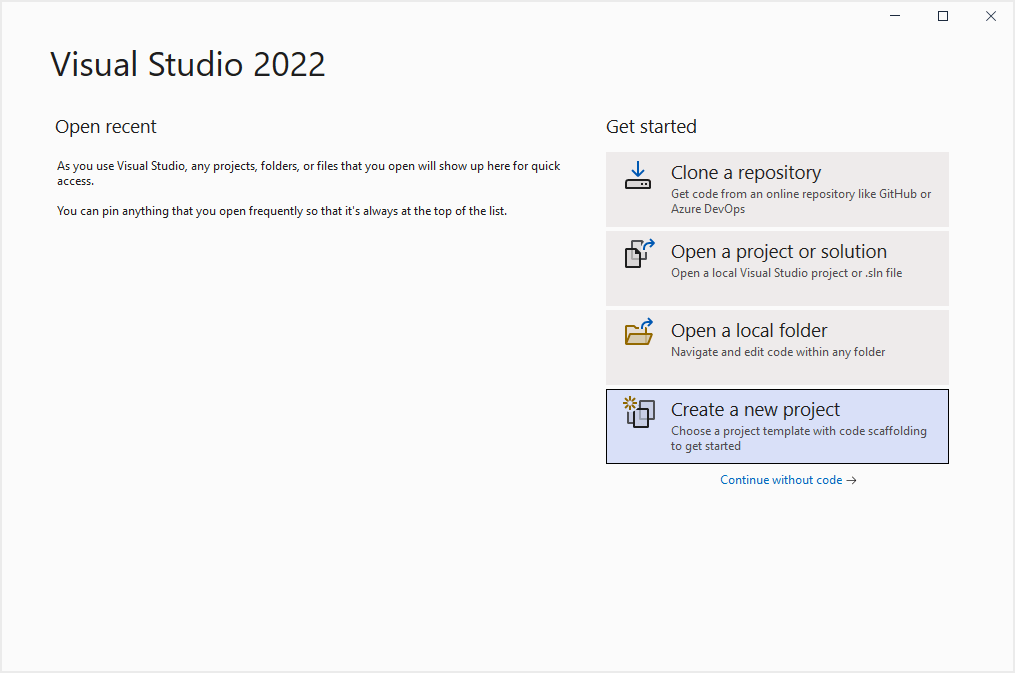
2. Now, the **Create a new project** window will appear. Choose the ** Blazor Server App** as the template, and then click ** Next**. 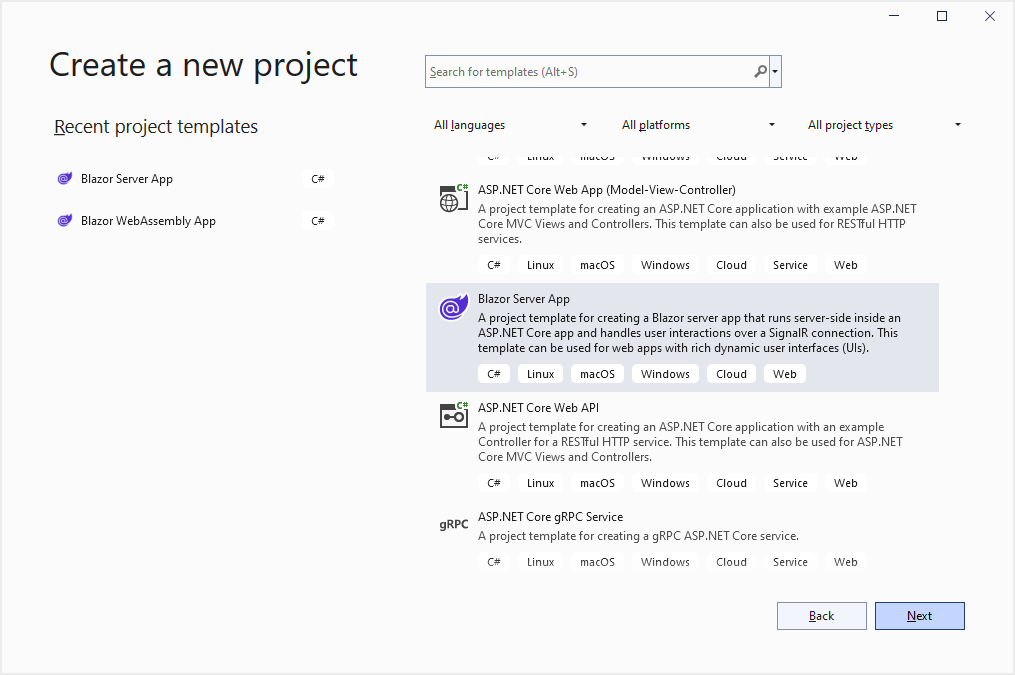
3. Now, the project configuration window will pop up. Provide a name to the project and click **Next**. 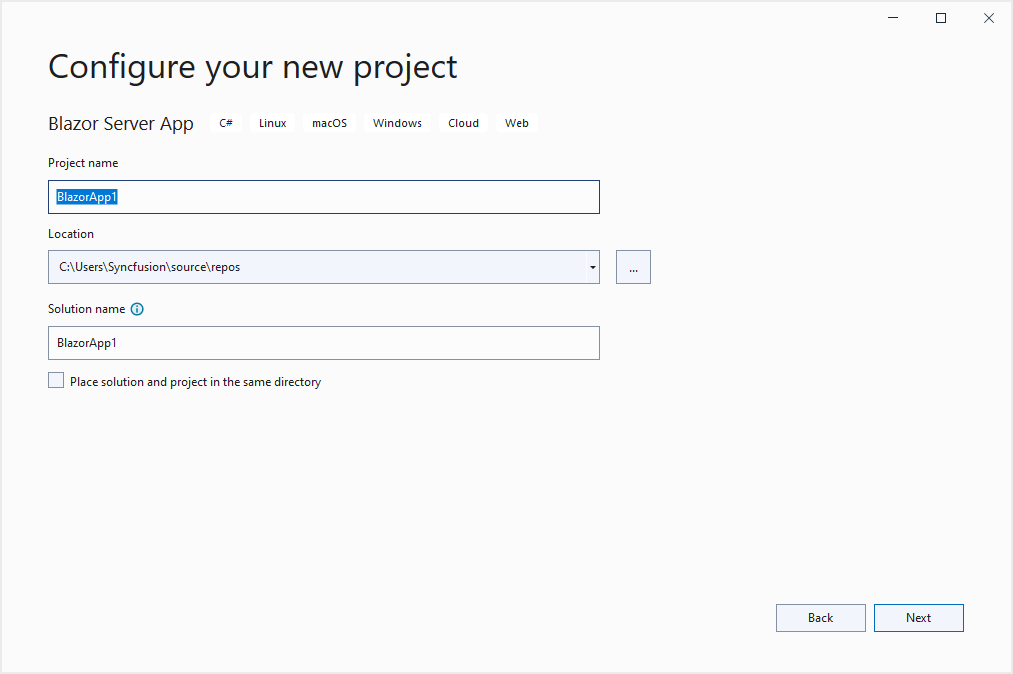
4. The Additional information window will appear. Select your required target framework as **.NET Core 3.1**, **.NET 5.0**, or **.NET 6.0**. The ** Configure for HTTPS**checkbox will be enabled by default. Now, click the ** Create** button to create a new Blazor server app. Here, we are going to select **.NET 6** as the target framework. 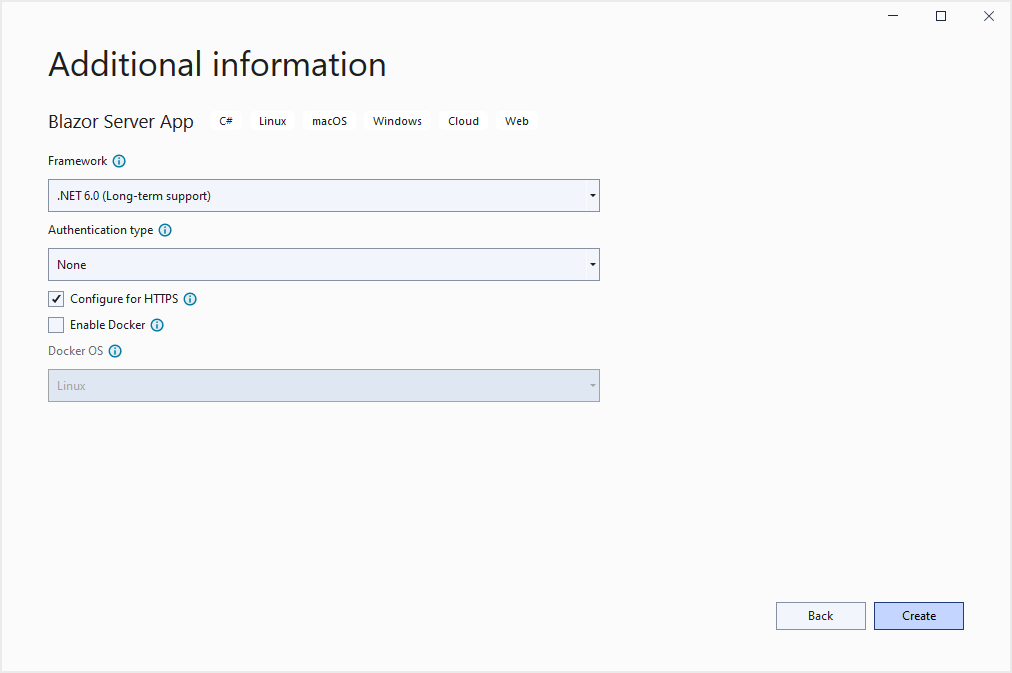
We have created our Blazor server-side app. Let’s see how to add the JavaScript Spreadsheet control in it.
## Add style and script for the JavaScript Spreadsheet
To integrate the JavaScript Spreadsheet control within our Blazor app, we need to add the required client-side style and scripts through CDN references in the **** element of the **~/Pages/_Layout.cshtml** page.
Refer to the following code.
**[_Layout.cshtml]**
```
```
## Initialize the JavaScript Spreadsheet control
We can invoke a [JavaScript API from .NET and a .NET method from JavaScript](https://docs.microsoft.com/en-us/aspnet/core/blazor/javascript-interoperability/?view=aspnetcore-6.0)
. Here, we will invoke the JavaScript API from Blazor by injecting the **IJSRuntime** service into our ** Index.razor** page.
Then, we will add the Spreadsheet target element and invoke the **RenderSpreadsheet** function in the ** OnAfterRenderAsync** method in the ** Index.razor** page.
Refer to the following code example.
**[Index.razor]**
```
@inject IJSRuntime JSRuntime
@code{
ElementReference spreadsheetElem;
List orders = new List
{
new Order { OrderID = 10001, OrderDate = "12/16/2021", ShipAddress = "Kirchgasse 6", ShipCity ="Berlin", ShipCountry = "Denmark" },
new Order { OrderID = 10002, OrderDate = "12/16/2021", ShipAddress = "Avda. Azteca 123", ShipCity ="Madrid", ShipCountry = "Brazil" },
new Order { OrderID = 10003, OrderDate = "12/17/2021", ShipAddress = "Carrera 52 con Ave. Bolívar #65-98 Llano Largo", ShipCity ="Cholchester", ShipCountry = "Germany" },
new Order { OrderID = 10004, OrderDate = "12/18/2021", ShipAddress = "Magazinweg 7", ShipCity ="Marseille", ShipCountry = "Austria" },
new Order { OrderID = 10005, OrderDate = "12/20/2021", ShipAddress = "1029 - 12th Ave. S.", ShipCity ="Tsawassen", ShipCountry = "Switzerland" }
};
protected override async Task OnAfterRenderAsync(bool firstRender)
{
await JSRuntime.InvokeVoidAsync("RenderSpreadsheet", spreadsheetElem, orders);
}
public class Order
{
public int? OrderID { get; set; }
public string OrderDate { get; set; }
public string ShipAddress { get; set; }
public string ShipCity { get; set; }
public string ShipCountry { get; set; }
}
}
```
To initialize the Syncfusion JavaScript Spreadsheet control, specify the following code in the **
```
### Output
After executing the above code, the JavaScript Spreadsheet control will be rendered in our Blazor server-side app.
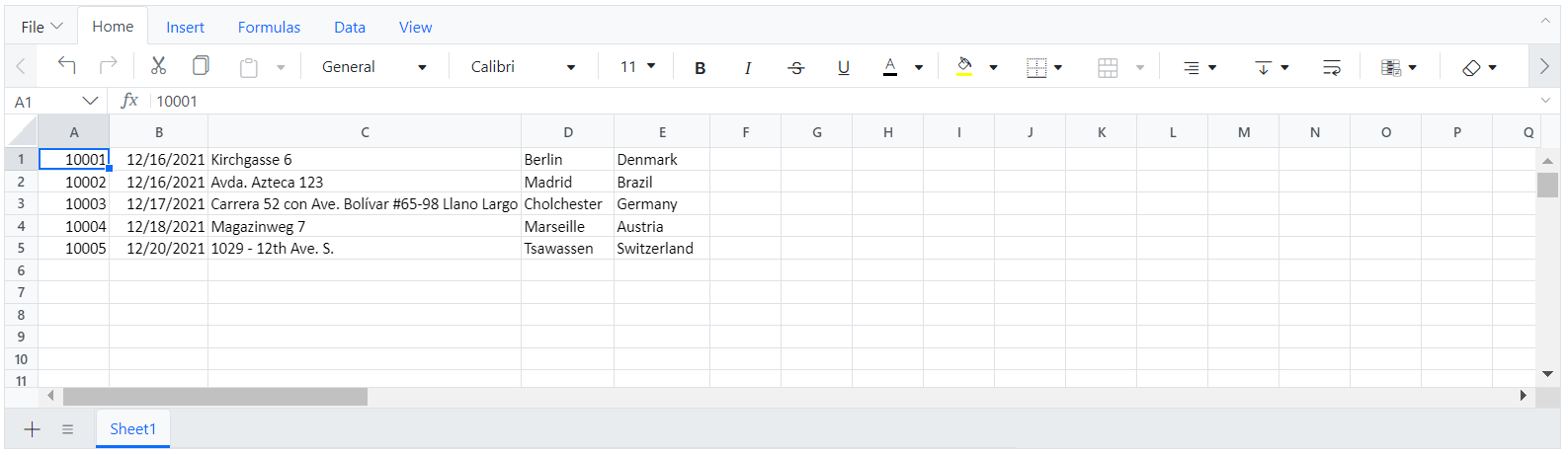
JavaScript Spreadsheet Control in Blazor Application
**Note:** For more details, refer to the [documentation](https://ej2.syncfusion.com/documentation/spreadsheet/getting-started/)
.
## Resource
For a detailed look at the code, refer to our [GitHub demo](https://github.com/SyncfusionExamples/Add-a-JavaScript-Spreadsheet-Component-in-Blazor-Server-App)
.
## Conclusion
Thanks for reading! I hope you now have a better understanding of how to add a JavaScript control in your Blazor server app. Try out the steps provided in this blog post and leave your feedback in the comments section below!
The Syncfusion [Blazor suite](https://www.syncfusion.com/blazor-components)
offers over 70 components that work with both Blazor server-side and client-side (Blazor WebAssembly) projects seamlessly. Use them to build astonishing applications!
For existing customers, the newest version of Essential Studio® is available for download from the [License and Downloads](https://www.syncfusion.com/account/downloads)
page. If you are not yet a Syncfusion customer, you can try our 30-day [free trial](https://www.syncfusion.com/downloads)
to check out the available features.
Also, you can contact us through our [support forum](https://www.syncfusion.com/forums)
, [support portal](https://support.syncfusion.com/)
, or [feedback portal](https://www.syncfusion.com/feedback/javascript)
. As always, we are happy to assist you!
## Related Blogs
[Effortlessly Synchronize JavaScript Controls Using DataManager](https://www.syncfusion.com/blogs/post/sync-javascript-controls-datamanager)
[Create an Interactive BPMN Viewer and Editor Using the JavaScript Diagram Control](https://www.syncfusion.com/blogs/post/bpmn-viewer-and-editor-using-javascript-diagram-control)
[Introducing the JavaScript Signature Pad Control in Essential JS 2](https://www.syncfusion.com/blogs/post/introducing-the-javascript-signature-pad-control-in-essential-js-2)
[Easily Use a JavaScript Control in a Blazor Server App](https://www.syncfusion.com/blogs/post/easily-use-a-javascript-control-in-a-blazor-server-app)