---
title: "How to Draw on a PDF in a Windows App"
published_at: "2019-06-24T11:00:14+00:00"
modified_at: "2025-03-20T07:30:44+00:00"
url: "https://www.syncfusion.com/blogs/post/draw-on-a-pdf-in-a-windows-app"
excerpt: "Portable Document Format (PDF) is one of the most widely used document formats for sharing data. The requirement to review a PDF document in a desktop application by scribbling on it freehand is very common, but most PDF editors only..."
taxonomy_category:
- "Desktop"
- "PDF viewer"
- "UWP"
- "Windows App"
taxonomy_post_tag:
- "drawing helper"
- "PDF Viewer"
- "Universal Windows Apps"
---
# How to Draw on a PDF in a Windows App
[Suresh M](https://www.syncfusion.com/blogs/author/sureshm)

[Portable Document Format](https://en.wikipedia.org/wiki/PDF)
(PDF) is one of the most widely used document formats for sharing data. The requirement to review a PDF document in a desktop application by scribbling on it freehand is very common, but most PDF editors only provide provisions to review a PDF document using text markup annotations (highlight, underline, strikethrough text) and shape annotations (line, rectangle, ellipse).
Luckily, the [Syncfusion PDF Viewer](https://www.syncfusion.com/uwp-ui-controls/pdf-viewer)
provides support to draw on PDF documents freehand in desktop apps and [Xamarin](https://www.syncfusion.com/xamarin-ui-controls/xamarin-pdf-viewer)
mobile apps. In this blog, I am going to walk you through inking a PDF document freehand in a Windows application.
## Creating a UWP application
1. Open Visual Studio and create a Blank App (Universal Windows). Name it **DrawOnPDF-UWP**.
2. Right-click the project file listed in **Solution Explorer** and open ** Manage NuGet Packages for Solution**.
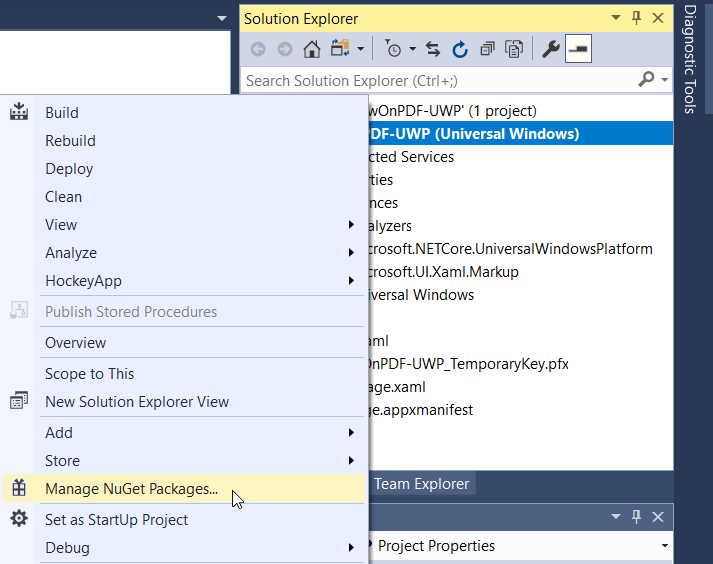
*Open Manage NuGet Packages*
3. Browse for the [SfPdfViewer.UWP](https://www.nuget.org/packages/Syncfusion.SfPdfViewer.UWP/)
NuGet package and install it in the project.
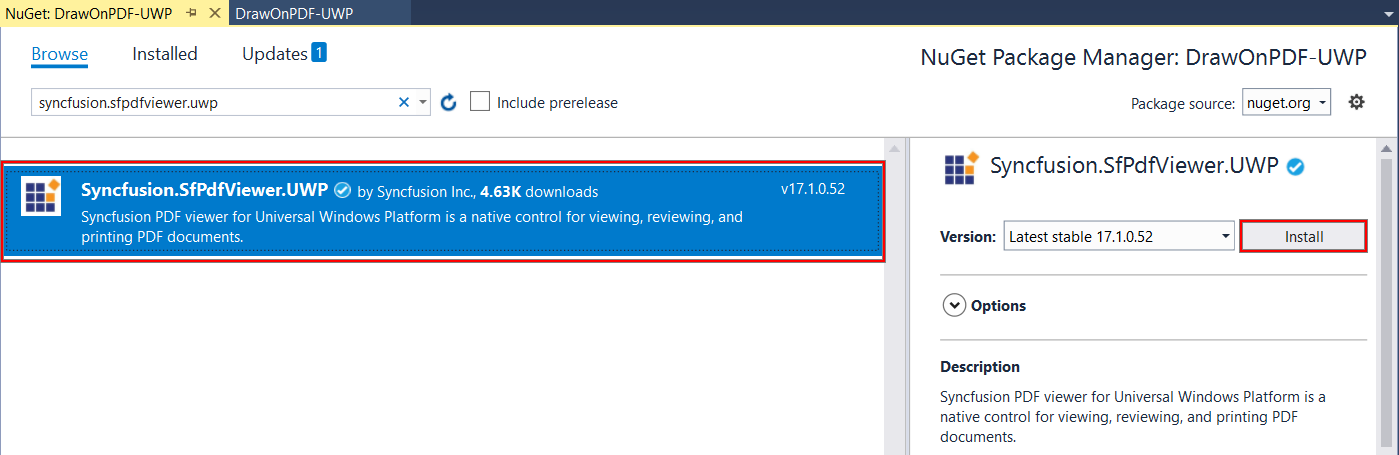
*Install Syncfusion.SfPdfViewer.UWP NuGet Package*
4. Open **MainPage.xaml** and add an XML namespace to refer to the PDF Viewer assembly. Then add ** SfPdfViewer** as a child to the ** Grid** element.
```
```
## Loading PDF document
The PDF Viewer control supports loading a PDF document into it as a [Stream](https://docs.microsoft.com/en-us/dotnet/api/system.io.stream?view=netframework-4.8)
object. In this project, we are going to add a PDF document as an **Embedded Resource** and load its stream into the PDF Viewer.
1. Add a PDF document into the **Assets** folder of the project and set its [Build Action](https://docs.microsoft.com/en-us/visualstudio/ide/build-actions?view=vs-2019)
property as **Embedded Resource**.

*Set Build Action to Embedded Resource*
2. Add a view model class to the project and name it [PdfViewerViewModel](https://github.com/SyncfusionExamples/draw-on-pdf-windows-app/blob/master/DrawOnPDF-UWP/PdfViewerViewModel.cs)
. Declare a **Stream** object to bind the PDF document stream to the PDF Viewer.
```
using System.ComponentModel;
using System.IO;
using System.Reflection;
namespace DrawOnPDF_UWP
{
class PdfViewerViewModel : INotifyPropertyChanged
{
private Stream documentStream;
public event PropertyChangedEventHandler PropertyChanged;
///
/// Stream object to be bound to the ItemsSource of the PDF Viewer.
///
public Stream DocumentStream
{
get
{
return documentStream;
}
set
{
documentStream = value;
OnPropertyChanged(new PropertyChangedEventArgs("DocumentStream"));
}
}
public PdfViewerViewModel()
{
//Loads the stream from the embedded resource.
Assembly assembly = typeof(MainPage).GetTypeInfo().Assembly;
DocumentStream = assembly.GetManifestResourceStream("DrawOnPDF_UWP.Assets.Invoice.pdf");
}
public void OnPropertyChanged(PropertyChangedEventArgs e)
{
PropertyChanged?.Invoke(this, e);
}
}
}
```
3. Now, set the **DataContext** of the **Page** to ** PdfViewerViewModel**and bind the ** ItemsSource** of the PDF Viewer control to the ** DocumentStream** of the view model class.
```
```
With this, we have successfully created a UWP application and displayed a PDF document in it.
## Draw on the PDF
The ink annotation feature of the PDF Viewer can be used to perform freehand drawing over PDF documents.
1. Split the **Grid** containing the PDF Viewer into two rows and add the PDF Viewer to the second row. Add a ** StackPanel** in the first row with a ** CheckBox** and a ** Button**. The CheckBox will be used to toggle the ink mode and the Button will be used to save the modified PDF document.
```
< yncfusion:SfPdfViewerControl Grid.Row=”1” ItemsSource=”{Binding DocumentStream}”/>
```
2. Now bind the **Command** of ** CheckBox** with the ** InkAnnotationCommand** of the ** PdfViewer** element and bind the ** CommandParameter** with the ** IsChecked** property of the ** CheckBox**.
```
```
3. In the **SaveButton_OnClick** method in the code-behind, add the following code to save the PDF document along with any ink added to it.
```
private async void SaveButton_OnClick(object sender, RoutedEventArgs e)
{
string filename = "output.pdf";
Stream stream = pdfViewer.Save();
stream.Position = 0;
FileSavePicker savePicker = new FileSavePicker
{
DefaultFileExtension = ".pdf",
SuggestedFileName = filename
};
savePicker.FileTypeChoices.Add("Adobe PDF Document", new List() { ".pdf" });
StorageFile stFile = await savePicker.PickSaveFileAsync();
if (stFile != null)
{
Windows.Storage.Streams.IRandomAccessStream fileStream = await stFile.OpenAsync(FileAccessMode.ReadWrite);
Stream streamForWrite = fileStream.AsStreamForWrite();
streamForWrite.SetLength(0);
streamForWrite.Write((stream as MemoryStream).ToArray(), 0, (int)stream.Length);
streamForWrite.Flush();
streamForWrite.Dispose();
fileStream.Dispose();
MessageDialog msgDialog = new MessageDialog("File has been saved successfully.");
IUICommand cmd = await msgDialog.ShowAsync();
}
}
```
4. Now deploy, run the project, ink the PDF document, and save it.
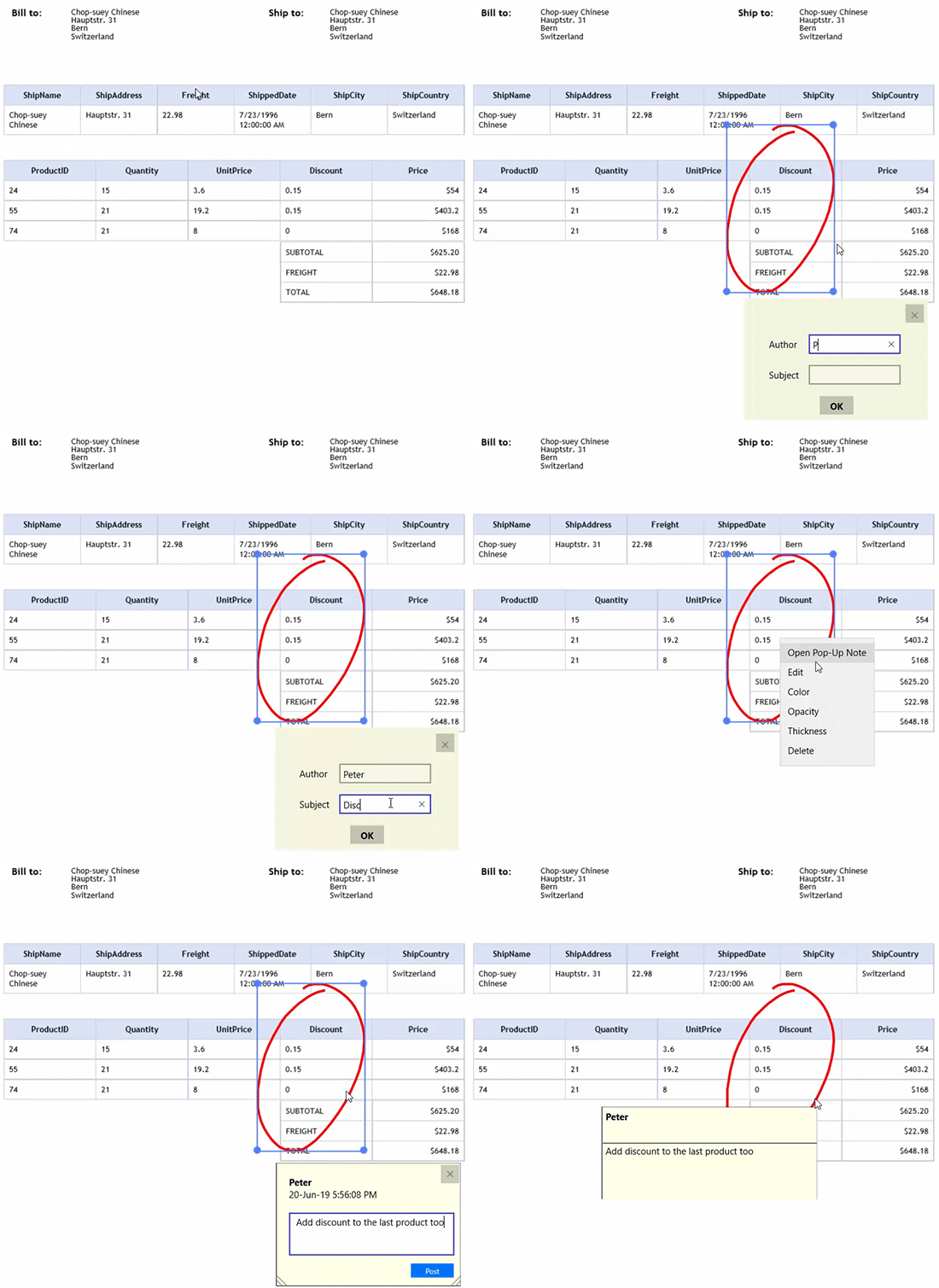
*Draw on a PDF in Windows App*
## Conclusion
From this blog, we have learned how to draw on a PDF document in a UWP application and save the resultant document using the Syncfusion PDF Viewer for UWP. Please use the demo project in [this GitHub repository](https://github.com/SyncfusionExamples/draw-on-pdf-windows-app)
as a reference while trying it on your own. For more details about customizing the color, thickness, opacity, adding pop-up notes and so on, refer to our [documentation](https://help.syncfusion.com/uwp/pdf-viewer/concepts-and-features/working-with-ink-annotation)
.
If you’re already a Syncfusion user, you can download the product setup by [logging in to your account](https://www.syncfusion.com/account/downloads)
. Otherwise, you can download a free, 30-day trial from the [Syncfusion website](https://www.syncfusion.com/downloads/fileformats/verify)
.
If you have any questions or require clarifications about these features, please contact us through our [support forum](https://www.syncfusion.com/forums)
, [Direct-Trac](https://www.syncfusion.com/support/directtrac/)
, or [Feedback Portal](https://www.syncfusion.com/feedback/)
. We are happy to assist you!
If this blog interests you, we think you would also love the following blog:
[Interactive Form Filling in 4 Easy Steps](https://www.syncfusion.com/blogs/post/interactive-form-filling-in-pdf-using-pdf-viewer-control.aspx)