---
title: "Introducing the New .NET MAUI TreeMap Control"
published_at: "2024-03-27T13:04:40+00:00"
modified_at: "2025-11-06T08:07:32+00:00"
url: "https://www.syncfusion.com/blogs/post/dotnet-maui-treemap-control"
excerpt: "Let’s see the key features of the new Syncfusion .NET MAUI TreeMap control added in the 2024 Volume 1 release and the steps to get started!"
taxonomy_category:
- ".NET MAUI"
- "Desktop"
- "Mobile"
- "Syncfusion"
- "UI"
- "What's new"
taxonomy_post_tag:
- ".NET MAUI"
- "desktop"
- "MAUI"
- "Mobile"
- "What's New"
---
# Introducing the New .NET MAUI TreeMap Control
[Karthik Raja Arumugam](https://www.syncfusion.com/blogs/author/karthik-raja-arumugam)

**TLDR:** Exploring the user-friendly features of the new Syncfusion .NET MAUI TreeMap control and the steps to integrate it in a .NET MAUI application.
We are delighted to introduce another data visualization control in the [Syncfusion .NET MAUI suite](https://www.syncfusion.com/maui-controls)
for the [2024 Volume 1](https://www.syncfusion.com/forums/187257/essential-studio-2024-volume-1-main-release-v25-1-35-is-available-for-download)
release, the all-new [.NET MAUI TreeMap](https://www.syncfusion.com/maui-controls/maui-tree-map)
control.
The .NET MAUI TreeMap control visually represents hierarchical data using nested rectangles, sized and colored based on underlying values. It efficiently displays grouped and nested data structures, offering extensive customization options and supporting item selection.
In this blog, we’ll delve into the key features of the .NET MAUI TreeMap and outline the steps to get started!
## Key features
The .NET MAUI TreeMap Control provides support for the following key features:
- [Data binding](#Data)
- [Layout types](#Layout)
- [Levels](#Levels)
- [Legend](#Legends)
- [Tooltip](#Tooltips)
- [Brush settings](#Brush)
- [Selection](#Selection)
- [Appearance customization](#Appearance)
Let’s take a closer look at these features!
### Data binding
The .NET MAUI TreeMap control seamlessly binds hierarchical data structures, visually representing the data into groups with leaf items as rectangles, providing precise data representation.
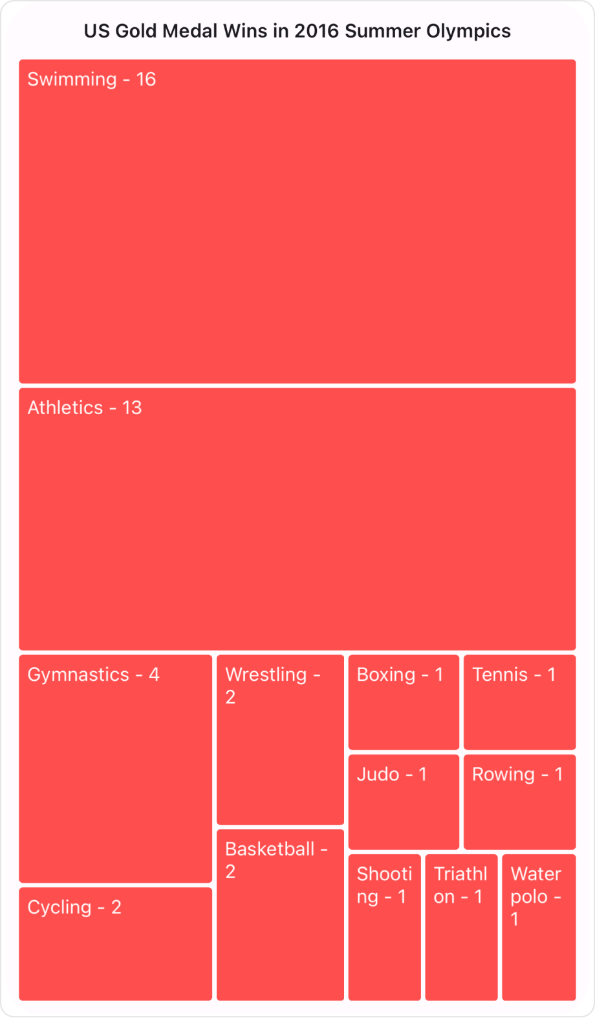
Data binding feature in .NET MAUI TreeMap control
### Layout types
The .NET MAUI TreeMap control offers multiple layout types to organize hierarchical data effectively. The layout types include **squarified**, ** slice and dice horizontal**, ** slice and dice vertical**, and ** slice and dice auto**.
| Squarified layout | Slice and dice horizontal layout | Slice and dice vertical layout |
| --- | --- | --- |
**Different layout types *in the .NET MAUI TreeMap control***
Based on the high aspect ratio, the **slice and dice auto** layout visualizes the .NET MAUI TreeMap in long, thin rectangles vertically or horizontally.
### Levels
The .NET MAUI TreeMap control seamlessly integrates multiple hierarchical data levels for richer and more detailed visualizations.
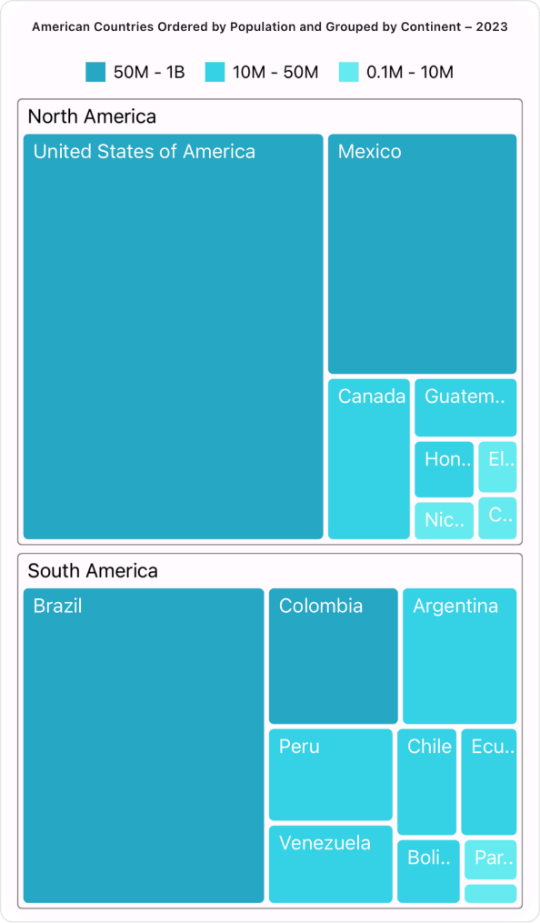
Levels feature in the .NET MAUI TreeMap control
### Legends
You can use legends to add additional information for interpreting a TreeMap with various colors, shapes, and more.
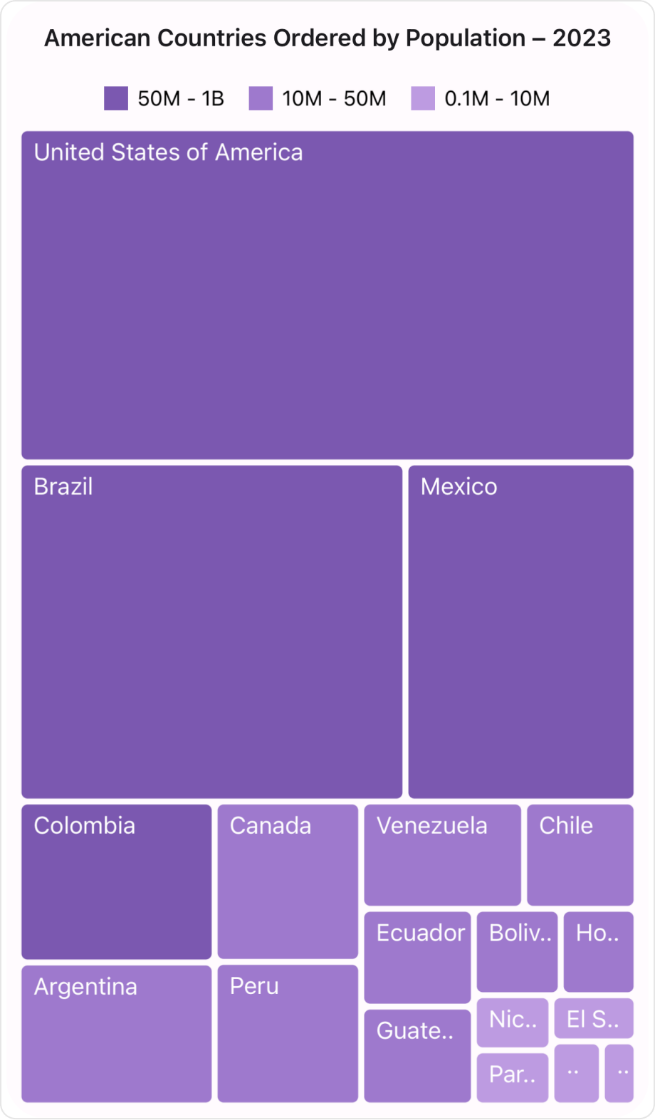
Legends in the .NET MAUI TreeMap control
### Tooltips
When the mouse hovers over items, the interactive TreeMap displays the details about the items’ values in tooltips.
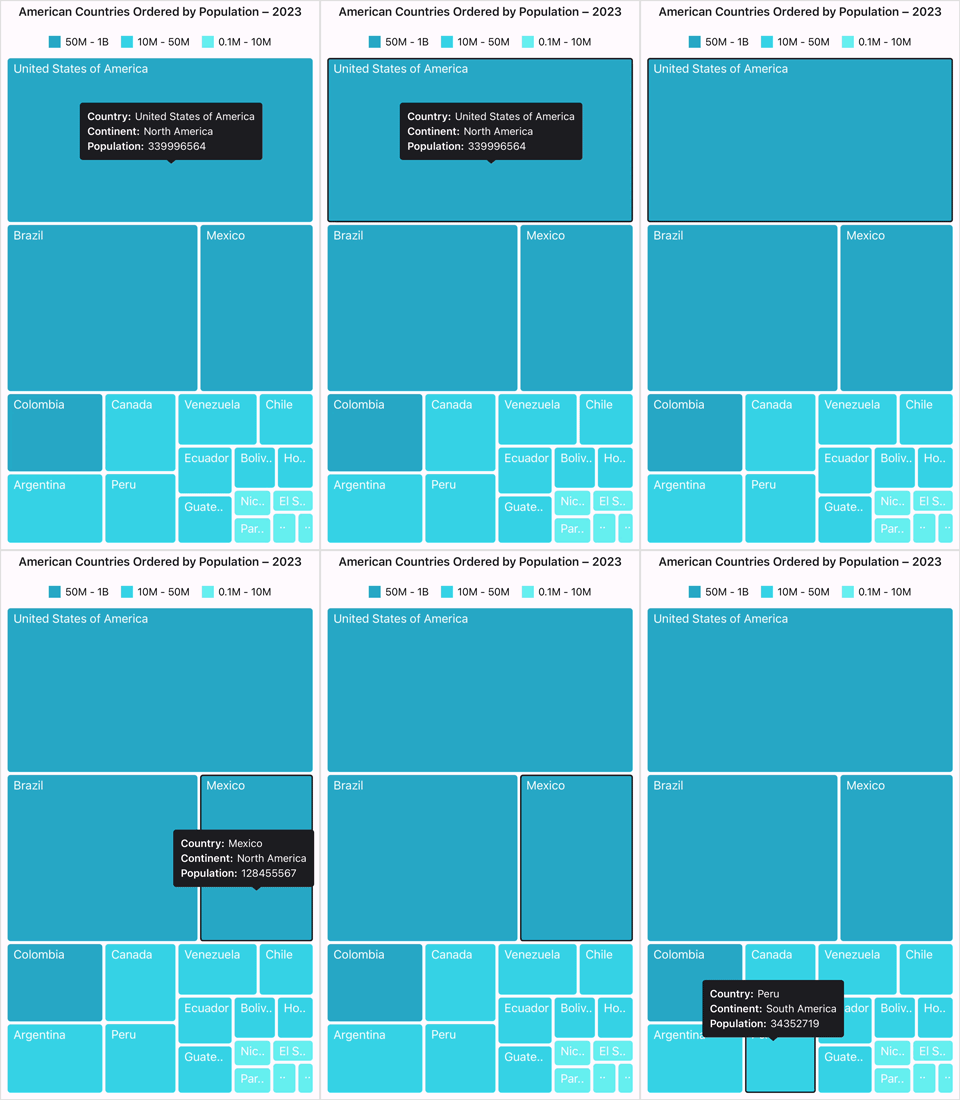
Tooltips in the .NET MAUI TreeMap control
### Brush settings
Brush settings customize the fill colors for leaf items based on ranges or values. There are four brush settings available:
- **UniformBrushSettings,**
- **RangeBrushSettings,**
- **DesaturationBrushSettings,**
- **PaletteBrushSettings**.
Each setting provides unique options for defining and applying color schemes, enhancing the TreeMap visualization.
| Uniform brush | Range brush |
| --- | --- |
| Desaturation brush | Palette brush |
**Different brush settings in the .NET MAUI TreeMap control**
### Selection
With the selection feature, you can distinguish specific groups or items, with tooltips providing additional information during interaction.
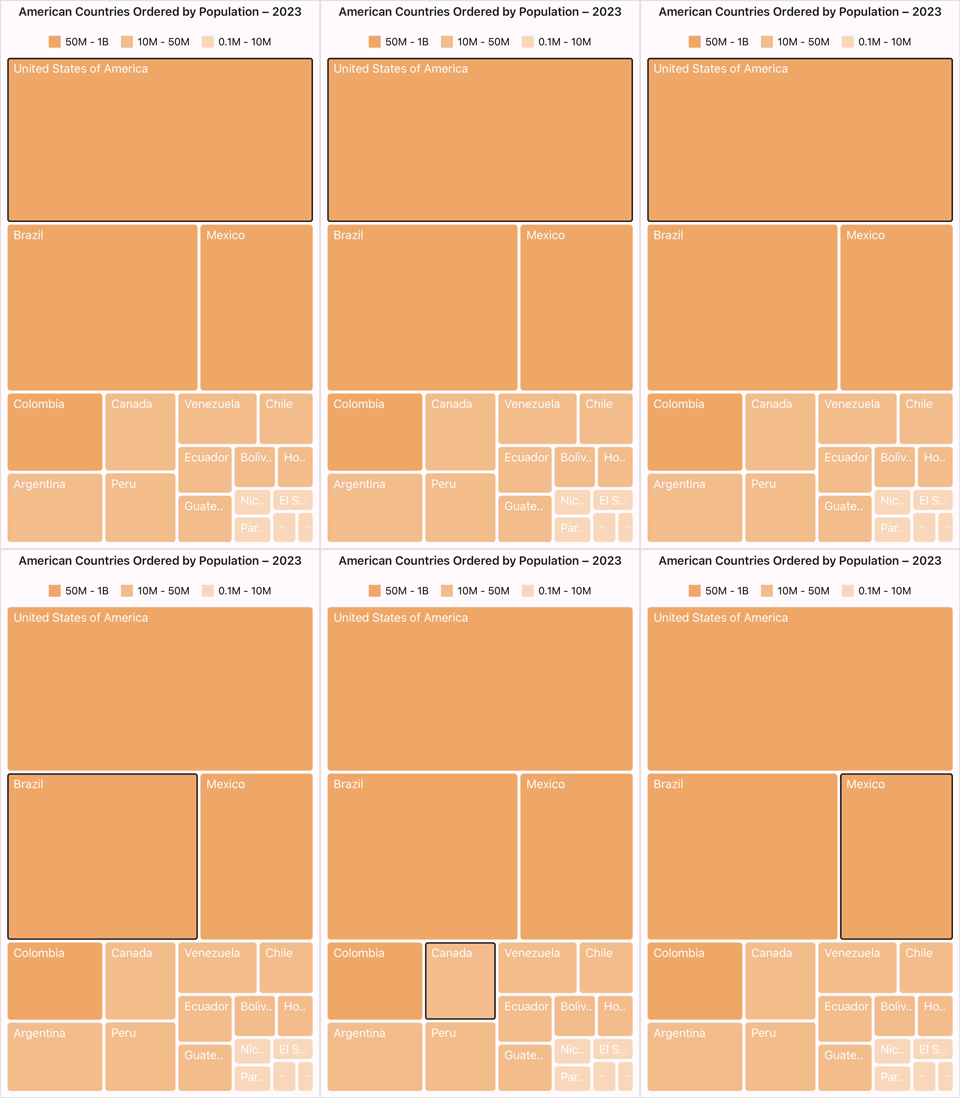
Selecting items in the .NET MAUI TreeMap control
### Appearance customization
The .NET MAUI TreeMap control allows users to customize the stroke color, stroke width, background color, selection color, data template, and more.
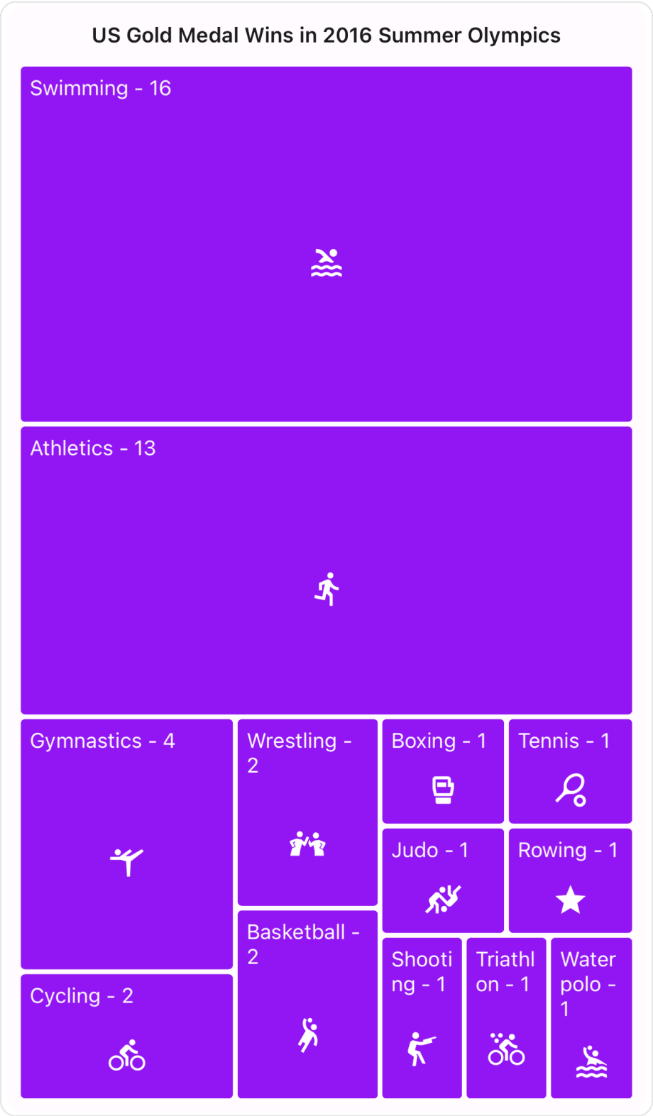
Appearance customization in .NET MAUI TreeMap
**Note:** For more details, refer to the [.NET MAUI TreeMap documentation](https://help.syncfusion.com/maui/treemap/overview)
.
## Getting started with the .NET MAUI TreeMap control
We have explored the key features of the .NET MAUI TreeMap control. Let’s see how to integrate the control in your .NET MAUI app.
### Step 1: Create a new .NET MAUI app
Open [Visual Studio](https://visualstudio.microsoft.com/)
and [create a new .NET MAUI application](https://learn.microsoft.com/en-us/dotnet/maui/get-started/first-app?view=net-maui-7.0&tabs=vswin&pivots=devices-android)
.
### Step 2: Add the required NuGet package
Syncfusion .NET MAUI components are available in the [NuGet Gallery](https://www.nuget.org/)
. To add the **SfTreeMap** to your project, open the ** NuGet package manager** in Visual Studio and search for [Syncfusion.Maui.TreeMap](https://www.nuget.org/packages/Syncfusion.Maui.TreeMap)
, and install it.
### Step 3: Import and initialize the .NET MAUI TreeMap control
Now, add the **Syncfusion.Maui.TreeMap** namespace to your XAML page, and initialize the ** SfTreeMap** control.
Refer to the following code example.
```
xmlns:treemap="clr-namespace:Syncfusion.Maui.TreeMap;assembly=Syncfusion.Maui.TreeMap"
```
### Step 4: Register the Syncfusion core handler
Then, register the Syncfusion core handler in the **MauiProgram.cs** file.
```
using Syncfusion.Maui.Core.Hosting;
public static class MauiProgram
{
public static MauiApp CreateMauiApp()
{
var builder = MauiApp.CreateBuilder();
builder.ConfigureSyncfusionCore();
}
}
```
### Step 5: Populate the TreeMap data source
Let’s create a **model** class and ** view model** data using the actual data. Then, bind the ** DataSource** of TreeMap to the XAML page.
**Creating a model class**
```
public class PopulationDetails
{
public string Country { get; set; }
public string Continent { get; set; }
public int Population { get; set; }
}
```
**Create a view model data with the actual data**
```
public class PopulationViewModel
{
public PopulationViewModel()
{
this.PopulationDetails = new ObservableCollection()
{
new PopulationDetails() { Continent ="North America", Country = "United States of America", Population = 339996564 },
new PopulationDetails() { Continent ="South America", Country = "Brazil", Population = 216422446 },
new PopulationDetails() { Continent ="North America", Country = "Mexico", Population = 128455567 },
new PopulationDetails() { Continent ="South America", Country = "Colombia", Population = 52085168 },
new PopulationDetails() { Continent ="South America", Country = "Argentina", Population = 45773884 },
new PopulationDetails() { Continent ="North America", Country = "Canada", Population = 38781292 },
new PopulationDetails() { Continent ="South America", Country = "Peru", Population = 34352719 },
new PopulationDetails() { Continent ="South America", Country = "Venezuela", Population = 28838499 },
new PopulationDetails() { Continent ="South America", Country = "Chile", Population = 19629590 },
new PopulationDetails() { Continent ="South America", Country = "Ecuador", Population = 18190484 },
new PopulationDetails() { Continent ="North America", Country = "Guatemala", Population = 18092026 },
new PopulationDetails() { Continent ="South America", Country = "Bolivia", Population = 12388571 },
new PopulationDetails() { Continent ="North America", Country = "Honduras", Population = 10593798 },
new PopulationDetails() { Continent ="North America", Country = "Nicaragua", Population = 7046311 },
new PopulationDetails() { Continent ="South America", Country = "Paraguay", Population = 6861524 },
new PopulationDetails() { Continent ="North America", Country = "El Salvador", Population = 6364943 },
new PopulationDetails() { Continent ="North America", Country = "Costa Rica", Population = 5212173 },
new PopulationDetails() { Continent ="South America", Country = "Uruguay", Population = 3423109 },
};
}
public ObservableCollection PopulationDetails { get, set, }
}
```
**Bind the DataSource of TreeMap**
```
```
Now, you can run the application and visualize the specified data in the .NET MAUI TreeMap control.
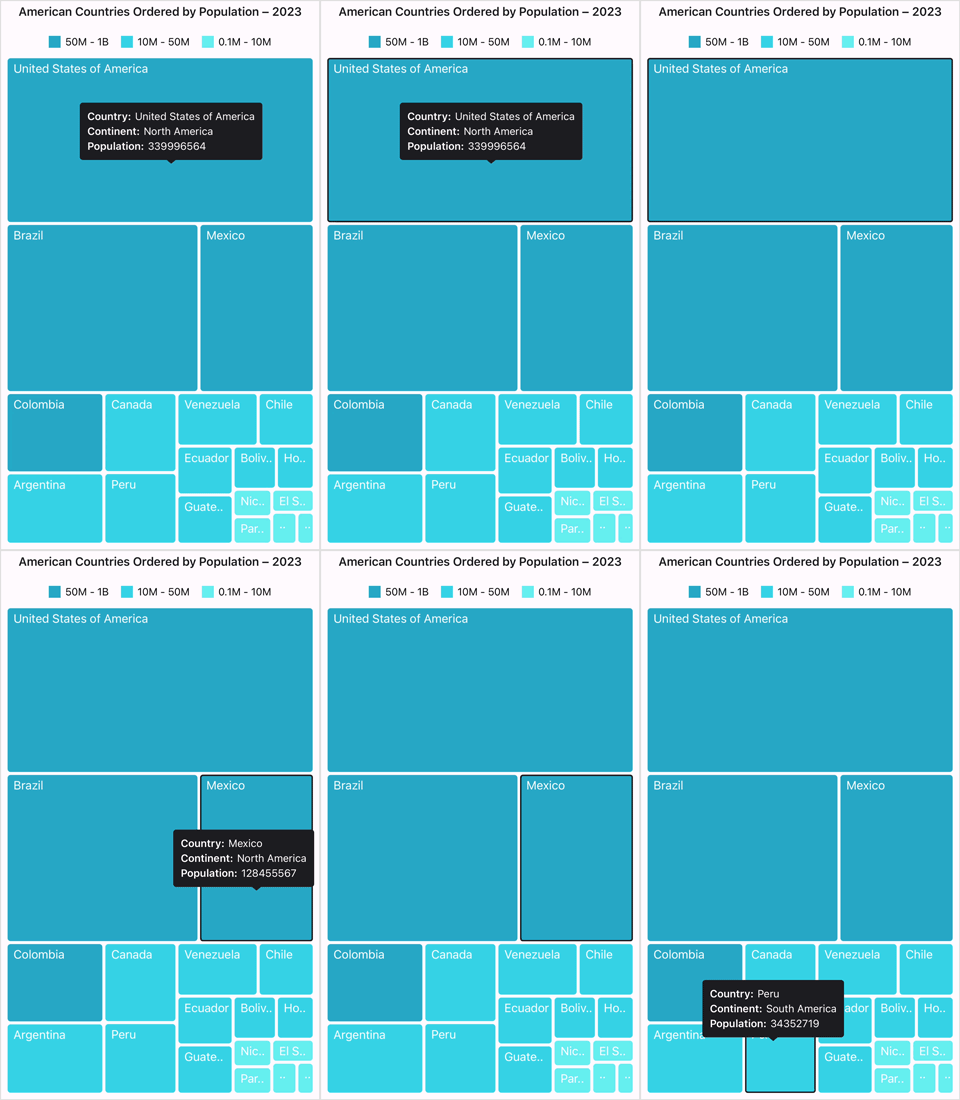
Visualizing data by integrating the TreeMap control in a .NET MAUI app
## References
For more details, refer to the [.NET MAUI TreeMap control demo on GitHub](https://github.com/SyncfusionExamples/maui-treemap-examples/tree/master/GettingStarted)
and [getting started documentation.](https://help.syncfusion.com/maui/treemap/getting-started)
## Conclusion
Thanks for reading! In this blog, we’ve explored the features of the new [.NET MAUI TreeMap](https://www.syncfusion.com/maui-controls/maui-tree-map)
control introduced in the [Essential Studio® 2024 Volume 1](https://www.syncfusion.com/forums/187257/essential-studio-2024-volume-1-main-release-v25-1-35-is-available-for-download)
release. Check out our [Release Notes](https://help.syncfusion.com/common/essential-studio/release-notes/v25.1.35)
and [What’s New](https://www.syncfusion.com/products/whatsnew)
pages to see the other updates in this release, and leave your feedback in the comments section below.
For existing Syncfusion customers, the newest version of Essential Studio® is available on the [license and downloads page](https://www.syncfusion.com/account/downloads)
. If you are not a customer, try our 30-day [free trial](https://www.syncfusion.com/downloads)
to check out these new features.
You can contact us through our [support forums](https://www.syncfusion.com/forums)
, [feedback portal](https://www.syncfusion.com/feedback)
, or [support portal](https://support.syncfusion.com/)
. We are always happy to assist you!
## Related blogs
- [Syncfusion Essential Studio® 2024 Volume 1 Is Here!](https://www.syncfusion.com/blogs/post/essential-studio-2024-vol-1)
- [Streamline Your Progress Navigation with the New .NET MAUI StepProgressBar](https://www.syncfusion.com/blogs/post/dotnet-maui-step-progress-bar)
- [Introducing the New .NET MAUI Rotator Control](https://www.syncfusion.com/blogs/post/dotnet-maui-rotator-control)
- [Introducing the New .NET MAUI Radial Menu Control](https://www.syncfusion.com/blogs/post/dotnet-maui-radial-menu-control)