---
title: "Revolutionize Your User Experience with the New .NET MAUI Parallax View"
published_at: "2024-03-28T13:08:24+00:00"
modified_at: "2026-01-15T08:52:52+00:00"
url: "https://www.syncfusion.com/blogs/post/dotnet-maui-parallax-view"
excerpt: "This blog explains the features of the new Syncfusion .NET MAUI Parallax View control added in the 2024 Volume 1 release."
taxonomy_category:
- ".NET MAUI"
- "Desktop"
- "Mobile"
- "Syncfusion"
- "What's new"
taxonomy_post_tag:
- ".NET MAUI"
- "desktop"
- "MAUI"
- "Mobile"
- "What's New"
---
# Revolutionize Your User Experience with the New .NET MAUI Parallax View
[Saravanan Madheswaran](https://www.syncfusion.com/blogs/author/saravanan-madheswaran)

**TLDR:** Exploring the features of the new .NET MAUI Parallax View control and the steps to integrate it into your .NET MAUI application.
Introducing a new vivid layout control in the Syncfusion [.NET MAUI](https://www.syncfusion.com/maui-controls)
framework for the [2024 Volume 1](https://www.syncfusion.com/forums/187257/essential-studio-2024-volume-1-main-release-v25-1-35-is-available-for-download)
release, the [Parallax View](https://www.syncfusion.com/maui-controls/maui-parallax-view)
.
The .NET MAUI Parallax View is a visual effect that binds the scroll position of a foreground element (e.g., a list) to a background element and moves the background element at a different speed. This will add a captivating parallax effect to your user interface, enriching the user experience.

.NET MAUI Parallax View control
Let’s explore the key features and discover how to use the .NET MAUI Parallax View control to improve your app’s user interface.
## Key features
The key features of the new .NET MAUI Parallax View are as follows:
- [Speed customization](#Speed)
- [Background view](#Background)
- [Orientation type](#Orientation)
### Customize the Parallax scroll speed
Tailor the parallax scroll speed to match your app’s requirements and user preferences. Whether it’s a subtle effect or an immersive scroll, adjust the speed to create the perfect visual experience.

Customizing the scroll speed in .NET MAUI Parallax View
### Set any background view
You can customize the parallax effect by setting any type of background view, including images or layouts. The Parallax View adapts to your design choices, ensuring seamless integration with your app’s aesthetics.
### Orientation types
Enjoy flexibility in design with support for both horizontal and vertical scrolling orientations. The Parallax View adapts to your app’s layout, allowing for versatile implementations across different screen sizes and orientations.
**Note:** For more details, refer to the [.NET MAUI Parallax View control documentation](https://help.syncfusion.com/maui/parallax-view/getting-started)
.
## Getting started with the .NET MAUI Parallax View
We have seen the user-friendly features of the .NET MAUI Parallax View. Let’s see how to add it to your .NET MAUI app by following these steps.
### Step 1: Create a .NET MAUI app
First, create a [.NET MAUI application.](https://learn.microsoft.com/en-us/dotnet/maui/get-started/first-app?view=net-maui-7.0&tabs=vswin&pivots=devices-android)
### Step 2: Add the .NET MAUI Parallax View NuGet package
Syncfusion .NET MAUI controls are available in the [NuGet gallery](https://www.nuget.org/)
. To add the .NET MAUI Parallax View control to your project, open the NuGet package manager in [Visual Studio](https://visualstudio.microsoft.com/)
, search for **Syncfusion.Maui.ParallaxView**, and install it.
### Step 3: Add the namespace
Add the **Syncfusion.Maui.ParallaxView** namespace in your XAML page and initialize the .NET MAUI Parallax View control.
```
```
### Step 4: Register the handler
**Syncfusion.Maui.Core** NuGet is a dependent package for all Syncfusion .NET MAUI controls. So, in the ** MauiProgram.cs** file, register the handler for Syncfusion core.
Refer to the following code example.
```
using Microsoft.Extensions.Logging;
using Syncfusion.Maui.Core.Hosting;
namespace ParallaxViewGettingStarted
{
public static class MauiProgram
{
public static MauiApp CreateMauiApp()
{
var builder = MauiApp.CreateBuilder();
builder
.UseMauiApp()
.ConfigureSyncfusionCore()
.ConfigureFonts(fonts =>
{
fonts.AddFont("OpenSans-Regular.ttf", "OpenSansRegular");
});
return builder.Build();
}
}
}
```
### Step 5: Adding content to the Parallax View
The [Content](https://help.syncfusion.com/cr/maui/Syncfusion.Maui.ParallaxView.SfParallaxView.html#Syncfusion_Maui_ParallaxView_SfParallaxView_Content)
property represents the background view of a parallax view. You can set any kind of view to the **Content** property, such as ** Image** and ** StackLayout**.
Refer to the following code example.
```
```
### Step 6: Binding source to the Parallax View
The [Source](https://help.syncfusion.com/cr/maui/Syncfusion.Maui.ParallaxView.SfParallaxView.html#Syncfusion_Maui_ParallaxView_SfParallaxView_Source)
represents the foreground view of the Parallax View. The value of the **Source** property should be a scrollable content or the view that implements the [IParallaxView](https://help.syncfusion.com/cr/maui/Syncfusion.Maui.Core.IParallaxView.html)
interface.
The [SfParallaxView](https://help.syncfusion.com/cr/maui/Syncfusion.Maui.ParallaxView.SfParallaxView.html)
has built-in parallax scrolling support for the following controls:
- [ScrollView](https://learn.microsoft.com/en-us/dotnet/maui/user-interface/controls/scrollview?view=net-maui-8.0) and
- [Syncfusion .NET MAUI ListView](https://www.syncfusion.com/maui-controls/maui-listview)
The following code example demonstrates how to bind the Syncfusion .NET MAUI ListView to the **Source** property of the .NET MAUI Parallax View.
```
```
After executing the above code examples, we’ll get the following output.
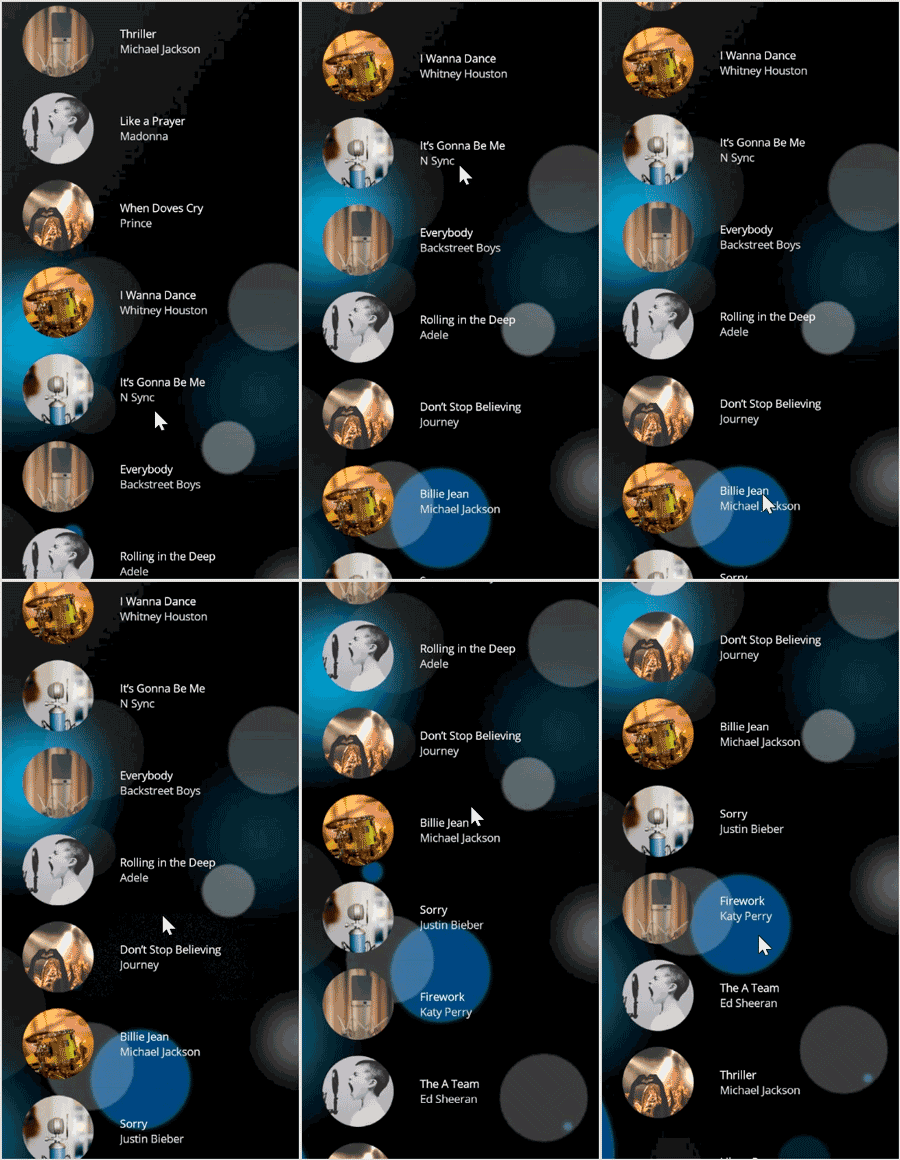
Integrating Parallax View in a .NET MAUI app
## GitHub reference
For more details, refer to the [.NET MAUI Parallax View demo on GitHub](https://github.com/SyncfusionExamples/MAUI-Parallax-View-Sample-Demos)
.
## Conclusion
Thanks for reading! In this blog, we’ve experienced the immersive world of parallax effects with the new [.NET MAUI Parallax View](https://www.syncfusion.com/maui-controls/maui-parallax-view)
control in the [2024 Volume 1](https://www.syncfusion.com/forums/187257/essential-studio-2024-volume-1-main-release-v25-1-35-is-available-for-download)
release. With its versatile features, including customizable scroll speed and support for various content types, the Parallax View empowers developers to create engaging and visually stunning user interfaces.
You can learn more about the latest .NET MAUI advancements on our [Release Notes](https://help.syncfusion.com/common/essential-studio/release-notes/v20.4.0.38)
and [What’s New](https://www.syncfusion.com/products/whatsnew)
pages. Try them out and leave your feedback in the comments section below!
The new version is available for existing customers on the [License and Downloads](https://www.syncfusion.com/account/downloads)
page. If you are not a Syncfusion customer, try our 30-day [free trial](https://www.syncfusion.com/downloads)
to check out our available features.
You can also contact us through our [support forum](https://www.syncfusion.com/forums)
, [support portal](https://support.syncfusion.com/)
, or [feedback portal](https://www.syncfusion.com/feedback/)
. We are always happy to assist you!
## Related blogs
- [Chart of the Week: Creating a .NET MAUI Column Chart to Visualize the Corporate Investment in AI](https://www.syncfusion.com/blogs/post/maui-column-chart-investment-in-ai)
- [Introducing the New .NET MAUI TreeMap Control](https://www.syncfusion.com/blogs/post/dotnet-maui-treemap-control)
- [Streamline Your Progress Navigation with the New .NET MAUI StepProgressBar](https://www.syncfusion.com/blogs/post/dotnet-maui-step-progress-bar)
- [Introducing the New .NET MAUI Rotator Control](https://www.syncfusion.com/blogs/post/dotnet-maui-rotator-control)