---
title: "Create Group Chat Profile View in .NET MAUI App"
published_at: "2022-09-16T11:30:45+00:00"
modified_at: "2025-03-20T07:22:34+00:00"
url: "https://www.syncfusion.com/blogs/post/create-group-chat-profile-view-in-net-maui-app"
excerpt: "One of the most typical user interfaces in chat applications is the group view. Almost all chat software allows for group chat, which calls for a standard group photo to serve as the group’s representation. A useful feature of the..."
taxonomy_category:
- ".NET MAUI"
- "Desktop"
- "Mobile"
- "UI"
- "Xamarin"
taxonomy_post_tag:
- ".NET MAUI"
- "Avatar View"
- "Mobile"
- "Xamarin.Forms"
---
# Create Group Chat Profile View in .NET MAUI App
[Selva Ganapathy Kathiresan](https://www.syncfusion.com/blogs/author/selva-ganapathy-k)

One of the most typical user interfaces in chat applications is the group view. Almost all chat software allows for group chat, which calls for a standard group photo to serve as the group’s representation. A useful feature of the [.NET MAUI Avatar View control is group view](https://www.syncfusion.com/maui-controls/maui-avatarview)
support. When you give the Avatar View a group source, it will transform it into a group view automatically. Let’s see how easy it is to achieve this in a .NET MAUI application.
## .NET MAUI Avatar View
Almost all mobile apps have a user interface that shows the users’ initials or an avatar image (like in contact lists, images in tokens, and chat user displays). We at Syncfusion recognize the need for this straightforward but crucial control, and we are now offering the feature-rich [.NET MAUI Avatar View control](https://www.syncfusion.com/maui-controls/maui-avatarview)
. The .NET MAUI Avatar View control gives users a graphic representation that can be customized by including images, background colors, icons, text, and more.
## .NET MAUI avatar group chat profile view
The .NET MAUI Avatar View ([SfAvatarView](https://help.syncfusion.com/cr/maui/Syncfusion.Maui.Core.SfAvatarView.html?tabs=tabid-1)
) control allows you to display the view in five different ways:
- **Default**: Displays the default image when initializing without any other source such as image or group.
- **Initials**: Displays initials in the view.
- **AvatarCharacter**: Displays a default image in the view.
- **Custom**: Displays a custom image in the view.
- **Group**: Displays a maximum of three images or initials in a single view.
The group content type provides a group chat profile view in a .NET MAUI application.
## Steps to integrate a group chat profile view
**Step 1**: Get the class that contains the collection of members of the chat view. I have prepared a simple class that contains a collection of users.
```
public GroupMemberViewModel()
{
GroupMembers = new ObservableCollection();GroupMembers.Add(new Person() { Name = "Selva Ganapathy", Picture = "selvaganapathy.png" });
GroupMembers.Add(new Person() { Name = "Clara", Picture = "clara.png" });
GroupMembers.Add(new Person() { Name = "Alexandar", Picture = "alexandar.png" });
GroupMembers.Add(new Person() { Name = "Gabriella", Picture = "gabriella.png" });
GroupMembers.Add(new Person() { Name = "Lita", Picture = "lita.png" });
GroupMembers.Add(new Person() { Name = "Nora", Picture = "nora.png" });
GroupMembers.Add(new Person() { Name = "Sebastian", Picture = "sebastian.png" });
GroupMembers.Add(new Person() { Name = "Tye", Picture = "tye.png" });
GroupMembers.Add(new Person() { Name = "Jennifer", Picture = "jennifer.png" });
GroupMembers.Add(new Person() { Name = "Jackson", Picture = "jackson.png" });
}
public class Person
{
public String Name { get; set; }
public String Picture { get; set; }
}
```
**Step 2**: Create an object for the previous class and set it as binding content to the page where you need to display the group chat profile view.
```
public partial class MainPage : ContentPage
{
public MainPage()
{
InitializeComponent();
this.BindingContext = new GroupMemberViewModel();
}
}
```
**Step 3**: Include the .NET MAUI Avatar View reference. The NuGet packages for Syncfusion .NET MAUI controls are available on [Nuget.org](https://www.nuget.org/)
. To add the [.NET MAUI Avatar View](https://help.syncfusion.com/cr/maui/Syncfusion.Maui.Core.SfAvatarView.html?tabs=tabid-1)
to your project, open the NuGet package manager in Visual Studio, search for [Syncfusion.Maui.Core](https://www.nuget.org/packages/Syncfusion.Maui.Core/)
, and then install it.
**Step 4**: Then, in the MauiProgram.cs file, register the handler for Syncfusion core.
```
public static class MauiProgram
{
public static MauiApp CreateMauiApp()
{
var builder = MauiApp.CreateBuilder();
builder
.UseMauiApp()
.ConfigureFonts(fonts =>
{
fonts.AddFont("OpenSans-Regular.ttf", "OpenSansRegular");
fonts.AddFont("OpenSans-Semibold.ttf", "OpenSansSemibold");
}
);builder.ConfigureSyncfusionCore();return builder.Build();
}
}
```
**Step 5**: Add the following XML namespace and include .NET MAUI Avatar View.
```
```
**Step 6**: Set the ** ContentTypeProperty** as ** Group**, bind the ** GroupSource** property to ** GroupMembers**, and set the ** ImageSoureMemberPath** property to ** Picture**.

.NET MAUI Group Chat Profile View
## Customization
In the previous group chat profile view, you can customize the following properties.
### Corner radius
You can set the corner radius to be circular. Refer to the following code.
```
```

.NET MAUI Group Chat Profile View—Circular Image
### Initials view
To show only the initials, set the **InitialsMemberPath** property to ** Name**. To set different background colors to the initials, store the colors in a collection and assign it to the ** BackgroundColorMemberPath** property. Refer to the following code.
```
```
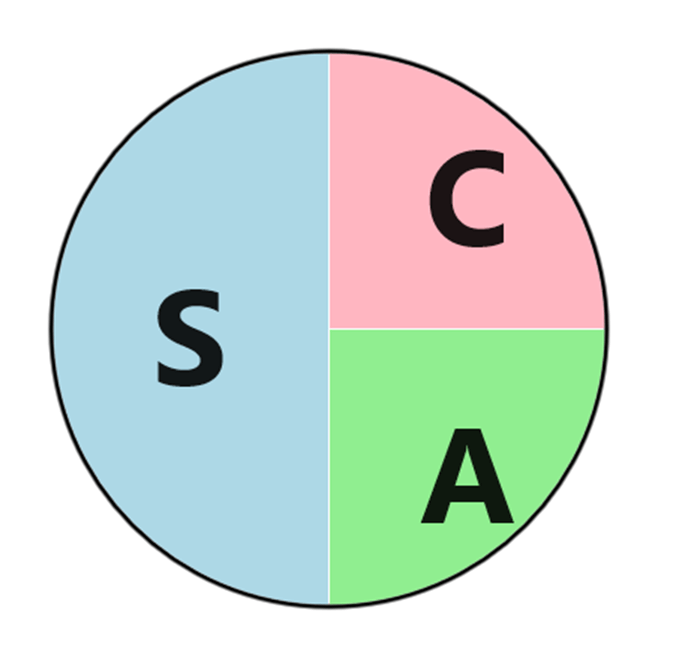
.NET MAUI Group Chat Profile View—Initials View
**Note:** If we assign values to both ImageSourceMemberPath and InitialsMemberPath, ImageSourceMemberPath will be given the first preference.
### Displaying both image and initial view
If the items in the collection do not have the image source set, then the initials will display.
```
GroupMembers.Add(new Person() { Name = "Selva Ganapathy", Picture = "selvaganapathy.png", Color = Colors.LightBlue });
GroupMembers.Add(new Person() { Name = "Clara", Picture = "clara.png", Color = Colors.LightPink });
GroupMembers.Add(new Person() { Name = "Alexandar", Color = Colors.LightGreen });
```
For example, in the previous code, the third item is not assigned an image, so the result will be similar to the following screenshot.

.NET MAUI Group Chat Profile View—Image and Initials View
## Group chat profile view—cascading view
You can simply bind the Avatar View to a **HorizonalStackLayout** to present it as a cascading view for the group profile view. Refer to the following code example.
```
```

.NET MAUI Group Chat Profile View—Cascading View
## Conclusion
Thanks for reading! In this blog post, we have gone through the group chat profile view feature of the [.NET MAUI Avatar View](https://www.syncfusion.com/maui-controls/maui-avatarview)
control. You can download [Essential Studio® for .NET MAUI](https://www.syncfusion.com/downloads/maui)
to evaluate this control.
Please let us know in the comments below if you have any questions or require clarification about this control. You can also contact us through our [support forum](https://www.syncfusion.com/forums)
, [support portal](https://support.syncfusion.com/)
, or [feedback portal](https://www.syncfusion.com/feedback/xamarin-forms)
. We are happy to assist you!
## Related blogs
- [Replicating an Immersive UI in .NET MAUI](https://www.syncfusion.com/blogs/post/replicating-an-immersive-ui-in-net-maui.aspx)
- [Learn Performing Animation in .NET MAUI: Part 1](https://www.syncfusion.com/blogs/post/learn-performing-animation-in-net-maui-part-1.aspx)
- [Add Busy Notifications to Your .NET MAUI Application](https://www.syncfusion.com/blogs/post/add-busy-notifications-to-your-net-maui-application.aspx)
- [Introducing the New .NET MAUI Maps Control](https://www.syncfusion.com/blogs/post/introducing-the-new-net-maui-maps-control.aspx)