` element where the PDF Viewer will appear. Then, initialize the Syncfusion PDF Viewer component.
```
```
### Step 4: Launch in your browser
Once your `index.html` file is ready, launch it in any modern browser, like Chrome, Edge, or Firefox. The Syncfusion PDF Viewer will load instantly and display a sample PDF.
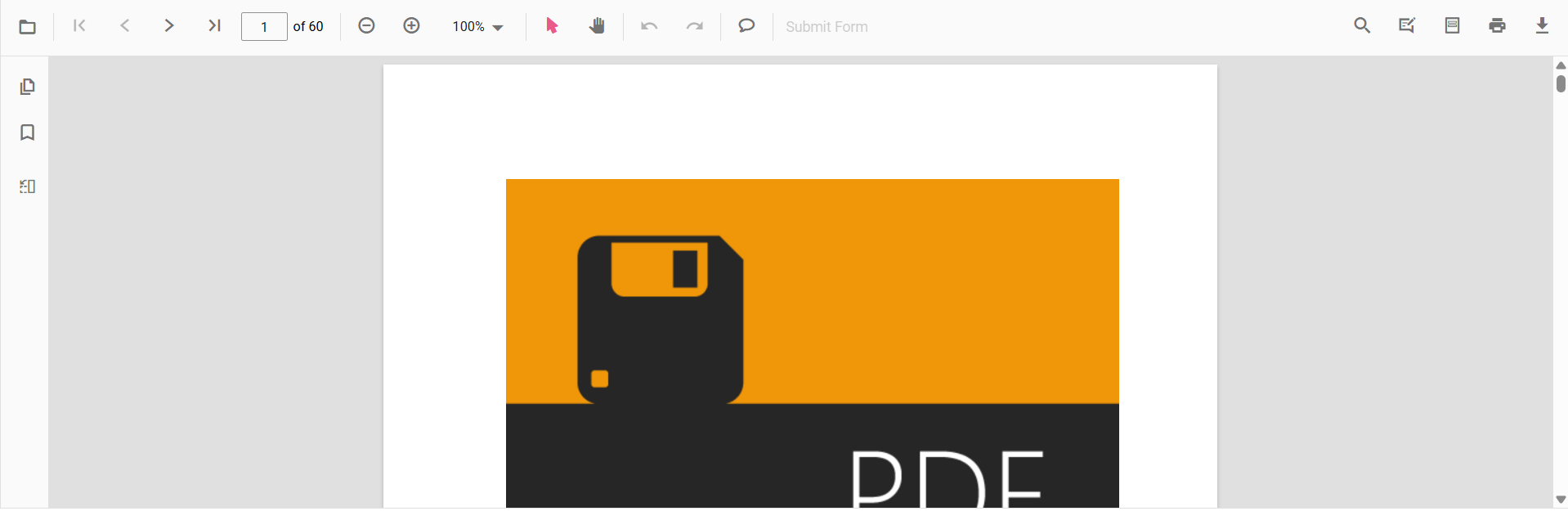
PDF document loading instantly from a single local HTML file
**Note:** For more detailed guidance, check out our official [documentation](https://help.syncfusion.com/document-processing/pdf/pdf-viewer/javascript-es5/getting-started)
.
Create Interactive PDF Experiences in JavaScript
Build powerful PDF viewing experiences in JavaScript with built-in support for annotations, highlighting, form filling, signatures, page navigation, thumbnails, bookmarks, and text search.
[Build JavaScript PDF Viewer](https://www.syncfusion.com/pdf-viewer-sdk/javascript-pdf-viewer)
## Create fillable PDF Forms with Syncfusion
Ever wondered how to turn a plain PDF into a fully interactive form? With Syncfusion’s PDF Viewer, you can design fillable PDF forms right inside your web application. In this section, we’ll start with a simple PDF and guide you to add text boxes, checkboxes, radio buttons, and more, step by step.
### Step 1: Enable form designer in the toolbar
To start creating form fields, click the **f**** orm designer** option in the built-in toolbar. This opens the Form Designer panel, which lists all standard form field types, such as;
- Textbox
- Password
- CheckBox
- RadioButton
- ListBox
- DropDown
- Signature field
- Initial field
### Step 2: Select the required form field
Choose the form field that matches your use case. For example:
- **Text box**: Capturing user details like ** Name**, ** Email**, or ** A**** ddress**. Ideal for any free text input.
- **Password**: Designed for secure entry of sensitive data such as Login Passwords or PINs**.**
- **CheckBox**: Perfect for multiple-choice options like Agree to Terms, Subscribe to Newsletter, or Select Preferences.
- **Radio button**: Best for single-choice options such as Gender Selection, Payment Method, or Yes/No Questions.
- **ListBox**: Allows users to select one or multiple items from a list, e.g., Choose Skills, Select Interests, or Pick Categories.
- **DropDown**: Ideal for compact menus where space matters, such as Country Selection, State, or Department.
- **Signature field**: Used for capturing Signatures for approvals, agreements, or consent forms.
- **Initial field**: Perfect for quick Initials in documents requiring acknowledgment or partial approval.
### Step 3: Drag and drop the field
Once you’ve selected a field, simply **drag and drop** it anywhere in the PDF. This intuitive feature makes it easy to position fields exactly where you want them.
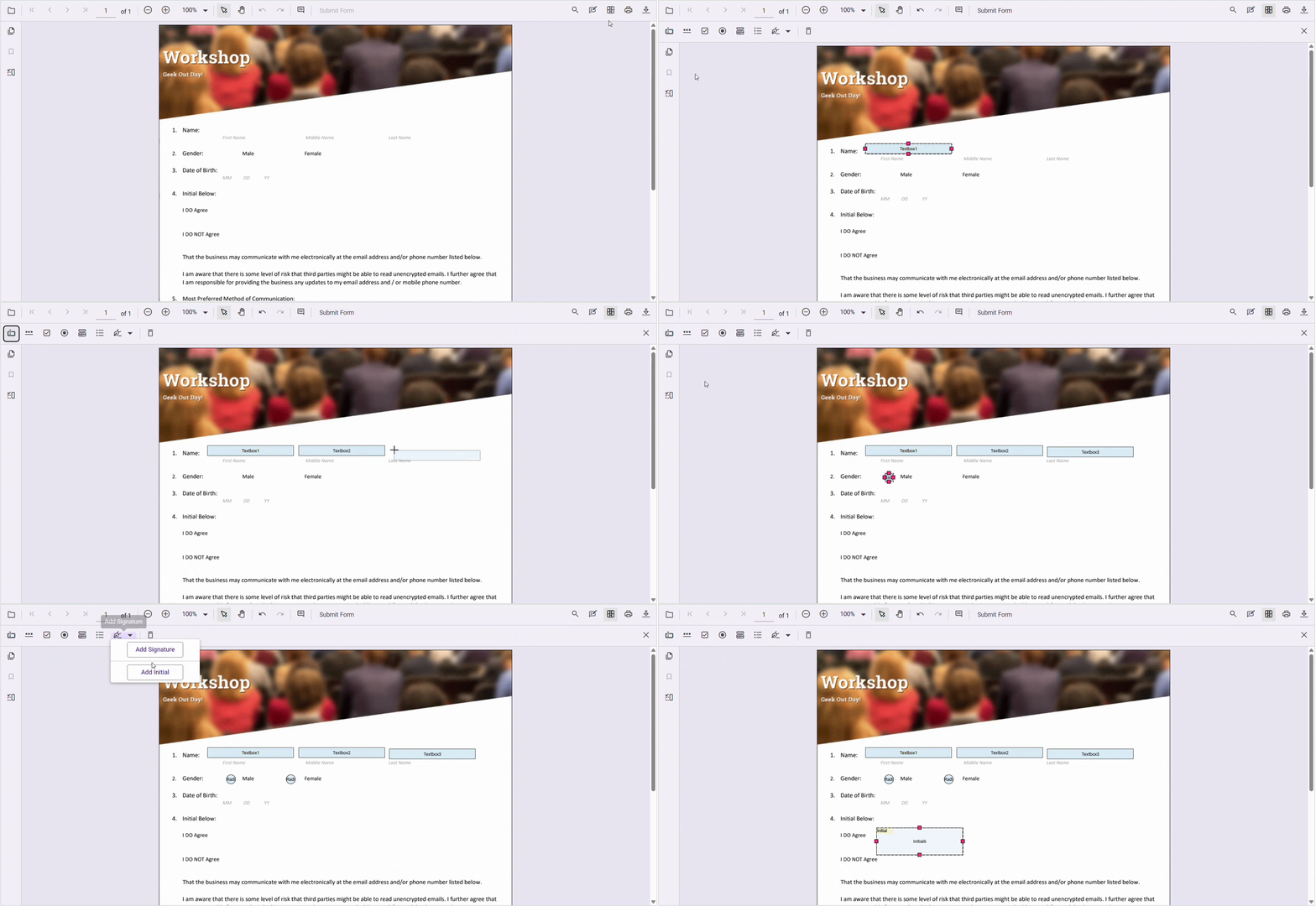
Drag and drop signature field
#### Add form fields programmatically in your PDF
Want to add form fields without using the toolbar? Syncfusion makes it simple with the **addFormField** method. Just pass the form field type and its property object as parameters.
Here’s an example that shows how to add multiple fields to your document:
```
pdfviewer.formDesignerModule.addFormField("Textbox", {
name: "First Name",
bounds: { X: 146, Y: 229, Width: 150, Height: 24 }
});
pdfviewer.formDesignerModule.addFormField("Textbox", {
name: "Middle Name",
bounds: { X: 338, Y: 229, Width: 150, Height: 24 }
});
pdfviewer.formDesignerModule.addFormField("Textbox", {
name: "Last Name",
bounds: { X: 530, Y: 229, Width: 150, Height: 24 }
});
pdfviewer.formDesignerModule.addFormField("RadioButton", {
bounds: { X: 148, Y: 289, Width: 18, Height: 18 },
name: "Gender",
isSelected: false
});
pdfviewer.formDesignerModule.addFormField("RadioButton", {
bounds: { X: 292, Y: 289, Width: 18, Height: 18 },
name: "Gender",
isSelected: false
});
pdfviewer.formDesignerModule.addFormField("InitialField", {
name: "Agree",
bounds: { X: 148, Y: 408, Width: 200, Height: 43 }
});
```
These steps cover the basics of adding form fields using the toolbar and interacting with them programmatically, but Syncfusion offers much more. Explore all form field types and advanced customization options with this [documentation](https://help.syncfusion.com/document-processing/pdf/pdf-viewer/javascript-es5/form-designer/create-programmatically)
.
### Step 4: Edit and customize form fields
Adding form fields is only the first step. Real customization happens when you make them look and behave exactly the way you want. With Syncfusion’s PDF Viewer, editing is easy:
- Enable**Form Designer** mode.
- Double-click any field to open its**Properties** dialog.
- Adjust background color, border color, font size, alignment, and more, all with a few clicks.
This ensures your fillable PDF forms match your application’s design perfectly.
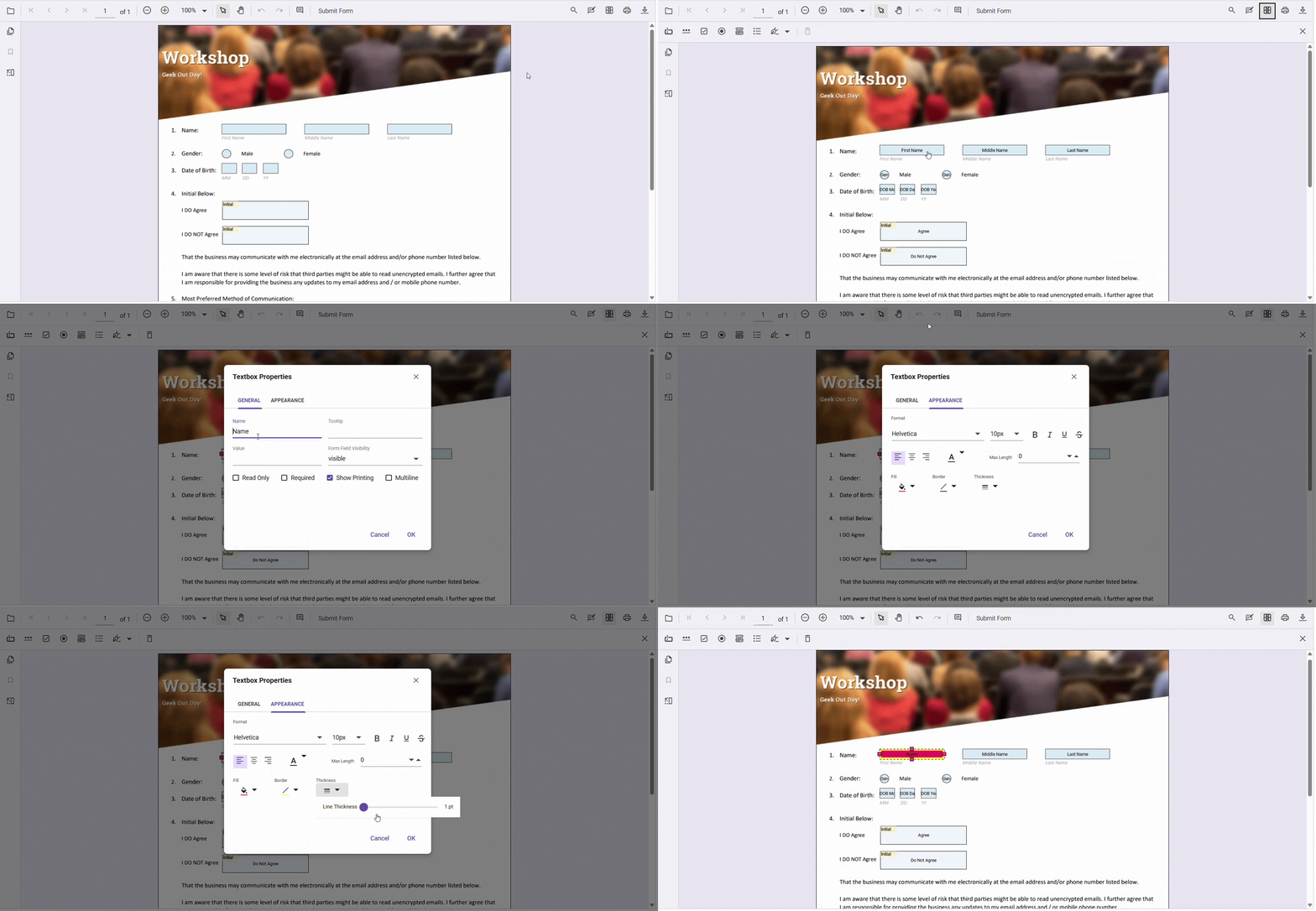
Customize field properties in Form Designer Mode
#### Customize PDF form field programmatically
Need dynamic control? Use the **updateFormField** method or field settings to change properties like background color, name, font size, and more on the fly. This is ideal for automated workflows or dynamic forms. The following code demonstrates modifying field properties by field setting:
```
// Properties to customize the signature field settings
pdfviewer.signatureFieldSettings = {
// Set the name of the form field element.
name: 'Signature',
// Specify whether the signature field is in read-only or read-write mode.
isReadOnly: false,
// Set the text to be displayed as a tooltip.
tooltip: 'Signature',
// Set the thickness of the Signature field. To hide the borders, set the value to 0 (zero).
thickness: 4,
// Edit the properties based on your needs.
}
```
**Note:** For detailed information on editing form field properties programmatically, please refer to our [documentation](https://help.syncfusion.com/document-processing/pdf/pdf-viewer/javascript-es5/form-designer/create-programmatically#form-field-properties)
.
### Step 5: Seamless PDF form filling and data management
Once your form fields are ready, it’s time to put them to work. Filling interactive PDF forms transforms a static document into a dynamic data collector. Syncfusion makes this process effortless, ensuring a smooth user experience and accurate data.
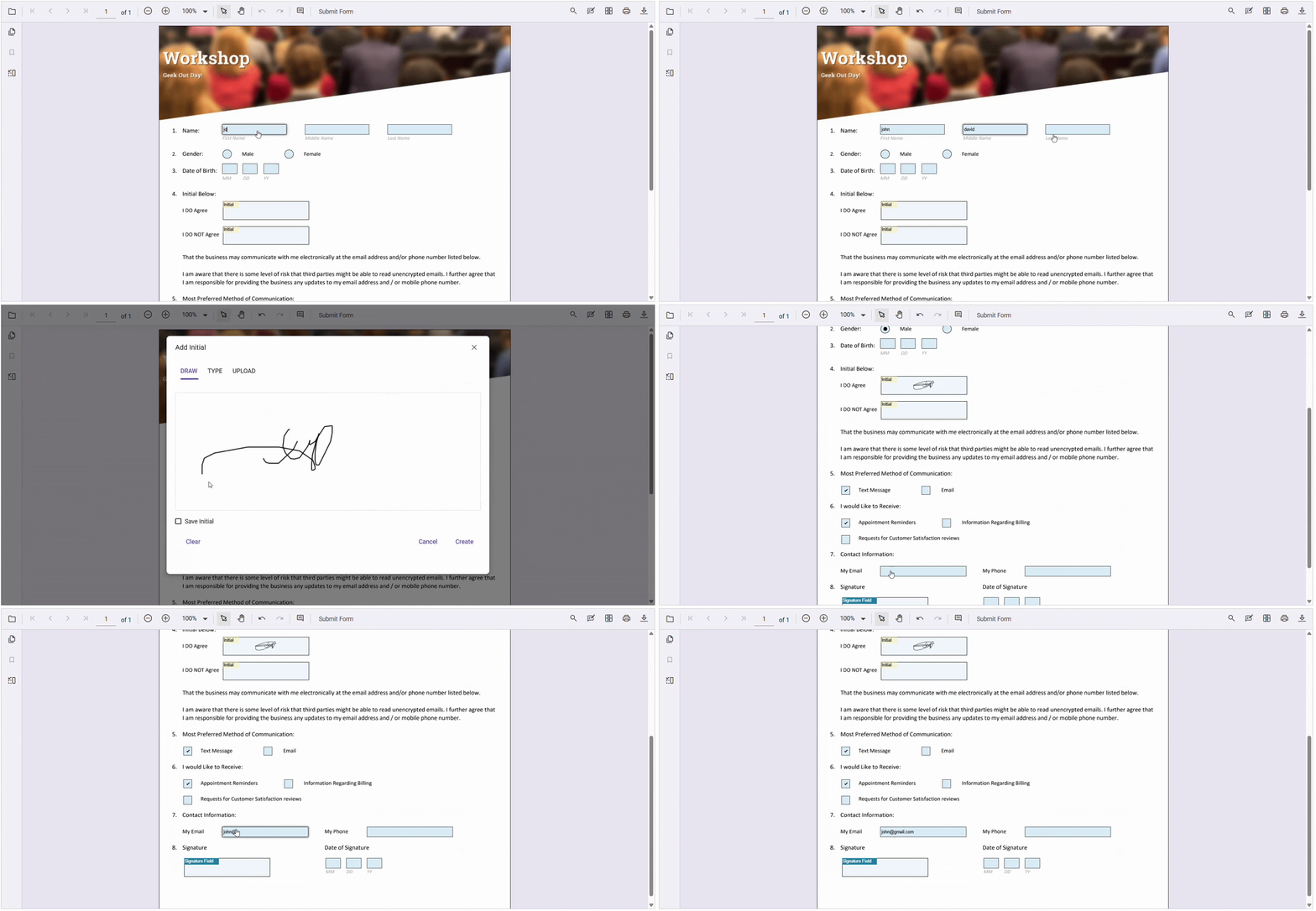
Seamless form filling interactive fields ready for real user data
#### Update PDF form fields programmatically
Need to pre-fill forms automatically? Whether pulling data from a database or generating personalized content, the **updateFormField** method gives you complete control.
```
pdfviewer.formDesignerModule.updateFormField(
pdfviewer.formFieldCollections[0],
{ value: "John" }
);
pdfviewer.formDesignerModule.updateFormField(
pdfviewer.formFieldCollections[1],
{ value: "David" }
);
pdfviewer.formDesignerModule.updateFormField(
pdfviewer.formFieldCollections[2],
{ value: "M" }
);
```
**Note:** For detailed information about updating PDF form field values programmatically, please refer to our [documentation](https://help.syncfusion.com/document-processing/pdf/pdf-viewer/javascript-es5/form-designer/create-programmatically#editupdate-form-field-programmatically)
.
## Import and export PDF form data dynamically for fillable PDF forms
Managing form data efficiently is critical for business workflows. Syncfusion provides built-in options to import and export form field data in formats like JSON, FDF, and XFDF.
**Export data**:
```
// Data must be the desired path for the exported document.
viewer.exportFormFields('Data', FormFieldDataFormat.Json)
```
**Import data:**
```
viewer.importFormFields('Filename', FormFieldDataFormat.Json)
```
**Note:** The Filename for importing the form fields should be placed in the desired location, and the path should be provided correctly.
This makes integration with databases, APIs, and automated workflows seamless. For complete details about exporting and importing form fields as objects, check out our official [documentation](https://help.syncfusion.com/document-processing/pdf/pdf-viewer/javascript-es5/form-designer/create-programmatically#export-and-import-form-fields)
.
#### Complete your PDF form workflow: Validate, download, and print with ease
Managing PDF forms isn’t just about filling them out; it’s about delivering a **complete, seamless workflow**. Syncfusion’s PDF Viewer lets you:
- [Validate](https://help.syncfusion.com/document-processing/pdf/pdf-viewer/javascript-es5/form-designer/create-programmatically#validate-form-fields) user input before submission.
- [Download](https://help.syncfusion.com/document-processing/pdf/pdf-viewer/javascript-es5/form-designer/create-programmatically#saving-the-form-fields) filled forms for record-keeping.
- [Print](https://help.syncfusion.com/document-processing/pdf/pdf-viewer/javascript-es5/form-designer/create-programmatically#printing-the-form-fields) the finalized PDF forms instantly for offline use.
Together, these capabilities transform PDF form into a fast, reliable, and user-friendly experience.
## Conclusion
Thank you for reading! Choosing the right approach for building interactive PDF workflows depends on your project goals. If your requirements include advanced features like creating fillable forms, managing complex layouts, and delivering a smooth user experience, a comprehensive solution can save you significant development time and effort.
Think about your priorities:
- **Performance**: Does your solution need to handle large documents efficiently?
- **Flexibility**: Do you want full control over customization?
- **Integration**: Should it work seamlessly with your existing systems?
Do you need a ready-to-use UI for quick deployment, or programmatic APIs for complete customization? Answering these questions will help you decide whether to build from scratch or use a feature-rich library that scales with your needs.
**Syncfusion’s**[JavaScript PDF Viewer](https://www.syncfusion.com/javascript-ui-controls/js-pdf-viewer)
is a great choice if you’re looking for a complete solution. It offers a full set of features and ready-to-use components, making integration simple and helping you deliver interactive PDF workflows faster.
If you’re a Syncfusion user, you can download the setup from the [license and downloads](https://www.syncfusion.com/account/downloads)
page. Otherwise, you can download a free [30-day trial](https://www.syncfusion.com/downloads/)
.
You can also contact us through our [support forum](https://www.syncfusion.com/forums)
, [support portal](https://support.syncfusion.com/)
, or [feedback portal](https://www.syncfusion.com/feedback)
for queries. We are always happy to assist you!
## Related Blogs
[How to Fix Memory Leaks in JavaScript PDF Viewers: Best Practices and Debugging Tips](https://www.syncfusion.com/blogs/post/memory-leaks-in-javascript-pdf-viewer)
[Top Security Risks in JavaScript PDF Viewers (and How to Fix Them)](https://www.syncfusion.com/blogs/post/security-vulnerabilities-javascript-pdf-viewer)
[How to Embed PDFs in HTML PDF Viewer: Native HTML Tags vs. Syncfusion JavaScript PDF Viewer](https://www.syncfusion.com/blogs/post/embed-pdfs-in-html-pdf-viewer)
[From Manual to Magical: Syncfusion’s JavaScript AI PDF Viewer in Action](https://www.syncfusion.com/blogs/post/javascript-ai-pdf-viewer)