---
title: "Create Excel Table in Just 3 Steps Using C#"
published_at: "2024-04-25T13:15:35+00:00"
modified_at: "2025-11-06T15:24:34+00:00"
url: "https://www.syncfusion.com/blogs/post/create-excel-table-in-3-steps-csharp"
excerpt: "This blog explains how to create a table in an Excel document using Syncfusion .NET Excel Library in C# with code examples."
taxonomy_category:
- "C#"
- "Excel"
- "File Formats"
- "Syncfusion"
- "XlsIO"
taxonomy_post_tag:
- "C#"
- "Essential XlsIO"
- "Excel"
- "File Formats"
- "Syncfusion"
---
# Create Excel Table in Just 3 Steps Using C#
[Mohan Chandran](https://www.syncfusion.com/blogs/author/mohan-chandran)

**TL;DR:** Syncfusion’s Excel Library provides a full-fledged object model that facilitates accessing and manipulating Excel documents without Microsoft Office or interop dependencies. Let’s learn to create Excel tables with this comprehensive tool in just three simple steps.
The [Syncfusion Excel Library](https://www.syncfusion.com/document-sdk/net-excel-library)
, also known as Essential XlsIO, is a robust tool that facilitates the smooth creation, reading, and editing of Excel documents using C#. It supports the creation of Excel documents from scratch, modification of existing Excel documents, data import and export, Excel formulas, conditional formats, data validations, charts, sparklines, tables, pivot tables, pivot charts, template markers, and much more.
This blog will explore the steps to create an Excel table using the Syncfusion Excel Library and C#.
**Note:** Please refer to the [.NET Excel Library’s getting started documentation](https://help.syncfusion.com/file-formats/xlsio/create-excel-file-csharp-vbnet)
before proceeding.
## Steps to create a table in Excel
Follow these steps to create a table in an Excel document using C#:
1. First, create a [.NET Core Console application](https://docs.microsoft.com/en-us/dotnet/core/tutorials/with-visual-studio) in [Visual Studio](https://visualstudio.microsoft.com/vs/) , as shown in the following image. 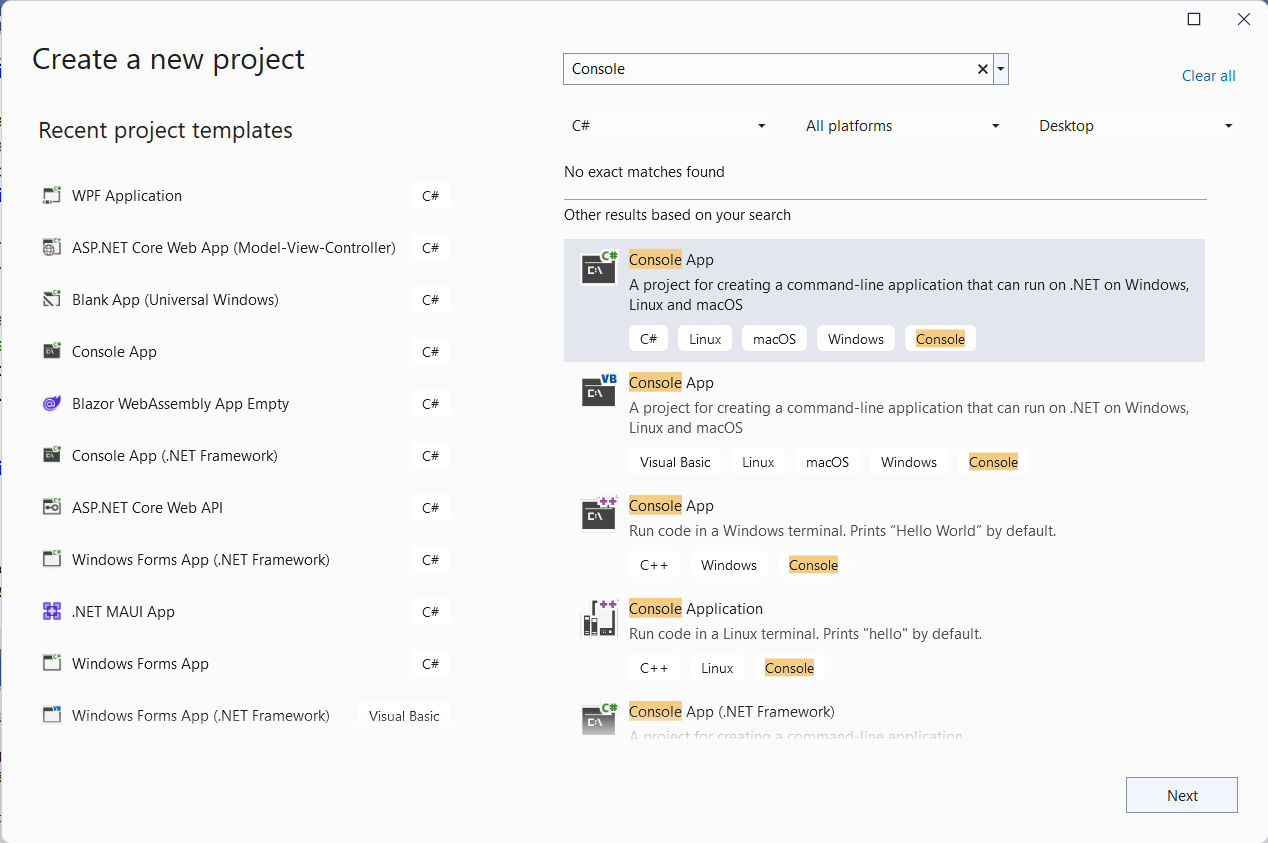
2. Then, install the latest [Syncfusion.XlsIO.NET.Core](https://www.nuget.org/packages/Syncfusion.XlsIO.Net.Core) NuGet package to your app.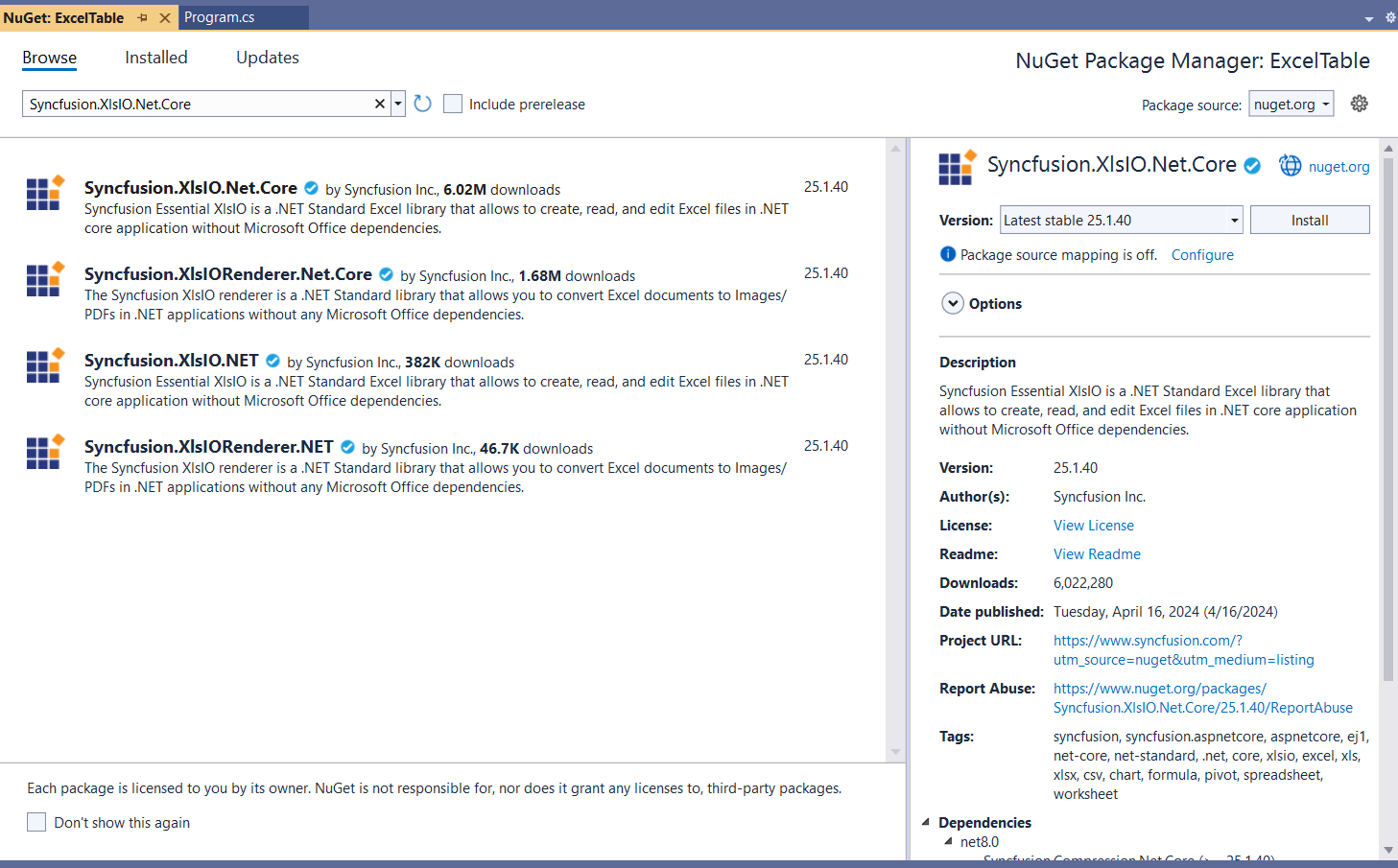
3. Now, add the following code to create a table in the existing Excel document.``` using Syncfusion.XlsIO; namespace ExcelTable { class Program { public static void Main() { Program program = new Program(); program.CreateTable(); } /// /// Creates a table in the existing Excel document. /// public void CreateTable() { using (ExcelEngine excelEngine = new ExcelEngine()) { IApplication application = excelEngine.Excel; application.DefaultVersion = ExcelVersion.Xlsx; FileStream fileStream = new FileStream("../../../Data/SalesReport.xlsx", FileMode.Open, FileAccess.Read); IWorkbook workbook = application.Workbooks.Open(fileStream, ExcelOpenType.Automatic); IWorksheet worksheet = workbook.Worksheets[0]; AddExcelTable("Table1", worksheet.UsedRange); string fileName = "../../../Output/Table.xlsx"; //Saving the workbook as stream. FileStream stream = new FileStream(fileName, FileMode.Create, FileAccess.ReadWrite); workbook.SaveAs(stream); stream.Dispose(); } } /// /// Adds a table to the worksheet with the given name and range. /// /// Table name /// Table range public void AddExcelTable(string tableName, IRange tableRange) { IWorksheet worksheet = tableRange.Worksheet; //Create a table with the data in a given range. IListObject table = worksheet.ListObjects.Create(tableName, tableRange); //Set the table style. table.BuiltInTableStyle = TableBuiltInStyles.TableStyleMedium14; } } } ```
Refer to the following images.
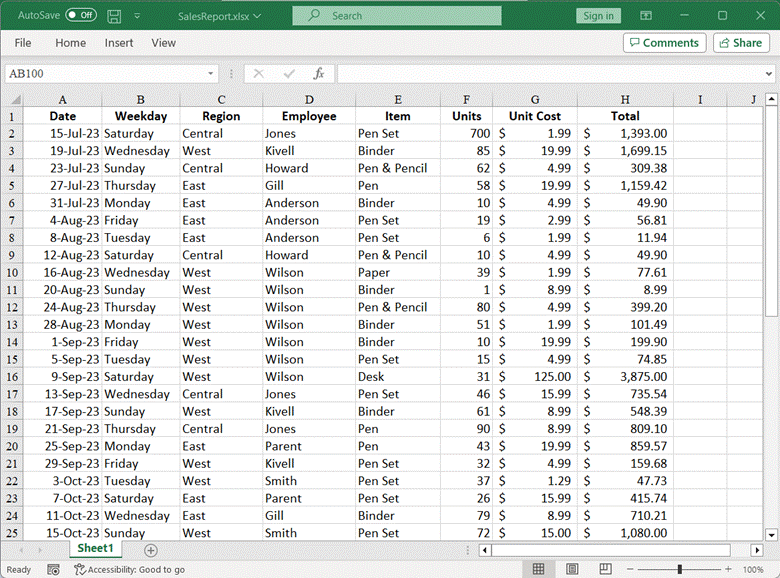
Input Excel document
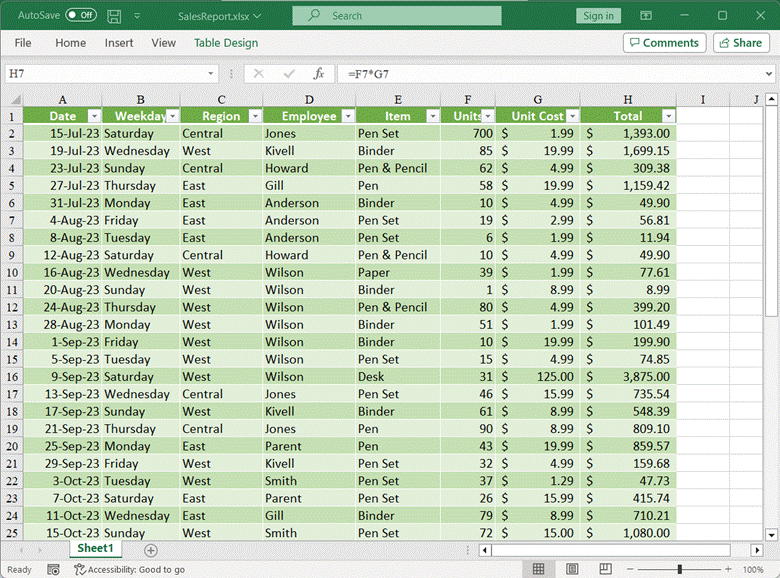
Creating a table in an Excel document using Syncfusion .NET Excel Library and C#
**Note:** For more details, refer to [working with Excel table in C# documentation](https://help.syncfusion.com/file-formats/xlsio/working-with-excel-tables)
.
## GitHub reference
You can also download the [example for creating a table in Excel using C# on GitHub](https://github.com/SyncfusionExamples/XlsIO-Examples/tree/master/Create%20and%20Edit%20Table/ExcelTable)
.
## Conclusion
Thanks for reading! In this blog, we explored how to create tables in Excel documents using C# and [Syncfusion Excel Library](https://www.syncfusion.com/document-sdk/net-excel-library)
**(XlsIO)**. The Excel Library also allows you to export Excel data to [images](https://help.syncfusion.com/file-formats/xlsio/worksheet-to-image-conversion)
, [data tables](https://help.syncfusion.com/file-formats/xlsio/working-with-data#exporting-from-worksheet-to-data-table)
, [CSV](https://www.syncfusion.com/kb/9092/convert-excel-file-to-csv-in-c-vb-net)
, [TSV](https://www.syncfusion.com/kb/8556/does-xlsio-support-tsv-files)
, [HTML](https://help.syncfusion.com/file-formats/xlsio/working-with-excel-worksheet?_ga=2.19528508.561950334.1598519523-255771547.1598519523#save-worksheet-as-html)
, [collections of objects](https://help.syncfusion.com/file-formats/xlsio/working-with-data#exporting-from-worksheet-to-clr-objects)
, [ODS](https://help.syncfusion.com/file-formats/xlsio/excel-to-ods-conversion)
, [JSON](https://help.syncfusion.com/file-formats/xlsio/excel-to-json-conversion)
, and other file formats.
Take a moment to peruse the [import data](https://help.syncfusion.com/file-formats/xlsio/working-with-data#importing-data-to-worksheets)
documentation, where you’ll discover additional importing options and features such as [data tables](https://help.syncfusion.com/file-formats/xlsio/working-with-data#import-data-from-datatable)
, [collection objects](https://help.syncfusion.com/file-formats/xlsio/working-with-data#import-data-from-collection-objects)
, [grid view](https://help.syncfusion.com/file-formats/xlsio/working-with-data#import-data-from-dataview)
, [data columns](https://help.syncfusion.com/file-formats/xlsio/working-with-data#import-data-from-datacolumn)
, and [HTML](https://help.syncfusion.com/file-formats/xlsio/working-with-data#importing-html-table-to-excel-worksheet)
, all accompanied by code samples.
Feel free to try out this versatile .NET Excel Library and share your feedback in the comments section of this blog post!
For existing customers, the new version of Essential Studio® is available for download from the [License and Downloads](https://www.syncfusion.com/account/downloads)
page. If you are not yet a Syncfusion customer, you can try our 30-day [free trial](https://www.syncfusion.com/downloads)
to check out our available features.
For questions, you can contact us through our [support forum](https://www.syncfusion.com/forums)
, [support portal](https://support.syncfusion.com/)
, or [feedback portal](https://www.syncfusion.com/feedback/)
. We are always happy to assist you!
## Related blogs
- [Print Excel Documents in Just 4 Steps Using C#](https://www.syncfusion.com/blogs/post/print-excel-in-csharp.aspx)
- [Converting XLS to XLSX Format in Just 3 Steps Using C#](https://www.syncfusion.com/blogs/post/convert-xls-to-xlsx-csharp.aspx)
- [Merge Multiple Excel Files into One in Just 3 Steps Using C#](https://www.syncfusion.com/blogs/post/merge-multiple-excel-csharp.aspx)
- [6 Easy Ways to Export Data to Excel in C#](https://www.syncfusion.com/blogs/post/6-easy-ways-to-export-data-to-excel-in-c-sharp.aspx)
- [Seamlessly Import and Export CSV Data in Excel Using C#](https://www.syncfusion.com/blogs/post/import-export-csv-data-in-excel-csharp.aspx)
- [Easy Steps to Export HTML Tables to Excel in C#](https://www.syncfusion.com/blogs/post/easy-steps-to-export-html-tables-to-an-excel-worksheet-in-c.aspx)