---
title: "Create, Edit, and Delete Arrows Shapes in PDF Files with Ease in WPF"
published_at: "2021-10-19T10:00:11+00:00"
modified_at: "2026-07-01T10:09:03+00:00"
url: "https://www.syncfusion.com/blogs/post/create-edit-and-delete-arrows-shapes-in-pdf-files-with-ease-in-wpf"
excerpt: "Arrows are significant design elements. They serve as visual cues that guide and direct your users’ attention to related information and action areas. We can use them to connect, direct, or point out information in files. The arrow shapes can..."
taxonomy_category:
- "Desktop"
- "PDF viewer"
- "Syncfusion"
- "Tips and Tricks"
- "UI"
- "WPF"
taxonomy_post_tag:
- "Annotation"
- "Customization"
- "desktop"
- "PDF"
- "PDF Viewer"
- "WPF"
---
# Create, Edit, and Delete Arrows Shapes in PDF Files with Ease in WPF
[Deepak G](https://www.syncfusion.com/blogs/author/deepakgunasekaran)
Arrows are significant design elements. They serve as visual cues that guide and direct your users’ attention to related information and action areas. We can use them to connect, direct, or point out information in files. The arrow shapes can be particularly useful when reviewing contents in PDF files.
The Syncfusion [WPF PDF Viewer](https://www.syncfusion.com/wpf-ui-controls/pdf-viewer)
provides easy ways to view, add, remove, and modify arrow shapes in PDF files quickly. It also allows you to draw arrows vertically, horizontally, and diagonally.
In this blog, we will look at the procedures to handle arrow shapes in PDF files using the WPF PDF Viewer.
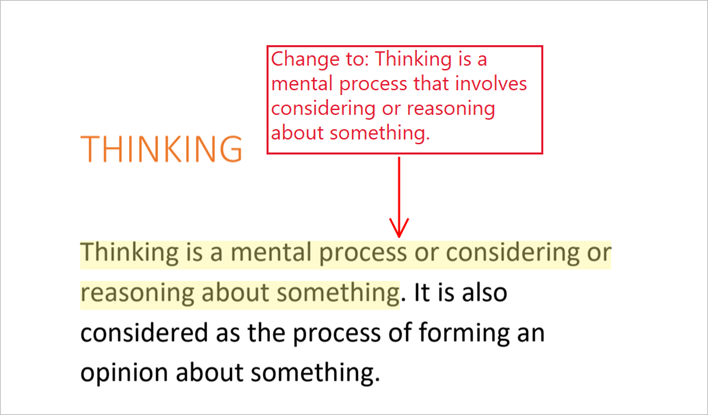
Arrow Shape Annotation in Reviewing a PDF File
## Getting started
First things first:
1. [Create a new WPF project](https://docs.microsoft.com/en-us/dotnet/desktop/wpf/getting-started/walkthrough-my-first-wpf-desktop-application) and install the [WPF PDF Viewer NuGet package](https://www.nuget.org/packages/Syncfusion.PdfViewer.WPF/) .
2. Then, include the following code in your XAML page to add the PDF Viewer as a child to the window:``` ```
## Add arrow shapes from the UI
Using the [PdfViewerControl](https://help.syncfusion.com/cr/wpf/Syncfusion.Windows.PdfViewer.PdfViewerControl.html)
, you can directly add arrow shapes by selecting the **Arrow** from the shapes in the built-in toolbar.
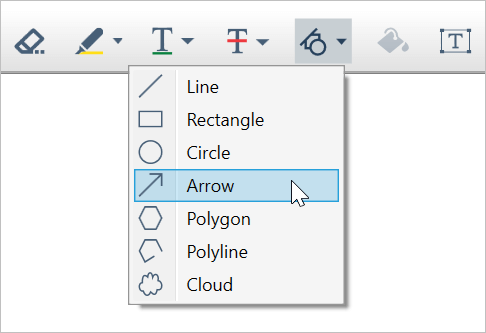
Selecting Arrow from the Toolbar
After choosing the Arrow from the toolbar, click and drag on the page to start creating an arrow. Move the pointer where you want and release it to finish drawing the arrow. Later, you can select and move or resize the arrow to change its location or size.
## Enable arrow-shape drawing mode programmatically
If you are using the [PdfDocumentView](https://help.syncfusion.com/cr/wpf/Syncfusion.Windows.PdfViewer.PdfDocumentView.html)
control and need to switch to the arrow-shape drawing mode, then execute the [AnnotationCommand](https://help.syncfusion.com/cr/wpf/Syncfusion.Windows.PdfViewer.PdfViewerControl.html#Syncfusion_Windows_PdfViewer_PdfViewerControl_AnnotationCommand)
with the [CommandParameter](https://docs.microsoft.com/en-us/dotnet/api/system.windows.controls.primitives.buttonbase.commandparameter?view=net-5.0)
set to **Arrow**.
Refer to the following code example to enable arrow-shape drawing mode:
**XAML**
```
```
**C#**
```
private void EnableArrowDrawingMode()
{
if (pdfViewer.AnnotationCommand.CanExecute("Arrow"))
pdfViewer.AnnotationCommand.Execute("Arrow");
}
```
**Note:** To reset the annotation mode, you need to pass the [CommandParameter](https://docs.microsoft.com/en-us/dotnet/api/system.windows.controls.primitives.buttonbase.commandparameter?view=net-5.0)
as **None**.
## Remove the arrows
We can easily remove an arrow by selecting and right-clicking the arrow shape. Then, choose the **Delete** option from the context menu. You can also remove the selected annotation using the ** DELETE** keyboard key.
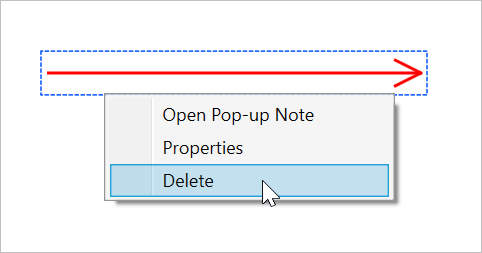
Delete Arrow Annotation
Create Interactive PDF Experiences in WPF
Build powerful PDF viewing experiences in WPF with built-in support for annotations, highlighting, form filling, signatures, page navigation, thumbnails, bookmarks, and text search.
[Build WPF PDF Viewer](https://www.syncfusion.com/pdf-viewer-sdk/wpf-pdf-viewer)
## Customize the properties of arrow shapes
The properties window of the annotation allows us to customize the arrow’s appearance, such as style, color, thickness, and opacity. With this, you can also change the subject and author’s information. To do so, right-click on the arrow shape and choose **Properties** from the context menu.
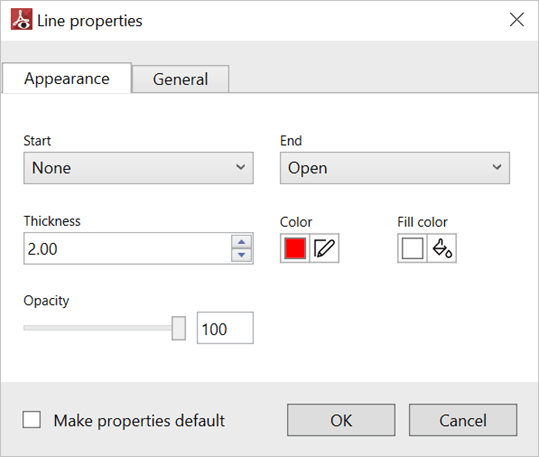
Properties Window
## Customize the default appearance
Also, you can customize the default appearance of an arrow using the WPF PDF Viewer’s [ArrowAnnotationSettings](https://help.syncfusion.com/cr/wpf/Syncfusion.Windows.PdfViewer.PdfViewerControl.html#Syncfusion_Windows_PdfViewer_PdfViewerControl_ArrowAnnotationSettings)
property.
Refer to the following code example:
```
private void SetDefaultArrowSettings()
{
pdfViewer.ArrowAnnotationSettings.BeginLineStyle = PdfLineEndingStyle.Circle;
pdfViewer.ArrowAnnotationSettings.EndLineStyle = PdfLineEndingStyle.ClosedArrow;
pdfViewer.ArrowAnnotationSettings.Opacity = 0.5f;
pdfViewer.ArrowAnnotationSettings.StrokeColor = Colors.Blue;
pdfViewer.ArrowAnnotationSettings.Thickness = 4;
}
```

Customized Arrow Appearance
## Customize the end styles of arrow shapes
You can also customize the end styles of an arrow. The following end styles are currently supported in the WPF PDF Viewer:
| Style | Appearance (End Style) |
| --- | --- |
| Open | |
| Closed | |
| Open (Reverse) | |
| Closed (Reverse) | |
| Butt | |
| Diamond | |
| Round | |
| Square | |
| Slash | |
| None (Normal line) | |
Apart from these styles, you can also apply the desired styles to both ends of an arrow, like in the following screenshot.

Customized Arrow with Different Styles at Both Ends
## Custom notes
Add custom notes for the annotation by using the pop-up note associated with the annotation. The pop-up note for the arrow annotation can be opened by selecting and right-clicking on the arrow shape and then choosing **Open Pop-up Note** from the context menu.
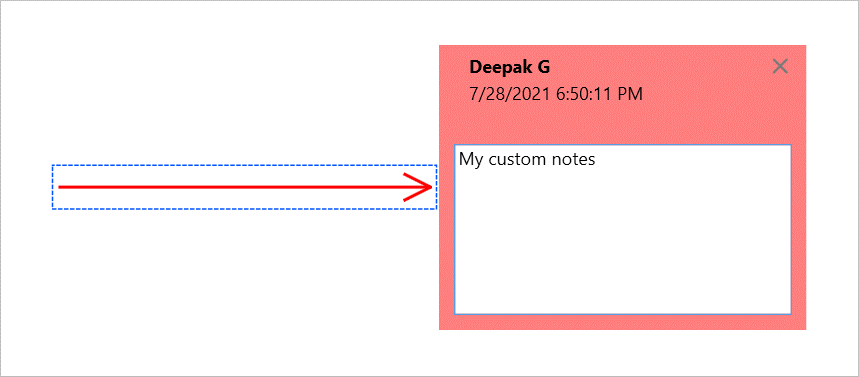
Pop-up Note
## Keyboard shortcuts summary
The following shortcut keys can be used with the arrow shape annotations:
- **Ctrl + Z**: Undo the changes.
- **Ctrl + Y**: Redo the changes.
- **Esc**: Deselect the annotation if it is selected; (or) reset the arrow annotation mode; (or) close the properties window or pop-up note if it is open. One of these operations will be performed based on the priority order.
- **Up, Down, Right, and Left arrow keys**: Move the arrow up, down, right, and left, respectively.
- **Delete**: Delete the selected annotation.
## References
For more information, refer to the [arrow shape annotation in the WPF PDF Viewer GitHub demo](https://github.com/SyncfusionExamples/WPF-PDFViewer-Examples/tree/master/Annotations/Arrow)
and [documentation](https://help.syncfusion.com/wpf/pdf-viewer/working-with-annotations/shape-annotations#arrow)
.
## Conclusion
Thank you for reading this blog. I hope that you enjoyed learning about how to add, remove, and modify arrow shapes in your PDF files using the Syncfusion [WPF PDF Viewer](https://www.syncfusion.com/wpf-controls/pdf-viewer)
. Arrow shapes are a great way to highlight a call to action, lead a visitor’s eye, or show a direction of flow. Try using our PDF Viewer to handle arrows in your application and let us know what you think in the comment section below.
Our PDF Viewer is also available in our [Blazor](https://www.syncfusion.com/blazor-components/blazor-pdf-viewer)
, [Flutter](https://www.syncfusion.com/flutter-widgets/flutter-pdf-viewer)
, ASP.NET ([Core](https://www.syncfusion.com/aspnet-core-ui-controls/pdf-viewer)
, [MVC](https://www.syncfusion.com/aspnet-mvc-ui-controls/pdf-viewer)
, [Web Forms](https://www.syncfusion.com/jquery/aspnet-web-forms-ui-controls/pdf-viewer)
), [JavaScript](https://www.syncfusion.com/javascript-ui-controls/js-pdf-viewer)
, [Angular](https://www.syncfusion.com/angular-ui-components/angular-pdf-viewer)
, [React](https://www.syncfusion.com/react-ui-components/react-pdf-viewer)
, [Vue](https://www.syncfusion.com/vue-ui-components/vue-pdf-viewer)
, [Xamarin](https://www.syncfusion.com/xamarin-ui-controls/xamarin-pdf-viewer)
, [UWP](https://www.syncfusion.com/uwp-ui-controls/pdf-viewer)
, [WinForms](https://www.syncfusion.com/winforms-ui-controls/pdf-viewer)
, and [WPF](https://www.syncfusion.com/wpf-controls/pdf-viewer)
platforms.
If you are not a customer yet, you can start a 30-day [free trial](https://www.syncfusion.com/downloads)
to check out the arrow annotation and other features.
If you wish to send us feedback or would like to submit any questions, you can contact us through our [support forum](https://www.syncfusion.com/forums)
, [feedback portal](https://www.syncfusion.com/feedback)
, or [Direct-Trac support system](https://www.syncfusion.com/support/directtrac/incidents)
. We are always happy to assist you!
## Related blogs
- [What’s New in 2021 Volume 3: WinUI and WPF](https://www.syncfusion.com/blogs/post/whats-new-in-2021-volume-3-winui-and-wpf.aspx)
- [Create a Feature-Rich WPF Diagramming App in 2 Minutes](https://www.syncfusion.com/blogs/post/create-a-feature-rich-wpf-diagramming-app-in-2-minutes.aspx)
- [Add, Edit, and Delete Cloud Shapes in PDF Files with Ease in WPF](https://www.syncfusion.com/blogs/post/add-edit-delete-cloud-shapes-in-pdf-files-wpf.aspx)
- [Create, View, Edit, and Save Your Excel Files Using WPF Spreadsheet](https://www.syncfusion.com/blogs/post/create-view-edit-and-save-your-excel-files-using-wpf-spreadsheet.aspx)