---
title: "Column Pinning: The Efficient Way to Organize Columns in the Blazor DataGrid"
published_at: "2023-05-05T11:00:00+00:00"
modified_at: "2026-02-10T11:59:43+00:00"
url: "https://www.syncfusion.com/blogs/post/column-pinning-blazor-datagrid"
excerpt: "This blog uses code examples to explain the various column pinning options in the Syncfusion Blazor DataGrid component."
taxonomy_category:
- "Blazor"
- "DataGrid"
- "Development"
- "Syncfusion"
- "Web"
taxonomy_post_tag:
- "Blazor"
- "DataGrid"
- "productivity"
- "Web Development"
- "WebAssembly"
---
# Column Pinning: The Efficient Way to Organize Columns in the Blazor DataGrid
[Maithiliy K](https://www.syncfusion.com/blogs/author/maithiliyk)
Syncfusion [Blazor DataGrid](https://www.syncfusion.com/blazor-components/blazor-datagrid)
is a feature-rich component that displays data in tabular format. Its column-pinning feature provides a flexible and intuitive way to keep significant columns in view while scrolling horizontally. This can be helpful when a grid contains many columns, and the user needs help keeping track of important information.
This article will explore the various column-pinning options in the Syncfusion Blazor DataGrid with code examples.
## Column pinning
One of the key benefits of the column-pinning feature is its ease of use. Users can pin columns using the column or context menu or simply by dragging the frozen line. This feature also supports high UI customization and user control and makes it simple to pin columns as needed.
You can also pin columns on the left and right sides of the Blazor DataGrid. This powerful feature allows users to keep important information in view at all times, even as they scroll through the grid.
The [column-pinning](https://blazor.syncfusion.com/documentation/datagrid/scrolling#freeze-particular-columns)
feature is powered by a set of APIs in the column model. This provides users with a simple and flexible way to control the behavior of the feature, and it makes it easy to add this functionality to their apps.
## Column-pinning options
The Blazor DataGrid supports the following three column-pinning options:
- [Pin columns at both the left and right sides.](#pin)
- [Pin a column dynamically by dragging it.](#column)
- [Pin a column using the column or context menu.](#context)
These options can be enabled with simple configuration (through APIs). Let’s see them in detail.
### **Pin columns at both the left and right sides**
Users can freeze columns on the left and right sides of the Blazor DataGrid, making the remaining columns movable. The DataGrid automatically adjusts the position of the columns based on the freeze direction set in the respective columns. The result is a grid that allows users to keep critical columns in sight while scrolling through the grid, thus improving the overall usability and efficiency of the app.
Refer to the following code example where we’ll pin columns at both the left and right sides by simply assigning the **FreezeDirection.Left** or ** FreezeDirection.Right** value to the ** Freeze** property and the ** true** value to the ** IsFrozen** property of the respective columns.
```
@using Syncfusion.Blazor.Grids
…………………………………
…………………………………
```
Refer to the following output image.
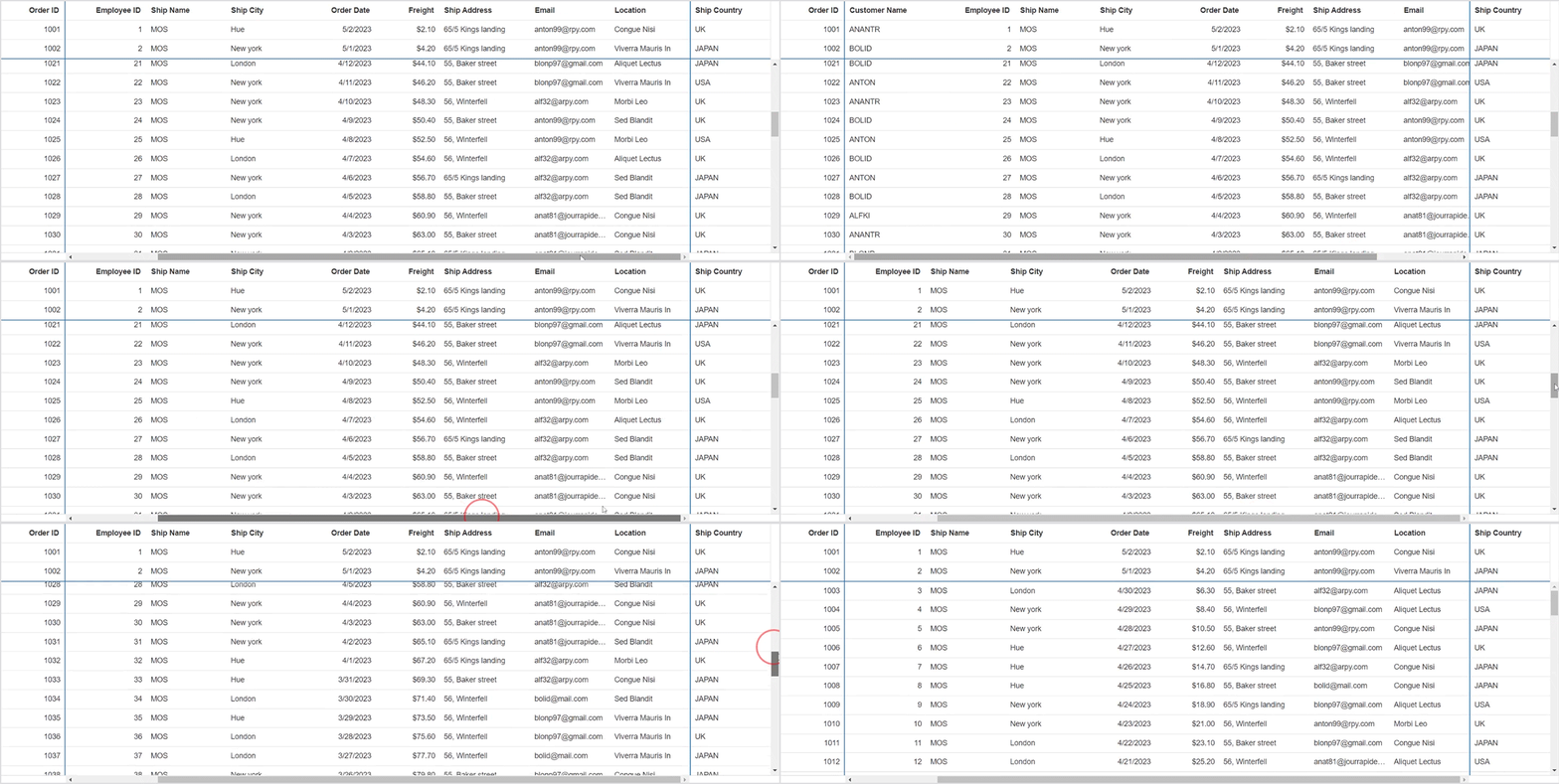
Pinning Columns at Both the Left and Right sides of the Blazor DataGrid
**Note:** For more details, refer to the [Pinning Columns at Both the Left and Right Sides of the Blazor DataGrid GitHub Demo](https://github.com/SyncfusionExamples/blazor-datagrid-freeze-direction)
.
### Pinning a column by dragging it dynamically
The Blazor DataGrid allows you to dynamically pin columns by simply dragging the frozen line, thus making it extremely easy for users to organize columns quickly and efficiently.
Users can easily freeze the desired columns on the left side, right side, or both and make the remaining columns movable.
Refer to the following code example. Here, we’ll dynamically pin columns by simply assigning the **FreezeDirection.Left** or ** FreezeDirection.Right** value to the ** Freeze** property, the ** true** value to the ** IsFrozen** property of the respective grid columns, and the ** true** value to the ** AllowFreezeLineMoving**property.
```
@using Syncfusion.Blazor.Grids
…………………………………
…………………………………
```
The following output image illustrates how dynamic pinning can extend the number of pinned columns on both the left and right sides of the DataGrid.
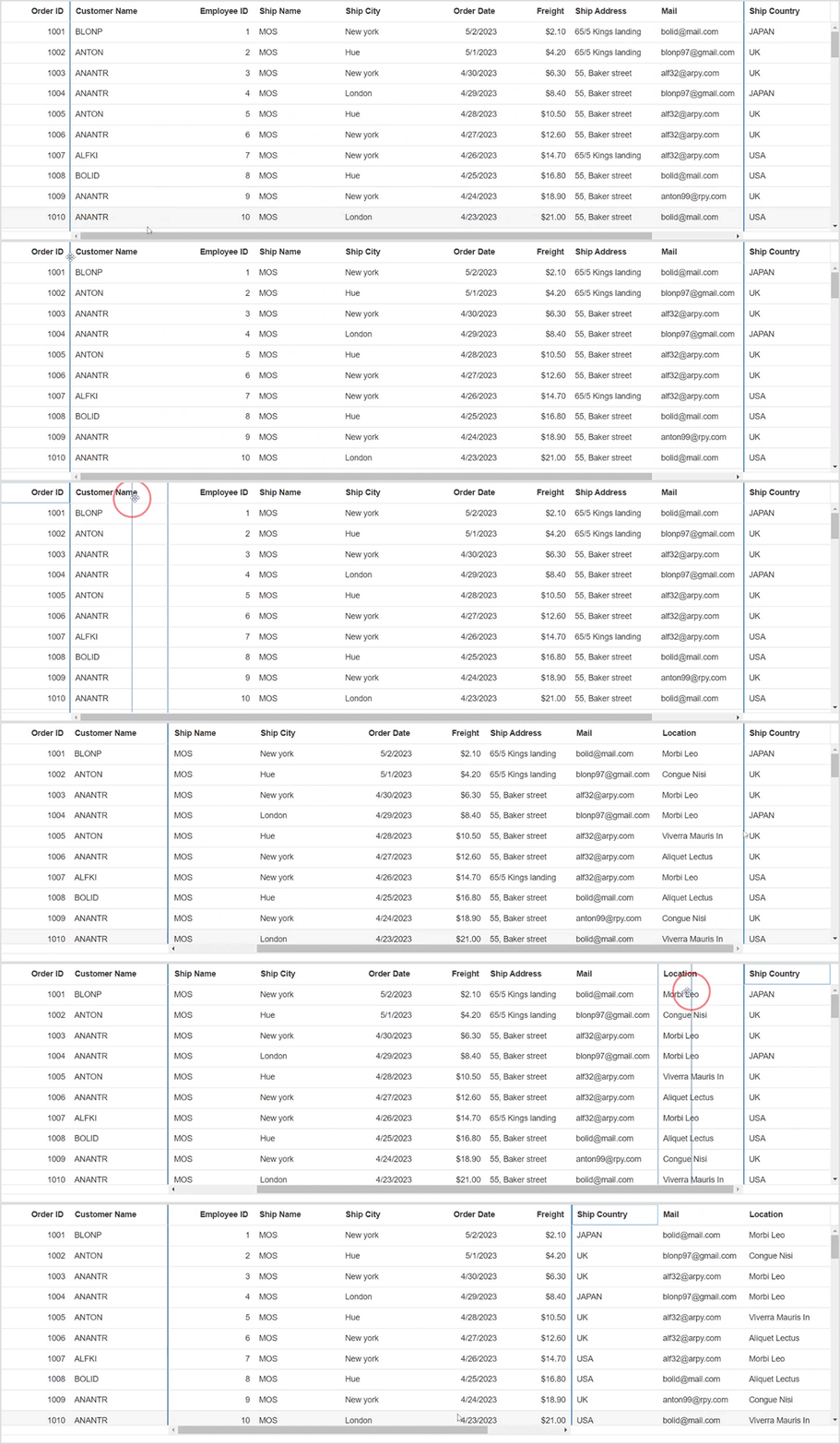
Dynamically Pinning Columns in Blazor DataGrid by Dragging the Frozen Line
**Note:** For more details, refer to the [Pinning Columns by Dragging the Frozen Line Dynamically Demo on GitHub](https://github.com/SyncfusionExamples/blazor-datagrid-add-or-remove-frozen-columns-using-column-seperator)
.
### Pinning a column through the column menu or context menu
Users can pin a column through UI interactions using the column or context menu or through other grid actions like right-clicking.
Refer to the following code example that shows how to achieve this feature with customization.
```
……………………………………………………
……………………………………………………
@code{
……………………………………………………
public FreezeDirection OrderIDFreezeDirection { get; set; } = FreezeDirection.Left;
public void ColumnMenuItemClickedHandler(ColumnMenuClickEventArgs args)
{
if (args.Item.Id == "OrderID")
{
if (OrderIDFreezeDirection == FreezeDirection.Left)
OrderIDFreezeDirection = FreezeDirection.Right;
else
OrderIDFreezeDirection = FreezeDirection.Left;
}
}
}
```
The following output image illustrates how to change a column pinning direction from left to right using UI interaction.
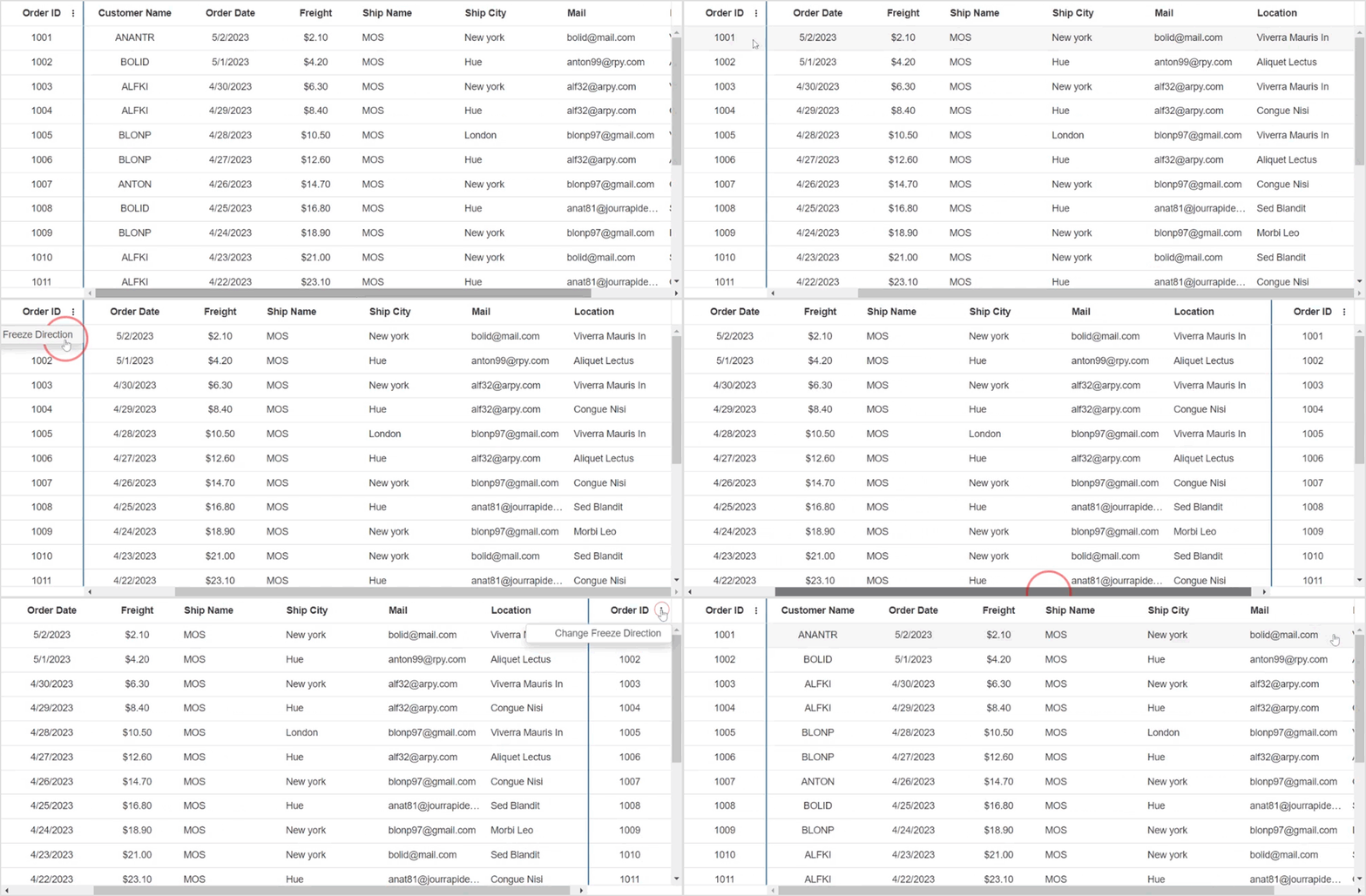
Changing Column Pinning Direction Using the Column Menu
**Note:** For more details, refer to the [Pinning Column through the Context and Column Menus Demo on GitHub](https://github.com/SyncfusionExamples/blazor-datagrid-change-freeze-direction-using-custom-column-menu)
.
## Conclusion
Thanks for reading! In this blog, we’ve seen how to pin columns while scrolling horizontally in the [Blazor DataGrid](https://www.syncfusion.com/blazor-components/blazor-datagrid)
control. Try out this feature and share your feedback in the comments section. For more details, refer to the [Blazor DataGrid documentation](https://blazor.syncfusion.com/documentation/datagrid/getting-started)
and [online demos](https://blazor.syncfusion.com/demos/datagrid/overview)
.
Syncfusion DataGrid is also available in ASP.NET ([Core](https://www.syncfusion.com/aspnet-core-ui-controls/grid)
, [MVC](https://www.syncfusion.com/aspnet-mvc-ui-controls/grid)
, [WebForms](https://www.syncfusion.com/jquery/aspnet-web-forms-ui-controls/datagrid)
), [Blazor](https://www.syncfusion.com/blazor-components/blazor-datagrid)
, [Angular](https://www.syncfusion.com/angular-ui-components/angular-grid)
, [JavaScript](https://www.syncfusion.com/javascript-ui-controls/js-data-grid)
, [React](https://www.syncfusion.com/react-ui-components/react-data-grid)
, [Vue](https://www.syncfusion.com/vue-ui-components/vue-grid)
, [.NET MAUI](https://www.syncfusion.com/maui-controls/maui-datagrid)
, [Xamarin](https://www.syncfusion.com/xamarin-ui-controls/xamarin-datagrid)
, [Flutter](https://www.syncfusion.com/flutter-widgets/flutter-datagrid)
, [UWP](https://www.syncfusion.com/uwp-ui-controls/datagrid)
, [WinForms](https://www.syncfusion.com/winforms-ui-controls/datagrid)
, [WPF](https://www.syncfusion.com/wpf-ui-controls/datagrid)
, and [WinUI](https://www.syncfusion.com/winui-controls/datagrid)
. Use this component wherever you need to build world-class apps!
The latest version is available for existing customers from the [License and Downloads](https://www.syncfusion.com/account/downloads)
page. If you are not a Syncfusion customer, you can try our 30-day [free trial](https://www.syncfusion.com/downloads)
to check out all the available features.
You can also contact us through our [support forum](https://www.syncfusion.com/forums)
, [support portal](https://support.syncfusion.com)
, or [feedback portal](https://www.syncfusion.com/feedback)
. We are always happy to assist you!
## Related blogs
- [What’s New in Syncfusion Blazor: 2023 Volume 1](https://www.syncfusion.com/blogs/post/whats-new-blazor-2023-volume-1.aspx)
- [Simple Steps to Integrate OpenAI (ChatGPT) with the Syncfusion’s Blazor Rich Text Editor](https://www.syncfusion.com/blogs/post/integrate-chatgpt-blazor-rich-text-editor.aspx)
- [Easily Integrate Blazor Components into Any SPA Framework as Custom Elements](https://www.syncfusion.com/blogs/post/integrate-blazor-components-into-any-spa-framework.aspx)
- [Seamlessly Create a Mind Map Using the Blazor Diagram Component](https://www.syncfusion.com/blogs/post/mind-map-using-blazor-diagram.aspx)