---
title: "New CheckBox Selector Column in the WPF and UWP DataGrid"
published_at: "2019-10-17T11:00:24+00:00"
modified_at: "2026-06-23T04:44:11+00:00"
url: "https://www.syncfusion.com/blogs/post/checkbox-selector-column-wpf-uwp-datagrid"
excerpt: "We are pleased to introduce checkbox selection support in our 2019 Volume 3 release for both the WPF and UWP DataGrid. This feature will help you select or deselect rows by interacting with checkboxes in a column. In this blog,..."
taxonomy_category:
  - "DataGrid"
  - "Desktop"
  - "UWP"
  - "WPF"
taxonomy_post_tag:
  - "DataGrid"
  - "drag and drop support"
  - "UWP"
  - "WPF"
---

# New CheckBox Selector Column in the WPF and UWP DataGrid

[Neelakandan Kannan](https://www.syncfusion.com/blogs/author/neelakandan-kannan)

![Introducing CheckBox Selector Column in WPF UWP DataGrid](https://www.syncfusion.com/blogs/wp-content/uploads/2019/10/Introducing-CheckBox-Selector-Column-in-WPF-UWP-DataGrid.png)


We are pleased to introduce checkbox selection support in our [2019 Volume 3 release](https://www.syncfusion.com/forums/148058/essential-studio-2019-volume-3-release-v17-3-0-14-is-available-for-download)
 for both the [WPF](https://www.syncfusion.com/wpf-ui-controls/datagrid)
 and [UWP DataGrid](https://www.syncfusion.com/uwp-ui-controls/datagrid)
. This feature will help you select or deselect rows by interacting with checkboxes in a column.

In this blog, we are going to see how to use a checkbox selector column in a data grid.  
Build Powerful WPF Data Grids Faster

Create feature-rich data tables with Syncfusion WPF DataGrid. Easily add sorting, filtering, editing, paging, and export options to your WPF apps.

[Explore WPF DataGrid](https://www.syncfusion.com/wpf-controls/datagrid)

## Adding checkbox selector column

You can add a checkbox selector column to the **DataGrid** like any other column, and place this selector column anywhere in columns collection. You can use this selector column unbound, i.e. there is no need to have the property definition in the underlying ** ItemsSource**.

```
<syncfusion:SfDataGrid x:Name="dataGrid" 
                       AutoGenerateColumns="False" 
                       SelectionMode="Multiple"
                       ItemsSource="{Binding Orders}">
    <syncfusion:SfDataGrid.Columns>
         <syncfusion:GridCheckBoxSelectorColumn MappingName="SelectorColumn" 
                                                Width="30"/>
    </syncfusion:SfDataGrid.Columns>
</syncfusion:SfDataGrid>
```

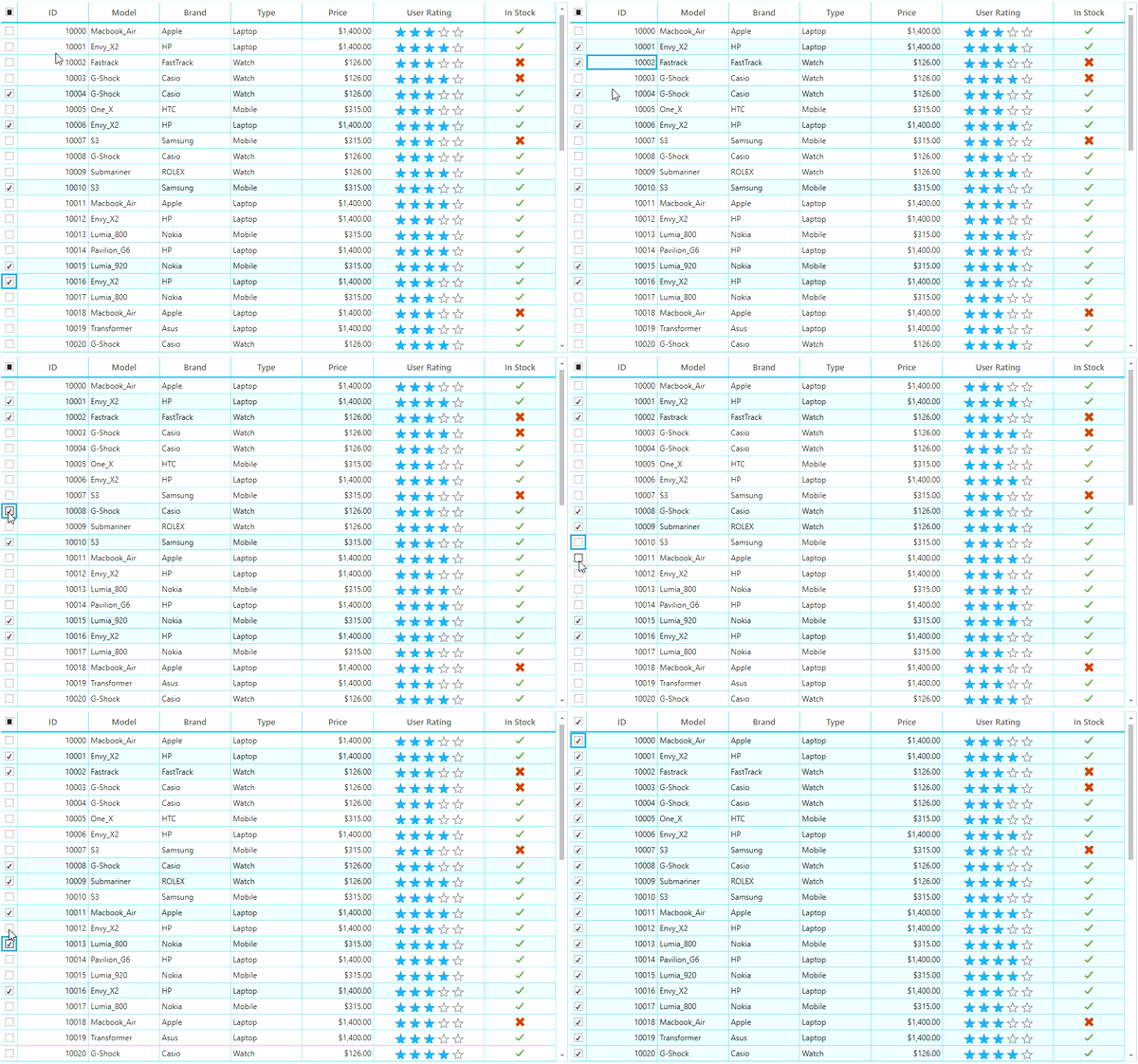
Select all the rows by interacting with the checkbox in the column header.
![Rows selected with check boxes in the column header of DataGrid](/blogs/wp-content/uploads/2019/10/Rows-selected-with-check-boxes-in-the-column-header-of-DataGrid.gif)

Rows selected with checkboxes in the column header of DataGrid

## Getting checked items

You can get the checked items through the [DataGrid.SelectedItems](https://help.syncfusion.com/cr/xamarin/Syncfusion.SfDataGrid.XForms.SfDataGrid.html#Syncfusion_SfDataGrid_XForms_SfDataGrid_SelectedItems)
 property as selection and checkboxes are synchronized together.

## Styling

In the WPF platform, you can customize the style of the checkboxes in record cells through the [CellStyle](https://help.syncfusion.com/cr/wpf/Syncfusion.UI.Xaml.Grid.GridColumnBase.html#Syncfusion_UI_Xaml_Grid_GridColumnBase_CellStyle)
 property and the checkbox in the header through the [HeaderStyle](https://help.syncfusion.com/cr/wpf/Syncfusion.UI.Xaml.Grid.GridColumnBase.html#Syncfusion_UI_Xaml_Grid_GridColumnBase_HeaderStyle)
 property.

The following example shows how to customize the checkboxes in record cells.

```
<syncfusion:SfDataGrid x:Name="dataGrid" 
    AutoGenerateColumns="False" 
    ItemsSource="{Binding Orders}">
        <syncfusion:SfDataGrid.Columns>
            <syncfusion:GridCheckBoxSelectorColumn MappingName="SelectorColumn" 
                Width="30">
                <syncfusion:GridCheckBoxSelectorColumn.CellStyle>
                    <Style TargetType="syncfusion:GridCell">
                        <Style.Resources>
                            <Style TargetType="CheckBox">
                                <Setter Property="BorderBrush" Value="Red"/>
                            </Style>
                        </Style.Resources>
                    </Style>
                </syncfusion:GridCheckBoxSelectorColumn.CellStyle>
            </syncfusion:GridCheckBoxSelectorColumn>
        </syncfusion:SfDataGrid.Columns>
</syncfusion:SfDataGrid>
```

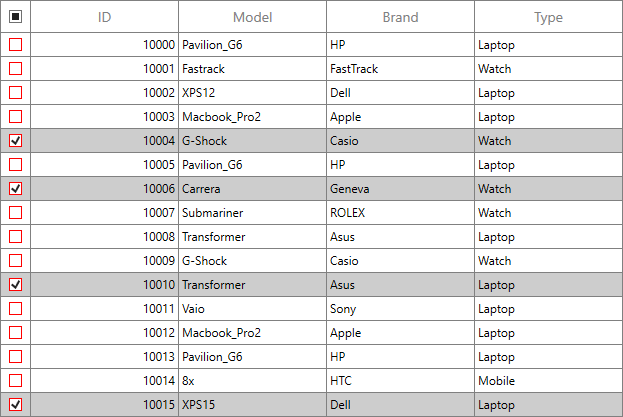
![Customized check boxes in WPF DataGrid](/blogs/wp-content/uploads/2019/10/Customized-check-boxes-in-WPF-DataGrid.png)

Customized checkboxes in WPF DataGrid

In the UWP platform, you can customize the checkbox feature by customizing its **ControlTemplate**.

```
<syncfusion:SfDataGrid x:Name="dataGrid"                                                                      
---------------------- 
     <Syncfusion:SfDataGrid.Resources>
          <Style TargetType="CheckBox">
               .................................
               .................................
               .................................
              <Setter Property="Template">
                    <Setter.Value>
                         <ControlTemplate TargetType="CheckBox">
                              <Grid Background="{TemplateBinding Background}" BorderBrush="{TemplateBinding BorderBrush}"
                                   BorderThickness="{TemplateBinding BorderThickness}">
                                   <VisualStateManager.VisualStateGroups>
                                        <VisualStateGroup x:Name="CombinedStates">
                                             <VisualState x:Name="UncheckedNormal" >
                                                  <Storyboard>
                                                       <ObjectAnimationUsingKeyFrames Storyboard.TargetName="NormalRectangle" 
                                                                                      Storyboard.TargetProperty="Stroke">
                                                            <DiscreteObjectKeyFrame KeyTime="0" Value="Red" />
                                                       </ObjectAnimationUsingKeyFrames>
                                                  </Storyboard>
                                             </VisualState>
                                             <VisualState x:Name="CheckedNormal">
                                                  <Storyboard>
                                                       <ObjectAnimationUsingKeyFrames Storyboard.TargetName="NormalRectangle" 
                                                                                      Storyboard.TargetProperty="Fill">
                                                            <DiscreteObjectKeyFrame KeyTime="0" Value="Transparent" />
                                                       </ObjectAnimationUsingKeyFrames>
                                                       <ObjectAnimationUsingKeyFrames Storyboard.TargetName="NormalRectangle" 
                                                                                      Storyboard.TargetProperty="Stroke">
                                                             <DiscreteObjectKeyFrame KeyTime="0" Value="Red" />
                                                       </ObjectAnimationUsingKeyFrames>
                                                       <ObjectAnimationUsingKeyFrames Storyboard.TargetName="CheckGlyph" 
                                                                                      Storyboard.TargetProperty="Foreground">
                                                             <DiscreteObjectKeyFrame KeyTime="0" Value="Black" />
                                                       </ObjectAnimationUsingKeyFrames>
                                                       <DoubleAnimation Storyboard.TargetName="CheckGlyph" 
                                                                        Storyboard.TargetProperty="Opacity"
                                                                        To="1" Duration="0" />
                                                  </Storyboard>
                                             </VisualState>
                                             <VisualState x:Name="IndeterminateNormal">
                                                  <Storyboard>
                                                       <ObjectAnimationUsingKeyFrames Storyboard.TargetName="NormalRectangle" 
                                                                                      Storyboard.TargetProperty="Stroke">
                                                            <DiscreteObjectKeyFrame KeyTime="0" Value="Red" />
                                                       </ObjectAnimationUsingKeyFrames>
                                                       <ObjectAnimationUsingKeyFrames Storyboard.TargetName="NormalRectangle" 
                                                                                      Storyboard.TargetProperty="Fill">
                                                             <DiscreteObjectKeyFrame KeyTime="0" 
                                                                     Value="{ThemeResource SystemControlHighlightTransparentBrush}" />
                                                       </ObjectAnimationUsingKeyFrames>
                                                       <ObjectAnimationUsingKeyFrames Storyboard.TargetName="CheckGlyph" 
                                                                                      Storyboard.TargetProperty="Foreground">
                                                            <DiscreteObjectKeyFrame KeyTime="0" Value="Blue" />
                                                       </ObjectAnimationUsingKeyFrames>
                                                       <ObjectAnimationUsingKeyFrames Storyboard.TargetName="CheckGlyph" 
                                                                                      Storyboard.TargetProperty="Glyph">
                                                            <DiscreteObjectKeyFrame KeyTime="0" Value="" />
                                                       </ObjectAnimationUsingKeyFrames>
                                                       <DoubleAnimation Storyboard.TargetName="CheckGlyph" 
                                                                        Storyboard.TargetProperty="Opacity"
                                                                        To="1" Duration="0" />
                                                  </Storyboard>
                                             </VisualState>
                                             .................................
                                             .................................
                                             .................................
                                       </VisualStateGroup>
                                  </VisualStateManager.VisualStateGroups>
                                  .................................
                                  .................................
                                  .................................
                             </Grid>
                        </ControlTemplate>
                   </Setter.Value>
              </Setter>
          </Style>
     </Syncfusion:SfDataGrid.Resources>
</syncfusion:SfDataGrid>
```

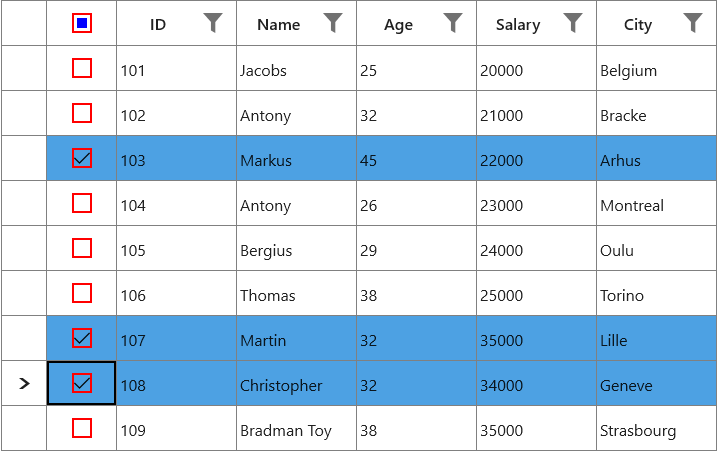
![Customized check boxes in UWP DataGrid](/blogs/wp-content/uploads/2019/10/Customized-check-boxes-in-UWP-DataGrid.png)

Customized checkboxes in UWP DataGrid

## Conclusion

I hope you now have a clear idea of these features and how to get started with checkbox selection in the DataGrid for WPF and UWP.

To learn more, check our UG documentation for both [WPF](https://help.syncfusion.com/wpf/datagrid/column-types#gridcheckboxselectorcolumn)
 and [UWP](https://help.syncfusion.com/uwp/datagrid/column-types#gridcheckboxselectorcolumn)
 platforms. You can download our [2019 Volume 3 release](https://www.syncfusion.com/forums/148058/essential-studio-2019-volume-3-release-v17-3-0-14-is-available-for-download)
 setup to check out these controls.

Check out the samples at these GitHub repositories to try these features.

WPF: [https://github.com/syncfusion/wpf-demos/tree/master/DataGrid](https://github.com/syncfusion/wpf-demos/tree/master/DataGrid)

UWP: [https://github.com/syncfusion/uwp-demos/tree/master/SfDataGrid](https://github.com/syncfusion/uwp-demos/tree/master/SfDataGrid)

If you have any questions about these controls, please let us know in the comments below. You can also contact us through our [support forum](https://www.syncfusion.com/forums)
, [Direct-Trac](https://www.syncfusion.com/support/directtrac/)
, or [Feedback Portal](https://www.syncfusion.com/feedback/wpf)
. We are happy to assist you!