---
title: "Building an Image Carousel in JavaScript Is Now Easy!"
published_at: "2022-08-30T11:24:37+00:00"
modified_at: "2024-11-20T06:09:37+00:00"
url: "https://www.syncfusion.com/blogs/post/building-an-image-carousel-in-javascript-is-now-easy"
excerpt: "The JavaScript Carousel is a highly responsive and completely customizable UI control. It can display images with content, links, and more, like a slideshow. You can use it to display scrolling news headlines, featured articles on home pages, and image..."
taxonomy_category:
- "JavaScript"
- "Syncfusion"
- "UI"
- "Web"
taxonomy_post_tag:
- "JavaScript"
- "Syncfusion"
- "UI"
- "Web"
---
# Building an Image Carousel in JavaScript Is Now Easy!
[Rajendran R](https://www.syncfusion.com/blogs/author/rajendranr)
The [JavaScript Carousel](https://www.syncfusion.com/javascript-ui-controls/js-carousel)
is a highly responsive and completely customizable UI control. It can display images with content, links, and more, like a slideshow. You can use it to display scrolling news headlines, featured articles on home pages, and image galleries. Now, it has been developed to meet industrial standards and is production-ready.

JavaScript Carousel Control
Let’s explore the JavaScript Carousel control and its rich features with code examples.
## Overview
The Carousel control provides the flexibility to create slides and configure their look and feel. You can also enjoy web-standard functionalities like accessibility, keyboard interactions, and events.
## Key features
The key features of the JavaScript Carousel control are as follows:
- [Easy slide creation](#slide-creation)
- [Navigation buttons](#navigation-buttons)
- [Play/pause button](#play/pause-button)
- [Indicators](#indicators)
- [Animation and transitions](#animation-and-transitions)
- [WAI-ARIA compliance and keyboard accessibility](#wai-aria-compliance-and-keyboard-accessibility)
### Slide creation
In the JavaScript Carousel control, you can easily create slides and design your slide content. Then, assign them to the carousel **items** template to display them as a slideshow. Refer to the following code example.
```
Import { Carousel } from “@syncfusion/ej2-navigations”;
const carouselObj = new Carousel({
items: [
{ template: ‘Cardinal’ },
{ template: ‘Kingfisher’ },
{ template: ‘Keel-billed-toucan’ },
{ template: ‘Yellow-warbler’ },
{ template: ‘Bee-eater’ }
]
});
carouselObj.appendTo(“#carousel”);
```
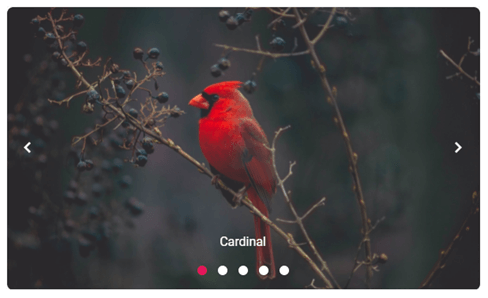
Creating Slides Using JavaScript Carousel Control
### Navigation buttons
You can manually perform slide transitions with the **previous** and ** next** navigation buttons. You can show or hide the buttons using the [buttonsVisibility](https://ej2.syncfusion.com/documentation/api/carousel/#buttonsvisibility)
property with any of the following values:
- **Hidden**: Hides the navigator buttons.
- **Visible**: Shows the navigator buttons.
- **VisibleOnHover**: Shows the navigator buttons only when the mouse is hovering over the Carousel.
Use the [template](https://ej2.syncfusion.com/documentation/carousel/navigators-and-indicators/#previous-and-next-button-template)
options to customize the navigation buttons.
Refer to the following code example to show the navigator buttons on mouse hover in the Carousel control.
```
Import { Carousel } from “@syncfusion/ej2-navigations”;
const carouselObj: Carousel = new Carousel({
buttonsVisibility: “VisibleOnHover”,
items: [
{ template: ‘Cardinal’ },
{ template: ‘Kingfisher’ },
{ template: ‘Keel-billed-toucan’ },
{ template: ‘Yellow-warbler’ },
{ template: ‘Bee-eater’ }
]});
carouselObj.appendTo(“#carousel”);
```
### Play/pause button
The play button is used to control the autoplay slide functionality. You can show or hide and customize the play button using the [showPlayButton](https://ej2.syncfusion.com/documentation/api/carousel/#showplaybutton)
and [playButtonTemplate](https://ej2.syncfusion.com/javascript/documentation/api/carousel/#playbuttontemplate)
properties, respectively.
Refer to the following image.
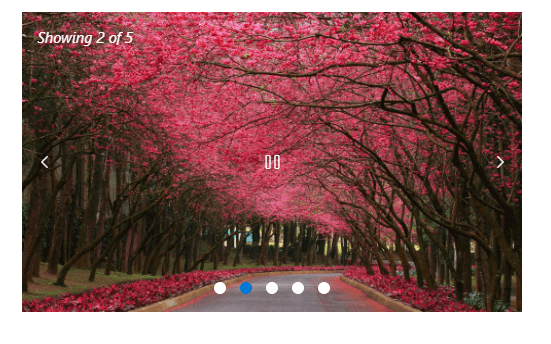
Play/Pause Button in JavaScript Carousel Control
### Indicators
Indicators help us depict the total number of slides and the currently active slide in the Carousel. You can show or hide the indicators using the [showIndicators](https://ej2.syncfusion.com/documentation/api/carousel/#showindicators)
property. Display the preview of a slide or thumbnail in the indicators using the [indicatorsTemplate](https://ej2.syncfusion.com/documentation/api/carousel/#indicatorstemplate)
property.
Refer to the following image.
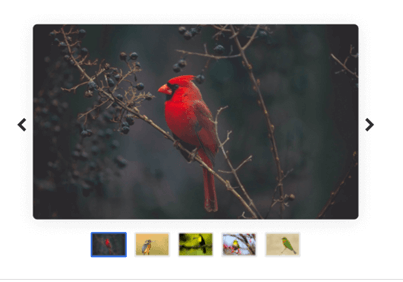
Indicators in JavaScript Carousel Control
**Note:** Refer to the [template examples in the JavaScript Carousel control](https://ej2.syncfusion.com/demos/#/bootstrap5/carousel/templates.html)
for more details.
### Animation and transitions
You can enjoy hassle-free transitions while navigating among the slides with the built-in **slide** and ** cross-fade** [animation](https://ej2.syncfusion.com/documentation/carousel/animations-and-transitions/)
effects.
The Carousel supports autoplay functionality, which performs slide transition after a specified or default interval. On reaching the last slide, the slides will be repeated with the selected transition by default.
You can enable or disable infinite slide transitions using the [loop](https://ej2.syncfusion.com/documentation/api/carousel/#loop)
property.
You can also use the [pauseOnHover](https://ej2.syncfusion.com/documentation/api/carousel/#pauseonhover)
property to play or pause the slides when hovering the mouse pointer over the Carousel element.
#### Custom animations
Apart from the built-in slide animation effects, you can also customize the animation effects.
**Note:** For more details, refer to the [custom animation in the JavaScript Carousel](https://ej2.syncfusion.com/documentation/carousel/animations-and-transitions/#custom-animation)
documentation.
### WAI-ARIA compliance and keyboard accessibility
The Carousel control was built based on the [WAI-ARIA](https://www.w3.org/TR/wai-aria-practices/)
specifications, roles, states, and properties. It also has keyboard support. This will be helpful for people who use assistive devices.
You can easily interact with the JavaScript Carousel control using these keyboard shortcuts:
| Key | Functionalities |
| --- | --- |
| Arrow keys | Navigate between slides. |
| Home | Navigate to the first slide. |
| End | Navigate to the last slide. |
| Space | Play or pause the slide transitions. |
| Enter | Perform the respective action when in focus. |
## Reference
For more details, refer to the [Getting started with JavaScript Carousel control documentation](https://ej2.syncfusion.com/documentation/carousel/getting-started/)
and [online demos](https://ej2.syncfusion.com/demos/#/bootstrap5/carousel/default.html)
.
## Conclusion
Thanks for reading! In this blog, we have seen the key features of our [JavaScript Carousel](https://www.syncfusion.com/javascript-ui-controls/js-carousel)
control. The Carousel control is also available in our [Angular](https://www.syncfusion.com/angular-ui-components/angular-carousel)
, [Blazor](https://www.syncfusion.com/blazor-components/blazor-carousel)
, [React](https://www.syncfusion.com/react-ui-components/react-carousel)
, [Vue](https://www.syncfusion.com/vue-ui-components/vue-carousel)
, ASP.NET ([Core](https://www.syncfusion.com/aspnet-core-ui-controls/carousel)
and [MVC](https://www.syncfusion.com/aspnet-mvc-ui-controls/carousel)
), [WinForms](https://www.syncfusion.com/winforms-ui-controls/carousel)
, [WPF](https://www.syncfusion.com/wpf-controls/carousel)
, [Xamarin](https://www.syncfusion.com/xamarin-ui-controls/xamarin-carousel-view)
, and [UWP](https://www.syncfusion.com/uwp-ui-controls/carousel)
platforms. Use it in your app and enjoy hassle-free slide navigation!
If you’re already a Syncfusion user, you can download the [product setup](https://www.syncfusion.com/account/downloads/studio/)
, or, you can download a free [30-day trial](https://www.syncfusion.com/account/downloads/studio)
to evaluate our products.
For questions, contact us through our [support forums](https://www.syncfusion.com/forums)
, [support portal](https://support.syncfusion.com/)
, or [feedback portal](https://www.syncfusion.com/feedback/)
. We are delighted to help you at any time!
## Related blogs
- [What’s New in 2022 Volume 2: Essential JS 2](https://www.syncfusion.com/blogs/post/whats-new-in-2022-volume-2-essential-js-2.aspx)
- [Syncfusion Essential Studio® 2022 Volume 2 Is Here!](https://www.syncfusion.com/blogs/post/syncfusion-essential-studio-2022-volume-2-is-here.aspx)
- [Handling Concurrent Requests with JavaScript Callbacks](https://www.syncfusion.com/blogs/post/handling-concurrent-requests-with-javascript-callbacks.aspx)
- [11 Console Methods in JavaScript for Effective Debugging](https://www.syncfusion.com/blogs/post/11-console-methods-in-javascript-for-effective-debugging.aspx)


