---
title: "Building a Hijri Calendar with .NET MAUI Scheduler: A Beginner’s Guide"
published_at: "2023-03-28T11:16:30+00:00"
modified_at: "2025-03-21T09:08:24+00:00"
url: "https://www.syncfusion.com/blogs/post/building-a-hijri-calendar-with-net-maui-scheduler-a-beginners-guide"
excerpt: "This blog explains how to create a Hijri calendar using the Syncfusion .NET MAUI Scheduler control with code examples."
taxonomy_category:
  - ".NET MAUI"
  - "Desktop"
  - "Mobile"
  - "Scheduler"
taxonomy_post_tag:
  - ".NET MAUI"
  - "desktop"
  - "MAUI"
  - "Mobile"
  - "Scheduler"
---

# Building a Hijri Calendar with .NET MAUI Scheduler: A Beginner’s Guide

[Jeyasri Murugan](https://www.syncfusion.com/blogs/author/jeyasrim)
![Building a Hijri Calendar with .NET MAUI Scheduler: A Beginner’s Guide](https://www.syncfusion.com/blogs/wp-content/uploads/2023/03/Building-a-Hijri-Calendar-with-.NET-MAUI-Scheduler-A-Beginners-Guide.png)


Calendars differ from country to country. Many different calendar types are used worldwide based on cultural or religious traditions.

The Syncfusion [.NET MAUI Scheduler](https://www.syncfusion.com/maui-controls/maui-scheduler)
 supports scheduling, managing, and efficiently representing appointments. It was redesigned with a clean and convenient user interface for custom working days and hours and basic calendar operations such as date navigation and selection.

It supports creating the following types of calendars with ease:

- Gregorian (default)
- Hebrew
- Hijri
- Korean
- Taiwanese
- Thai Buddhist
- UmAlQura
- Persian
- Japanese

In this blog, we’ll see how to create and customize a Hijri calendar using the features of the .NET MAUI Scheduler control.

**Note:** Before proceeding, please read the getting started with [.NET MAUI Scheduler documentation](https://help.syncfusion.com/maui/scheduler/getting-started)
.

## Creating a Hijri calendar

The [Islamic or Hijri calendar](https://en.wikipedia.org/wiki/Islamic_calendar)
 is a lunar calendar with 12 months in a year of 354 or 355 days.

We can easily create a Hijri calendar by setting **Hijri** as the value for the .NET MAUI Scheduler’s [CalendarType](https://help.syncfusion.com/cr/maui/Syncfusion.Maui.Scheduler.SfScheduler.html#Syncfusion_Maui_Scheduler_SfScheduler_CalendarType)
 property. Refer to the following code example.

```
xmlns:scheduler="clr-namespace:Syncfusion.Maui.Scheduler;assembly=Syncfusion.Maui.Scheduler"

<scheduler:SfScheduler x:Name="Scheduler" CalendarType="Hijri" />
```

![Creating a Hijri calendar using the .NET MAUI Scheduler](https://www.syncfusion.com/blogs/wp-content/uploads/2023/03/Creating-a-Hijri-calendar-using-the-.NET-MAUI-Scheduler-4.png)

Creating a Hijri calendar using the .NET MAUI Scheduler

## Customizing the Hijri calendar

We have seen how to create a Hijri calendar with ease. Let’s see how to customize it using the features of the .NET MAUI Scheduler.

### Use various views

The .NET MAUI Scheduler dates are displayed based on the **calendar type**. It provides eight types of views (day, week, workweek, month, timeline day, timeline week, timeline workweek, and timeline month) to display dates.

You can change the Scheduler view using the [View](https://help.syncfusion.com/cr/maui/Syncfusion.Maui.Scheduler.SfScheduler.html#Syncfusion_Maui_Scheduler_SfScheduler_View)
 property. Refer to the following code example.

```
<scheduler:SfScheduler x:Name="Scheduler" CalendarType="Hijri" View="Month" />
```

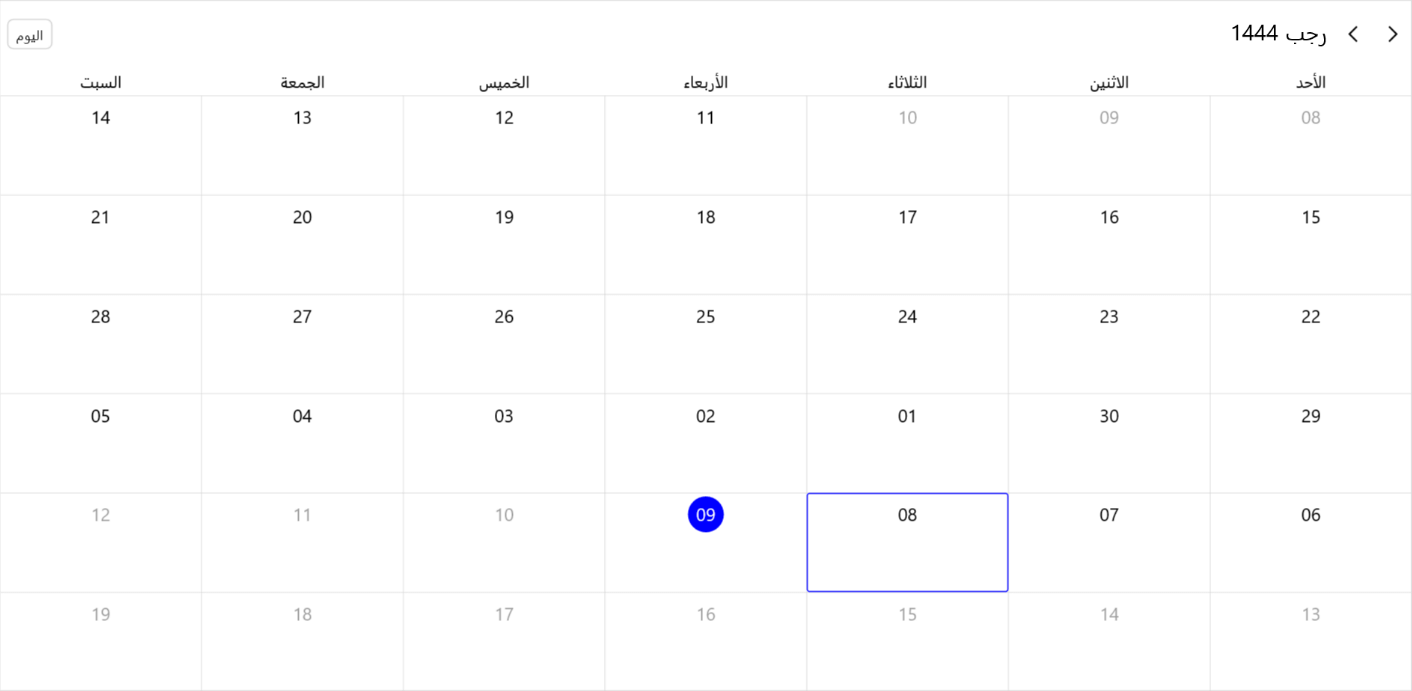
![Hijri calendar with month view](https://www.syncfusion.com/blogs/wp-content/uploads/2023/03/Hijri-calendar-with-month-view-2.png)

Hijri calendar with month view

### Change the first day of the week

The Scheduler is rendered with **Sunday** as the first day of the week by default. We can change this using the [FirstDayOfWeek](https://help.syncfusion.com/cr/maui/Syncfusion.Maui.Scheduler.SfScheduler.html#Syncfusion_Maui_Scheduler_SfScheduler_FirstDayOfWeek)
 property.

Refer to the following code example.

```
<scheduler:SfScheduler x:Name="Scheduler" CalendarType="Hijri" View="TimelineMonth" FirstDayOfWeek="Monday" />
```

![Changing the first day of the week in the Hijri calendar](https://www.syncfusion.com/blogs/wp-content/uploads/2023/03/Changing-the-first-day-of-the-week-in-the-Hijri-calendar-1.png)

Changing the first day of the week in the Hijri calendar

### Create appointments

You can easily [add appointments](https://help.syncfusion.com/maui/scheduler/appointments)
 to the Hijri calendar in the following ways:

- Create appointments with start and end time values by declaring the **Hijri**** calendar** and the relevant ** Hijri**** calendar date**.``` var appointments = new ObservableCollection<SchedulerAppointment> { // Adding schedulean appointment in the schedule appointment collection. new SchedulerAppointment() { Subject = "Meeting", // StartTime and EndTime valuevalues specified with calendar type and respective calendar date. StartTime = new DateTime(1444, 08, 8, 10, 0, 0, new HijriCalendar()), EndTime = new DateTime(1444, 08, 8, 11, 0, 0, new HijriCalendar()), }, }; // Adding the scheduler appointments to the ItemsSource. scheduler.AppointmentsSource = appointments; ```
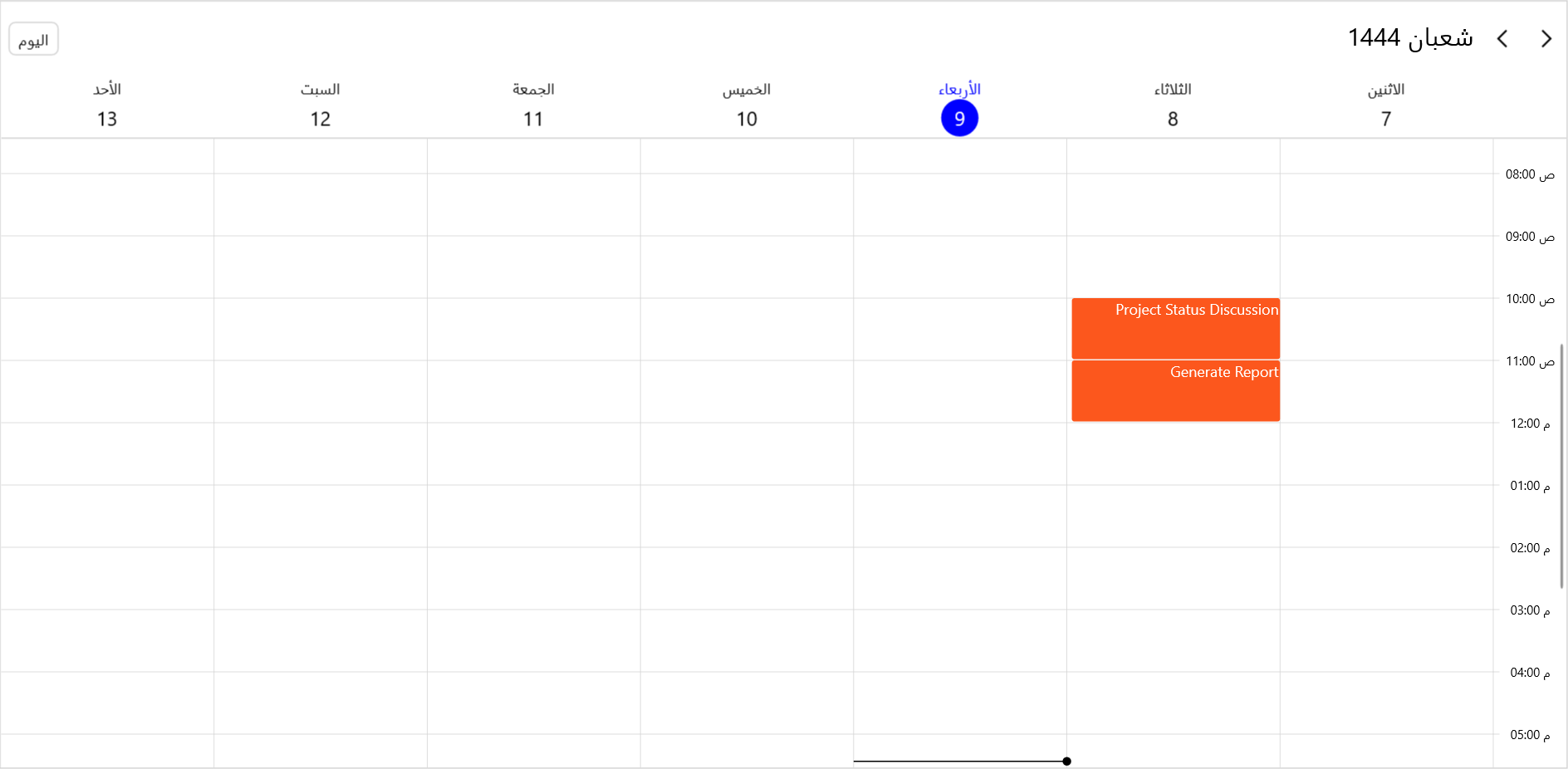
- Create an appointment with start and end time values by declaring a local system date. In this case, the system date will be converted to the relevant **Hijri Calendar**.``` var appointments = new ObservableCollection<SchedulerAppointment> { new SchedulerAppointment() { Subject = "Meeting", // StartTime and EndTime values specified with the local system date will be converted to the Hijri calendar mentioned. StartTime = new DateTime(2023, 02, 28, 11, 0, 0, 0), EndTime = new DateTime(2023, 02, 28, 12, 0, 0, 0), } }; // Adding the scheduler appointments to the ItemsSource. scheduler.AppointmentsSource = appointments; ```

![Adding appointments to the Hijri calendar](https://www.syncfusion.com/blogs/wp-content/uploads/2023/03/Adding-appointments-to-the-Hijri-calendar-1.png)

Adding appointments to the Hijri calendar

### Group resources

You can group appointments based on their [resources](https://help.syncfusion.com/maui/scheduler/resource-view)
 in the **timeline day**, ** week**, ** workweek**, and ** month** views.

Refer to the following code example.

```
scheduler.View = SchedulerView.TimelineWeek;
         
List<SchedulerResource> resources = new();
SchedulerResource employees = new();
employees.Name = "Sophia";
employees.Foreground = Colors.White;
employees.Background = new SolidColorBrush(Color.FromArgb("#FF8B1FA9"));
employees.Id =  1;
resources.Add(employees);

scheduler.ResourceView.Resources = resources;
```
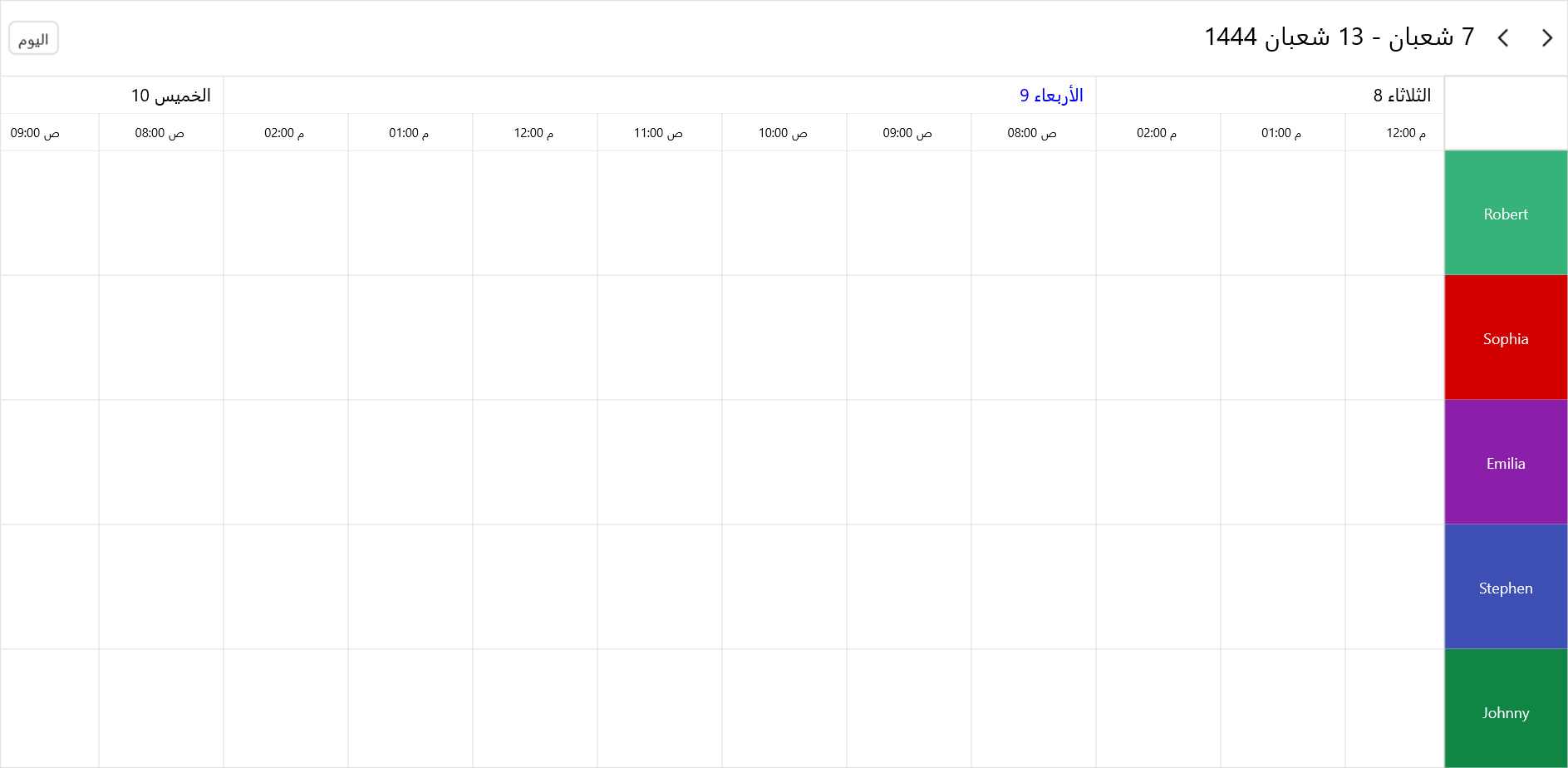
![Grouping resources in the Hijri calendar](https://www.syncfusion.com/blogs/wp-content/uploads/2023/03/Grouping-resources-in-the-Hijri-calendar.png)

Grouping resources in the Hijri calendar

### Associate appointments to resources

Associate resources with appointments by assigning the [IDs](https://help.syncfusion.com/cr/maui/Syncfusion.Maui.Scheduler.SchedulerResource.html#Syncfusion_Maui_Scheduler_SchedulerResource_Id)
 of the resources in the [ResourceView](https://help.syncfusion.com/cr/maui/Syncfusion.Maui.Scheduler.SfScheduler.html#Syncfusion_Maui_Scheduler_SfScheduler_ResourceView)
 to the [ResourceIds](https://help.syncfusion.com/cr/maui/Syncfusion.Maui.Scheduler.SchedulerRegionBase.html#Syncfusion_Maui_Scheduler_SchedulerRegionBase_ResourceIds)
 property of the scheduled appointment.

Refer to the following code example.

```
List<SchedulerAppointment> tasks = new();
tasks.Add(new SchedulerAppointment()
{
    Subject = "Conference",
    // StartTime and EndTime values specified with calendar type and calendar date.
    StartTime = new DateTime(1444, 08, 8, 10, 0, 0, new HijriCalendar()),
    EndTime = new DateTime(1444, 08, 8, 11, 0, 0, new HijriCalendar()),
    ResourceIds = new ObservableCollection<object>() { 1 },
});
 
tasks.Add(new SchedulerAppointment()
{
    Subject = "Business Meeting",
    // StartTime and EndTime values specified with the local system date will be converted to the Hijri calendar listed.
    StartTime = new DateTime(2023, 02, 28, 11, 0, 0, 0),
    EndTime = new DateTime(2023, 02, 28, 12, 0, 0, 0),
    Background = resourceColors[random.Next(resourceColors.Count)],
    ResourceIds = new ObservableCollection<object>() { 2 },
});
scheduler.AppointmentsSource = appointments;
```

![Assigning appointments to resources in the Hijri calendar](https://www.syncfusion.com/blogs/wp-content/uploads/2023/03/Assigning-appointments-to-resources-in-the-Hijri-calendar.png)

Assigning appointments to resources in the Hijri calendar

### Restrict the minimum and maximum dates

You can prevent users from selecting dates beyond the[minimum](https://help.syncfusion.com/cr/maui/Syncfusion.Maui.Scheduler.SfScheduler.html#Syncfusion_Maui_Scheduler_SfScheduler_MinimumDateTime)
 and [maximum date-times](https://help.syncfusion.com/cr/maui/Syncfusion.Maui.Scheduler.SfScheduler.html#Syncfusion_Maui_Scheduler_SfScheduler_MaximumDateTime)
 in two ways:

- Set the minimum and maximum date-time values by declaring the **Hijri calendar** and the proper ** Hijri calendar date**.``` // DateTime value specified with calendar type and date. scheduler.MinimumDateTime = new DateTime(1443, 08, 8, 10, 0, 0, new HijriCalendar()); scheduler.MaximumDateTime = new DateTime(1445, 08, 8, 10, 0, 0, new HijriCalendar()); ```
- Set the minimum and maximum dates by declaring a local system date. In this case, the system date will be converted to the relevant **Hijri Calendar date.**``` // DateTime value specified with the local system date will be converted to the Hijri calendar listed. scheduler.MinimumDateTime = new DateTime(2022, 02, 28, 11, 0, 0, 0); scheduler.MaximumDateTime = new DateTime(2023, 12, 28, 11, 0, 0, 0); ```

### Programmatic Scheduler date navigation

We can programmatically navigate to the dates in the supported calendar types using the [DisplayDate](https://help.syncfusion.com/cr/maui/Syncfusion.Maui.Scheduler.SfScheduler.html#Syncfusion_Maui_Scheduler_SfScheduler_DisplayDate)
 property. There are two ways to do so:

- Set the .NET MAUI Scheduler to display the date value by declaring the **Hijri calendar** and the relevant ** Hijri calendar date**.``` // DateTime value specified with calendar type and date. scheduler.DisplayDate = new DateTime(1444, 08, 8, 10, 0, 0, new HijriCalendar()); ```
- Set the Scheduler to display the date value by declaring a local system date. In this case, the system date will be converted to the relevant **Hijri Calendar date**.``` // DateTime value specified with the local system date will be converted to the Hijri calendar listed. scheduler.DisplayDate = new DateTime(2023, 02, 28, 11, 0, 0, 0); ```

### Programmatic scheduler date selection

We can also programmatically select the dates for the supported calendar types using the [SelectedDate](https://help.syncfusion.com/cr/maui/Syncfusion.Maui.Scheduler.SfScheduler.html#Syncfusion_Maui_Scheduler_SfScheduler_SelectedDate)
 property. There are two ways to do so:

- Set the Scheduler to select the date value by declaring the **Hijri calendar** and relevant ** Hijri calendar date**.``` // DateTime value specified with calendar type and respective calendar date. scheduler.SelectedDate = new DateTime(1444, 08, 8, 10, 0, 0, new HijriCalendar()); ```
- Set the Scheduler to select the date-value by declaring a local system date. In this case, the system date will be converted to the relevant **Hijri calendar date**.``` // DateTime value specified with the local system date will be converted to the Hijri calendar listed. Scheduler.SelectedDate = new DateTime(2023, 02, 28, 11, 0, 0, 0); ```

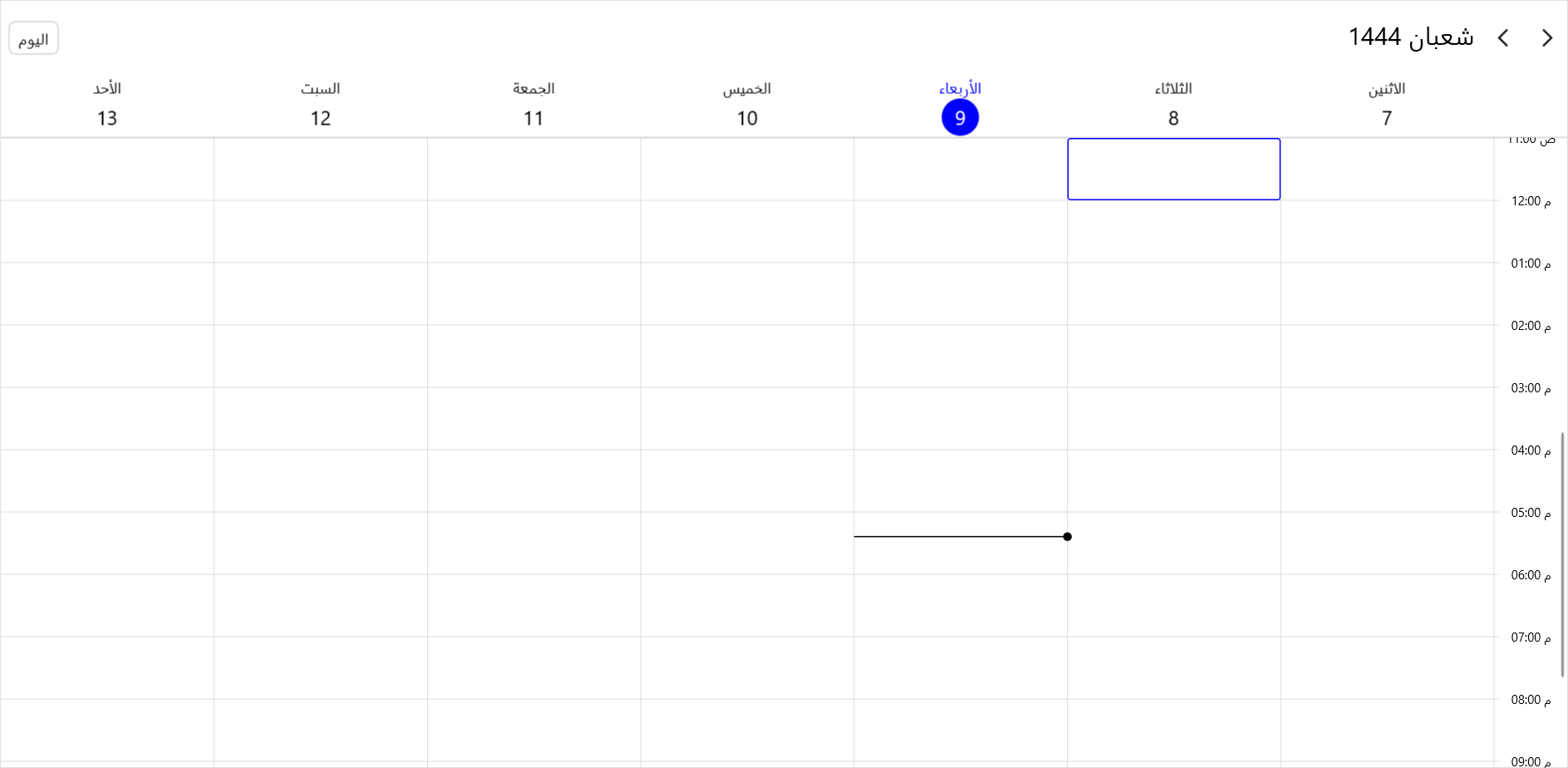
![Selecting a date in the Hijri calendar](https://www.syncfusion.com/blogs/wp-content/uploads/2023/03/Selecting-a-date-in-the-Hijri-calendar.png)

Selecting a date in the Hijri calendar

### Highlight special time region

The .NET MAUI Scheduler supports highlighting a time region in [day](https://help.syncfusion.com/maui/scheduler/day-week-views#special-time-Regions)
 and [timeline](https://help.syncfusion.com/maui/scheduler/timeline-views#special-time-regions)
 views for all the supported calendar types. There are two ways to highlight a specific time region:

- Create a special time region with start and end time values by declaring the **Hijri calendar** and proper ** Hijri calendar dates**.``` ObservableCollection<SchedulerTimeRegion> imeRegions = new ObservableCollection<SchedulerTimeRegion> { new SchedulerTimeRegion { // StartTime and EndTime valuevalues specified with calendar type and respective calendar date. StartTime = new DateTime(1444, 08, 8, 9, 0, 0, new HijriCalendar()), EndTime = new DateTime(1444, 08, 8, 10, 0, 0, new HijriCalendar()), Background = new SolidColorBrush(Colors.LightGray), Text = “Busy”, ResourceIds = new ObservableCollection<object> { 1, 3 } }, }; scheduler.TimelineView.TimeRegions = imeRegions; ```
- Create a special time region with start and end time values by declaring a local system date. In this case, the system date will be converted to the relevant **Hijri calendar date**.``` ObservableCollection<SchedulerTimeRegion> imeRegions = new ObservableCollection<SchedulerTimeRegion> { new SchedulerTimeRegion { // StartTime and EndTime values specified with the local system date will be converted to the Hijri calendar listed. StartTime = new DateTime(2023, 02, 28, 8, 0, 0, 0), EndTime = new DateTime(2023, 02, 28, 9, 0, 0, 0), Text = “Busy”, Background = new SolidColorBrush(Colors.LightGray), ResourceIds = new ObservableCollection<object> { 2 } } }; scheduler.TimelineView.TimeRegions = timeRegions; ```

![Highlighting special time regions in the Hijri calendar](https://www.syncfusion.com/blogs/wp-content/uploads/2023/03/Highlighting-special-time-regions-in-the-Hijri-calendar.png)

Highlighting special time regions in the Hijri calendar

### Change the flow direction

The .NET MAUI Scheduler flow direction will automatically change to right to left for the following calendar types:

- Hebrew
- Hijri
- UmAlQura
- Persian

### Localize the custom string

The .NET MAUI Scheduler is displayed with **en-US (English)** text by default. You can localize the text (today and scheduler views in header) by adding the respective [resource files for the language](https://help.syncfusion.com/maui/scheduler/localization)
.

Refer to the following code example.

```
CultureInfo.CurrentUICulture = new CultureInfo(“ar-AE”);
//// To localize the custom string (today, allowed scheduler views) used in the Scheduler.
SfSchedulerResources.ResourceManager = new ResourceManager(“HijriCalendarType.Resources.SfScheduler”, Application.Current.GetType().Assembly);
```

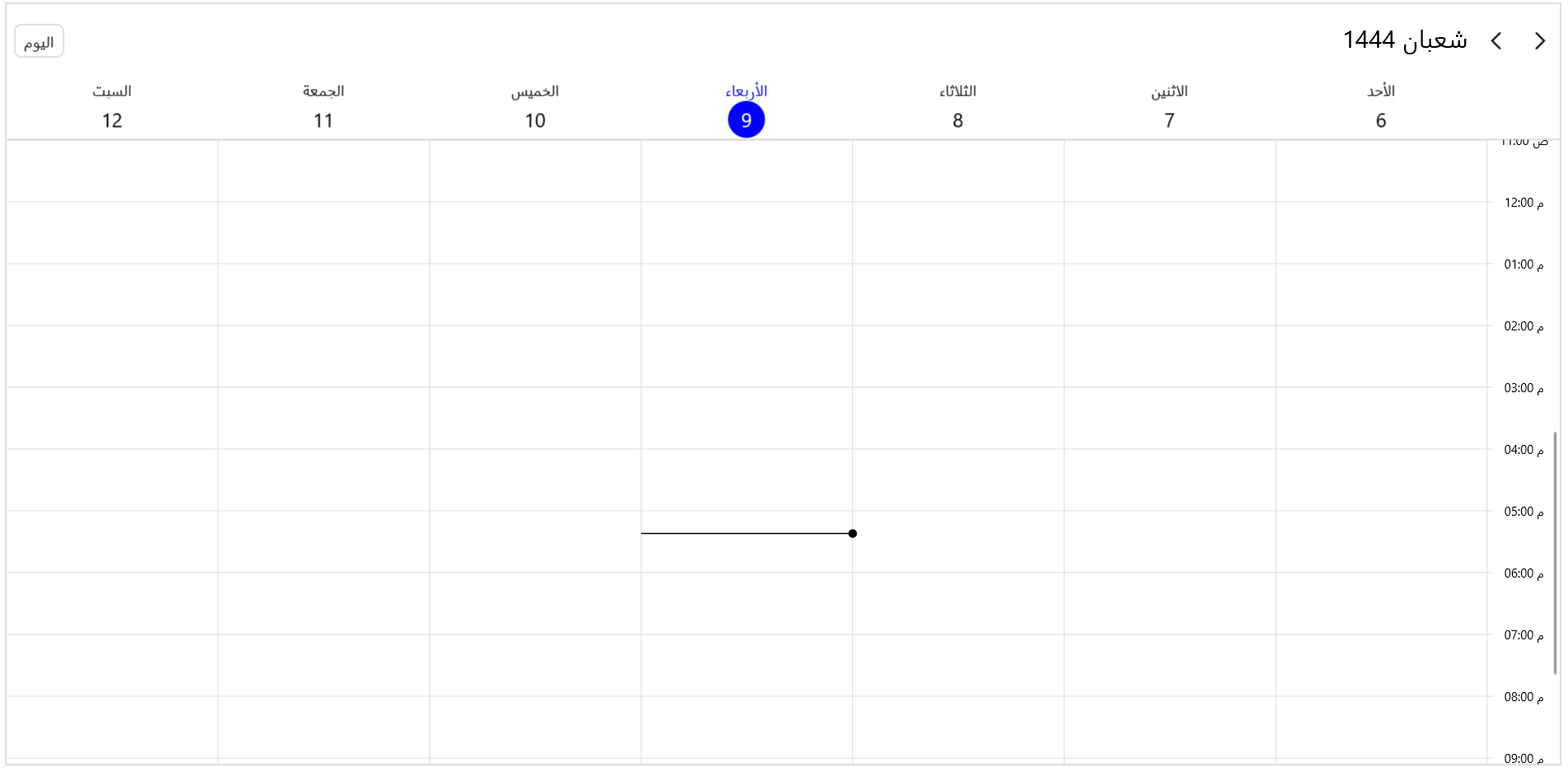
![Localizing the text in the Hijri calendar](https://www.syncfusion.com/blogs/wp-content/uploads/2023/03/Localizing-the-text-in-the-Hijri-calendar.png)

Localizing the text in the Hijri calendar

## GitHub reference

For more information, you can download the complete example for [creating a Hijri calendar using the .NET MAUI Scheduler](https://github.com/SyncfusionExamples/create-hijri-calendar-using-.NET-MAUI-Scheduler)
.

## Conclusion

Thanks for reading! In this blog, we’ve seen how to create a Hijri calendar using the [.NET MAUI Scheduler](https://www.syncfusion.com/maui-controls/maui-scheduler)
 and its basic scheduling functionalities. Like this, you can also create the other supported calendar types and schedule appointments with ease.

For current Syncfusion customers, the newest version of Essential Studio® is available from the [license and downloads page](https://www.syncfusion.com/account/downloads)
. If you are not a customer, try our 30-day [free trial](https://www.syncfusion.com/downloads)
 to check out our controls.

If you have any questions, please let us know in the comments section below! You can also contact us through our [support forum](https://www.syncfusion.com/forums)
, [support portal](https://support.syncfusion.com/)
, or [feedback portal](https://www.syncfusion.com/feedback/home)
. We are always happy to assist you!

## Related blogs

- [Elegantly Visualize Data with Interactive Features in .NET MAUI Charts](https://www.syncfusion.com/blogs/post/elegantly-visualize-data-with-interactive-features-in-net-maui-charts.aspx)
- [Introducing the 7th Set of .NET MAUI Controls and Features](https://www.syncfusion.com/blogs/post/7th-set-of-dotnet-maui-controls.aspx)
- [Coding a Cookbook with .NET MAUI [Webinar Show Notes]](https://www.syncfusion.com/blogs/post/cookbook-with-dotnet-maui.aspx)
- [Easily Visualize Online Maps in Your .NET MAUI Apps](https://www.syncfusion.com/blogs/post/easily-visualize-online-maps-in-your-net-maui-apps.aspx)