---
title: "Build a To-Do List App with .NET MAUI – Step-by-Step Guide"
published_at: "2025-04-22T11:00:09+00:00"
modified_at: "2025-04-22T11:00:14+00:00"
url: "https://www.syncfusion.com/blogs/post/build-a-todo-app-dotnet-maui-listview"
excerpt: "Learn how to create an interactive To-Do app using MAUI ListView and Popup control with a code example to manage tasks efficiently."
taxonomy_category:
- ".NET MAUI"
- "Development"
- "Mobile"
- "UI"
taxonomy_post_tag:
- ".NET MAUI"
- ".NET MAUI Popup"
- "MAUI"
- "MAUI ListView"
- "Pop-Up Control"
---
# Build a To-Do List App with .NET MAUI – Step-by-Step Guide
[Piruthiviraj Malaimelraj](https://www.syncfusion.com/blogs/author/piruthiviraj-malaimelraj)

**TL;DR:** This guide provides a step-by-step process for building a simple To-Do list application using the .NET MAUI framework. It details the creation of a data model and a view model to manage task information. The guide explains how to utilize the MAUI ListView control for displaying tasks and the MAUI Popup control for adding new ones. It also covers implementing features like editing, deleting, and reordering tasks within the application’s user interface.
Creating a robust and interactive To-Do app enhances how we manage daily tasks. In this guide, we’ll walk through developing a To-Do app using [.NET MAUI’s ListView](https://www.syncfusion.com/maui-controls/maui-listview)
and [Popup](https://www.syncfusion.com/maui-controls/maui-popup)
control, providing an interactive app to organize tasks effectively.
The Syncfusion [.NET MAUI Popup](https://www.syncfusion.com/maui-controls/maui-popup)
control displays alert messages with customized buttons or a desired view inside a pop-up.
Let’s get started!
## Step 1: Creating a data model
Create a simple data model class to hold the data values like content and status of a **ToDoItem** used as a simple data source for binding in ** SfListView**
Refer to the following code example.
```
public class Model : INotifyPropertyChanged
{
public string ToDoDetails
{
get
{
return _toDoContent;
}
set
{
_toDoContent = value;
RaisePropertyChanged("ToDoDetails");
}
}
public TaskStatus Status
{
get
{
return _taskStatus;
}
set
{
_taskStatus = value;
RaisePropertyChanged("Status");
}
}
}
```
## Step 2: Creating the ViewModel
Let’s create a **ViewModel** class that defines a ** ToDoItems** collection and required ** ICommand** properties such as ** AddCommand**, ** DeleteCommand,** and ** EditCommand** to perform data manipulation such as add, remove, and modify on** the ToDoItems** collection.
Refer to the following example code.
```
public class ViewModel : INotifyPropertyChanged
{
. . .
. . .
public ObservableCollection ToDoItems
{
get { return _toDoItems; }
set { _toDoItems = value; }
}
public ICommand AddCommand
{
get; set;
}
public ICommand EditCommand
{
get; set;
}
public Command? DeleteCommand
{
get; set;
}
. . .
. . .
}
```
## Step 3: Defining UI to list to-do items
The [.NET MAUI ListView](https://www.syncfusion.com/maui-controls/maui-listview)
presents data lists in either a vertical or horizontal orientation. This [blog post](https://www.syncfusion.com/blogs/post/everything-you-need-to-know-about-the-net-maui-listview)
provides instructions on how to get started with the **SfListView** component.
Next, install the required package and include the namespace for the **ListView** control.
Finally, initialize the **ListView**, bind the ** ViewModel’s** ** ToDoItems** collection, and define the ** ItemTemplate** with custom views tailored to your needs for displaying data items.
Refer to the following example code.
```
xmlns:listView="clr-namespace:Syncfusion.Maui.ListView;assembly=Syncfusion.Maui.ListView"
. . .
. . .
. . .
. . .
. . .
```
Refer to the following image.
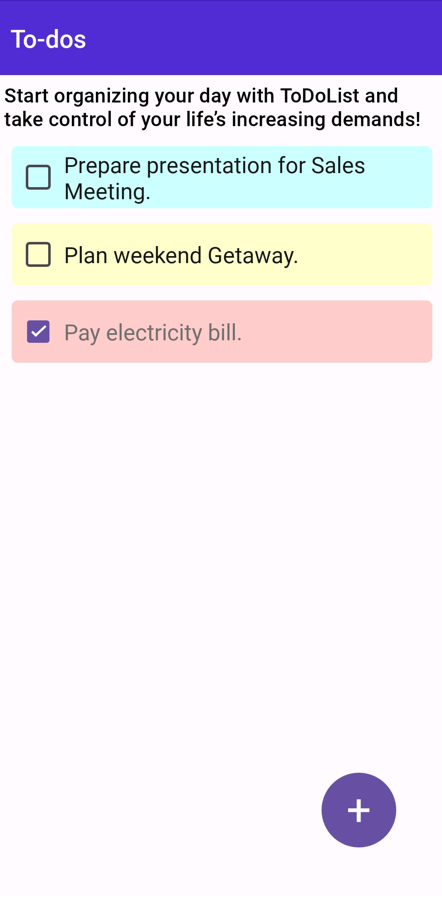
List of to-do items in the .NET MAUI Popup control
## Step 4: Defining UI to create/add a new to-do item
In this application, the **Button** at the bottom displays the **Popup view** containing options to enter and save To-Do task details in the list upon clicking.
Initialize the **.NET MAUI Button** (SfButton) control and wire the ** Clicked** event to display the Popup view.
Refer to the following example code.
```
xmlns:buttons="clr-namespace:Syncfusion.Maui.Buttons;assembly=Syncfusion.Maui.Buttons"
. . .
. . .
```
For a comprehensive guide, refer to this [blog](https://www.syncfusion.com/blogs/post/dotnet-maui-popup-control)
to get started with the [.NET MAUI Popup](https://www.syncfusion.com/maui-controls/maui-popup)
control.
Install the required package and include the namespace for the [.NET MAUI Popup](https://www.syncfusion.com/maui-controls/maui-popup)
control. Finally, initialize the Popup and define the **HeaderTemplate** and ** ContentTemplate** based on your needs.
Refer to the following example code.
```
xmlns:popup="clr-namespace:Syncfusion.Maui.Popup;assembly=Syncfusion.Maui.Popup"
. . .
. . .
. . .
. . .
. . .
```
Refer to the following image.
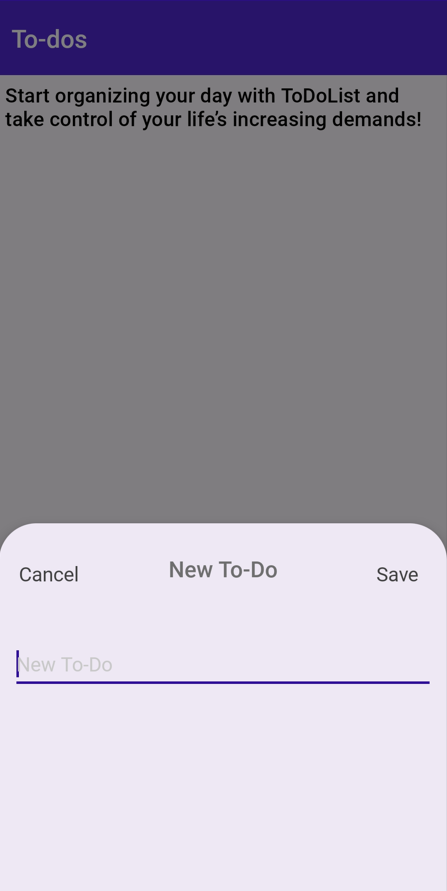
Add a new to-do item in .NET MAUI Popup
In this application, we have additionally included the logic to edit **items**, mark them as ** Done**, reorder them via drag-and-drop, automatically sort them by task status, and delete items by swiping on a specific item within the ** ListView** control.
The final output will resemble the following image.
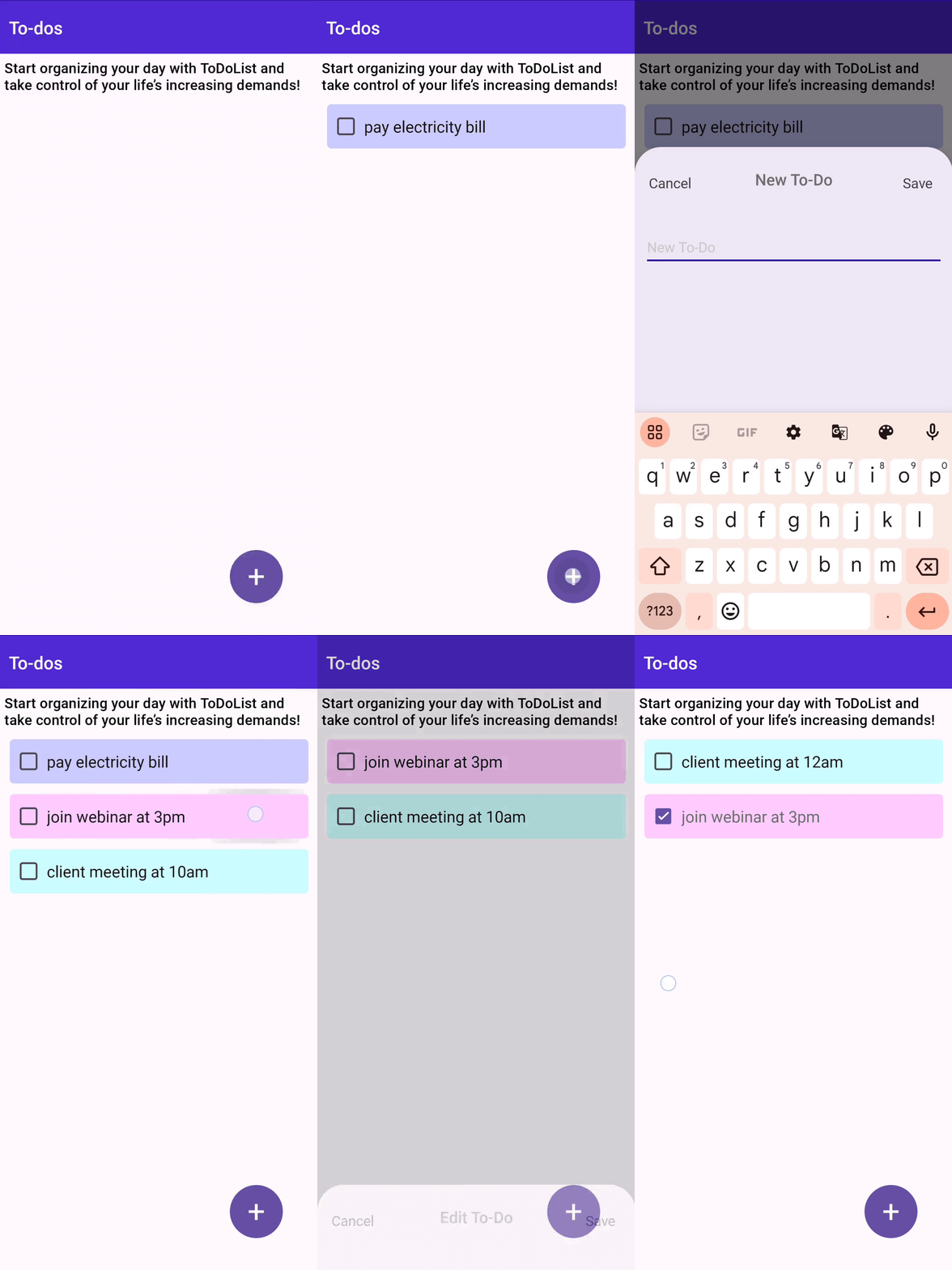
Build a to-do app with .NET MAUI ListView and Popup controls
## GitHub reference
For more details, refer to [create To](https://github.com/SyncfusionExamples/create-todo-list-application-using-.net-maui-listview)
[Do list application using .NET MAUI ListView](https://github.com/SyncfusionExamples/create-todo-list-application-using-.net-maui-listview)
.
## Conclusion
Thanks for reading! This guide empowers you to create a dynamic To-Do app using [Syncfusion .NET MAUI’s ListView](https://www.syncfusion.com/maui-controls/maui-listview)
and [Popup](https://www.syncfusion.com/maui-controls/maui-popup)
control, enhancing task management and user interactivity. Try out the steps in this blog and leave your feedback in the comments section below!
Existing customers can access the new version of Essential Studio® on the [License and Downloads](https://www.syncfusion.com/account)
page. If you aren’t a Syncfusion customer, try our 30-day [free trial](https://www.syncfusion.com/downloads)
to experience our fantastic features.
If you have any questions or require assistance, you can contact us through our [support forums](https://www.syncfusion.com/forums)
, [support portal](https://support.syncfusion.com/agent/tickets?brandids=all)
, or [feedback portal](https://www.syncfusion.com/feedback)
. We are always happy to assist you!
## Related Blogs
[.NET MAUI in .NET 10 Preview: A Focus on Quality and the Developer Experience](https://www.syncfusion.com/blogs/post/whats-new-net-maui-in-net-10-preview)
[Visualize Multi-Dimensional Data Using the .NET MAUI Parallel Coordinate Chart](https://www.syncfusion.com/blogs/post/dotnet-maui-parallel-coordinate-chart)
[Save Chat History to Firebase Realtime Database using the .NET MAUI Chat Control](https://www.syncfusion.com/blogs/post/save-chat-to-firebase-database-maui)
[Create 3D Column Charts in .NET MAUI to Display America’s Top 10 Sports](https://www.syncfusion.com/blogs/post/maui-toolkit-3d-column-chart-for-sports)