---
title: "Syncfusion Blazor Components Are Compatible with .NET 8.0"
published_at: "2023-11-23T13:13:02+00:00"
modified_at: "2026-01-14T08:20:06+00:00"
url: "https://www.syncfusion.com/blogs/post/blazor-ui-support-dotnet-8"
excerpt: "Syncfusion’s Blazor UI components support .NET version 8 from the 2023 Volume 3 SP release."
taxonomy_category:
- ".NET"
- "Blazor"
- "Syncfusion"
- "Web"
- "What's new"
taxonomy_post_tag:
- ".NET"
- "Blazor"
- "Syncfusion"
- "Web"
- "What's New"
---
# Syncfusion Blazor Components Are Compatible with .NET 8.0
[Rajendran R](https://www.syncfusion.com/blogs/author/rajendranr)

On Nov. 14, 2023, Microsoft unveiled the much-anticipated [.NET 8 release](https://devblogs.microsoft.com/dotnet/announcing-dotnet-8/)
, which has LTS support and brings lots of enhancements for web developers.
From the [2023 Volume 3 SP release](https://help.syncfusion.com/common/essential-studio/release-notes/v23.2.4)
onwards, Syncfusion Blazor components also support .NET version 8.0.
In this blog, let’s see how the Syncfusion [Blazor](https://www.syncfusion.com/blazor-components)
components work with the new .NET 8 features.
## What’s new in .NET 8 for Blazor
Version 8 of .NET brings a complete solution for modern web app development. The following are major features and improvements in .NET 8 for Blazor:
- Full stack web UI
- Static server-side rendering (SSR).
- Streaming rendering.
- Enhanced navigation and forms.
- Interactive render modes: server, WebAssembly, and auto (both server and WebAssembly).
- The Web App Template supports more options, such as interactive render modes, interactive location rendering, and the ability to decide whether sample pages (e.g., counter, weather) are needed or not.
- .NET WebAssembly has improvements like a jiterpreter-based runtime, hot reload capabilities, and a web-friendly packaging format (WebCIL).
For more details, refer to [what’s new in .NET 8 for Blazor](https://learn.microsoft.com/en-us/aspnet/core/release-notes/aspnetcore-8.0?view=aspnetcore-8.0#blazor)
.
## .NET 8 support for Syncfusion Blazor components
With the 2023 Volume 3 Service Pack release (version 23.2.4), Syncfusion Blazor UI components have seamless, integrated support for .NET 8. Developers can work with the new .NET 8 features combined with the rich functionalities of Syncfusion Blazor UI components.
For more details, refer to the [Syncfusion Blazor release notes](https://sfblazor.azurewebsites.net/staging/documentation/release-notes/23.2.4?type=all)
and [demo](https://blazor.syncfusion.com/demos/)
.
You can also find the [Syncfusion Blazor NuGet package](https://www.nuget.org/packages/Syncfusion.Blazor.Grid#supportedframeworks-body-tab)
supporting .NET 8 on [nuget.org](https://www.nuget.org/)
. Refer to the following image.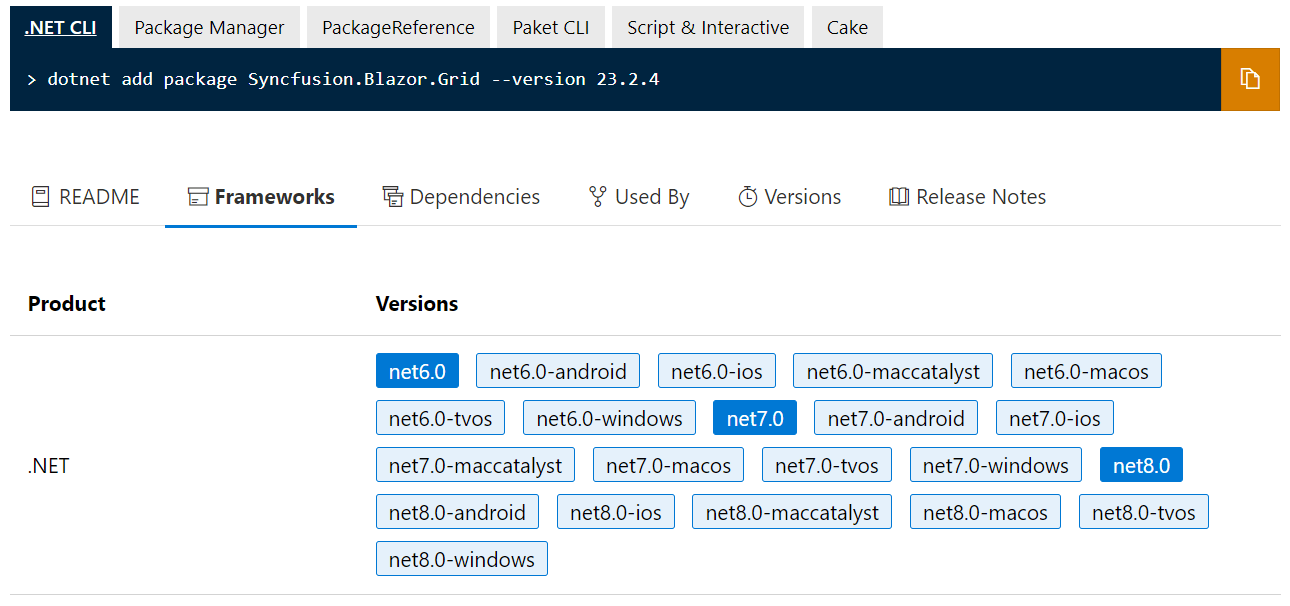
## Interactive render modes, location, and authentication
The interactive render modes in .NET 8 for Blazor decide the hosting model in .NET 8 as well as whether the app is interactive or not.
For more details, refer to the following documentation:
- [Blazor interactive modes](https://learn.microsoft.com/en-us/aspnet/core/blazor/components/render-modes?view=aspnetcore-8.0#render-modes)
- [Blazor interactive location](https://learn.microsoft.com/en-us/aspnet/core/blazor/tooling?view=aspnetcore-8.0&pivots=windows)
Let’s briefly look at the .NET 8 interactive rendering modes and location and authentication support for the Syncfusion Blazor platform with examples.
| Interactive mode | Interactive location | Authentication | Example |
| --- | --- | --- | --- |
| Server | Global | Individual account | Blazor .NET 8 server render mode individaul |
| None | Blazor .NET 8 server render mode Global None | | |
| Per page/component | Individual account | Blazor .NET 8 server render mode PerPage Individual | |
| None | Blazor .NET 8 Server render mode PerPage None | | |
| WASM | Global | Individual account | Blazor .NET 8 WASM render mode Global Individual |
| None | Blazor .NET 8 WASM render mode Global None | | |
| Per page/component | Individual account | Blazor .NET 8 WASM render modes PerPage individual | |
| None | Blazor .NET 8 WASM render modes PerPage None | | |
| Auto | Global | Individual account | Blazor .NET 8 auto render mode Global Individual |
| None | Blazor .NET 8 auto render mode Global None | | |
| Per page/component | Individual account | Blazor .NET 8 auto render mode PerPage individual | |
| None | Blazor .NET 8 auto render modes PerPage None | | |
| Static SSR | Global | Individual account | Blazor .NET 8 Static SSR Global individual |
| None | Blazor .NET 8 Static SSR Global None | | |
| Per page/component | Individual account | Blazor .NET 8 Static SSR PerPage individual | |
| None | Blazor .NET 8 Static SSR PerPage None | | |
## Getting started with Blazor web apps and Syncfusion Blazor components
Let’s see how to create a Blazor web app with Syncfusion Blazor components using [Visual Studio](https://visualstudio.microsoft.com/vs/)
. We’ll use the [Syncfusion Blazor DataGrid](https://blazor.syncfusion.com/documentation/datagrid/getting-started)
component.
### Step 1: Create a new Blazor web app
You can create a **Blazor web app** using Visual Studio 2022 via [Microsoft Templates](https://learn.microsoft.com/en-us/aspnet/core/blazor/tooling?view=aspnetcore-8.0)
or the [Syncfusion Blazor extension](https://blazor.syncfusion.com/documentation/visual-studio-integration/template-studio)
. We are using the following configuration for demonstration purposes:
- The authentication type is **Individual**** Accounts**.
- The interactive render mode is **Auto (Server and WebAssembly)**.
- The interactivity location is **per page/component**.
### Step 2: Install Syncfusion Blazor DataGrid and themes NuGet packages in the Blazor web app
Install the [Syncfusion.Blazor.Grid](https://www.nuget.org/packages/Syncfusion.Blazor.Grid/)
and [Syncfusion.Blazor.Themes](https://www.nuget.org/packages/Syncfusion.Blazor.Themes/)
NuGet packages in the **{App name}.Client** project.
```
Install-Package Syncfusion.Blazor.Grid -Version 23.2.4
Install-Package Syncfusion.Blazor.Themes -Version 23.2.4
```
### Step 3: Import the namespaces
Then, open the **_Imports.razor** file in the **{App name}.Client** project and import the ** Syncfusion.Blazor** and ** Syncfusion.Blazor.Grids** namespaces.
```
@using Syncfusion.Blazor
@using Syncfusion.Blazor.Grids
```
### Step 4: Register the Syncfusion Blazor service
Register the Syncfusion Blazor service in the **~/Program.cs** file in both **{App name}** and**{App name}.Client** projects.
```
....
using Syncfusion.Blazor;
....
builder.Services.AddSyncfusionBlazor();
```
### Step 5: Add stylesheet and script resources
Include the stylesheet reference in the **** tag and the script reference at the end of the **** tag in the **~/Components/App.razor** file. Refer to the following code example.
```
….
....
....
```
### Step 6: Add Syncfusion Blazor DataGrid component
Add the Syncfusion Blazor DataGrid component in the **~/Pages/Counter.razor** file.
```
@page "/counter"
@rendermode InteractiveAuto
@code
{
public List Orders { get; set; }
protected override void OnInitialized()
{
Orders = Enumerable.Range(1, 75).Select(x => new Order()
{
OrderID = 1000 + x,
CustomerID = (new string[] { "ALFKI", "ANANTR", "ANTON", "BLONP", "BOLID" })[new Random().Next(5)],
Freight = 2.1 * x,
OrderDate = DateTime.Now.AddDays(-x),
}).ToList();
}
public class Order
{
public int? OrderID { get; set; }
public string CustomerID { get; set; }
public DateTime? OrderDate { get; set; }
public double? Freight { get; set; }
}
}
```
Finally, run the application using the **Ctrl+F5** shortcut key.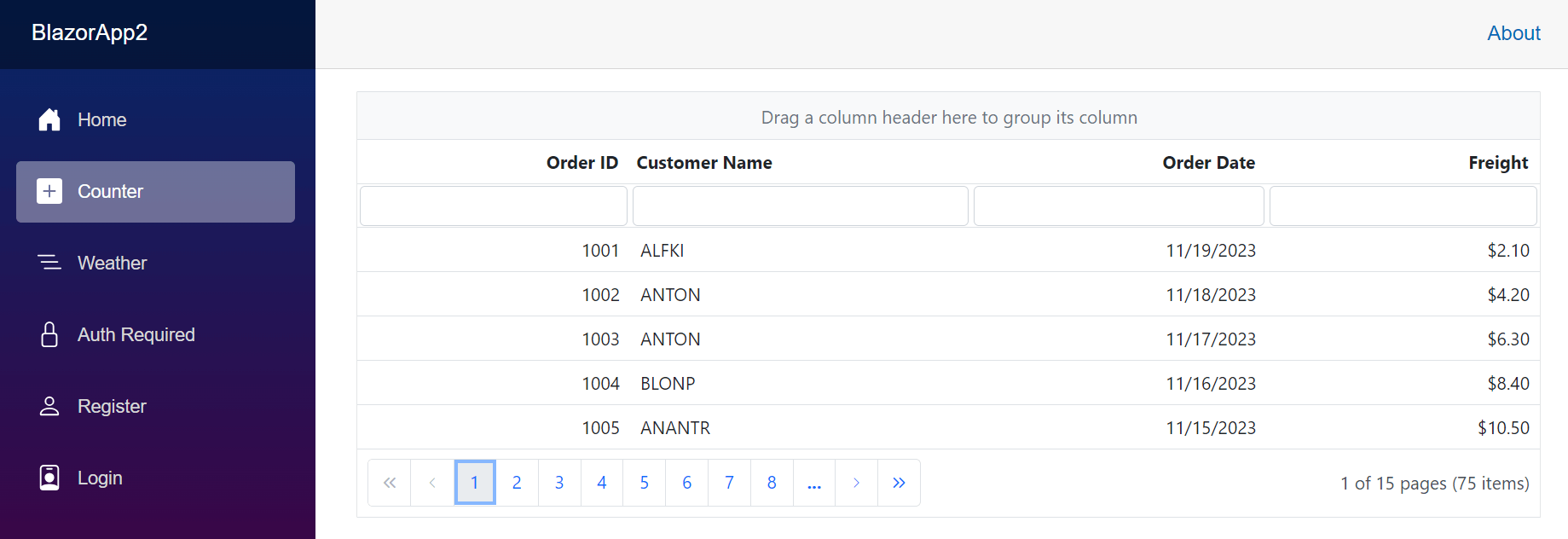
**Note:** For more details, refer to the [Getting Started with the Blazor web app documentation](https://blazor.syncfusion.com/documentation/getting-started/blazor-web-app)
.
## .NET 8 support in Blazor Template Studio
The Syncfusion Blazor Template Studio now supports .NET version 8. With this, you can create a web app with an interaction mode, an interactivity location, and authentication types.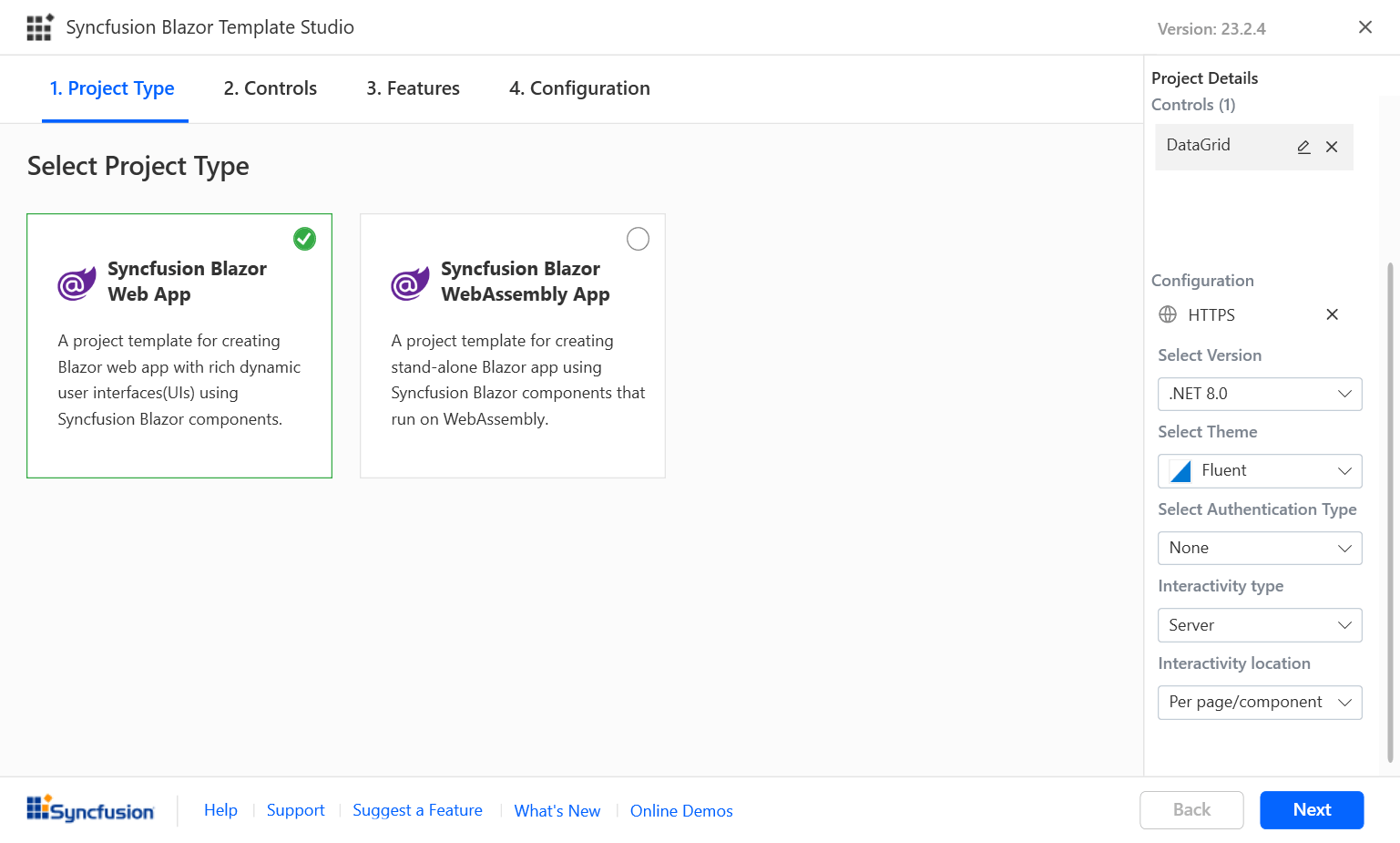
**Note:** For more details, refer to the [Syncfusion Visual Studio Extensions are compatible with .NET 8.0](https://www.syncfusion.com/blogs/post/visual-studio-extension-dotnet-8.aspx)
blog.
## Reference
For more details, refer to the [.NET 8 render modes on GitHub](https://github.com/SyncfusionExamples/blazor-net8-render-modes)
, or check out this [resource](https://www.youtube.com/watch?v=hjPGxApA5W8)
.
## Conclusion
Thanks for reading! In this blog, we learned about different .NET 8 features and how Syncfusion [Blazor](https://www.syncfusion.com/blazor-components)
components work in .NET 8 with different interactive modes, interactive locations, and various authentication types. You can check out these updates in our [2023 Volume 3 SP release](https://help.syncfusion.com/common/essential-studio/release-notes/v23.2.4)
.
Try out these features and share your feedback as comments on this blog. You can also reach us through our [support forums](https://www.syncfusion.com/forums)
, [support portal](https://support.syncfusion.com/)
, or [feedback portal](https://www.syncfusion.com/feedback/)
.
## Related blogs
- [Transforming Blazor AutoComplete: Unleashing Google-Like Search Suggestions](https://www.syncfusion.com/blogs/post/google-like-suggestions-blazor.aspx)
- [Boost Blazor Dropdown List Performance with Virtualization](https://www.syncfusion.com/blogs/post/virtualization-blazor-dropdown-list.aspx)
- [Unveiling New Date-Only and Time-Only Features in Blazor Pickers](https://www.syncfusion.com/blogs/post/date-time-only-blazor-pickers.aspx)
- [How to Add a Blazor WebAssembly Project to an ASP.NET Core App](https://www.syncfusion.com/blogs/post/blazor-wasm-to-asp-dotnet-core.aspx)