---
title: "Exploring Blazor Hybrid Apps Using Mobile Blazor Bindings"
published_at: "2021-03-23T12:26:03+00:00"
modified_at: "2025-11-27T13:15:19+00:00"
url: "https://www.syncfusion.com/blogs/post/blazor-hybrid-apps-using-mobile-blazor-bindings"
excerpt: "Learn how to build Blazor hybrid apps with Mobile Blazor Bindings and Syncfusion components for native cross‑platform use."
taxonomy_category:
- ".NET"
- "Blazor"
- "C#"
- "Mobile"
taxonomy_post_tag:
- "Blazor"
- "csharp"
- "hybrid app"
- "Mobile Blazor Bindings"
- "Web Development"
---
# Exploring Blazor Hybrid Apps Using Mobile Blazor Bindings
[Ajith R](https://www.syncfusion.com/blogs/author/ajith-r)
**TL;DR:** This blog shows how to create Blazor hybrid apps using Mobile Blazor Bindings with Syncfusion components. It covers setup, adding services and styles, and rendering controls like the DataGrid across platforms (Windows, Android, iOS, macOS). The approach lets developers reuse Blazor code for native apps without WebAssembly, though the project remains experimental.
We are in the age of hybrid apps! Single code base, better speed, less development, and fewer maintenance costs are some of the benefits of hybrid apps over other native applications. In this blog post, we are going to create a Blazor hybrid app using the [Mobile Blazor Bindings](https://docs.microsoft.com/en-us/mobile-blazor-bindings/)
and Syncfusion [Blazor UI components](https://www.syncfusion.com/blazor-components)
.
The Mobile Blazor Bindings is an experimental project that allows developers to build native desktop and hybrid mobile apps using C# and .NET.
The anticipated [.NET 6.0 preview 1](https://devblogs.microsoft.com/dotnet/announcing-net-6-preview-1/)
which was rolled out on February 17, specially mentions [Blazor hybrid apps](https://devblogs.microsoft.com/dotnet/announcing-net-6-preview-1/#blazor-desktop-apps)
.
## How Blazor hybrid app works?
A Blazor hybrid app uses the embedded WebView control to render the Blazor and other web contents natively on devices instead of using web browsers like the Electron does in cross-platform hybrid applications. In other words, the Blazor components are directly rendered in native devices without using WebAssembly.
Mobile Blazor Bindings hosts the Blazor components in a Xamarin.Forms app. That way, the Blazor components will run natively on .NET using Xamarin and the native functionalities can be accessed through .NET API.
Let’s start creating a Blazor hybrid application using Mobile Blazor Bindings and Syncfusion Blazor UI components!
## Prerequisites
1. [.NET SDK 3.1 or Later](https://dotnet.microsoft.com/download/)
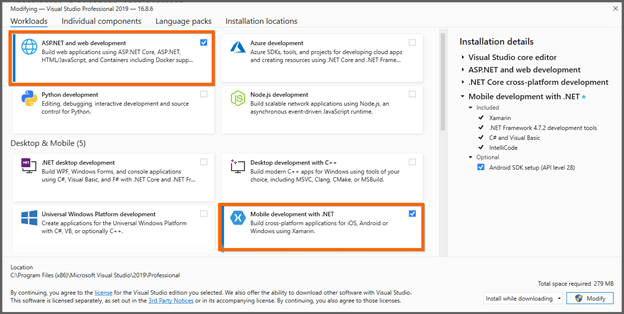
2. Visual Studio with the following workloads:
-
- ASP.NET and web development.
- Mobile development with .NET.
1. The [Microsoft Edge Canary Channel](https://www.microsoftedgeinsider.com/en-us/download) is essential to run a Blazor hybrid app on Windows.**Note:** Without this setup, the Blazor hybrid app will not work on Windows.
1. Install the Mobile Blazor Bindings project template using the following command line in the command prompt.``` dotnet new -i Microsoft.MobileBlazorBindings.Templates::0.5.50-preview ```
## Creating a Blazor hybrid application
Follow these steps to create a new Blazor hybrid application using .NET CLI.
1. Run this command line to create a new Blazor hybrid application.``` dotnet new blazorhybrid -o BlazorHybridApp ``` 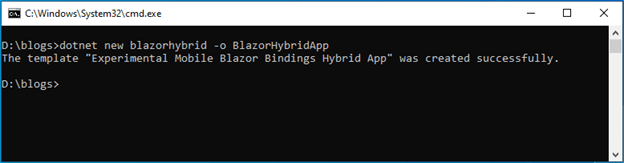The Blazor hybrid application is now created. You can see the separate projects for Android, iOS, Windows and macOS along with the Blazor core project where the UI logics will be added. 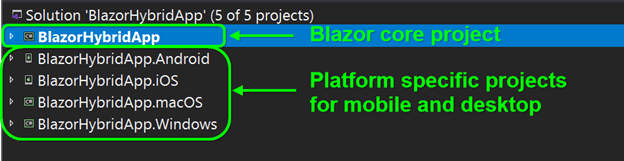The Blazor core project includes the Blazor components and UI logics for the hybrid application.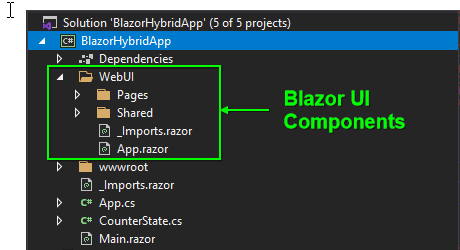The Mobile Blazor Bindings project has some default, native [Xamarin.Forms controls](https://docs.microsoft.com/en-gb/mobile-blazor-bindings/ui/components-reference#built-in-components) . You can explore the `~/BlazorHybridApp/Main.razor` file where the native and Blazor WebView controls are rendered. 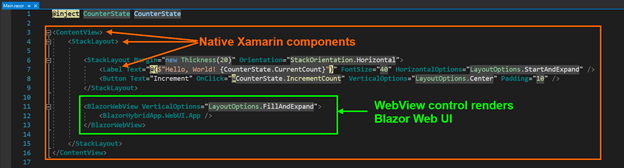
1. Now, set any platform-specific project as the startup project. For example, let’s choose the **BlazorHybridApp.**** Windows** to create a hybrid project in Windows.
2. Then, run the application. It will expose the default native layout like in the below image.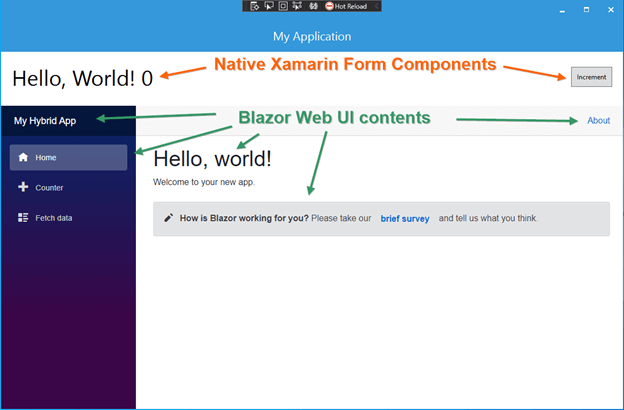 Blazor hybrid default app running on windows
## Add Syncfusion Blazor components to the Blazor hybrid app
Follow these steps to include Syncfusion Blazor UI components in your Blazor hybrid app:
1. First, open the Blazor core project file (**BlazorHybridApp.**** csproj**).
2. Then, change the **TargetFramework** from netstandard2.0 to netstandard2.1, since the Syncfusion Blazor components only support netstandard2.1.
3. Install the required Syncfusion individual [Blazor NuGet packages](https://blazor.syncfusion.com/documentation/nuget-packages/#available-nuget-packages) in the Blazor core project. For this example, let’s add the [Syncfusion.Blazor.Grid NuGet](https://www.nuget.org/packages/Syncfusion.Blazor.Grid/) package.
4. Now, open the **~/App.cs** file in the Blazor core project and add the Syncfusion service in the ** ConfigureServices**section**.**``` using Syncfusion.Blazor; public class App : Application { public App(IFileProvider fileProvider = null) { var hostBuilder = MobileBlazorBindingsHost.CreateDefaultBuilder() .ConfigureServices((hostContext, services) => { ...... ...... // Register Syncfusion Blazor service services.AddSyncfusionBlazor(); }) .UseWebRoot("wwwroot"); ...... ...... } ...... ...... } ```
5. Then, add the below Syncfusion CSS style reference in each platform-specific project’s **~/wwwroot/index.html** file.``` ...... ...... ...... ...... ```
6. Now, add the Syncfusion Blazor DataGrid (SfGrid) component in the **~/WebUI/Pages/Index.razor** file in the Blazor core project.``` @using Syncfusion.Blazor.Grids;
Syncfusion Blazor Grid component
@code{ public List Orders { get; set; } protected override void OnInitialized() { Orders = Enumerable.Range(1, 75).Select(x => new Order() { OrderID = 1000 + x, CustomerID = (new string[] { "ALFKI", "ANANTR", "ANTON", "BLONP", "BOLID" })[new Random().Next(5)], Freight = 2.1 * x, OrderDate = DateTime.Now.AddDays(-x), }).ToList(); } public class Order { public int? OrderID { get; set; } public string CustomerID { get; set; } public DateTime? OrderDate { get; set; } public double? Freight { get; set; } } } ```
7. Finally, run the application. The Syncfusion Blazor components will render on the native desktop or hybrid mobile layout.
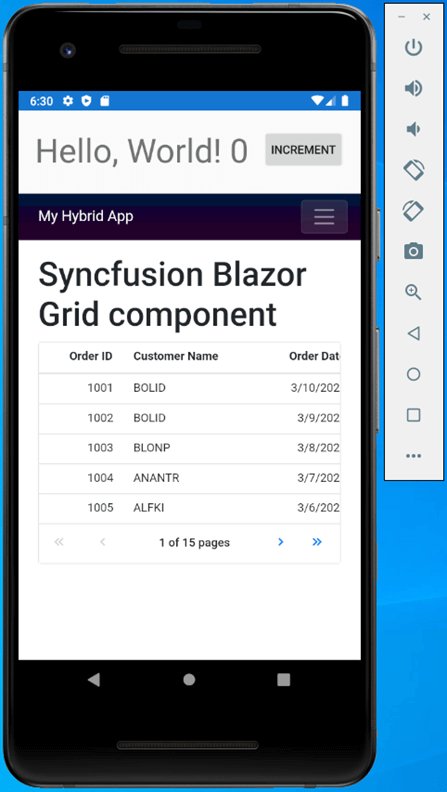
Syncfusion Blazor DataGrid rendered on Android simulator
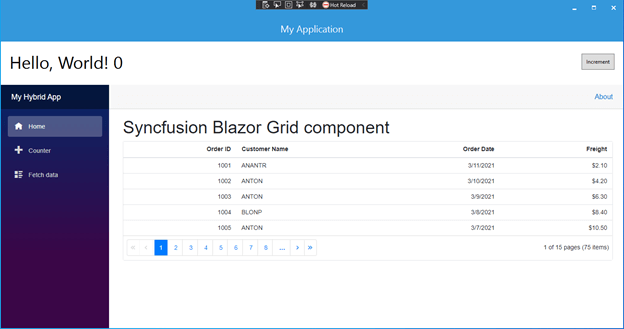
Syncfusion Blazor DataGrid rendered on windows desktop
## Does Mobile Blazor Bindings work on Syncfusion Xamarin components?
As of now, Syncfusion [Xamarin](https://www.syncfusion.com/xamarin-ui-controls)
components do not support Mobile Blazor Bindings, but we have logged a [feature request](https://www.syncfusion.com/feedback/19885/mobile-blazor-binding-support-for-xamarin-controls)
for this.
## GitHub reference
For more information, you can check out our [GitHub demo](https://github.com/SyncfusionExamples/mobile-blazor-bindings)
.
## Conclusion
Thanks for reading! In this blog post, we have learned how to create a Blazor hybrid app using Mobile Blazor Bindings and Syncfusion Blazor UI components. Blazor hybrid apps are still an experimental project and we are eagerly waiting for their full support. What do you think about this blog post? Please leave feedback in the comments section!
Syncfusion’s [Blazor components](https://www.syncfusion.com/blazor-components)
offers over 65 high-performance, lightweight, and responsive UI components for the web, including file-format libraries, in a single package. Use them to enhance your productivity while developing apps!
If you’re a Syncfusion user, you can download the setup from the [license and downloads](https://www.syncfusion.com/account/downloads)
page. Otherwise, you can download a free [30-day trial](https://www.syncfusion.com/downloads/)
.
You can also contact us through our [support forum](https://www.syncfusion.com/forums)
, [support portal](https://support.syncfusion.com/)
, or [feedback portal](https://www.syncfusion.com/feedback)
for queries. We are always happy to assist you!
## Related Blogs
[Build Fast, Beautiful Apps with .NET MAUI Blazor Hybrid](https://www.syncfusion.com/blogs/post/maui-blazor-hybrid-app-web-ui)
[Seamlessly Add Blazor Native UI Components in Hybrid Apps](https://www.syncfusion.com/blogs/post/add-blazor-component-in-hybrid-apps)
[What’s New for .NET MAUI in .NET 9: HybridWebView](https://www.syncfusion.com/blogs/post/whats-new-maui-net9-hybridwebview)
[Creating Custom Forms and Validation in a Blazor Hybrid App](https://www.syncfusion.com/blogs/post/blazor-hybrid-app-custom-forms-validation)