---
title: "Blazor Gantt Chart Update: Timezone Scheduling, WBS Codes & Excel-Style Filtering"
published_at: "2025-10-09T15:17:10+00:00"
modified_at: "2025-10-09T17:43:38+00:00"
url: "https://www.syncfusion.com/blogs/post/blazor-gantt-chart-2025-vol-3-update"
excerpt: "Discover the latest enhancements in the Blazor Gantt Chart from the 2025 Volume 3 release, including timezone-aware scheduling, hierarchical WBS codes, and Excel-style filtering for smarter task management."
taxonomy_category:
- "Blazor"
- "Gantt Chart"
taxonomy_post_tag:
- "Blazor Components"
- "Blazor CRUD operations"
- "Blazor Excel-like filtering"
- "Blazor Gantt Chart"
- "Blazor Gantt Chart 2025 update"
- "Blazor Gantt Chart timezone support"
- "Blazor Gantt Chart WBS"
- "Blazor hierarchical data filtering"
- "Blazor project management"
- "Blazor task scheduling"
- "Excel filtering"
- "Project planning"
- "Release Updates"
- "Task scheduling"
- "What's New"
---
# Blazor Gantt Chart Update: Timezone Scheduling, WBS Codes & Excel-Style Filtering
[Rajesh Babu](https://www.syncfusion.com/blogs/author/rajesh-babu)
**TL;DR:** The 2025 Volume 3 update to the Blazor Gantt Chart delivers powerful enhancements for modern project management. Developers can now implement timezone-aware scheduling, organize tasks using hierarchical WBS codes, and filter large datasets with an Excel-style interface. These features enable scalable, globally coordinated applications with intuitive data control and improved user experience
We’re excited to introduce the latest updates to the Syncfusion [Blazor Gantt Chart](https://www.syncfusion.com/blazor-components/blazor-gantt-chart)
as part of our [2025 Volume 3 release](https://www.syncfusion.com/forums/197441/essential-studio-2025-volume-3-main-release-v31-1-17-is-available-for-download)
! This release introduces powerful new features, including timezone support, an Excel-like filter, and a Work Breakdown Structure (WBS) column, to provide better task visualization and productivity.
Let’s explore the highlights of this release!
## Timezone support for global project coordination
Ever struggled to schedule tasks across different time zones? The Blazor Gantt Chart now makes it effortless with built-in timezone support, ensuring task dates and times are automatically adjusted based on the selected timezone.
This feature is fully integrated with all CRUD operations (Create, Read, Update, Delete), ensuring your scheduling remains consistent and accurate across different geographic locations. It also handles **Daylight Saving Time** (DST) automatically, eliminating the need for manual adjustments and potential errors.
### Key features
- **Dynamic timezone adjustment:** Automatically converts task start and end dates to the selected timezone.
- **Integrated CRUD operations:** Whenever you add, change, or remove tasks, the system automatically adjusts the time based on your selected timezone.
- **Automatic DST handling:** Seamlessly manages DST changes to prevent scheduling conflicts.
### Key benefits
- **Global scheduling accuracy:** View and manage scheduled tasks accurately across different time zones.
- **Consistent timelines:** Keep your project timelines aligned, regardless of team location.
- **Error-free planning:** Avoid confusion caused by manual timezone conversions.
```
@using Syncfusion.Blazor.Gantt
@code {
public List TaskCollection { get; set; } = new List();
public SfGantt? GanttInstance;
public class TimezoneFields
{
public string? Id { get; set; }
public string? Text { get; set; }
}
public class TimezoneInfoModel
{
public int TaskId { get; set; }
public string? TaskName { get; set; }
public DateTime? StartDate { get; set; }
public DateTime? EndDate { get; set; }
public string? Duration { get; set; }
public int Progress { get; set; }
public string? Predecessor { get; set; }
public int? ParentId { get; set; }
}
protected override void OnInitialized()
{
TaskCollection = GetTimezoneCollection();
}
public static List GetTimezoneCollection()
{
List Tasks = new List
{
new TimezoneInfoModel { TaskId = 1, TaskName = "Campaign strategy & planning", StartDate = new DateTime(2025, 10, 10, 12, 0, 0), Duration = "8", Progress = 85 },
new TimezoneInfoModel { TaskId = 2, TaskName = "Stakeholder alignment meeting", StartDate = new DateTime(2025, 10, 10, 12, 0, 0), ParentId = 1, Duration = "1.5", Progress = 100 },
new TimezoneInfoModel { TaskId = 3, TaskName = "Competitor analysis", StartDate = new DateTime(2025, 10, 10, 13, 30, 0), ParentId = 1, Duration = "2.5", Progress = 90, Predecessor = "2FS" },
new TimezoneInfoModel { TaskId = 4, TaskName = "Messaging and value propositions", StartDate = new DateTime(2025, 10, 11, 12, 0, 0), ParentId = 1, Duration = "4", Progress = 65, Predecessor = "3FS" },
new TimezoneInfoModel { TaskId = 5, TaskName = "Market research survey", StartDate = new DateTime(2025, 10, 10, 12, 0, 0), ParentId = 1, Duration = "2", Progress = 55 },
};
return Tasks;
}
}
```
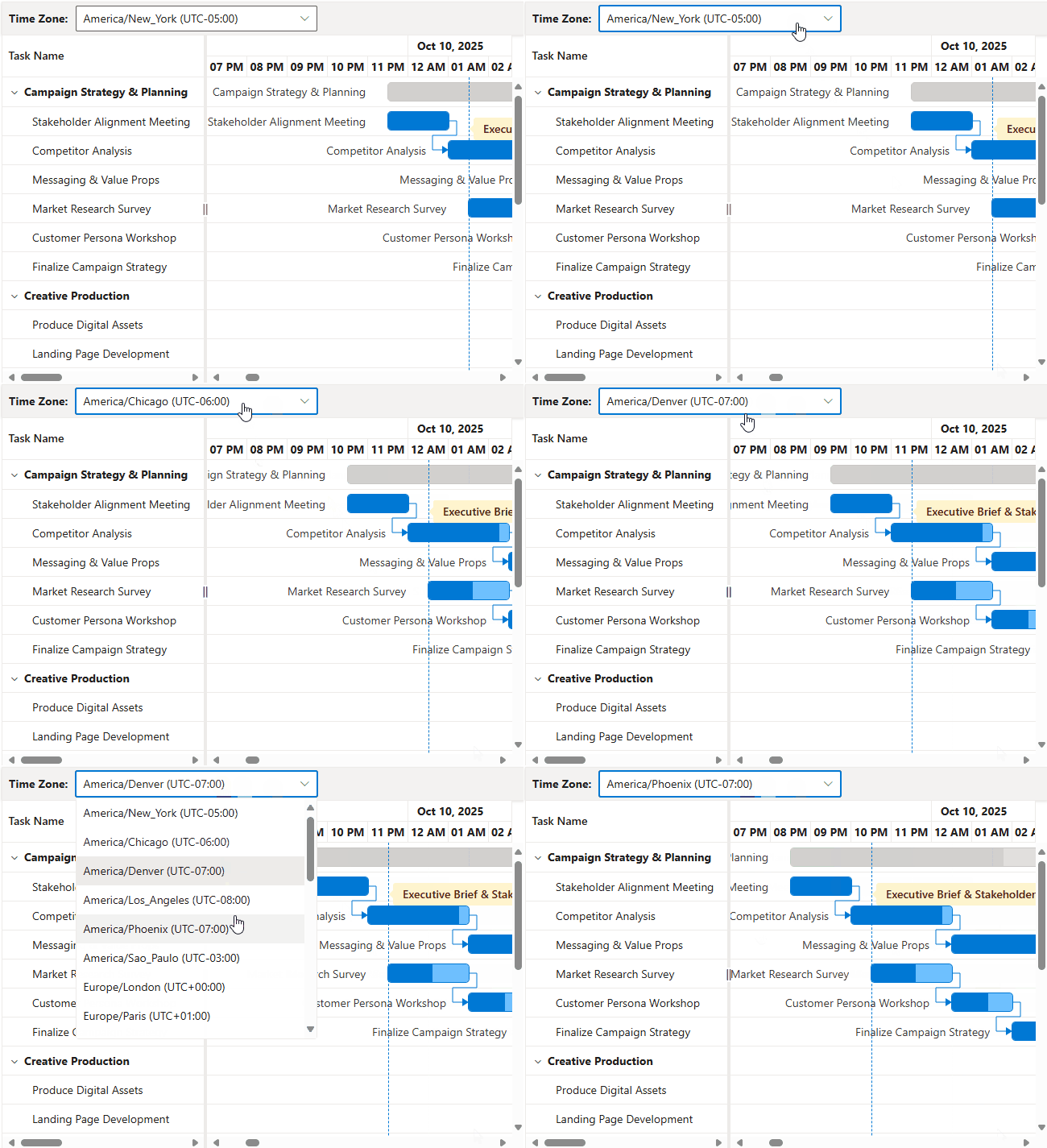
Timezone-aware scheduling in Blazor Gantt Chart
**Note:** For more details on implementing timezone support in the Blazor Gantt Chart, refer to the [documentation](https://blazor.syncfusion.com/documentation/gantt-chart/timezone)
and try our online [demo](https://blazor.syncfusion.com/demos/gantt-chart/timezone?theme=fluent2)
.
## Work Breakdown Structure (WBS) for enhanced project clarity
The Blazor Gantt Chart now supports a **Work Breakdown Structure (WBS)** column, offering a clear hierarchical view of your project tasks. Each task is assigned a unique WBS code (e.g., 1.0, 1.1, 1.1.1), making it easier to understand task relationships and dependencies.
You can now define task dependencies using WBS codes (e.g., 2.1FS, 3.1.1SS), which are more intuitive than traditional task IDs.
### Key features
- **Automatic WBS code generation**: No need to manually assign codes, each task gets a unique WBS code based on its position in the project hierarchy (like 1.0, 1.1, 1.1.1), making your project structure instantly clear.
- **WBS-based predecessors**: Easily define task dependencies using logical WBS codes instead of traditional task IDs.
- **Dedicated WBS column**: View all your WBS codes in a dedicated column for quick reference. It is a simple way to keep your project organized and readable.
- **Customizable display**: Tailor the WBS column to your needs, adjust its visibility, order, and formatting to match your workflow and reporting style.
### Key benefits
- **Clear task organization**: Easily identify parent-child relationships.
- **Intuitive dependency mapping**: Simplify linking tasks using logical WBS codes.
- **Improved reporting**: Align with standard project management documentation.
- **Consistent communication**: Provide a shared reference system for teams and stakeholders.
```
@using Syncfusion.Blazor.Gantt
```
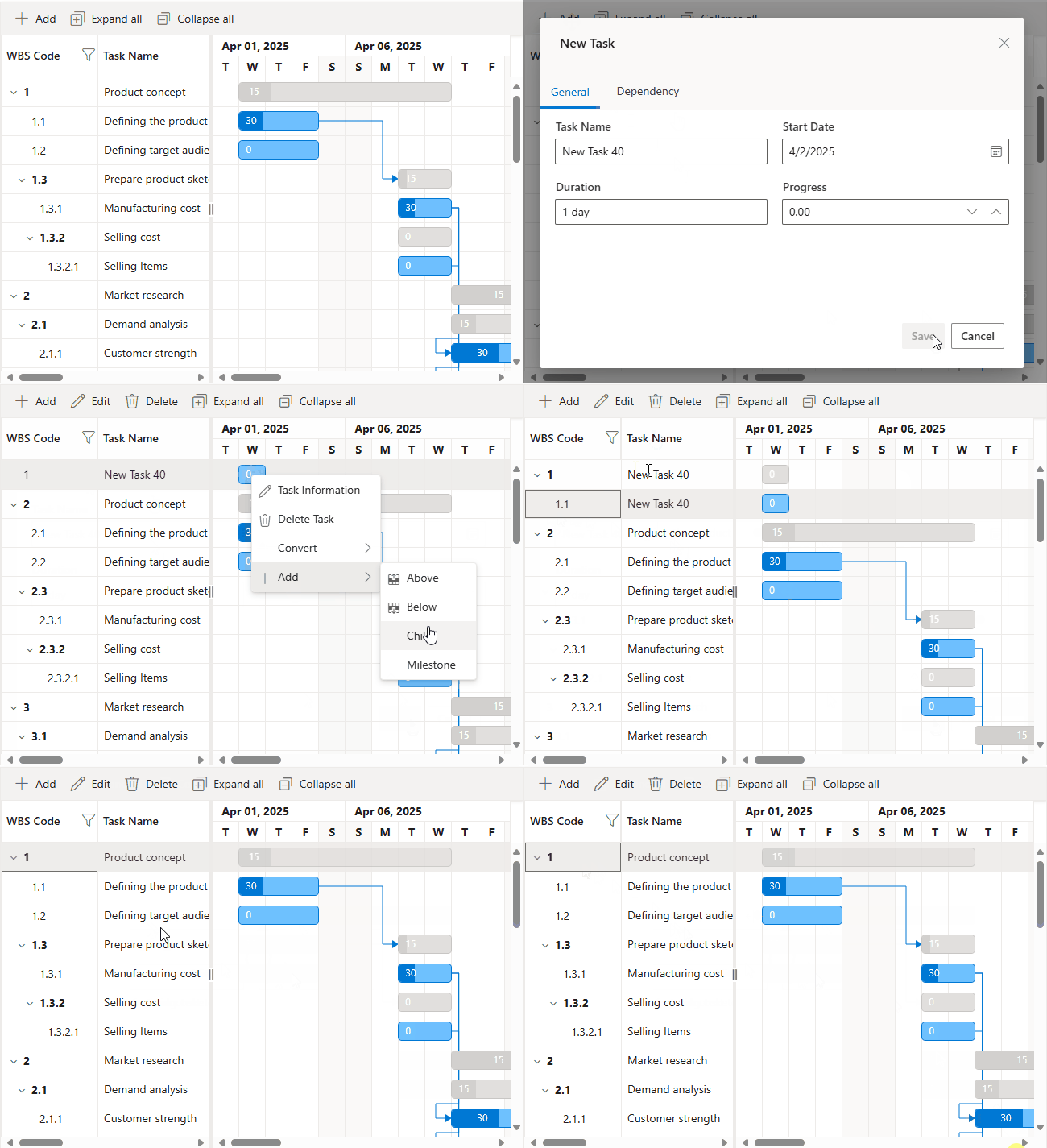
WBS column showing task hierarchy and dependencies in Blazor Gantt Chart
**Note:** For more details on implementing the Work Breakdown Structure column, refer to the [documentation](https://blazor.syncfusion.com/documentation/gantt-chart/wbs-column)
and try our online [demo](https://blazor.syncfusion.com/demos/gantt-chart/wbs-column?theme=fluent2)
.
## Advanced filtering with an Excel-like UI
Navigating large datasets is now simpler with the new Excel-style filtering feature. This intuitive interface allows us to quickly select values using a **checkbox-style list**, and also apply ** multi-condition filters** with operators like ** and**, ** or**, ** less than,** and ** greater than**. The filter also supports hierarchical data, with modes like Both, Parent, Child, and None.
### Key features
- **Excel-style interface**: Familiar checkbox-based filter dialog with a search bar.
- **Advanced operators**: Build complex, multi-condition filters for precise data isolation.
- **Hierarchical filtering**: Filter tasks based on their position in the project hierarchy, whether they are parent tasks, child tasks, or both.
### Key benefits
- **Find data faster**: Quickly locate tasks with a user-friendly interface.
- **Precise data isolation**: Target exactly what you need with advanced filters.
- **Flexible hierarchical views**: Tailor data display to your analysis needs.
```
@using Syncfusion.Blazor.Gantt
…
…
```
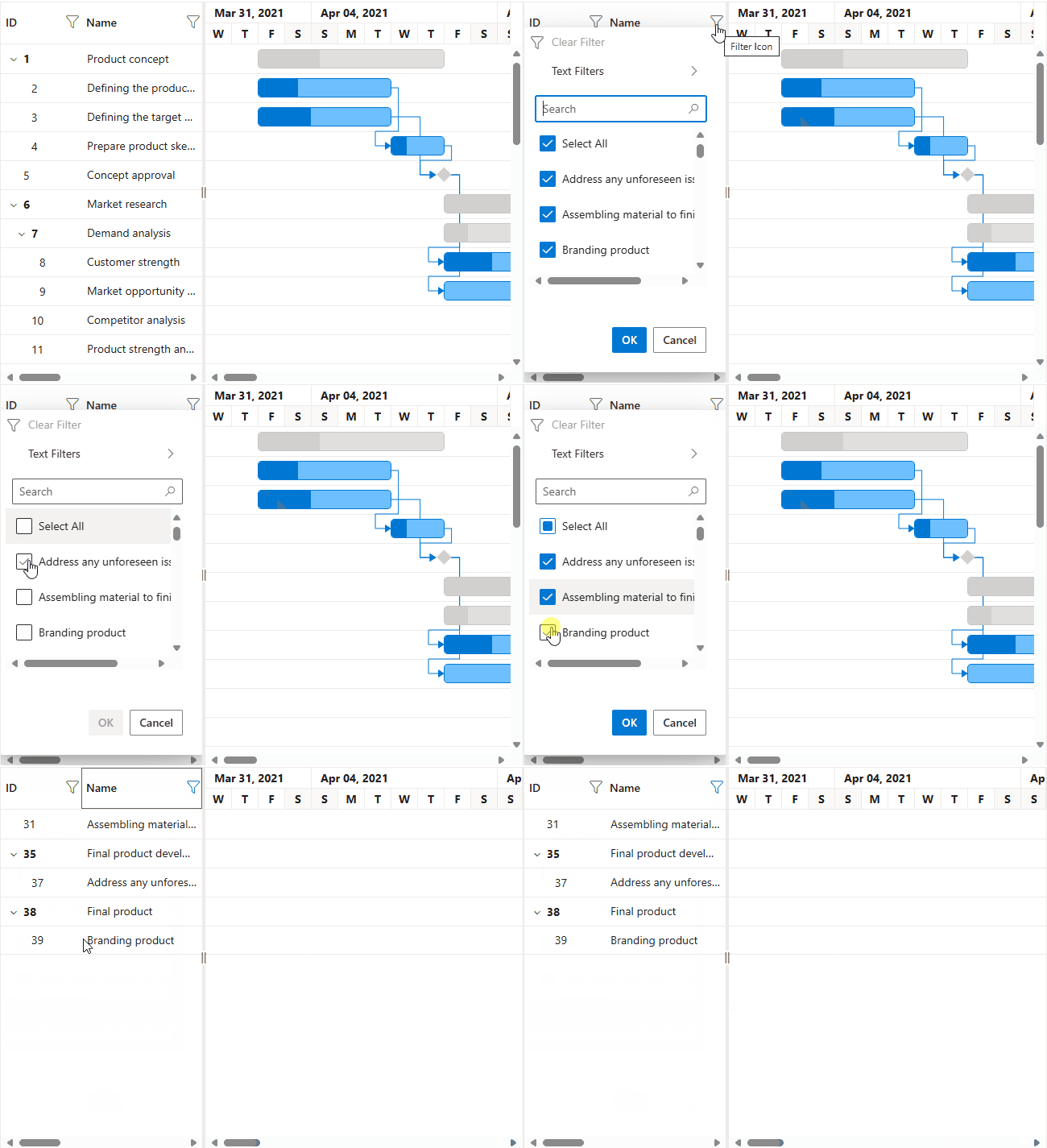
Excel-style task filtering in Blazor Gantt Chart
**Note:** For more details on implementing the Excel-lite filtering, refer to the [documentation](https://blazor.syncfusion.com/documentation/gantt-chart/excel-like-filter)
and try our online [demo](https://blazor.syncfusion.com/demos/gantt-chart/excel-filtering?theme=fluent2)
.
## Conclusion
Thank you for reading! In this blog, we explored the latest enhancements to the Syncfusion [Blazor Gantt Chart](https://www.syncfusion.com/blazor-components/blazor-gantt-chart)
component from our [2025 Volume 3 release](https://www.syncfusion.com/forums/197441/essential-studio-2025-volume-3-main-release-v31-1-17-is-available-for-download)
. With these features like timezone support, WBS columns, and Excel-like filtering, developers can build more efficient and scalable project management applications.
Ready to elevate your project scheduling? Try Syncfusion’s Blazor Gantt Chart and experience the powerful features, check the official [documentation](https://blazor.syncfusion.com/documentation/gantt-chart/overview)
, [Release Notes](https://blazor.syncfusion.com/documentation/release-notes/31.1.17?type=all#gantt-chart)
, and [live demos](https://blazor.syncfusion.com/demos/gantt-chart/overview?theme=fluent2)
.
If you’re an existing Syncfusion customer, you can download the latest version of Essential Studio from the [license and downloads](https://www.syncfusion.com/account/downloads)
page. For those new to Syncfusion, we offer a 30-day [free trial](https://www.syncfusion.com/downloads)
so you can experience these exciting features firsthand.
Need help? Feel free to reach out via our [support forum](https://www.syncfusion.com/forums)
, [support portal](https://support.syncfusion.com/)
, or [feedback portal](https://www.syncfusion.com/feedback/)
. We’re always here to assist you!
## Related Blogs
[Seamlessly Switch Between Project and Resource Views in the Blazor Gantt Chart](https://www.syncfusion.com/blogs/post/switch-views-in-blazor-gantt-chart)
[What’s New in Blazor Gantt Chart: 2024 Volume 3](https://www.syncfusion.com/blogs/post/blazor-gantt-chart-2024-volume-3)
[Blazor Scheduler vs. Gantt Chart: Which is Right for Your Project?](https://www.syncfusion.com/blogs/post/scheduler-and-gantt-chart-in-blazor)
[Load on Demand: A Solution to Handling Large Data Sets Efficiently in Blazor Gantt Chart](https://www.syncfusion.com/blogs/post/load-on-demand-blazor-gantt-chart)