---
title: "Connect Blazor File Manager to Amazon S3 in 4 Easy Steps"
published_at: "2025-05-29T13:42:01+00:00"
modified_at: "2026-06-26T09:40:03+00:00"
url: "https://www.syncfusion.com/blogs/post/blazor-file-manager-amazon-s3"
excerpt: "Learn to integrate Blazor File Manager with Amazon S3 in 4 easy steps. Set up AWS, create a Blazor app, and manage your cloud files securely and efficiently."
taxonomy_category:
- ".NET"
- "Amazon S3 (AWS)"
- "Blazor"
- "Cloud"
- "File Manager"
- "Web"
taxonomy_post_tag:
- "Amazon S3"
- "Blazor"
- "Cloud Service"
- "Cloud Storage"
- "file manager"
- "Web"
---
# Connect Blazor File Manager to Amazon S3 in 4 Easy Steps
[Keerthana Rajendran](https://www.syncfusion.com/blogs/author/keerthana-rajendran)
**TL;DR:** Learn to integrate Syncfusion® Blazor File Manager with Amazon S3 in four simple steps for secure cloud file management. This guide covers prerequisites like setting up an AWS account and S3 bucket, and walks you through creating a Blazor app, rendering the File Manager, setting up Amazon S3 web services, and binding the API URL. Includes tips on troubleshooting common setup errors.
The [Syncfusion® Blazor File Manager](https://www.syncfusion.com/blazor-components/blazor-file-manager)
supports easy connection with cloud storage services like Azure, Amazon, Google Drive, etc. Integrating cloud storage solutions, such as Amazon S3, with the Syncfusion® Blazor File Manager enables seamless upload, download, and organization of files directly from the cloud, with enhanced security.
This blog post will guide you through connecting Amazon S3 with the Syncfusion® Blazor File Manager in four steps.
Build Powerful File Management in Blazor
Add a full-featured file explorer to your Blazor apps with Syncfusion Blazor File Manager. Handle file uploads, downloads, search, sorting, previews, and other file operations through an intuitive, responsive interface.
[Add Blazor File Manager](https://www.syncfusion.com/blazor-components/blazor-file-manager)
## Prerequisites
Before you start, make sure you have:
- [.NET CLI](https://learn.microsoft.com/en-us/dotnet/core/tools/) , [Visual Studio 2022](https://visualstudio.microsoft.com/vs/) (or) [Visual Studio Code](https://code.visualstudio.com/download) .
- An active Amazon Web Services (AWS) account. Create an [Amazon S3 bucket](https://aws.amazon.com/s3/) in your AWS account to store and manage files.
- Set up an IAM role or generate access keys (**Access Key ID** and** Secret Access Key**) with permission to access the S3 bucket. Ensure that the role or keys have the necessary policies to perform desired operations like read, write, and list on the S3 bucket.
Let’s get started!
## Step 1: Create a Blazor Web Application with File Manager dependencies
To get started, you must first set up the Blazor Web Application with the necessary File Manager dependencies.
- Open Visual Studio and create a new Blazor project by choosing Blazor Web App with Interactive Auto, Interactive Server, or Interactive WebAssembly [render modes](https://learn.microsoft.com/en-us/aspnet/core/blazor/components/render-modes?view=aspnetcore-9.0#render-modes) .
- Open the NuGet package manager in Visual Studio (Tools –>; NuGet Package Manager –>; Manage NuGet Packages), search and install [Syncfusion.Blazor.FileManager](https://blazor.syncfusion.com/documentation/nuget-packages#syncfusionblazorfilemanager) , [Syncfusion.Blazor.Themes](https://blazor.syncfusion.com/documentation/nuget-packages#syncfusionblazorthemes) and install the latest version.
- Refer to the script and styles in the **App.razor** file.
```
```
- Register the Syncfusion Blazor service in **Program.cs** file.
```
builder.Services.AddSyncfusionBlazor();
```
- Import the **Syncfusion.**** Blazor** and ** Syncfusion.Blazor.FileManager** namespace in ** Imports.razor** file.
```
@using Syncfusion.Blazor
@using Syncfusion.Blazor.FileManager
```
**Note:** For more details on the Blazor File Manager, refer to the [documentation](https://blazor.syncfusion.com/documentation/file-manager/getting-started-with-web-app)
.
## Step 2: Render the File Manager
Add the [Syncfusion® Blazor File Manager](https://www.syncfusion.com/blazor-components/blazor-file-manager)
component in the **.razor** file inside the **Pages** folder.
```
@using Syncfusion.Blazor.FileManager;
```
If an interactivity location is set as Per page/component in the web app, define a render mode at the top of the component, as follows:
| Interactivity location | RenderMode | Code |
| --- | --- | --- |
| Per page/component | Auto | @rendermode InteractiveAuto |
| WebAssembly | InteractiveWebAssembly | @rendermode InteractiveWebAssembly |
| Server | InteractiveServer | @rendermode InteractiveServer |
**Note:** Refer to the [documentation](https://blazor.syncfusion.com/documentation/file-manager/getting-started-with-web-app#interactive-modes-to-be-chosen)
for more details on interactive mode.
## Step 3: Create an Amazon S3 web service
To establish a connection between the File Manager and Amazon S3:
- Create an Amazon S3 bucket in one of the AWS Regions for accessing and storing the S3 objects as files or folders. Create an [Amazon S3 account](https://docs.aws.amazon.com/AmazonS3/latest/userguide/GetStartedWithS3.html#creating-bucket) and an S3 bucket to perform the file operations.
- Clone the provider code from the repository and open the project in Visual Studio. Restore the NuGet packages and register your Amazon S3 client account details like **AccessKeyId**, ** awsSecretAccessKey**, ** bucketRegion**, and ** bucketName** details in the RegisterAmazonS3 method of the AmazonS3FileProvider controller to perform the file operations.
```
this.operation.RegisterAmazonS3("<---bucketName--->", "<---awsAccessKeyId--->", "<---awsSecretAccessKey--->", "<---region--->");
```
- For errors while connecting with the Amazon S3 bucket, refer to the [Amazon documentation](https://docs.aws.amazon.com/AmazonS3/latest/API/ErrorResponses.html) .
### FAQ: Troubleshooting common errors with File Manager and Amazon S3
**Q1: What does the error “System.InvalidOperationException: Sequence contains no elements” mean in the File Manager component?**
A1: This error occurs when you set a file as the root folder for the File Manager component. The File Manager component is designed to accept only root folders, and setting a file as the root is not supported. Ensure you select a folder and not a file to use as the root folder.
**Q2: How can I resolve the “System.ArgumentOutOfRangeException: ‘length (‘-1’) must be a non-negative value (Parameter ‘length’)” error when using the Amazon S3 file service provider?**
A2: This issue arises due to how the Amazon S3 file service provider handles folder paths. Currently, the service provider only supports setting the available folder inside the Amazon bucket as the root folder, not nested subfolders. Ensure the root folder you specify is the first available folder in the bucket and not a subfolder.
## Step 4: Bind the API URL with File Manager
- Run the service provider project with Visual Studio and map the provider-hosted URL in the File Manager code.
```
@using Syncfusion.Blazor.FileManager;
```
- Run the application in Visual Studio or use the ‘ dotnet run ‘ command.
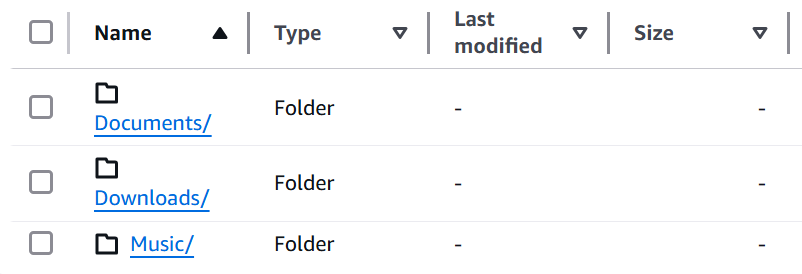
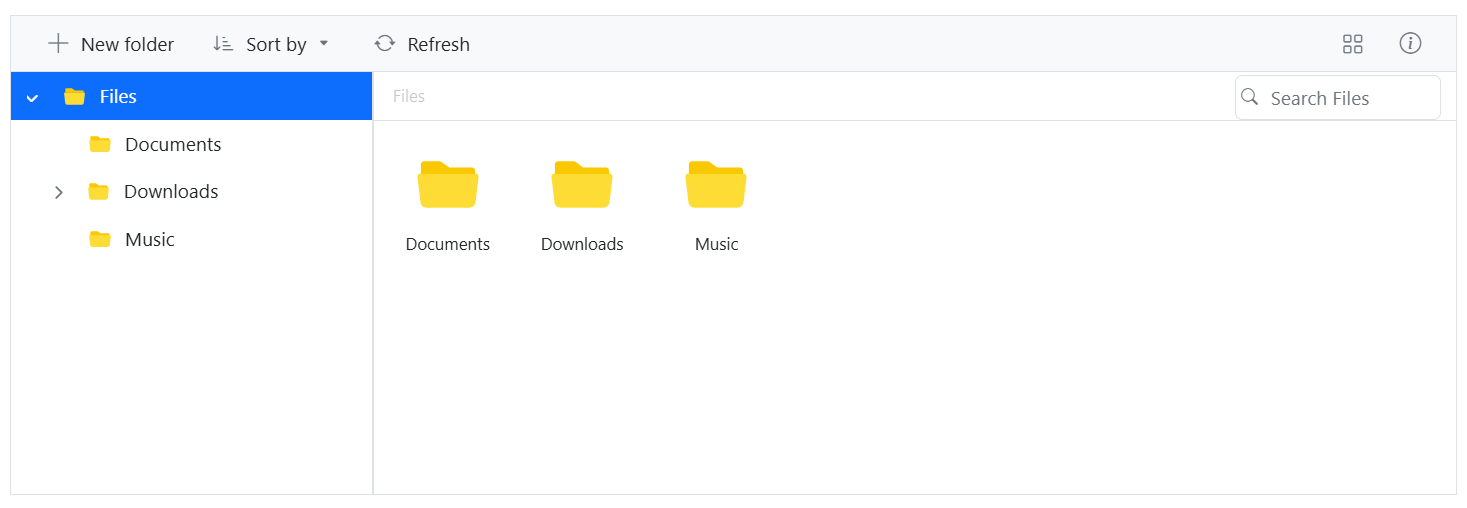
- Now the File Manager connects with the Amazon S3 bucket and showcases the files and folders.
**Amazon s3 bucket
**
**Syncfusion File Manager
**
## **Conclusion**
Integrating **Amazon S3** with the [Syncfusion® Blazor File Manager](https://www.syncfusion.com/blazor-components/blazor-file-manager)
provides a secure and efficient way to manage files directly from the cloud. By following the four simple steps in this guide, you can easily set up file uploads, downloads, and organization within your Blazor app.
This integration offers flexibility, scalability, and enhanced user experience, perfect for cloud-based file management. Expand your app’s functionality and explore more advanced features as you go.
The new version is available for current customers to download from the [license and downloads](https://www.syncfusion.com/account/downloads)
page. If you are not a Syncfusion customer, you can try our [30-day free trial](https://www.syncfusion.com/downloads)
for our newest features.
You can also contact us through our [support forums](https://www.syncfusion.com/forums)
, [support portal](https://support.syncfusion.com/)
, or [feedback portal](https://www.syncfusion.com/feedback)
. We are always happy to assist you!
## Related Blogs
[Effortlessly Manage Large File Uploads with Blazor File Manager](https://www.syncfusion.com/blogs/post/chunk-upload-in-blazor-file-manager)
[Introducing Pagination in Blazor File Manager](https://www.syncfusion.com/blogs/post/blazor-file-manager-pagination)
[Easily Render Flat Data in Blazor File Manager](https://www.syncfusion.com/blogs/post/render-flat-data-blazor-file-manager)
[Enhancing the Blazor File Manager Performance with Virtualization](https://www.syncfusion.com/blogs/post/blazor-file-manager-virtualization)