---
title: "How to Build UML Sequence Diagrams in Angular with Mermaid Syntax"
published_at: "2025-10-30T16:29:14+00:00"
modified_at: "2026-06-26T05:02:54+00:00"
url: "https://www.syncfusion.com/blogs/post/angular-uml-sequence-diagram"
excerpt: "Build UML Sequence Diagrams in Angular like a pro! Explore Syncfusion Diagram Library, Mermaid integration, customization tips, and export options with real-world code examples."
taxonomy_category:
- "Angular"
- "Diagram"
taxonomy_post_tag:
- "Angular Diagram Library"
- "Angular UML Integration"
- "Angular UML Sequence Diagram"
- "diagram"
- "Mermaid Syntax"
- "UML Diagram"
- "UML Sequence Diagram"
---
# How to Build UML Sequence Diagrams in Angular with Mermaid Syntax
[Chella](https://www.syncfusion.com/blogs/author/chella-dhurai-sonaimuthusonaimuthu)
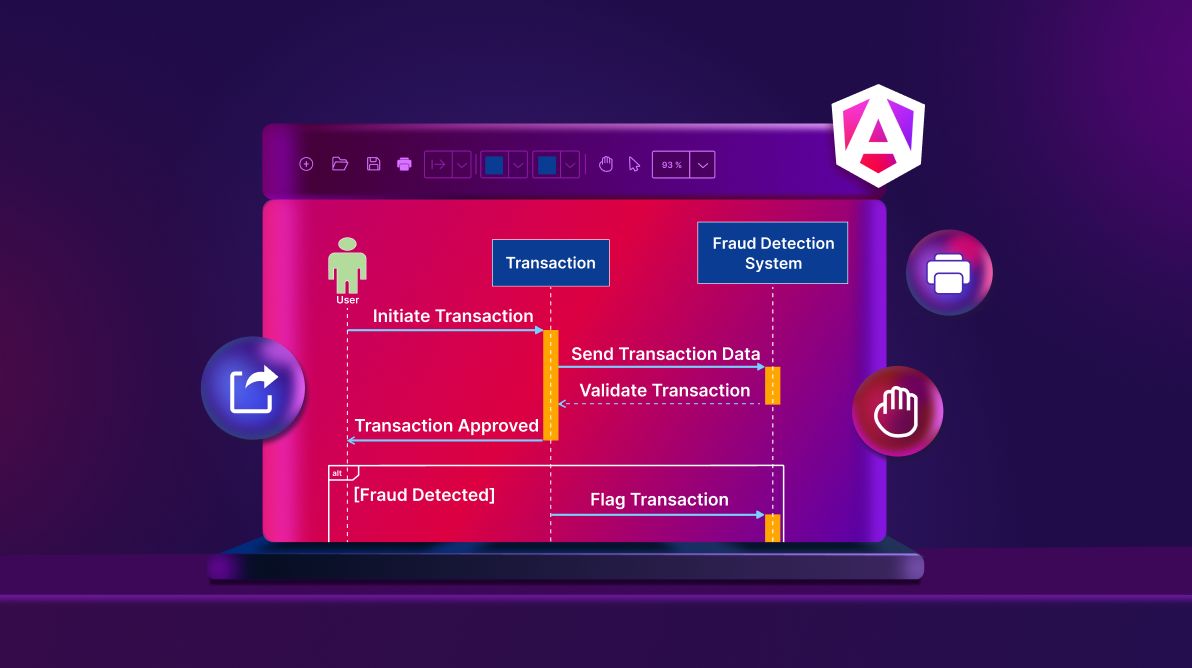
**TL;DR:** Quickly build UML sequence diagrams in Angular using Syncfusion’s Diagram Library and Mermaid syntax. This guide covers UmlSequenceDiagramModel API for lifelines and activation bars, advanced customization, save/load functionality, and efficient export options like PNG, JPEG, and SVG, all demonstrated with practical code snippets.
UML Sequence Diagrams offer a powerful way to visualize how objects interact within a system over time. They help developers model workflows, message exchanges, and activation lifelines, essential for understanding and designing complex applications.
In this guide, you’ll discover how to build UML sequence diagrams in Angular using the [Syncfusion® Angular Diagram](https://www.syncfusion.com/angular-components/angular-diagram)
component and **Mermaid syntax**. You’ll also learn how to customize diagram elements and implement key features like saving, loading, and exporting, with practical code examples to support each step.
## What is a UML sequence diagram?
A [UML sequence diagram](https://en.wikipedia.org/wiki/Sequence_diagram)
is a type of Unified Modeling Language diagram that illustrates how different parts of a system interact over time. It focuses on the order of messages exchanged between objects, making it easier to understand how processes operate and how components collaborate to complete specific tasks.
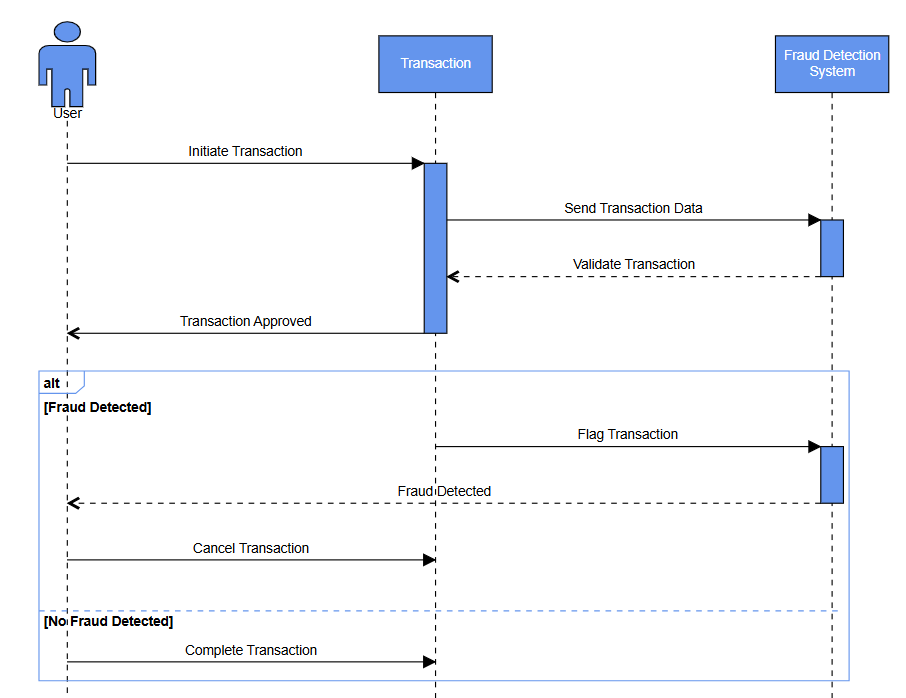
Usage of UML sequence diagram
These diagrams typically include:
- **Participants:** Represent objects or entities involved in the interaction. A participant can be either a user (actor) or an object.
- **Lifelines**: Each lifeline is shown as a vertical dashed line, depicting the existence of the object over time.
- **Messages:** Show communication between lifelines using arrows for synchronous or asynchronous calls.
- **Synchronous (solid arrow)**: The sender waits for a response from the receiver before continuing.
- **Asynchronous (open arrow)**: The sender continues without waiting for a reply from the receiver.
- **Return messages (dashed arrow)**: Indicate the response from a previous message.
- **Self-message**: A message an object sends to itself to perform an internal operation.
- **Create message:** A message that results in the creation of a new object during interaction.
- **Destroy message**: A message that indicates the termination or destruction of an object.
- **Activations**: Vertical rectangles on a lifeline that show when an object is active or performing an operation.
- **Fragments**: Help organize and simplify complex sequence diagrams by grouping related interactions under specific logical conditions.
By visualizing these interactions, teams can clarify requirements, identify potential issues, and improve system architecture.
## Creating UML sequence diagrams in Angular
Before you start, ensure Angular CLI and Node.js are installed.
### Setting up the Angular project
**Step 1:** Create a new Angular app. In this example, we’ll name it uml-sequence-diagram:
```
ng new uml-sequence-diagram
```
**Step 2:** Navigate to your app’s directory, and install all Syncfusion diagram packages using the command below:
```
cd uml-sequence-diagram
npm install @syncfusion/ej2-angular-diagrams
```
**Step 3:** Add the required script and style CDN links to the index.html file:
```
…
```
**Step 4:** Configure the Angular Diagram module, then render the diagram component in your application.
**app.html**
```
```
**app.ts**
```
import { Component } from '@angular/core';
import { DiagramModule } from '@syncfusion/ej2-angular-diagrams';
@Component({
selector: 'app-root',
imports: [DiagramModule],
templateUrl: './app.html',
styleUrl: './app.css'
})
export class App {
protected title = 'uml-sequence-diagram';
}
```
Here’s the basic diagram layout rendered in your Angular application.
Basic diagram layout
**Step 5: Creating a UML sequence diagram**
There are two primary ways to create a UML sequence diagram in Angular using Syncfusion Diagram:
**Method 1: Using the API**
The Syncfusion Angular Diagram Library provides a powerful API called **UmlSequenceDiagramModel** that allows you to programmatically define UML sequence diagrams. This API enables you to configure participants, messages, activation boxes, and control flows in a structured way for accurate visualization of system interactions.
To create a sequence diagram using this API, you define:
1. The **participants** property holds an array of participants, including [id](https://ej2.syncfusion.com/angular/documentation/api/diagram/umlSequenceParticipantModel/#id)
, [content](https://ej2.syncfusion.com/angular/documentation/api/diagram/umlSequenceParticipantModel/#content)
, and [isActor](https://ej2.syncfusion.com/angular/documentation/api/diagram/umlSequenceParticipantModel/)
.
```
participants: [
{
id: "User",
content: "User",
isActor: true
},
{
id: "ATM",
content: "ATM"
}
];
```
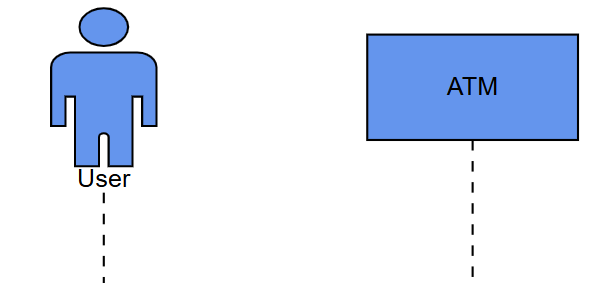
Participants and their lifelines
2. You can also specify `activationBoxes`, which define when a participant is active during the interaction based on message IDs.
```
participants: [
{
id: "Transaction",
content: "Transaction",
// Activation periods for the Transaction participant
activationBoxes: [
{
id: "act1",
startMessageID: "msg1",
endMessageID: "msg4"
}
]
}
];
```
3. The **messages** property defines interactions between participants, including the sender (`fromParticipantID`), receiver (**`toParticipantID`**), message content, and type (such as synchronous, asynchronous, reply, self, create, or delete).
```
messages: [
{
id: "msg1",
content: "Initiate Transaction",
fromParticipantID: "User",
toParticipantID: "ATM",
type: "Synchronous"
},
{
id: "msg2",
content: "Send Transaction Data",
fromParticipantID: "ATM",
toParticipantID: "User",
type: "Reply"
},
{
id: "msg3",
content: "Requesting Transaction Receipt",
fromParticipantID: "User",
toParticipantID: "ATM",
type: "Synchronous"
}
];
```
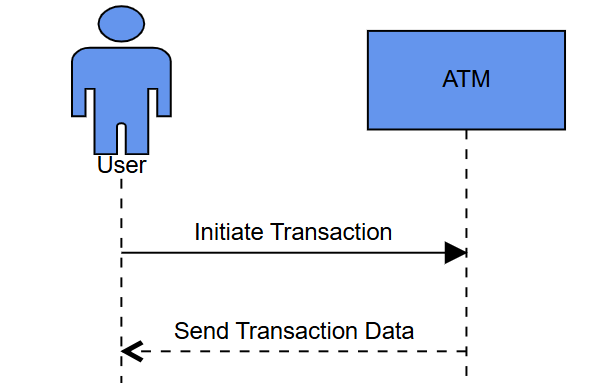
Messages between participants
4. The **fragments** property groups messages under control structures like alternatives, loops, or optional flows to represent conditional logic.
```
fragments: [
{
id: "fragment",
conditions: [
{
messageIds: ["msg3"]
}
]
}
];
```
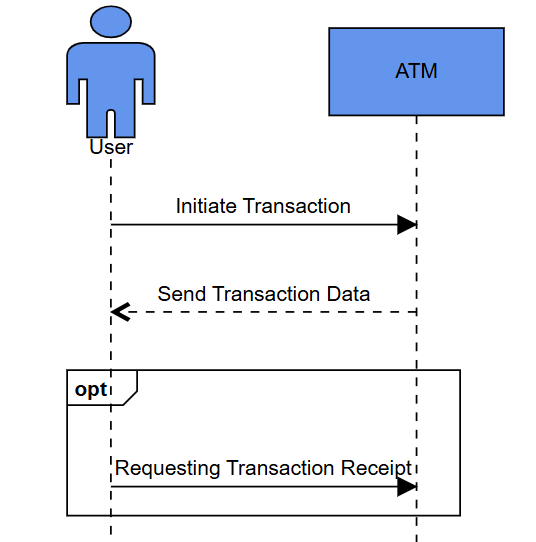
Fragment enclosing a message
5. The **spaceBetweenParticipants** property adjusts horizontal spacing between lifelines for better readability. After configuring the model, assign it to the diagram’s model property, as shown below.
**app.html**
```
```
**app.ts**
```
import { Component } from '@angular/core';
// Import necessary classes & types from ej2-angular-diagrams
import {
DiagramModule,
UmlSequenceDiagramModel,
UmlSequenceFragmentType,
UmlSequenceMessageType,
UmlSequenceParticipant,
UmlSequenceActivationBox,
} from '@syncfusion/ej2-angular-diagrams';
@Component({
selector: 'app-root',
imports: [DiagramModule],
templateUrl: './app.html',
styleUrls: ['./app.css']
})
export class App {
// Define the model for the UML Sequence Diagram
model: UmlSequenceDiagramModel = {
// Space between each participant in the diagram
spaceBetweenParticipants: 250,
// List of participants in the sequence diagram
participants: [
{
id: "User",
content: "User",
// Indicates that User is an actor
isActor: true
},
{
id: "Transaction",
content: "Transaction",
// Activation periods for the Transaction participant
activationBoxes: [
{ id: "act1", startMessageID: 'msg1', endMessageID: 'msg4' }
]
},
{
id: "FraudDetectionSystem",
content: "Fraud Detection System",
// Activation periods for the Fraud Detection System participant
activationBoxes: [
{ id: "act2", startMessageID: 'msg2', endMessageID: 'msg3' },
{ id: "act3", startMessageID: 'msg5', endMessageID: 'msg6' }
]
}
],
// List of messages exchanged between participants
messages: [
{ id: 'msg1', content: "Initiate Transaction", fromParticipantID: "User", toParticipantID: "Transaction", type: UmlSequenceMessageType.Synchronous },
…
{ id: 'msg8', content: "Complete Transaction", fromParticipantID: "User", toParticipantID: "Transaction", type: UmlSequenceMessageType.Synchronous }
],
// Conditional fragments within the sequence
fragments: [
{
id: 1,
// Represents alternative fragment
type: UmlSequenceFragmentType.Alternative,
conditions: [
// Condition when fraud is detected
{
content: "Fraud Detected",
// Messages part of this condition
messageIds: ['msg5', 'msg6', 'msg7']
},
{
content: "No Fraud Detected",
messageIds: ['msg8']
}
]
}
]
};}
```
**Note:** To refresh the sequence diagram, update the diagram’s model property and call the [updateFromModel](https://ej2.syncfusion.com/angular/documentation/api/diagram#updatefrommodel)
method.
**Method 2: Using Mermaid Syntax**
Syncfusion Angular Diagram also supports **Mermaid syntax**, a popular text-based diagramming language. This method is ideal for quick diagram generation or importing diagrams from external sources:
```
sequenceDiagram
Alice->>John: Hello John, how are you?
John-->>Alice: Great!
Alice-)John: See you later!`;
```
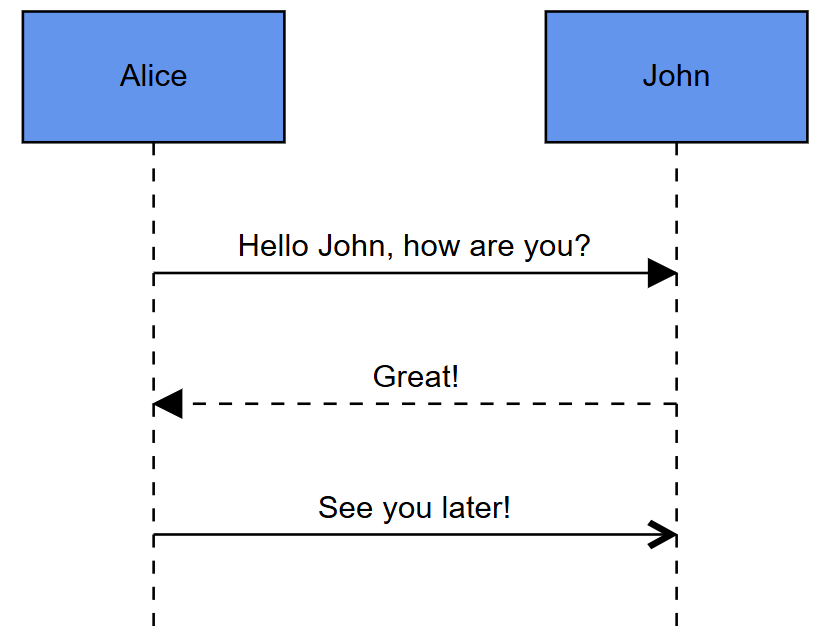
Mermaid data and UML Sequence Diagram
To load a Mermaid-based sequence diagram, you can use the [loadDiagramFromMermaid](https://ej2.syncfusion.com/angular/documentation/api/diagram#loaddiagramfrommermaid)
method. This method takes a Mermaid-formatted string as an argument and renders the corresponding UML sequence diagram within the diagram component.
```
diagram.loadDiagramFromMermaid(mermaidData);
```
This allows you to import diagrams from external sources using Mermaid syntax, making it easier to integrate with other tools or documentation.
You can also export the current diagram as Mermaid syntax using the [saveDiagramAsMermaid](https://ej2.syncfusion.com/angular/documentation/api/diagram/#savediagramasmermaid)
method. This returns a string containing the Mermaid representation of the sequence diagram, which can be saved, shared, or reused.
```
const mermaidData : string = diagram. saveDiagramAsMermaid();
```
Try out this quick Mermaid UML sequence diagram data visualizer app: [StackBlitz](https://stackblitz.com/edit/angular-hrzw15-ecbhqhf6?file=src%2Fapp.component.html)
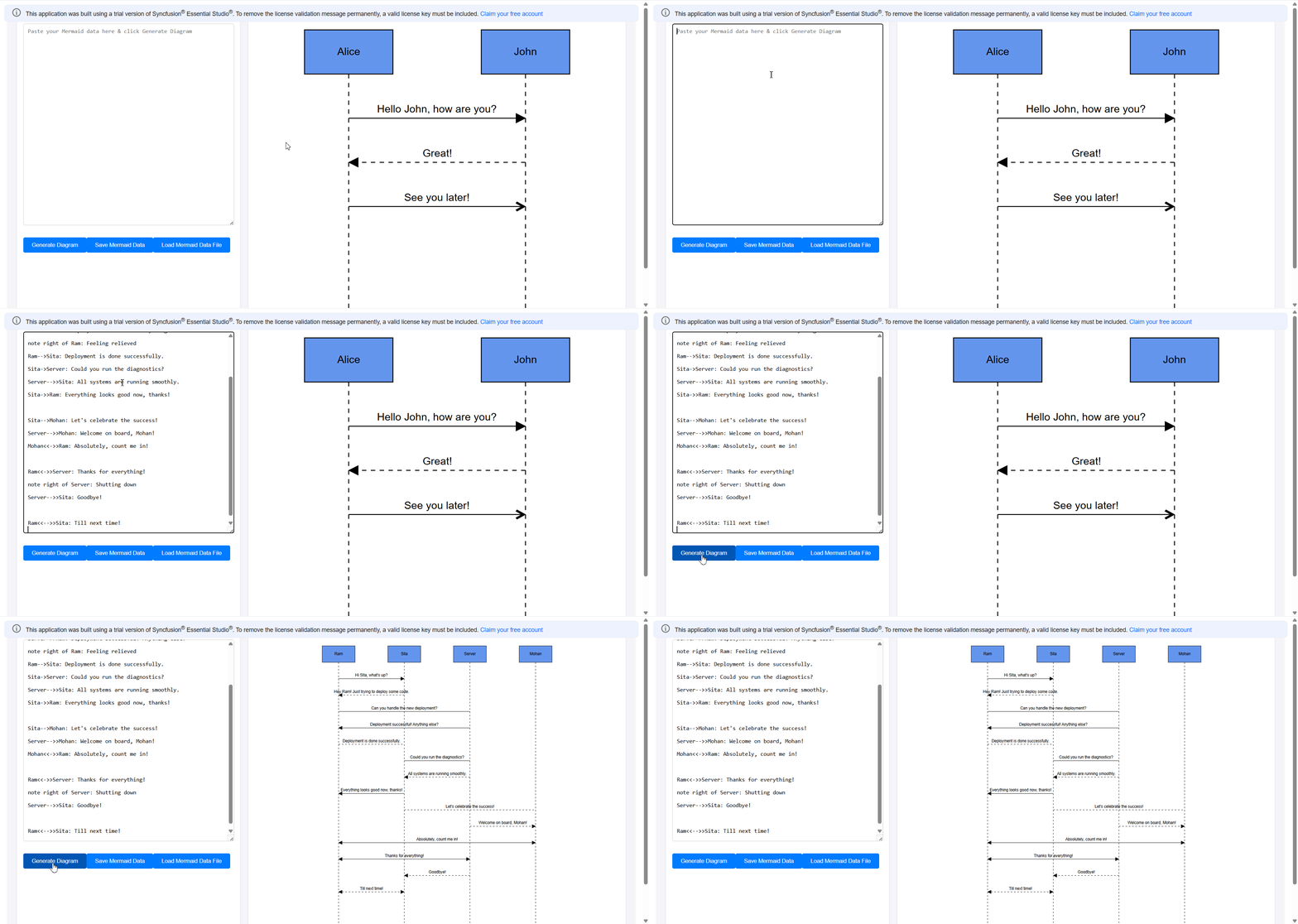
Mermaid data visualizer app
Simplify Diagram Creation in Angular
Turn complex ideas into clear visual diagrams with Syncfusion Angular Diagram. Build, edit, connect, and arrange diagram elements using built-in support for interactive editing, layouts, and customization.
[Build Your First Angular Diagram](https://www.syncfusion.com/angular-components/angular-diagram)
## Customizations of sequence diagram objects
Sequence Diagram objects are essentially the nodes and connectors of a diagram. This means you can customize them just like any other diagram elements.
### Customizing participant node shapes
Syncfusion Angular Diagram supports various node shape types, such as Native, HTML, and Image. You can use these to customize participant nodes via the **getNodeDefaults** method. For more info related to setting different node shapes, refer to the official [documentation](https://ej2.syncfusion.com/angular/documentation/diagram/shapes)
.
```
nodeDefaults(node: NodeModel): void {
// Customize the participant node
if (node.data instanceof UmlSequenceParticipant) {
if (node.data.id === 'Laptop') {
// Override Node Shape
node.shape = {
type: 'Native',
content: this.laptopTemplate // Reference to a template for the laptop
};
}
}
}
```
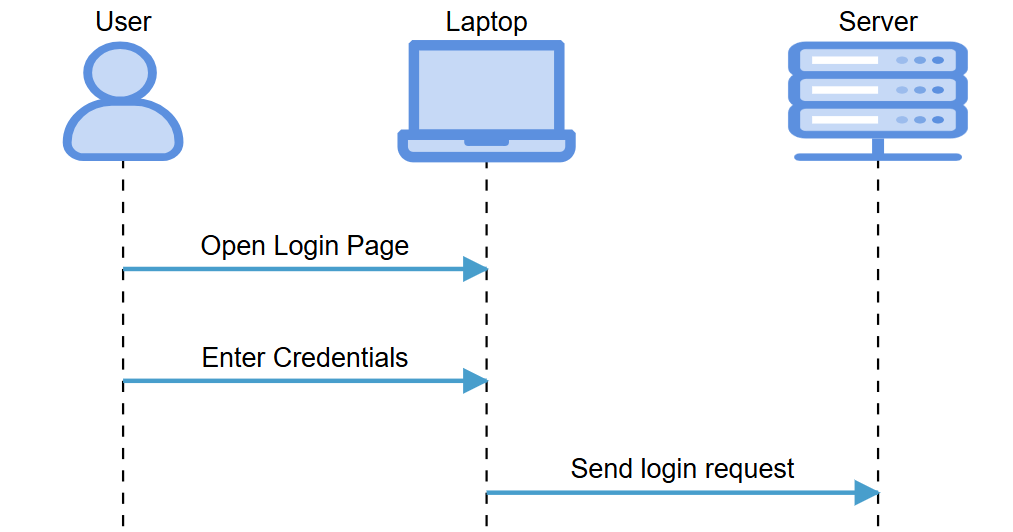
Participant nodes with native shapes
### Customizing styles of sequence diagram objects
We can customize the sequence diagram objects formed by nodes and connectors using **getNodeDefaults** and ** getConnectorDefaults**. These methods are triggered upon initialization of the diagram, which helps in customizing each node and connector in the diagram.
```
// Style settings for nodes in the diagram
nodeDefaults(node: NodeModel): void {
// Participant node
if (node.data instanceof UmlSequenceParticipant) {
if (!node.data.isActor) {
node.annotations[0].style.color = 'white'; // Set annotation text color for non-actor participants
}
}
// Activation node
else if (node.data instanceof UmlSequenceActivationBox) {
node.style = { fill: 'orange', strokeColor: 'orange' }; // Style for activation boxes
}
}
// Style settings for connectors in the diagram
connectorDefaults(connector: ConnectorModel): void {
const message = this.model!.messages!.find(
(msg: any) => msg.id === connector.id // Find the message that corresponds to the connector
);
if (message) {
connector.targetDecorator!.style = {
fill: '#489ECC',
strokeColor: '#489ECC'
}; // Style for connector target
connector.style = {
strokeColor: '#489ECC',
strokeWidth: 2 // Style settings for the connector itself
};
}
}
```
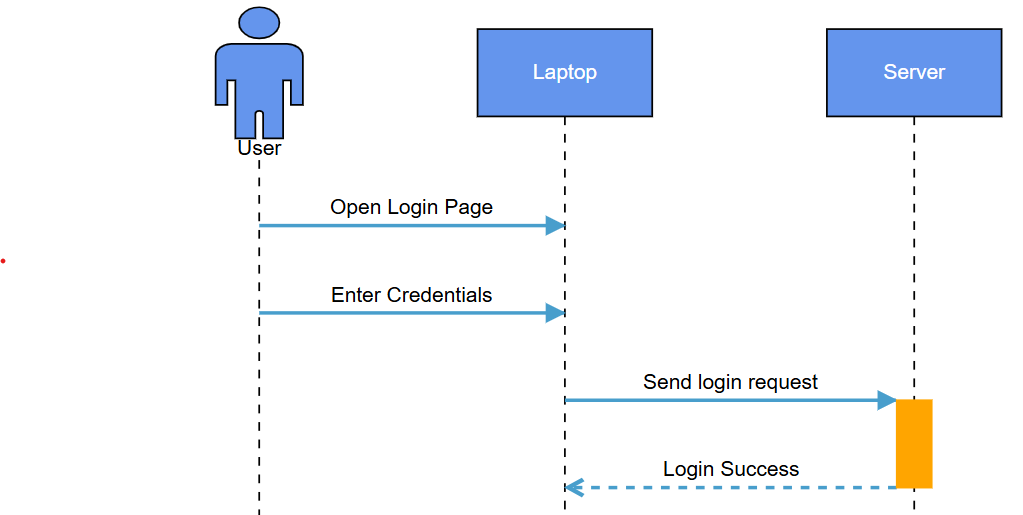
Customizing the styles of sequence diagram objects
## Export
You can export the UML sequence diagram as an image in various formats, such as JPEG, PNG, or SVG. This makes it easy to share via email, embed in documents, or include in presentations.
To export, open the [StackBlitz](https://stackblitz.com/edit/angular-oodzn3ch?file=src%2Fapp.component.html,src%2Fapp.component.ts)
demo, click the **Export** button in the toolbar, and choose the desired image format. You can export either the content area or the entire diagram, depending on your page settings. For more details, refer to the official [documentation](https://ej2.syncfusion.com/angular/documentation/diagram/export#region)
.
Refer to the following image:
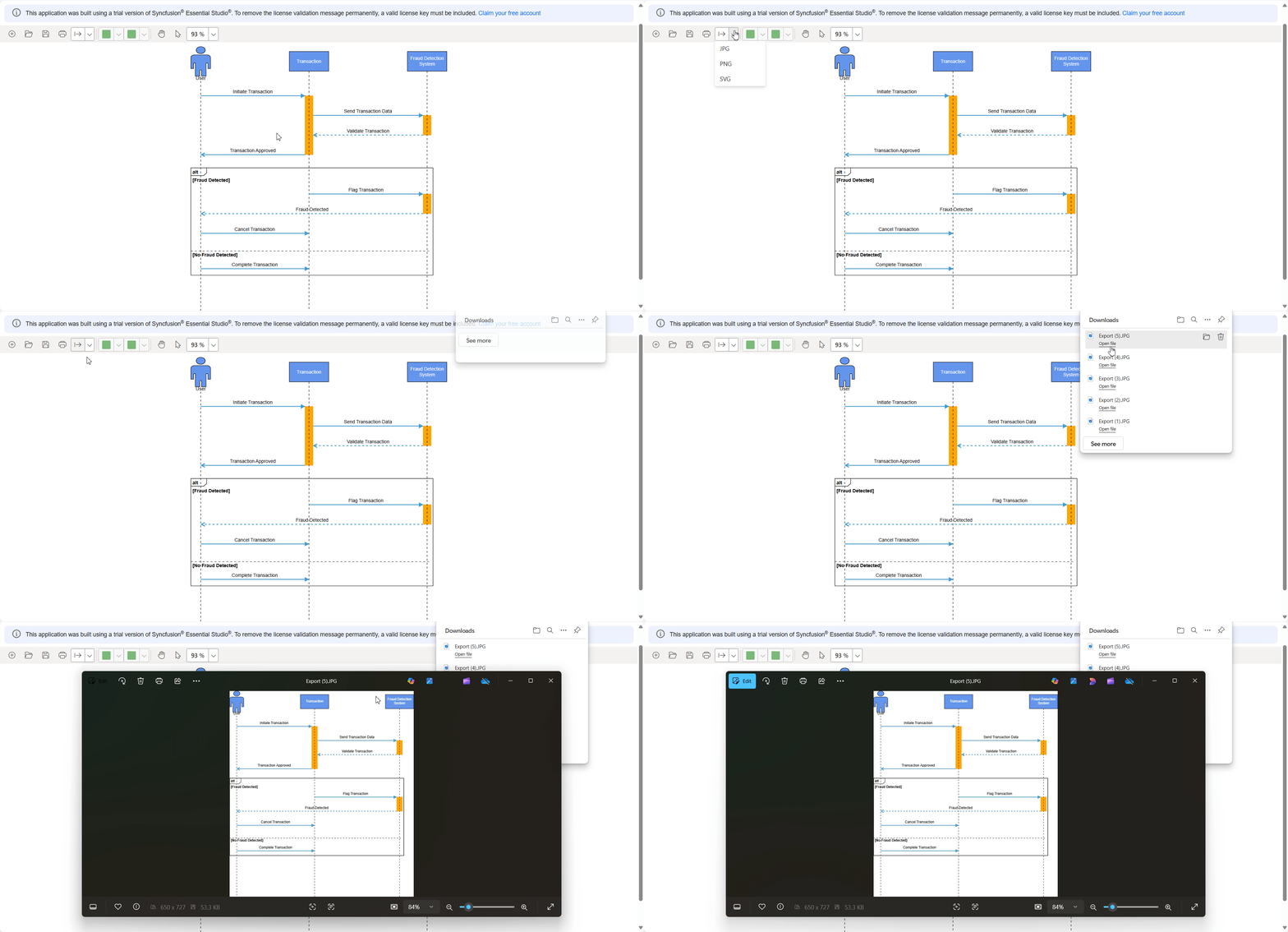
Exporting UML sequence diagram
## Print
To print the diagram currently displayed, click the Print button in the toolbar, as shown below.
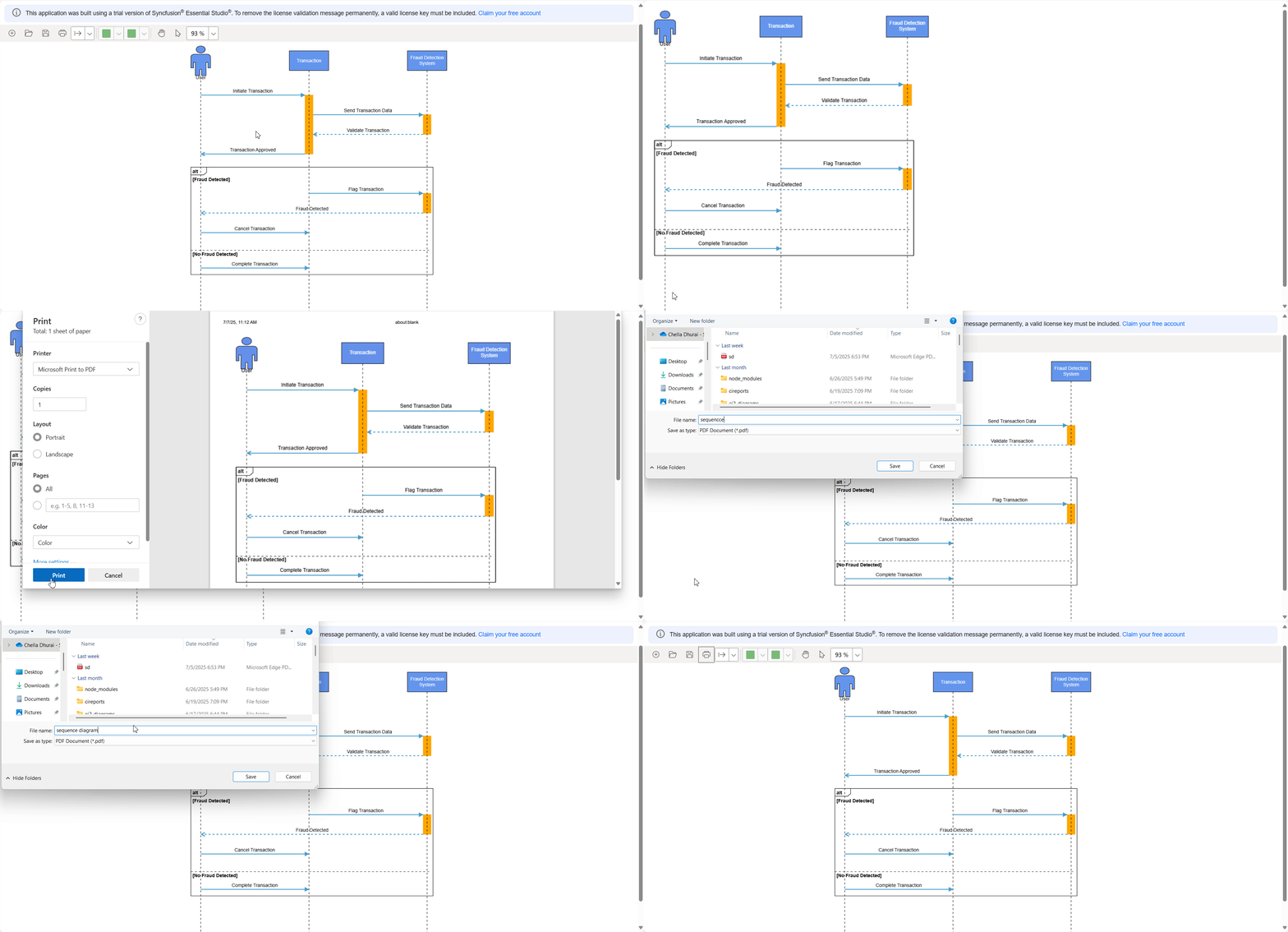
Printing UML Sequence Diagram
## Loading and saving a diagram
The Angular Diagram Library offers a useful feature that enables you to save your work and resume it later by reloading the saved diagram onto the diagram canvas.
- To save your current diagram on your local drive, select the **Save Diagramoption** in the toolbar.
- To load an existing diagram file, select the Open Diagram option in the toolbar.
This feature offers great flexibility and convenience, enabling you to easily resume work on a diagram or make changes to a previously saved one. It’s an essential feature for any diagramming app that allows users to create and manage complex diagrams.
## Pan and zoom
The Angular Diagram Library supports several intuitive pan and zooming options:
- **Pan using scrollbars:** Use the scrollbars on the right and bottom to move the diagram in any direction**.**
- **Pan using mouse wheel:** Rotate the wheel to scroll up/down. Hold Shift while rotating to scroll left/right.
- **Pan using pan tool:** Select the Pan tool from the toolbar, then drag the diagram by holding the left mouse button. 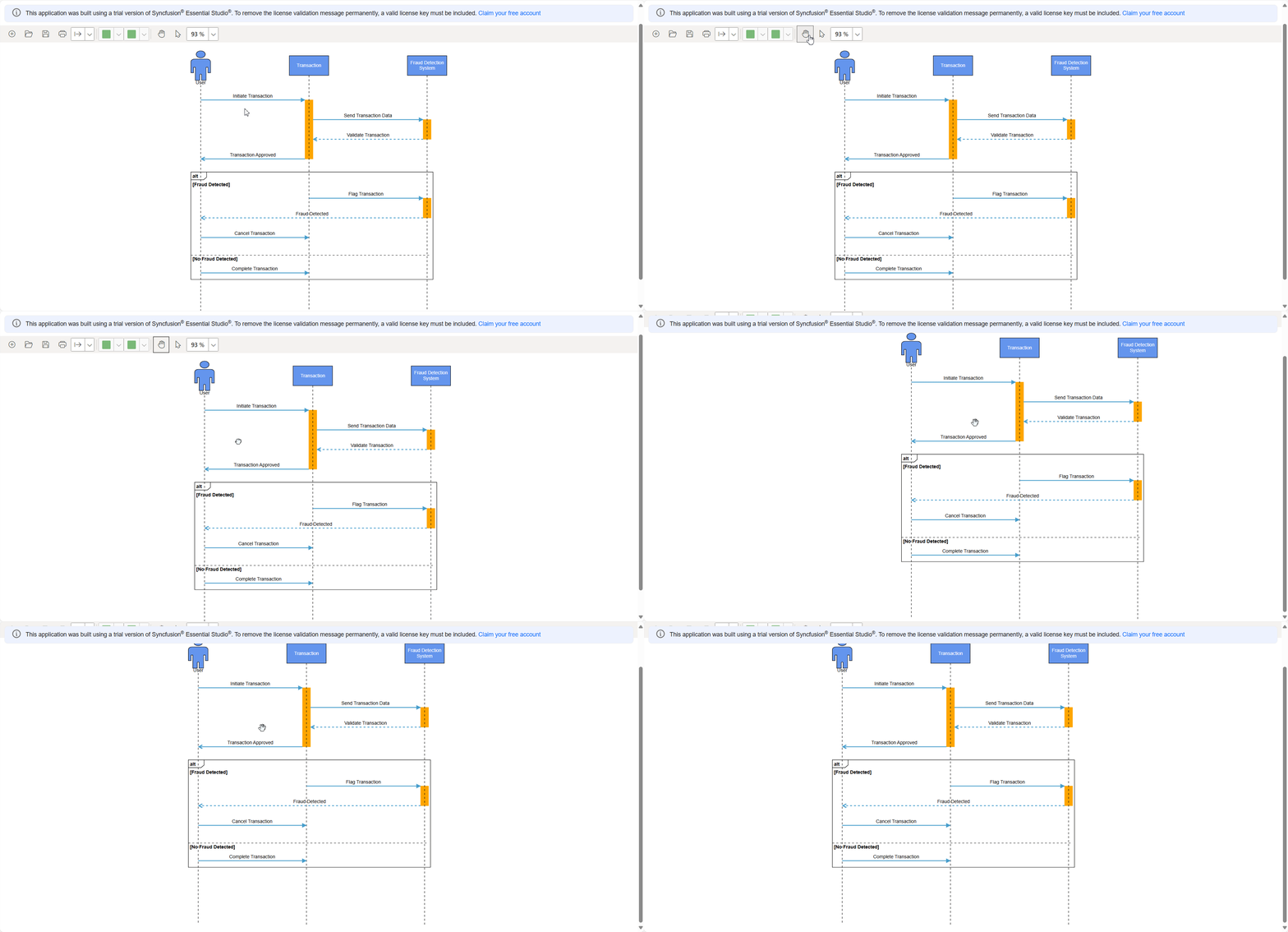 Panning UML Sequence Diagram
**Zoom options:**
- **Keyboard shortcut:** Press Ctrl + mouse wheel to zoom in or out.
- **Toolbar option:** Use the zoom dropdown in the toolbar.
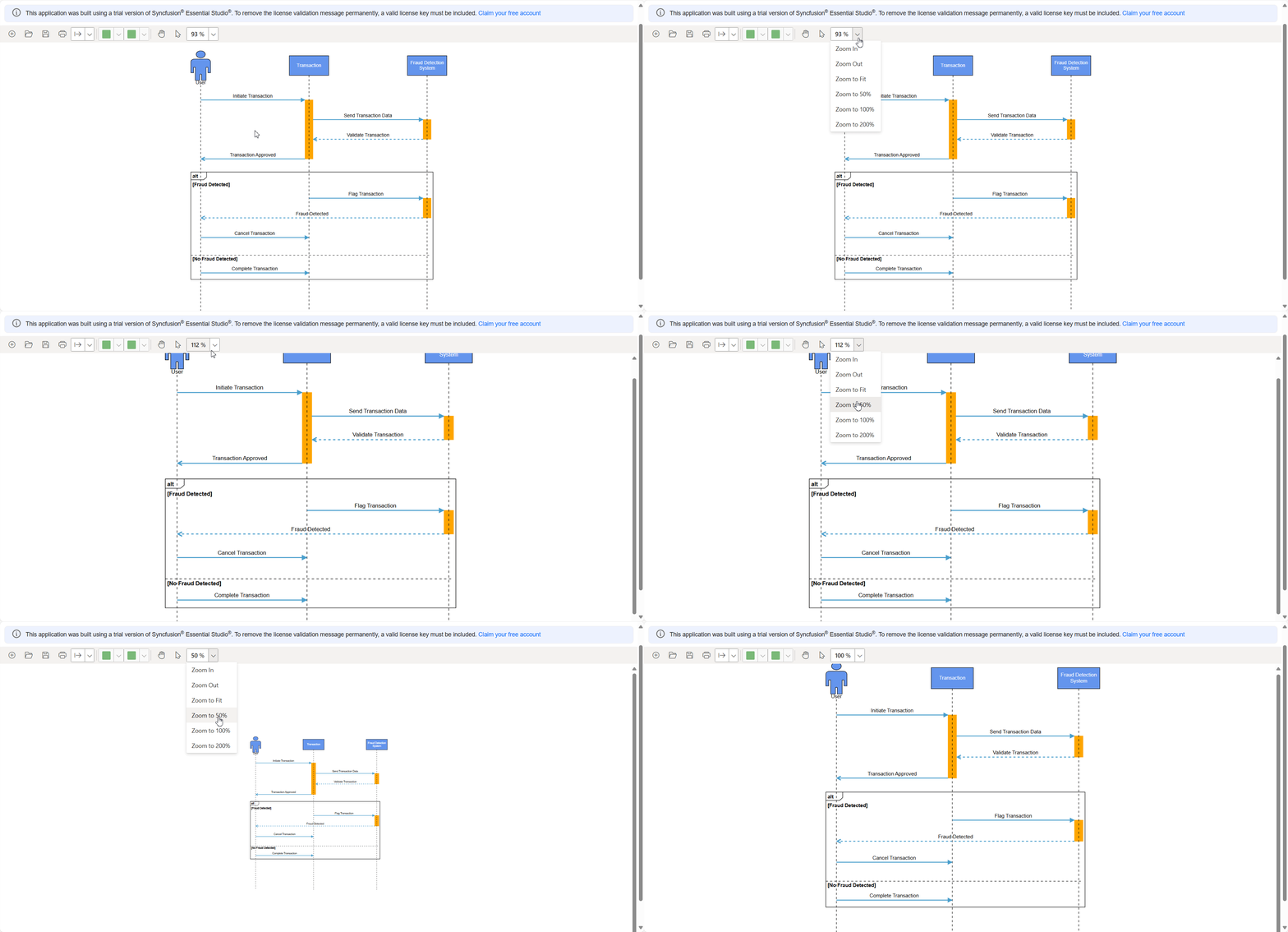
Zooming UML Sequence Diagram
Finally, you’ll have a complete UML sequence diagram built with Syncfusion Angular Diagram, ready to handle interactions and customization effectively, as shown below.
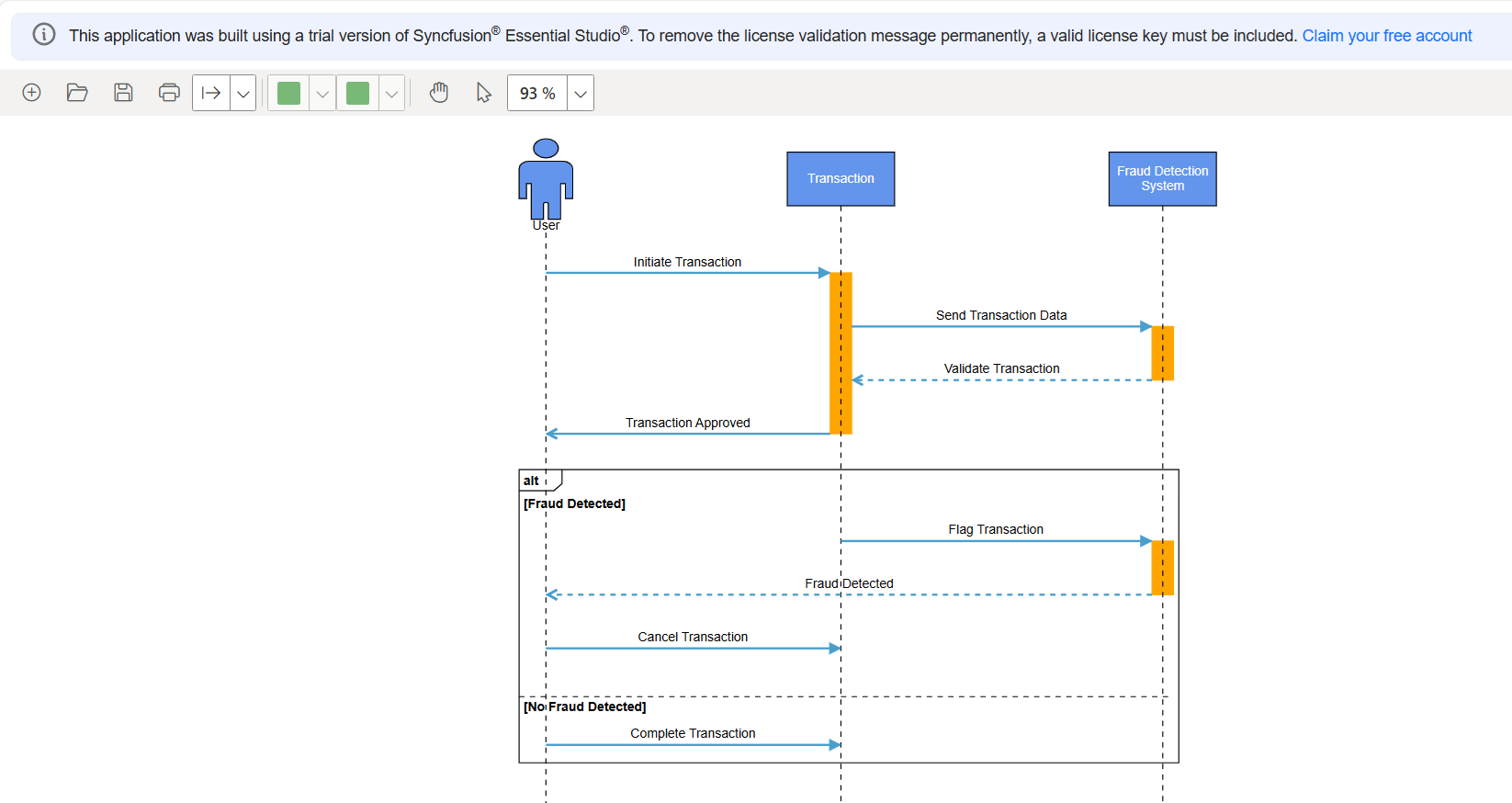
UML sequence diagram built using Syncfusion Angular Diagram
## Reference
Try the [Stackblitz Demo](https://stackblitz.com/edit/angular-oodzn3ch?file=src%2Fapp.component.html,src%2Fapp.component.ts)
and start building UML Sequence Diagrams in your Angular app today!
## Conclusion
UML Sequence Diagrams help visualize how components interact in a system. With [Syncfusion’s Angular Diagram Library](https://www.syncfusion.com/angular-components/angular-diagram)
, you can create these diagrams using the **UmlSequenceDiagramModel** API for complete control or Mermaid syntax for quick generation. You can also customize lifelines, export diagrams, and save or load them easily.
If you’re a Syncfusion user, you can download the setup from the [license and downloads](https://www.syncfusion.com/sales/teamlicense)
page. Otherwise, you can download a free [30-day trial](https://www.syncfusion.com/downloads/)
.
You can also contact us through our [support forum](https://www.syncfusion.com/forums?_ga=2.160385213.108886952.1555906495-214292665.1551328372)
, [support portal](https://support.syncfusion.com/)
, or [feedback Portal](https://www.syncfusion.com/feedback/)
for queries. We are always happy to assist you!
## Related Blogs
[Easily Create Interactive UML Class Diagrams in Angular](https://www.syncfusion.com/blogs/post/create-uml-class-diagram-in-angular)
[Easily Create UML Activity Diagrams in Angular](https://www.syncfusion.com/blogs/post/create-angular-uml-activity-diagram)
[Easily Create UML Activity Diagrams with React Diagram Library](https://www.syncfusion.com/blogs/post/uml-activity-diagram-in-react-diagram)
[Create Interactive UML Activity Diagrams in Vue with Ease](https://www.syncfusion.com/blogs/post/uml-activity-diagram-vue)