---
title: "Add Effects Like a Pro Using .NET MAUI Effects View"
published_at: "2022-06-23T10:00:56+00:00"
modified_at: "2026-02-10T13:17:08+00:00"
url: "https://www.syncfusion.com/blogs/post/add-effects-like-a-pro-using-net-maui-effects-view"
excerpt: "Adding effects to an application (particularly in a mobile app) is an important part of building your app. Adding effects not only enhances the app’s appearance but also user interaction and experience. Especially, when you are developing a cross-platform app..."
taxonomy_category:
- ".NET MAUI"
- "Desktop"
- "Development"
- "Syncfusion"
- "UI"
taxonomy_post_tag:
- ".NET MAUI"
- "development"
- "Effects View"
- "Mobile"
- "Xamarin.Forms"
---
# Add Effects Like a Pro Using .NET MAUI Effects View
[Selva Ganapathy Kathiresan](https://www.syncfusion.com/blogs/author/selva-ganapathy-k)

Adding effects to an application (particularly in a mobile app) is an important part of building your app. Adding effects not only enhances the app’s appearance but also user interaction and experience.
Especially, when you are developing a cross-platform app like in [.NET MAUI](https://dotnet.microsoft.com/en-us/apps/maui)
, you should apply good effects to your UI design. In this blog, I’ll show you how to use our Effects View control to do this.
## Basic .NET MAUI Effects
Mobile apps like .NET MAUI commonly include basic effects, like ripple, rotation, and scaling. These kinds of animations make the app highly interactive.
## .NET MAUI Effects View
At [Syncfusion](https://www.syncfusion.com/)
, we understand the need for and usage of this requirement and provide you with a control named [.NET MAUI Effects View](https://www.syncfusion.com/maui-controls/maui-effects-view)
. It’s a container control that provides modern effects like ripple, selection, scaling, and rotation. You can render these effects using touch interactions, such as touch down, touch up, and long press, and also by calling the API.
You can easily integrate the control into your .NET MAUI app and it will take care of the effects based on your requirement and settings.
## How to integrate .NET MAUI Effects View in your app
Syncfusion .NET MAUI controls are available on [Nuget.org](https://www.nuget.org/)
. To add the [Effects View](https://help.syncfusion.com/cr/maui/Syncfusion.Maui.Core.SfEffectsView.html?tabs=tabid-1)
control to your project, first, open the NuGet package manager in [Visual Studio](https://visualstudio.microsoft.com/)
. Search for [Syncfusion.Maui.Core](https://www.nuget.org/packages/Syncfusion.Maui.Core/)
and then install it. Then, follow these steps:
**Step 1**: In the ** MauiProgram.cs** file, register the handler for Syncfusion core.
```
public static class MauiProgram
{
public static MauiApp CreateMauiApp()
{
var builder = MauiApp.CreateBuilder();
builder.ConfigureSyncfusionCore();
return builder.Build();
}
}
```
**Step 2:** Then, add the ** Syncfusion.Maui.Core** namespace using the following code.
```
xmlns:effectsView="clr-namespace:Syncfusion.Maui.Core;assembly=Syncfusion.Maui.Core"
```
**Step 3:** Finally, add the Syncfusion .NET MAUI Effects View as the parent of the element to which you need to add the effects. Here, I have added it to a card UI.
```
```

Adding .NET MAUI Effects View to Card UI
## Effects
Now, let’s see the various effects supported by the .NET MAUI Effects View control.
### Highlight effects
[SfEffects.Highlight](https://help.syncfusion.com/cr/maui/Syncfusion.Maui.Core.SfEffects.html#Syncfusion_Maui_Core_SfEffects_Highlight)
is a smooth transition on the background color of the Effects View control.
```
```
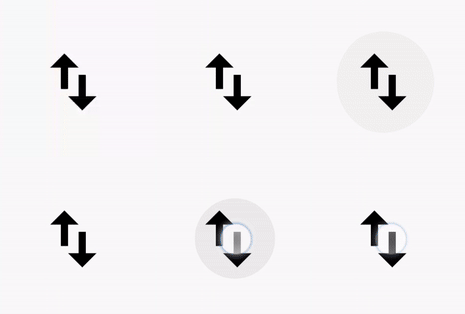
Ripple Effects in .NET MAUI Effects View Control
### Rotation
[SfEffects.Rotation](https://help.syncfusion.com/cr/maui/Syncfusion.Maui.Core.SfEffects.html#Syncfusion_Maui_Core_SfEffects_Rotation)
provides a circular movement to the Effects View control around the center based on the specified [Angle](https://help.syncfusion.com/cr/maui/Syncfusion.Maui.Core.SfEffectsView.html#Syncfusion_Maui_Core_SfEffectsView_Angle)
.
```
```
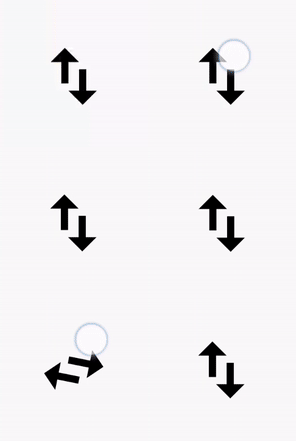
Rotation Effects in .NET MAUI Effects View Control
### Scale
[SfEffects.Scale](https://help.syncfusion.com/cr/maui/Syncfusion.Maui.Core.SfEffects.html#Syncfusion_Maui_Core_SfEffects_Scale)
is a smooth transition on the size of the [SfEffectsView.Content](https://help.syncfusion.com/cr/maui/Syncfusion.Maui.Core.SfEffectsView.html#Syncfusion_Maui_Core_SfEffectsView_Content)
from its actual size to the size mentioned on the [ScaleFactor](https://help.syncfusion.com/cr/maui/Syncfusion.Maui.Core.SfEffectsView.html#Syncfusion_Maui_Core_SfEffectsView_ScaleFactor)
in pixels.
```
```

Scale Effects in .NET MAUI Effects View Control
### Selection
[SfEffects.Selection](https://help.syncfusion.com/cr/maui/Syncfusion.Maui.Core.SfEffects.html#Syncfusion_Maui_Core_SfEffects_Selection)
is a smooth color transition to indicate whether the Effects View state is selected or not.
```
```

Selection Effects in .NET MAUI Effects View Control
## Valid combination of effects
Following are the valid combination of effects that can be applied in the .NET MAUI Effects View control:
- Highlight and ripple
- Highlight and selection
- Ripple and selection
- Highlight, ripple, and selection
- Scale and selection
## Possible interactions to show effects
Now, let’s see the different touch interaction features available to set effects in the .NET MAUI Effects View control.
### Touch down
Use the **TouchDownEffects** property to render the effects with touch-down interaction.
```
```
### Long press
Use the **LongPressEffects** property to render the effects with long-press interaction.
```
```
### Touch up
Use the **TouchUpEffects** property to render the effects with touch-up interaction.
```
```
## When and where effects are needed
Effects are needed on interactive elements like buttons, sliders, tab headers, switches, etc. These interactive elements generally show ripple effects on tapping and highlight effects on mouse hovering. Cross-platform apps like .NET MAUI will depend on mouse hover and tap interactions.
If you are creating an interactive Image control, then simply add those interactions into the .NET MAUI Effects View control. Don’t worry, the control will take care of the effects.
**Note:** For more details, refer to the [Getting started with .NET MAUI Effects View](https://help.syncfusion.com/maui/effects-view/getting-started)
documentation.
## Conclusion
Thanks for reading! I hope you enjoyed this blog. Try out the modern effects available in our [.NET MAUI Effects View](https://www.syncfusion.com/maui-controls/maui-effects-view)
control and leave your feedback in the comments section below!
For questions, you can contact us through our [support forum](https://www.syncfusion.com/forums)
, [support portal](https://support.syncfusion.com/)
, or [feedback portal](https://www.syncfusion.com/feedback/xamarin-forms)
. As always, we are happy to assist you!
## Related blogs
- [Xamarin Versus .NET MAUI](https://www.syncfusion.com/blogs/post/xamarin-versus-net-maui.aspx)
- [Page Navigation in .NET MAUI: An Overview](https://www.syncfusion.com/blogs/post/page-navigation-in-net-maui-an-overview.aspx)
- [.NET MAUI GA Release: Syncfusion Updates](https://www.syncfusion.com/blogs/post/net-maui-ga-release-syncfusion-updates.aspx)
- [Easily Create and Bind Custom Event Objects in .NET MAUI Scheduler](https://www.syncfusion.com/blogs/post/easily-create-and-bind-custom-event-objects-in-net-maui-scheduler.aspx)