We use cookies to give you the best experience on our website. If you continue to browse, then you agree to our privacy policy and cookie policy.


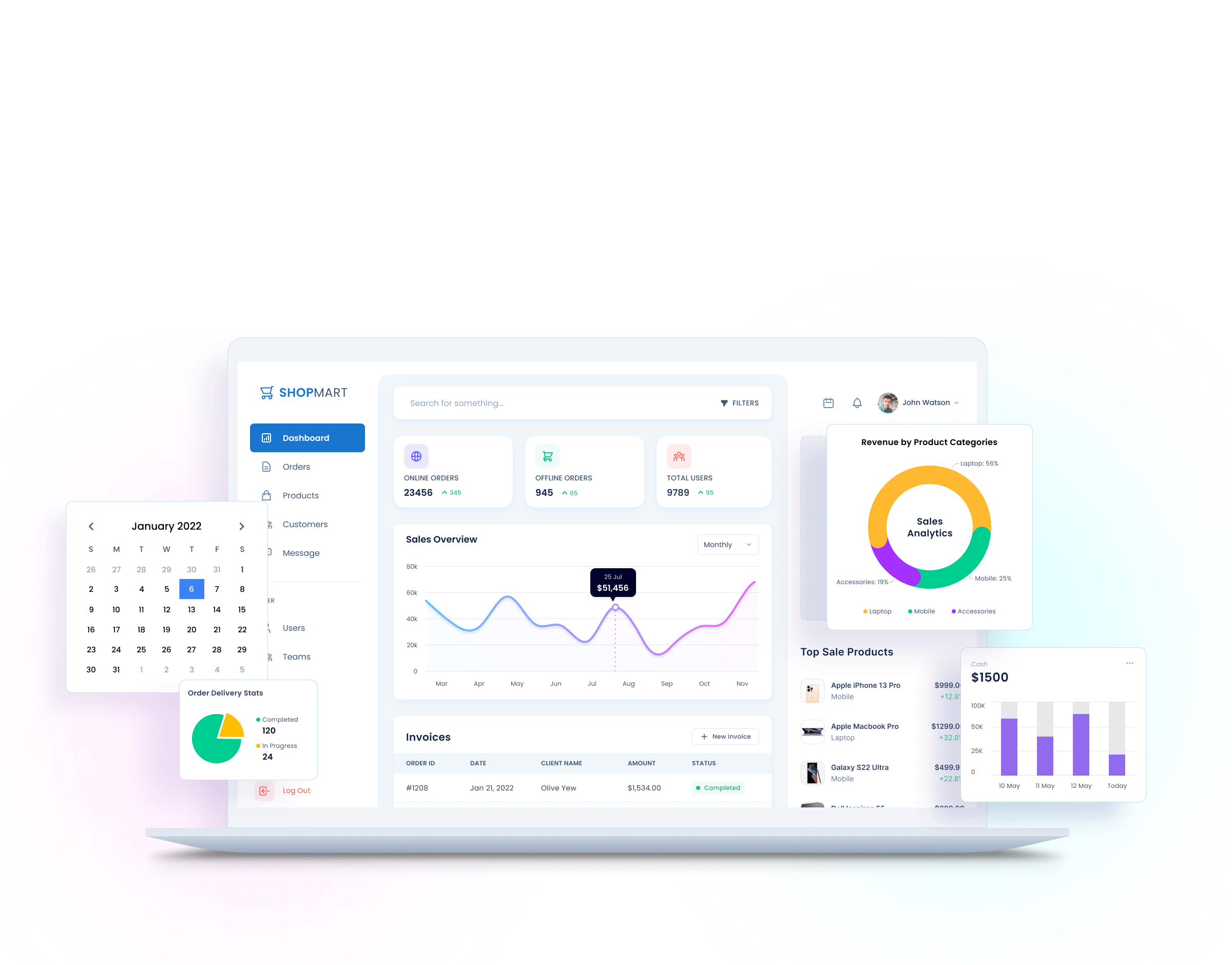
Essential Studio is a software package that provides state-of-the-art solutions for startups and enterprises. It includes more than 1,800 components and frameworks for WinForms, WPF, ASP.NET (MVC, Core), UWP, WinUI, .NET MAUI, Xamarin, Flutter, Blazor, JavaScript, Angular, Vue, and React that make developers’ work easier.
Includes more than 1,800 components and frameworks for major platforms.
A wide range of product demos and training, including video tutorials, documentation, and KBs.
Every control is fine-tuned to work with a high volume of data.
Create powerful apps by viewing and editing Excel, PDF, Word, and PowerPoint files.
Truly unlimited dedicated support system via the public forum, feature & feedback page, live chat, and support tickets.
Easy integration of tools to blend Syncfusion controls with your project.
Simple, straightforward, and no hidden fees. Guaranteed.
Get minor improvements and bug fixes every week to stay up to date.











Greatness—it’s one thing to say you have it, but it means more when others recognize it. Syncfusion is proud to hold the following industry awards.